
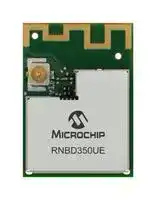


RNBD350UE-I100
Bluetooth Module, BLE 5.2, U.FL Connector Antenna, 2Mbps, 1.9 to 3.6V, -108dBm, -40 to 85 °C
- Manufacturer: MICROCHIP
- Product type: Bluetooth Modules & Adaptors
- SVHC: No SVHC (04-Feb-2026)
- Interfaces: UART
- Product Range: RNBD350 Series
- Certifications: CE, FCC, ISED, KC, MIC, NCC, SRRC, UKCA
- Bluetooth Class: -
- Bluetooth Version: Bluetooth LE 5.2
- Supply Voltage Range: 1.9 V to 3.6 V
- Receiver Sensitivity Rx: -108 dBm
- Operating Temperature Range: -40 °C to 85 °C
| Delivery and price | |
|---|---|
| Units per pack | 490 |
| Price | 3.47 € |
| Current stock | 100+ |
| Lead time | 30 days |

## **RNBD350 Bluetooth[®] Low Energy Module User’s Guide RNBD350**

## **Introduction**

Microchip’s RNBD350 Bluetooth[®] Low Energy module has fully-certified 5.2 connectivity in compact form. With all of its advanced features, it simplifies the integration of Bluetooth Low Energy connectivity into designs, reducing the need for extensive engineering efforts.

The RNBD350 module utilizes an ASCII-based control interface that communicates over UART, making configuration straightforward without the need for complex configuration tools or coding. The RNBD350 module supports both peripheral and central Generic Access Profile (GAP) roles, actively scanning for other connectable devices. In addition, the RNBD350 module supports a standardized Host Controller Interface (HCI) mode for seamless integration with Linux-based host processors. The module switches dynamically to HCI mode upon the reception of HCI commands.

Notably, the RNBD350 module fully supports Bluetooth features like Data Length Extension (DLE) and Bluetooth Low Energy-secured connections, which are enabled by default. DLE increases the Bluetooth Low Energy packet Protocol Data Unit (PDU) length leading to higher throughput. LE secure connections feature support provides additional security during pairing against passive eavesdropping.

In addition to these features, the RNBD350 module also embraces Bluetooth 5.x-specific enhancements such as “Advertising Extension”. This feature expands the possibilities for configuring advertisement data, making it suitable for various Bluetooth Low Energy beacon applications. Furthermore, the module supports additional Physical Layer (PHY) options beyond the original 1M, including 2M with double symbol rate (for increased throughput) and Coded (for extended range).

## **Features**

- Fully RF-Certified Bluetooth Low Energy Module

- Compact Form Factor

- On-Board Bluetooth 5.2 Low Energy Stack

- ASCII Command Interface Over UART

- Host Controller Interface (HCI) Mode

- ASCII Commands are Backward Compatible with RN487x Family of Modules

- Beacon Support

- Built-in Microchip Transparent Profile for UART Data Streaming

- Over-the-Air (OTA) Remote Configuration

- Embedded Enhanced Security

- 2M Uncoded PHY and Long Range (Coded PHY)

- Extended Advertising

- Data Length Extensions and Secure Connections

- Bluetooth Low Energy Privacy 1.2 with Up to Eight Resolvable and Accept Lists

- UART-Based Device Firmware Update (DFU)

- Built-in Microchip OTA Profile with Client and Server Role for OTA DFU Execution

User Guide

DS50003684A - 1

© 2024 Microchip Technology Inc. and its subsidiaries

**RNBD350**

   - OTA device firmware update

   - Host MCU OTA firmware update using RNBD350

- Integrated 16 MHz POSC

- Supports UART

- 8 GPIOs that Can be Controlled by RN Command

- 12-Bit Analog-to-Digital Converters (ADC) Successive Approximation Register (SAR) Module for Analog-toDigital Conversion

- Add On Up to Six 16-Bit UUID GATT Services (Public Service), Four 128-Bit UUID GATT Services (Private Service) and Each Service Includes Up to Eight Characteristic Attributes

- Supports Bluetooth Low Energy Advertiser, Observer, Central and Peripheral Roles

- Supports Bluetooth Low Energy GATT Client and Server Roles

- Supports Up to Six Concurrent Bluetooth Low Energy Connections

- Multi-Link and Multi-Role

- Remote Command Mode in Multi-Link Connection

- Secured Connection

- DTM Test Mode

- Supports PTA Control

## **ASCII Command Interface**

The RNBD350 module is primarily controlled through ASCII commands sent from the host MCU to the UART interface. These ASCII commands enable the management of various functions, including but not limited to connection setup/teardown, accessing Generic Attribute Profile (GATT) characteristics, modifying configuration settings, reading status and querying status information.

The UART interface on the module can operate in two modes:

- Command mode – Configured to receive and process ASCII commands from the host MCU

- Data mode – Facilitates the exchange of data using the “Transparent UART” Bluetooth service

## **Transparent UART**

The RNBD350 module introduces a proprietary GATT service known as “Transparent UART”. This service streamlines the transfer of serial data over Bluetooth Low Energy devices. The RNBD350's Transparent UART functionality enables the seamless transmission of serial data from its UART interface via a Bluetooth Low Energy connection, creating an end-to-end data pipe to communicate with another Bluetooth device, such as the RNBD350 module or smartphone.

## **Custom/SIG Defined GATT Services**

The RNBD350 module possesses the capability to define a total of six public and four private custom defined GATT services. Each service allows up to eight characteristics.

**Note:** All of these service definitions are stored in on-board Non-Volatile Memory (NVM) as part of the module's configuration settings.

## **Remote Command Console**

The RNBD350 module supports Remote Command mode, which allows a remote device to access Command mode via Bluetooth link. This feature requires the user to first enable the Transparent UART function.

User Guide

DS50003684A - 2

© 2024 Microchip Technology Inc. and its subsidiaries

**RNBD350**

## **Table of Contents**

|**Table of Contents**|**Table of Contents**|**Table of Contents**|
|---|---|---|
|Introduction...........................................................................................................................................................................1|||
|Features................................................................................................................................................................................. 1|||
||ASCII Command Interface............................................................................................................................................ 2||
||Transparent UART......................................................................................................................................................... 2||
||Custom/SIG Defned GATT Services............................................................................................................................ 2||
||Remote Command Console......................................................................................................................................... 2||
|1.|Quick References...........................................................................................................................................................5||
||1.1.|Reference Documentation................................................................................................................................5|
||1.2.|Hardware Prerequisites.....................................................................................................................................5|
||1.3.|Software Prerequisites...................................................................................................................................... 5|
||1.4.|Acronyms and Abbreviations............................................................................................................................5|
|2.|Command Mode and Data Mode................................................................................................................................7||
|3.|Accessing RNBD350 Over UART.................................................................................................................................. 8||
|4.|Pin Defnition................................................................................................................................................................. 9||
||4.1.|Bluetooth Low Energy Status Indication Pin 1 (PB3) and Pin 2 (PB7).......................................................... 9|
||4.2.|Bluetooth Status LED (PB5)...............................................................................................................................9|
||4.3.|ADC (PB1)............................................................................................................................................................ 9|
||4.4.|I/O Level Control ............................................................................................................................................. 10|
||4.5.|UART Mode Switch (PB2).................................................................................................................................10|
||4.6.|UART RX Indication (PB4)................................................................................................................................ 10|
||4.7.|UART TX Indication (PA2).................................................................................................................................10|
||4.8.|RSSI Indication (PA3)........................................................................................................................................10|
||4.9.|PTA Function.....................................................................................................................................................11|
|5.|Command Reference.................................................................................................................................................. 12||
||5.1.|Command Details............................................................................................................................................ 12|
||5.2.|System Confguration Commands.................................................................................................................13|
||5.3.|Gap Commands............................................................................................................................................... 23|
||5.4.|Bluetooth Low Energy GATT/Profle Commands......................................................................................... 47|
||5.5.|Peripheral Commands.................................................................................................................................... 57|
||5.6.|Device Test Mode (DTM)..................................................................................................................................62|
||5.7.|DFU Commands............................................................................................................................................... 71|
||5.8.|Deprecated Commands.................................................................................................................................. 84|
||5.9.|Command Response and Status Event ........................................................................................................ 84|
|6.|HCI Mode......................................................................................................................................................................88||
||6.1.|HCI Vendor Commands and Events.............................................................................................................. 88|
||6.2.|HCI DFU Procedure..........................................................................................................................................96|
|7.|Application Demo Scenarios......................................................................................................................................98||
||7.1.|Connecting to the RNBD350 Module Using the Microchip Bluetooth Data Application.........................98|
||7.2.|Transparent UART Connection and Data Transfer using Microchip Bluetooth Data App.................... 106|
||7.3.|Creating and Accessing GATT Services Using UART Commands............................................................. 114|


User Guide

DS50003684A - 3

© 2024 Microchip Technology Inc. and its subsidiaries

**RNBD350**

||7.4.<br>Module to Module Connection.................................................................................................................... 124|
|---|---|
||7.5.<br>Virtual Snifer..................................................................................................................................................127|
|8.|RNBD350 Device Firmware Update Procedure..................................................................................................... 135|
||8.1.<br>Introduction....................................................................................................................................................135|
||8.2.<br>OTA DFU Process............................................................................................................................................136|
||8.3.<br>Firmware Upgrade Procedure using Microchip RNBD Utility PC Tool.....................................................139|
||8.4.<br>Firmware Upgrade Using Mobile App (MBD)............................................................................................. 151|
|9.|Appendix A. Bluetooth Low Energy Fundamentals...............................................................................................173|
||9.1.<br>Defnition of Characteristic Access Commands......................................................................................... 173|
|10.|Appendix B. Transparent UART Service UUIDs......................................................................................................176|
|11.|Appendix C: Command Summary Quick Reference............................................................................................. 177|
|12.|Document Revision History..................................................................................................................................... 180|
|Microchip Information..................................................................................................................................................... 181||
||The Microchip Website............................................................................................................................................. 181|
||Product Change Notifcation Service...................................................................................................................... 181|
||Customer Support.................................................................................................................................................... 181|
||Microchip Devices Code Protection Feature..........................................................................................................181|
||Legal Notice............................................................................................................................................................... 181|
||Trademarks................................................................................................................................................................ 182|
||Quality Management System.................................................................................................................................. 183|
||Worldwide Sales and Service...................................................................................................................................184|


User Guide

DS50003684A - 4

© 2024 Microchip Technology Inc. and its subsidiaries

**RNBD350 Quick References**

## **1. Quick References**

## **1.1 Reference Documentation**

For further details, refer to the following:

- _®_

- • _Appearance Values Bluetooth Document_ (2021-11-24)

- _Bluetooth Core Specification_

## **1.2 Hardware Prerequisites**

- RNBD350 Add On Board

## **1.3 Software Prerequisites**

- Microchip Bluetooth Low Energy Virtual Sniffer Tool (v1.00)

- Wireless Protocol Suite (v2.35) from Teledyne LeCroy

## **1.4 Acronyms and Abbreviations**

**Table 1-1.** Acronyms and Abbreviations

|**Acronyms and Abbreviations**|**Description**|
|---|---|
|AD|Advertisement|
|ADC|Analog-to-Digital Converter|
|ADV|Advertisement|
|AES|Advanced Encryption Standard|
|ASCII|American Standard Code for Information Interchange|
|ATT|Attribute|
|BAS|Battery Service|
|CCCD|Client Characteristic Confguration Descriptor|
|CMD|Command|
|DFU|Device Firmware Update|
|DFUS|DFU Update Start|
|DLE|Data Length Extension|
|DSADV|Deep Sleep Advertising|
|DTM|Device Test Mode|
|EIRP|Efective Isotropic Radiated Power|
|ERR|Error|
|EVK|Evaluation Kit|
|GAP|Generic Access Profle|
|GATT|Generic Attribute Profle|
|GPIO|General Purpose I/O|
|HCI|Host Controller Interface|
|FW|Firmware|
|IND|Indication|
|I/O|Input Output|
|IRK|Identity Resolving Key|
|LE|Low Energy|
|LED|Light Emitting Diode|
|MCU|Microcontroller Unit|
|MLDO|Main LDO|


User Guide

DS50003684A - 5

© 2024 Microchip Technology Inc. and its subsidiaries

**RNBD350 Quick References**

## **...........continued**

|**Acronyms and Abbreviations**|**Description**|
|---|---|
|MLPD|Microchip Low-energy Data Profle|
|MSC|Message Sequence Chart|
|NVM|Non-Volatile Memory|
|OTA|Over-the-Air|
|OTAU|Over-the-Air Update|
|PDS|Persistent Data Storage|
|PDU|Protocol Data Unit|
|PHY|Physical Layer|
|PMU|Power Management Unit|
|PWM|Pulse Width Modulation|
|PTA|Packet Trafc Arbitration|
|RF|Radio Frequency|
|RSSI|Receive Signal Strength Indication|
|RX|Receive|
|SA|Set Authentication|
|SERCOM|Serial Communication Interface|
|SSP|Simple Secure Pairing|
|SIG|Special Interest Group|
|SW|Software|
|TPT|Transparent Control Point|
|TX|Transmit|
|UART|Universal Asynchronous Receiver/Transmitter|
|USB|Universal Serial Bus|
|UUID|Universally Unique Identifer|
|WLAN|Wireless Local Area Network|


User Guide © 2024 Microchip Technology Inc. and its subsidiaries

DS50003684A - 6

**RNBD350 Command Mode and Data Mode**

## **2. Command Mode and Data Mode**

The RNBD350 module mainly operates in two modes:

- Data mode (default)

- Command mode

By default, the RNBD350 module operates in Data mode. In Data mode, the device advertises its presence to the nearby central devices. When the RNBD350 module establishes a connection with another Bluetooth Low Energy device, the devices stay in Data mode and act as a data pipe. Any serial data sent into the RNBD350 UART is transferred to the connected remote peer device over the air via transparent UART Bluetooth service. The received data from the remote peer device over the air via transparent UART connection is displayed via UART.

For configuration or control operation or both, set the RNBD350 module to Command mode. In Command mode, all UART data is treated as ASCII commands sent to the module’s UART interface.

The following figure illustrates the Command mode and Transparent UART Data mode. The RNBD350 module can enter and exit Command and Data modes using ASCII commands over UART or over UART mode switch pin (PB2).

To enter Command mode from Data mode, type the $$$ character sequence. The UART receives a `CMD>` prompt to notify the external host about the start of the Command mode. The Data mode escape character can change from `$` to another character using `S$` command.

To return to Data mode, enter command `---` at the command prompt. The `END` message display indicates the end of the command console session.

In addition to using the ASCII Command mode escape character and the command `---` to enter/exit Command mode, it is possible to use the UART mode switch I/O pin to do the same. This method is more suitable for applications where there is a need for the host MCU to enter and exit the Command mode.

**Figure 2-1.** Command Mode and Transparent UART (Data) Mode

**==> picture [447 x 156] intentionally omitted <==**

**----- Start of picture text -----**<br>
RNBD350<br>---/UART Mode Switch<br>Bluetooth [®]  Low<br>GATT<br>Server GATT/Transparent UART Energy Device<br>. iOS [®]<br>HOST  UART . Android™<br>MCU . RNBD350<br>PIO<br>CMD> . PC<br>$$$/UART Mode Switch<br>**----- End of picture text -----**<br>


User Guide

DS50003684A - 7

© 2024 Microchip Technology Inc. and its subsidiaries

**RNBD350 Accessing RNBD350 Over UART**

## **3. Accessing RNBD350 Over UART**

The most common application for the host MCU to control the RNBD350 module is via ASCII commands. For development and prototyping purposes, using a terminal emulator to send commands and data over UART is recommended. Any terminal emulator, such as TeraTerm (Windows[®] ) or CoolTerm (Mac[®] OS X[®] ), is used to control and configure the RNBD350 module via UART on the host PC.

With the RNBD350 module connected to a computer and a serial port enumerated for the UART port, run the terminal emulator to open the COM port using the port settings defined in the following table.

**Table 3-1.** Default UART Settings

|**UART Setting**|**Default Value**|
|---|---|
|Baud rate|115200|
|Data bits|8|
|Parity|None|
|Stop bits|1|
|Flow control|Disabled|


To enter Command mode, type $$$ into the terminal emulator. When the RNBD350 module enters Command mode, the RNBD350 module sends the string `CMD>` via the UART to indicate the start of the Command mode session.

When in Command mode, valid ASCII commands are issued to control or configure the RNBD350 module. All commands end with a carriage return `<cr>('\r', \x0d)` . Do not issue any subsequent command until a response is received for the previous command.

For commands, `AOK` indicates a positive or successful response, whereas, `Err` indicates an error or negative response. By default, when the RNBD350 module is ready to receive the next command, the command prompt `CMD>` is sent to UART.

To return to Data mode, type ---<cr>. Also, in the connected and data channel enabled state, the RNBD350 module can enter into Data mode. For this, it is mandatory to have the UART transparent feature enabled. For details on enabling the UART transparent feature, refer to 5.2.1.  Default Service Configure (SS,<hex8>).

## **Notes:**

- The module supports Fast Data mode. In this mode, the module does not enter Command mode even if it receives `$$$` . To enable Fast Data mode, use command `SR` . For more details, refer to 5.2.15.  Set Application Options (SR,<hex16>).

- The RNBD350 module supports Low Power mode. If the RNBD350 module’s low power is enabled, the host MCU must wake up the RNBD350 module before sending the UART data out. To wake up the module, pull the UART RX indication pin (PB4) to low.

User Guide

DS50003684A - 8

© 2024 Microchip Technology Inc. and its subsidiaries

**RNBD350 Pin Definition**

## **4. Pin Definition**

For more details, refer to the pin description table in the _RNBD350 Bluetooth Low Energy Module Data Sheet_ (TBD).

**Note:** This pin feature is not applicable to the HCI mode.

## **4.1 Bluetooth Low Energy Status Indication Pin 1 (PB3) and Pin 2 (PB7)**

Use both pins to indicate Bluetooth Low Energy connection: Bluetooth Low Energy UART transparent service status and MCU DFU status.

**Table 4-1.** Status Indication

|**BT_Status_Ind1 (PB3)**|**BT_Status_Ind2 (PB7)**|**RNBD350 Status**|
|---|---|---|
|Low|Low|Bluetooth®Low Energy is disconnected|
|||Data transmission channel is closed|
|High|Low|Bluetooth Low Energy is connected|
|||Data transmission channel is closed|
|High|High|Bluetooth Low Energy is connected|
|||Data transmission channel is opened|
|Low|High|MCU DFU mode (local)|


**Note:** By default, the Bluetooth Status Indication feature is disabled in the firmware. Enable this feature via `SR, <hex16>` command ( `SR,1000` ). For more details, refer to 5.2.15.  Set Application Options (SR,<hex16>).

## **4.2 Bluetooth Status LED (PB5)**

The Bluetooth status LED (PB5) indicates the Bluetooth Low Energy connection status by specific LED Flash pattern. See the following pattern description.

- Standby mode – No Bluetooth Low Energy connection. The RNBD350 module is in Advertisement or Scan state. Flash one time every three seconds. (ON: 50 ms, OFF: 2950 ms)

- Linked Mode – Bluetooth Low Energy ACL link is connected no matter central or peripheral role. Flash two times every 1.5 seconds. (ON: 50 ms, OFF: 150 ms, ON: 50 ms, OFF: 1050 ms)

- MCU DFU Mode – The RNBD350 module is in the MCU DFU procedure. Flash four times every 2 seconds. (ON: 100 ms, OFF: 100 for each time)

**Note:** By default, the Bluetooth status LED is turned OFF. The user can enable this feature by using the `SR` command. For more details on the `SR` command, refer to 5.2.15.  Set Application Options (SR,<hex16>).

## **4.3 ADC (PB1)**

The ADC input pin is a dedicated pin where the analog signal can be provided as an input to the RNBD350 module. The RNBD350 module does the ADC conversion using a fixed reference and provides the digital value that can be read using the `Read ADC input voltage (@,4)` command. Prior to initiating the `Read ADC input voltage (@,4)` command, the user must configure the factors of voltage detection using the `Set ADC Reference Factor (S@,<hex16>,<hex8>)` command. The factors are used to get the actual ADC voltage. This command expects the reference voltage and bias voltage percentages as input parameters. For more details, refer to 5.5.9.  Read ADC Input Voltage (@,4) and 5.5.10.  Set ADC Reference Factors (S@,<hex16>,<hex8>).

The first step is to supply the analog signal to the PB1 pin, then the `Set ADC Reference Factors (S@,<hex16>,<hex8>)` command sets the reference voltage and bias voltage percentage. Use the `Read ADC (@,4)` command to read the voltage.

User Guide

DS50003684A - 9

© 2024 Microchip Technology Inc. and its subsidiaries

**RNBD350 Pin Definition**

## **4.4 I/O Level Control**

The host MCU can assert the RN command to set some GPIO pins as output pins to set their level or input pins to read their level.

The I/O level control on these pins is achieved using the `Set Digital Input and Read Port (|I,<hex16>)` and `Set Digital Output Port (|O,<hex16>,<hex16>)` commands. For more details, refer to 5.5.3.  Set Digital Input and Read Port (|I,<hex16>) and 5.5.4.  Set Digital Output Port (|O,<hex16>,<hex16>). The GPIO pins that can control using the RN commands are shown in Table 5-31.

## **4.5 UART Mode Switch (PB2)**

- When the host MCU pulls the UART mode switch pin from low to high (rising edge), the RNBD350 module switches to Data mode.

- When the host MCU pulls the UART mode switch pin from high to low (falling edge), the RNBD350 module switches to Command mode.

- When the host MCU uses the RN command to switch the mode, the host MCU keeps the UART mode switch pin to the original setting.

**Note:** By default, the UART mode switch functionality is not assigned to the PB2 pin. The user can enable this feature using the `SR,<hex16>` command, for example, `SR,0002` . For more details, refer to 5.2.15.  Set Application Options (SR,<hex16>).

## **4.6 UART RX Indication (PB4)**

If the RNBD350 module low power is enabled, the host MCU must wake up the RNBD350 module before sending out the UART data. For this purpose, use the UART_Rx_Ind pin (pull low to wake-up the system).

## **4.7 UART TX Indication (PA2)**

This dedicated pin is going to be active for some milliseconds prior to UART TX data. The UART TX indication is to wake up the host MCU prior to UART data so that the host MCU can handle data correctly. This functionality is helpful in scenarios where the host MCU can effectively wake up from Sleep mode or Low Power mode by monitoring the UART TX Indication pin of the RNBD350 module.

The user can configure the UART TX indication using the `Set UART Tx Indication (STI,<hex8>,<hex8>)` command. For more details, refer to 5.5.13.  Set UART TX Indication (STI,<hex8>,<hex8>).

## **4.8 RSSI Indication (PA3)**

Use the RSSI indication pin (PA3) to indicate the quality of the link based on the RSSI level. The firmware activates the RSSI indication pin to indicate the deviation of the RSSI value from the predefined threshold level using the `Set Event Indication Mask (EIM,<hex16>)` command. The threshold level value can be set using the `Set Link Quality Indication (SIL,<1/0>,<hex8>,<hex8>)` command. Whenever the RSSI value goes beyond the threshold or goes below the weak RSSI limit, the firmware activates the event indication pin. Upon receiving the link quality event, use the `Get Signal Strength (M)/(M,<hex16>)` command to query the RSSI value for the specific connection. For more details, refer to 5.5.5.  Set Event Indication Mask (EIM, <hex16>) and 5.5.7.  Set Link Quality Indication (SIL,<1/0>, <hex8>, <hex8>).

User Guide

DS50003684A - 10

© 2024 Microchip Technology Inc. and its subsidiaries

**RNBD350 Pin Definition**

## **4.9 PTA Function**

When the PTA (Packet Traffic Arbitration) function is enabled using the “SPTA” command, three dedicated pins come into play:

- BT_PRIO – This pin is configured as an output, and it serves to request a high-priority action from the WLAN device. When the BT_PRIO pin is activated, it signals the WLAN device to give priority to Bluetooth operations.

- BT_ACT – Similar to BT_PRIO, this pin is also configured as an output. When a BT request is granted and Bluetooth activity occupies the RF (Radio Frequency) resource, the BT_ACT pin is pulled high. This indicates that Bluetooth is currently active and using the RF resources.

- WLAN_ACT – This pin is configured as an input, and its purpose is to receive the status of WLAN device activity. It provides information about whether the WLAN device is active or not.

User Guide

DS50003684A - 11

© 2024 Microchip Technology Inc. and its subsidiaries

**RNBD350 Command Reference**

## **5. Command Reference**

The RNBD350 module provides support for a wide range of ASCII (RN) commands that facilitate communication with the host microcontroller. These commands serve various purposes:

- Altering default device settings

- Configuring Bluetooth Low Energy functionality

- Controlling peripheral support

- Enabling Device Test mode functionality

This chapter offers a comprehensive explanation of these commands and their practical usage, complete with illustrative examples.

## **5.1 Command Details**

The ASCII command syntax for the RNBD350 module consists of a keyword followed by optional parameters. This format allows users to interact with the module by sending specific commands in a structured manner.

- ASCII commands are divided into multiple groups:

   - System Configuration Commands

   - Gap Commands

      - General

      - Advertising

      - Scan

      - Connection

      - Security

   - Bluetooth Low Energy GATT Service/Profile Commands

      - Generic Access Service Setting

      - Device Information Service Setting

      - GATT Operation on Server Role

      - GATT Operation on Client Role

      - Data Transmission For Multi-link

   - Peripheral Commands

   - DFU Commands

   - Device Test Mode (DTM) Command

   - HCI Feature

- All commands contain one, two or three case-insensitive characters

- Delimit command and any argument with a comma

- Text data is case sensitive, such as Bluetooth name

- All commands end with a carriage return ( `<CR>,'\r', \x0d` )

- Get commands return the value requested by the corresponding command to be retrieved. Most of the other commands return either `AOK` ( `<AOK><CR><LF>` ), which indicates a positive response, or `Err` ( `<Err<CR><LF>` ) as a negative response.

All commands must be used in Command mode, except `$$$` , which is used to enter Command mode from Data mode. All input UART characters are parsed as command format and all characters are raw data in Data mode.

User Guide

DS50003684A - 12

© 2024 Microchip Technology Inc. and its subsidiaries

**RNBD350 Command Reference**

Most configuration changes made by set commands are stored in the Persistent Data Storage (PDS) and survive the reboot or power cycle. For certain commands, the configuration changes are going to take effect after a system reboot. For the majority of commands, memory stores the changes without a system reboot. However, for certain commands, the system reboot is necessary. For commands that need the system reboot, a special note is placed.

For a list of all commands, refer to 11.  Appendix C: Command Summary Quick Reference.

## **5.2 System Configuration Commands**

## **5.2.1 Default Service Configure (SS,<hex8>)**

## **Format:** `SS,<hex8>`

This command sets the default services that are supported by the RNBD350 module in the GAP server role. The input parameter is an 8-bit bitmap that indicates the services that are supported in the server role. When a service is supported in the server role, it means that the host MCU is responsible for providing values of all characteristics within those supported services and to provide client devices access to those values upon request.

After modifying the service bitmap, reboot the device or use the `SI` command to make the new services effective. The following table provides details about the 8-bit bitmap. For information on Bluetooth services, go to www.bluetooth.com/specifications/specs/.

**Table 5-1.** Bitmap of Services

||**Service**|**Service**|**Bitmap**|
|---|---|---|---|
||Device information||0x80|
||Transparent UART||0x40|
||Reserved||Others|
|||||
|**Default:**|`C0`|||
|**Example:**|`SS,C0`|// Support device info and UART transparent services||
|**Response:**|`AOK`|// Success||
||`Err`|// Syntax error or invalid parameter||
|**Note:**The PDS stores the parameter, and the user can bring it into immediate efect using the`SI`command or reboot.||||


## **5.2.2 Get Connection Status (GK)**

## **Format:** `GK`

To obtain the current connection status of the RNBD350 module, use the “Get Connection Status” command, `GK` .

This command does not require any input parameters. Depending on the module's current connection status, the command provides different outputs:

1. If the RNBD350 module is not currently connected to any device and the user uses the command without the optional parameter, the output will be “none”.

2. If the RNBD350 module is connected to a device, the `GK` command returns the following connection information:

   - a. `<Peer BT Address>,<Address Type>,<Connection Type>` , where

      - `<Peer BT Address>` – Is the 6-byte hex address of the peer device

      - `<Address Type>` – Is either `0` for public address or `1` for random address

      - `<Connection Type>` – Specifies if the connection enables the UART transparent feature, where `1` indicates UART transparent is enabled and `0` indicates UART transparent is disabled

User Guide

DS50003684A - 13

© 2024 Microchip Technology Inc. and its subsidiaries

**RNBD350 Command Reference**

|||**RNBD35**<br>**Command Referenc**|
|---|---|---|
|**Example:**|`GK`|// Get current connection status|
|**Response:**|`None or Err`|// If not connected|
||`<Peer BT Address>,<Address`<br>`Type>,<Connection Type>`|// If connected|
||`GK,0071`|// Get the current connection status of the dedicated<br>connected device for multiple links. <hex16> is the<br>connection handle of the remote-dedicated device.|


## **5.2.3 Echo (+[,<text>])**

## **Format:** `+[,<text>]`

Command `+` without a parameter toggles the local echo ON and OFF. If sending the `+` command in Command mode without a parameter, all typed characters are echoed to the output. Typing `+` again turns local echo OFF. If an input parameter is attached to the command `+` , the input parameter is directly echoed back to UART.

|**Default:**|OFF|OFF|
|---|---|---|
|**Example:**|`+`|// Turn local echo on|
|**Response:**|`Echo ON`|// Echo ON success|
||`Echo OFF`|// Echo OFF success|
||`<text>`|—|


## **5.2.4 Enter Command Mode ($$$)**

## **Format:** `$$$`

This command makes the RNBD350 module enter Command mode and display the command prompt. The device passes the characters as data, and enters the Command mode if it sees the `$$$` sequence. If the Command mode guard bit is set using the `SR` command, the device checks if there are any bytes before or after the `$$$` characters in a one-second window, the device does not enter Command mode and these bytes are passed through. For more details on the `SR` command, refer to 5.2.15.  Set Application Options (SR,<hex16>).

The user can change the character string used to enter the Command mode using the `S$` command. For more details on the `S$` command, refer to 5.2.6.  Set Enter Command Character (S$,<char>).

The UART receives a `CMD>` prompt indicating the start of a command session.

|**Example:**|`$$$`|// Enter Command mode|
|---|---|---|
|**Response:**|`CMD>`|// If command prompt is enabled|


## **5.2.5 Exit Command Mode (---)**

## **Format:** `---`

This command forces the RNBD350 module to exit from Command mode and enter into Data mode. After successful execution of the command, the RNBD350 module responds with the `END` response.

|After successful exec|ution of the command, the RN|BD350 module responds with the`END`response.|
|---|---|---|
|**Example:**|`---`|// Exit Command mode|
|**Response:**|`END`|// End Command mode|


## **5.2.6 Set Enter Command Character (S$,<char>)**

## **Format:** `S$,<char>`

This command sets the Command mode character, where `<char>` is a single character in the three character pattern. This setting enables the user to change the default character to enter Command mode ( `$$$` ) to another character string. For restoring the factory defaults, configure the enter command character as `$$$` .

User Guide

DS50003684A - 14

© 2024 Microchip Technology Inc. and its subsidiaries

**RNBD350 Command Reference**

|**Default:**|`$`|`$`|
|---|---|---|
|**Example:**|`S$,#`|// Set ### as string to enter Command mode|
|**Response:**|`AOK`|// Success|
||`Err`|// Syntax error or invalid parameter|
|**Note:**The PDS stores the parameter, and the user can bring it into immediate efect without a reboot.|||


## **5.2.7 Set Status Delimiter (S%,<pre>,<post>)**

## **Format:** `S%,<pre>,<post>`

This command sets the pre and post delimiter of the status string from the RNBD350 module to the host controller. The pre and post delimiter are up to four printable ASCII characters.

- If no parameter is given to the post delimiter, the post delimiter is cleared.

- If no parameter is given to the pre-delimiter, both the pre- and post-delimiters are cleared and the RNBD350 module does not send any status string to the host controller, except some status strings including `WV` , `INDI` , `NOTI` , `KEY_REQ` , `KEY` , `DATA` and advertising report status strings.

|strings including`W`|`V`,`INDI`,`NOTI`,`KEY_REQ`,`KEY`,`DATA`and advertising report status strings.|`V`,`INDI`,`NOTI`,`KEY_REQ`,`KEY`,`DATA`and advertising report status strings.|
|---|---|---|
|**Default:**|`%`||
|**Example:**|`S%,<$,#>`|// Set pre-delimiter to <$ and post-delimiter to #><br>// When the output status string is Reboot, instead<br>// of %REBOOT%, the output is <$REBOOT#>|
|**Response:**|`AOK`|// Success|
||`Err`|// Syntax error or invalid parameter|


**Note:** The PDS stores the parameter, and the user can bring it into immediate effect without a reboot.

## **5.2.8 Get Configuration (G<char>)**

**Format:** `G<char>`

This command displays the stored settings for a command where `<char>` is a command name (S prefix command).

|**Example:**|`GA`|// Return to Authentication mode set by command`SA`|
|---|---|---|
|**Response:**|`2`|// Value of the settings, the setting of`SA`is 2 for example|


## **5.2.9 Query Firmware Version (V)**

## **Format:** `V`

This command displays the firmware version.

|**Example:**|`V`|// Display frmware version|
|---|---|---|
|**Response:**|`<Version String>`||


## **5.2.10 Get Local Information (D)**

## **Format:** `D`

Use this command to display critical information of the current device over UART. Command `D` has no parameter.

**Example:** `D` // Dump information

User Guide

DS50003684A - 15

© 2024 Microchip Technology Inc. and its subsidiaries

**RNBD350 Command Reference**

- **Response:** After issuing command `D` , the user can see the following information:

   - Device MAC address

   - Device name

   - Connected device – MAC address and address type (public or random) if connected or no if there is no active connection

   - Authentication method – Device I/O capability set by command `SA`

   - Device features – Device features set by command `SR`

   - Server services – Bitmap of predefined services that are supported as server role, set by command `SS`

   - The fixed pin code, if using

## **5.2.11 Remote Command Mode Control (!,<0,1>[,<hex16>])**

**Format:** `!,<0,1>[,<hex16>]`

Remote Command mode control is a special mode where the RNBD350 module allows the user to execute commands in a particular RNBD350 module from a connected peer device over a transparent UART connection. This feature allows control of an RNBD350 module without the use of a host microcontroller remotely either from another RNBD350 module or from a mobile application. This way, it provides a method to enable standalone implementation without the host MCU for the remote device.

A local device can use the Remote Command mode control to get access to the remote device (module) to access and control all its I/O ports. The command sent from the connected remote device is executed and the result is sent back to the local device. All application logic is performed locally without the need for any programming or application logic to run on the remote device.

The user can achieve the Remote Command mode control functionality by making use of the transparent UART service. Therefore, it is necessary to enable the UART transparent service using the `SS` command before accessing the Remote Command mode control feature. There is an optional parameter to assign the connection handle in Remote Command mode under multiple links. This parameter is not needed for the Exiting mode. When RNBD350 performs Remote Command mode under multiple links as the client, it controls peer devices as servers one by one. That is, the client exits Remote Command mode before asking another peer device to enter Remote Command mode.

Command `!` controls the remote command feature. It expects one parameter, either `1` or `0` .

The input parameter `1` enables the Remote Command mode control and the device automatically enters Remote Command mode. The user can achieve the Remote Command mode control via transparent UART service. It is mandatory to provide the `!,1` command while staying in Transparent UART mode. In Remote Command mode control, the command prompt `CMD>` changes to `RMT>` . The remote device side displays the `RMT_CMD_ON` .

If the link between two RNBD350 modules is not secured and bonded, issuing of the `!,1` command is considered transparent UART data and is directly passed to the remote device through the data pipe.

Command `!` is only effective under the following conditions:

- Both local and remote devices support the UART transparent feature.

- The two devices are already connected, secured and bonded.

Upon receiving the request to start the Remote Command session, the RNBD350 module accepts the request if the following conditions are met:

- The Bluetooth Low Energy link between devices is secured and bonded.

- The first 4 bytes of the local fixed PIN code (configured using `SP` command) match those of the peer device. For more details on the `SP` command, refer to 5.3.5.2.  Set Fixed Pin Code (SP,<4/6 digit pin>). To strengthen the security, in RNBD350 v1.1 and later version, the command

User Guide

DS50003684A - 16

© 2024 Microchip Technology Inc. and its subsidiaries

**RNBD350 Command Reference**

5.3.5.12.  Set Remote Command Mode Password (SPW,<text>) provides the means to set the password, the max length being 32 bytes. The 4-byte PIN code comparison is retained to maintain compatibility with older products if the password is null.

If the PIN code or password are not met, the Bluetooth Low Energy link disconnects immediately.

To exit from the remote command mode, issue the `$$$` command. This will put the device into command mode, and the device will be ready to accept further commands. With the device in command mode, issue the `!,0` command to disable the remote command mode. The remote device, then, exits Remote Command mode with a response of `RMT_CMD_OFF` at the remote device side.

|device, then, exits Re<br>side.|mote Command mode with a r|esponse of`RMT_CMD_OFF`at the remote device|
|---|---|---|
|**Example:**|`!,1`|// Enter Remote Command mode|
||`!,0`|// Exit Remote Command mode|
||`!,1,0071`|// Ask the Bluetooth®Low Energy which handle 0x0071 to<br>enter Remote Command mode|
|**Response:**|`RMT>`|// Successfully enters Remote Command mode|
||`%DISCONNECT%,<connHandle>`|// At initiator side, if the fxed security pin is diferent in<br>both devices|
||`ERR_RMT_CMD<CR><LF>`<br>`%DISCONNECT%`|// At Remote side, if the fxed security pin is diferent in<br>both devices|
||`AOK`|// Successfully exits Remote Command mode|
||`Err`|// Bluetooth Low Energy link not secured|


**Note:** The command is not supported in multiple links.

## **5.2.12 Factory Reset (SF<1,2>)**

**Format:** `SF,<1,2>`

This command resets the configurations into the default factory settings, and the parameter is determined to clear private service and characteristics created using the `PS` and `PC` commands.

- Parameter is set to 1 – This command does not delete the private service and characteristics.

- Parameter is set to 2 – Resets all the configurations into factory default including clearing the private service table.

|**Example:**|`SF,1`|`SF,1`|
|---|---|---|
|**Response:**|`Reboot after Factory Reset`|// Reboot|
||`Err`|// Syntax error or invalid parameter|


**Note:** This command causes an immediate reboot after invoking it.

## **5.2.13 Shutdown (O,0)**

**Format:** `O,0`

Use this command to enter the Shutdown state. The system stays in Extreme Deep Sleep (XDS) mode in this state, and it consumes extreme low power. A hard reset or pulling the UART_RX_IND (UART RX Indication, PB4) pin low can bring the system back to Active mode. The following figure illustrates the wake-up timing of the RNBD350 module using the UART_RX_IND (UART RX Indication, PB4) pin.

User Guide

DS50003684A - 17

© 2024 Microchip Technology Inc. and its subsidiaries

**RNBD350 Command Reference**

**Figure 5-1.** Wake-Up the RNBD350 Module from XDS Timing Diagram

**==> picture [400 x 124] intentionally omitted <==**

**----- Start of picture text -----**<br>
UART_RX Start UART_RX End<br>UART_RX_IND<br>T1<br>UART_RXD<br>**----- End of picture text -----**<br>


**Note: T1** : The time prior to UART data. This time must be greater than 25 ms.

|**Example:**|`O,0`|`O,0`|
|---|---|---|
|**Response:**|`AOK`|// Success|
||`Err`|// Syntax error or invalid parameter|


## **5.2.14 Reboot (R,1)**

## **Format:** `R,1`

This command forces a complete device reboot (similar to a reboot or power cycle). It has one mandatory parameter of `1` . After rebooting the RNBD350 module, all setting changes made previously take effect. Rebooting the RNBD350 module also works as a method to save the settings made previously for a certain command.

|**Example:**|`R,1`|// Reboot device|
|---|---|---|
|**Response:**|`Rebooting`|// Rebooting|
||`%REBOOT%`|// Status string|


## **5.2.15 Set Application Options (SR,<hex16>)**

**Format:** `SR,<hex16>`

This command sets the supported feature of the RNBD350 module. The input parameter is a 16-bit bitmap that indicates the supported features.

**Note:** After changing the features, a reboot is necessary to make the changes effective.

The following table provides details about the bitmap of features.

**Table 5-2.** Bitmap of Features

|**Feature**|**Bitmap**|**Description**|
|---|---|---|
|Enable Flow Control|0x8000|If set, the device enables hardware fow control. A reboot is necessary to make the<br>changes efective.|
|No Prompt|0x4000|If set, the device does not send prompt`CMD>`when the RNBD350 module is ready to<br>accept the next command. If cleared, the device sends out prompt`CMD>`when it is<br>ready to take the next command.|
|Fast Mode|0x2000|If set, no checking of the confguration detect character in transparent UART mode<br>is done. Instead, to enter Command mode, the RNBD350 module depends on the<br>pin confgured as the UART mode switch.|


User Guide

DS50003684A - 18

© 2024 Microchip Technology Inc. and its subsidiaries

**RNBD350 Command Reference**

|**...........continued**|**...........continued**|**...........continued**|
|---|---|---|
|**Feature**|**Bitmap**|**Description**|
|Enable Pin Status<br>Indication|0x1000|If set, the pin status indicator is enabled immediately and the RNBD350 module<br>triggers GPIOs (PB3 and PB7) to indicate the RNBD350 module status. For more<br>details, refer to4.1.  Bluetooth Low Energy Status Indication Pin 1 (PB3) and Pin 2<br>(PB7).|
|No Connect Scan|0x0800|If set, no connectable advertisement shows up in the scan result.|
|No Duplicate Scan Result<br>Filter|0x0400|If set, the RNBD350 module does not flter out duplicate scan results. The<br>recommendation is that this bit is set if the RNBD350 module expects a beacon<br>or a peer device that dynamically changes its advertisement.|
|Passive Scan|0x0200|If set, the RNBD350 module performs a passive scan instead of a default active<br>scan.|
|UART Transparent<br>Without ACK|0x0100|If there is a credit base fow control in UART Transparent, the device uses write<br>without response for UART Transparent and the device uses a write request for<br>UART Transparent when the credit number is zero.<br>If there is not a credit base fow control in UART Transparent, the device uses a write<br>request for UART Transparent.|
|Reboot After<br>Disconnection|0x0080|If set, the RNBD350 module reboots after disconnection.|
|Disable to Drop Received<br>Data in Command Mode<br>of Single|0x0040|If set, do not drop the received data in the Command mode of a single link.|
|Enable Network Privacy<br>Mode|0x0020|If set, the RNBD350 module uses the network Privacy mode. The peer device must<br>support privacy and use the resolvable private address. Otherwise, it fails to create<br>a connection with the RNBD350 module.|
|No Response of IE<br>Command|0x0010|If set, the RNBD350 module does not send the response when the host MCU sends<br>data in a specifc connection by`IE`command. The`Err`still returns if the parameters<br>of the command is wrong.|
|Command Mode Guard|0x0008|If set, the device sees any bytes before or after the`$$$`characters in a one-second<br>window, the device does not enter Command mode and these bytes are passed<br>through.|
|No Bluetooth®Low<br>Energy Advertising|0x0004|If set, the Bluetooth®Low Energy advertising is not enabled automatically after<br>power-on.|
|Command Mode Switch<br>by Pin (PB2)|0x0002|If set, it can use the specifc pin to switch Command mode and Data mode.<br>When the host MCU pulls the UART mode switch pin from low to high (rising edge),<br>the RNBD350 module switches to the Data mode.<br>When the host MCU pulls the UART mode switch pin from high to low (falling edge),<br>the RNBD350 module switches to the Command mode.|
|Enable Bluetooth Status<br>LED (PB5)|0x0001|If set, the LED is enabled and LED function is efective after reboot.<br>To indicate the Bluetooth Low Energy connection status by specifc LED fash<br>pattern, see the following pattern description:<br>•<br>Standby mode<br>–<br>No Bluetooth Low Energy connection. The RNBD350 module is in<br>Advertisement or Scan state. Flash one time for every three seconds.<br>–<br>ON – 50 ms<br>–<br>OFF – 2950 ms<br>•<br>Linked mode<br>–<br>Bluetooth Low Energy ACL link is connected whether central or peripheral<br>role. Flash two times for every 1.5 seconds.<br>–<br>ON – 50 ms<br>–<br>OFF – 150 ms<br>–<br>ON – 50 ms<br>–<br>OFF – 1050 ms|


User Guide

DS50003684A - 19

© 2024 Microchip Technology Inc. and its subsidiaries

**RNBD350 Command Reference**

|**Default:**|0000|0000|
|---|---|---|
|**Example:**|`SR,A000`|// Enable hardware fow control and Fast mode|
|**Response:**|`AOK`|// Success|
||`Err`|// Syntax error or invalid parameter|
|**Note:**The PDS stores this parameter.|||


## **5.2.16 Set Debug Log (SLOG,<hex8>)**

**Format:** `SLOG,<hex8>`

Use this command to configure the options for the debugging log. The logs are routed to the second UART port with 921600 baud rates. The debug log collection feature helps the user to debug the issues by looking at the Bluetooth Low Energy packet exchanged Over-the-Air (OTA) and put forward the opportunity to resolve the issue faster by means to sharing the collected log.

The input parameter is an 8-bit bitmap. The following table provides details that indicate log options. After changing this setting, a reboot is necessary to make the changes effective.

**Table 5-3. Bitmap of Log Options**

|**Option**||**Bitmap **|**Description**|**Description**|
|---|---|---|---|---|
|LL high priority<br>information||0x01|If set, the frmware makes the trace log of link layer high priority information available.||
|LL low priority<br>information||0x02|If set, the frmware makes the trace log of link layer low priority information available.||
|Stack trace log||0x04|If set, the frmware makes the trace log of stack layer available.||
|Virtual snifer||0x08|If set, the virtual snifer will be enabled. Note that this feature cannot be enabled if<br>any one of the above three options are enabled. For more details, refer to7.5.  Virtual<br>Snifer.||
|Invalidate virtual snifer<br>feature||0xFF|If all bits are set, it invalidates the virtual snifer feature and cannot be enabled any<br>more except with a factory reset to reset the settings.||
||||||
|**Default:**|`00`||||
|**Example:**|`SLOG,07`|||// Enable all trace log|
|**Response:**|`AOK`|||// Success|
||`Err`|||// Syntax error or invalid parameter|


**Note:** The PDS stores this parameter. A reboot is necessary to make the changes effective.

## **5.2.17 Get Debug Log Setting (GLOG)**

## **Format:** `GLOG`

This command is to retrieve the setting of the debugging log. For more details on the option bitmap, see Table 5-3. If the virtual sniffer feature is invalidated by setting all the bits, the corresponding bit of the virtual sniffer is always cleared.

|**Example:**|`GLOG`|// Get the log setting|
|---|---|---|
|**Response:**|`07`|// Enable all trace log|


## **5.2.18 Get Silicon Version (VOS)**

## **Format:** `VOS`

This command requests the silicon version. The RNBD350 module responds back with the silicon version.

**Example:** `VOS`

// Query the silicon version

User Guide

DS50003684A - 20

© 2024 Microchip Technology Inc. and its subsidiaries

**RNBD350 Command Reference**

**Response:** `00` // Silicon version is 0

## **5.2.19 Set Vendor Data (SVD,<text>)**

**Format:** `SVD,<text>`

This command allows the host MCU to store customized data, which is up to 64 alphanumeric characters.

|<br>characters.|||
|---|---|---|
|**Example:**|`SVD,vendorData123`|// Store the text`vendorData123`|
|**Response:**|`AOK`|// Success|
||`Err`|// Syntax error or invalid parameter|


**Note:** This parameter is stored in PDS and is effective immediately.

## **5.2.20 Get Vendor Data (GVD)**

**Format:** `GVD`

This command responds back with stored vendor data.

|**Default:**|null|null|
|---|---|---|
|**Example:**|`GVD`|// Retrieve stored vendor data|
|**Response:**|`null`|// No vendor data|
||`vendorData123`|// Return the vendor data “vendorData123”|


## **5.2.21 Set Pin Function (SW,<hex8>,<hex8>)**

**Format:** `SW,<hex8>,<hex8>`

This command is used to configure pin functions. It expects two input parameters.

- The first parameter is an 8-bit hex of the pin index, as shown in Table 5-4, which displays the pin indexes.

- The second parameter is an 8-bit hex representing the function assigned to the pin, and the supported functions are enumerated in Table 5-5.

- Users have the option to choose a specific function for a dedicated pin using these two parameters.

- When the PTA function is enabled, PA3, PA8 and PA9 are reserved for PTA pins.

- If the selected pin is occupied by the PTA function with PTA function enabled or if the selected pin is set to the PTA function, RNBD350 will respond with an error message.

- In the scenario where the selected pin is assigned a specific function and another pin already has that specific function, the other pin will be set to the none function.

**Table 5-4. Pin Index and RNBD350 Pins**

|**Pin Index**|**RNBD350 Pins**|**Default Function**|
|---|---|---|
|00|PA3|GPIO control|
|01|PA8|Event indicator|
|02|PA9|UART mode switch|
|03|PA10|Bluetooth®Low Energy status indicator 1/2|
|04|PB4|UART TX indicator|
|05|PB5|Status LED|
|06|PB8|Bluetooth Low Energy status indicator 2/2|


User Guide

DS50003684A - 21

© 2024 Microchip Technology Inc. and its subsidiaries

**RNBD350 Command Reference**

**Table 5-5. Configurable Functions**

|**Function Index**||**Function Description**|**Function Description**|
|---|---|---|---|
|00||None||
|01||Bluetooth®Low Energy status indicator1/2||
|02||Bluetooth Low Energy status indicator 2/2||
|03||Status LED||
|04||UART TX indicator||
|05||UART mode switch||
|06||Event indicator||
|07||PTA function (Read-only)||
|||||
|**Example:**|`SW,03,06`||// Assign pin PA10 to the event indicator function|
|**Response:**|`AOK`||// Success|
||`Err`||// Syntax error or invalid parameter|


**Note:** The parameters of `SW` command are stored in PDS.

## **5.2.22 Get Pin Function (GW,<hex8>)**

**Format:** `GW,<hex8>`

This command is utilized to query the pin function for a specific pin, and it will respond with the pin function as outlined in Table 5-5. The input parameter is an 8-bit hex representing the pin index, as indicated in Table 5-4. If the specified pin has both PTA function and another function and the PTA function is enabled, the specific pin will display the PTA function instead of the other function.

|**Example:**|`GW,03`|// Query pin function of pin PA10<br>// Response “01” implies Bluetooth®Low Energy status<br>indicator 1/2|
|---|---|---|
|**Response:**|`AOK`|// Success|
||`Err`|// Syntax error or invalid parameter|


## **5.2.23 Set SW PTA (SPTA,<0,1>)**

**Format:** `SPTA,<0,1>`

This command is used to enable/disable SW PTA (Software Packet Traffic Arbitration) feature. The SW PTA is an external co-existence mechanism that helps reduce packet collisions between coupled devices using different protocols, like Wi-Fi and Bluetooth/Bluetooth Low Energy.

|**Example:**|`SPTA,1`|// Enable SW PTA feature|
|---|---|---|
|**Response:**|`AOK`|// Success|
||`Err`|// Syntax error or invalid parameter|


## **5.2.24 Get SW PTA Setting (GPTA)**

**Format:** `GPTA`

This command is used to get the SW PTA setting.

|**Example:**|`GPTA`|// Get SW PTA setting|
|---|---|---|
|**Response:**|`1`|// SW PTA is enabled|
||`Err`|// Syntax error or invalid parameter|


## **5.2.25 Set HCI Determination (SH,<0,1>)**

**Format:** `SH,<0,1>`

This command is used to enable/disable the determining scheme to enter the HCI mode:

User Guide

DS50003684A - 22

© 2024 Microchip Technology Inc. and its subsidiaries

**RNBD350 Command Reference**

- `1` : Enable HCI mode determining scheme

- `0` : Disable HCI mode determining scheme

The determining scheme is to check the first command format to judge if the RNBD350 module is in HCI mode or RN application after reboot. When the RNBD350 module enters HCI mode, it will be recorded into PDS and invalidate the determining scheme. The `GH` command will navigate to the Get_Configuration.

|be recorded into PDS<br>Get_Confguration.|and invalidate the determinin|g scheme. The`GH`command will navigate to the|
|---|---|---|
|**Example:**|`SH,1`|// Enable HCI mode determining scheme|
|**Response:**|`AOK`|// Success|
||`Err`|// Syntax error or invalid parameter|


## **Notes:**

- The command is supported in RNBD350 v1.1 and later.

- The parameter of `SH` command is stored in PDS.

## **5.3 Gap Commands**

## **5.3.1 General**

## **5.3.1.1 Set Device Name With Address (S-,<text>)**

**Format:** `S-,<text>`

This command sets a serialized Bluetooth name for the device, where <text> is up to 15 alphanumeric characters. This command automatically appends the last two bytes of the Bluetooth MAC address along with `_ (underscore)` to the name, which is useful for generating a custom name with unique numbering. This command does not have a corresponding get command.

|**Default:**|N/A|N/A|
|---|---|---|
|**Example:**|`S-,MyDevice`|// Set the device name to MyDevice_XXXX|
|**Response:**|`AOK`|// Success|
||`Err`|// Syntax error or invalid parameter|
|**Note:**This parameter is stored in PDS and is efective after restarting advertisement.|||


## **5.3.1.2 Set Device Name (SN,<text>)**

**Format:** `SN,<text>`

This command sets the device name, where <text> is up to 20 alphanumeric characters.

|**Example:**|`SN,MyDevice`|// Set the device name to MyDevice|
|---|---|---|
|**Response:**|`AOK`|// Success|
||`Err`|// Syntax error or invalid parameter|
|**Note:**The PDS stores this parameter and is efective after restarting advertisement.|||


## **5.3.1.3 Get Remote Device Name (GNR[,<hex16>])**

## **Format:** `GNR`

This command, without any parameter, finds the peer device name of the last connected device for a single link. If there are multiple links, the command with a connection handle parameter finds the peer device name of the dedicated connection. This command is recommended for use only after a successful connection exists with a peer device. The command responds with an error message if it is issued before an active connection link.

User Guide

DS50003684A - 23

© 2024 Microchip Technology Inc. and its subsidiaries

**RNBD350 Command Reference**

|||**RNBD35**<br>**Command Referenc**|
|---|---|---|
|**Example:**|`GNR`|// Get the remote device name of the last connected device<br>// For single link|
||`GNR,0071`|// Get the remote device name of the dedicated connected<br>device for multiple links|
|**Response:**|`<Remote Device Name>`|// If connected|
||`Err`|// Not connected yet|
|**Note:**This command is only for the client role.|||


## **5.3.1.4 Set RF Output Power (SGA,<0-8>/SGC,<0-8>)**

**Format:** `SGA,<0-8>/SGC,<0-8>`

Command `SGA` and `SGC` adjust the output power of the RNBD350 module under advertisement and connected state, respectively. The input parameter is an eight-bit hexadecimal value, whose unit is dBm, assigned to the RF TX output power. The valid output power is from -25(0xE7) dBm to 15(0x0F) dBm. The following table provides details about the approximate output power (in dBm) for each parameter value. There can be a variation in output power based on the individual calibration of the module and the enclosure where the module is placed.

|**Default:**|`0A(SGA), 0F(SGC)`|`0A(SGA), 0F(SGC)`|
|---|---|---|
|**Example:**|`SGA,01`|// Set advertisement RF output power to 1 dBm|
||`SGC,FF`|// Set connection RF output power to -1 dBm|
||`SGA,E7`|// Set advertisement RF output power to lowest|
|**Response:**|`AOK`|// Success|
||`Err`|// Syntax error or invalid parameter|
|**Notes:**<br>•<br>The PDS stores these parameters. The parameters are efective immediately. The baseband can re-assign the setting if<br>the setting does not match the range from baseband.<br>•<br>The set output power value in this command is Efective Isotropic Radiated Power (EIRP) of the module, in other words,<br>RF power from the device (upto 12 dBm) + antenna gain (3dBi) antenna gain.|||


## **5.3.1.5 Get Signal Strength (M) / (M,<hex16>)**

**Format:** `M / M,<hex16>`

Use command `M` to get the signal strength of the last communication with the peer device. Use the signal strength to estimate the distance between the device and its remote peer. In the case of multi-link connections, this command accepts an optional parameter to get signal strength for a connection with a particular peer device. The optional parameter expected in this scenario is the connection handle for the particular connection.

The return value of command `M` is the signal strength in dBm.

|The return v|alue of co|mmand`M`is the signal strength in dBm.|
|---|---|---|
|**Example:**|`M`|// Check the signal strength of the last communication with peer device|
||`M,0071`|// Check the signal strength with the device with connection handle 0071|
|**Response:**|`RSSI`|// Signal strength reading|
||`Err`|// Not connected|


## **5.3.1.6 Low Power Control (SO,<0,1>)**

**Format:** `SO,<0,1>`

Command `SO` enables or disables low-power operation of the RNBD350 module. It expects one single digit as the input parameter.

- If the input parameter is ‘ `0` ’, the RNBD350 module runs without low-power operation and UART is active all the time.

User Guide

DS50003684A - 24

© 2024 Microchip Technology Inc. and its subsidiaries

**RNBD350 Command Reference**

- If the input parameter is ‘ `1` ’, the RNBD350 module enables Low-Power mode and UART is operational to save power.

It is necessary to wake up UART by pulling the UART_RX_IND (UART RX Indication, PB4) pin low from the host MCU before the host MCU transmits data to the RNBD350 module. The UART_RX_IND (UART RX Indication, PB4) must be active longer than 2 ms prior to UART data to make the RNBD350 module ready to receive data.

**Figure 5-2.** Wake Up RNBD350 from Sleep Mode Timing Diagram

**==> picture [400 x 125] intentionally omitted <==**

**----- Start of picture text -----**<br>
UART_RX Start UART_RX End<br>UART_RX_IND<br>T1<br>UART_RXD<br>**----- End of picture text -----**<br>


**Note: T1** – The time prior to UART data. This time must be greater than 2 ms.

|**Default:**|`0`|// Low-power mode is disabled|
|---|---|---|
|**Example:**|`SO,1`|// Set RNBD350 to operate under Low-Power mode|
|**Response:**|`AOK`|// Success|
||`Err`|// Syntax error or invalid parameter|


**Note:** The parameter of the `SO` command is stored in PDS.

## **5.3.1.7 Read Local TX Power (MTP,<hex16>,<hex8>)**

**Format:** `MTP,<hex16>,<hex8>`

Use this command to read local transmission power and accept two parameters. The first parameter is the 16-bit connection handle to indicate a specific Bluetooth Low Energy link, and the second parameter is the 8-bit PHY setting.

**Table 5-6.** PHY Setting

|**PHY Setting (HEX)**|||**Description**|
|---|---|---|---|
|01|||1M PHY|
|02|||2M PHY|
|03|||Coded PHY S8|
|04|||Coded PHY S2|
|||||
|**Example:**|`MTP,0071,02`|// Read local transmission power||
|**Response:**|`02,05`|// Current transmission power is 2 dBm and the max<br>transmission power is 5 dBm||
||`Err`|// Syntax error or invalid parameter or no Bluetooth Low<br>Energy link||


**Note:** Use this command only when the Bluetooth Low Energy connection(s) exist.

User Guide

DS50003684A - 25

© 2024 Microchip Technology Inc. and its subsidiaries

**RNBD350 Command Reference**

## **5.3.1.8 Read Remote TX Power (MRTP,<hex16>,<hex8>)**

**Format:** `MRTP,<hex16>,<hex8>`

Use this command to get remote transmission power. There are two parameters, the first one is the 16-bit connection handle to indicate a specific Bluetooth Low Energy link and the second parameter is the 8-bit PHY setting. If the remote side supports the remote control feature, the status report, `%RMT_TX_POWER%` , with values that are the connection handle (16-bit hex), PHY (8-bit hex), power level (8-bit hex) and delta (8-bit hex) are reported. For more details on the remote control feature, refer to the _Bluetooth Core Specification_ . The unit of power level and delta are dBm, and they are signed values.

**Table 5-7.** PHY Setting

|**PHY Setting (HEX)**|||**Description**|
|---|---|---|---|
|01|||1M PHY|
|02|||2M PHY|
|03|||Coded PHY S8|
|04|||Coded PHY S2|
|||||
|**Example:**|`MRTP,0071,02`|// Read remote transmission power||
|**Response:**|`AOK`|—||
||`Err`|// Syntax error or invalid parameter or no Bluetooth®Low<br>Energy link||
||`%RMT_TX_POWER,0071,02,03,01%`|// Connection handle is 0x0071, 2M PHY||
|||// Power level is 3 dBm||
|||// Delta is 1 dBm||
|**Note:**Use this command only when the Bluetooth Low Energy<br>supported in remote side, it returns the error response.||connection(s) exist. If the remote control feature is not||


## **5.3.2 Advertising**

## **5.3.2.1 Start Advertising (A[,<hex16>,<hex16>,…])**

**Format:** `A[,<hex16>,<hex16>,<hex8>,<hex8>]`

Use this command, `A` , to start an undirected connectable advertisement. The optional parameters follow command `A` , which means the user can issue the command `A` with or without parameters. By default, or when command `A` is issued without any parameter, the advertisement is set as a fast advertisement at first (advertising interval for fast advertising is 20 ms), followed by a low-power slow advertisement after 30 seconds (advertising interval for slow advertising is 961 ms).

Two optional 16-bit hex parameters follow command `A` , which indicate the advertisement interval with a unit of 0.625 ms and a total advertisement time with unit of 10 ms, respectively. The range of advertisement interval is from 0x20 (20 ms) to 0xFFFF, and the range of total advertisement time is from 0x00-0xFFFF.

The advertisement stops after completion of the set total advertisement time with a status string `%ADV_TIMEOUT%` . The optional second parameter must be larger than the first parameter in actual time. When the command `A` is issued only with the first optional parameter (advertisement interval), the advertisement timeout is no longer effective and the advertisement with interval parameter settings lasts forever.

The `A` command in the RNBD350 module provides the option to start two different sets of advertisements. By default, the first set of advertisements is a legacy advertisement, and the second set of advertisements is for a beacon or extended advertisement.

As per the requirement, the user can select the desired advertisement among both or can start two advertisements at the same time.

User Guide

DS50003684A - 26

© 2024 Microchip Technology Inc. and its subsidiaries

**RNBD350 Command Reference**

The third parameter in the `A` command indicates the advertising set number. The number of sets can indicate the starting advertisement number, and the value of the parameter is `01` or `02` . The value `01` indicates the initiation of one advertisement, and value `02` indicates the initiation of two advertisements.

The fourth parameter in the `A` command indicates the advertisement index. When the number of advertisements is `2` , the advertisement index must be `00` . This will start two advertisements. The index number must be `00` or `01` when the set number is `1` .

When the advertisement index is `00` , it will start the first set of advertisements, and the advertisement index of `01` will start the second set of advertisements. When the total advertising time is not `0` and after the total advertising time has elapsed, the advertisement is stopped and it shows a status report, %ADV_TIMEOUT%, to indicate advertising timeout.

|**Default**|Interval: 0200 (320 ms), Duration: 0000 (No timeout),`01`,`00`|Interval: 0200 (320 ms), Duration: 0000 (No timeout),`01`,`00`|
|---|---|---|
|**Example:**|`A,0050,1770`|// Start the frst advertisement with interval of 50<br>milliseconds for 60 seconds|
||`A,0050,1770,01,01`|// Start the second advertisement with interval of 50<br>milliseconds for 60 seconds|
|**Response:**|`AOK`|// Success|


## **Notes:**

- The parameters of `A` command are stored in PDS.

- When both advertisement sets are enabled, the second advertisement set must be beacon (non-connectable ADV).

## **5.3.2.2 Set Advertisement Data (IA/IS/NA/NS)**

## **Format:**

```
IA,<hex8>,<Hex>
```

```
IS,<hex8>,<Hex>
NA,<hex8>,<Hex>
```

```
NS,<hex8>,<Hex>
```

Commands `IA` , `IS` and `NA` , `NS` set the legacy advertisement payload and scan the response payload format, respectively. The second letter in the commands indicates the type of information to be changed. The letter `A` indicates changes to advertisement and letter `S` for scan response. The legacy advertisement is considered the first advertisement set in the `A` command. Thus, using this set advertisement data command means it is possible to set advertisement data of the first advertisement mentioned in `A` command.

All advertisement and scan responses are composed of one or more Advertisement (AD) structures. Each AD structure has one byte of length, one byte of AD type (see the following table) and AD data. The set of commands either appends an AD structure or removes all AD structures, depending on the first parameter. The total bytes in the advertisement payload contributed by one or more AD structures, which includes the one byte of length, one byte of AD type and AD data, must be less than or equal to 31 bytes.

Commands starting with letter `I` make the changes immediately effective without a reboot. The changes are saved into PDS only if other procedures require permanent configuration changes. This command is suitable to broadcast dynamic data in the AD structure. On the other hand, commands starting with letter `N` make permanent changes saved into PDS. They also make the changes immediately effective without a reboot.

The first parameter is the AD type. Bluetooth Special Interest Group (SIG) defines AD types in the assigned number list. If the AD type is set to letter `Z` , all AD structures are cleared. The following

User Guide

DS50003684A - 27

© 2024 Microchip Technology Inc. and its subsidiaries

**RNBD350 Command Reference**

table lists the commonly used AD types. For more details on the assigned number list, refer to the _Bluetooth Core Specification_ .

The second parameter is the AD data. AD data have various lengths and follow the format defined in the Bluetooth SIG supplement to the _Bluetooth Core Specification_ .

The user can issue the command in sequence to append one or more AD structures, but the user needs to ensure that the total advertisement payload is less than or equal to 31 bytes. If the total advertisement payload is larger than 31 bytes, the command response is `Err` .

**Table 5-8.** List of AD Types

|**AD Type (HEX)**||**Description**|**Description**|
|---|---|---|---|
|01||Flags||
|02||Incomplete list of 16-bit UUIDs||
|03||Complete list of 16-bit UUIDs||
|04||Incomplete list of 32-bit UUIDs||
|05||Complete list of 32-bit UUIDs||
|06||Incomplete list of 128-bit UUIDs||
|07||Complete list of 128-bit UUIDs||
|08||Shortened local name||
|09||Complete local name||
|0A||TX power level||
|0D||Class of device||
|0E||Simple pairing hash||
|0F||Simple pairing randomizer||
|10||TK value||
|11||Security OOB fag||
|12||Slave connection interval range||
|14||List of 16-bit service UUIDs||
|15||List of 128-bit service UUIDs||
|16||Service data||
|FF||Manufacture specifc data||
|||||
|**Example:**|`IA,Z`||// Reconnect to the second stored device|
||`IA,01,05`||// Adds an AD Structure with Flag AD type|
||`IA,09,313233`||// Appends an AD Structure with Name AD type.<br>ASCII data of “123” is used for AD data for local<br>name. Issuing another command in sequence<br>appends another AD Structure.|
|**Response:**|`AOK`||// Success|
||`Err`||// Syntax error or invalid parameter|
|**Note:**It is recommended to include the Flags AD data type in the advertisement data for connection-oriented applications.<br>This ensures the Android<br>™devices connect as expected. The PDS stores the parameters of`NA`and`NS`commands. The<br>parameters are efective immediately after restarting the advertising and scan without a reboot.||||


## **5.3.2.3 Set Extended Advertisement Data (IAE/NAE/ISE/NSE) Format:**

```
IAE,<hex8>,<Hex>
```

User Guide

DS50003684A - 28

© 2024 Microchip Technology Inc. and its subsidiaries

**RNBD350 Command Reference**

```
NAE,<hex8>,<Hex>
ISE,<hex8>,<Hex>
NSE,<hex8>,<Hex>
```

Commands, `IAE` , `ISE` , `NAE` and `NSE` , set the advertisement payload and scan response payload for the secondary advertisement set, respectively.

The second letter in the commands indicates the type of information to be changed. The letter `A` indicates changes to advertisement and letter `S` for scan response.

The extended advertisement is considered the second advertisement set in the `A` command. Thus, using this set extended advertisement data command means it is possible to set the advertisement data of the second advertisement mentioned in the `A` command.

The usage of `IAE` , `ISE` , `NAE` and `NSE` commands are the same as that of `IA` , `IS` , `NA` and `NS` commands, except the total bytes of the advertisement payload and scan response payload. The total bytes of the advertisement payload and scan response payload can be a max of 245 bytes if using extended advertising configured by the `IPE` command. Otherwise, the total length is limited to 31 bytes. If the total advertisement payload exceeds the limitation, the command response is `Err` . The `ISE,Z` command is designed to clear all scan response data. However, it is disallowed in extended scannable advertisements without scan response content. If an extended scannable advertisement is ongoing, the change will not take effect immediately, and restarting the advertisement manually results in an `Err` response. Therefore, it is strongly recommended to set new scan response content immediately following the `ISE,Z` command. This recommendation is also applicable to the `NSE,Z` command.

|**Example:**|`IAE,Z`|// Clear all advertisement content|
|---|---|---|
||`IAE,01,05`|// Adds an AD Structure with Flag AD type|
||`IAE,09,313233`|// Appends an AD Structure with Name AD type.<br>ASCII data of “123” are used for AD data for<br>the local name. Issuing another command in<br>sequence appends another AD Structure.|
|**Response:**|`AOK`|// Success|
||`Err`|// Syntax error or invalid parameter|
|**Note:**The PDS stores the parameters of`NAE`and`NSE`commands. The parameters are efective immediately after restarting<br>the advertising and scan without a reboot. It is recommended to include the fag's AD data type in the advertisement<br>data for connection-oriented applications. This ensures the Android devices connect as expected. The`IPE`,`IAE`and`NAE`<br>commands are to confgure the second advertisement set, which is also used by beacon. Any confguration by these<br>commands afects the beacon feature directly and vice versa.|||


## **5.3.2.4 Set Extended Advertisement Parameter (IPE)**

**Format:** `IPE,<hex16>,<hex16>,<hex8>,<hex8>,<hex8>,<hex8>`

Use the command `IPE` to configure the extended advertising parameters. The extended advertisement is considered the second advertisement set in the `A` command.

The parameters supported by `IPE` commands are:

- 16-bit hex value of advertising event properties

- 16-bit hex value of primary advertising interval

- 8-bit value of primary channel map

- 8-bit value of advertising TX power

- 8-bit value of primary PHY

- 8-bit value of secondary PHY

All parameters are stored in PDS and are updated in the controller immediately.

User Guide

DS50003684A - 29

© 2024 Microchip Technology Inc. and its subsidiaries

**RNBD350 Command Reference**

**Advertising Event Properties** – The parameter describes the type of advertising event that is being configured and its basic properties. The following table provides details about the parameter description.

**Table 5-9.** Advertising Event Properties Parameter Description

|**Bit Number**|**Parameter Description**|
|---|---|
|0|Connectable advertising|
|1|Scannable advertising|
|2|Directed advertising|
|3|High Duty Cycle Directed Connectable advertising (≤ 3.75 ms advertising interval)|
|4|Use legacy advertising PDUs|
|5|Omit advertiser’s address from all PDUs (anonymous advertising)|
|6|Include TX power in the extended header of at least one advertising PDU|
|All other bit|Reserved for future use|


The advertising event type from bit 0 to bit 4 is limited to the cases as in the table below and is prohibited in other combination cases. It is necessary to have extended scan response content for the secondary advertisement set before a user sets the secondary advertisement set to the Scannable Undirected advertising or Scannable Directed advertising. The bit 5 and bit 6 are effective for extended advertising.

**Table 5-10.** Advertising Event Properties Type Description

|**Value (b4 b3 b2 b1 b0)**|**Type Description**|
|---|---|
|**Legacy Advertising**||
|0x13|Connectable and scannable undirected advertising event type|
|0x1D|High duty cycle directed connectable advertising event type|
|0x15|Low duty cycle directed connectable advertising event type|
|0x12|Scannable undirected advertising event type|
|0x10|Non-connectable and non-scannable undirected advertising event type|
|**Extended Advertising**||
|0x00|Non-Connectable and Non-Scannable Undirected advertising event type|
|0x04|Non-Connectable and Non-Scannable Directed advertising event type|
|0x01|Connectable Undirected advertising event type|
|0x05|Connectable Directed advertising event type|
|0x02|Scannable Undirected advertising event type|
|0x06|Scannable Directed advertising event type|


**Primary Advertising Interval** – The parameter describes the primary advertising interval. The following table provides details about the parameter description.

**Table 5-11.** Primary Advertising Interval Parameter Description

|**Value**|**Parameter Description**|
|---|---|
|N = 0xXXXX|Minimum advertising interval for undirected and low duty cycle directed advertising.<br>Range: 0x0020-0xFFFF<br>Time = N * 0.625 ms<br>Time Range: 20-40,959 ms|


**Primary Advertising Channel Map** – The parameter is a bit field that indicates the advertising channel indices that are used when transmitting advertising packets. The following table provides details about the parameter description.

User Guide

DS50003684A - 30

© 2024 Microchip Technology Inc. and its subsidiaries

**RNBD350 Command Reference**

**Table 5-12.** Primary Advertising Channel Map Parameter Description

|**Bit number**|**Parameter Description**|
|---|---|
|0|Use channel 37|
|1|Use channel 38|
|2|Use channel 39|
|All other bits|Reserved for future use|


**Advertising TX Power** – The parameter indicates the maximum power level at which the advertising packets are to be transmitted on the advertising physical channels. The input parameter is an eight-bit hexadecimal value whose unit is dBm that is assigned to the RF TX output power. The valid output power is from -25(0xE7) dBm to 15(0x0F) dBm. There can be a variation in output power based on antenna power compensation by module and the actual value cannot be consistent with the assigned value.

**Primary Advertising PHY** – The parameter indicates the PHY on which the advertising packets are transmitted on the primary advertising physical channel. If using the legacy advertising PDUs, the primary advertising PHY indicates the LE 1M PHY. The following table provides details about the parameter description.

**Table 5-13.** Primary Advertising PHY

|**Value**|**Parameter Description**|
|---|---|
|0x01|Primary advertisement PHY is LE 1M|
|0x03|Primary advertisement PHY is LE coded|
|All other values|Reserved for future use|


**Secondary Advertising PHY:** The parameter indicates the PHY on which the advertising packets are to be transmitted on the secondary advertising physical channel. The following table provides details about the parameter description.

**Table 5-14.** Secondary Advertising PHY

|**Value**|**Value**|**Parameter Description**|**Parameter Description**|
|---|---|---|---|
|0x01||Secondary advertisement PHY is LE 1M||
|0x02||Secondary advertisement PHY is LE 2M||
|0x03||Secondary advertisement PHY is LE Coded||
|All other values||Reserved for future use||
|||||
|**Example:**|`IPE,0001,0200,07,0F,01,02`||// Connectable Undirected extended advertising<br>// Primary interval: 320 ms<br>// Advertising channel: Ch37, Ch38 and Ch39<br>// TX power: 15 dBm<br>// Primary advertisement PHY is LE 1M<br>// Secondary advertisement PHY is LE 2M|
|**Response:**|`AOK`||// Success|
||`Err`||// Syntax error or invalid parameter|


## **5.3.2.5 Get Local Advertisement Address(IRA[,<hex8>]**

**Format:** `IRA[,<hex8>]`

Command IRA read advertising address. The IRA command accepts an optional parameter that indicates the handle. The first byte in response is address type. Address type 0 indicates public type addressing and 1 indicates random type addressing.

User Guide

DS50003684A - 31

© 2024 Microchip Technology Inc. and its subsidiaries

**RNBD350 Command Reference**

|||**RNBD35**<br>**Command Referenc**|
|---|---|---|
|**Example:**|`IRA`|// Read ADV address in handle 1 (default handle)|
||`IRA,00`|// Read ADV address in handle 1|
||`IRA,01`|// Read ADV address in handle 2|
|**Response:**|`00,112233445566`<br>`01,766854672450`|// Advertising with public address type<br>// Advertising with random address type|
||`Err`|// Given parameter or handle is invalid|


## **5.3.2.6 Set Fast Advertisement Parameter (STA, <hex16>,<hex16>,<hex16>)**

**Format:** `STA,<hex16>,<hex16>,<hex16>`

This command sets the advertising interval and time-out parameters to connect advertisements defined by the `A` , `IA` and `NA` commands. The three input parameters are fast advertising interval, fast advertising time-out and slow advertising interval, respectively. All input parameters are in hex format. The unit of the fast and the slow advertising intervals is 0.625 ms, and the fast advertising time-out unit is 10 seconds. The range of fast and slow advertising intervals is from 0x0020 to 0xFFFF, and the range of the total advertising time-out is from 0x0000 to 0xFFFF. If the command is not set, the default value of the fast advertising interval is 0x0200, the default value of the fast advertising time-out is 0x0003 and the default value of the slow advertising interval is 0x0601. The function can be enabled by using the `A` command without any parameters or enabling the power-on advertising function.

The corresponding Get command, `GTA` , returns in the same order as follows: fast advertising interval, fast advertising time-out, slow advertising interval.

|**Default:**|`0200, 0003, 0601`|`0200, 0003, 0601`|
|---|---|---|
|**Example:**|`STA,0020,0003,0601`|// Sets the connectable fast advertising interval to be 20 ms,<br>time-out to be 30 seconds and the slow advertising interval<br>to be 960.625 ms|
|**Response:**|`AOK`|// Success|
||`Err`|// Syntax error or invalid parameter|


**Note:** The parameters of the `STA` command are stored in PDS. The command is effective after restarting advertising. If the fast advertising timeout interval is larger than or equal to the RPA timeout interval configured by the `&SEP` command, RNBD will send the Err status response to the host.

## **5.3.2.7 Stop Advertising (Y)**

**Format:** `Y`

Command `Y` stops advertisement started by command `A` . Command `Y` does not expect any parameter.

|Command`Y`stops advertisem<br>parameter.|ent started b|y command`A`. Command`Y`does not expect any|
|---|---|---|
|**Example:**|`Y`|// Stop advertisement|
|**Response:**|`AOK`|// Success|


## **5.3.2.8 Set Deep Sleep Advertising (SDO,<0,1>,<hex16>)**

**Format:** `SDO,<0,1>,<hex16>`

The Deep Sleep Advertising (DSADV) in the RNBD350 module is configurable using the SDO command. The SDO command accepts two input parameters. The first parameter is a single digit value that determines the enabling/disabling of the deep sleep advertising feature, and it expects two bytes length as the second input parameter. The value ‘ `1` ’ enables the deep sleep advertisement. When the deep sleep advertisement is enabled, then the UART is not operational to save the power consumption. If the first parameter value is ‘ `0` ’, the RNBD350 module runs without DSADV and UART is operational all time.

User Guide

DS50003684A - 32

© 2024 Microchip Technology Inc. and its subsidiaries

**RNBD350 Command Reference**

It is necessary to wake up UART by pulling UART_RX_IND (UART RX Indication, PB4) pin low from the host MCU before the host MCU transmits data to the RNBD350 module.

The second input parameter indicates the deep sleep advertisement interval with a 0.625 ms time unit.

With deep sleep advertisement enabled, the RNBD350 module wakes up and advertises once for every set interval time. After the single advertisement, the RNBD350 module enters into deep sleep again until it gets connected with a central.

If the host MCU wants to send a command during the time when the RNBD350 module is operating in deep sleep advertising, then the host MCU must wake up the RNBD350 module. Which means, the UART_RX_IND (UART RX Indication, PB4) must be active prior to sending any UART data. **Note:** The wake-up time must be more than 25 ms.

If the DSADV interval setting is more than 400 ms, the RNBD350 module rejects DSADV. In this scenario, there is no power consumption advantage than normal Sleep mode, and the RNBD350 module rejects the DSADV. MCU can choose the normal Sleep mode command instead of the Low Power Control ( `SO` ) command. For more details, refer to 5.3.1.6.  Low Power Control (SO,<0,1>).

**Figure 5-3.** Wake Up RNBD350 from DSADV Timing Diagram

**==> picture [400 x 125] intentionally omitted <==**

**----- Start of picture text -----**<br>
UART_RX Start UART_RX End<br>UART_RX_IND<br>T1<br>UART_RXD<br>**----- End of picture text -----**<br>


**Note: T1** : The time prior to UART data. This time must be more than 25 ms.

|**Default:**|`0, 0000`|// DSADV mode is disabled|
|---|---|---|
|**Example:**|`SDO,1,0640`|// Set DSADV to enabled for interval 1s|
|**Response:**|`AOK`|// Success|
||`Err`|// Syntax error or invalid parameter|


## **5.3.2.9 Get Deep Sleep Advertising Parameters (GDO)**

## **Format:** `GDO`

The GDO command responds back with the parameter values of deep sleep advertisement.

|**Example:**|`GDO`|// Query setting parameters of DSADV|
|---|---|---|
|**Response:**|`1,0640`|// DSADV is enabled with interval 1s|


## **5.3.2.10 Set Beacon Data (IB/NB)**

## **Format:**

```
IB,<hex8>,<Hex>
NB,<hex8>,<Hex>
```

User Guide

DS50003684A - 33

© 2024 Microchip Technology Inc. and its subsidiaries

**RNBD350 Command Reference**

These commands are used for the beacon advertisement. For more details, refer to 5.3.2.3.  Set Extended Advertisement Data (IAE/NAE/ISE/NSE).

Using `IB/NB` will configure the second advertisement set to beacon with legacy advertising. The length of total data is limited to 31 bytes. It can have some advanced configurations by the `IPE` command if needed.

**Note:** The parameters of `NB` commands are stored in PDS. The parameters are effective immediately after restarting the advertising without a reboot.

## **5.3.2.11 Set Beacon Advertisement Parameter (STB,<hex16>)**

**Format:** `STB,<hex16>`

This command sets the advertising interval for beacons as defined by the `IB` and `NB` commands. The beacon advertising interval parameter unit is 0.625 ms. The corresponding Get command, `GTB` , returns the beacon advertising interval.

|**Default:**|`N/A`|`N/A`|
|---|---|---|
|**Example:**|`STB,00A0`|// Sets the beacon advertising interval to be 100 ms|
|**Response:**|`AOK`|// Success|
||`Err`|// Syntax error or invalid parameter|
|**Note:**The parameters of`STB`command are stored in PDS. The parameters are efective immediately after restarting the<br>advertising without a reboot.|||


## **5.3.2.12 Get Beacon Advertisement Parameter (GTB,<hex16>)**

**Format:** `GTB,<hex16>`

This command returns the beacon advertisement interval.

|**Default:**|`N/A`|`N/A`|
|---|---|---|
|**Example:**|`GTB`|// Gets the beacon advertisement interval|
|**Response:**|`00A0`|// Success, interval = 100 ms|


## **5.3.2.13 Set Advertisement Enable Configuration (SC,<0-2>)**

**Format:** `SC,<0-2>`

This command configures the connectable advertisement and non-connectable/beacon advertisement settings. It expects one single-digit input parameter as described in the table below. The beacon feature enables non-connectable advertisement. The RNBD350 has the ability to advertise connectable advertisement and non-connectable beacon advertisement in a tandem switching manner when the `SC,2` is used. Like `IB/NB` commands, this command will configure the second advertisement set to beacon with legacy advertising. It can have some advanced configurations by the `IPE` command.

To configure the beacon payload, refer to 5.3.2.10.  Set Beacon Data (IB/NB).

**Table 5-15.** Setting Connectable Advertisement Non-Connectable/Beacon Advertisement

|**Setting**|**Setting**|**Connectable Advertisement**|**Connectable Advertisement**|**Non-Connectable/Beacon**<br>**Advertisement**|
|---|---|---|---|---|
|0||Enabled||Disabled|
|1||Disabled||Enabled|
|2||Enabled||Enabled|
||||||
|**Default:**|`0`||||
|**Example:**|`SC,2`||// Enable both the non-connectable beacon and<br>connectable advertisement||


User Guide

DS50003684A - 34

© 2024 Microchip Technology Inc. and its subsidiaries

**RNBD350 Command Reference**

|||**RNBD35**<br>**Command Referenc**|
|---|---|---|
|**Response:**|`AOK`|// Success|
||`Err`|// Syntax error or invalid parameter|
|**Note:**The parameters of the`SC`command are stored in PDS. The parameters are efective immediately.|||


## **5.3.2.14 Get Advertisement Enable Configuration (GC)**

## **Format:** `GC`

This command returns the configuration of connectable advertisement and non-connectable/ beacon advertisement settings.

|**Default:**|`N/A`|`N/A`|
|---|---|---|
|**Example:**|`GC`|// Sets the beacon advertisement interval to be 100 ms|
|**Response:**|`2`|// Enable both non-connectable beacon and<br>connectable advertisement|


## **5.3.3 Scan**

## **5.3.3.1 Start Bluetooth Low Energy Scanning (F[,<hex16>,<hex16>])**

**Format:** `F[,<hex16>,<hex16>]`

Use command `F` to automatically switch the device into central GAP role and start Bluetooth Low Energy scanning.

If no parameter is provided, command `F` starts the process of scanning with a default scan interval of 375 ms and a scan window of 250 ms. The command `F` receives two optional parameters that determine the scan interval and scan window. The input parameters are 16-bit hex format. Each parameter (scan interval and scan window) has a unit of 0.625 ms. The scan interval and the scan window values can range from 2.5 ms to 40.959s.

**Note:** The scan interval must be larger than or equal to the scan window. Use the `X` command to stop an active scan.

|**Default**|375 ms for scan interval, 250 ms for scan window|375 ms for scan interval, 250 ms for scan window|
|---|---|---|
|**Example:**|`F,01E0,0190`|// Start inquiry with 300 ms scan<br>interval and 250 ms scan window|
|**Response:**|`Scanning`|// Start scanning|
||`%<Address>,<Addr_Type>,<Name>,<UUIDs>,<RSSI>>,<Tx PHY>,<Rx`<br>`PHY>%`|// Connectable|
||`%<Address>,<Addr_Type>,<RSSI>,<Tx PHY>,<Rx`<br>`PHY>,Brcst:<Broadcast Payload>%`|// Non-connectable|


## **5.3.3.2 Start Extended Bluetooth Low Energy Scanning (FE,<hex16>...)**

**Format:** `FE,<hex16>,<hex16>,<hex8>,<hex8>[,<Device Name Filter Data>,<Service Filter Data>,<Manufacturer Specific Filter Data>` ]

Command `FE` performs extended Bluetooth Low Energy scanning to be used on the advertising physical channels. The command receives seven input parameters.

The parameters supported by `FE` commands are:

- 16-bit hex value of scan interval

- 16- bit hex value of scan window

- 8-bit value of scanning PHYS

- 8-bit value of filter option

**Note:** Based on the filter option selection, the user must pass an additional parameter value.

These parameters are described in the following list:

User Guide

DS50003684A - 35

© 2024 Microchip Technology Inc. and its subsidiaries

**RNBD350 Command Reference**

- Scan interval <hex16> – Time interval from when the controller started its last scan until it begins the subsequent scan on the primary advertising physical channel. The unit is 0.625 ms, and the range is from 2.5 ms to 40.959s.

- Scan window <hex16> – Duration of the scan on the primary advertising physical channel. The unit is 0.625 ms, and the range is from 2.5 ms to 40.959s.

**Table 5-16.** Scanning PHYS <hex8>

|**Bit number**|**Parameter Description**|
|---|---|
|0|Scan advertisements on the LE 1M PHY|
|1|Scan advertisements on the LE Coded PHY|


**Table 5-17.** Filter Option <hex8>

|**Bit number**|**Parameter Description**|
|---|---|
|0|Enable device name flter|
|1|Enable service data flter|
|2|Enable manufacturer specifc data flter|


Device name filter data – A string representing the device name content, where the first byte indicates the length of the device name. The maximum length allowed is 16 bytes.

Service filter data – The service filter data consists of four elements. The first element is the UUID length, the second element is the UUID data (16 bytes), the third element is the service data length and the fourth element is the service data (16 bytes). For example: `FE,01e0,0190,01,02,02dafe02ff01` .

Manufacture-specific filter data – The Manufacture filter data consists of three elements. The first element is the company ID that is two bytes, the second element is the manufacture data length, the third element is the manufacture data (16 bytes). For example: `FE,01e0,0190,01,04,4C0000` .

|**Example:**|`FE,01e0,0190,01,01,0C524e424`<br>`43435785f38323431`|// Start the inquiry with a 300 ms scan interval and a<br>250 ms scan window, and use the 12-byte device name<br>RNBD350_xxxx to flter the scan on the 1M PHY.|
|---|---|---|
|**Response:**|`Scanning`|// Start scanning.|
||`Connectable`|// %<Address>,<Addr_Type>,<Name>,<UUIDs>,<RSSI>,<Tx<br>PHY>,<Rx PHY>%|
||`Non-connectable`|%<Address>,<Addr_Type>,<RSSI>,<Tx PHY>,<Rx<br>PHY>,Brcst:<Broadcast Payload>%|
|**Note:**The command expects a carriage return at the end.|||


## **5.3.3.3 Stop Bluetooth Low Energy Scanning (X)**

**Format:** `X`

Command `X` stops scan process started by command `F` or `FE` . Command `X` does not expect any parameter.

|Command`X`stops scan process started<br>parameter.|by command`F`o|r`FE`. Command`X`does not expect any|
|---|---|---|
|**Example:**|`X`|// Stop scan|
|**Response:**|`AOK`|// Success|


## **5.3.4 Connection**

## **5.3.4.1 Set Central Initial Connection Parameter (ST,<hex16>…)**

**Format:** `ST,<hex16>,<hex16>,<hex16>,<hex16>`

This command sets the initial connection parameters of the central device for future connections. This command expects four input parameters, and all are 16-bit values in hex format. For any

User Guide

DS50003684A - 36

© 2024 Microchip Technology Inc. and its subsidiaries

**RNBD350 Command Reference**

modifications in current connection parameters, refer to 5.3.4.2.  Request Connection Parameter Update (T,<hex16>…).

The corresponding get command, `GT` , returns the desirable connection parameters set by command `ST` when the connection is not established. When the connection is established, the actual connection parameters display in response to command `GT` .

Connection interval, latency and timeout are often associated with how frequently a peripheral device must communicate with the central device and are , therefore, closely related to power consumption. The following table provides details about the parameters, range and description.

The connection parameters need to adhere to the following rules.

Latency <= 30

Maximum Interval × 1.25 × 1 + Latency ≤4 seconds, 4 seconds = 400 ms

Maximum Interval × 1.25 ms × 1 + Latency × 5 < Time −out × 10 ms

**Table 5-18.** Connection Parameters

|**Parameter**|**Range**|**Range**|**Description**|**Description**|
|---|---|---|---|---|
|Minimum interval|0x0006-0x0C80||•<br>The minimum time interval of communication between two connected<br>devices<br>•<br>Unit – 1.25 ms||
|Maximum interval|0x0006-0x0C80||•<br>The maximum time interval of communication between two connected<br>devices<br>•<br>Unit – 1.25 ms; must be larger or equal to minimum interval||
|Latency|0x0000-0x01F3<br>Must be less<br>than ((Timeout*10/Inter-<br>val*1.25)-1)||The maximum number of consecutive connection events. The peripheral<br>device is not required to communicate with the central device.||
|Timeout|0x000A-0x0C80||•<br>The maximum time allowed between raw communications before the<br>link is considered lost<br>•<br>Unit – 10 ms||
||||||
|**Default:**||0010, 0010, 0000, 0048|||
|**Example:**||`ST,0020,0064,0002,0064`||// Set the interval between 40-125 ms, latency to 2 events<br>and timeout to 1s|
|**Response:**||`AOK`||// Success|
|||`Err`||// Syntax error or invalid parameter|
|**Note:**The PDS stores these parameters. The parameters are efective immediately. Apple®iOS®devices have some special<br>requirements for these parameters. The connection parameter update may be rejected if it does not comply with the rules.<br>For more information, refer to the_Accessory Design Guidelines_on the Apple developer website.|||||


## **5.3.4.2 Request Connection Parameter Update (T,<hex16>…)**

**Format:** `T,<hex16>,<hex16>,<hex16>,<hex16>[,<hex16>]`

Use command `T` to change the following connection parameters:

- Interval

- Latency

- Supervision timeout for current connection

User Guide

DS50003684A - 37

© 2024 Microchip Technology Inc. and its subsidiaries

**RNBD350 Command Reference**

The connection handle received for each connection is appended as the fifth parameter to indicate the target device for multiple links. The parameters of command `T` are lost after reboot or power cycle. All parameters are 16-bit values in hex format. Command `T` is only effective if an active connection exists when the command is issued.

For more details about the `ST` command, definitions, ranges and relationships of the connection interval, latency and timeout, refer to 5.3.4.1.  Set Central Initial Connection Parameter (ST,<hex16>…) . For more details on connection parameters, see Table 5-18.

When command `T` with valid parameters is issued by the peripheral device, the minimum interval of timeout is required between two connection parameter update requests. The decision on whether to accept the connection parameter update request is up to the central device. When the RNBD350 module acts as a central device, it accepts all valid connection parameter update requests.

The connection parameters need to adhere to the following rules:

- Latency <= 30

- Maximum Interval *1.25 ms*(1+ Latency) <= 4 seconds. (4 seconds = 4000 ms)

- Maximum Interval *1.25 ms*(1+ Latency) * 5 < Time-out * 10 ms

|**Default**|Interval: 0020; Latency: 0000; Timeout: 0200 ms|Interval: 0020; Latency: 0000; Timeout: 0200 ms|
|---|---|---|
|**Example:**|`T,0024,0024,0001,00C8`|// Request Connection Parameter to use<br>interval 45 ms, latency 1, timeout 2000 ms|
||`T,0024,0024,0001,00C8,0071`|// Request Connection Parameter to use<br>interval 45 ms, latency 1, timeout 2000 ms<br>and optional assigned connection handle<br>0071|
|**Response:**|`AOK`|// Success|
||`Err`|// Syntax error or invalid parameter|
||`%ERR_CONNPARM,0071%`|// Status string , connection handle 0071|
|**Note:**Apple®iOS®devices have some special requirements for these parameters. The connection parameter update may<br>be rejected if it does not comply with the rules. For more information, refer to the_Accessory Design Guidelines_on the Apple<br>developer website.|||


## **5.3.4.3 Connect Last Bonded Device (C)**

## **Format:** `C`

This command makes the RNBD350 module a central device and tries to connect it to the last bonded device. When this command is used to reconnect to a bonded device, the RNBD350 module automatically secures the link when the connection is established.

|**Default**|None|None|
|---|---|---|
|**Example:**|`C`|// Connect to the last bonded device, if the device uses a<br>public address|
|**Response:**|`Trying`|// Start connecting|
||`%CONNECT%`|// Status string|
||`%SECURED%`|// Status string|
||`ERR`|// No bonded device|


## **5.3.4.4 Connect Device by Address(C,<0,1>,<address>)**

**Format:** `C,<0,1>,<address>`

The `C` command initiates a connection to a remote Bluetooth Low Energy device. The command expects two input parameters.

The first parameter indicates the address type. The value ‘ `0` ’ refers to a public address and ‘ `1` ’ refers to a random private address. The second parameter expects the address of the remote Bluetooth Low Energy device in hex format where the connection needs to be made. When this command is

User Guide

DS50003684A - 38

© 2024 Microchip Technology Inc. and its subsidiaries

**RNBD350 Command Reference**

used to connect to an already bonded device, the link is not automatically secured. Instead, the user must use command `B` to secure the link after the connection is established.

|**Example:**|`C,0,00A053112233`|// Connect to the Bluetooth®Low Energy address<br>00A053112233|
|---|---|---|
|**Response:**|`Trying`|// Start connecting|
||`%CONNECT%`|// Status string|
||`ERR`|// Syntax error or invalid parameter|
||`%ERR_CONN,<ConnHandle>%`|// Status string|


## **5.3.4.5 Connect Specific Bonded Device (C<1-8>)**

**Format:** `C<1-8>`

The RNBD350 module can store the MAC addresses for up to eight bonded devices. The `C` command provides an easy way to reconnect to any stored device without typing the MAC address of the stored device if the device uses a public address. When this command is used to reconnect to a bonded device, the RNBD350 module automatically secures the link when the connection is established. To display the list of stored devices, use command `LB` .

|**Example:**|`C2`|// Reconnect to the second stored device|
|---|---|---|
|**Response:**|`Trying`|// Start connecting|
||`%CONNECT%`|// Status string|
||`Err`|// Syntax error or invalid parameter|
||`%ERR_CONN,<ConnHandle>%`|// Status string|


## **5.3.4.6 Connect Device with Extended Parameter (CE,<0,1>,<address>…)**

**Format:** `CE,<0,1>,<address>,<hex8>,<hex16>,<hex16>,`

```
<hex16>,<hex16>,<hex16>,<hex16>
```

The `CE` command is allowed to initiate a connection to a remote device with extended parameters. The following table provides details about the parameters.

The connection parameters must adhere to the following rules.

- Latency <= 30

- Maximum Connection Interval × 1.25 × 1 + Latency ≤4 seconds, 4 seconds = 400 ms

- Maximum Interval × 1.25 ms × 1 + Latency × 5 < Supervision Time −out × 10 ms

**Table 5-19.** Parameter List

|**Parameter**|**Range**|**Description**|
|---|---|---|
|Address Type|0 or 1|The address type – ‘`0`’ for public address and ‘`1`’ for private random address|
|Address|—|The 6-byte Bluetooth®device address|
|PHY options|—|The bitmap of supported PHYs described inTable 5-20. This setting is to set<br>preferred PHYs to create a connection. The following 6 parameters are a set for<br>each PHY. For example, there are 12 parameters followed by this setting if it enables<br>1M and 2M PHYs. When there are multiple PHYs supported, the order of following a<br>6-parameter set is for 1M, 2M, then, codec PHY.|
|Scan interval|0x0004 or 0xFFFF|The 16-bit hex value for the scan interval (Unit – 0.625 ms)|
|Scan window|0x0004 or 0xFFFF|The 16-bit hex value for the scan window (Unit – 0.625 ms)<br>The scan window must be less than or equal to the scan interval.|
|Minimum<br>connection<br>interval|0x0006 or 0x0C80|The 16-bit hex value for the minimum connection interval (Unit – 1.25 ms)|


User Guide

DS50003684A - 39

© 2024 Microchip Technology Inc. and its subsidiaries

**RNBD350 Command Reference**

|**...........continued**|**...........continued**|**...........continued**|
|---|---|---|
|**Parameter**|**Range**|**Description**|
|Maximum<br>connection<br>interval|0x0006 or 0x0C80|The 16-bit hex value for the maximum connection interval (Unit – 1.25 ms)|
|Latency|0x0000 or 0x001E|The 16-bit hex value for the maximum number of consecutive connection events<br>The peripheral device is not required to communicate with the central device.|
|Supervision<br>timeout|0x000A-0x0C80|The 16-bit hex value for the maximum time allowed between raw communications<br>before the link is considered lost (Unit – 10 ms)|


**Table 5-20.** Bitmap of PHYs

|**PHYs Bitmap (HEX)**|||**Description**|
|---|---|---|---|
|01|||1M PHY|
|02|||2M PHY|
|04|||Coded PHY|
|||||
|**Example:**|`CE,0,3481F4A8436A,01,003C,00`<br>`1E,0010,0010,0000,0048`|// Set 1M PHY and related settings to connect to the public<br>address 3481F4A8436A||
|**Response:**|`Trying`|// Start connecting||
||`%CONNECT%`|// Status string||
||`Err`|// Syntax error or invalid parameter||
||`%ERR_CONN,<ConnHandle>%`|// Status string||
|**Note:**The PDS does not store the parameters of this command and does not afect other commands initiating a<br>connection.||||


## **5.3.4.7 Disconnect Link (K,1[,<hex16>])**

**Format:** `K,1`

Use command `K` to disconnect the active Bluetooth Low Energy link. The user can use it in central or peripheral devices.

The Disconnect Link command also accepts an optional parameter to effectively handle multi-link connections. In the multi-link scenario, it can assign a two-byte connection handle, following `K,1` , to disconnect a particular link.

If no connection handle is assigned in the command, it disconnects the last connection.

|**Example:**|`K,1`|// Kill the active Bluetooth®Low Energy connection|
|---|---|---|
||`K,1,0071`|// Disconnect the link with connection handle 0x0071|
|**Response:**|`AOK`|// Success|
||`%DISCONNECT,<ConnHandle>%`|// Status string|
||`Err`|// Syntax error or not connected|


## **5.3.4.8 Set PHY Preference (CSPHY,<hex16>…)**

**Format:** `CSPHY,<hex16>,<hex8>,<hex8>,<hex8>`

Use this command to set the PHY preferences for the specified connection. The CSPHY command expects four input parameters. The first parameter is a 16-bit hex value that indicates which connection handle corresponds to a specific Bluetooth Low Energy connection. The second parameter is an 8-bit bitmap defined in Table 5-21 that sets the preferred PHY’s transmitter. The third parameter is an 8-bit bitmap to set the preferred PHY's receiver. For the value definition, refer to Table 5-21. The last is the PHY option, which is used when the coded PHY is selected and defined in Table 5-22.

User Guide

DS50003684A - 40

© 2024 Microchip Technology Inc. and its subsidiaries

**RNBD350 Command Reference**

**Table 5-21.** Bitmap of PHY’s

|**PHY’s Bitmap (HEX)**|**Description**|
|---|---|
|00|No preferred|
|01|1M PHY|
|02|2M PHY|
|04|Coded PHY|


**Table 5-22.** Bitmap of PHY’s Option

|**PHY’s Option (HEX)**|||**Description**|
|---|---|---|---|
|00|||No preferred|
|01|||S2 coded PHY|
|02|||S8 coded PHY|
|||||
|**Example:**|`CSPHY,0071,03,03,00`|// Set the preferred PHY of TX and RX to 1M/2M PHY in the<br>Bluetooth®Low Energy link for connection handle 0x0071||
|**Response:**|`AOK`|// Success||
||`Err`|// Syntax error or invalid parameter||
||`%PHY_UPDATED,<ConnHandle>,<T`<br>`x PHY>,<Rx PHY>%`|// PHY update success status report||
||`%ERR_PHYUPDATE,<ConnHandle>%`|// PHY update fail status report||
|**Notes:**<br>•<br>Use this command only when the Bluetooth Low Energy connection(s) exists. For more details on the TX PHY and RX PHY<br>values of the PHY update status report, seeTable 5-23.<br>•<br>The PHY preference set over the connection must not be maintained. The command is associated with the connection<br>handle, which is unique for every command. Hence, the PHY preference needs to be set for every new connection.||||


## **5.3.4.9 Get PHY Preference (CRPHY[,<hex16>])**

**Format:** `CRPHY[,<hex16>]`

Use this command to read the current transmitter PHY and receiver PHY on the specified connection. The 16-bit connection handle of the Bluetooth Low Energy link is assigned in the parameter of the command. It returns the PHY type of transmitter and receiver as a value (see the following table).

**Table 5-23.** List of PHY Type

|**PHYs Type (HEX)**|||**Description**|
|---|---|---|---|
|01|||1M PHY|
|02|||2M PHY|
|03|||Coded PHY|
|||||
|**Example:**|`CRPHY,0071`|// Read the PHY of TX and RX used for the Bluetooth®Low<br>Energy link for the connection handle 0x0071||
|**Response:**|`CPHY,0071,02,02`|// Current used PHY is 2M in both of RX and RX||
||`Err`|// Syntax error or invalid parameter||


**Note:** Use this command only when the Bluetooth Low Energy connection(s) exists.

## **5.3.4.10 Cancel Create Connection (Z)**

## **Format:** `Z`

Command `Z` cancels the connection attempt started by command `C` before a connection is established. Command `Z` does not expect any parameter.

User Guide

DS50003684A - 41

© 2024 Microchip Technology Inc. and its subsidiaries

**RNBD350 Command Reference**

|||**RNBD35**<br>**Command Referenc**|
|---|---|---|
|**Example:**|`Z`|// Cancel attempt to establish a connection|
|**Response:**|`AOK`|// Success|
||`Err`|// Already connected|


## **5.3.5 Security**

## **5.3.5.1 Set Pairing Mode (SA,<0-5>,[<0,1>])**

**Format:** `SA,<0-5>,[<0,1>]`

The Set Authentication (SA) command configures the authentication method between the RNBD350 module and peer device when securing the Bluetooth Low Energy link. The respective authentication method must be selected based on the I/O capabilities supported in both sides. The following table provides details about the options for the command parameter.

When a remote device pairs with the RNBD350 module, a link key is stored for future authentication. The device automatically stores authentication information for up to eight peer devices in PDS.

If the bonded device table is filled with eight entries and a ninth entry to be added, the ninth entry replaces the first entry on the table. If any particular entry in the bonded device table is deleted, a new entry to the table takes the place of the deleted entry.

**Table 5-24.** Set I/O Capability

|**Value**|**Description**|**Description**|
|---|---|---|
|0|No Input No Output with Bonding|The RNBD350 module as a responder requests pairing to bond with<br>the remote device automatically.|
|1|Display Yes/No|The RNBD350 module as a responder requests pairing to bond<br>with the remote device automatically. In general, it needs users to<br>do numeric comparison and confrm. The actual pairing method<br>happens via the I/O capabilities in both sides. If the RNBD350<br>outputs “Numeric comparison confrm, key in Y/y to accept pairing<br>or any other key to cancel pairing”, the user is required to input Y/y to<br>accept pairing or any other key to cancel pairing.|
|2|No Input No Output|The RNBD350 module as a responder does not request pairing to<br>bond with the remote device automatically. The remote peer device<br>as an initiator may raise pairing and bonds with the RNBD350<br>module.|
|3|Keyboard Only|The RNBD350 module as a responder requests pairing to bond with<br>the remote device automatically. Usually, the passkey is displayed in<br>the remote side and needs users to input the passkey with a carriage<br>return to the RNBD350 module. The actual pairing method happens<br>via the I/O capabilities in both sides.|
|4|Display Only|The RNBD350 module as responder requests pairing to bond with<br>the remote device automatically. In general, the RNBD350 module<br>displays the passkey and needs users to input the passkey in the<br>remote peer device side. The actual pairing method happens via the<br>I/O capabilities in both sides.|
|5|Keyboard Display|The RNBD350 module as responder requests pairing to bond with<br>the remote device automatically. In general, it needs users to do<br>a numeric comparison and confrm. The actual pairing method<br>happens via the I/O capabilities in both sides. If the RNBD350<br>outputs “Numeric comparison confrm, key in Y/y to accept pairing<br>or any other key to cancel pairing”, the user is required to input Y/y to<br>accept pairing or any other key to cancel pairing.|


The following table provides details about the I/O capability mapping. For more details about I/O capability mapping, refer to the _Bluetooth Core Specification_ . Before selecting the I/O capability in this command, the user needs to consider the input and output capability of the product with the RNBD350 module. The pairing method happens via the I/O capabilities of both sides. The second

User Guide

DS50003684A - 42

© 2024 Microchip Technology Inc. and its subsidiaries

**RNBD350 Command Reference**

parameter is the secure connection only option; the value ‘ `0` ’ is to disable the secure connection only, and the value ‘ `1` ’ is to enable secure connection only.

**Table 5-25.** I/O Capability Mapping

|**Local Input Capacity**||**Local Output Capacity**||
|---|---|---|---|
|||**No Output**|**Numeric Output**|
|Local Input Capacity|No Input|No Input No Output|Display Only|
||Yes/No|No Input No Output(1)|Display Yes/No|
||Keyboard|Keyboard Only|Keyboard Display|
|**Note:**||||
|1.<br>None of the pairing algorithms can use Yes/No input and no output; therefore, use No Input No Output as the resulting||||
|I/O capability.||||


|**Local Input Capacity**|**Local Input Capacity**||**Local Output Capacity**|**Local Output Capacity**|**Local Output Capacity**|
|---|---|---|---|---|---|
||||**No Output**||**Numeric Output**|
|Local Input Capacity||No Input|No Input No Output||Display Only|
|||Yes/No|No Input No Output(1)||Display Yes/No|
|||Keyboard|Keyboard Only||Keyboard Display|
|**Note:**<br>1.<br>None of the pairing algorithms can use Yes/No input and<br>I/O capability.|||no output; therefore, use No Input No Output as the resulting|||
|||||||
|**Default:**|2|||||
|**Example:**|`SA,1`|||// Set device to display pin||
|**Response:**|`AOK`|||// Success||
||`Err`|||// Syntax error or invalid parameter||
|**Note:**The PDS stores the parameter and is efective immediately without a reboot.||||||


## **5.3.5.2 Set Fixed Pin Code (SP,<4/6 digit pin>)**

**Format:** `SP,<4/6 digit pin>`

This command sets the fixed security pin code. The fixed pin code has two functionalities:

1. If the fixed pin is a six-digit code, use it to display when I/O capability (see Table 5-24) is set to display only by command. For that, first, set the fixed pin as a six-digit code using the `SP` command, then, set the pairing mode to Display Only (value 4). The six-digit pin is used for the Simple Secure Pairing (SSP) authentication method in Bluetooth Low Energy if a fixed passkey is desired. In this way, the RNBD350 module is not required to display the passkey if the remote peer already knows the passkey. The user must understand the security implication by using the fixed passkey.

2. Use the four-digit pin code option to authenticate remote command connection.

|**Default:**|000000|000000|
|---|---|---|
|**Example:**|`SP,123456`|// Set pin code to 123456|
|**Response:**|`AOK`|// Success|
||`Err`|// Syntax error or invalid parameter|
|**Note:**The PDS stores this parameter and is efective immediately without a reboot.|||


## **5.3.5.3 Start Bonding Process (B[,<hex16>])**

## **Format:** `B`

Use command `B` to secure the connection and bond two connected devices. Command `B` is only effective if two devices are already connected. The bonding process can be initiated from either the central or the peripheral device. There is an optional parameter for the connection handle to perform the bonding process in a specific link.

When bonded, security materials are saved in both ends of the connection. Therefore, reconnection between bonded devices does not require authentication, and the user can do the reconnection in a very short time.

If the bonded connection is lost due to any reason, reconnection does not automatically provide a secured link when the device is connected by a remote side. To secure the connection, the user must issue another `B` command.

User Guide

DS50003684A - 43

© 2024 Microchip Technology Inc. and its subsidiaries

**RNBD350 Command Reference**

|**Default**|Not bonded|Not bonded|
|---|---|---|
|**Example:**|`B`|// Bond with connected peer device|
|**Response:**|`AOK`|// Success|
||`%SECURED%`|// Status string|
||`%BONDED%`|// Status string|
||`Err`|// Not connected yet|
||`%ERR_SEC%`|// Failed in security|


## **5.3.5.4 Add One Device Into Accept List (JA,<0,1>,<BDA>)**

**Format:** `JA,<0,1>,<BDA>`

Use command `JA` to add a MAC address to the accept list. When one device is added to the accept list, the accept list feature is enabled. With the accept list feature enabled, when performing a scan, any device not included in the accept list does not appear in the scan results. As a peripheral, any device not listed in the accept list cannot be connected with a local device. The RNBD350 module supports up to eight addresses in the accept list. If the accept list is full, any attempt to add more addresses returns an error.

Command `JA` expects two input parameters. The first parameter is ‘ `0` ’ or ‘ `1` ’, indicating that the following address is public or private. The second parameter is a six-byte address in hex format.

When the input address is a random address, it must be a static random address. If there is a change in the random address, this device is no longer considered to be on the accept list.

|**Default**|None|None|
|---|---|---|
|**Example:**|`JA,0,112233445566`|// Add public address 0x112233445566 to<br>// accept list|
|**Response:**|`AOK`|// Success|
||`Err`|// Syntax error or invalid parameter|


## **5.3.5.5 Add Bonded List Into Accept List (JB)**

**Format:** `JB`

Use command `JB` to add all currently bonded devices to the accept list. Command `JB` does not expect any parameter.

The random address in the accept list can be resolved with command `JB` for connection purpose. If the peer device changes its resolvable random address, the RNBD350 module is still able to detect that the different random addresses are from the same physical device and, therefore, allows a connection from such a peer device. This feature is particularly useful if the peer device is an iOS or Android device that uses a resolvable random address.

|**Default**|None|None|
|---|---|---|
|**Example:**|`JB`|// Add all bonded devices to accept list|
|**Response:**|`AOK`|// Success|


## **5.3.5.6 Clear Accept List (JC)**

**Format:** `JC`

Use command `JC` to clear the accept list. After clearing the accept list, the accept list feature is disabled. Command `JC` does not expect any parameter.

The only way to disable the accept list is to clear it.

|**Default**|None|None|
|---|---|---|
|**Example:**|`JC`|// Clear accept list|
|**Response:**|`AOK`|// Success|


User Guide

DS50003684A - 44

© 2024 Microchip Technology Inc. and its subsidiaries

**RNBD350 Command Reference**

## **5.3.5.7 Display Accept List (JD)**

**Format:** `JD`

Use command `JD` to display all MAC addresses that are currently in the accept list. Each Bluetooth address displays in the accept list, followed by ‘ `0` ’ or ‘ `1` ’ to indicate the address type, separated by a comma.

|<br>comma.|||
|---|---|---|
|**Default**|None||
|**Example:**|`JD`|//Display all MAC addresses in the accept list|
|**Response:**|`<Address>,<Address_Type>`<br>`...`<br>`END`|—|


## **5.3.5.8 Unbond Device (U,<1-8,Z>)**

**Format:** `U,<1-8,Z>`

Command `U` removes existing bonding. This command works in both central or peripheral GAP roles.

Command `U` expects one input parameter. The parameter indicates the index of the bonding that needs to be removed. Use command `LB` to determine the index of the bonding. If the input parameter is the letter `Z` , then all bonding information is cleared. If an empty index is available, the new pairing and bonding information is added at the first available empty index.

|**Example:**|`U,1`|// Remove the bond with index 1|
|---|---|---|
|**Response:**|`AOK`|// Success|
||`Err`|// Syntax error or invalid parameter|


## **5.3.5.9 List All Bonded Devices (LB)**

## **Format:** `LB`

Command `LB` lists all bonded devices in the following format:

```
<index>,<address>,<address type>
```

where <index> is a single-digit index in the range of 1-8, representing the index of the bonded device in the bonding table. Use this index in command `C<1-8>` to reconnect and in command `U,<1-8>` to remove bonding.

The <address> is a six-byte number representing the address of the bonded device; <address type> is a single-digit number, taking either ‘ `0` ’ or ‘ `1` ’. Value ‘ `0` ’ for <address type> means that the address in the bonding information is a public address. In such a case, use command `C` or `C<1-8>` to reconnect to the bonded device. Value ‘ `1` ’ for <address type> means a random address; therefore, reconnection is not possible using the bonded information because the peer device may use a different random address when the RNBD350 module tries to reconnect.

**Example:** `LB` // List all bonded devices

## **5.3.5.10 Enable Local Privacy (&SEP…)**

**Format:** `&SEP,<0,1>,<hex8>,<hex16>[,<hex128>]`

Use the `&SEP` command to enable/disable the local privacy configuration in the RNBD350 module.

When enabling local privacy, the device is in the Device Privacy mode, and it is only concerned about its own privacy. It must accept advertising packets from peer devices that contain their identity addresses as well as their private address, even if the peer device distributed its Identity Resolving Key (IRK). For more details, refer to the _Privacy Feature_ in the _Bluetooth Core Specification_ .

User Guide

DS50003684A - 45

© 2024 Microchip Technology Inc. and its subsidiaries

**RNBD350 Command Reference**

The local privacy feature support in the RNBD350 module is dependent on the first parameter. The value ‘ `1` ’ enables the local privacy, and value ‘ `0` ’ disables the local privacy. If local privacy is disabled, the user can ignore the following parameters.

Use the second parameter to set the privacy address type; only a random resolvable address (value 2) and a random non-resolvable address (value 3) are allowed.

Use the third parameter to set the timeout interval before the device changes the random privacy device address. The time unit is one second and the range is from 1s to 1800s. This value must not be too small; the recommended timeout is larger than 900s.

The fourth parameter is optional for setting the local IRK of the local device. Use this parameter if IRK is a known IRK; otherwise, the system uses a default IRK.

|**Example:**|`&SEP,1,02,0384`|// Enable local privacy with a random resolvable address<br>type; the timeout interval to change the random resolvable<br>address is 900s (unit – 1s).|
|---|---|---|
|**Response:**|`AOK`|// Success|
||`Err`|// Syntax error or parameter error|


## **5.3.5.11 Get Local Privacy (&SGP)**

## **Format:** `&SGP`

Use command `&SGP` to get the local privacy setting. The user can retrieve all the parameter settings in `&SEP` .

|Use command`&SGP`t<br>in`&SEP`.|o get the local privacy setting.|The user can retrieve all the parameter settings|
|---|---|---|
|**Example:**|`&SGP`|// Get local privacy setting|
|**Response:**|`1,02,0384,000000000000000000`<br>`000000ABCD1234`|// Address type and the timeout interval to change random<br>resolvable address is 900 seconds and IRK is hex128|
||`Err`|// Syntax error or not connected|


## **5.3.5.12 Set Remote Command Mode Password (SPW,<text>)**

**Format:** `SPW[,<text>]`

The `SPW` command is used to set the password for Remote Command mode to replace PIN code functionality to strengthen the security. This password is default null; however, it still uses the original PIN code to enter remote command mode as before. After this password is set, it uses the password. The password is presented in text, the minimum length is 6 bytes and maximum length is 32 bytes. If no text is carried with the command, the password resets to null. For more details, refer to 5.2.11.  Remote Command Mode Control (!,<0,1>[,<hex16>]).

|**Default:**|`null`|`null`|
|---|---|---|
|**Example:**|`SPW, RNBD350`|// Set password asRNBD350 SPW<br>// Reset password to null|
|**Response:**|`AOK`|// Password is stored|
||`Err`|// Syntax error or password length not allowed|


**Note:** The parameter of `SPW` command is stored in PDS.

## **5.3.5.13 Get Remote Command Mode Password (GPW)**

**Format:** `GPW`

Command `GPW` is used to read the password for remote command mode switch authentication.

|Command`GPW`is use|d to read the password for rem|ote command mode switch authentication.|
|---|---|---|
|**Example:**|`GPW`|// Read password|
|**Response:**|`RNBD350`|// Password is stored|
||`null`|// No password setting|


User Guide

DS50003684A - 46

© 2024 Microchip Technology Inc. and its subsidiaries

**RNBD350 Command Reference**

## **5.4 Bluetooth Low Energy GATT/Profile Commands**

## **5.4.1 Generic Access Service Setting**

## **5.4.1.1 Set Appearance (SDA,<hex16>)**

**Format:** `SDA,<hex16>`

This command sets the appearance of the RNBD350 module in the GAP service. It expects one 16-bit hex input parameter. Bluetooth SIG defines the appearance code for different devices. For more details, refer to the _Appearance Values Bluetooth[®] Document_ (2021-11-24).

|**Default:**|0000|0000|
|---|---|---|
|**Example:**|`SDA,0340`|// Set appearance to Generic Heart Rate Sensor|
|**Response:**|`AOK`|// Success|
||`Err`|// Syntax error or invalid parameter|
|**Note:**The PDS stores the parameter and is efective immediately without a reboot.|||


## **5.4.2 Device Information Service Setting**

## **5.4.2.1 Set Firmware Version (SDF,<text>)**

**Format:** `SDF,<text>`

This command sets the value of the firmware revision characteristics in the device information service. This command is only effective if the device information service is enabled by command `SS` .

Use the device information service to identify the device. All its characteristics rarely change. Therefore, values of characteristics in the device information service are set and saved into PDS. All of the values of the characteristics in the device information service have a maximum size of 20 bytes.

For more information on the device information service, refer to the _Bluetooth Core Specification_ .

|**Default:**|Current RNBD350 frmware version|Current RNBD350 frmware version|
|---|---|---|
|**Example:**|`SDF,0.9`|—|
|**Response:**|`AOK`|// Success|
||`Err`|// Device information service not enabled<br>// Syntax error, invalid parameter|
|**Notes:**<br>•<br>The PDS stores the parameter and is efective immediately without reboot.<br>•<br>The frmware version in DIS is confgurable by`Set_Firmware_Version (SDF)`command. Although it is same as result<br>of`V`command by default, they could be diferent after DFU, because the`SFD/GDF`command write/ reads the version<br>information to/from PDS but the`V`command prints the version information directly from the program code segment.|||


## **5.4.2.2 Set Hardware Version (SDH,<text>)**

**Format:** `SDH,<text>`

This command sets the value of the hardware revision characteristics in the device information service. This command is only effective if the device information service is enabled by command `SS` .

|**Default:**|Current hardware version|Current hardware version|
|---|---|---|
|**Example:**|`SDH,2.1`|—|
|**Response:**|`AOK`|// Success|
||`Err`|// Device information service not enabled<br>// Syntax error, invalid parameter|
|**Note:**The PDS stores the parameter and is efective immediately without reboot.|||


User Guide

DS50003684A - 47

© 2024 Microchip Technology Inc. and its subsidiaries

**RNBD350 Command Reference**

## **5.4.2.3 Set Model Name (SDM,<text>)**

**Format:** `SDM,<text>`

This command sets the model name characteristics in the device information service. This command is only effective if the device information service is enabled by command `SS` .

|is only efective if the|device information service is enabled by command`SS`.|device information service is enabled by command`SS`.|
|---|---|---|
|**Default:**|PIC32CX||
|**Example:**|`SDM,RNBD350`|—|
|**Response:**|`AOK`|// Success|
||`Err`|// Device information service not enabled<br>// Syntax error, invalid parameter|
|**Note:**The PDS stores the parameter and is efective immediately without reboot.|||


## **5.4.2.4 Set Manufacturer Name (SDN,<text>)**

**Format:** `SDN,<text>`

This command sets the manufacturer name characteristics in the device information service. This command is only effective if the device information service is enabled by command `SS` .

|**Default:**|Microchip|Microchip|
|---|---|---|
|**Example:**|`SDN,Microchip`|—|
|**Response:**|`AOK`|// Success|
||`Err`|// Device information service not enabled<br>// Syntax error, invalid parameter|
|**Note:**The PDS stores the parameter and is efective immediately without reboot.|||


## **5.4.2.5 Set Software Revision (SDR,<text>)**

**Format:** `SDR,<text>`

This command sets the software revision in the device information service. This command is only effective if the device information service is enabled by command `SS` .

|<br>efective if the device|<br>information service is enabled by command`SS`.|<br>information service is enabled by command`SS`.|
|---|---|---|
|**Default:**|Current Software Revision||
|**Example:**|`SDR,1.0`|—|
|**Response:**|`AOK`|// Success|
||`Err`|// Device information service not enabled<br>// Syntax error, invalid parameter|
|**Note:**The PDS stores the parameter and is efective immediately without reboot.|||


## **5.4.2.6 Set Serial Number (SDS,<text>)**

**Format:** `SDS,<text>`

This command sets the value of serial number characteristics in the device information service. This command is only effective if the device information service is enabled by command `SS` .

|**Default:**|N/A|N/A|
|---|---|---|
|**Example:**|`SDS,12345678`|—|
|**Response:**|`AOK`|// Success|
||`Err`|// Device information service not enabled<br>// Syntax error, invalid parameter|
|**Note:**The PDS stores the parameter and is efective immediately without reboot.|||


User Guide

DS50003684A - 48

© 2024 Microchip Technology Inc. and its subsidiaries

**RNBD350 Command Reference**

## **5.4.3 GATT Operation on Server Role**

## **5.4.3.1 User Customized Service**

The Bluetooth SIG defines public profiles, services and characteristics. The SIG publishes the specifications and requires conformance testing for any device using a public profile to ensure interoperability between Bluetooth devices.

For use cases not covered by public service, Bluetooth allows the creation of a private service. The RNBD350 module provides private and public services/characteristics in a GATT server and can work with private service/characteristics in a GATT client role.

**Note:** All Bluetooth-adopted public service/characteristics have a 16-bit short UUID. All private services/characteristics use a 128-bit long UUID.

The user can use `PS` and `PC` commands to add customized services and their characteristics. The PDS saves all the customized services, and they are effective immediately; they are still effective after reboot or power cycle. After defining all the services, the user must execute the `SI` command to notify the event subscriber that there are changes in the existing service, and those changes are effective immediately.

If the user prefers to use default and custom services at the same time, the default service must be defined first by command `SS` before using any service configuration commands.

Command `SS` allows the user to enable/disable the built-in services.

Before defining the GATT service, the user must have basic knowledge about GATT service. For more details on GATT service basic knowledge, refer to 9.  Appendix A. Bluetooth Low Energy Fundamentals.

## **5.4.3.2 Define Service Characteristic (PC…)**

**Format:** `PC,<hex16/hex128>,<hex8>,<hex8>`

The `PC` command sets private characteristics. It expects three parameters:

- The first parameter is a 16-bit UUID for public characteristics or a 128-bit UUID for private characteristics. There are many ways to generate a 128-bit UUID with little possibility of conflict. For more details on UUID, refer to the _Universally Unique Identifier_ (UUID).

- The second parameter is an 8-bit property bitmap of the characteristics. For more details on the characteristic property, see Table 9-1.

- The third parameter is an 8-bit value that indicates the maximum data size in octet that holds the value of the characteristics.

The user must call command `PC` after the service UUID is set by command `PS` . For more details on command `PS` , refer to 5.4.3.3.  Define Service UUID (PS,<hex16/hex128>). If service UUID is set to be a 16-bit public UUID in command `PS` , the UUID input parameter for command `PC` must also be a 16-bit public UUID. In addition, if the service UUID is set to be a 128-bit private UUID by command `PS` , then the UUID input parameter must also be a 128-bit private UUID by command `PC` . The user issues this command to add the characteristic to the service one by one until the characteristic is defined.

**Note:** Do not issue a command with the same UUID, it cannot replace a previous identical UUID characteristic but creates a redundant one.

The RNBD350 module supports up to four private services with eight characteristics for each service and six public services with eight characteristics for each service.

|**Example:**|`PC,11223344556677889900AABBC`<br>`CDDEEFF,1A,05`|// Defne a private characteristic with UUID<br>0x11223344556677889900AABBCCDDEEFF.<br>// It is readable, writable and can perform notifcation.<br>// Maximum data size for this characteristic is fve octets.|
|---|---|---|


User Guide

DS50003684A - 49

© 2024 Microchip Technology Inc. and its subsidiaries

**RNBD350 Command Reference**

|||**RNBD35**<br>**Command Referenc**|
|---|---|---|
|**Response:**|`AOK`|// Success|
||`Err`|// Syntax error, invalid parameter or not enough space to<br>add new characteristics|
|**Note:**The PDS stores the defned services. The defned services are efective immediately.|||


## **5.4.3.3 Define Service UUID (PS,<hex16/hex128>)**

**Format:** `PS,<hex16/hex128>`

Command `PS` sets the UUID of the public or the private service. The user must call this command before command `PC` .

The effect of command `PS` is verified after a valid `PC` command and after a reboot or power cycle.

Command `PS` expects one parameter that is either a 16-bit UUID for public service or a 128-bit UUID for private service.

|Command`PS`expect<br>for private service.|s one parameter that is either|a 16-bit UUID for public service or a 128-bit UUID|
|---|---|---|
|**Example:**|`PS,010203040506070809000A0B0`<br>`C0D0E0F`|// Defne a private service with UUID<br>0x010203040506070809000A0B0C0D0E0F|
|**Response:**|`AOK`|// Success|
||`Err`|// Syntax error, invalid parameter or not enough space to<br>add another service|
|**Note:**The PDS stores the defned services. The defned services are efective immediately.|||


## **5.4.3.4 Clear Customized Services (PZ)**

**Format:** `PZ`

Command `PZ` clears all customized services and characteristics. It is effective immediately. The recommendation is to issue an `SI` command to notify the subscriber about the changes in the services.

|recommendation is t<br>services.|o issue an`SI`command to noti|fy the subscriber about the changes in the|
|---|---|---|
|**Example:**|`PZ`|// Clear all private service and characteristics<br>// settings|
|**Response:**|`AOK`|// Success|
|**Note:**The defned services are clear in PDS immediately.|||


## **5.4.3.5 List Customized Service (LS[,<P,UUID>])**

**Format:** `LS[,<P,UUID>]`

Command `LS` lists the locally-defined server services and their characteristics in multiple lines of text in an easy-to-read and easy-to-parse format. All list commands end their output with the keyword `END` .

As an alternative, the command `LS` takes one input parameter. If the input parameter is letter P, only the UUIDs of all the services are printed out.

If the input parameter is the UUID of the service that is either a 16-bit UUID for public service or a 128-bit UUID for private service, the indicated service and all its characteristics are printed out.

If there is no input parameter, all the customized services and their characteristics are printed out.

The output format of command `LS` is very similar to that of command `LC` :

- The first line is the primary service UUID.

- The second line starts with two spaces followed by the characteristic UUID, handle, characteristic property and for the characteristics configuration handle, current configuration settings.

User Guide

DS50003684A - 50

© 2024 Microchip Technology Inc. and its subsidiaries

**RNBD350 Command Reference**

- The property for characteristic value follows the definition listed in Table 9-1. The property for the characteristic value must clear bit 4 and bit 5 (no notification or indication); whereas, the property for the characteristics configuration must set to either bit 4 or bit 5.

- The characteristic configuration shows the notification/indication status. Value ‘ `0` ’ means notification/indication has not started yet. Value ‘ `1` ’ means the start of the notification started and value `2` means the start of the indication.

**Example:** `LS` // Display all server services

## **Listing Services and its Characteristics on GATT Server:**

```
180F
2A19, 001A, 02
2A19, 001B, 10, 0
```

## **5.4.3.6 Service Changed Indication (SI)**

## **Format:** `SI`

Command `SI` triggers service indication if there is a change in the local service in any of the following ways:

- Service/Characteristics change via the `PC` and `PS` command

- Built-in service configuration by `SS` command

- Services were removed by `PZ` command

Remote peer devices that are GATT client roles will receive a service changed indication if they have configured the service changed notification Client Characteristic Configuration Descriptor in the GATT service.

|**Example:**|`SI`|// Issue service changed indication|
|---|---|---|
|**Response:**|`AOK`|// Success|
||`Err`|// No service has been changed|


## **5.4.3.7 Read Local Characteristic Value (SHR,<hex16>)**

**Format:** `SHR,<hex16>`

The command `SHR` reads the content of the GATT service characteristic on the local device by addressing its handle.

Command `SHR` takes one parameter, the 16-bit hex value of the handle, which corresponds to the server service characteristic. The user must find a match between the handle and its characteristic UUID by using command `LS` .

This command is effective with or without an active connection. Reading the content of a characteristic locally is always permitted regardless of the characteristic property. Only use the characteristic property for remote access. The value returned is retrieved from the local device and equals what was written recently.

|**Example:**|`SHR,001A`|// Read the local content of characteristic with handle<br>0x001A|
|---|---|---|
|**Response:**|`<Value read>`|// Success|
||`Err`|// Syntax error or invalid parameter|
||`N/A`|// Value is not assigned|


## **5.4.3.8 Write Local Characteristic Value (SHW,<hex16>…)**

**Format:** `SHW,<hex16>,<hex value>`

User Guide

DS50003684A - 51

© 2024 Microchip Technology Inc. and its subsidiaries

**RNBD350 Command Reference**

The command `SHW` writes the content of the characteristic in service to the local device by addressing its handle.

This command takes two parameters. The first parameter is the 16-bit hex value of the handle that corresponds to the characteristic of the server service. The user must find a match between the handle and its characteristic UUID by using command `LS` . The second parameter is the content to be written to the characteristic.

This command is effective only if the handle is valid in the local GATT service. The characteristic in the local GATT service is always writable regardless of its property. The characteristic property is only for remote access.

The content of a configuration handle is set remotely, which starts or stops notification/indication. The recommendation is not to write to the configuration handle while there is no prohibition on such operation.

The user can issue command `SHW` to change the local content of the characteristic, and the remote device receives a notification/indication after meeting the following conditions:

- An active connection exists

- Remote device supports the corresponding service and characteristic in GATT client role

- Property of corresponding characteristic supports notification or indication

- Notification or indication service for the corresponding characteristic is started by the remote device

**Note:** Notification or indication starting by `SHW` is only supported in a single link. For a multiple link situation, use the `SHWM` command.

|**Example:**|`SHW,001A,64`|// Set the local value of the characteristic battery level with<br>value handle 0x001A to 100%<br>// If the notifcation service is started on battery level<br>before, the local device notifes the new value of 100% to<br>the remote peer device|
|---|---|---|
|**Response:**|`AOK`|// Success|
||`Err`|// Syntax error or invalid parameter|
||`NFail`|// Notifcation/Indication failure|


## **5.4.3.9 Write Local Characteristic Value for Multiuple Links (SHWM,<hex16>…)**

**Format:** `SHWM,<hex16>,<hex16>,<hex value>`

Command `SHWM` writes the content of the characteristic in GATT service to the local device by addressing its handle. This command takes three parameters. The first parameter is the 16-bit hex value of the specific connection handle, the second parameter is the 16-bit hex value of the handle, which corresponds to the characteristic of the server service, and the third parameter is the content to be written to the characteristic. This command is almost the same as SHW, the difference is, when writing to a characteristic with a CCCD enable, SHWM will start to notify/indicate the specific link by the specific connection handle, but SHW only notifies/indicates the latest link.

|**Example:**|`SHWM,0070,001A,64`|// Set local value of characteristic Battery Level with value<br>handle 0x001A to 100%.<br>// If notifcation service is started on Battery Level before,<br>local device notifes the new value of 100% to the remote<br>peer device that connection handle is 0x70.|
|---|---|---|
|**Response:**|`AOK`|// Success|
||`Err`|// Syntax error or invalid parameter|
||`NFail`|// Notifcation/Indication failure|


User Guide

DS50003684A - 52

© 2024 Microchip Technology Inc. and its subsidiaries

**RNBD350 Command Reference**

## **5.4.3.10 Customized Multiple Services**

If there is a need for customized multiple services, perform the following steps:

1. Use command `PZ` to clear any previously defined services.

2. Use command `PS` to set the UUID for the first service.

3. Use one or more command `PC` to add one characteristic at a time to the first service.

4. Use command `PS` to set the UUID for another service.

5. Use one or more command `PC` to add one characteristic at a time to the service.

6. (If necessary) Repeat step 4 and step 5 to define more services.

## **5.4.4 GATT Operation on Client Role**

Before performing the characteristic access operation, the user must have basic knowledge about GATT service. For more details on GATT service basic knowledge, refer to 9.  Appendix A. Bluetooth Low Energy Fundamentals.

To address server services, the first letter of the characteristic access commands is `S` ; to address client services, the first letter of characteristic access commands is `C` .

Bluetooth SIG adopted a group of public service specifications serving as the basis of interoperability between devices. A 16-bit short UUID is assigned to all services and characteristics in the public service. Any user-defined private services and their associated characteristics have 128-bit long UUIDs. To optimize the handling of 128-bit characteristic UUIDs, Bluetooth provides the method of using 16-bit handles.

The GATT server generates the handles. The GATT client reads the handle values as part of the service discovery process when connecting to the GATT server. The RNBD350 module provides commands to read and write both server and client attribute values by using these handles. To address a characteristic by its handle, the second letter of the characteristic access commands must be `H` . To read a characteristic, the third letter of the characteristic access commands is `R` ; to write a characteristic, the third letter of characteristic access commands is `W` . Before addressing the characteristics, it is useful to know the accessible characteristics. The list commands group provides two commands, `LC` and `LS` , to list the client services and the server services, respectively.

The following table provides details about the three character formats of the GATT access command. Each column represents a character of the GATT access command.

**Table 5-26.** Format of GATT Access Commands

|**GATT Role**|**Access Type**|**Operation**|
|---|---|---|
|C – Client|H – Access by handle|R – Read|
|S – Server||W – Write|


## **5.4.4.1 Read Remote Characteristic Value (CHR,<hex16>)**

**Format:** `CHR,<hex16>,<hex16>`

The command `CHR` reads the content of the GATT service characteristic on the remote device by addressing its handle.

Command `CHR` takes two parameters. The first parameter indicates the handle value (16-bit hex value) of the characteristic in a particular server service. The second parameter is a 16-bit hex value that indicates the Bluetooth Low Energy link connection handle. The user must find a match between the handle and its characteristic UUID by using command `LC` .

This command is effective under the following conditions:

- An active connection with peer exists.

- Command `CI` starts the client operation.

User Guide

DS50003684A - 53

© 2024 Microchip Technology Inc. and its subsidiaries

**RNBD350 Command Reference**

- The handle parameter is valid and the corresponding characteristic is readable according to its property.

The value returned is retrieved from the remote peer device.

|**Example:**|`CHR,001A,0071`|// Read the content of the characteristic with the handle<br>0x001A from the remote device; the connection handle is<br>0x0071|
|---|---|---|
|**Response:**|`<Value read>`|// Success|
||`Err`|// Syntax error, invalid parameter, not connected or<br>characteristic not readable|
||`%ERR_READ%`|// Status string|


## **5.4.4.2 Write Remote Characteristic Value (CHW…)**

**Format:** `CHW,<hex16>,<hex value>`

The command `CHW` writes the content of the GATT service characteristic from the remote device by addressing its handle.

This command takes two parameters. The first parameter is the 16-bit hex value of the handle corresponding to the characteristic of the client service. The user must find a match between the handle and its characteristic UUID by using command `LC` . The second parameter is the content to be written to the characteristic.

This command is effective under the following conditions:

- An active connection with a peer device exists.

- Command `CI` starts the client operation.

- The handle parameter is valid and the corresponding characteristic is writable according to its property.

The content value is written to the remote peer device. The writing method depends on the property of the characteristic.

When writing a configuration handle to the remote device, Bluetooth specification defines the format as `0x0000` , `0x0001` or `0x0002` . Value `0x0001` ( `01 00` over the air in little Endian) starts the notification, value `0x0002` ( `02 00` over the air in little Endian) starts the indication and value `0x0000` stops both. To start the notification or indication depends on the service specification and property of the characteristic. For more details, see Table 9-1.

|**Example:**|`CHW,001A,64`|// Set value of characteristic with value handle 0x001A-100<br>on the remote device|
|---|---|---|
||`CHW,001B,0100`|// Start notifcation on characteristic by writing 0x0001 to its<br>confguration handle 0x001B on the remote device|
|**Response:**|`AOK`|// Success|
||`Err`|// Syntax error, invalid parameter, not connected or<br>characteristic not writable|


## **5.4.4.3 Write Remote Characteristic Value for Multiple Links (CHWM,<hex16>,…)**

**Format:** `CHWM,<hex16>,<hex16>,<hex value>`

Command `CHWM` writes the content of the GATT service characteristic to the dedicated remote device by connection handle for multiple links.

This command takes three parameters. The first parameter is the 16-bit hex value of the connection handle, and the second parameter is the 16-bit hex value of the handle corresponding to the characteristic of the GATT service. The user must find a match between the handle and its

User Guide

DS50003684A - 54

© 2024 Microchip Technology Inc. and its subsidiaries

**RNBD350 Command Reference**

characteristic UUID by using command `LCM` . The third parameter is the content to be written to the characteristic.

This command is effective under the following conditions:

- An active connection with a peer device exists.

- Command `CI` starts the client operation.

- The handle parameter is valid and the corresponding characteristic is writable according to its property.

The content value is written to the remote peer device. The writing method depends on the property of the characteristic.

When writing a configuration handle to the remote device, Bluetooth specification defines the format as 0x0000, 0x0001 or 0x0002.

- Value 0x0001 (01 00 over the air in little-endian) – Starts the notification

- Value 0x0002 (02 00 over the air in little-endian) – Starts the indication

- Value 0x0000 – Stops both notification and indication

To start the notification or indication depends on the service specification and property of the characteristic. For more details, see Table 9-1.

|**Example:**|`CHWM,0071,001A,64`|// Set the value of the characteristic with the value handle<br>0x001A to 0x64 on the remote device|
|---|---|---|
||`CHWM,0071,001B,0100`|// Set connection handle value 0x0071<br>// Start notifcation on characteristic by writing 0x0001 to its<br>confguration handle 0x001B on the remote device|
|**Response:**|`AOK`|// Success|
||`Err`|// Syntax error, invalid parameter, not connected or<br>characteristic not writable|


## **5.4.4.4 Discovery Remote Services (CI[,<hex16>])**

**Format:** `CI[,<hex16>]`

Use command `CI` to start GATT service discovery from the GATT client.

The RNBD350 module starts as a GATT server by default. If the user also prefers the RNBD350 module to act as a GATT client, the command `CI` must be issued first.

Command `CI` performs the essential service discovery process with the remote GATT server and acquires supported public and private services and characteristics on the remote GATT server. The RNBD350 module supports up to six client public services and four client private services. Each client service is able to define up to eight characteristics. A connection with the remote GATT server must be established before using the command CI. The command has an option parameter that is a connection handle to indicate a specific link for multiple links.

Command `CI` retrieves critical client information from the remote GATT server; therefore, it is a prerequisite over any Client Service related commands, such as `LC` , `CHR` and `CHW` .

|prerequisite over any|Client Service related comma|nds, such as`LC`,`CHR`and`CHW`.|
|---|---|---|
|**Example:**|`CI`|// Start client role on RNBD350|
|**Response:**|`AOK`|// Success|
||`Err`|// Not connected|


## **5.4.4.5 List Remote Services (LC[,<P,UUID>])**

**Format:** `LC[,<P,hex16>]`

User Guide

DS50003684A - 55

© 2024 Microchip Technology Inc. and its subsidiaries

**RNBD350 Command Reference**

Command `LC` lists the available remote GATT server services and their characteristics that are printed in multiple lines of text in an easy-to-read and easy-to-parse format. The output ends with keyword `END` . The services and their characteristics are only available under three conditions:

- An active connection exists.

- Peer device supports server role services.

- RNBD350 module issues command `CI` before initiating client role service.

As an alternative, the command `LC` takes one input parameter. If the input parameter is letter `P` , only print out the UUID of all services.

If the input parameter is the UUID of the service that is either a 16-bit UUID for public service or a 128-bit UUID for private service, the indicated service and all its characteristics are printed out.

If there is no input parameter, print out all the services and their characteristics.

The output of command `LC` has the following format:

- The first line is the primary service UUID.

- The second line starts with two spaces followed by the characteristic UUID, handle, characteristic property and, for the characteristic configuration handle, current configuration settings.

- The property for the characteristic value follows the definition listed in Table 9-1. The property for the characteristic value must clear bit 4 and bit 5 (no notification or indication); whereas, the property for the characteristic configuration must have either Bit 4 or Bit 5 set.

- The following table provides details about the Battery Service (BAS) printout as an example. 0x180F in the first line is UUID for battery service.

- The second line illustrates that battery level UUID is 0x2A19, its handle 0x001A and property 0x02 (Readable, a value handle). For more information, see Table 9-1.

- The third line shows the battery level client characteristic configuration descriptor with UUID 0x2A19, its handle 0x001B, property 0x10 (notify, a configuration handle) and current configuration value `0` (notification is yet to start).

**Example:** `LC` // List all client services **Response:** `180F 2A19,001A,02 2A19,001B,10,0`

## **5.4.4.6 List Remote Services for Specific Link (LCM…)**

**Format:** `LCM,<hex16>[,<P,UUID>]`

The `LCM` command is a multi-link version of the `LC` command. The `LCM` command has a first mandatory parameter that indicates the connection handle for a specific connection. The following parameters are the same with the `LC` command as well as the usage.

**Example:** `LCM,0071` // List all client services over the 0x71 connection handle

## **5.4.5 Data Transmission For Multi-link**

## **5.4.5.1 Send Transparent Data (IE,<hex16>,<hex16>,<hex8>….)**

**Format:** `IE,<hex16>,<hex16>,<hex8><hex8><hex8>……`

Use command `IE` for UART transparent data transmission operation with the multiple remote devices. This command expects three input parameters, which are: a connection handle of the remote device, data length and 244 bytes of payload (maximum). This command only supports Command mode in the single link and multi-link if the remote device supports the Transparent profile.

User Guide

DS50003684A - 56

© 2024 Microchip Technology Inc. and its subsidiaries

**RNBD350 Command Reference**

|||**RNBD35**<br>**Command Referenc**|
|---|---|---|
|**Example:**|`IE,0071,000C,53686f77206d652`<br>`074686520`|// Send the data to the connection handle 0x0071, the data<br>length is 0x000C, the data is 53686f77206d652074686520|
|**Response:**|`AOK`|// Success|
||`Err`|// Not connected or already enabled UART Transparent<br>mode|


## **5.5 Peripheral Commands**

## **5.5.1 Set UART Baud Rate (SB,<H8>,<H8>,<H8>, <H8>)**

**Format:** `SB,<hex8>[,<00-01>,<00-03>,<00,01>]`

This command sets the baud rate of the UART communication. The user can query the existing configuration values using the `GB` command. The input parameter is an 8-bit hex value in the range of `00` - `0B` , representing baud rate from 2400-921600 (see the following table). The `SB` command also supports three optional parameters to configure the UART parity and stop bits.

- The first parameter sets the desired baud rate.

- The second parameter decides to Enable/Disable parity.

- Use the third parameter to set the Parity mode (see Table 5-29).

- The fourth parameter sets the desired stop bits.

**Table 5-27.** UART Baud Rate Settings

|**Setting**|**Baud Rate**|
|---|---|
|00|921600|
|01|460800|
|02|230400|
|03|115200|
|04|57600|
|05|38400|
|06|28800|
|07|19200|
|08|14400|
|09|9600|
|0A|4800|
|0B|2400|


The second parameter is used to enable or disable the parity check (see the following table).

**Table 5-28.** UART Parity Check Settings

|**Setting**|**Parity Check**|
|---|---|
|00|Disable|
|01|Enable|


The third parameter is used to select the Parity mode (see the following table), which works only after enabling the parity check.

**Table 5-29.** UART Parity Mode Settings

|**Setting**|**Mode**|
|---|---|
|00|Odd|


User Guide

DS50003684A - 57

© 2024 Microchip Technology Inc. and its subsidiaries

**RNBD350 Command Reference**

|**...........continued**|**...........continued**|
|---|---|
|**Setting**|**Mode**|
|02|Even|


**Table 5-30.** UART Stop Bits

|**Setting**||**Stop Bits**|**Stop Bits**|
|---|---|---|---|
||00|1||
||01|2||
|||||
|**Default:**|03|||
|**Example:**|`SB,07`||// Set the UART baud rate to 19200|
||`SB,04,01,02,00`||// Set the UART baud rate to 57600|
||||// Enable the parity check as Even mode|
||||// Set the stop bits to 1 bit|
|**Response:**|`AOK`||// Success|
||`Err`||// Syntax error or invalid parameter|
|**Note:**The PDS stores these parameters. The parameters are efective after reboot.||||


## **5.5.2 Set UART Baud Rate Immediately (SBI…)**

**Format:** `SBI,<hex8>[,<00-01>,<00-03>,<00,01>]`

This command is the same as with the `SB` command but the setting can be effective without a reboot. A user can use the `GBI` command to get the baud rate information.

**Note:** The host MCU needs to wait the guard time of 2 ms for the UART configuration transition after the response of `SBI` command returns.

|<br>after the response of|<br> `SBI`command returns.||
|---|---|---|
|**Default:**|03||
|**Example:**|`SBI,07`|// Set the UART baud rate to 19200|
||`SBI,04,01,02,00`|// Set the UART baud rate to 57600|
|||// Enable the parity check as Even mode|
|||// Set the stop bits to 1 bit|
|**Response:**|`AOK`|// Success|
||`Err`|// Syntax error or invalid parameter|
|**Note:**The PDS stores these parameters. The parameters are efective directly without a reboot but the user needs to<br>ensure 2 ms guard time.|||


## **5.5.3 Set Digital Input and Read Port (|I,<hex16>)**

**Format:** `|I,<hex16>`

Command `|I` reads multiple digital I/O values and anticipates a single input parameter representing the digital I/O ports to be read. The input parameter is the digital I/O pin bitmap in the 16-bit hex format, with the I/O pin bitmap format detailed in Table 6-5-1 TBD. The response to the `|I` command is also a bitmap. If the corresponding pin to be read is high, the corresponding bit in the response is set; otherwise, the bit is cleared

**Table 5-31.** Digital I/O Bitmap

|**Bitmap**|**RNBD350 Pins**|
|---|---|
|0001|GPIO_PIN_RA3|
|0002|GPIO_PIN_RA8|
|0004|GPIO_PIN_RA9|
|0008|GPIO_PIN_RA10|


User Guide

DS50003684A - 58

© 2024 Microchip Technology Inc. and its subsidiaries

**RNBD350 Command Reference**

|**...........continued**||||
|---|---|---|---|
|**Bitmap**||**RNBD350 Pins**||
|0010||GPIO_PIN_RB4||
|0020||GPIO_PIN_RB5||
|0040||GPIO_PIN_RB8||
|||||
|**Example:**|`|I,0003`||// Read digital I/O GPIO_PIN_RA3 and GPIO_PIN_RA8.<br>// If return value is 0002, GPIO_PIN_RA3 is low and<br>GPIO_PIN_RA8 is high.|
|**Response:**|`AOK`||// Success|
||`Err`||// Syntax error, invalid parameter|


## **5.5.4 Set Digital Output Port (|O,<hex16>,<hex16>)**

**Format:** `|O,<hex16>,<hex16>`

Command `|O` sets the output value of the digital I/O ports. It expects two input parameters. The first parameter is the bitmap of digital I/O ports, and the second parameter is the output value in the bitmap. The bitmap format is the same as in command `|I` (see Table 5-31). If the set GPIO pin is occupied by a function pin whose function is enabled, it will reply to an error response.

|**Example:**|`|O,0003,0001`|// Set digital I/O output on GPIO_PIN_RA3 and<br>GPIO_PIN_RA8<br>// Set GPIO_PIN_RA3 high and GPIO_PIN_RA8 low|
|---|---|---|
|**Response:**|`AOK`|// Success|
||`Err`|// Syntax error, invalid parameter|


## **5.5.5 Set Event Indication Mask (EIM, <hex16>)**

**Format:** `EIM, <hex16>`

The RNBD350 module activates one GPIO_PIN_RA3 pin to indicate that there are some changes in the monitoring indicators. When the MCU detects the changes in the GPIO, the MCU sends a command to read what indicators the change included. Therefore, the MCU can send further commands to read the corresponding indicator status. The `EIM` command masks events that target monitoring.

Use the 2-bytes bit mask parameter to set monitoring indicators (see the following table).

**Table 5-32.** Event Indication Bit Mask Settings

||**Bit index**|**Function**|**Function**|
|---|---|---|---|
||1|Link quality (RSSI)||
||Others|Reserved||
|||||
|**Example:**|`EIM,0002`||// Set Event mask enable link quality|
|**Response:**|`AOK`||// Success|
||`Err`||// Syntax error or invalid parameter|
|**Note:**The PDS stores these parameters. The parameters are efective immediately without a reboot.||||


## **5.5.6 Get Event Indication Value (GEI)**

## **Format:** `GEI`

When the RNBD350 module detects an occurrence of a change in a monitoring event, the RNBD350 module activates the specific GPIO to notify the MCU. The MCU sends the `GEI` command to check changes in the event.

User Guide

DS50003684A - 59

© 2024 Microchip Technology Inc. and its subsidiaries

**RNBD350**

**Command Reference**

|||**RNBD35**<br>**Command Referenc**|
|---|---|---|
|**Example:**|`GEI`|// Get Event Indication value|
|**Response:**|`EI,0002`|// Link quality status changed (changed between normal<br>and weak)|


## **5.5.7 Set Link Quality Indication (SIL,<1/0>, <hex8>, <hex8>)**

**Format:** `SIL, <1/0>, <hex8>, <hex8>`

The link quality indication feature allows the user to determine the quality of the link based on the RSSI level. The link quality indication feature expects an existing connection between the RNBD350 module and another Bluetooth Low Energy device. Whenever the RSSI value goes beyond the threshold or goes below the weak RSSI limit, the event indication pin (RSSI indication pin) is activated.

Use the first parameter to enable/disable the SIL command feature. The second parameter is the RSSI normal threshold. The last parameter is the RSSI weak threshold.

**Note:** The normal RSSI value must be less than the weak RSSI value because it is an assigned value.

The default value assigned in firmware:

- RSSI normal threshold = -70 dB (Hex 46)

- RSSI weak threshold = -80 dB (Hex 50)

When there is a received link quality event, use the command `M` to query the RSSI value for the specific connection.

|When there is a recei<br>specifc connection.|ved link quality event, use the command`M`to query the RSSI value for the|ved link quality event, use the command`M`to query the RSSI value for the|
|---|---|---|
|**Default:**|`0,00,00`||
|**Example:**|`SIL,1,46,50`|// Link quality indication feature is enabled. Set the normal<br>RSSI value as -70 dB and weak RSSI value as -80 dB.|
|**Response:**|`AOK`|// Success|
|**Note:**The PDS stores these parameters. The parameters are efective immediately without a reboot.|||


## **5.5.8 Get Link Quality Indication Setting (GIL)**

**Format:** `GIL`

This command returns back the information about link quality indication settings.

|**Example:**|`GIL`|// Get link quality indication setting|
|---|---|---|
|**Response:**|`1,46,50`|// Link quality indication is enabled, and the monitoring<br>threshold is -70 dB for normal RSSI and -80 dB for weak<br>RSSI|


## **5.5.9 Read ADC Input Voltage (@,4)**

**Format:** `@,4`

Read the current voltage level. The unit of response is 0.001V. An analog signal can be provided as an input to the RNBD350 module at the ADC pin (PB1). The RNBD350 module does the ADC conversion using a fixed reference and provides the digital value. Prior to initiating the `Read ADC Input Voltage` command, the user has to configure the factors of voltage detection using the _Set ADC reference Factors command (S@,<hex16>,<hex8>)_ command. Use the factors to get the actual ADC voltage. This command expects the reference voltage and bias voltage percentage as input parameters. For more details, refer to 5.5.10.  Set ADC Reference Factors (S@,<hex16>,<hex8>).

**Example:** `@,4` // Read battery voltage **Response:** `0A28` // The analog value of 0A28 corresponds to the analog voltage of 2.6V

User Guide

DS50003684A - 60

© 2024 Microchip Technology Inc. and its subsidiaries

**RNBD350 Command Reference**

## **5.5.10 Set ADC Reference Factors (S@,<hex16>,<hex8>)**

**Format:** `S@,<hex16>,<hex8>`

This command is used to configure the factors of voltage detection based on the external circuit. Use the factors to get the actual voltage. There are two parameters. The first one is the ADC reference voltage, which has a unit of 0.001V. The second is bias voltage percentage. The default reference voltage is 3.25V and the default bias voltage percentage is 100%.

|**Default:**|`0CB2,64`|`0CB2,64`|
|---|---|---|
|**Example:**|`S@,0CE4,32`|// Set the reference voltage to 3.3V and percentage to 50%|
|**Response:**|`AOK`|// Success|
||`Err`|// Syntax error or invalid parameter|
|**Note:**The PDS stores these parameters. The parameters are efective immediately without a reboot.|||


## **5.5.11 Set PMU Mode (SPMU,<0,1>)**

**Format:** `SPMU,<0,1>`

This command is used to set the PMU mode as MLDO mode or BUCK PWM mode. There is one parameter, which is ‘ `0` ’ or ‘ `1` ’.

- ‘ `0` ’ – To select MLDO mode

- ‘ `1` ’ – To select BUCK PWM mode

The default setting of the RNBD350 module is MLDO mode.

|**Default:**|`0`|`0`|
|---|---|---|
|**Example:**|`SPMU,1`|// Set PMU mode as the BUCK PWM mode|
|**Response:**|`AOK`|// Success|
||`Err`|// Syntax error or invalid parameter|
|**Note:**The PDS stores this parameter. The parameter is efective after a reboot.|||


## **5.5.12 Get PMU Mode Status (GPMU)**

**Format:** `GPMU`

This command is to get the PMU status, and the return value is ‘ `0` ’ or ‘ `1` ’.

- ‘ `0` ’ – MLDO mode

- ‘ `1` ’ – BUCK PWM mode

|**Example:**|`GPMU`|// Get PMU status|
|---|---|---|
|**Response:**|‘`0`’ or ‘`1`’|// ‘`0`’ is MLDO mode and ‘`1`’ is BUCK PWM mode|


## **5.5.13 Set UART TX Indication (STI,<hex8>,<hex8>)**

**Format:** `STI,<hex8>,<hex8>`

This command is to configure the settings of the UART TX indication. The UART TX indication is to wake up the host MCU prior to UART data, so that the host MCU can receive data correctly. The first parameter is the host MCU wake-up waiting time T1. This time indicates the wait time for the host MCU, which is ready to receive data. The maximum value is 10 and the value ‘ `0` ’ means the host MCU does not enter Sleep mode, and there is no need for a pin to wake it up. The optional second parameter T2 is the time to keep the TX indication after UART data. The unit of both parameters is millisecond (ms). The range of the optional second parameter T2 is from 1-255 ms. The dedicated pin of the UART TX indication is PA2.

User Guide

DS50003684A - 61

© 2024 Microchip Technology Inc. and its subsidiaries

**RNBD350 Command Reference**

**Figure 5-4.** Set UART TX Indication

**==> picture [437 x 121] intentionally omitted <==**

**----- Start of picture text -----**<br>
UART_TX Start UART_TX End<br>UART_TX_IND<br>T1 T2<br>UART_TXD<br>**----- End of picture text -----**<br>


- *T1: The Time Prior to UART Data

- *T2: The Keeping Time After UART Data

|**Default:**|`00,03`|`00,03`|
|---|---|---|
|**Example:**|`STI,01,05`|// Set host MCU wake-up waiting time to 1 ms<br>// Set the keeping time to 5 ms|
|**Response:**|`AOK`|// Success|
||`Err`|// Syntax error or invalid parameter|
|**Note:**The PDS stores these parameters. The parameters are efective immediately without a reboot.|||


## **5.5.14 Get UART TX Ind Setting (GTI)**

## **Format:** `GTI`

This command is to retrieve the current settings of the UART TX indication.

|**Example:**|`GTI`|// Get current UART TX indication setting|
|---|---|---|
|**Response:**|`01,05`||


## **5.6 Device Test Mode (DTM)**

The RNBD350 module has support for a special mode called Device Test Mode (DTM). By using the `DTM` command, the user can configure the RNBD350 module to operate in the DTM. Staying in the DTM mode, the RNBD350 module supports a series of DTM commands. In the DTM mode, all the input commands and response events are in HCI format. The first byte of the HCI format is a packet type, where `0x01` represents the command packet and 0x04 represents the event packet. The RNBD350 module supports seven HCI commands. The following section describes each HCI command in detail. If users send the software Reset command, the RNBD350 module resets and enters into Data mode.

User Guide

DS50003684A - 62

© 2024 Microchip Technology Inc. and its subsidiaries

**RNBD350 Command Reference**

**Figure 5-5.** HCI Command Format

**==> picture [438 x 176] intentionally omitted <==**

**----- Start of picture text -----**<br>
0 4 8 12 16 20 24 28 31<br>OpCode Parameter Total Parameter 0<br>OCF OGF Length<br>Parameter 1 Parameter ...<br>Parameter N-1 Parameter N<br>**----- End of picture text -----**<br>


## **Command parameters:**

Op_Code: Size: 2 octets

|**Value**|**Parameter Description**|
|---|---|
|0xXXXX|OGF Range (6 bits): 0x00-0x3F (0x3F reserved for vendor-specifc debug commands)<br>OCF Range (10 bits): 0x0000-0x03FF|


Parameter_Total_Length: Size: 1 octet

|**Value **|**Parameter Description**|
|---|---|
|0xXX|Lengths of all of the parameters contained in this packet measured in octets. (N.B.: total length of parameters, not<br>number of parameters)|


## Parameter 0 - N: Size: Parameter Total Length

- **Value Parameter Description** 0xXX Each command has a specific number of parameters associated with it. These parameters and the size of each of the parameters are defined for each command. Each parameter is an integer number of octets in size.

User Guide

DS50003684A - 63

© 2024 Microchip Technology Inc. and its subsidiaries

**RNBD350 Command Reference**

**Figure 5-6.** HCI Event Format

**==> picture [430 x 194] intentionally omitted <==**

**----- Start of picture text -----**<br>
0 4 8 12 16 20 24 28 31<br>Parameter Total<br>Event Code Event Parameter 0<br>Length<br>Event Parameter 1 Event Parameter 2 Event Parameter 3<br>Event Parameter N-1 Event Parameter N<br>**----- End of picture text -----**<br>


## **Event parameters:**

Event_Code: Size: 1 octet

|**Value **|**Parameter Description**|
|---|---|
|0xXX|Each event is assigned a 1-Octet event code used to uniquely identify diferent types of events.<br>Range: 0x00-0xFF (The event code 0xFF is reserved for the event code used for vendor-specifc debug events.)|


Parameter_Total_Length: Size: 1 octet

|**Value**|**Parameter Description**|
|---|---|
|0xXX|Length of all of the parameters contained in this packet, measured in octets|


Event_Parameter 0 - N: Size: Parameter Total Length

|**Value **|**Parameter Description**|
|---|---|
|0xXX|Each event has a specifc number of parameters associated with it. These parameters and the size of each of the<br>parameters are defned for each event. Each parameter is an integer number of octets in size.|


## **5.6.1 Device Test Mode Command (DTM)**

**Format:** `(DTM)`

This command forces the RNBD350 module to operate in DTM mode.

|**Example:**|`DTM`|// Enter device test mode|
|---|---|---|
|**Response:**|`AOK`|// Success|
||`ERR`|// Syntax error or invalid parameter|


## **5.6.2 Software Reset Command**

## **Format:**

|**Format:**|||||
|---|---|---|---|---|
|Command|OGF|OCF|Command Parameters|Return Parameters|
|Software Reset|0x03|0x0003|—|Status|


User Guide

DS50003684A - 64

© 2024 Microchip Technology Inc. and its subsidiaries

**RNBD350 Command Reference**

Use this command to reset the RNBD350 module. Upon issuing the software Reset command, the user receives a command complete event with return parameters. The RNBD350 module is rebooted, and the device enters into Data mode.

## **Return parameters:**

Status: Size: 1 octet

|**Value**|**Parameter Description**|**Parameter Description**|**Parameter Description**|
|---|---|---|---|
|0x00|HCI_LE_Read_Local_Supported_Features command succeeded|||
|0x01 to 0xFF|HCI_LE_Read_Local_Supported_Features command failed. See_[Vol 1] Part F, Controller Error Codes_for a list of<br>error codes and descriptions.|||
|||||
|**Example:**||`01 03 0C 00`|// Software reset command|
|**Response:**||`04 0E 04 01 03 0C 00`|// Command complete event with status parameter|
|||`Rebooting`|// RNBD350 response|
|||`%REBOOT%`|// RNBD350 event status|


## **5.6.3 Read BD_ADDR Command**

## **Format:**

|**Format:**|||||
|---|---|---|---|---|
|Command|OGF|OCF|Command Parameters|Return Parameters|
|Read BD_ADDR|0x04|0x0009|—|Status, BD_ADDR|


This command reads the Public Device Address. Upon issuing the command, the user receives a command complete event with return parameters (see the following figure). The return value will be 0x000000000000 if the device does not support public device addressing.

## **Return parameters:**

Status: Size: 1 octet

|**Value**|**Parameter Description**|
|---|---|
|0x00|HCI_Read_BD_ADDR command succeeded.|
|0x01 to 0xFF|HCI_Read_BD_ADDR command failed. See_[Vol 1] Part F, Controller Error Codes_for a list of error codes and<br>descriptions.|


BD_ADDR: Size: 6 octets

|**Value**|**Value**|**Parameter Description**|**Parameter Description**|
|---|---|---|---|
|0xXXXXXXXXXXXX||BD_ADDR of the device||
|||||
|**Example:**|`01 09 10 00`||// Read_BD_ADDR command|
|**Response:**|`04 0E 0A 01 09 10 00 AC 0E`<br>`AE F4 81 34`||// Command complete event with status and BD_ADDR<br>parameters|


## **5.6.4 LE Read Local Supported Features Command**

## **Format:**

|**Format:**|||||
|---|---|---|---|---|
|Command|OGF|OCF|Command Parameters|Return Parameters|
|LE Read Local Supported Features|0X08|0X0003|—|Status, LE_Features|


This command requests the list of supported LE features. The command complete event with return parameters is generated (see the following figure).

## **Return parameters:**

User Guide

DS50003684A - 65

© 2024 Microchip Technology Inc. and its subsidiaries

**RNBD350 Command Reference**

Status: Size: 1 octet

|**Value**|**Parameter Description**|
|---|---|
|0x00|HCI_LE_Read_Local_Supported_Features command succeeded|
|0x01 to 0xFF|HCI_LE_Read_Local_Supported_Features command failed. See_[Vol 1] Part F, Controller Error Codes_for a list of<br>error codes and descriptions.|


LE_Features: Size: 8 octets

|**Value**|**Parameter Description**|**Parameter Description**|
|---|---|---|
|0xXXXXXXXXXXXX|Bit Mask List of supported LE features. See_[Vol 6] Part B, Section 4.6._||
||||
|**Example:**|`01 03 20 00`|// LE_Read_Local_Supported_Features command|
|**Response:**|`04 0E 0C 01 03 20 00 FF F9`<br>`00 04 0E 00 00 00`|// Command complete event with status and LE_Features<br>parameters|


## **5.6.5 LE RX Test[v2] Command**

**Table 5-33.** LE RX Test[v2] Command

|**Command**|**OGF**|**OCF**|**Command Parameters**|**Return Parameters**|
|---|---|---|---|---|
|LE RX test[v2]|0X08|0X0033|Rx_Channel,<br>PHY, Modulation_Index|Status|


Use this command to start a test where the DUT receives test reference packets at a fixed interval. The tester generates the test reference packets. Do not allow the command during the LE TX test, so the users can use the `LE Test End` command to stop the LE TX test, then start the command. The command parameters include RX_Channel, PHY and Modulation_Index. The Rx_Channel and PHY parameters specify that the receiver must use the RF channel and PHY. The RNBD350 module does not support the Modulation_Index parameter, so the field of Modulation_Index parameter must be filled ‘ `0` ’. The command complete event with return parameters are generated.

## **Command parameters:**

RX_Channel: Size: 1 octet

|**Value**|**Parameter Description**|
|---|---|
|N = 0xXX|N = (F-2402)/2<br>Range: 0x00 to 0x27<br>Frequency Range: 2402 MHz to 2480 MHz|


## PHY: Size: 1 octet

|**Value**|**Parameter Description**|
|---|---|
|0x01|Receiver set to use the LE 1M PHY|
|0x02|Receiver set to use the LE 2M PHY|
|0x03|Receiver set to use the LE Coded PHY|
|All other values|Reserved for future use|


Modulation_Index: Size: 1 octet

|**Value**|**Parameter Description**|
|---|---|
|0x00|Assume transmitter will have a standard modulation index|
|0x01|Assume transmitter will have a stable modulation index|
|All other values|Reserved for future use|


User Guide

DS50003684A - 66

© 2024 Microchip Technology Inc. and its subsidiaries

**RNBD350 Command Reference**

## **Return parameters:**

Status: Size: 1 octet

|**Value**|**Parameter Description**|**Parameter Description**|**Parameter Description**|
|---|---|---|---|
|0x00|HCI_LE_Receiver_Test command succeeded.|||
|0x01 to 0xFF|HCI_LE_Receiver_Test command failed. TBD See_[Vol 1] Part F, Controller Error Codes_for a list of error codes and<br>descriptions.|||
|||||
|**Example:**||`01 33 20 03 00 01 00`|// LE RX test[v2] command|
|**Response:**||`04 0E 04 01 33 20 00`|// Command complete event with status parameter|


## **5.6.6 LE TX Test[v2] Command**

**Table 5-34.** LE TX Test[v2] Command

|**Command**|**OGF**|**OCF**|**Command Parameters**|**Return Parameters**|
|---|---|---|---|---|
|LE TX Test[v2]|0X08|0X0034|Tx_Channel,<br>Test_Data_Length,<br>Packet_Payload,<br>PHY|Status|


Use this command to start a test where the DUT generates test reference packets at a fixed interval. The Controller transmits the packets. Do not allow the command during the LE RX test, so the users can use the `LE Test End` command to stop LE RX test, then start the command. The command parameters include Tx_Channel, Test_Data_Length, Packet_Payload and PHY. The TX_Channel and PHY parameters specify that the transmitter must use the RF channel and PHY. The Test_Data_Length and Packet_Payload parameters specify the length and contents of the payload of the test reference packets. An LE controller supports Packet_Payload values 0x00, 0x01 and 0x02. The command complete event with return parameters is generated.

## **Command parameters:**

TX_Channel: Size: 1 octet

|**Value**|**Parameter Description**|
|---|---|
|N = 0xXX|N = (F-2402)/2<br>Range: 0x00 to 0x27<br>Frequency Range: 2402 MHz to 2480 MHz|


Test_Data_Length: Size: 1 octet

|**Value**|**Parameter Description**|
|---|---|
|0x00 to 0xFF|Length in bytes of payload data in each packet|


Packet_Payload: Size: 1 octet

|**Value**|**Parameter Description**|
|---|---|
|0x00|PRBS9 sequence ‘11111111100000111101…’ (in transmission order) as described in_[Vol 6] Part F, Section_<br>_4.1.5_|
|0x01|Repeated ‘11110000’ (in transmission order) sequence as described in_[Vol 6] Part F, Section 4.1.5_|
|0x02|Repeated ‘10101010’ (in transmission order) sequence as described in_[Vol 6] Part F, Section 4.1.5_|
|0x03|PRBS15 sequence as described in_[Vol 6] Part F, Section 4.1.5_|
|0x04|Repeated ‘11111111’ (in transmission order) sequence|
|0x05|Repeated ‘00000000’ (in transmission order) sequence|


User Guide

DS50003684A - 67

© 2024 Microchip Technology Inc. and its subsidiaries

**RNBD350 Command Reference**

|**...........continued**|**...........continued**|
|---|---|
|**Value**|**Parameter Description**|
|0x06|Repeated ‘00001111’ (in transmission order) sequence|
|0x07|Repeated ‘01010101’ (in transmission order) sequence|
|All other values|Reserved for future use|


PHY: Size: 1 octet

|**Value**|**Parameter Description**|
|---|---|
|0x01|Transmitter set to use the LE 1M PHY|
|0x02|Transmitter set to use the LE 2M PHY|
|0x03|Transmitter set to use the LE Coded PHY with S = 8 data coding|
|0x04|Transmitter set to use the LE Coded PHY with S = 2 data coding|
|All other values|Reserved for future use|


**Figure 5-7.** Return Parameters

Status: Size: 1 octet

|**Value**|**Parameter Description**|**Parameter Description**|**Parameter Description**|
|---|---|---|---|
|0x00|HCI_LE_-Transmitter_-Test command succeeded|||
|0x01 to 0xFF|HCI_LE_-Transmitter_-Test command failed. See_[Vol 1] Part F, Controller Error Codes_for a list of error codes and<br>descriptions.|||
|||||
|**Example:**||`01 34 20 04 00 25 00 01`|// LE TX test[v2] command|
|**Response:**||`04 0E 04 01 34 20 00`|// Command complete event with status parameter|


## **5.6.7 LE TX Test[v4] Command**

**Table 5-35.** LE TX Test[v4] Command

|**Command**|**OGF**|**OCF**|**Command Parameters**|**Return Parameters**|
|---|---|---|---|---|
|LE TX Test[v4]|0X08|0X007B|Tx_Channel,<br>Test_Data_Length,<br>Packet_Payload,<br>PHY,<br>CTE_Length,<br>CTE_Type,<br>Switching_Pattern_Length,<br>Antenna_IDs[i],<br>Transmit_Power_Level|Status|


Use this command to start a test where the DUT generates test reference packets at a fixed interval. The controller transmits the packets. Do not allow the command during the LE RX test, so the users can use the `LE Test End` command to stop the LE RX test, then start the command. The command parameters include Tx_Channel, Test_Data_Length, Packet_Payload, PHY, CTE_Length, CTE_Type, Switching_Pattern_Length, Antenna_IDs and Transmit_Power_Level (see **Command parameters 1** and **Command parameters 2** ). The TX_Channel and PHY parameters specify that the transmitter must use the RF channel and PHY. The Test_Data_Length and Packet_Payload parameters specify the length and contents of the Payload of the test reference packets. An LE Controller supports Packet_Payload values 0x00, 0x01 and 0x02. The RNBD350 module does not support some parameters, including CTE_Length, CTE_Type, Switching Pattern_Length and Antenna_IDs, so the fields of CTE_Length and CTE_Type must be filled 0x00. The field of switching pattern length must

User Guide

DS50003684A - 68

© 2024 Microchip Technology Inc. and its subsidiaries

**RNBD350 Command Reference**

be filled with 0x01, and the field of Antenna_IDs must be filled with 0x00. The command complete event with return parameters is generated (see Return parameter).

## **Command parameters 1:**

TX_Channel: Size: 1 octet

|**Value**|**Parameter Description**|
|---|---|
|N = 0xXX|N = (F-2402)/2<br>Range: 0x00 to 0x27<br>Frequency Range: 2402 MHz to 2480 MHz|


Test_Data_Length: Size: 1 octet

|**Value**|**Parameter Description**|
|---|---|
|0x00 to 0xFF|Length in bytes of payload data in each packet|


Packet_Payload: Size: 1 octet

|**Value**|**Parameter Description**|
|---|---|
|0x00|PRBS9 sequence ‘11111111100000111101…’ (in transmission order) as described in_[Vol 6] Part F, Section_<br>_4.1.5_|
|0x01|Repeated ‘11110000’ (in transmission order) sequence as described in_[Vol 6] Part F, Section 4.1.5_|
|0x02|Repeated ‘10101010’ (in transmission order) sequence as described in_[Vol 6] Part F, Section 4.1.5_|
|0x03|PRBS15 sequence as described in_[Vol 6] Part F, Section 4.1.5_|
|0x04|Repeated ‘11111111’ (in transmission order) sequence|
|0x05|Repeated ‘00000000’ (in transmission order) sequence|
|0x06|Repeated ‘00001111’ (in transmission order) sequence|
|0x07|Repeated ‘01010101’ (in transmission order) sequence|
|All other values|Reserved for future use|


PHY: Size: 1 octet

|**Value**|**Parameter Description**|
|---|---|
|0x01|Transmitter set to use the LE 1M PHY|
|0x02|Transmitter set to use the LE 2M PHY|
|0x03|Transmitter set to use the LE Coded PHY with S = 8 data coding|
|0x04|Transmitter set to use the LE Coded PHY with S = 2 data coding|
|All other values|Reserved for future use|


## **Command parameters 2:**

CTE_Length: Size: 1 octet

|**Value**|**Parameter Description**|
|---|---|
|0x00|Do not transmit a Constant Tone Extension|
|0x02 to 0x14|Length of the Constant Tone Extension in 8 μs units|
|All other values|Reserved for future use|


CTE_Type: Size: 1 octet

|**Value**|**Parameter Description**|
|---|---|
|0x00|AoA Constant Tone Extension|
|0x01|AoD Constant Tone Extension with 1 μs slots|


User Guide

DS50003684A - 69

© 2024 Microchip Technology Inc. and its subsidiaries

**RNBD350 Command Reference**

|**...........continued**|**...........continued**|
|---|---|
|**Value**|**Parameter Description**|
|0x02|AoD Constant Tone Extension with 2 μs slots|
|All other values|Reserved for future use|


Switching_Pattern_Length: Size: 1 octet

|**Value**|**Parameter Description**|
|---|---|
|0x02 to 0x4B|The number of Antenna IDs in the pattern|
|All other values|Reserved for future use|


Antenna_IDs[i]: Size: Switching_Pattern_Length * 1 octet

|**Value**|**Parameter Description**|
|---|---|
|0xXX|List of Antenna IDs in the pattern|


Transmit_Power_Level: Size: 1 octet

|**Value**|**Parameter Description**|
|---|---|
|0xXX|Set transmitter to the specifed or the nearest transmit power level.<br>Range: -127 to +20<br>Units: dBm|
|0x7E|Set transmitter to minimum transmit power level|
|0x7F|Set transmitter to maximum transmit power level|


## **Figure 5-8.** Return Parameters

Status: Size: 1 octet

**Value Parameter Description** 0x00 HCI_LE_-Transmitter_-Test command succeeded 0x01 to 0xFF HCI_LE_-Transmitter_-Test command failed. See _[Vol 1] Part F, Controller Error Codes_ for a list of error codes and descriptions. **Example:** `01 7B 20 09 00 FF 00 01 00` // LE TX test[v4] command `00 01 00 0F` **Response:** `04 0E 04 01 7B 20 00` // Command complete event with status parameter

## **5.6.8 LE Test End Command**

## **Format:**

|Command|OGF|OCF|Command Parameters|Return Parameters|
|---|---|---|---|---|
|LE Test End|0X08|0X001F|—|Status,<br>Num_Packets|


Use this command to stop any test that is in progress. The Num_Packets is an unsigned number and contains the number of received packets or transmitted packets. The command complete event with return parameters are generated (see the following figure).

## **Figure 5-9.** Return Parameters

Status: Size: 1 octet

User Guide

DS50003684A - 70

© 2024 Microchip Technology Inc. and its subsidiaries

**RNBD350 Command Reference**

## **Value Parameter Description**

0x00 HCI_LE_Read_Local_Supported_Features command succeeded 0x01 to 0xFF HCI_LE_Read_Local_Supported_Features command failed. See _[Vol 1] Part F, Controller Error Codes_ for a list of error codes and descriptions.

Num_Packets: Size: 2 octets

|**Value**|**Parameter Description**|**Parameter Description**|**Parameter Description**|
|---|---|---|---|
|0xXXXX|Number of received packets or transmitted packets|||
|||||
|**Example:**||`01 1F 20 00`|// LE Test End command|
|**Response:**||`04 0E 06 01 1F 20 00 02 00`|// Command complete event with status and Num_Packets<br>parameters|


## **5.6.9 Command Complete Event**

## **Format:**

|Event|Event Code|Event Parameters|
|---|---|---|
|Command_Complete|0X0E|Num_HCI_Command_Packets<br>Command_Opcode<br>Return_Parameters|


Use this event to transmit the return status of a command and the other event parameters that are specified for the issued HCI command. The Num_HCI_Command_Packets event parameter allows the controller to indicate the number of HCI command packets the host can send to the controller. The event parameters are shown in the following figure.

## **Figure 5-10.** Event Parameters

Num_HCI_Command_Packets: Size: 1 octet

**Value Parameter Description**

0xXX The Number of HCI Command packets which are allowed to be sent to the Controller from the Host. Range: 0 to 255

Command_Opcode: Size: 2 octets

|**Value**|**Parameter Description**|
|---|---|
|0x0000|No associated command|
|0xXXXX|(non-zero) Opcode of the command that caused this event|


Return_Parameter(s): Size: Depends on command

**Value Parameter Description** 0xXX This is the return parameter(s) for the command specified in the Command_Opcode event parameter. See each command’s definition for the list of return parameters associated with that command.

**Example:** `04 0E 04 01 7B 20 00` // Command complete event with status parameter

## **5.7 DFU Commands**

In addition to the Data mode and Command mode, the RNBD350 supports a special mode called Device Firmware Update (DFU) mode. This is a special mode implemented in the RNBD350 to carry out the DFU operation. There are different possible ways to update the firmware with the help of rich command set support.

User Guide

DS50003684A - 71

© 2024 Microchip Technology Inc. and its subsidiaries

**RNBD350 Command Reference**

- Serial DFU – In this method, the firmware update on the RNBD350 device is achieved via serial UART communication. The RNBD350 command set supports the DFU commands to carry out serial DFU. To make use of the DFU update feature, the device must be first configured in DFU mode. After that, the DFU commands are passed as serial commands in the correct order to successfully update the firmware.

- Over-the-Air (OTA) DFU – In this method, the OTA DFU process combines HOST OTA DFU and Serial DFU processes. Initially, the firmware image from the OTAU manager (for example, a mobile device) initiates the host DFU process. Subsequently, the image passes through the RNBD350 and is saved on the host device. Upon complete reception and saving of the firmware image via the host DFU process, the user must initiate a serial DFU to write the saved image to the RNBD350. This upgrade process effectively updates the firmware inside the RNBD350. The OTA DFU in RNBD350 is a combination of the host DFU and serial DFU.

- Host OTA DFU through RNBD350 – This OTA update feature using a RNBD350 enables you to remotely and securely update the firmware on a host MCU over a wireless Bluetooth Low Energy connection. This feature is crucial for keeping embedded systems up-to-date, improving functionality and addressing security vulnerabilities without the need for physical access to the device.

**Note:** The firmware version in DIS is configurable by the Set Firmware Version ( `SDF` ) command. Although it is same as the result of the `V` command by default, they could be different after DFU, because the `SFD/GDF` command writes/reads the version information to/from PDS but the `V` command prints the version information directly from the program code segment.

## **5.7.1 Serial DFU Procedure**

In this method, the RNBD350 device is configured into DFU mode to support the serial firmware update.

**Figure 5-11.** Serial DFU Block Diagram

## USB Connection

## RNBD350

The DFU commands are, then, sequentially passed to the device starting with a DFU update request command ( `DFUU` ). The device, then, responds back with a maximum fragment image size as its approval to accept the firmware update request. The maximum fragmented size is the range at

User Guide

DS50003684A - 72

© 2024 Microchip Technology Inc. and its subsidiaries

**RNBD350 Command Reference**

which the RNBD350 device can receive the data. The DFU firmware update, then, starts with a DFU Update Start ( `DFUS` ) command and a continuous sequence of DFU image distribution commands. The DFU image Distribution ( `DFUD` ) command appends the firmware data in fragmented size not greater than the maximum size proposed by the RNBD350 device. All commands must be in ASCII format, except the payload parameter in the `DFUD` (image distribution) command, which must be in raw hex format to increase the transmission performance. The DFU image distribution command is passed until the complete firmware file data is passed to the RNBD350 device. After image transmission completion, the DFU Update Complete ( `DFUC` ) command is issued to indicate the completion and request RNBD350 to perform validation. The newly-passed firmware image is, then, validated by the RNBD350 device and responds back the with a status message. Upon receiving a `%VALIDATION_SUCCESS%` response from the RNBD350, the `DFUE` command is employed to reboot the device, signifying a successful update. For more details on the demo procedure, refer to 8.  RNBD350 Device Firmware Update Procedure.

**Note:** After a device enters the DFU (Device Firmware Update) mode, it will remain in this mode if an interrupt occurs or the process does not complete successfully. It will not revert to the Command mode, and the RNBD350 will stay in DFU mode only.

To exit the DFU mode on the RNBD350, the complete command sequence must be followed successfully. Otherwise, the device will remain in the DFU mode. The users cannot forcibly switch from the DFU mode to the Command mode by simply plugging in or unplugging the USB cable.

The following figure illustrates the DFU mode transition among the Data mode and Command mode for the serial DFU procedure.

**Figure 5-12.** DFU Mode Transition Procedure

The following conditions happen in RNBD350:

- In CMD mode:

   - MCU may send command to change baud rate

   - MCU sends `DFU` command to enter DFU mode

- Enter DFU mode:

   - Disconnect all links, disable ADV activity and SCAN activity

   - Disable Sleep mode

User Guide

DS50003684A - 73

© 2024 Microchip Technology Inc. and its subsidiaries

**RNBD350 Command Reference**

   - Disable all interrupts

   - Erase metadata block of application firmware

   - Reboot to enter secondary bootloader

- In DFU mode:

   - DFU abort, validation error, timeout occurred and error occurred will be at DFU mode

- Reset to jump to the new image when the validation is successful

The following figure illustrates a sample MSC for DFU between the host MCU and the RNBD350.

## **Figure 5-13.** MSC for DFU

## **5.7.1.1 Serial DFU Commands**

## **5.7.1.1.1 Enter DFU Mode (DFU)**

## **Format:** `DFU`

Use the `DFU` command to enter into DFU mode from the Command mode. In DFU mode, the command prompt `CMD>` changes to `DFU>` .

**Example:** `DFU` // Enter DFU Mode

User Guide

DS50003684A - 74

© 2024 Microchip Technology Inc. and its subsidiaries

**RNBD350 Command Reference**

**Response:** `END` // End of Command Mode, ‘DFU’ prompt will be printed. `DFU>` // Success to enter DFU mode

## **5.7.1.1.2 DFU Update Request (DFUU…)**

**Format:** `DFUU, <hex32>,<hex8>,<hex32>,<hex16>`

The `DFUU` command is initiated to request the new firmware image update. This command accepts three parameters:

- First parameter – The total image size, it must be 16-bytes aligned

- Second parameter – Encryption status of the image

- Third parameter – Flash image ID

- Fourth Parameter – CRC-16

The following table provides details for Flash image ID setting.

The RNBD350 responds back with the maximum allowed fragmented image size. The user can pass an image fragment whose size is either less than or equal to the received number.

|**Example:**|`DFUU, 00046400,01,9E000002,`<br>`0148`|// DFU update request, the total image size is 0x46400, the<br>image is encrypted and the Flash image ID is 9E000002,and<br>the CRC-16 is 0x0148.<br>The hexadecimal value 0x0148 represents the CRC-16 value,<br>which is obtained from the header section of a`.bin`fle.<br>This value is used as an example here.|
|---|---|---|
|**Response:**|`DFUU, 0200`|// Accept update, the allow max fragmented image size is<br>0x200|


## **5.7.1.1.3 DFU Update Start (DFUS)**

**Format:** `DFUS`

This command is sent to indicate the start for the firmware image update.

|**Example:**|`DFUS`|// Start update for frmware image|
|---|---|---|
|**Response:**|`AOK`|// Device is ready for update|
||`Err`|// Not proper confgured by DFUU|
||`BUSY`|// Device is busy, try again later|


## **5.7.1.1.4 DFU Image Distribution (DFUD…)**

**Format:** `DFUD <hex16>, <hex content>`

Use the `DFUD` command for new image distribution. The payload length must not be larger than the _max fragmented image size_ that the RNBD350 responded with in the `DFUU` command. When the `DFUD` command is called, no other `DFU` command is acceptable until the completion of the update; it means `DFUD` can be successively called in several times and cannot be terminated before sending all of the image payload.

During the firmware distribution, if the timeout exceeds the maximum allowed timeout, the RNBD350 enters into the Command mode.

**Note:** The hex content is an image payload. It is not represented in ASCII.

|**Example:**|`DFUD,0100, <hex>`|// Update fragmented of frmware image for length of<br>0x100|
|---|---|---|
|**Response:**|`AOK`|// Device received without error|
||`Err`|// State error, payload size error or command parameter<br>error|


User Guide

DS50003684A - 75

© 2024 Microchip Technology Inc. and its subsidiaries

**RNBD350 Command Reference**

## **5.7.1.1.5 DFU Update Complete (DFUC)**

**Format:** `DFUC`

This command must be initiated after the image distribution is completed. This command indicates the completion of the image distribution and to request that the RNBD350 to perform validation. For the successful validation, RNBD350 responds back with the `%VALIDATION_SUCCESS%` event.

After the completion of the update with successful validation, the command `DFUE` is accepted for rebooting the device.

|After the completion<br>rebooting the device.|of the update with successful v|alidation, the command`DFUE`is accepted for|
|---|---|---|
|**Example:**|`DFUC`|// Update completed|
|**Response:**|`Validating`|// Transmission complete, start to do validation|
||`%VALIDATION_SUCCESS%`|// Validation Success|
||`%VALIDATION_FAILURE%`|// Validation failure|
||`Err`|// Received total image size does not match the claim in<br>DFUU or call this command when the transmission is not<br>fnished|


## **5.7.1.1.6 Terminate DFU Operation (DFUE)**

## **Format:** `DFUE`

This command aborts the DFU procedure. The `DFUE` command can be called irrespective of the DFU image distribution completion. The following are the two possible reactions:

- Followed by a reboot – After finishing the transmission and successful validation, reboot and return to the system's default Data mode

- At DFU mode – When the DFU procedure is not completed or the transmission was finished but the validation failed.

|**Example:**|`DFUE`|// Terminate DFU operation|
|---|---|---|
|**Response:**|`Rebooting or END`|// Rebooting due to DFU fnished and success at DFU mode|


## **5.7.2 Over-the-Air (OTA) DFU Procedure**

The Over-the-Air (OTA) firmware upgrade is a protocol that allows Bluetooth[®] Low Energy devices to receive a firmware image over the air from another Bluetooth Low Energy device. Microchipdefined OTA profile and service enables firmware upgrades over the Bluetooth Low Energy link using Generic Attribute Profile (GATT). The Bluetooth Low Energy OTA protocol defines the communication between the OTAU target and the OTAU manager. The OTAU manager can be a mobile device (iOS/ Android) or any Bluetooth Low Energy device that implements the OTA GATT client protocol that transfers the upgrade firmware to the OTAU target. The OTAU target implements the OTA GATT server protocol to receive the new firmware image.

The OTA Device Firmware Update (DFU) process described combines the HOST OTA DFU and serial DFU methods to ensure a secure and reliable firmware upgrade for the RNBD350 device.

For more details about the serial DFU , refer to 5.7.1.  Serial DFU Procedure.

For more details about the HOST DFU, refer to 5.7.3.  Host OTA DFU through RNBD350.

The process begins when an OTAU (Over The Air Update) manager, typically a mobile device, initiates the HOST OTA DFU by sending the new firmware image to a host device, which can be a computer or another dedicated hardware. The RNBD350 acts as a gateway, transferring the incoming firmware from the OTAU manager to the host device, where it is stored safely. After that, the user must initiate a serial DFU to write the saved image onto the RNBD350. Consequently, the firmware inside the RNBD350 is upgraded. The OTA DFU in the RNBD350 represents a hybrid approach, integrating both the HOST DFU and serial DFU processes.

User Guide

DS50003684A - 76

© 2024 Microchip Technology Inc. and its subsidiaries

**RNBD350 Command Reference**

**Figure 5-14.** OTA DFU Block Diagram

**==> picture [115 x 162] intentionally omitted <==**

**----- Start of picture text -----**<br>
RNBD Utility Tool<br>UART<br>><br>18 [S|] : H1 1p<br>at ie<br>a0 en!le On<br>igs3: Zann — ee (server)<br>**----- End of picture text -----**<br>


**==> picture [105 x 18] intentionally omitted <==**

**----- Start of picture text -----**<br>
RNBD350<br>**----- End of picture text -----**<br>


This approach strictly recommends having a successful and secure Bluetooth Low Energy link connection between two devices. Here, a peer device (OTA client profile) initiates a DFU request to the remote device requesting a device firmware update. For the detail demo procedure, refer to 8.2.  OTA DFU Process.

User Guide

DS50003684A - 77

© 2024 Microchip Technology Inc. and its subsidiaries

**RNBD350 Command Reference**

## **Figure 5-15.** Sample MSC for OTA DFU (Combination of Host DFU + Serial DFU)

User Guide

DS50003684A - 78

© 2024 Microchip Technology Inc. and its subsidiaries

**RNBD350 Command Reference**

User Guide

DS50003684A - 79

© 2024 Microchip Technology Inc. and its subsidiaries

**RNBD350 Command Reference**

## **5.7.2.1 Command on OTA Upgradable RNBD350 Side**

When the upgradable RNBD350 device receives the OTA request from the remoter OTAPC RNBD350 device, the host MCU receives an event %OTA_REQ% request and waits for its approval. The host MCU device can either accept (OTAA,01) or reject (OTAA,00) the request to allow the OTA upgrade on the RNBD350 device.

## **5.7.2.1.1 Allow OTA DFU (OTAA…)**

**Format:** `OTAA, <hex8> [,<MCU maximum buffer size/hex16>]`

This command indicates the host MCU acceptance for the DFU update request from RNBD350. `0` for disallow and `1` for allow.

|disallow and1for allow.|for allow.||
|---|---|---|
|**Example:**|OTAA,01|// Allow OTA DFU procedure proceeding|
|**Response:**|AOK|// OTA DFU allow success|
||Err|// Parameter error or response to OTA service error|


## **5.7.3 Host OTA DFU through RNBD350**

Host OTA DFU is used for host MCU FW upgrading.

When the OTA service receives the Host OTA DFU request from the OTA client profile (for example, 1. OTA client on mobile App; 2. OTA client on RNBD350), the RNBD350 enters the DFU mode

User Guide

DS50003684A - 80

© 2024 Microchip Technology Inc. and its subsidiaries

**RNBD350 Command Reference**

immediately. A status event %OTA_REQ% (the detail parameter is not described here) is sent to the MCU and waits for the DFU decision. Different from OTA DFU, Serial DFU conveys two more parameters for the MCU used, and they are image checksum and image CRC16 value.

Only the `OTAA` command is acceptable for the MCU to decide if the OTA DFU request is accepted or not. Different from OTA DFU, the MCU could append the parameter of the maximum buffer size used in the DFU procedure. If the MCU does not append the MCU maximum buffer size, RNBD350 defaults the maximum buffer size to 256 byes.

For the following procedure, there are several status events followed from RNBD350 to indicate the procedure step and DFU's progressing status.

There is another new status event in the DFU proceedings %OTA_DATA,<sequence_num/ hex8>,<length/hex16>,<payload>%. The host image payload in fragmented hex value is conveyed via this event. When the host receives this event, the `OTAA` command (with parameter 2 for continue, 3 for error) can be issued to RNBD350 for notifying RNBD350 to continue to transmit more images or to terminate the DFU procedure.

After all host images are transmitted, the %OTA_COMPLETE% status event will be sent to the host MCU. In a normal procedure, the host MCU uses the OTAV command to notify validation start, then the validation status (success or fail).

The DFU mode transition between the Data mode and the Command mode for the OTA DFU procedure and the MSC example flow are illustrated in the following figures.

**Figure 5-16.** Host OTA through RNBD350 Transition Diagram

**==> picture [293 x 298] intentionally omitted <==**

**----- Start of picture text -----**<br>
Data Mode<br>Yes<br>Previous is<br>CMD Mode<br>Data Mode?<br>Receive<br>Update<br>Request<br>Receive<br>Update<br>Request<br>DFU Abort/<br>Time out/<br>DFU Mode Error Handling<br>**----- End of picture text -----**<br>


DFU End with Transmission Finished

User Guide

DS50003684A - 81

© 2024 Microchip Technology Inc. and its subsidiaries

**RNBD350 Command Reference**

## **Figure 5-17.** Host OTA through RNBD350 Scenario

User Guide

DS50003684A - 82

© 2024 Microchip Technology Inc. and its subsidiaries

**RNBD350 Command Reference**

## **5.7.3.1 Continue Host OTA DFU (OTAA…)**

**Format:** `OTAA, <hex8> [,<MCU maximum buffer size/hex16>]`

This command is the same as the command used in 5.7.2.1.1.  Allow OTA DFU (OTAA…), but it accepts more parameters in the host OTA DFU. Regarding the first parameter, besides “0” for disallow, “1” is for allow the Host OTA DFU procedure proceeding or not, “2” is for continue, “3” is for error is used when the host MCU receives an image and notifies the RNBD350 to continue transmitting images or notifies that an error occurred.

An optional parameter in hex16 is used to notify the maximum buffer size used in the DFU procedure. If MCU sends the command without appending this parameter, the RNBD350 default maximum buffer size is 256 byes.

User Guide

DS50003684A - 83

© 2024 Microchip Technology Inc. and its subsidiaries

**RNBD350 Command Reference**

|||**RNBD35**<br>**Command Referenc**|
|---|---|---|
|**Example:**|`OTAA,02`|// Fragmented image received, allow the RNBD350 to<br>continue to send more<br>image fragments|
|**Response:**|`AOK`|// Command success|
||`Err`|// Parameter error or response to OTA service error|


## **5.7.3.2 Validate Host OTA DFU (OTAV, <allow/hex8>)**

**Format:** `OTAV, <hex8>`

When the host MCU receives %OTA_COMPLETE%, this command `OTAV, <hex8>` is used to notify the RNBD350 of the validation status and that the validation is starting. In the parameter, “0” is for validation success, “1” is for validation start and “2” is for validation fail. The other value is reserved.

|**Example:**|`OTAV,01`|// validation start|
|---|---|---|
||`OTAV,00`|// validation success|
||`OTAV,02`|// validation fail|
|**Response:**|`AOK`|// command success|
||`Err`|// state error|


## **5.8 Deprecated Commands**

This section lists the commands supported in the RN487x and deprecated in the RNBD350 module.

**Table 5-36.** Deprecated Commands

|**Command**|**Defnition**|
|---|---|
|`LW`|List current script|
|`SC`|Set beacon features|
|`SIB`|Set battery level indication|
|`SR`(1)|Set feature|
|`SM`|Start timer|
|`SW`|Assign GPIO functions|
|`@,<0-5>`|Read analog port (only implement @,4 for Read ADC input voltage)|
|`&,<MAC>`|Static private address assignment|
|`&C`|Clear random address and use MAC address|
|`&R`|Create and use a resolvable random address|
|`I`|Initiate UART transparent operation with RN4677 or RN4678|
|`I2C`|All I2C-related commands (includes ]A, ]Z, ]D, ]R, ]W, ]X )|
|`SPI`|All SPI-related commands (includes {A, {Z, {X, }A, }Z, }R, }W)|
|`PWM`|PWM-related command|
|`Script`|All embedded scripting feature-related commands (includes WC, WP, WR, WW)|
|**Note:**<br>1.<br>The`SR`command does not include the following options:<br>•<br>No beacon scan<br>•<br>Running script after power-on<br>•<br>Support RN4020 MLPD streaming<br>•<br>IDLE||


## **5.9 Command Response and Status Event**

This chapter lists the command response and status event that the module can return through UART. The status event can be emitted using either Data or Command mode. Therefore, it is

User Guide

DS50003684A - 84

© 2024 Microchip Technology Inc. and its subsidiaries

**RNBD350 Command Reference**

important that the host MCU be able to recognize the status event while sending the data via transparent stream at the same time.

Use the `S%` command to modify the delimiters of the status event.

## **5.9.1 Command Response**

The following table lists the command response returned by the RNBD350 module via UART when the host MCU issues a command to the RNBD350 module.

**Table 5-37.** Command Response

|**Command Response**|**Description**|
|---|---|
|`AOK`|Command Success|
|`Err`(1)|Syntax error, invalid parameter or specifc condition is not matched|
|`Scanning`|Start scanning|
|`Trying`|Start connecting|
|`Reboot after Factory Reset`|Reboot fnished after factory reset|
|`Rebooting`|Start rebooting|
|`DFUU,<hex16>[,<hex32>]`|Allow MCU’s DFU request and the max packet size is represented in hex16. An optional<br>2nd parameter is use to convey the frmware on target device and is represented in<br>hex32.|
|**Note:**<br>1.<br>The reason for`Err`in each command is diferent. For more details, the user must refer to the individual commands.||


## **5.9.2 Status Event**

The following table lists the status event returned by the RNBD350 module via UART when a specific event occurs.

**Table 5-38.** Status Event Returned by the RNBD350 Module

|**Status Event Default Delimiter (%)**|**Description**|
|---|---|
|**System Confguration**||
|`%REBOOT%`|Reboot fnished|
|`%RMT_CMD_OFF%`|End of Remote Command mode|
|`%RMT_CMD_ON%`|Start of Remote Command mode|
|`%RMT_TX_POWER%`|Remote TX power level|
|`%PHY_UPDATED,<ConnHandle>,<Tx PHY>,<Rx PHY>%`|PHY update successful|
|`%ERR_PHYUPDATE,<ConnHandle>%`|PHY update fail|
|**Advertising**||
|`%<Addr>,<Addr Type>,<name>, <UUIDs>,<RSSI>%`|Received connectable advertisement|
|`%<Address>,<Addr_Type>,<RSSI> Brcst:<Broadcast Payload>%`|Received non-connectable<br>advertisement|
|`%ADV_TIMEOUT%`|Advertisement timeout, if<br>advertisement time is specifed by<br>command`A`|
|**Connection**||
|`%CONN_PARAM,<Interval>, <Latency>,<Timeout>%`|Update connection parameters of<br>connection interval, latency and<br>supervision timeout|


User Guide

DS50003684A - 85

© 2024 Microchip Technology Inc. and its subsidiaries

**RNBD350 Command Reference**

|**...........continued**|**...........continued**|
|---|---|
|**Status Event Default Delimiter (%)**|**Description**|
|`%CONNECT,<0-3>,<Addr>,<ConnHandle>%`|Address Type`<0-3>`:<br>•<br>0 – Public address type<br>•<br>1 – Random static address type<br>•<br>2 – Random resolvable address<br>type<br>•<br>3 – Random non resolvable<br>address type|
|`%DISCONNECT,<ConnHandle>%`|Bluetooth®Low Energy connection<br>lost|
|`%ERR_CONNPARM,<ConnHandle>%`|Failed to update connection<br>parameters|
|`%ERR_CONN,<ConnHandle>%`|Failed to connect a remote device|
|`%ERR_READ%`|Failed to read characteristic value|
|`%ERR_WRITE%`|Failed to write characteristic value|
|**Security**||
|`%BONDED%`|Security materials such as link key<br>are saved into PDS|
|`%KEY:<Key>%`|Display the six digit security key|
|`%KEY_REQ%`|Request input security key|
|`%SECURED%`|Bluetooth Low Energy link is secured|
|`%ERR_RMT_CMD%`|Failed to start remote command, due<br>to insecure Bluetooth Low Energy link<br>or mismatch PIN code|
|`%ERR_SEC%`|Failed to secure the Bluetooth Low<br>Energy link|
|**GATT**||
|`%STREAM_OPEN%`|UART transparent data pipe is<br>established|
|`%INDI,<hdl>,<hex>%`<br>Append connection handle in multiple link:`%INDI,<hdl>,<hex>,<connHandle>%`|Received value indication <hex> for<br>characteristic handle <hdl>|
|`%NOTI,<hdl>,<hex>%`<br>Append connection handle in multiple link:`%NOTI,<hdl>,<hex>,<connHandle>%`|Received value notifcation <hex> for<br>characteristic handle <hdl>|
|`%ERR_MEMORY%`|Running out of dynamic memory|
|`%WC,<hdl>,<hex>%`<br>Append connection handle in multiple link:`%WC,<hdl>,<hex>,<connHandle>%`|Received start/end notifcation/<br>indication request <hex> for<br>characteristic confguration handle<br><hdl>,<connHandle> (Connection<br>handle in multiple link scenario)|
|`%WV,<hdl>,<hex>%`<br>Append connection handle in multiple link:`%WV,<hdl>,<hex>,<connHandle>%`|Received write request <hex><br>for characteristic handle<br><hdl>,<connHandle> (Connection<br>handle in multiple link scenario)|
|`%RE_DISCV%`|Received data indication of service<br>changed, redo service discovery|
|**DFU**||
|`%OTA_REQ,<connHandle >, <fwImageSize >, <fwImageId>,`<br>`<fwImageVer>[,<fwImageChksum/hex16>,<fwImageCrc16/hex16>]%`|OTA DFU request with parameters<br>to describe the image. Optional<br>parameters “fwImageChksum” and<br>“fwImageCrc16” are used in Host OTA<br>DFU, they exist in OTAU Header v2|


User Guide

DS50003684A - 86

© 2024 Microchip Technology Inc. and its subsidiaries

**RNBD350 Command Reference**

|**...........continued**|**...........continued**|
|---|---|
|**Status Event Default Delimiter (%)**|**Description**|
|`%OTA_START,<imageType>%`|OTA DFU procedure starts for the<br>corresponding image type|
|`%OTA_UPDATING,<updatedPercentage>%`|OTA DFU updating progressing<br>indication|
|`%OTA_FAIL%`|OTA procedure fails|
|`%OTA_CCOMPLETE%`|OTA procedure completed|
|`%VALIDATING%`|OTA/MCU DFU image validating|
|`%VALIDATION_SUCCESS%`|OTA/MCU DFU image validation<br>success|
|`%VALIDATION_FAIL%`|OTA/MCU DFU image validation fail|
|`%DFU_TIMEOUT%`|OTA/MCU DFU timeout|
|`%OTA_DATA,<fragment id/hex8>,<length/hex16>,<payload>%`|MCU DFU image segmented payload<br>is transmitted to the host, and<br>the payload content is in hex. This<br>event is used in the Host OTA DFU<br>procedure.<br>The frst parameter is the fragment<br>ID that the Host MCU used in<br>identifying received payload data;<br>the second parameter is following<br>payload length, the third parameter<br>is the payload in hex|


User Guide

DS50003684A - 87

© 2024 Microchip Technology Inc. and its subsidiaries

**RNBD350 HCI Mode**

## **6. HCI Mode**

The RNBD350 supports HCI mode. After transiting to HCI mode, the RNBD350 does not accept RN commands anymore and accepts only HCI commands.

**Note:** The HCI mode is supported in RNBD350 v1.1 and later firmware versions.

- The scheme to switch to HCI mode:

   - The firmware determines the first received command is either in HCI format or is an RN command after reboot if RNBD350 has no HCI mode record in PDS.

      - Before mode determination, it will issue Bluetooth Low Energy ADV working as an RN application.

      - Disable the determination scheme when the Bluetooth Low Energy link is established, even if no command comes. It means that the RN application is running now, and the determination will be enabled again in the next reboot.

   - Determine the scheme configuration.

      - The scheme can be configured by an RN command. For more details, refer to 5.2.25.  Set HCI Determination (SH,<0,1>).

      - The default is to enable a mode switch scheme.

- HCI mode storage in PDS:

   - When it enters the HCI mode by determining the command format, store it in PDS. After that, it will always be HCI mode, even after reboot.

   - There is an HCI vendor command to clear the record. For more details, refer to 6.1.9.  HCI VND Mode Record Clear.

## **6.1 HCI Vendor Commands and Events**

There are several vendor commands provided in RNBD350 to assist with vendor-specific tasks. These vendor commands are achieved by an HCI command with different sub-opcodes. The OGF is defined as 0x3F, and the OCF is 0x0000.

## **6.1.1 HCI VND Bluetooth Sleep Enable**

|**Command**|**OCF**|**Sub-op**<br>**code**|**Command**<br>**Parameters**|**Return**<br>**Parameters**|
|---|---|---|---|---|
|HCI_VND_BT_Sleep_Enable|0x0000|0x00|Sleep_Enable_Option|Status|


## **Description:**

This command is the same with the SO command of the RN application to enable or disable lowpower operation of RNBD350. When the low-power scheme is enabled, it needs the UART_RX_IND pin to wake up RNBD350 before the command arrives. For more details, refer to 5.3.1.6.  Low Power Control (SO,<0,1>).

This command parameter will be stored to PDS.

## **Command parameters:**

Sleep_Enable_Option: Size: 1 octet

|**Value**|**Parameter Description**|
|---|---|
|0x00|Sleep mode disabled|
|0x01|Sleep mode enabled|
|All other values|Reserved for future used|


User Guide

DS50003684A - 88

© 2024 Microchip Technology Inc. and its subsidiaries

**RNBD350 HCI Mode**

## **Return parameters:**

Status: Size: 1 octet

**Value Parameter Description** 0x00 HCI_BT_Sleep_Enable command succeeded. 0x01 to 0xFF HCI_BT_Sleep_Enable command failed. See [Vol 1] Part F, Controller Error Codes for a list of error codes and descriptions.

## **Event(s) generated (unless masked away):**

When the HCI_VND_BT_Sleep_Enable command is complete, an HCI_Command_Complete event generates.

## **6.1.2 HCI VND DFU Enable**

|**Command**|**OCF**|**Sub-op**<br>**code**|**Command**<br>**Parameters**|**Return**<br>**Parameters**|
|---|---|---|---|---|
|HCI_VND_DFU_Enable|0x0000|0x01|none|Status|


## **Description:**

Request RNBD350 to enter DFU mode.

## **Command parameters:**

None.

## **Return parameters:**

Status: Size: 1 octet

|**Value**|**Parameter Description**|
|---|---|
|0x00|HCI_DFU_Enable command succeeded.|
|0x01 to 0xFF|HCI_DFU_Enable command failed. See [Vol 1] Part F, Controller Error Codes for a list of error codes and<br>descriptions.|


## **Event(s) generated (unless masked away):**

When the HCI_VND_DFU_Enable command completes, an HCI_Command_Complete event generates.

## **6.1.3 HCI VND DFU Request**

|**Command**|**OCF**|**Sub-op**<br>**code**|**Command**<br>**Parameters**|**Return**<br>**Parameters**|
|---|---|---|---|---|
|HCI_VND_DFU_Request|0x0000|0x02|Total_Image_Size,<br>Image_Encryption_Status,<br>Image_ID<br>CRC16 (optional)|Status,<br>Max_fragmented_image_size|


## **Description:**

MCU requests update for specific FW image.

## **Command parameters:**

Total_Image_Size: Size: 4 octets

User Guide

DS50003684A - 89

© 2024 Microchip Technology Inc. and its subsidiaries

**RNBD350 HCI Mode**

## **Value Parameter Description**

N = 0xXXXX Total image size information conveys from the OTAU header

Image_Encryption Status: Size: 1 octet

|**Value**|**Parameter Description**|
|---|---|
|0x00|Image is unencrypted|
|0x01|Image is encrypted|
|All other values|Reserved for future used|


Image_ID: Size: 4 octets

**Value Parameter Description** N = 0xXXXX Image ID is conveyed from OTAU header

CRC16: (Option) Size: 2 octets

**Value Parameter Description** N = 0xXXXX CRC16 is conveyed from OTAU header. The parameter is an optional parameter for V2 OTAU harder.

## **Return parameters:**

Status: Size: 1 octet

**Value Parameter Description** 0x00 HCI_DFU_Request command succeeded 0x01 to 0xFF HCI_DFU_Request command failed. See [Vol 1] Part F, Controller Error Codes for a list of error codes and descriptions.

Max_fragmented_image_size: Size: 1 octet

## **Value Parameter Description**

0xXX Maximum length of image fragmented size

It must be at most of HCI command max length - 1 (sub-opcode), in other words, the maximum value is 0xFE

## **Event(s) generated (unless masked away):**

When the HCI_VND_DFU_Request command completes, an HCI_Command_Complete event can be generated.

## **6.1.4 HCI VND DFU Start**

|**Command**|**OCF**|**Sub-op**<br>**code**|**Command**<br>**Parameters**|**Return**<br>**Parameters**|
|---|---|---|---|---|
|HCI_VND_DFU_Start|0x0000|0x03|none|Status|


## **Description:**

MCU starts update for specific FW image.

## **Command parameters:**

none

## **Return parameters:**

Status: Size: 1 octet

User Guide

DS50003684A - 90

© 2024 Microchip Technology Inc. and its subsidiaries

**RNBD350 HCI Mode**

|**Value**|**Parameter Description**|
|---|---|
|0x00|HCI_DFU_Start command succeeded|
|0x01 to 0xFF|HCI_DFU_Start command failed. See [Vol 1] Part F, Controller Error Codes for a list of error codes and<br>descriptions.|


## **Event(s) generated (unless masked away):**

When the HCI_VND_DFU_Start command completes, an HCI_Command_Complete event generates.

## **6.1.5 HCI VND DFU Packet Distribution**

|**Command**|**OCF**|**Sub-op**<br>**code**|**Command**<br>**Parameters**|**Return**<br>**Parameters**|
|---|---|---|---|---|
|HCI_VND_DFU_Packet_Distribution|0x0000|0x04|Image_Payload|Status|


## **Description:**

MCU transmits FW image payload.

## **Command parameters:**

Image_Payload: Size: XX octets

|**Value**|**Parameter Description**|
|---|---|
|N=0xXXXX…|payload of DFU image.|


## **Return parameters:**

Status: Size: 1 octet

|**Value**|**Parameter Description**|
|---|---|
|0x00|HCI_DFU_Packet_Distribution command succeeded|
|0x01 to 0xFF|HCI_DFU_Packet_Distribution command failed. See [Vol 1] Part F, Controller Error Codes for a list of error codes<br>and descriptions.|


## **Event(s) generated (unless masked away):**

When the HCI_VND_DFU_Packet_Distribution command completes, an HCI_Command_Complete event generates.

## **6.1.6 HCI VND DFU Complete**

|**HCI VND DFU Complete**|||||
|---|---|---|---|---|
|**Command**|**OCF**|**Sub-op**<br>**code**|**Command**<br>**Parameters**|**Return**<br>**Parameters**|
|HCI_VND_DFU_Complete|0x0000|0x05|none|Status,<br>Validation_Result|


## **Description:**

MCU sends image completed. Request RNDB to perform validation.

## **Command parameters:**

none

## **Return parameters:**

Status: Size: 1 octet

|**Value**|**Parameter Description**|
|---|---|
|0x00|HCI_DFU_Complete command succeeded|


User Guide

DS50003684A - 91

© 2024 Microchip Technology Inc. and its subsidiaries

**RNBD350 HCI Mode**

**...........continued Value Parameter Description** 0x01 to 0xFF HCI_DFU_Complete command failed. See [Vol 1] Part F, Controller Error Codes for a list of error codes and descriptions.

Validation_Result: Size: 1 octet

|**Value**|**Parameter Description**|
|---|---|
|0x01|Validation succeeded|
|0x02|Validation failed|
|All other values|Reserved for future use|


## **Event(s) generated (unless masked away):**

When the HCI_VND_DFU_Complete command completes, an HCI_Command_Complete event generates.

## **6.1.7 HCI VND DFU Exit**

|**Command**|**OCF**|**Sub-op**<br>**code**|**Command**<br>**Parameters**|**Return**<br>**Parameters**|
|---|---|---|---|---|
|HCI_VND_DFU_Exit|0x0000|0x06|none|Status,<br>Exit_Action|


## **Description:**

DFUE can be called whether the transmission is finished or not; it can be used to abort the DFU procedure as well. The following two reactions might occur:

- Followed by a reboot – When transmission was finished and validation was successful, system reboot occurs

- Exit DFU procedure – When DFU procedure is not complete or transmission finished but validation failed

## **Command parameters:**

none

## **Return parameters:**

Status: Size: 1 octet

|**Value**|**Parameter Description**|
|---|---|
|0x00|HCI_DFU_Exit command succeeded|
|0x01 to 0xFF|HCI_DFU_Exit command failed. See [Vol 1] Part F, Controller Error Codes for a list of error codes and<br>descriptions.|


Exit_Action: Size: 1 octet

|**Value**|**Parameter Description**|
|---|---|
|0x00|Exit and reboot soon|
|0x01|Exit only|
|All other values|Reserved for future use|


## **Event(s) generated (unless masked away):**

When the HCI_VND_DFU_Exit command completes, an HCI_Command_Complete event generates.

User Guide

DS50003684A - 92

© 2024 Microchip Technology Inc. and its subsidiaries

**RNBD350 HCI Mode**

## **6.1.8 HCI VND Application Version Inquiry**

|**Command**|**OCF**|**Sub-op**<br>**code**|**Command**<br>**Parameters**|**Return**<br>**Parameters**|
|---|---|---|---|---|
|HCI_VND_Application_Version_Inquiry|0x0000|0x07|none|Application_ Version|


## **Description:**

Application version inquiry command

## **Command parameters:**

None.

## **Return parameters:**

Application_Version: Size: 4 octets

|**Value**|**Parameter Description**|
|---|---|
|0xXXXXXXXX|The application version is presented in little endian.|


## **Event(s) generated (unless masked away):**

None

## **6.1.9 HCI VND Mode Record Clear**

|**Command**|**OCF**|**Sub-op**<br>**code**|**Command**<br>**Parameters**|**Return**<br>**Parameters**|
|---|---|---|---|---|
|HCI_VND_Mode_Record_Clear|0x0000|0x08|none|Status|


## **Description:**

The `HCI_VND_Mode_Record_Clear` command is used to reset the system running mode. The `HCI_VND_Mode_Record_Clear` command is followed by a command complete event and a system reboot, which executed after a 500 ms delay. After the system reboot, the system will be on RNBD350 Data mode by default. The HCI mode detection enables automatically.

## **Command parameters:**

None.

## **Return parameters:**

Status: Size: 1 octet

|**Value**|**Parameter Description**|
|---|---|
|0x00|HCI_DFU_Complete command succeeded|
|0x01 to 0xFF|HCI_DFU_Complete command failed. See [Vol 1] Part F, Controller Error Codes for a list of error codes and<br>descriptions.|


## **Event(s) generated (unless masked away):**

When the HCI_VND_DFU_Complete command completes, an HCI_Command_Complete event generates.

User Guide

DS50003684A - 93

© 2024 Microchip Technology Inc. and its subsidiaries

**RNBD350 HCI Mode**

## **6.1.10 HCI VND UART Parameter Configuration**

|**Command**|**OCF**|**Sub-op**<br>**code**|**Command**<br>**Parameters**|**Return**<br>**Parameters**|
|---|---|---|---|---|
|HCI_VND_UART_Parameter_Confguration|0x0000|0x09|Baud_Rate,<br>[Stop_Bit,<br>Parity_Mode,<br>Parity_Check,<br>Flow_Control]|Status|


## **Description:**

The HCI_VND_UART_Parameter_Configuration command is used to configure the UART function. The UART configuration is identical for both the RNBD mode and HCI mode. **Note:** Stop_Bit, Parity_Mode, Parity_Check and Flow_Control are optional, when not specified in the parameter, and the system uses the default setting as the following command parameters are described.

This command parameter will be stored to PDS.

## **Command parameters:**

Baud_Rate: Size: 1 octet

|**Value**|**Parameter Description**|
|---|---|
|0x00|Baud rate = 921600|
|0x01|Baud rate = 46080|
|0x02|Baud rate = 23040|
|0x03|Baud rate = 115200 (default)|
|0x04|Baud rate = 57600|
|0x05|Baud rate = 38400|
|0x06|Baud rate = 28800|
|0x07|Baud rate = 19200|
|0x08|Baud rate = 14400|
|0x09|Baud rate = 9600|
|0x0A|Baud rate = 4800|
|0x0B|Baud rate = 2400|


Stop_Bit: Size: 1 octet

|**Value**|**Parameter Description**|
|---|---|
|0x00|Stop bit = 1 (default)|
|0x01|Stop bit = 2|


Parity_Mode: Size: 1 octet

|**Value**|**Parameter Description**|
|---|---|
|0x00|Parity mode = odd (default)|
|0x02|Parity mode = even|


Parity_Check: Size: 1 octet

|**Value**|**Parameter Description**|
|---|---|
|0x00|Parity check disable (default)|
|0x01|Parity check enable|


User Guide

DS50003684A - 94

© 2024 Microchip Technology Inc. and its subsidiaries

**RNBD350 HCI Mode**

Flow_Control: Size: 1 octet

|**Value**|**Parameter Description**|
|---|---|
|0x00|Flow control disable (default)|
|0x01|Flow control enable|


## **Return parameters:**

Status: Size: 1 octet

|**Value**|**Parameter Description**|
|---|---|
|0x00|HCI_UART_Parameter_Confguration command succeeded|
|0x01 to 0xFF|HCI_UART_Parameter_Confguration command failed. See [Vol 1] Part F, Controller Error Codes for a list of<br>error codes and descriptions.|


## **Event(s) generated (unless masked away):**

When the HCI_VND_UART_Parameter_Configuration command completes, an HCI_Command_Complete event generates.

## **6.1.11 HCI VND PTA Enable**

|**Command**|**OCF**|**Sub-op**<br>**code**|**Command**<br>**Parameters**|**Return**<br>**Parameters**|
|---|---|---|---|---|
|HCI_VND_PTA_Enable|0x0000|0x0A|PTA_Enable_Option|Status|


## **Description:**

This command is used to configure the PTA function.

## **Command parameters:**

_PTA_Enable_Option Size: 1 octet_

|Value|Parameter Description|
|---|---|
|0x00|PTA function disabled|
|0x01|PTA function enabled|


## **Return parameters:**

_Status: Size: 1 octet_

|Value|Parameter Description|
|---|---|
|0x00|HCI_PTA_Enable command succeeded|
|0x01 to 0xFF|HCI_PTA_Enable command failed. See [Vol 1] Part F, Controller Error Codes for a list of error codes and<br>descriptions.|


## **Event(s) generated (unless masked away):**

When the HCI_VND_PTA_Enable command completes, an HCI_Command_Complete event generates.

## **6.1.12 HCI Hardware Error Event**

|**Event**|**Event Code**|**Event Parameters**|
|---|---|---|
|HCI_Hardware_Error|0x10|Hardware_Code|


**Description:**

User Guide

DS50003684A - 95

© 2024 Microchip Technology Inc. and its subsidiaries

**RNBD350 HCI Mode**

The HCI_Hardware_Error event is used to notify the host that a hardware failure occurred in the controller.

## **Event parameters:**

Hardware_Code Size: 1 octet

|**Value**|**Parameter Description**|
|---|---|
|0x01|DFU timeout|
|All other values|Reserved for future use|


## **6.2 HCI DFU Procedure**

The following vendor commands are used in DFU procedure:

- HCI_VND_DFU_Enable

- HCI_VND_DFU_Request

- HCI_ VND_DFU_Start

- HCI_ VND_DFU_Packet_Distribution

- HCI_ VND_DFU_Complete

- HCI_ VND_DFU_Exit

User Guide

DS50003684A - 96

© 2024 Microchip Technology Inc. and its subsidiaries

**RNBD350 HCI Mode**

## **Figure 6-1.** HCI DFU Procedure

User Guide

DS50003684A - 97

© 2024 Microchip Technology Inc. and its subsidiaries

**RNBD350 Application Demo Scenarios**

## **7. Application Demo Scenarios**

This chapter describes a few application use cases about how to control the RNBD350 module and connect it with peer Bluetooth devices (mobile phone). All the demo scenarios use a PC to connect with the RNBD350 module as host emulation system. The RNBD350 Add On Board from Microchip has the UART-to-USB converter that can be connected with a PC tool. Though the demo steps explain using an emulated host environment (PC based), the procedure is applicable for the RNBD350 module connected to the host MCU as well, where the host MCU must send the command to the RNBD350 module instead of the PC.

## **7.1**

## **Connecting to the RNBD350 Module Using the Microchip Bluetooth Data**

## **Application**

The simplest method to access the RNBD350 module is to connect it to a PC host that supports USB CDC virtual COM (serial) ports. Use a terminal emulator application to send simple ASCII commands to the RNBD350 module. In this scenario, the PC acts as the host device. In the real-time application, the RNBD350 module can be interfaced to any host MCU. The device function remains the same and the host MCU can be programmed to function like the terminal emulator application.

To interact directly with the RNBD350 module, the following are required software:

- PC Host supporting virtual serial port

- Terminal Emulator Application – TeraTerm or CoolTerm is recommended

- Microchip Bluetooth Data application for iOS or Android – Available on the App Store[®] (for iOS) or the Google Play[™] Store (Android)

- Preprogrammed RNBD350 module

User Guide © 2024 Microchip Technology Inc. and its subsidiaries

DS50003684A - 98

**RNBD350 Application Demo Scenarios**

**Figure 7-1.** Installing Microchip Bluetooth Data Application

## MBD in Playstore(Andriod)

## MBD in App Store(iOS)

To establish the connection between the RNBD350 module and the Microchip Bluetooth Data application, perform the following steps:

1. Power on the RNBD350 module by connecting the RNBD350 evaluation board using a USB Type-C[®] cable to the host PC.

2. Open the Terminal emulator software. For example, in this scenario, use TeraTerm.

3. Configure the serial port settings (see Figure 7-2).

User Guide

DS50003684A - 99

© 2024 Microchip Technology Inc. and its subsidiaries

**RNBD350 Application Demo Scenarios**

**Figure 7-2.** Serial Terminal Recommended Settings

**Note:** By default, the RNBD350 module is programmed to operate in _115200_ baud rate. Configure the same in the terminal emulator software for effective communication.

4. Turn ON mobile Bluetooth, then tap **BLE Smart** in the Microchip Bluetooth Data application on the mobile device.

User Guide

DS50003684A - 100

© 2024 Microchip Technology Inc. and its subsidiaries

**RNBD350 Application Demo Scenarios**

**Figure 7-3.** Microchip Bluetooth Data Application Interface

5. By default, the RNBD350 module is programmed to behave in the Data mode where the device advertises during power-up. The device that advertises the Bluetooth Low Energy packets is called the peripheral device. Each peripheral device has a unique advertising name. The mobile acts as a Bluetooth Low Energy central device and scans the surrounding Bluetooth Low Energy advertisement and lists all the available devices in the scan list.

6. Tap **BLE Smart** in the Microchip Bluetooth Data application.

7. Select the _RNBD350_XXXX_ from the scan list (XXXX means the last two bytes of the device’s BD address).

User Guide

DS50003684A - 101

© 2024 Microchip Technology Inc. and its subsidiaries

**RNBD350 Application Demo Scenarios**

## **Figure 7-4.** Microchip Bluetooth Data Application Scan List

8. Click **CONNECT** to establish a connection with the RNBD350 module.

User Guide

DS50003684A - 102

© 2024 Microchip Technology Inc. and its subsidiaries

**RNBD350 Application Demo Scenarios**

**Figure 7-5.** Microchip Bluetooth Data Application Connection with the RNBD350 Module

9. Upon connection, the connection details are updated in the serial terminal (see the following figure).

User Guide

DS50003684A - 103

© 2024 Microchip Technology Inc. and its subsidiaries

**RNBD350 Application Demo Scenarios**

**Figure 7-6.** Displaying Log on Serial Terminal

10. When connected, the Microchip Bluetooth Data application discovers all the services and characteristics supported by the RNBD350 module (see Figure 7-7).

User Guide

DS50003684A - 104

© 2024 Microchip Technology Inc. and its subsidiaries

**RNBD350 Application Demo Scenarios**

**Figure 7-7.** Microchip Bluetooth Data Application Connected with RNBD350 Module Interface

11. Click any of the listed services to get the details about the characteristic. For example, to find the Manufacturer Name, tap **˅** from “Device Information Service” (see Figure 7-8).

User Guide

DS50003684A - 105

© 2024 Microchip Technology Inc. and its subsidiaries

**RNBD350 Application Demo Scenarios**

**Figure 7-8.** Microchip Bluetooth Data Application Characteristics Read Interface

## **7.2 Transparent UART Connection and Data Transfer using Microchip Bluetooth Data App**

To achieve bi-directional communication between the RNBD350 module and central device over the Bluetooth Low Energy link, use Microchip data service. The transparent UART service is instantiated as a primary service. The service UUID of the transparent UART Service is set to `49535343-FE7D-4AE5-8FA9-9FAFD205E455` . The transparent UART service contains the following data characteristics:

- Transparent UART Transmit (TX) Characteristics UUID – 49535343-1E4D-4BD9BA61-23C647249616

- Transparent UART Receive (RX) Characteristics UUID – 49535343-8841-43F4-A8D4-ECBE34729BB3

- Transparent Control Point (TCP) – UUID 49535343-4C8A-39B3-2F49-511CFF073B7E

## **7.2.1 Transparent UART Connection**

Perform the following steps to establish a UART transparent connection using the Microchip Bluetooth Data application:

1. Download and install the Microchip Bluetooth Data application for iOS or Android – Available on the App Store (for iOS) or Google Play Store (Android) if not already installed.

2. Power on the RNBD350 module by connecting the RNBD350 evaluation board using a USB Type-C cable to the host PC.

3. Open the terminal emulator software. In this scenario, it is TeraTerm.

4. Configure the serial port settings (see Figure 7-9).

User Guide

DS50003684A - 106

© 2024 Microchip Technology Inc. and its subsidiaries

**RNBD350 Application Demo Scenarios**

**Figure 7-9.** Serial Terminal Recommended Settings

5. Turn ON mobile Bluetooth, then tap **BLE UART** in the Microchip Bluetooth Data application on the mobile device.

**Figure 7-10.** Microchip Bluetooth Data Application Interface

6. Tap **PIC32CXBZ** .

User Guide

DS50003684A - 107

© 2024 Microchip Technology Inc. and its subsidiaries

**RNBD350 Application Demo Scenarios**

**Figure 7-11.** Microchip Bluetooth Data Application BLE UART Interface

7. Click **Scan** to initiate the scanning.

**Figure 7-12.** Microchip Bluetooth Data Application BLE UART Scan List

8. By default, the RNBD350 module is programmed to behave in the Data mode where the device advertises during power-up. The device that advertises the Bluetooth Low Energy packets is called the peripheral device. Each peripheral device has a unique advertising name. The mobile

User Guide

DS50003684A - 108

© 2024 Microchip Technology Inc. and its subsidiaries

**RNBD350 Application Demo Scenarios**

acts as a Bluetooth Low Energy central device, scans the surrounding Bluetooth Low Energy advertisement and lists all the available devices in the scan list.

9. Select the RNBD350_XXXX from the scan list (see Figure 7-12). The central device (mobile) initiates a connection request to the peripheral device (RNBD350). **Note:** XXXX means the last two bytes of the device address.

10. Upon connection, the device firmware updates the connection details in the serial terminal (see Figure 7-13).

## **Figure 7-13.** Displaying Log on Serial Terminal

11. After the successful Bluetooth Low Energy connection, tap the **Settings** icon to get the details about the firmware version.

**Figure 7-14.** Microchip Bluetooth Data Application Settings Interface

12. The following figure illustrates the details of the firmware version.

User Guide

DS50003684A - 109

© 2024 Microchip Technology Inc. and its subsidiaries

**RNBD350 Application Demo Scenarios**

**Figure 7-15.** Microchip Bluetooth Data Application Settings Interface to Read Firmware Revision

## **7.2.2 Transparent UART Data Transfer and Throughput Measurement**

Transparent UART data transfer demonstrates the bi-directional data exchange between mobile device and the RNBD350 module. The data from the Microchip Bluetooth Data application is transferred to the RNBD350 module over the Bluetooth Low Energy link. The data needed for the RNBD350 module is provided from the host PC via wired connection (MicroUSB), which is, then, transferred to the mobile device over the Bluetooth Low Energy link. The data to the RNBD350 module can come from the host PC through any software application.

The following is the data flow sequence:

- Mobile application to device to PC (via UART)

- PC (via UART) to device to mobile application

User Guide

DS50003684A - 110

© 2024 Microchip Technology Inc. and its subsidiaries

**RNBD350 Application Demo Scenarios**

**Figure 7-16.** Data Flow

**==> picture [323 x 68] intentionally omitted <==**

**----- Start of picture text -----**<br>
Bluetooth via UART PC<br>Low Energy<br>Link<br>OSG OOO . 20<br>Mobile<br>(Application)<br>RNBD350 ADD ON BOARD<br>**----- End of picture text -----**<br>


## **Demo Modes**

The following are the two modes supported in UART mode:

- Burst mode – Designed for the throughput evaluation via massive data transportation

- Text mode – Designed for the simple bi-directional data exchange

## **7.2.2.1 Text Mode**

1. For testing the Text mode, **Host PC Side**

   - Open a serial console application (TeraTerm) with the associated COM port of the RNBD350 module with the following settings.

**Figure 7-17.** Testing the Text Mode

## **Mobile Side**

- Follow the same steps mentioned in 7.2.1.  Transparent UART Connection steps 3 to 10 to establish the Bluetooth Low Energy UART connection with the RNBD350 module.

User Guide

DS50003684A - 111

© 2024 Microchip Technology Inc. and its subsidiaries

**RNBD350 Application Demo Scenarios**

2. Tap **Text mode** to initiate the data transfer.

**Figure 7-18.** Initiating the Data Transfer

3. Enter the text to be transferred from mobile to the RNBD350 module, then tap **SEND** . For example, _Hello World!_ . The RNBD350 module side receives the data, which is displayed on the serial terminal of the RNBD350 module.

User Guide

DS50003684A - 112

© 2024 Microchip Technology Inc. and its subsidiaries

**RNBD350 Application Demo Scenarios**

**Figure 7-19.** Serial Terminal of RNBD350

4. Type any data on the serial terminal of the RNBD350 module to send it to the Microchip Bluetooth Data application, which is received and printed on the receive view of the Microchip Bluetooth Data application.

User Guide

DS50003684A - 113

© 2024 Microchip Technology Inc. and its subsidiaries

**RNBD350 Application Demo Scenarios**

## **Figure 7-20.** Output

## **7.3 Creating and Accessing GATT Services Using UART Commands**

The RNBD350 module allows the user to create Bluetooth SIG-defined public GATT services as well as customer private services through UART commands. The specifications published by the Bluetooth SIG defines the public GATT services. The user defines the private GATT services.

## **7.3.1 Creating Custom GATT Services**

To create a private GATT service, enter the following configuration commands:

1. Power on the RNBD350 module by connecting the RNBD350 Add On Board using a USB Type-C cable to the host PC.

2. Using the terminal emulator (TeraTerm), open the COM port associated with the RNBD350 module with the following settings.

3. Go to _Setup>Terminal_ .

4. Under the New-line section, select CR+LF (Carriage Return, Line Feed) from the drop-down lists for better reading of data.

User Guide

DS50003684A - 114

© 2024 Microchip Technology Inc. and its subsidiaries

**RNBD350 Application Demo Scenarios**

**Figure 7-21.** TeraTerm Serial Port Setup

**Figure 7-22.** TeraTerm Terminal Setup

5. Enter into Command mode:

   - a. Type the Command mode sequence $$$ to enter the Command mode.

   - b. Enter **+** to turn on ECHO.

6. Set to factory default:

   - a. Enter `SF,2` and verify the module is rebooted after entering the command.

   - b. Type the command mode sequence $$$ to enter Command mode.

User Guide

DS50003684A - 115

© 2024 Microchip Technology Inc. and its subsidiaries

**RNBD350 Application Demo Scenarios**

**Note:** Use this command only to remove previously configured services and characteristics and to bring the device to a factory Reset.

7. Create the private GATT service with three characteristics by entering the following command:

`PS,4D6963726F636869702D524E34383730 PC,BF3FBD80063F11E59E690002A5D5C501,02,02 PC,BF3FBD80063F11E59E690002A5D5C502,08,02 PC,BF3FBD80063F11E59E690002A5D5C503,18,04`

**Figure 7-23.** PS and PC Command

   - The `PS` command creates the GATT private service, identified by UUID 16-byte value `4D6963726F636869702D524E34383730` .

   - The `PC` command creates the characteristics in the service. Each characteristic is identified by the following UUIDs:

      - `BF3FBD80063F11E59E690002A5D5C501` , `BF3FBD80063F11E59E690002A5D5C502` , `BF3FBD80063F11E59E690002A5D5C503` .

      - The second parameter is the characteristics property, and the third parameter is the size of the data value of the characteristics.

   - The second parameter in each command appears to represent a specific action or operation to be performed:

      - 02 is used for reading

      - 08 is used for writing

      - 18 is used for combined write and notify operations

8. Reboot the module using the `R,1` command to ensure the new GATT details get stored in PDS.

9. To verify the GATT service is configured correctly:

   - a. Type the command mode sequence $$$ to enter the Command mode.

   - b. Issue the `LS` command to list the services.

User Guide

DS50003684A - 116

© 2024 Microchip Technology Inc. and its subsidiaries

**RNBD350 Application Demo Scenarios**

## **Figure 7-24.** LS Command

## **7.3.2 Accessing the GATT Service Using UART Commands and the Microchip Bluetooth Data Application**

The result of the `List Service` command ( `LS` command) shows a custom GATT service (UUID: `4D6963726F636869702D524E34383730` ) with three characteristics identified by low order bytes C501, C502, C503 from the 128-bit UUID. Each characteristic is assigned a 16-bit handle (1002, 1004,1006,1007 [see Figure 7-24]). Use handles to efficiently reference and identify characteristics in the GATT service. A 16-bit handle is easier to manage than a 128-bit UUID.

**Note:** There are two handles referenced for characteristic C503.

As indicated by the 08 property value in 1006 for characteristic C503, this characteristic has the write property enabled. In the same way, reference 1007, has the notification property 10 enabled. This means that to write a value on characteristics C503, use reference 1006. To enable client notifications on this characteristic, use reference 1007.

The following examples show how to read and write the GATT characteristics value by using UART commands on the local GATT server device and how to read the value from the remote GATT client (Microchip Bluetooth Data application) through the Bluetooth Low Energy link:

1. Use the `Server Handle Write` ( `SHW` ) and `Server Handle Read` ( `SHR` ) commands to read and write values to specific characteristics using assigned handle numbers.

   - Command format: `SHW, <handle>,<hex byte value>`

   - In the following reference, example value `1133` is written to handle `1002` . Then, the previously written value ( `1133` ) is overwritten to `1122` .

**Figure 7-25.** Writing and Reading GATT Value by Handle Reference

User Guide

DS50003684A - 117

© 2024 Microchip Technology Inc. and its subsidiaries

**RNBD350 Application Demo Scenarios**

2. It is also possible to access the GATT server over the Bluetooth Low Energy connection using the Microchip Bluetooth Data application. Launch the Microchip Bluetooth Data application and connect to the RNBD350 board. For more details, refer to 7.1.  Connecting to the RNBD350 Module Using the Microchip Bluetooth Data Application.

3. The following are the steps to read the value of the GATT characteristic `bf3fbd80-063f-11e5-9e69-0002a-5d5c501` .

   - Tap **˅** to select the service with UUID `4D6963726F636869702D524E34383730` listed as Unknown Service.

**Figure 7-26.** Unknown Service

- Tap to select the Unknown Characteristic with UUID `bf3fbd80-063f-11e5-9e69-0002a-5d5c501` .

User Guide

DS50003684A - 118

© 2024 Microchip Technology Inc. and its subsidiaries

**RNBD350 Application Demo Scenarios**

**Figure 7-27.** Unknown Characteristics

– Tap **Read** . The characteristic value is read from the RNBD350 module into the Microchip Bluetooth Data application.

User Guide

DS50003684A - 119

© 2024 Microchip Technology Inc. and its subsidiaries

**RNBD350 Application Demo Scenarios**

**Figure 7-28.** Reading the Characteristic Value from the RNBD350 Module

The following example shows how to write a value to a GATT characteristic from the Microchip Bluetooth Data application, and how to read and verify the same on the device side using the UART command.

Perform the following steps to write a value to the GATT characteristic C503:

1. Tap **˅** to select the service with UUID `4D6963726F636869702D524E34383730` . Three characteristics created under the service are visible on the mobile screen.

User Guide

DS50003684A - 120

© 2024 Microchip Technology Inc. and its subsidiaries

**RNBD350 Application Demo Scenarios**

**Figure 7-29.** List of Available Services

2. Tap the characteristics with UUID `BF3FBD80063F11E59E690002A5D5C503` .

User Guide

DS50003684A - 121

© 2024 Microchip Technology Inc. and its subsidiaries

**RNBD350 Application Demo Scenarios**

**Figure 7-30.** Selected Specific Characteristics for Write Operation

3. Turn **ON** the “Enable Notify/Indicate”. To read data from the server, we must first enable the Client Characteristic Configuration Descriptor (CCCD). To enable the CCCD, send the following command to the serial terminal: `SHW, <handle>,0100`

## **Notes:**

- a. To correctly configure the CCCD, we need to specify the respective notification handle. For instance, if we consider the screenshot provided and the notify handle associated with the characteristic is 1007, the command to enable notifications for this characteristic would be: `SHW,1007,0100` .

- b. The value 0100 means enabling notifications for a particular characteristic. This command is essential for initiating communication and ensuring that the CCCD is properly configured to facilitate data exchange between the client and the server.

User Guide

DS50003684A - 122

© 2024 Microchip Technology Inc. and its subsidiaries

**RNBD350 Application Demo Scenarios**

**Figure 7-31.** Enable Notify/Indicate for Characteristic

4. From the “Write” option, type a 4-byte value, then tap **Write** . The notification is enabled for this characteristic; therefore, a notification for the value is automatically generated and is available under the read section.

User Guide

DS50003684A - 123

© 2024 Microchip Technology Inc. and its subsidiaries

**RNBD350 Application Demo Scenarios**

**Figure 7-32.** Write 4 Bytes of Value to the Characteristic

5. Read the characteristic value at the device side using the `SHR` command, and verify whether the value written from the mobile application took effect for the handle `1006` .

**Figure 7-33.** Output

## **7.4 Module to Module Connection**

In 7.3.2.  Accessing the GATT Service Using UART Commands and the Microchip Bluetooth Data Application, the RNBD350 module acts as a Bluetooth Low Energy peripheral and connects with a mobile phone, which acts as the Bluetooth Low Energy central. This section explains establishing a connection and data transfer between two RNBD350 modules. When the board is powered up, by default, the RNBD350 module is in the Data mode doing the Bluetooth Low Energy advertisement. To establish a module-to-module connection, one of the devices must be in the Central state initiating a scan request to capture the nearby Bluetooth Low Energy advertisement.

User Guide

DS50003684A - 124

© 2024 Microchip Technology Inc. and its subsidiaries

**RNBD350 Application Demo Scenarios**

**Figure 7-34.** Module to Module Connection

**==> picture [410 x 62] intentionally omitted <==**

**----- Start of picture text -----**<br>
PC  via UART Bluetooth via UART PC<br>lo: E525) iE, :80 Low Energy los mid [5s #f:0<br>Link<br>RNBD350 ADD ON BOARD RNBD350 ADD ON BOARD<br>**----- End of picture text -----**<br>


The user can achieve the central configuration on the RNBD350 module by configuring the device into Command mode and issuing the F command. With this, the device shifts its Operating mode from peripheral to central device and starts scanning.

The test setup consists of two RNBD350 evaluation boards (both can either be connected to the same PC or a different PC via microUSB cable).

The command sequence is as follows:

1. Power ON the RNBD350 module by connecting the RNBD350 evaluation board using a USB Type-C cable to the host PC.

2. Using the terminal emulator, open the COM port associated with the RNBD350 module with the following settings.

**Figure 7-35.** Module to Module Connection Setup

3. By default, this device is in Peripheral mode doing advertisements at a regular interval.

4. Power ON another RNBD350 evaluation board using a USB Type-C cable to the host PC. Open another instance of the terminal emulator on the host PC for the RNBD350 module that needs

User Guide

DS50003684A - 125

© 2024 Microchip Technology Inc. and its subsidiaries

**RNBD350 Application Demo Scenarios**

to be configured in Central mode for the associated COM port of the RNBD350 module with the following settings.

**Figure 7-36.** TeraTerm Serial Port Setup

5. Type $$$ to enter the Command mode.

6. Type **+** to enable echo.

7. Issue command F to initiate an active scan. The F command puts the RNBD350 module into the Central mode and initiates scanning. The scanning operation captures all the available Bluetooth Low Energy packets in the nearby surrounding.

8. Wait until the inquiry finishes and finds the MAC address/address type of the device to be connected.

9. Issue the X command to terminate the scanning.

10. Enter C,<0,1>,<MAC address> to attempt a connection with the remote device, where the first parameter indicates the address type that is available in the inquiry result:

   - ‘ `0` ’ – Public address

   - ‘ `1` ’ – Private address

After connection, both RNBD350 modules are in the Data mode and data can be transferred between the devices. The remote peer device receives characters typed in the terminal emulator and vice versa.

To terminate the connection, type $$$ to return to the Command mode, then type command K,1.

User Guide

DS50003684A - 126

© 2024 Microchip Technology Inc. and its subsidiaries

**RNBD350 Application Demo Scenarios**

**Figure 7-37.** Terminating the Connection

## **7.5 Virtual Sniffer**

## **7.5.1 Introduction**

The RNBD350 module supports a special feature called virtual sniffer. The Bluetooth virtual sniffer allows the user to capture and view live HCI traces in a supported packet analyzer tool (Frontline Wireless protocol suite) that runs locally on their test machine. The virtual sniffing function simplifies Bluetooth development and is easy-to-use functionality. This feature showcases the debug capability of the RNBD350 module, which helps the users to quickly fix issues by capturing and analyzing the packets exchanged between the RNBD350 module and peer device. This feature makes the RNBD350 module a more reliable device for the developers as it can even perform as a wireless packet sniffer, which eliminates the need for extra sniffing hardware.

In addition to the UART used for the data exchange (ASCII command support), the RNBD350 module supports a debug UART (TXD) to implement the Bluetooth virtual sniffing feature. The log from the device is collected from this debug UART interface and is, then, fed to the packet analyzer tool. The debug UART operates in the 921600 baud rate, and it is not configurable.

## **7.5.2 Enable Virtual Sniffer**

The ASCII command support of the device allows the configuration of the virtual sniffer functionality. By default, the virtual sniffer functionality is disabled in the firmware. The user must enable the feature externally with the help of the `Set Debug Log` ( `SLOG, <hex8>` ) command.

- Command to enable virtual sniffing – `SLOG,08<CR><LF>`

- Invalidate virtual sniffer feature – SLOG, FF<CR><LF>, This command invalidates the virtual sniffer feature and cannot be enabled any more unless resetting the settings with a factory reset.

For more details about the command support, refer to 5.2.16.  Set Debug Log (SLOG,<hex8>).

## **7.5.3 Software Requirements**

The following are the software requirements:

- Microchip Bluetooth Low Energy Virtual Sniffer Tool – Microchip provides a Bluetooth Low Energy Virtual Sniffer Tool package that contains the necessary files, including a Python executable to

User Guide

DS50003684A - 127

© 2024 Microchip Technology Inc. and its subsidiaries

**RNBD350 Application Demo Scenarios**

run the virtual sniffer functionality. For downloading the Bluetooth Low Energy Virtual Sniffer Tool, go to the Bluetooth Low Energy Virtual Sniffer Tool (v1.00).

- For downloading the Wireless Protocol Suite, go to the Wireless Protocol Suite (v2.35 or later) from Teledyne LeCroy.

   - -wps-2.35_22.4.29031.29650 or the later version

**Note:** In this user guide, for testing the virtual sniffer, the software version used is - wps-2.35_22.4.29031.29650.

## **7.5.4 Virtual Sniffer Tool Usage**

This section talks about the necessary software/tool installation guidance and the steps for capturing and parsing the HCI sniffer packets through the Microchip Sniffer Tool.

## **7.5.4.1 System Requirements**

The following are the system requirements:

- Install the Teledyne LeCroy Wireless Protocol Suite (WPS) v2.35 (or later) to the default root path.

- Copy `liveimport.ini` from the Teledyne Lecroy Wireless folder to the btDebugging tool folder.

- Connect a UART-to-USB cable (for example, FTDI cable) to the Debug UART TXD pin (Debug UART is primarily used for debugging purposes during development or troubleshooting stages of hardware or software.) of the RNBD350 module, then connect to the system. This COM port needs to be passed as an argument when executing the `Microchip_BLE_Sniffer_Tool.exe` . **Note:** The COM port associated with the UART-to-USB cable.

## **7.5.4.2 Tool Execution**

The following are the steps for tool execution:

1. Open the command prompt from the WPS installed location, then run the `Microchip_BLE_Sniffer_Tool.exe` using the following command `Microchip_BLE_Virtual_Sniffer_Tool.exe <"com_port"> <"Baud_Rate">` , for example, `Microchip_BLE_Virtual_Sniffer_Tool 23 921600` (see the following figure). **Note:** The recommendation is to configure the virtual sniffer SERCOM at the highest Baud Rate (921600) and fixed to 921600 for efficient usage of the sniffer.

**Figure 7-38.** Command Line Execution of Virtual Sniffer Tool

2. Go to _Start>Wireless Protocol Suite_ 2.35, then click `Wireless Protocol Suite 2.35` to launch the application.

**Figure 7-39.** Wireless Protocol Suite Application

3. When the following start-up window displays, select “Virtual Sniffing” as the data capture method.

User Guide

DS50003684A - 128

© 2024 Microchip Technology Inc. and its subsidiaries

**RNBD350 Application Demo Scenarios**

**Figure 7-40.** Wireless Protocol Suite Application GUI

4. This opens the tool GUI where the packets are displayed. Click **Start Record** to start the capture.

   - **Figure 7-41.** Wireless Protocol Suite GUI Start Recording

5. The captured packet appears in the WPS tool and the `Microchip_BLE_Sniffer_Tool` command prompt displays the total number of captured HCI packets (see the following figure).

   - **Figure 7-42.** Virtual Sniffer Tool Command Line Execution View

6. The WPS tool displays all the packets (see the following figure).

User Guide

DS50003684A - 129

© 2024 Microchip Technology Inc. and its subsidiaries

**RNBD350 Application Demo Scenarios**

**Figure 7-43.** Wireless Protocol Suite GUI

## **7.5.5 WPS Tool Analysis**

## **7.5.5.1 GUI Analysis**

The captured packets start displaying on the Wireless Protocol Suite (WPS) tool after clicking **Start Record** . The captured packets are categorized in different layers in the tool GUI for easy understanding and analysis. The layers displayed in the tool include the following:

- Bluetooth Virtual Transport

- HCI

- L2CAP

- ATT

- Errors

**Figure 7-44.** GUI Analysis

Upon selection of each tab, the tool displays the subsequent packets under each layer. Selecting any specific frame displays the packet with detailed information under the decode section.

## **7.5.5.2 Packet Analysis**

The RNBD350 module acts as a peripheral device and advertizes its presence to all the nearby Bluetooth central devices. The central device initiates the scanning request and also a connection to the RNBD350 module. The service/characteristics discovery are carried out during the connection procedure. Upon connection, the devices are eligible to exchange data. The following section categorizes and provides further details about different packets.

## **7.5.5.2.1 Advertisement**

Upon connection, the RNBD350 module acts in the peripheral role and starts advertisement. A nearby Central device can scan the available devices nearby and initiate a connection request. The

User Guide

DS50003684A - 130

© 2024 Microchip Technology Inc. and its subsidiaries ~~®~~

© 2024 Microchip Technology Inc. and its subsidiaries

**RNBD350 Application Demo Scenarios**

following figure illustrates the detailed packet information is displayed in the **Decode** section of the GUI.

**Figure 7-45.** Wireless Protocol Suite Application Packet View Advertisement

## **7.5.5.2.2 Connection**

The selected frame indicates the `HCI_LE_Connection_Complete` event (see the following figure). Under the “Decode” section of the frame, the user can see the details related to the connection parameters. This packet is grouped under the **HCI** tab.

**Figure 7-46.** Wireless Protocol Suite Application Packet View Connection Complete

User Guide

DS50003684A - 131

© 2024 Microchip Technology Inc. and its subsidiaries

**RNBD350 Application Demo Scenarios**

## **7.5.5.2.3 Service Discovery**

After the successful connection, a request will be sent to determine the supported service and characteristic. The format of the request frame is `ATT_READ_BY_GROUP_TYPE_REQ` . To this frame, a response frame will be sent that contains the supported service/characteristics information. The frame format is `ATT_READ_BY_GROUP_TYPE_RESP` . This packet is grouped under the **ATT** tab.

The following figure represents the service request inquiry and response frame. The RNBD350 module supports the following services:

- Generic Access Profile/Generic Attribute Profile

- Transparent UART Profile Service (represented as Unknown UUID[0x5343]

- Device information service

- OTA profile service (represented as Unknown UUID[0x4850]

**Figure 7-47.** Wireless Protocol Suite Application Packet View Service Discovery

## **7.5.5.2.4 Data Transfer**

After establishing the connection, both the peripheral and central devices are allowed to transfer data. This data communication happens OTA using the transparent UART service.

**Data Sent from the Central Device (Mobile) to the Peripheral Device (RNBD350) Module**

The central device sends data ‘ `0` ’ to the RNBD350 module. The Opcode `ATT_WRITE_CMD` frame represents the data. The user can see the data value under the “Decode” section. The data shown is the corresponding hex value. This packet is grouped under the **ATT** tab.

User Guide

DS50003684A - 132

© 2024 Microchip Technology Inc. and its subsidiaries

**RNBD350 Application Demo Scenarios**

**Figure 7-48.** Wireless Protocol Suite Application Packet View Data Transfer

## **Data Sent from the Peripheral Device (RNBD350) Module to the Central Device (Mobile)**

The RNBD350 module sends data ‘ `1` ’ to the central device. The Opcode `ATT_HANDLE_VALUE_NTF` frame represents the data. The user can see the data value under the “Decode” section. The data shown is the corresponding hex value. This packet is grouped under the **ATT** tab.

**Figure 7-49.** Wireless Protocol Suite Application Packet View Data Transfer

User Guide

DS50003684A - 133

© 2024 Microchip Technology Inc. and its subsidiaries

**RNBD350 Application Demo Scenarios**

## **7.5.5.2.5 Disconnection**

The central device initiates disconnection and closes the existing Bluetooth Low Energy link between the central and peripheral devices. This packet is of type event and grouped under the **HCI** tab. The `HCI_Disconnection_Complete event` event with a status of `Success` is displayed under the “Decode” section in the log.

**Figure 7-50.** Wireless Protocol Suite Application Packet View Disconnection

After the disconnection, the peripheral device starts its advertisement again, and the central device can initiate the connection as per the requirement.

User Guide © 2024 Microchip Technology Inc. and its subsidiaries

DS50003684A - 134

**RNBD350 RNBD350 Device Firmware Update Procedure**

## **8. RNBD350 Device Firmware Update Procedure**

## **8.1 Introduction**

This section describes the detailed procedure of updating the device firmware on the RNBD350 module. New firmware can add Bluetooth Low Energy-specific functionality for new revisions of the Bluetooth specification, as well as provide a way to fix bugs discovered in the current device's Bluetooth operation.

Microchip periodically releases new firmware for the RNBD350 device and it is always recommended to update the device with the latest version of firmware. Microchip distributes the intended firmware files via the official webpage of the RNBD350. The format of the distributed firmware files is `.bin` .

The command set support available in the RNBD350 module put forward the opportunity to update the device firmware in the RNBD350 in two possible ways. Each feature is intelligently designed and implemented to meet the application requirement.

1. OTA firmware update – The OTA is a protocol that allows Bluetooth Low Energy devices to receive a firmware image OTA from another Bluetooth Low Energy device. The Microchip-defined OTA profile and service enables firmware upgrades over the Bluetooth Low Energy link using Generic Attribute Profile (GATT). The Bluetooth Low Energy OTA protocol defines the communication between the OTAU target and the OTAU manager. The OTAU manager can be a mobile device (iOS/Android) or any Bluetooth Low Energy device that implements the OTA GATT client protocol that transfers the upgrade firmware to the OTAU target. The OTAU target implements the OTA GATT server protocol to receive the new firmware image.

   - This approach strictly recommends having a successful and secure Bluetooth Low Energy link connection between two devices.

   - a. OTA from mobile application – The mobile application is the OTAU manager that holds the new upgradable image and sends it to the RNBD350 device over the Bluetooth Low Energy link.

2. Serial Device Firmware Update (Serial DFU) – In this method, the firmware update on the RNBD350 device is achieved via serial UART communication. The RNBD350 command set supports the DFU commands to carry out serial DFU. To make use of the DFU update feature, first, configure the device in the DFU mode. This method is very similar to the direct firmware update procedure using a wired connection. In practice, the DFU commands are invoked in a specific order to successfully update the firmware. For more information about the DFU commands, refer to the 5.7.  DFU Commands.

User Guide

DS50003684A - 135

© 2024 Microchip Technology Inc. and its subsidiaries

**RNBD350 RNBD350 Device Firmware Update Procedure**

## **8.2 OTA DFU Process**

**Figure 8-1.** OTA DFU Process

- Bluetooth Low Energy OTA DFU file (firmware image encrypted, signed) is uploaded to the OTAU Manager. OTAU manager can be a smartphone or any Bluetooth Low Energy device that supports the OTA client.

- OTAU target (RNBD350) queries the OTAU manager and fetches a new firmware image.

- The image is decrypted, validated and applied.

## **8.2.1 Bluetooth Low Energy OTA DFU Image File Definition**

The OTAU binary export file is distributed as part of the regular firmware release package. The OTAU file is segmented as an OTAU header and Flash image. The Bluetooth Low Energy OTAU header contains the OTAU file information necessary for the DFU client (mobile application) to perform the OTAU DFU procedure, and it is not transferred OTA. Whereas, the Flash image is divided as metadata and executable firmware. The metadata contains information about the manufacturer, firmware version, firmware size, firmware signature and so on.

Unlike the OTAU header, the Flash image is encrypted to avoid the risk of exposing the plain text to mobile applications and the Cloud. The Flash image is encrypted using the AES CBC engine using a private key and AES key and is, later, decrypted at the device side when the image is received OTA.

User Guide © 2024 Microchip Technology Inc. and its subsidiaries

DS50003684A - 136

**RNBD350 RNBD350 Device Firmware Update Procedure**

**Figure 8-2.** OTA DFU Image File Definition

- Flash image – Meta-data Header + Executable Firmware. This is full image content that is programmed in the device Flash.

- Meta-data header – Flash image that has a metadata header, metadata payload and metadata footer that gives the Bootloader firmware information about the location of the firmware image, security decryption information, signature, sequence number and more. Digital signatures ensure the authenticity of the image and integrity of the data in the image. A digital signature also ensures that the data within the image was not modified (preserving integrity) and is intact as it was generated at the source.

- OTAU file encryption – The executable firmware can be encrypted. Encrypting the image ensures the confidentiality of the data. This makes it so no unauthorized parties can peek at the contents of the image. Only the end device can decrypt the image. The method in use is the AES128-CBC encryption. The OTAU header is not encrypted.

- Bluetooth Low Energy OTAU header – OTAU file information for Bluetooth Low Energy OTA DFU Client (for example, mobile application) to perform OTA DFU procedures.

## **8.2.2 Microchip OTAU Profile**

The Bluetooth Low Energy OTAU profile is a GATT-based profile. It is designed to perform device firmware updates via OTA. In general, the mobile acts as the OTAU client role and the Bluetooth Low Energy device as the OTAU server role. OTAU Service (OTAS) is a Microchip proprietary service with a 16-byte service UUID, and it is mandatory for the OTA server.

There must be only one instance of the OTAS in a device. The OTAS must be instantiated as a primary service.

The service Universally Unique Identifier (UUID) value must be set to `4D434850-253D-46B3-9923E61B8E8215D7` .

User Guide

DS50003684A - 137

© 2024 Microchip Technology Inc. and its subsidiaries

**RNBD350 RNBD350 Device Firmware Update Procedure**

There are three characteristics defined under the service.

**Table 8-1.** OTAU Characteristics UUID

|**Characteristic Name**|**Universally Unique Identifer (UUID)**|
|---|---|
|OTA Feature|4D434850-22E4-4246-AF03-0C4A2F906358|
|OTA Data|4D434850-34D9-40A6-BA7E-56F57C8CD478|
|OTA Control Point|4D434850-9327-45DE-8882-C97F39028A76|


**Table 8-2.** OTAU Characteristics Definition

|**Characteristic Name**|**Requirement**|**Mandatory Properties**|**Optional Properties**|**Security Permissions**|
|---|---|---|---|---|
|OTA Feature|M|Read|None|Encryption required|
|OTA Data|M|Write Without Response, Notify|None|Encryption required|
|OTA control point|M|Write, Notify|None|Encryption required|


1. OTAU feature characteristics – Use it to expose the supported image type to the device. Its content carries the supported image type:

   - Firmware image

   - Meta data

Property: Write

2. OTAU data characteristics – Allows the OTAU client to send upgradable image data to the OTAU server.

Properties:

   - Write

   - WithoutResponse

   - Notify

3. OTAU control point – The OTAU client uses it to issue the operational requests to the OTAU server. Notification of this control point is used by the server to perform a dedicated operation. The operation includes the following:

   - Firmware update request

   - Firmware update start

   - Firmware update complete

   - Device reset request

Properties:

- Write

- Notify

## **8.2.3 Five Stages of OTAU Procedure**

1. Discover device supported feature – In this step, the OTAU client enquires the image types supported by the server. The OTAU client sends a read request to the server and the server will notify the client in response.

2. Claim to execute firmware update – The OTAU client issues the firmware update request operations using the OTAU control point characteristics and, for the no error conditions, the OTAU server allows the firmware update procedure. The package content from the client contains the size of the new firmware image, identity of the new firmware image, the version of new firmware image and the new firmware image encrypt method.

   - The OTAU server, then, responds with the result code, the maximum fragmented image size, the start index of the image and the version of the current firmware image.

User Guide

DS50003684A - 138

© 2024 Microchip Technology Inc. and its subsidiaries

**RNBD350 RNBD350 Device Firmware Update Procedure**

3. Start firmware update – The OTAU client issues the firmware update start operation and for the no error condition, the OTAU server starts the firmware update procedure. The OTAU client sends the image type, and the server responds with a result code. The server, then, updates the process.

4. Firmware distribution – The OTAU client initiates to send the fragmented image to the OTAU server. When the total length of received fragment reaches the _Max Fragmented image size_ , the OTAU server decrypts the image and starts to write to the Flash. After the write operation to Flash, the server verifies the written content.

5. Firmware updates complete – The OTAU client informs the OTAU server after the completion of the firmware update process. The OTAU client issues a device reset request to the OTAU server, and the server a software reset.

## **8.3 Firmware Upgrade Procedure using Microchip RNBD Utility PC Tool**

The methods serial DFU and OTAU Manager is another RNBD350 used Microchip RNBD Utility tool on the PC. The software package for the RNBD350 is available for download from the official webpage of the RNBD350 device. The software package contains a Microchip RNBD Utility Tool. This contains a GUI-based executable for windows/Linux/iOS, and a separate Python script that can be run from the command line. As per the user’s requirement, the user can select the executable or command line script for updating the firmware.

As discussed earlier, the RNBD350 provides two possible options to update the firmware. The GUI-based utility tool executable is a unified tool that incorporates both serial DFU and OTPAC features into one workspace. In the tool, each feature is separated into different tabs and works independently.

In this section, we will individually explore the procedure steps that need to be followed for each firmware update feature.

## **8.3.1 Serial DFU**

**Figure 8-3.** Firmware Update Using Serial DFU

**==> picture [170 x 18] intentionally omitted <==**

**----- Start of picture text -----**<br>
USB Connection<br>**----- End of picture text -----**<br>


## RNBD350

User Guide

DS50003684A - 139

© 2024 Microchip Technology Inc. and its subsidiaries

**RNBD350 RNBD350 Device Firmware Update Procedure**

## **8.3.1.1 Prerequisites**

## **Hardware**

- RNBD350 Device

## **Software Tools**

- Microchip RNBD Utility Tool

## **8.3.1.2 Connect RNBD350 Device to PC**

Connect the RNBD350 device or evaluation board to the PC using the USB cable.

## **8.3.1.3 COM Port Identification**

The following are the steps to check the COM port:

1. To open the Device Manager window, go to _Start Menu>Control Panel>Hardware and Sound_ .

2. Click **Device Manager** .

3. The following window appears. Under Ports (COM & LPT), the user can check which COM port is assigned to the RNBD350 device.

**Figure 8-4.** Device Manager

In this scenario, the RNBD350 device is connected to _USB Serial Port (COM85)_ .

## **8.3.1.4 Serial DFU GUI Based Execution**

## **8.3.1.4.1 Launch the Tool**

The following are the steps to launch the Microchip RNBD Utility tool:

User Guide

DS50003684A - 140

© 2024 Microchip Technology Inc. and its subsidiaries

**RNBD350 RNBD350 Device Firmware Update Procedure**

1. To launch the tool, double click `RNBD_DFU_OTAPC_Vx.x.x.exe` .

2. The tool has two separate tabs for each feature. By default, the **DFU** tab is selected.

3. From the “Serial Ports” drop-down list, select the respective COM Port.

4. From the “Baud Rate” drop down list, select the baud rate. For example, select 115200.

5. Click **Connect** to continue.

**Figure 8-5.** Microchip RNBD Utility Tool Serial DFU Tab View

6. After clicking the **Connect** button, the following buttons become active:

   - **Browse**

   - **Disconnect**

The **OTAPC** tab is grayed out.

7. If the connection is successful, the console text log displays the COM port and baud rate.

User Guide

DS50003684A - 141

© 2024 Microchip Technology Inc. and its subsidiaries

**RNBD350 RNBD350 Device Firmware Update Procedure**

**Figure 8-6.** Microchip RNBD Utility Tool Serial DFU Tab Connection Established

## **8.3.1.4.2 Update the Firmware**

## **Browse**

The following are the steps to select the new RNBD350 firmware:

1. Click the **Browse** button and navigate to the folder where the new RNBD350 firmware is located in the system.

User Guide

DS50003684A - 142

© 2024 Microchip Technology Inc. and its subsidiaries

**RNBD350 RNBD350 Device Firmware Update Procedure**

**Figure 8-7.** Microchip RNBD Utility Tool Serial DFU Tab Firmware Image Browse View

2. Upon selection, the tool console text log space displays the header file-related information of the selected binary file.

User Guide

DS50003684A - 143

© 2024 Microchip Technology Inc. and its subsidiaries

**RNBD350**

**RNBD350 Device Firmware Update Procedure**

## **Figure 8-8.** Microchip RNBD Utility Tool Serial DFU Tab Firmware Image Selected

## **Update**

- The following are the steps to update the firmware: 1. Click **Update** to start the firmware flashing.

User Guide

DS50003684A - 144

© 2024 Microchip Technology Inc. and its subsidiaries

**RNBD350 RNBD350 Device Firmware Update Procedure**

**Figure 8-9.** Microchip RNBD Utility Tool Serial DFU Tab Firmware Update

2. During the firmware update, the tool displays the following information: – Progress label that displays the percentage of completion

   - Live Progress bar update view

   - Status label that displays the current status

   - Total bytes completed

   - Background update status on console text view

User Guide

DS50003684A - 145

© 2024 Microchip Technology Inc. and its subsidiaries

**RNBD350 RNBD350 Device Firmware Update Procedure**

**Figure 8-10.** Microchip RNBD Utility Tool Serial DFU Tab Firmware Update

3. After completion, the tool updates the following:

   - A Success pop-up window appears that displays the message: DFU Update Completion!; click **OK** to continue.

   - The progress label indicates: 100 _%._

   - The status changes to: DFU Update Complete!.

   - The bytes completed matches the total bytes.

   - There is a Firmware Distribution Complete message on the console text log.

User Guide

DS50003684A - 146

© 2024 Microchip Technology Inc. and its subsidiaries

**RNBD350 RNBD350 Device Firmware Update Procedure**

**Figure 8-11.** Microchip RNBD Utility Tool Serial DFU Tab Firmware Update Complete

4. After clicking **OK** , the total time taken for the firmware update is displayed in the console text log.

User Guide

DS50003684A - 147

© 2024 Microchip Technology Inc. and its subsidiaries

**RNBD350**

**RNBD350 Device Firmware Update Procedure**

## **Figure 8-12.** Microchip RNBD Utility Tool Serial DFU Tab Firmware Update Complete Time

## **Disconnect**

The following are the steps to disconnect:

## 1. Click **Disconnect** .

## 2. Close the tool.

User Guide

DS50003684A - 148

© 2024 Microchip Technology Inc. and its subsidiaries

**RNBD350 RNBD350 Device Firmware Update Procedure**

**Figure 8-13.** Microchip RNBD Utility Tool Serial DFU Tab Disconnect

## **8.3.1.5 Command Line-Based Execution**

The Microchip RNBD Utility tool package has a Python script attached to carry out the command line execution of the serial DFU procedure. This Python script incorporates the serial DFU feature.

Before executing the Python script from the command line, it is mandatory to install all dependent Python modules/packages. For more details, refer to the `README` file available in the tool package.

Open the command prompt at the location where the Python script is located. The script expects certain arguments to be passed while invoking:

`python RNBD_350_451_Serial_DFU_Tool_V1.0.2.py -c COM85 -b 115200 -s DFU -f RNBD350_1.0.0.07.OTA.bin` .

The user can initiate the execution by passing the following arguments:

- `c` – COM port number

- `b` – Baud rate

- `s` – Feature selection (DFU)

- `f` – Firmware file selection

User Guide

DS50003684A - 149

© 2024 Microchip Technology Inc. and its subsidiaries

**RNBD350 RNBD350 Device Firmware Update Procedure**

## **Figure 8-14.** Serial DFU Using RNBD DFU OTAPC Tool Command Line Execution

## **8.3.1.5.1 Firmware Update**

- Upon execution of the script, the command prompt displays the following details:

   - COM Port and Baud rate selection

   - Header file information of the firmware files

   - Initiation and current progress

**Figure 8-15.** Serial DFU Update Using RNBD DFU OTAPC Tool Command Line Execution: Firmware Update

- After completion, the command prompt displays the following details:

   - `Firmware Distribution Complete`

   - `Firmware Validation Complete`

   - `Elapse time in seconds`

User Guide

DS50003684A - 150

© 2024 Microchip Technology Inc. and its subsidiaries

**RNBD350 RNBD350 Device Firmware Update Procedure**

**Figure 8-16.** Serial DFU Update Using RNBD DFU OTAPC Tool Command Line Execution: Firmware Update Complete

## **8.4 Firmware Upgrade Using Mobile App (MBD)**

To perform the firmware upgrade using a mobile app, the OTA DFU process involves a combination of HOST OTA DFU and Serial DFU processes. Initially, the firmware image is sent from the OTAU manager, such as a mobile device, which initiates the HOST DFU process. This process ensures that the firmware image is securely transferred through the RNBD350 and, subsequently, saved on the host device. After the transfer and storage are complete, the tool will initiate the serial DFU process. This step involves writing the previously saved firmware image onto the RNBD350 itself. Completing this process results in the successful upgrade of the firmware within the RNBD350. Thus, the OTA DFU in the RNBD350 comprises both the HOST DFU and serial DFU, ensuring a reliable and efficient update mechanism.

User Guide

DS50003684A - 151

© 2024 Microchip Technology Inc. and its subsidiaries

**RNBD350 RNBD350 Device Firmware Update Procedure**

**Figure 8-17.** Firmware Update Using MBD and Microchip RNBD Utility Tool

**==> picture [115 x 162] intentionally omitted <==**

**----- Start of picture text -----**<br>
RNBD Utility Tool<br>UART<br>><br>18 [S|] : H1 1p<br>at ie<br>a0 en!le On<br>igs3: Zann — ee (server)<br>**----- End of picture text -----**<br>


**==> picture [105 x 18] intentionally omitted <==**

**----- Start of picture text -----**<br>
RNBD350<br>**----- End of picture text -----**<br>


## **8.4.1 Prerequisites Hardware**

- RNBD350 Device

## **Software Tools**

- Microchip RNBD Utility Tool

- Microchip Bluetooth Data App for iOS or Android – Available on AppStore (for iOS) or Google Play Store (Android)

User Guide

DS50003684A - 152

© 2024 Microchip Technology Inc. and its subsidiaries

**RNBD350 RNBD350 Device Firmware Update Procedure**

## **Figure 8-18.** Installing Microchip Bluetooth Data App

## MBD in Playstore(Andriod)

MBD in App Store(iOS)

## **8.4.2 Connect RNBD350 Device to PC**

Connect the RNBD350 device or evaluation board to the PC using the USB cable.

## **8.4.3 COM Port Identification**

The following are the steps to check the COM port:

1. To open the Device Manager window, go to _Start Menu>Control Panel>Hardware and Sound_ .

2. Click **Device Manager** .

3. The following window appears. Under Ports (COM & LPT), the user can check which COM port is assigned to the RNBD350 device.

User Guide

DS50003684A - 153

© 2024 Microchip Technology Inc. and its subsidiaries

**RNBD350 RNBD350 Device Firmware Update Procedure**

**Figure 8-19.** Device Manager

In this scenario, the RNBD350 device is connected to _USB Serial Port (COM85)_ .

## **8.4.4 Transfer the OTAU bin file to the iPhone**

This document for the OTA update procedure refers to iPhone only. For Android mobile, follow the same procedure.

## **iPhone**

Copy the OTAU file to MBD by email.

- Send the OTAU bin file to the personal email account via email.

- Open the attached OTAU file.

- Tap the share icon (see the following figure).

User Guide

DS50003684A - 154

© 2024 Microchip Technology Inc. and its subsidiaries

**RNBD350 RNBD350 Device Firmware Update Procedure**

**Figure 8-20.** Microchip Bluetooth Data Interface

- Tap the MBD icon (see the following figure). After launching the MBD application, the OTAU file is copied to the MBD inbox folder.

User Guide

DS50003684A - 155

© 2024 Microchip Technology Inc. and its subsidiaries

**RNBD350 RNBD350 Device Firmware Update Procedure**

**Figure 8-21.** Save Firmware to MBD

## **8.4.5 OTA DFU GUI Based Execution**

## **8.4.5.1 Launch the Tool**

The following are the steps to launch the Microchip RNBD Utility tool:

1. To launch the tool, double click `RNBD_DFU_OTAPC_Vx.x.x.exe` .

2. The tool has three separate tabs for each feature. By default, the **DFU** tab is selected and need to select **OTA DFU** tab for the Firmware upgrade using mobile app.

3. From the “Serial Ports” drop-down list, select the respective COM Port.

4. From the “Baud Rate” drop down list, select the baud rate. For example, select 115200.

5. Click **Connect** to continue.

User Guide

DS50003684A - 156

© 2024 Microchip Technology Inc. and its subsidiaries

**RNBD350 RNBD350 Device Firmware Update Procedure**

**Figure 8-22.** Microchip RNBD Utility Tool OTA DFU Tab View

6. After clicking the **Connect** button, the following buttons become active:

   - **Update**

   - **Disconnect**

The **Serial DFU** and **OTAPC** tab is grayed out.

7. If the connection is successful, the console text log displays the COM port and baud rate.

User Guide

DS50003684A - 157

© 2024 Microchip Technology Inc. and its subsidiaries

**RNBD350 RNBD350 Device Firmware Update Procedure**

**Figure 8-23.** Microchip RNBD Utility Tool OTA DFU Tab Connection Established

8. Click the **Update** button.

Upon clicking the update button the tool will be ready for OTA DFU procedure.

**Figure 8-24.** RNBD350 Device Connection Request Message

## **8.4.6 Receive and Update the Firmware**

The following are the steps to select the new RNBD350 firmware:

1. Turn on mobile Bluetooth[®] , and open the MBD application.

2. As shown in the consoletext log, the user must establish a connection from the MBD app.

3. By default, the RNBD350 is programmed to behave in the Data mode, where the device advertises during power-up. The devices that advertise the Bluetooth Low Energy packets are called peripheral devices. Each peripheral device has a unique advertising name. The mobile acts as a Bluetooth Low Energy central device, scans the surrounding Bluetooth Low Energy advertisements and lists all the available devices in the scan list.

4. Tap **OTA DFU** in the MBD application.

5. Select the **RNBD350_XXXX** from the scan list (XXXX means the last two bytes of the device BD address).

User Guide

DS50003684A - 158

© 2024 Microchip Technology Inc. and its subsidiaries

**RNBD350 RNBD350 Device Firmware Update Procedure**

## **Figure 8-25.** Microchip Bluetooth Data OTA DFU Interface

6. The central device (mobile application) now gets connected with the device, and connectionrelated logs are visible on the tools’ console.

User Guide

DS50003684A - 159

© 2024 Microchip Technology Inc. and its subsidiaries

**RNBD350 RNBD350 Device Firmware Update Procedure**

**Figure 8-26.** RNBD350 Device Connection Log in Microchip RNBD Utility Tool Terminal

7. When connected, tap **Select Image** to choose the available firmware file. The OTAU firmware image file copied in step 4 is visible on the screen.

User Guide

DS50003684A - 160

© 2024 Microchip Technology Inc. and its subsidiaries

**RNBD350 RNBD350 Device Firmware Update Procedure**

## **Figure 8-27.** Microchip Bluetooth Data OTA DFU Firmware Image Selection

Upon selecting the image shown above, the below selection displays.

User Guide

DS50003684A - 161

© 2024 Microchip Technology Inc. and its subsidiaries

**RNBD350 RNBD350 Device Firmware Update Procedure**

**Figure 8-28.** Microchip Bluetooth Data App OTA DFU Browse Firmware Image

8. After confirmation of the firmware version, click **OK** to continue.

User Guide

DS50003684A - 162

© 2024 Microchip Technology Inc. and its subsidiaries

**RNBD350 RNBD350 Device Firmware Update Procedure**

## **Figure 8-29.** Microchip Bluetooth Data DFU OTA Firmware Version Confirmation

9. The firmware receipt is initiated and displayed in the console log and mobile app, which represents the status of the procedure's progress.

User Guide

DS50003684A - 163

© 2024 Microchip Technology Inc. and its subsidiaries

**RNBD350 RNBD350 Device Firmware Update Procedure**

## **Figure 8-30.** Firmware Update in Progress: MBD OTA DFU View

**Figure 8-31.** Microchip RNBD Utility Tool OTA DFU Firmware Image Receive in Progress

User Guide © 2024 Microchip Technology Inc. and its subsidiaries

DS50003684A - 164

**RNBD350**

**RNBD350 Device Firmware Update Procedure**

10. The mobile application and the Microchip Utility Tool display confirmation messages about the successful OTA firmware receipt: “OTA update successful” and “Received complete firmware data”.

**Figure 8-32.** Microchip RNBD Utility Tool OTA DFU Firmware Image Receive Complete

User Guide

DS50003684A - 165

© 2024 Microchip Technology Inc. and its subsidiaries

**RNBD350 RNBD350 Device Firmware Update Procedure**

## **Figure 8-33.** MBD OTA DFU Firmware Receive Complete

User Guide

DS50003684A - 166

© 2024 Microchip Technology Inc. and its subsidiaries

**RNBD350 RNBD350 Device Firmware Update Procedure**

## **Figure 8-34.** MBD OTA DFU Firmware Receive Complete

11. After successfully receiving the OTA firmware, The Bluetooth Low Energy connection with the MBD app will disconnect and will proceed with the serial DFU update. Click **OK** in the pop-up dialog.

User Guide

DS50003684A - 167

© 2024 Microchip Technology Inc. and its subsidiaries

**RNBD350 RNBD350 Device Firmware Update Procedure**

**Figure 8-35.** Microchip RNBD Utility Tool OTA DFU Firmware Image Receive Completed

12. During the firmware update, the tool displays the following information:

   - Progress label that displays the percentage of completion

   - Live Progress bar update view

   - Status label that displays the current status

   - Total bytes completed

   - Background update status on console text view

User Guide © 2024 Microchip Technology Inc. and its subsidiaries

DS50003684A - 168

**RNBD350 RNBD350 Device Firmware Update Procedure**

**Figure 8-36.** Microchip RNBD Utility Tool OTA DFU Tab Firmware Update Progress

13. After completion, the tool updates the following:

   - A Success pop-up window appears that displays the message: “DFU Update Completion!”. Click **OK** to continue.

   - The progress label indicates: 100%.

   - The status changes to: “DFU Update Complete!”.

   - The bytes completed matches the total bytes.

   - There is a Firmware Distribution Complete message on the console text log.

User Guide

DS50003684A - 169

© 2024 Microchip Technology Inc. and its subsidiaries

**RNBD350 RNBD350 Device Firmware Update Procedure**

**Figure 8-37.** Microchip RNBD Utility Tool OTA DFU Tab Firmware Update Complete

14. After clicking **OK** , the console text log displays the total time taken for the firmware update along with the “HOST OTA Successful” message.

User Guide

DS50003684A - 170

© 2024 Microchip Technology Inc. and its subsidiaries

**RNBD350 RNBD350 Device Firmware Update Procedure**

## **Figure 8-38.** Microchip RNBD Utility Tool OTA DFU Tab Firmware Update Complete Time

## **8.4.7 Disconnect**

The following are the steps to disconnect:

1. Click **Disconnect** .

2. Close the tool.

User Guide

DS50003684A - 171

© 2024 Microchip Technology Inc. and its subsidiaries

**RNBD350 RNBD350 Device Firmware Update Procedure**

## **Figure 8-39.** Microchip RNBD Utility Tool OTA DFU Tab Disconnect

User Guide

DS50003684A - 172

© 2024 Microchip Technology Inc. and its subsidiaries

**RNBD350 Appendix A. Bluetooth Low Energy Fundamentals**

## **9. Appendix A. Bluetooth Low Energy Fundamentals**

## **9.1 Definition of Characteristic Access Commands**

When creating a connection with two Bluetooth Low Energy devices, one device plays the central role and the other plays a peripheral role. The peripheral device advertises to show its connectable status, whereas, the central device scans service advertisements and, if required, initiates a connection to the peripheral device.

After establishing the connection, both peers can initiate bonding. Related security keys are saved in PDS after successful bonding. Use these keys on the next connection to reduce the time elapsed on the security procedure.

The following figure illustrates that the Generic Attribute (GATT) profile defines a service framework using the Attribute (ATT) protocol. This framework defines procedures and formats of services and their characteristics. The following are the defined procedures:

- Discovering

- Reading

- Writing

- Notifying

- Indicating characteristics

In other words, the operation with an arrow between the GATT client and GATT server.

A service definition contains a service declaration and includes definitions and characteristic definitions. All include definitions, and characteristic definitions contained within the service definition are considered to be part of the service.

The GATT profile specifies the structure in which profile data is exchanged. This structure defines basic elements, such as services and characteristics, used in a profile. All of the elements are contained by attributes. Attributes used in the attribute protocol are containers that carry this profile data.

The top level of the hierarchy is a profile. A profile is composed of one or more services necessary to fulfill a use case. A service is composed of characteristics. Each characteristic contains a value and contains optional information about the value. The service and characteristic and the components of the characteristic (in other words, value and descriptors) contain the profile data and are all stored in attributes on the server.

The user can identify each service and its characteristics by its UUID. The UUID takes either a 16-bit short form or a 128-bit long form. As specified in the Bluetooth core specifications, all Bluetooth SIG-adopted public services and characteristics have short UUIDs, whereas, the user-defined private UUIDs are in long form. For details for the Bluetooth SIG-adopted services and characteristics, refer to www.bluetooth.com/specifications/specs/.

The following table provides details about the accessibility of each characteristic, defined by an 8-bit characteristic property in bitmap format.

**Table 9-1.** Characteristic Properties

|**Property**|**Bitmap**|**Description**|
|---|---|---|
|Extended Property(1)|0b10000000|Additional property available|
|Authenticated Write(1)|0b01000000|Write characteristic with authentication from client to server|
|Indicate|0b00100000|Indicate value of characteristic with acknowledgment from server to<br>client|


User Guide

DS50003684A - 173

© 2024 Microchip Technology Inc. and its subsidiaries

**RNBD350**

**Appendix A. Bluetooth Low Energy Fundamentals**

|**...........continued**|**...........continued**|**...........continued**|
|---|---|---|
|**Property**|**Bitmap**|**Description**|
|Notify|0b00010000|Notify value of characteristic without acknowledgment from server to<br>client|
|Write|0b00001000|Write value of characteristic with acknowledgment from client to server|
|Write without response|0b00000100|Write value of characteristic without acknowledgment from client to<br>server|
|Read|0b00000010|Read value of characteristic. Send the value from server to client|
|Broadcast(1)|0b00000001|Broadcast value of characteristic|
|**Note:**<br>1.<br>Currently not supported in the RNBD350 module.|||


The following figure illustrates the GATT Service in the RNBD350 module. The GATT client can access the characteristics via ATT protocol in the GATT Server in the peripheral device. After establishing the connection, the client reads the GATT server service and characteristic UUIDs. The GATT client can access the characteristic values by using Write, Read, Indication and Notifications.

Write-REQ enables the client to update characteristic values on the peripheral’s GATT server. Perform the write requests by using the RNBD350 CHW commands. For more details on the GATT characteristic access commands, refer to 5.4.3.  GATT Operation on Server Role and 5.4.4.  GATT Operation on Client Role.

A Write-CMD message performs an unacknowledged write from a client to the server.

A client sends Read-REQ to read a characteristic value on the peripheral’s GATT server. Perform the read requests by using the RNBD350 CHR commands.

The server sends uninvited updates, such as notifications and indications to the client. The client must enable the notification and indication by configuring a Client Characteristic Configuration Descriptor (CCCD) to receive the updates. The RNBD350 module is using the CHW command to write a non-zero value to the CCCD. When the RNBD350 module GATT client role receives a notification, the `%WC,hhhh,ddddddd%` message is returned on the UART in the Command mode.

User Guide © 2024 Microchip Technology Inc. and its subsidiaries

DS50003684A - 174

**RNBD350 Appendix A. Bluetooth Low Energy Fundamentals**

**Figure 9-1.** GATT Service in RNBD350 Module

**==> picture [456 x 280] intentionally omitted <==**

**----- Start of picture text -----**<br>
RNBD350 BTLE Device<br>[GAP Central, GATT Client]<br>[GAP Peripheral, GATT Server]<br>Central-Client devices<br>GATT Server Service GATT Client Write-REQ include the following:<br>. SmartPhone<br>Public Service 16-bit UUID ACK-Write-REQ . Host PC<br>. Tablet<br>Characteristic 16-bit UUID . RNBD350 Module<br>   Properties and DescriptorsCharacteristic 16-bit UUID GATT Client Write-CMD . Other BTLE device<br>   ProCharacteristic 16-bit UUIDerties & Descri tors<br>Properties and Descriptors GATT Client Read-REQ<br>Read-RESP<br>Private Service 128-bit UUID<br>Characteristic 128-bit UUID<br>Properties and DescriptorsCharacteristic 16-bit UUID GATT Notification<br>ProCharacteristic 128-bit UUIDperties & Descriptors<br>Properties and Descriptors GATT Indication<br>ACK-Indication<br>**----- End of picture text -----**<br>


User Guide

DS50003684A - 175

© 2024 Microchip Technology Inc. and its subsidiaries

**RNBD350 Appendix B. Transparent UART Service UUIDs**

## **10. Appendix B. Transparent UART Service UUIDs**

The transparent UART service is instantiated as a primary service. The service UUID of the transparent UART service is set to `49535343-FE7D-4AE5-8FA9-9FAFD205E455` . The transparent UART service contains the following data characteristics:

- Transparent UART Transmit (TX) characteristic

- Transparent UART Receive (RX) characteristic

- Transparent UART control point characteristic

The server or the client uses the transparent UART TX characteristic data transmission. After enabling the Client Characteristic Configuration Descriptor (CCCD) of the transparent UART TX characteristic, the server sends data to the client using the notify property. The client can also send data to the server using the write/write without response properties.

The client uses the transparent UART RX characteristic for data transmission. The client can send data to the server using the write/write without response properties.

The following table shows the UUIDs and properties of the data characteristics.

**Table 10-1.** Characteristic Properties

|**Characteristic Name**|**UUID**|**Properties**|
|---|---|---|
|Transparent UART TX|49535343-1E4D-4BD9-BA61-23C647249616|Write, Notify|
|Transparent UART RX|49535343-8841-43F4-A8D4-ECBE34729BB3|Write, WriteNoResponse|
|Transparent Control Point<br>(TCP)|49535343-4C8A-39B3-2F49-511CFF073B7E|Write, WriteNoResponse,<br>Notify|


User Guide

DS50003684A - 176

© 2024 Microchip Technology Inc. and its subsidiaries

**RNBD350 Appendix C: Command Summary Quick Reference**

## **11. Appendix C: Command Summary Quick Reference**

The following table summarizes the ASCII commands.

**Table 11-1.** Command Summary Quick Reference

|**ASCII Command**|**Description**|
|---|---|
|**System Confguration**||
|`SS`|Default Service Confgure|
|`GK`|Get Connection Status|
|`+`|Echo|
|`$$$`|Enter Command Mode|
|`---`|Exit Command Mode|
|`S$`|Set Enter Command Character|
|`S%`|Set Status Delimiter|
|`G<char>`|Get Confguration|
|`V`|Query Firmware Version|
|`D`|Get Local Information|
|`!`|Remote Command Mode Control|
|`SF,<1,2>`|Factory Reset|
|`O`|Shutdown|
|`R,1`|Reboot|
|`SR`|Set Application Options|
|`SLOG`|Set Debug Log|
|`GLOG`|Get Debug Log Setting|
|`VOS`|Get Silicon Version|
|`SVD`|Set Vendor Data|
|`GVD`|Get Vendor data|
|SW|Set Pin Function|
|GW|Get Pin Function|
|SPTA|Set PTA|
|GPTA|Get PTA Setting|
|**GAP – General**||
|`S-`|Set Device Name With Address|
|`SN`|Set Device Name|
|`GNR`|Get Remote Device Name|
|`SGA`|Set RF Power in Advertisement|
|`SGC`|Set RG Power in Connected State|
|`M`|Get Signal Strength|
|`SO`|Low Power Control|
|`MTP`|Read Local TX Power|
|`MRTP`|Read Remote TX Power|
|**GAP – Advertising**||
|`A`|Start Advertisement|
|`IA/IS/NA/NS`|Set Advertisement Data|
|`IAE/NAE/ISE/NSE`|Set Extended Advertisement Data|
|`IPE`|Set Extended Advertisement Parameter|
|`IRA`|Get Local Advertisement Address|


User Guide

DS50003684A - 177

© 2024 Microchip Technology Inc. and its subsidiaries

**RNBD350**

**Appendix C: Command Summary Quick Reference**

|**...........continued**|**...........continued**|
|---|---|
|**ASCII Command**|**Description**|
|`Y`|Stop Advertising|
|`SDO`|Set Deep Sleep Advertising|
|`GDO`|Get Deep Sleep Advertising Parameters|
|`IB/NB`|Set Beacon Data Immediately|
|`STB/GTB`|Set Beacon Advertising Parameter|
|**GAP – Scan**||
|`F`|Start Bluetooth®Low Energy Scanning|
|`FE`|Start Extended Bluetooth Low Energy Scanning|
|`X`|Stop Bluetooth Low Energy Scanning|
|**GAP – Connection**||
|`ST`|Set Central Initial Connection Parameter|
|`T`|Request Connection Parameter Update|
|`C`|Connect Last Bonded Device|
|`C,<0,1>,<address>`|Connect Device by Address|
|`C<1-8>`|Connect Specifc Bonded Device|
|`CE`|Connect Device with Extended Parameter|
|`CSPHY`|Set PHY Preference|
|`CRPHY`|Get PHY Preference|
|`K,1`|Disconnect Link|
|`Z`|Cancel Create Connection|
|**GAP – Security**||
|`SA`|Set Pairing Mode|
|`SP`|Set Fixed Pin Code|
|`B`|Start Bonding Process|
|`JA`|Add One Device Into Accept List|
|`JB`|Add Bonded List Into Accept List|
|`JC`|Clear Accept List|
|`JD`|Display Accept List|
|`U`|Unbond Device|
|`LB`|List All Bonded Devices|
|`&SEP`|Enable/Disable Local Privacy|
|`&SGP`|Get Local Privacy setting|
|**GATT – Generic Access Service Setting**||
|`SDA`|Set Appearance|
|**GATT – Device Information Service Setting**||
|`SDF`|Set Firmware Version|
|`SDH`|Set Hardware Version|
|`SDM`|Set Model Name|
|`SDN`|Set Manufacturer Name|
|`SDR`|Set Software Revision|
|`SDS`|Set Serial Number|
|**GATT – GATT Operation on Server Role**||
|`PC`|Defne Service Characteristic|
|`PS`|Defne Service UUID|
|`PZ`|Clear Customized Services|


User Guide

DS50003684A - 178

© 2024 Microchip Technology Inc. and its subsidiaries

**RNBD350**

**Appendix C: Command Summary Quick Reference**

|**...........continued**|**...........continued**|
|---|---|
|**ASCII Command**|**Description**|
|`LS`|List Customized Service|
|`SI`|Service Changed Indication|
|`SHR`|Read Local Characteristic Value|
|`SHW`|Write Local Characteristic Value|
|**GATT – GATT Operation on Client Role**||
|`CHR`|Read Remote Characteristic Value|
|`CHW`|Write Remote Characteristic Value|
|`CHWM`|Write Remote Characteristic Value for Multiple Links|
|`CI`|Discovery Remote Services|
|`LC`|List Remote Services|
|`LCM`|List Remote Services for Specifc Link|
|**Data Transmission For Multi-link**||
|`IE`|Send Transparent Data|
|**Peripheral Commands**||
|`SB`|Set UART Baud Rate|
|`|I`|Set Digital Input and Read Port|
|`SBI`|Set UART Baud Rate Immediately|
|`|O`|Set Digital Output Port|
|`EIM`|Set Event Indication Mask|
|`GEI`|Get Event Indication Value|
|`SIL`|Set Link Quality Indication|
|`GIL`|Get Link Quality Indication Setting|
|`@,4`|Read ADC Input Voltage|
|`S@`|Set ADC Reference Factors|
|`SPMU`|Set PMU Mode|
|`GPMU`|Get PMU Mode Status|
|`STI`|Set UART TX Indication|
|`GTI`|Get UART TX Ind Setting|
|`DTM`|Enable Device Test Mode|
|`DFU`|Enter DFU Mode|
|`DFUU`|DFU Update Request|
|`DFUS`|DFU Update Start|
|`DFUD`|DFU Image Distribution|
|`DFUC`|DFU Update Complete|
|`DFUE`|Terminate DFU Operation|
|`OTAV`|Host MCU notify RNBD350 the Validation Status|
|`OTAA`|Allow OTA DFU or MCU Request RNBD350 Continue Transmit<br>Payload Fragment|


User Guide

DS50003684A - 179

© 2024 Microchip Technology Inc. and its subsidiaries

**RNBD350 Document Revision History**

## **12. Document Revision History**

The revision history describes the changes that were implemented in the document. The changes are listed by revision, starting with the most current publication.

|**Revision**|**Date**|**Section**|**Description**|
|---|---|---|---|
|A|04/2024|Document|Initial revision|


User Guide

DS50003684A - 180

© 2024 Microchip Technology Inc. and its subsidiaries

**RNBD350**

## **Microchip Information**

**==> picture [44 x 40] intentionally omitted <==**

## **The Microchip Website**

Microchip provides online support via our website at www.microchip.com/. This website is used to make files and information easily available to customers. Some of the content available includes:

- **Product Support** – Data sheets and errata, application notes and sample programs, design resources, user’s guides and hardware support documents, latest software releases and archived software

- **General Technical Support** – Frequently Asked Questions (FAQs), technical support requests, online discussion groups, Microchip design partner program member listing

- **Business of Microchip** – Product selector and ordering guides, latest Microchip press releases, listing of seminars and events, listings of Microchip sales offices, distributors and factory representatives

## **Product Change Notification Service**

Microchip’s product change notification service helps keep customers current on Microchip products. Subscribers will receive email notification whenever there are changes, updates, revisions or errata related to a specified product family or development tool of interest.

To register, go to www.microchip.com/pcn and follow the registration instructions.

## **Customer Support**

Users of Microchip products can receive assistance through several channels:

- Distributor or Representative

- Local Sales Office

- Embedded Solutions Engineer (ESE)

- Technical Support

Customers should contact their distributor, representative or ESE for support. Local sales offices are also available to help customers. A listing of sales offices and locations is included in this document.

Technical support is available through the website at: www.microchip.com/support

## **Microchip Devices Code Protection Feature**

Note the following details of the code protection feature on Microchip products:

- Microchip products meet the specifications contained in their particular Microchip Data Sheet.

- Microchip believes that its family of products is secure when used in the intended manner, within operating specifications, and under normal conditions.

- Microchip values and aggressively protects its intellectual property rights. Attempts to breach the code protection features of Microchip product is strictly prohibited and may violate the Digital Millennium Copyright Act.

- Neither Microchip nor any other semiconductor manufacturer can guarantee the security of its code. Code protection does not mean that we are guaranteeing the product is “unbreakable”. Code protection is constantly evolving. Microchip is committed to continuously improving the code protection features of our products.

## **Legal Notice**

This publication and the information herein may be used only with Microchip products, including to design, test, and integrate Microchip products with your application. Use of this information in any other manner violates these terms. Information regarding device applications is provided only for your convenience and may be superseded by updates. It is your responsibility to ensure

User Guide

DS50003684A - 181

© 2024 Microchip Technology Inc. and its subsidiaries

**RNBD350**

that your application meets with your specifications. Contact your local Microchip sales office for additional support or, obtain additional support at www.microchip.com/en-us/support/design-help/ client-support-services.

THIS INFORMATION IS PROVIDED BY MICROCHIP "AS IS". MICROCHIP MAKES NO REPRESENTATIONS OR WARRANTIES OF ANY KIND WHETHER EXPRESS OR IMPLIED, WRITTEN OR ORAL, STATUTORY OR OTHERWISE, RELATED TO THE INFORMATION INCLUDING BUT NOT LIMITED TO ANY IMPLIED WARRANTIES OF NON-INFRINGEMENT, MERCHANTABILITY, AND FITNESS FOR A PARTICULAR PURPOSE, OR WARRANTIES RELATED TO ITS CONDITION, QUALITY, OR PERFORMANCE.

IN NO EVENT WILL MICROCHIP BE LIABLE FOR ANY INDIRECT, SPECIAL, PUNITIVE, INCIDENTAL, OR CONSEQUENTIAL LOSS, DAMAGE, COST, OR EXPENSE OF ANY KIND WHATSOEVER RELATED TO THE INFORMATION OR ITS USE, HOWEVER CAUSED, EVEN IF MICROCHIP HAS BEEN ADVISED OF THE POSSIBILITY OR THE DAMAGES ARE FORESEEABLE. TO THE FULLEST EXTENT ALLOWED BY LAW, MICROCHIP'S TOTAL LIABILITY ON ALL CLAIMS IN ANY WAY RELATED TO THE INFORMATION OR ITS USE WILL NOT EXCEED THE AMOUNT OF FEES, IF ANY, THAT YOU HAVE PAID DIRECTLY TO MICROCHIP FOR THE INFORMATION.

Use of Microchip devices in life support and/or safety applications is entirely at the buyer's risk, and the buyer agrees to defend, indemnify and hold harmless Microchip from any and all damages, claims, suits, or expenses resulting from such use. No licenses are conveyed, implicitly or otherwise, under any Microchip intellectual property rights unless otherwise stated.

## **Trademarks**

The Microchip name and logo, the Microchip logo, Adaptec, AVR, AVR logo, AVR Freaks, BesTime, BitCloud, CryptoMemory, CryptoRF, dsPIC, flexPWR, HELDO, IGLOO, JukeBlox, KeeLoq, Kleer, LANCheck, LinkMD, maXStylus, maXTouch, MediaLB, megaAVR, Microsemi, Microsemi logo, MOST, MOST logo, MPLAB, OptoLyzer, PIC, picoPower, PICSTART, PIC32 logo, PolarFire, Prochip Designer, QTouch, SAM-BA, SenGenuity, SpyNIC, SST, SST Logo, SuperFlash, Symmetricom, SyncServer, Tachyon, TimeSource, tinyAVR, UNI/O, Vectron, and XMEGA are registered trademarks of Microchip Technology Incorporated in the U.S.A. and other countries.

AgileSwitch, ClockWorks, The Embedded Control Solutions Company, EtherSynch, Flashtec, Hyper Speed Control, HyperLight Load, Libero, motorBench, mTouch, Powermite 3, Precision Edge, ProASIC, ProASIC Plus, ProASIC Plus logo, Quiet-Wire, SmartFusion, SyncWorld, TimeCesium, TimeHub, TimePictra, TimeProvider, and ZL are registered trademarks of Microchip Technology Incorporated in the U.S.A.

Adjacent Key Suppression, AKS, Analog-for-the-Digital Age, Any Capacitor, AnyIn, AnyOut, Augmented Switching, BlueSky, BodyCom, Clockstudio, CodeGuard, CryptoAuthentication, CryptoAutomotive, CryptoCompanion, CryptoController, dsPICDEM, dsPICDEM.net, Dynamic Average Matching, DAM, ECAN, Espresso T1S, EtherGREEN, EyeOpen, GridTime, IdealBridge, IGaT, In-Circuit Serial Programming, ICSP, INICnet, Intelligent Paralleling, IntelliMOS, Inter-Chip Connectivity, JitterBlocker, Knob-on-Display, MarginLink, maxCrypto, maxView, memBrain, Mindi, MiWi, MPASM, MPF, MPLAB Certified logo, MPLIB, MPLINK, mSiC, MultiTRAK, NetDetach, Omniscient Code Generation, PICDEM, PICDEM.net, PICkit, PICtail, Power MOS IV, Power MOS 7, PowerSmart, PureSilicon, QMatrix, REAL ICE, Ripple Blocker, RTAX, RTG4, SAM-ICE, Serial Quad I/O, simpleMAP, SimpliPHY, SmartBuffer, SmartHLS, SMART-I.S., storClad, SQI, SuperSwitcher, SuperSwitcher II, Switchtec, SynchroPHY, Total Endurance, Trusted Time, TSHARC, Turing, USBCheck, VariSense, VectorBlox, VeriPHY, ViewSpan, WiperLock, XpressConnect, and ZENA are trademarks of Microchip Technology Incorporated in the U.S.A. and other countries.

SQTP is a service mark of Microchip Technology Incorporated in the U.S.A.

The Adaptec logo, Frequency on Demand, Silicon Storage Technology, and Symmcom are registered trademarks of Microchip Technology Inc. in other countries.

GestIC is a registered trademark of Microchip Technology Germany II GmbH & Co. KG, a subsidiary of Microchip Technology Inc., in other countries.

User Guide

DS50003684A - 182

© 2024 Microchip Technology Inc. and its subsidiaries

**RNBD350**

All other trademarks mentioned herein are property of their respective companies.

© 2024, Microchip Technology Incorporated and its subsidiaries. All Rights Reserved.

ISBN: 978-1-6683-4347-0

## **Quality Management System**

For information regarding Microchip’s Quality Management Systems, please visit www.microchip.com/quality.

User Guide

DS50003684A - 183

© 2024 Microchip Technology Inc. and its subsidiaries

## **Worldwide Sales and Service**

**AMERICAS ASIA/PACIFIC ASIA/PACIFIC EUROPE Corporate Office Australia - Sydney India - Bangalore Austria - Wels** 2355 West Chandler Blvd. Tel: 61-2-9868-6733 Tel: 91-80-3090-4444 Tel: 43-7242-2244-39 Chandler, AZ 85224-6199 **China - Beijing India - New Delhi** Fax: 43-7242-2244-393 Tel: 480-792-7200 Tel: 86-10-8569-7000 Tel: 91-11-4160-8631 **Denmark - Copenhagen** Fax: 480-792-7277 **China - Chengdu India - Pune** Tel: 45-4485-5910 Technical Support: Fax: 45-4485-2829 Tel: 86-28-8665-5511 Tel: 91-20-4121-0141 www.microchip.com/support **Finland - Espoo** Web Address: **China - Chongqing Japan - Osaka** Tel: 358-9-4520-820 www.microchip.com Tel: 86-23-8980-9588 Tel: 81-6-6152-7160 **France - Paris Atlanta China - Dongguan Japan - Tokyo** Tel: 33-1-69-53-63-20 Duluth, GA Tel: 86-769-8702-9880 Tel: 81-3-6880- 3770 Fax: 33-1-69-30-90-79 Tel: 678-957-9614 **China - Guangzhou Korea - Daegu** Fax: 678-957-1455 Tel: 86-20-8755-8029 Tel: 82-53-744-4301 **Germany - Garching** Tel: 49-8931-9700 **Austin, TX China - Hangzhou Korea - Seoul** Tel: 512-257-3370 Tel: 86-571-8792-8115 Tel: 82-2-554-7200 **Germany - Haan** Tel: 49-2129-3766400 **Boston China - Hong Kong SAR Malaysia - Kuala Lumpur Germany - Heilbronn** Westborough, MA Tel: 852-2943-5100 Tel: 60-3-7651-7906 Tel: 774-760-0087 Tel: 49-7131-72400 **China - Nanjing Malaysia - Penang** Fax: 774-760-0088 **Germany - Karlsruhe** Tel: 86-25-8473-2460 Tel: 60-4-227-8870 **Chicago** Tel: 49-721-625370 **China - Qingdao Philippines - Manila** Itasca, IL **Germany - Munich** Tel: 86-532-8502-7355 Tel: 63-2-634-9065 Tel: 630-285-0071 Tel: 49-89-627-144-0 Fax: 630-285-0075 **China - Shanghai Singapore** Fax: 49-89-627-144-44 **Dallas** Tel: 86-21-3326-8000 Tel: 65-6334-8870 **Germany - Rosenheim** Addison, TX **China - Shenyang Taiwan - Hsin Chu** Tel: 49-8031-354-560 Tel: 972-818-7423 Tel: 86-24-2334-2829 Tel: 886-3-577-8366 **Israel - Hod Hasharon** Fax: 972-818-2924 **China - Shenzhen Taiwan - Kaohsiung** Tel: 972-9-775-5100 **Detroit** Tel: 86-755-8864-2200 Tel: 886-7-213-7830 **Italy - Milan** Novi, MI **China - Suzhou Taiwan - Taipei** Tel: 39-0331-742611 Tel: 248-848-4000 Tel: 86-186-6233-1526 Tel: 886-2-2508-8600 Fax: 39-0331-466781 **Houston, TX China - Wuhan Thailand - Bangkok Italy - Padova** Tel: 281-894-5983 Tel: 86-27-5980-5300 Tel: 66-2-694-1351 Tel: 39-049-7625286 **Indianapolis China - Xian Vietnam - Ho Chi Minh Netherlands - Drunen** Noblesville, IN Tel: 86-29-8833-7252 Tel: 84-28-5448-2100 Tel: 31-416-690399 Tel: 317-773-8323 **China - Xiamen** Fax: 31-416-690340 Fax: 317-773-5453 Tel: 317-536-2380 Tel: 86-592-2388138 **Norway - Trondheim**

**Denmark - Copenhagen** Tel: 45-4485-5910 Fax: 45-4485-2829

**Germany - Rosenheim** Tel: 49-8031-354-560

**Israel - Hod Hasharon** Tel: 972-9-775-5100

**Netherlands - Drunen** Tel: 31-416-690399 Fax: 31-416-690340

**Norway - Trondheim** Tel: 47-72884388 **Poland - Warsaw** Tel: 48-22-3325737

**China - Zhuhai**

**Los Angeles** Mission Viejo, CA Tel: 86-756-3210040 Tel: 949-462-9523 Fax: 949-462-9608 Tel: 951-273-7800 **Raleigh, NC** Tel: 919-844-7510 **New York, NY** Tel: 631-435-6000 **San Jose, CA** Tel: 408-735-9110 Tel: 408-436-4270 **Canada - Toronto** Tel: 905-695-1980 Fax: 905-695-2078

**Romania - Bucharest** Tel: 40-21-407-87-50

**Spain - Madrid** Tel: 34-91-708-08-90 Fax: 34-91-708-08-91

**Sweden - Gothenberg** Tel: 46-31-704-60-40

**Sweden - Stockholm** Tel: 46-8-5090-4654

**UK - Wokingham** Tel: 44-118-921-5800 Fax: 44-118-921-5820

User Guide

DS50003684A - 184

© 2024 Microchip Technology Inc. and its subsidiaries
Updated at April 28, 2026
Microchip Technology Inc. is a leading global provider of smart, connected, and secure embedded control solutions. Known for enabling engineers to design with confidence, the company delivers a comprehensive product portfolio that reduces total system costs and accelerates time to market across the industrial, automotive, communications, and computing sectors. Our extensive selection of Microchip components highlights the manufacturer's strength in both discrete semiconductors and advanced wireless connectivity. We carry a robust lineup of highly efficient single MOSFETs and Schottky diodes tailored for demanding power management and switching applications. Alongside these essential discretes, engineers can source a wide array of ready-to-use networking modules, prominently featuring Bluetooth and WLAN adapters that streamline the development of modern IoT and connected devices. Rounding out the offering is a diverse range of Microchip integrated circuits and specialized components. This includes versatile I/O expanders for simplified system integration, precision timing solutions such as MEMS oscillators and pulse generators, as well as AC/DC LED driver ICs and sub-2.4GHz RF transceivers. Backed by Microchip's renowned commitment to exceptional quality and reliable performance, these components provide scalable, dependable building blocks for complex electronic designs.
About Novapart
Novapart is a B2B electronic component broker specialising in stock shortages and cost reduction. We source hard-to-find parts and identify compliant alternatives across a catalogue of 410,000+ components from 500+ manufacturers.
Learn more →Stock Shortage Specialist
When a component is unavailable, discontinued or has an unacceptable lead time, we tap into our network of vetted European and Asian distributors to source what you need — without compromising on quality or traceability.
Request a quote →Compliant Alternatives
We identify pin-to-pin, electrically equivalent substitutes that meet the same certifications (RoHS, AEC-Q100, REACH) as your original specification — validated against datasheets, not just part numbers. Often at a lower cost.
BOM Analysis service →