
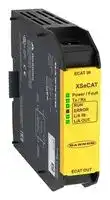


XSECAT.
ETHERCAT COMM GATEWAY, SAFETY CONTROLLER
- Manufacturer: BANNER ENGINEERING
- Product type: Controller Accessories
- Current Rating:60mA; Product Range:XS26 Series 74AK6758
- Product Range: XS26 Series
- Current Rating: 60mA
| Delivery and price | |
|---|---|
| Units per pack | 5 |
| Price | 428.02 € |
| Current stock | 10+ |
| Lead time | 30 days |

## **XS/SC26 Safety Controller Quick Start Guide**

## **About this Guide**

This guide is designed to help you create a sample configuration for the XS/SC26 Safety Controller using the **Banner Safety Controller** software. For complete information on mounting, device installation and operation, commissioning checkout procedures, product specifications, troubleshooting, and glossary, please refer to the Safety Controller Instruction Manual (p/n 174868) and supporting documentation for individual safety input and output devices. Use of this document assumes familiarity with pertinent safety standards and practices as outlined in the Instruction Manual.

## **Product Overview**

Origianl Document 174869 Rev. F

25 January 2022

## **Designing a Sample Configuration**

The configuration process used in this guide provides basic understanding of the software features that are necessary to create a configuration for any application. The example configuration is based on a sample application which makes use of the following devices:  an XS/SC26-2 Safety Controller, an E-stop button, a Safety Light Curtain, an Interlocked Gate Switch, and a Manual Reset. The illustration below depicts these devices and additional safety equipment for a sample Robotic Cell application.

**==> picture [472 x 350] intentionally omitted <==**

**----- Start of picture text -----**<br>
Muting Indicator Lights<br>Safety Light Curtain<br>Hazardous Area<br>Gate Switches<br>E-Stop Buttons<br>Muting Sensors<br>Manual Reset<br>**----- End of picture text -----**<br>


2

www.bannerengineering.com - Tel: +1-763-544-3164

P/N 174869 Rev. F

## **Software Installation**

**==> picture [537 x 306] intentionally omitted <==**

**----- Start of picture text -----**<br>
System Requirements<br>Operating system: Microsoft Windows 7 or Windows 10 [1]<br>System Type: 32-bit, 64-bit<br>Hard drive space: 80 MB (plus up to 280 MB for Microsoft .NET 4.0, if not already installed)<br>Memory (RAM): 512 MB minimum, 1 GB+ recommended<br>Processor: 1 GHz minimum, 2 GHz+ recommended<br>Screen Resolution: 1024x768 full color minimum, 1650x1050 full color recommended<br>Third-party software: Microsoft .NET 4.0 (included with installer), PDF Viewer (such as Adobe Acrobat)<br>USB port: USB 2.0 (not required to build configurations)<br>**----- End of picture text -----**<br>


The XS26-2 Expandable Safety Controller PC Interface can be downloaded from _www.bannerengineering.com/safetycontroller_ .

**Important:** Administrative rights are required to install the Safety Controller drivers (needed for communication with the controller).

## **To install the software from the Banner Engineering website:**

1. Download the latest version of the software from _www.bannerengineering.com/safetycontroller_ .

2. Navigate to and open the downloaded file.

3. Click **Next** to begin the installation process.

4. Confirm the software destination and availability for users and click **Next** .

5. Click **Next** to install the software.

6. Depending on your system settings, a popup window may appear prompting to allow XS26-2 Expandable Safety Controller to make changes to your computer. Click **Yes** .

7. Click **Finish** to exit the installer.

Open **Banner Safety Controller** from the **Desktop** or the **Start Menu** .

> 1. Microsoft and Windows are registered trademarks of Microsoft Corporation in the United States and/or other countries.

P/N 174869 Rev. F

www.bannerengineering.com - Tel: +1-763-544-3164

3

## **Designing a Configuration**

Open **Banner Safety Controller** from the **Desktop** or the **Start Menu** .

## **Software Features**

4

www.bannerengineering.com - Tel: +1-763-544-3164

P/N 174869 Rev. F

## **1 Navigation Toolbar**

Starts a New Project

Opens Password Manager

Reads data, such as Fault Log, Configuration, Network Settings, and Device Information from the Safety Controller

Opens an existing project, opens a Recent project, or opens Sample Projects

Writes the data, such as Configuration Settings, to the Safety Controller

Saves (or Saves As) the project to the userdefined location

A Prints a customizable Configuration Summary ) Reverts up to ten previous actions

Makes the Live Mode view available

Makes the Simulation Mode View available

ai

Re-applies up to ten previously reverted actions Indicates SC-XM2 or SC-XM3 drive connection

&9

Displays Network Settings

Opens the Help options

& Displays Project Settings

## **2 Tabs**

- **Equipment** —displays an editable view of all connected equipment

- **Functional View** —provides an editable iconic representation of the control logic

- **Wiring Diagram** —displays the I/O device wiring detail for use by the installer

- **Ladder Logic** —displays a symbolic representation of the Safety Controller’s safeguarding logic for use by the machine designer or controls engineer

- **Industrial Ethernet** (when enabled)—displays editable network configuration options

- **Configuration Summary** —displays a detailed configuration summary

- **Live Mode** (when enabled)—displays the live mode data, including current faults

- **Simulation Mode** (when enabled)—displays the simulation mode data

- **ISD** (XS26-ISD only)—displays the ISD chain

## **3 Selected view**

Displays the view corresponding to the selected tab ( **Equipment** view shown).

## **4 Module Summary**

Displays the Base Controller and any connected modules.

## **5 Checklist**

Provides action items to configure the system and correct any errors to successfully complete the configuration.

## **6 Properties**

Displays the properties of the selected device, function block, or connection (properties cannot be edited in this view, click Edit to make changes).

P/N 174869 Rev. F

www.bannerengineering.com - Tel: +1-763-544-3164

5

## **Define the Project Settings**

## Click **Project Settings** .

Enter the information about the project:

## **Configuration Name**

Name of the configuration; displayed on the Safety Controller (models with display); different from file name.

## **Project**

Project name; useful for distinguishing between various application areas.

## **Author**

Person designing the configuration.

## **Notes**

Supplemental information for this configuration or project.

## **Project Date**

Date pertaining to the project.

## **Add Equipment**

1. On the **Equipment** view select your Base Module properties (Display, Industrial Ethernet, Expandable, ISD) by either double-clicking the module or clicking the **Edit** under the properties table when the module is selected.

2. For this configuration, clear the **Has ISD** checkbox.

**Note:** This example does not use an XS26-ISD.

3. Add **Safety Input** devices by clicking = under the Base Module:

   - **Emergency Stop**

   - **Gate Switch**

   - **Optical Sensor**

**Note:** For the purpose of this configuration default device properties are used.

6

www.bannerengineering.com - Tel: +1-763-544-3164

P/N 174869 Rev. F

4. Add **Non-Safety Inputs** by clicking : under the Base Module:

   - Manual Reset

## **Create Connections**

5. Go to **Functional View** .

**Note:** The **Check List** on the left lists any missing connections that need to be added before the configuration is valid.

6. Add the **Function Blocks** by clicking on one of the empty placeholders in the middle area:

   - Latch Reset Block

P/N 174869 Rev. F

www.bannerengineering.com - Tel: +1-763-544-3164

7

7. Add **Logic Blocks** by clicking on one of the empty placeholders in the middle area:

   - **And**

8. For this configuration, increase the number of **Input Nodes** to “ **3** ”.

9. Connect **Optical Sensor** , **Gate Switch** , and **Latch Reset Block** to one of the input nodes on the **AND** block.

10. Connect **Emergency Stop** and **Manual Reset** to the **Latch Reset Block** .

11. Connect the **AND** block to the **Solid State Output** ( **SO1** ).

**Note:** You may re-arrange any of the Equipment blocks or Functional Elements blocks for a better visual representation of the connections. Solid State Output blocks cannot be moved.

8

www.bannerengineering.com - Tel: +1-763-544-3164

P/N 174869 Rev. F

## **Save the Configuration**

1. Click **Save Project** .

2. Select **Save As** .

3. Navigate to the folder where you wish to save the configuration.

4. Name the file (may be the same or different from the Configuration name).

5. Click **Save** .

## **Confirm the Configuration**

1. Power the Safety Controller and connect it to the PC using the appropriate USB cable.

2. Click

   - .

3. Click **Write Configuration to Controller** . If the configuration has not been saved, the software will ask if you want to save the project (configuration). This saves the unconfirmed configuration. Selecting **Save** saves the file with the current name. Selecting **Don't Save** continues the writing process.

4. If prompted, enter the password (the default password is 1901). The **Entering config-mode** screen opens.

5. Click **Continue** to enter the configuration mode. After the **Reading Configuration from the Controller** process is completed, the **Confirm Configuration** screen opens.

6. Verify that the configuration is correct.

- .

- 7. Scroll to the end of the configuration and click **Confirm**

8. After the **Send Configuration To Controller** process has completed, click **Close** . **Note:** Network settings are sent separately from the configuration settings. Click **Send** from the **Network Settings** window to write the network settings to the Safety Controller.

9. Cycle power or perform a System Reset for the changes to take effect in the Safety Controller.

~~LT~~ You have completed the sample configuration.

- It is the responsibility of the Qualified Person who configures, installs, or maintains the XS26 Safety Controller to:

- Carefully read, understand, and comply with all instructions for this device. See the manual which can be accessed via the Help menu in the Banner Safety Controller software.

- Perform a risk assessment that includes the specific machine guarding application. Guidance on a compliant methodology can be found in ISO 12100 or ANSI B11.0.

- Determine what safeguarding devices and methods are appropriate per the results of the risk assessment and implement per all applicable local, state, and national codes and regulations. See ISO 13849-1, ANSI B11.19, and/or other appropriate standards.

- Verify that the entire safeguarding system (including input devices, control systems, and output devices) is properly configured and installed, operational, and working as intended for the application.

- Periodically re-verify, as needed, that the entire safeguarding system is working as intended for the application.

Failure to follow any of these responsibilities may potentially create a dangerous condition that could result in serious injury or death.

P/N 174869 Rev. F

www.bannerengineering.com - Tel: +1-763-544-3164

9

## **Banner Engineering Corp Limited Warranty**

Banner Engineering Corp. warrants its products to be free from defects in material and workmanship for one year following the date of shipment. Banner Engineering Corp. will repair or replace, free of charge, any product of its manufacture which, at the time it is returned to the factory, is found to have been defective during the warranty period. This warranty does not cover damage or liability for misuse, abuse, or the improper application or installation of the Banner product.

## **THIS LIMITED WARRANTY IS EXCLUSIVE AND IN LIEU OF ALL OTHER WARRANTIES WHETHER EXPRESS OR IMPLIED (INCLUDING, WITHOUT LIMITATION, ANY WARRANTY OF MERCHANTABILITY OR FITNESS FOR A PARTICULAR PURPOSE), AND WHETHER ARISING UNDER COURSE OF PERFORMANCE, COURSE OF DEALING OR TRADE USAGE.**

This Warranty is exclusive and limited to repair or, at the discretion of Banner Engineering Corp., replacement. **IN NO EVENT SHALL BANNER ENGINEERING CORP. BE LIABLE TO BUYER OR ANY OTHER PERSON OR ENTITY FOR ANY EXTRA COSTS, EXPENSES, LOSSES, LOSS OF PROFITS, OR ANY INCIDENTAL, CONSEQUENTIAL OR SPECIAL DAMAGES RESULTING FROM ANY PRODUCT DEFECT OR FROM THE USE OR INABILITY TO USE THE PRODUCT, WHETHER ARISING IN CONTRACT OR WARRANTY, STATUTE, TORT, STRICT LIABILITY, NEGLIGENCE, OR OTHERWISE.**

Banner Engineering Corp. reserves the right to change, modify or improve the design of the product without assuming any obligations or liabilities relating to any product previously manufactured by Banner Engineering Corp. Any misuse, abuse, or improper application or installation of this product or use of the product for personal protection applications when the product is identified as not intended for such purposes will void the product warranty. Any modifications to this product without prior express approval by Banner Engineering Corp will void the product warranties. All specifications published in this document are subject to change; Banner reserves the right to modify product specifications or update documentation at any time. Specifications and product information in English supersedes that which is provided in any other language.  For the most recent version of any documentation, refer to: _www.bannerengineering.com_ . For patent information, see _www.bannerengineering.com/patents_ .

© Banner Engineering Corp. All rights reserved.
Updated at April 22, 2026
Founded in 1966, Banner Engineering is a globally recognized leader in the design and manufacture of industrial automation products. The company is renowned for developing innovative, high-quality solutions that improve operational efficiency, safeguard personnel, and optimize manufacturing processes across a diverse range of industries. Our extensive selection of Banner Engineering components prominently features their industry-leading sensing technologies. We offer a comprehensive array of precision light sensors engineered for accurate detection and measurement in demanding environments. Complementing this core sensing portfolio is a robust offering of automation signaling devices, including visual signal indicator units and essential accessories, which provide clear and immediate communication of machine status. Beyond primary sensing and indication solutions, our range encompasses critical components for broader process control and machine safety. This includes advanced process controllers, reliable pressure sensors and transducers, and dependable safety relays. Supported by a variety of purpose-built sensor accessories and fiber optic lead assemblies, Banner Engineering delivers the durable, high-performance technologies required to build and maintain sophisticated automated systems.
About Novapart
Novapart is a B2B electronic component broker specialising in stock shortages and cost reduction. We source hard-to-find parts and identify compliant alternatives across a catalogue of 410,000+ components from 500+ manufacturers.
Learn more →Stock Shortage Specialist
When a component is unavailable, discontinued or has an unacceptable lead time, we tap into our network of vetted European and Asian distributors to source what you need — without compromising on quality or traceability.
Request a quote →Compliant Alternatives
We identify pin-to-pin, electrically equivalent substitutes that meet the same certifications (RoHS, AEC-Q100, REACH) as your original specification — validated against datasheets, not just part numbers. Often at a lower cost.
BOM Analysis service →