
Image not available
Illustrative purposes only

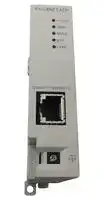
FX3U-ENET-ADP
ETHERNET COMM MODULE, TCP/IP, RJ45
⚠️ Reference pricing provided. In case of supply shortages, we will connect you with our trusted procurement partners to ensure your project's continuity.
- Manufacturer: MITSUBISHI
- Product type: Controller Accessories
- SVHC: No SVHC (15-Jan-2018)
- Product Range: MELSEC FX3U
- Current Rating: 30mA
| Delivery and price | |
|---|---|
| Units per pack | 1 |
| Price | 185.82 € |
| Current stock | 10+ |
| Lead time | 30 days |
Datasheet

# **USER'S MANUAL**
## **Safety Precautions**
(Read these precautions before use.)
Before installation, operation, maintenance or inspection of this product, thoroughly read through and understand this manual and all of the associated manuals. Also, take care to handle the module properly and safely.
This manual classifies the safety precautions into two categories:
and
.
**==> picture [115 x 69] intentionally omitted <==**
Indicates that incorrect handling may cause hazardous conditions, resulting in death or severe injury.
Indicates that incorrect handling may cause hazardous conditions, resulting in medium or slight personal injury or physical damage.
Depending on the circumstances, procedures indicated by It is important to follow all precautions for personal safety.
may also cause severe injury.
Store this manual in a safe place so that it can be taken out and read whenever necessary. Always forward it to the end user.
## **1. DESIGN PRECAUTIONS**
||**Reference**|
|---|---|
|•<br>Make sure to include the following safety circuits outside the PLC to ensure safe system operation even during<br>external power supply problems or PLC failure.<br>Otherwise, malfunctions may cause serious accidents.<br>1) Above all, the following components should be included: an emergency stop circuit, a protection circuit, an<br>interlock circuit for opposite movements (such as normal vs. reverse rotation), and an interlock circuit (to prevent<br>damage to the equipment at the upper and lower positioning limits).<br>2) Note that when the PLC main unit detects an error during self diagnosis, such as a watchdog timer error, all<br>outputs are turned off. Also, when an error that cannot be detected by the PLC main unit occurs in an input/<br>output control block, output control may be disabled.<br>External circuits and mechanisms should be designed to ensure safe machinery operation in such cases.<br>•<br>To maintain the safety of the programmable controller system against unauthorized access from external devices<br>via the network, take appropriate measures.<br>To maintain the safety against unauthorized access via the Internet, take measures such as installing a firewall.|18|
||**Reference**|
|---|---|
|•<br>Observe the following items. Failure to do so may cause incorrect data-writing through noise to the PLC and result<br>in PLC failure, machine damage or other accident.<br>1) Do not bundle the control line together with or lay it close to the main circuit or power line. As a guideline, lay the<br>control line at least 100mm (3.94") or more away from the main circuit or power line.<br>Noise may cause malfunctions.<br>2) Ground the shield wire or shield of a shielded cable. Do not use common grounding with heavy electrical<br>systems.|18|
## **2. INSTALLATION PRECAUTIONS**
||**Reference**|
|---|---|
|•<br>Make sure to cut off all phases of the power supply externally before attempting installation work.<br>Failure to do so may cause electric shock.|27|
(1)
## **Safety Precautions**
(Read these precautions before use.)
||**Reference**|
|---|---|
|•<br>Use the product within the generic environment specifications described in PLC main unit manual (Hardware<br>Edition).<br>Never use the product in areas with excessive dust, oily smoke, conductive dusts, corrosive gas (salt air, Cl2, H2S,<br>SO2, or NO2), flammable gas, vibration or impacts, or expose it to high temperature, condensation, or rain and<br>wind.<br>If the product is used in such conditions, electric shock, fire, malfunctions, deterioration or damage may occur.<br>•<br>Do not touch the conductive parts of the product directly.<br>Doing so may cause device failures or malfunctions.<br>•<br>Install the product securely using a DIN rail or mounting screws.<br>•<br>Install the product on a flat surface.<br>If the mounting surface is rough, undue force will be applied to the PC board, thereby causing nonconformities.<br>•<br>When drilling screw holes or wiring, make sure that cutting and wiring debris do not enter the ventilation slits.<br>Failure to do so may cause fire, equipment failures or malfunctions.<br>•<br>Connect the FX3U-ENET-ADP securely to special adapter connector.<br>Loose connections may cause malfunctions.|27|
|**3. WIRING PRECAUTIONS**||
||**Reference**|
|•<br>Make sure to cut off all phases of the power supply externally before attempting wiring work.<br>Failure to do so may cause electric shock or damage to the product.|31|
|||
||**Reference**|
|•<br>Perform class D grounding (grounding resistance: 100<br>or less) to the grounding terminal on the FX3U-ENET-ADP<br>with a wire of cross-sectional area 0.5 to 1.5 mm2. Do not use common grounding with heavy electrical systems<br>(refer to the Section 5.1).<br>•<br>When drilling screw holes or wiring, make sure that cutting and wiring debris do not enter the ventilation slits.<br>Failure to do so may cause fire, equipment failures or malfunctions.<br>•<br>Make sure to properly wire to the terminal block (European type) in accordance with the following precautions.<br>Failure to do so may cause electric shock, equipment failures, a short-circuit, wire breakage, malfunctions, or<br>damage to the product.<br>-<br>The disposal size of the cable end should follow the dimensions described in the manual.<br>-<br>Tightening torque should follow the specifications in the manual.<br>-<br>Twist the end of strand wire and make sure that there are no loose wires.<br>-<br>Do not solder-plate the electric wire ends.<br>-<br>Do not connect more than the specified number of wires or electric wires of unspecified size.<br>-<br>Affix the electric wires so that neither the terminal block nor the connected parts are directly stressed.<br>•<br>Make sure to observe the following precautions in order to prevent any damage to the machinery or accidents due<br>to abnormal data written to the PLC under the influence of noise:<br>1) Do not bundle the main circuit line together with or lay it close to the main circuit, high-voltage line or load line.<br>Otherwise, noise disturbance and/or surge induction are likely to take place. As a guideline, lay the control line<br>100mm (3.94") or more away from the main circuit or high-voltage lines.<br>2) Ground the shield wire or shield of the shielded cable at one point on the PLC. However, do not use common<br>grounding with heavy electrical systems.|31|
## **4. STARTUP AND MAINTENANCE PRECAUTIONS**
||**Reference**|
|---|---|
|•<br>Do not touch any terminals or connector while the PLC's power is on.<br>Doing so may cause electrical shock or malfunctions.<br>•<br>Before cleaning or retightening screws, externally cut off all phases of the power supply.<br>Failure to do so may cause malfunction or failure of this adapter. When the screws are tightened insufficiently, they<br>may fall out and cause a shortcircuit or malfunction. When tightened too much, the screws or the adapter may be<br>damaged, resulting in short-circuit, or malfunction.<br>•<br>When controlling the PLC (especially when changing data, the program or changing the operating conditions)<br>during operation, ensure that it is safe to do so.|18|
(2)
## **Safety Precautions**
(Read these precautions before use.)
||**Reference**|
|---|---|
|•<br>Do not disassemble or modify the adapter.<br>Doing so may cause fire, equipment failures, or malfunctions.<br>For repair, contact your local Mitsubishi Electric representative.<br>•<br>The adapter case is made of resin. If dropped or subjected to strong impact, the adapter may be damaged.<br>•<br>When this adapter is installed or removed from the panel, make sure to externally cut off all phases of the power<br>supply. Failure to do so may cause malfunction or failure of this adapter.|18|
## **5. DISPOSAL PRECAUTIONS**
||**Reference**|
|---|---|
|•<br>Please contact a certified electronic waste disposal company for the environmentally safe recycling and disposal of<br>your device.|18|
## **6. TRANSPORTATION AND STORAGE PRECAUTIONS**
**Reference** • The PLC is a precision instrument. During transportation, avoid impacts larger than those specified in the general specifications of the PLC main unit manual by using dedicated packaging boxes and shock-absorbing palettes. 18 Failure to do so may cause failures in the PLC. After transportation, verify operation of the PLC and check for damage of the mounting part, etc.
(3)
## **Safety Precautions**
(Read these precautions before use.)
## **MEMO**
(4)
FX3U-ENET-ADP User's Manual
**==> picture [499 x 114] intentionally omitted <==**
## **FX3U-ENET-ADP**
## **User's Manual**
**==> picture [499 x 115] intentionally omitted <==**
|Manual number|JY997D45801|
|---|---|
|Manual revision|F|
|Date|8/2016|
## **Foreword**
This manual describes the FX3U-ENET-ADP Ethernet communication special adapter and should be read and understood before attempting to install or operate the hardware. Store this manual in a safe place so that you can take it out and read it whenever necessary. Always forward it to the end user.
This manual confers no industrial property rights or any rights of any other kind, nor does it confer any patent licenses. Mitsubishi Electric Corporation cannot be held responsible for any problems involving industrial property rights which may occur as a result of using the contents noted in this manual.
- © 2012 MITSUBISHI ELECTRIC CORPORATION
**1**
FX3U-ENET-ADP User's Manual
## **Outline Precautions**
- This manual provides information for the use of the FX3U-ENET-ADP Ethernet communication special adapter. The manual has been written to be used by trained and competent personnel. The definition of such a person or persons is as follows;
- 1) Any engineer who is responsible for the planning, design and construction of automatic equipment using the product associated with this manual should be of a competent nature, trained and qualified to the local and national standards required to fulfill that role. These engineers should be fully aware of all aspects of safety with aspects regarding to automated equipment.
- 2) Any commissioning or maintenance engineer must be of a competent nature, trained and qualified to the local and national standards required to fulfill the job. These engineers should also be trained in the use and maintenance of the completed product. This includes being familiar with all associated manuals and documentation for the product. All maintenance should be carried out in accordance with established safety practices.
- 3) All operators of the completed equipment should be trained to use that product in a safe and coordinated manner in compliance with established safety practices. The operators should also be familiar with documentation that is connected with the actual operation of the completed equipment.
- **Note:** the term 'completed equipment' refers to a third party constructed device that contains or uses the product associated with this manual.
- This product has been manufactured as a general-purpose part for general industries, and has not been designed or manufactured to be incorporated in a device or system used in purposes related to human life.
- Before using the product for special purposes such as nuclear power, electric power, aerospace, medicine or passenger movement vehicles, consult with Mitsubishi Electric.
- This product has been manufactured under strict quality control. However when installing the product where major accidents or losses could occur if the product fails, install appropriate backup or failsafe functions into the system.
- When combining this product with other products, please confirm the standards and codes of regulation to which the user should follow. Moreover, please confirm the compatibility of this product with the system, machines, and apparatuses to be used.
- If there is doubt at any stage during installation of the product, always consult a professional electrical engineer who is qualified and trained in the local and national standards. If there is doubt about the operation or use, please consult your local Mitsubishi Electric representative.
- Since the examples within this manual, technical bulletin, catalog, etc. are used as reference; please use it after confirming the function and safety of the equipment and system. Mitsubishi Electric will not accept responsibility for actual use of the product based on these illustrative examples.
- The content, specification etc. of this manual may be changed for improvement without notice.
- The information in this manual has been carefully checked and is believed to be accurate; however, if you notice any doubtful point, error, etc., please contact your local Mitsubishi Electric representative.
## **Registration**
- Microsoft , Windows , Internet Explorer , Visual C++ and Visual Basic are either registered trademarks or trademarks of Microsoft Corporation in the United States and/or other countries.
- • Ethernet is a trademark of Xerox Corporation.
- The company name and the product name to be described in this manual are the registered trademarks or trademarks of each company.
**2**
FX3U-ENET-ADP User's Manual
_Table of Contents_
## **Table of Contents**
||**Safety Precautions................................................................................................................. (1)**<br>**Standards.................................................................................................................................. 7**<br>Certification of UL, cUL standards ....................................................................................................... 7<br>Compliance with EC directive (CE Marking) ........................................................................................ 7<br>**Associated Manuals................................................................................................................. 9**<br>**Generic Names and Abbreviations Used in the Manual..................................................... 11**<br>**Reading the Manual ............................................................................................................... 12**|
|---|---|
||<br>|
||**1. Introduction**<br>**13**|
|||
||1.1 Outline........................................................................................................................................... 13<br>1.1.1 Overview of the Ethernet adapter.................................................................................................. 13<br>1.1.2 Features of the Ethernet adapter................................................................................................... 14<br>1.1.3 Ethernet related term..................................................................................................................... 14<br>1.2 External Dimensions and Part Names .......................................................................................... 16<br>1.3 Pin Configuration........................................................................................................................... 16<br>1.4 Power and Status LEDs................................................................................................................ 17|
||<br>|
||**2. Specification**<br>**18**|
|||
||2.1 General Specifications .................................................................................................................. 19<br>2.2 Power Supply Specifications......................................................................................................... 19<br>2.3 Communication Specification........................................................................................................ 19<br>2.4 Performance Specification ............................................................................................................ 20<br>2.5 Communication function and corresponding equipment............................................................... 20|
||<br>|
||**3. System Configuration**<br>**21**|
|||
||3.1 General Configuration................................................................................................................... 21<br>3.2 Devices Required for Network Configuration................................................................................ 22<br>3.3 Applicable Systems....................................................................................................................... 22<br>3.3.1 Applicable PLC.............................................................................................................................. 22<br>3.3.2 Applicable Software....................................................................................................................... 22<br>3.4 Connection with PLC..................................................................................................................... 23<br>3.5 Assignment of channels................................................................................................................ 23|
||<br>|
||**4. Installation**<br>**27**|
|||
||4.1 FX3U-ENET-ADP Connection....................................................................................................... 28<br>4.2 DIN rail mounting .......................................................................................................................... 29<br>4.3 Direct mounting............................................................................................................................. 30|
||<br>|
||**5. Wiring**<br>**31**|
|||
||5.1 Grounding ..................................................................................................................................... 31<br>5.2 Screw Size and Tightening Torque............................................................................................... 32<br>5.3 Connecting to the Network............................................................................................................ 33<br>5.3.1 Applicable cable ............................................................................................................................ 33<br>5.3.2 Connecting to the 10BASE-T/100BASE-TX network .................................................................... 33|
**3**
FX3U-ENET-ADP User's Manual
_Table of Contents_
||<br>|
|---|---|
||**6. Introduction of Functions**<br>**34**|
|||
||6.1 Functions List................................................................................................................................ 34<br>6.2 Details of functions........................................................................................................................ 34<br>6.2.1 MELSOFT connections ................................................................................................................. 34<br>6.2.2 Communication Using MC Protocol............................................................................................... 34<br>6.2.3 MELSOFT Direct Connection (Simple Connection) ...................................................................... 35<br>6.2.4 Find CPU function ......................................................................................................................... 35<br>6.2.5 Time setting function ..................................................................................................................... 36<br>6.2.6 Parameter setting function............................................................................................................. 38<br>6.2.7 The diagnostics function from MELSOFT...................................................................................... 38<br>6.2.8 IP address change function........................................................................................................... 39<br>6.2.9 Data monitoring function................................................................................................................ 43<br>6.3 Setting Items List........................................................................................................................... 43<br>6.4 Settings and Procedures Prior to Starting the Operation.............................................................. 43<br>6.5 Ethernet Port Setting..................................................................................................................... 44<br>6.6 Operational Settings...................................................................................................................... 45<br>6.7 Overview of the Communication Procedure.................................................................................. 46<br>6.8 Initial Processing........................................................................................................................... 47<br>6.8.1 Initial processing............................................................................................................................ 47<br>6.8.2 Initial settings................................................................................................................................. 47<br>6.8.3 Re-initialization .............................................................................................................................. 47<br>6.9 Router Relay Parameter ............................................................................................................... 47<br>6.10 Confirming Completion of Initial Processing ............................................................................... 47<br>6.10.1 PING command (Personal computer -> Ethernet adapter) ......................................................... 48<br>6.10.2 Loop back test (Communication using MC protocol)................................................................... 49<br>6.11 Open Settings ............................................................................................................................. 49<br>6.12 Open Processing/Close Processing of the Connection .............................................................. 50|
||<br>|
|---|---|
||**7. Communication Using MC Protocol**<br>**53**|
|||
||7.1 Data Codes for Communication.................................................................................................... 53<br>7.2 Data Communication Function...................................................................................................... 53<br>7.2.1 Accessing the PLC using MC protocol .......................................................................................... 54<br>7.2.2 How to Read the Control Procedures of the MC Protocol............................................................. 54<br>7.2.3 Access Timing on the PLC Side.................................................................................................... 55<br>7.2.4 PLC setting for performing data communication ........................................................................... 55<br>7.2.5 Precautions on Data Communication............................................................................................ 56<br>7.3 Message Formats and Control Procedures .................................................................................. 56<br>7.3.1 How to read the command reference section................................................................................ 56<br>7.3.2 Message format and control procedure......................................................................................... 57<br>7.3.3 Contents of data designation items ............................................................................................... 60<br>7.3.4 Character area transmission data ................................................................................................. 64<br>7.4 List of Commands and Functions for The MC protocol................................................................. 68<br>7.5 Device Memory Read/Write .......................................................................................................... 70<br>7.5.1 Commands and device range........................................................................................................ 70<br>7.5.2 Batch read in bit units (command: 00H) ........................................................................................ 72<br>7.5.3 Batch write in bit units (command: 02H)........................................................................................ 74<br>7.5.4 Test in bit units (random write) (command: 04H) .......................................................................... 76<br>7.5.5 Batch read in word units (command: 01H) .................................................................................... 78<br>7.5.6 Batch write in word units (command: 03H).................................................................................... 82<br>7.5.7 Test in word units (random write) (command: 05H) ...................................................................... 86<br>7.6 Remote RUN/STOP, PLC model name code read ....................................................................... 88<br>7.6.1 Commands and control contents................................................................................................... 88<br>7.6.2 Remote RUN (command: 13H)/Remote STOP (Command: 14H) ................................................ 89<br>7.6.3 PLC model name read (command: 15H)....................................................................................... 90<br>7.7 Loopback Test............................................................................................................................... 92<br>7.7.1 Loopback test (command: 16H) .................................................................................................... 92|
**4**
FX3U-ENET-ADP User's Manual
_Table of Contents_
||<br>|
|---|---|
||**8. Data monitoring function**<br>**94**|
|||
||8.1 System Configuration.................................................................................................................... 94<br>8.1.1 Functional Configuration................................................................................................................ 94<br>8.1.2 Communication Connecting Configuration.................................................................................... 94<br>8.2 Connections Setting...................................................................................................................... 95<br>8.3 Functions List................................................................................................................................ 96<br>8.4 Corresponding HTTP Version....................................................................................................... 96<br>8.5 Screen........................................................................................................................................... 97<br>8.5.1 Screen Name................................................................................................................................. 97<br>8.5.2 Screen directory configuration....................................................................................................... 97<br>8.5.3 Access method.............................................................................................................................. 97<br>8.5.4 Screen display (common).............................................................................................................. 97<br>8.5.5 TOP screen (HOME) ..................................................................................................................... 98<br>8.5.6 Device/buffer memory batch monitor screen................................................................................. 99<br>8.5.7 PLC information screen............................................................................................................... 116<br>8.5.8 FX3U-ENET-ADP information screen.......................................................................................... 118<br>8.5.9 Communication status screen ..................................................................................................... 120<br>8.5.10 Access log screen ..................................................................................................................... 122|
||<br>|
||**9. The Operation of GX Works2**<br>**124**|
|||
||9.1 Ethernet Port Setting................................................................................................................... 124<br>9.2 Open Setting ............................................................................................................................... 126<br>9.2.1 MELSOFT connections ............................................................................................................... 127<br>9.2.2 MC protocol ................................................................................................................................. 127<br>9.2.3 Data monitoring ........................................................................................................................... 128<br>9.3 Time Setting................................................................................................................................ 129<br>9.4 Log Record Setting ..................................................................................................................... 130<br>9.5 Online Function........................................................................................................................... 131<br>9.5.1 Designation of destination to be connected................................................................................. 131<br>9.5.2 Find CPU function ....................................................................................................................... 134<br>9.6 Ethernet Diagnostics................................................................................................................... 136<br>9.6.1 Parameter status ......................................................................................................................... 138<br>9.6.2 Error history................................................................................................................................. 139<br>9.6.3 Status of each connection, Access History ................................................................................. 140<br>9.6.4 Status of each protocol................................................................................................................ 142<br>9.6.5 Connection Status ....................................................................................................................... 143<br>9.6.6 Time setting status ...................................................................................................................... 144<br>9.6.7 PING test..................................................................................................................................... 145<br>9.7 Print Function.............................................................................................................................. 148<br>9.7.1 Printing from the menu ................................................................................................................ 148<br>9.7.2 Printing of the display screen ...................................................................................................... 151|
||<br>|
||**10. Troubleshooting**<br>**153**|
|||
||10.1 How to Check Errors Using LED Displays ................................................................................ 153<br>10.1.1 Checking error display............................................................................................................... 153<br>10.1.2 How to turn off ERR. LED and to read/clear error information .................................................. 154<br>10.2 How to Check an Error Through GX Works2............................................................................ 155<br>10.2.1 Ethernet diagnostics.................................................................................................................. 155<br>10.3 Error Code List.......................................................................................................................... 156<br>10.3.1 Error code of Ethernet communication...................................................................................... 156<br>10.3.2 End codes (completion codes) returned to an external device during data communication ..... 160<br>10.3.3 Abnormal codes returned during communication using MC protocol........................................ 161<br>10.3.4 Communication error code inside the PLC................................................................................ 161<br>10.3.5 Write to IP address storage area error ...................................................................................... 162|
**5**
FX3U-ENET-ADP User's Manual
_Table of Contents_
||10.4 Troubleshooting Flowchart........................................................................................................ 163<br>10.4.1 Errors in communication using MC protocol..............................................................................165<br>10.4.2 IP address change function error .............................................................................................. 167<br>10.5 Ethernet adapter setting............................................................................................................ 168|
|---|---|
||<br>|
||**Appendix A: List of the Special Devices**<br>**169**|
|||
|||
||<br>|
||**Appendix B: Version Information**<br>**172**|
|||
||Appendix B-1 Version check method........................................................................................ 172<br>Appendix B-2 Version upgrade history ..................................................................................... 172|
||<br>|
||**Appendix C: Program Examples**<br>**174**|
|||
||Appendix C-1 Program example for communication using MC protocol -1 .............................. 175<br>Appendix C-2 Program example for communication using MC protocol -2 .............................. 181|
||<br>|
||**Appendix D: Differences with FX3U-ENET**<br>**185**|
|||
|||
||<br>|
||**Appendix E: Document, others**<br>**187**|
|||
||Appendix E-1 Setting Value Recording Sheets ........................................................................ 187<br>Appendix E-2 Processing Time ................................................................................................ 191<br>Appendix E-3 ASCII Code List.................................................................................................. 192<br>Appendix E-4 References......................................................................................................... 193<br>Appendix E-5 Differences between Ethernet and IEEE802.3................................................... 193<br>Appendix E-6 ICMP Protocol Supported by Ethernet adapter.................................................. 193<br>Appendix E-7 Port Numbers Used in FX3U-ENET-ADP........................................................... 194<br>**Warranty................................................................................................................................ 195**<br>**Revised History .................................................................................................................... 196**|
**6**
Standards
FX3U-ENET-ADP User's Manual
## **Standards**
## **Certification of UL, cUL standards**
FX3U-ENET-ADP units comply with the UL standards (UL, cUL).
UL, cUL File number :E95239
Regarding the standards that comply with the main unit, please refer to either the FX series product catalog or consult with your nearest Mitsubishi product provider.
## **Compliance with EC directive (CE Marking)**
This document does not guarantee that a mechanical system including this product will comply with the following standards.
Compliance to EMC directive and LVD directive for the entire mechanical module should be checked by the user / manufacturer. For more information please consult with your nearest Mitsubishi product provider. Regarding the standards that comply with the main unit, please refer to either the FX series product catalog or consult with your nearest Mitsubishi product provider.
## **Requirement for Compliance with EMC directive**
The following products have shown compliance through direct testing (of the identified standards below) and design analysis (through the creation of a technical construction file) to the European Directive for Electromagnetic Compatibility (2014/30/EU) when used as directed by the appropriate documentation.
## **Attention**
This product is designed for use in industrial applications.
Type: Programmable Controller (Open Type Equipment) Models: MELSEC FX3U series manufactured from February 1st, 2012 FX3U-ENET-ADP
|**Standard**|**Remark**|
|---|---|
|EN61131-2:2007<br>Programmable controllers<br>-<br>Equipment requirements and tests|Compliance with all relevant aspects of the standard.<br>**EMI**<br>•<br>Radiated Emission<br>•<br>Conducted Emission<br>**EMS**<br>•<br>Radiated electromagnetic field<br>•<br>Fast transient burst<br>•<br>Electrostatic discharge<br>•<br>High-energy surge<br>•<br>Voltage drops and interruptions<br>•<br>Conducted RF<br>•<br>Power frequency magnetic field|
**7**
Standards
FX3U-ENET-ADP User's Manual
## **Caution to conform with EC Directives**
- Installation in Enclosure
- Programmable logic controllers are open-type devices that must be installed and used within conductive control cabinets. Please use the programmable logic controller while installed within a conductive shielded control cabinet. Please secure the cabinet door to the control cabinet (for conduction). Installation within a control cabinet greatly affects the safety of the system and aids in shielding noise from the programmable logic controller.
- Control cabinet
- The control cabinet must be conductive.
- Ground the control cabinet with the thickest possible grounding cable.
- To ensure that there is electrical contact between the control cabinet and its door, connect the cabinet and its doors with thick wires.
- In order to suppress the leakage of radio waves, the control cabinet structure must have minimal openings. Also, wrap the cable holes with a shielding cover or other shielding devices.
- The gap between the control cabinet and its door must be as small as possible by attaching EMI gaskets between them.
**==> picture [218 x 97] intentionally omitted <==**
**----- Start of picture text -----**<br>
Shielding cover<br>Shielded cable<br>EMI gasket<br>Wires*1<br>**----- End of picture text -----**<br>
- *1. These wires are used to improve the conductivity between the door and control cabinet.
**8**
Associated Manuals
FX3U-ENET-ADP User's Manual
## **Associated Manuals**
Only the installation manual is packed together with the FX3U-ENET-ADP Ethernet communication special adapter. For a detailed explanation of the FX3U-ENET-ADP Ethernet communication special adapter, refer to this manual.
For the hardware information and instructions on the PLC main unit, refer to the respective manuals.
Refer to these manuals
|adapter.<br>For a detailed explanation of the FX3U-ENET-ADP Ethernet communication special adapter, refer to this<br>manual.<br>For the hardware information and instructions on the PLC main unit, refer to the respective manuals.<br>Refer to these manuals|adapter.<br>For a detailed explanation of the FX3U-ENET-ADP Ethernet communication special adapter, refer to this<br>manual.<br>For the hardware information and instructions on the PLC main unit, refer to the respective manuals.<br>Refer to these manuals|adapter.<br>For a detailed explanation of the FX3U-ENET-ADP Ethernet communication special adapter, refer to this<br>manual.<br>For the hardware information and instructions on the PLC main unit, refer to the respective manuals.<br>Refer to these manuals|adapter.<br>For a detailed explanation of the FX3U-ENET-ADP Ethernet communication special adapter, refer to this<br>manual.<br>For the hardware information and instructions on the PLC main unit, refer to the respective manuals.<br>Refer to these manuals|adapter.<br>For a detailed explanation of the FX3U-ENET-ADP Ethernet communication special adapter, refer to this<br>manual.<br>For the hardware information and instructions on the PLC main unit, refer to the respective manuals.<br>Refer to these manuals|adapter.<br>For a detailed explanation of the FX3U-ENET-ADP Ethernet communication special adapter, refer to this<br>manual.<br>For the hardware information and instructions on the PLC main unit, refer to the respective manuals.<br>Refer to these manuals|
|---|---|---|---|---|---|
|Refer to the appropriate equipment manual<br>For a detailed explanation, refer to an additional manual||||||
|||**Title of manual**|**Document**<br>**number**|**Description**|**Model**<br>**code**|
|**Manual for the Main Module**||||||
|**FX3S Series PLCs Main unit**||||||
||Supplied<br>Manual|FX3SSeries<br>Hardware Manual|JY997D48301|Describes FX3SSeries PLC specification for I/O, wiring<br>and installation extracted from the FX3SUser's Manual -<br>Hardware Edition.<br>For details, refer to FX3SSeries User's Manual -<br>Hardware Edition.|-|
||Additional<br>Manual|FX3SSeries<br>User's Manual<br>- Hardware Edition|JY997D48601|Describes FX3SSeries PLC specification details for I/O,<br>wiring, installation and maintenance.|09R535|
|**FX3G Series PLCs Main unit**||||||
||Supplied<br>Manual|FX3GSeries<br>Hardware Manual|JY997D46001|Describes FX3GSeries PLC specification for I/O, wiring<br>and installation extracted from the FX3GUser's Manual -<br>Hardware Edition.<br>For details, refer to FX3GSeries User's Manual -<br>Hardware Edition.|-|
||Additional<br>Manual|FX3GSeries<br>User's Manual<br>- Hardware Edition|JY997D31301|Describes FX3GSeries PLC specification details for I/O,<br>wiring, installation and maintenance.|09R521|
|**FX3GC Series PLCs Main unit**||||||
||Supplied<br>Manual|FX3GCSeries<br>Hardware Manual|JY997D45201|Describes FX3GCSeries PLC specification for I/O,<br>wiring and installation extracted from the FX3GCUser's<br>Manual - Hardware Edition.<br>For details, refer to FX3GCSeries User's Manual -<br>Hardware Edition.|-|
||Additional<br>Manual|FX3GCSeries<br>User's Manual<br>- Hardware Edition|JY997D45401|Describes FX3GCSeries PLC specification details<br>for I/O, wiring, installation and maintenance.|09R533|
|**FX3U Series PLCs Main Unit**||||||
||Supplied<br>Manual|FX3USeries<br>Hardware Manual|JY997D50301|Describes FX3USeries PLC specification for I/O, wiring<br>and installation extracted from the FX3UUser's Manual -<br>Hardware Edition.<br>For details, refer to FX3USeries User's Manual -<br>Hardware Edition.|-|
||Additional<br>Manual|FX3USeries<br>User's Manual<br>- Hardware Edition|JY997D16501|Describes FX3USeries PLC specification details for I/O,<br>wiring, installation and maintenance.|09R516|
|**FX3UC Series PLCs Main Unit**||||||
||Supplied<br>Manual|FX3UC(D,DS,DSS) Series<br>Hardware Manual|JY997D50501|Describes FX3UC(D,DS,DSS) Series PLC specification<br>for I/O, wiring and installation extracted from the FX3UC<br>Series User's Manual - Hardware Edition.<br>For details, refer to FX3UCSeries User's Manual -<br>Hardware Edition.|-|
||Supplied<br>Manual|FX3UC-32MT-LT-2<br>Hardware Manual|JY997D31601|Describes FX3UC-32MT-LT-2 specification for I/O,<br>wiring and installation extracted from the FX3UCUser's<br>Manual - Hardware Edition.<br>For details, refer to FX3UCSeries User's Manual -<br>Hardware Edition.|-|
**9**
Associated Manuals
## FX3U-ENET-ADP User's Manual
|||**Title of manual**|**Document**<br>**number**|**Description**|**Model**<br>**code**|
|---|---|---|---|---|---|
||Supplied<br>Manual|FX3UC-32MT-LT<br>Hardware Manual<br>(Only Japanese<br>document)|JY997D12701|Describes FX3UC-32MT-LT specification for I/O, wiring<br>and installation extracted from the FX3UCUser's Manual<br>- Hardware Edition.<br>For details, refer to FX3UCSeries User's Manual -<br>Hardware Edition.|-|
||Additional<br>Manual|FX3UCSeries<br>User's Manual<br>- Hardware Edition|JY997D28701|Describes FX3UCSeries PLC specification details<br>for I/O, wiring, installation and maintenance.|09R519|
|**Programming**||||||
||Additional<br>Manual|FX3S/FX3G/FX3GC/FX3U/<br>FX3UCSeries<br>Programming Manual<br>- Basic & Applied<br>Instruction Edition|JY997D16601|Describes FX3S/FX3G/FX3GC/FX3U/FX3UCSeries PLC<br>programming for basic/applied instructions and devices.|09R517|
||Additional<br>Manual|MELSEC-Q/L/F<br>Structured Programming<br>Manual (Fundamentals)|SH-080782|Programming methods, specifications, functions, etc.<br>required to create structured programs.|13JW06|
||Additional<br>Manual|FX CPU Structured<br>Programming Manual<br>[Device & Common]|JY997D26001|Devices, parameters, etc. provided in structured<br>projects of GX Works2.|09R925|
||Additional<br>Manual|FX CPU Structured<br>Programming Manual<br>[Basic & Applied<br>Instruction]|JY997D34701|Sequence instructions provided in structured projects of<br>GX Works2.|09R926|
||Additional<br>Manual|FX CPU Structured<br>Programming Manual<br>[Application Functions]|JY997D34801|Application functions provided in structured projects of<br>GX Works2.|09R927|
||Additional<br>Manual|GX Works2 Version 1<br>Operating Manual<br>(Common)|SH-080779ENG|Explains the system configuration of GX Works2 and<br>the functions common to Simple project and Structured<br>project such as parameter setting, operation method for<br>the online function.|13JU63|
|**Manuals for communication control**||||||
|**Common**||||||
||Additional<br>Manual|FX Series User’s Manual -<br>Data Communication<br>Edition|JY997D16901|Details about N : N Network, parallel link, computer link<br>and non-protocol communication (RS instruction and<br>FX2N-232IF).|09R715|
|**Manuals for FX3U-ENET-ADP Ethernet communication special adapter**||||||
||Supplied<br>Manual|FX3U-ENET-ADP<br>Installation Manual|JY997D47401|Describes installation specifications for the<br>FX3U-ENET-ADP<br>Ethernet<br>communication<br>special<br>adapter extracted from the FX3U-ENET-ADP User's<br>Manual.<br>For details, refer to FX3U-ENET-ADP User's Manual.|-|
||Additional<br>Manual|FX3U-ENET-ADP<br>User's Manual<br>(This Manual)|JY997D45801|Describes FX3U-ENET-ADP Ethernet communication<br>special adapter details.|09R725|
**10**
Generic Names and Abbreviations Used in the Manual
FX3U-ENET-ADP User's Manual
## **Generic Names and Abbreviations Used in the Manual**
|**Generic name or abbreviation**|**Generic name or abbreviation**|**Description**|
|---|---|---|
|**PLC**|||
|FX3Sseries<br>FX3SPLC or main unit||Generic name of FX3SSeries PLC|
||FX3SPLC or main unit|Generic name of FX3SSeries PLC main units|
|FX3Gseries<br>FX3GPLC or main unit||Generic name of FX3GSeries PLC|
||FX3GPLC or main unit|Generic name of FX3GSeries PLC main units|
|FX3GCseries<br>FX3GCPLC or main unit||Generic name of FX3GCSeries PLC|
||FX3GCPLC or main unit|Generic name of FX3GCSeries PLC main units|
|FX3Useries<br>FX3UPLC or main unit||Generic name for FX3USeries PLC|
||FX3UPLC or main unit|Generic name for FX3USeries PLC main unit|
|FX3UCseries<br>FX3UCPLC or main unit||Generic name for FX3UCSeries PLC|
||FX3UCPLC or main unit|Generic name for FX3UCSeries PLC main unit|
|Expansion board||Generic name for expansion board<br>The number of connectable units, however, depends on the type of main unit.<br>To check the number of connectable units, refer to the User's Manual - Hardware Edition of the main<br>unit to be used for your system.|
|Special adapter<br>Ethernet adapter||Generic name for high-speed input/output special adapter, communication special adapter, analog<br>special adapter, and CF card special adapter.<br>The number of connectable units, however, depends on the type of main unit.<br>To check the number of connectable units, refer to the User's Manual - Hardware Edition of the main<br>unit to be used for your system.|
||Ethernet adapter|Abbreviated name for FX3U-ENET-ADP|
|I/O extension unit/block||Generic name for input/output powered extension unit and input/output extension block<br>The number of connectable units, however, depends on the type of main unit.<br>To check the number of connectable units, refer to the User's Manual - Hardware Edition of the main<br>unit to be used for your system.|
|Special function unit/block or<br>Special extension unit<br>Special function unit<br>Special function block||Generic name for special function unit and special function block<br>The number of connectable units, however, depends on the type of main unit.<br>To check the number of connectable units, refer to the User's Manual - Hardware Edition of the main<br>unit to be used for your system.|
||Special function unit|Generic name for special function unit|
||Special function block|Generic name for special function block|
|**Option**|||
|Memory cassette||Generic name for FX3U-FLROM-16, FX3U-FLROM-64, FX3U-FLROM-64L, FX3U-FLROM-1M|
|**Peripheral unit**|||
|Peripheral unit||Generic name for programming software, handy programming panel, and indicator|
|**Programming tool**|||
|Programming tool||Generic name for programming software and handy programming panel|
|Programming software<br>GX Works2||Generic name for programming software|
||GX Works2|Abbreviation of programming software packages SW<br>DNC-GXW2-E|
|**Manual**|||
|FX3SHardware Edition||Abbreviation of FX3SSeries User's Manual - Hardware Edition|
|FX3GHardware Edition||Abbreviation of FX3GSeries User's Manual - Hardware Edition|
|FX3GCHardware Edition||Abbreviation of FX3GCSeries User's Manual - Hardware Edition|
|FX3UHardware Edition||Abbreviation of FX3USeries User's Manual - Hardware Edition|
|FX3UCHardware Edition||Abbreviation of FX3UCSeries User's Manual - Hardware Edition|
|Hardware Edition||Generic name for FX3S/FX3G/FX3GC/FX3U/FX3UCSeries User's Manual - Hardware Edition|
|Programming manual||Abbreviation of FX3S/FX3G/FX3GC/FX3U/FX3UCSeries Programming Manual - Basic and Applied<br>Instructions Edition|
|Communication Control Edition||Abbreviation of FX Series User’s Manual - Data Communication Edition|
**11**
Reading the Manual
FX3U-ENET-ADP User's Manual
## **Reading the Manual**
**==> picture [439 x 536] intentionally omitted <==**
**----- Start of picture text -----**<br>
Shows the manual title. Shows the title of the chapter and the title Indexes the chapter number.<br>This area shows the of the section. The right side of each page<br>manual title for the current This area shows the title of the chapter and the indexes the chapter number<br>page. title of the section for the current page. for the page currently opened.<br>10 Troubleshooting<br>FX3U-ENET-ADP User's Manual 10.4 Troubleshooting Flowchart<br>1<br>10.4.2 IP address change function error<br>The figure below shows troubleshooting for when the IP address storage area cannot be written or cleared<br>using the IP address change function.<br>�� For details on special devices, refer to Appendix A.<br>�� For details on error code, refer to Subsection 10.3.5. 2<br>In the case IP address storage area cannot be written to<br>Cannot write to IP address<br>storage area. Shows the reference.<br>3<br>The " " mark indicates<br>storage area write completionM8493 is ON.IP address NO Turn ON the IP address storage area write request M8492. a reference destination and reference manual.<br>YES<br>4<br>storage area write errorM8494 is ON.IP address NO Turn OFF the PLC power supply, and then turn ON the PLC power supply.<br>YES<br>5<br>PLC power supply was NO Confirm the error code for IP address<br>turned from OFF to ON. storage area write D8498.<br>YES Reexamine the set value of D8492 to D8497.Error code: 100<br>PLC power The input format is hexadecimal. For the setting range, refer to Section 6.5. 6<br>during IP address storagesupply was turned OFFarea write. NO Something may be malfunctioning inside the PLC.Error code: 200<br>Error code: 1001<br>YES The PLC may be damaged if the situation is<br>not improved by writing again. 7<br>Confirm the error code for IP address storage area write D8498.<br>Error code: 1000<br>Do not turn the PLC power supply OFF during write, and try again. 8<br>9<br>10<br>167<br>Introduction<br>Specification<br>ConfigurationSystem<br>Installation<br>Wiring<br>Functions Introduction of<br>MC ProtocolUsing Communication<br>functionData monitoring<br>of GX Works2The Operation<br>Troubleshooting<br>**----- End of picture text -----**<br>
The above is different from the actual page, as it is provided for explanation only.
**12**
1 Introduction
FX3U-ENET-ADP User's Manual
_1.1 Outline_
**1 2**
**3**
**4 5**
**6 7 8 9 10**
**10**
## **1. Introduction**
## **1.1 Outline**
This manual provides information on the specifications of the FX3U-ENET-ADP Ethernet communication special adapter (hereinafter called FX3U-ENET-ADP or the Ethernet adapter), as well as the procedures before starting operation, the control procedures and data communication method for communicating with external devices, and troubleshooting.
When the program examples introduced in this manual are applied to an actual system, examine the safety of the control in the target system before use.
## **1.1.1 Overview of the Ethernet adapter**
The FX3U-ENET-ADP is an Ethernet adaptor of 10BASE-T/100BASE-TX for FX3S/FX3G/FX3GC/FX3U/FX3UC PLCs, and can be connected to a high-order system such as personal computer using the TCP/IP or UDP communication protocol.
**==> picture [308 x 260] intentionally omitted <==**
**----- Start of picture text -----**<br>
Network Range (Only within LAN)<br>Router<br>SNTP server Hub<br>Local station<br>External device External device<br>GX Works2<br>**----- End of picture text -----**<br>
**13**
1 Introduction _1.1 Outline_
FX3U-ENET-ADP User's Manual
## **1.1.2 Features of the Ethernet adapter**
The Ethernet adapter has the following features.
- 1) Users can read and write data and programs from/to the PLC using MELSOFT products such as GX Works2 within the company LAN, etc.
- 2) Users can develop custom software to communicate with the PLC by using MC (MELSEC Communication) protocol (A-compatible 1E frame subset, for details, refer to user's manual). (TCP/IP or UDP/IP)
- 3) The FX3U-ENET-ADP can be connected directly (simple connection) to GX Works2 with only one Ethernet cable without using the hub.
- 4) Users can search "FX3U-ENET-ADP + Main unit" connected in the network using the find CPU function of GX Works2.
- 5) The FX3U-ENET-ADP can automatically set the time of the main unit using the time setting function.
- 6) The FX3U-ENET-ADP parameters can be set easily using GX Works2.
- 7) The diagnostic functions of GX Works2 enables easy diagnostics and troubleshooting of the FX3U-ENETADP.
- 8) Users can monitor the information and device values stored in the main unit and FX3U-ENET-ADP from the browser in the personal computer using the data monitoring function.
## **1.1.3 Ethernet related term**
- 1) TCP (Transmission Control Protocol) This protocol guarantees data credibility and reliability in communication between a personal computer/ work station and PLC that are connected via network, and provides the following functions:
- Creates a logical connection by establishing a connection (logical line) as if a dedicated line was created between external devices.
- Up to 4 connections can be established and used at the same time in the Ethernet adapter.
- Data reliability is maintained by sequence control using the sequence numbers, the data retransmission function and check sum.
- Communication data flow can be controlled by Windows operations.
- 2) UDP (User Datagram Protocol) This protocol may not guarantee data credibility or reliability in communication between a personal computer/work station and PLC that are connected via network. Thus, even if the data does not reach the target node, it will not be retransmitted.
- Because it is connectionless, communication efficiency is much improved than TCP/IP.
- A check sum is used to increase the reliability of the communication data. When greater reliability must be maintained, a user application or TCP should be used for the retrying operation.
- 3) IP (Internet Protocol)
- Communication data is sent and received in datagram format.
- Communication data can be divided and reassembled.
- Routing option is not supported.
- 4) ARP (Address Resolution Protocol)
- This protocol is used to get the Ethernet physical addresses from the IP addresses.
- 5) ICMP (Internet Control Message Protocol)
- This protocol is used to exchange errors which occur on an IP network and various information related to the network.
- Provides a function to transmit IP error messages.
- Refer to Appendix E-6 for information regarding the types of ICMP supported.
**14**
1 Introduction
FX3U-ENET-ADP User's Manual
_1.1 Outline_
**1**
**2**
**6**
**7 8 9 10**
**7**
**8**
**9**
**10**
- 6) Flag bit of TCP/IP (SYN, ACK, PSH, FIN, RST, and URG) In communication using TCP, these flag bits indicate segments where connection/disconnection or response confirmation is executed or emergency data is included.
- a) SYN (Synchronized Flag)
When this bit is ON (1), it indicates that the initial sequence number value is set in the sequence number field.
This bit is used when the connection is newly opened.
- b) ACK (Acknowledgment Flag)
When this bit is ON (1), it indicates that ACK (confirmation response number) field is valid. It also indicates that this segment includes the information on response confirmation.
When this bit is OFF (0), it indicates that ACK (confirmation response number) field is invalid.
- c) PSH (Push Flag)
When this bit is ON (1), the host that has received this segment sends the data to the upper application with high priority.
**3**
This bit is to be turned ON when the data should be sent to an external device as soon as possible. When this bit is OFF (0), the timing when the received data is sent to the upper application depends on the TCP layer of the receiving side.
- d) FIN (Fin Flag)
When this bit is ON (1), it indicates that there is no more data to be sent from the segment source and that the send source wants to disconnect.
**4**
However, data still can be received from the external device.
The connection is on until the segment whose FIN bit is ON is received from the external device.
- e) RST (Reset Flag)
When this bit is ON (1), the host from which the segment has sent disconnects unilaterally (forcibly). Disconnection by this method is used when an unrecoverable error with the normal method has occurred or when the host has been restored after being down.
- f) URG (Urgent Flag)
**5**
When this bit is ON (1), it indicates that this data segment includes the emergency data flag.
**15**
1 Introduction
FX3U-ENET-ADP User's Manual
_1.2 External Dimensions and Part Names_
## **1.2 External Dimensions and Part Names**
**==> picture [333 x 269] intentionally omitted <==**
**----- Start of picture text -----**<br>
[2] [3] [4] [5]<br>[1]<br>[6]<br>[7]<br>20.5<br>7(0.28″) (0.81″)<br>[8]<br>81.5(3.21″) 23(0.91″)<br>[9]<br>Unit: mm(inches)<br>MASS(Weight): Approx. 0.1kg(0.22lbs)<br>90(3.55″) 98(3.86″) 106(4.18″)<br>(mounting hole pitch)<br>**----- End of picture text -----**<br>
- DIN rail mounting groove
- [1] (DIN rail: DIN46277, 35mm (1.38") width)
- [2] Nameplate
- Direct mounting hole 2 holes of φ4.5 (0.18")
- [3] (mounting screw: M4 screw)
- [4] Status LEDs
- [6] Special adapter connector
- [7] 10BASE-T/100BASE-TX connector (RJ45)
- [8] External ground terminal (M2.5 terminal block screw)
- [9] DIN rail mounting hook
- [5] Special adapter fixing hook
## **1.3 Pin Configuration**
The pin configuration of FX3U-ENET-ADP RJ45 type modular jack is as follows:
|**Pin No.**|**Signal**|**Direction**|**Contents**|
|---|---|---|---|
|1|TD+|Out<br>+ sid|e of sending data|
|2|TD-|Out<br>- sid|e of sending data|
|3|RD+|In<br>+ sid|e of receiving data|
|4|Not used|-||
|5|Not used|-||
|6|RD-|In<br>- sid|e of receiving data|
|7|Not used|-||
|8|Not used|-||
**16**
1 Introduction _1.4 Power and Status LEDs_
FX3U-ENET-ADP User's Manual
**1**
**2 3**
**4**
**5**
**6 7 8 9 10**
**10**
## **1.4 Power and Status LEDs**
|**LED**<br>**display**|**LED**<br>**Color**|**Status**|**Description**|
|---|---|---|---|
|POWER|Green|ON|Power is on|
|||OFF|Power is off|
|100M|Green|ON|100Mbps communication|
|||OFF|10Mbps communication or not connected|
|SD/RD|Green|ON|Data being sent or received.|
|||OFF|Data is not sent or received.|
|ERR.|Red|ON|Setting errors, hardware errors, etc.|
|||Flicker|Communication errors|
|||OFF|Setting normal, communication normal|
|OPEN|Green|ON*1|TCP/IP: 1 or more connections are established.<br>UDP:<br>1 or more connections are open.|
|||OFF|TCP/IP: All connections are unestablished.<br>UDP:<br>All connections are closed.|
*1. In direct connection (simple connection), "OPEN" LED does not turn on.
**17**
2 Specification
FX3U-ENET-ADP User's Manual
## **2. Specification**
## **DESIGN PRECAUTIONS**
- Make sure to include the following safety circuits outside the PLC to ensure safe system operation even during external power supply problems or PLC failure. Otherwise, malfunctions may cause serious accidents. 1) Above all, the following components should be included: an emergency stop circuit, a protection circuit, an interlock circuit for opposite movements (such as normal vs. reverse rotation), and an interlock circuit (to prevent damage to the equipment at the upper and lower positioning limits).
- 2) Note that when the PLC main unit detects an error during self diagnosis, such as a watchdog timer error, all outputs are turned off. Also, when an error that cannot be detected by the PLC main unit occurs in an input/output control block, output control may be disabled. External circuits and mechanisms should be designed to ensure safe machinery operation in such cases.
- • To maintain the safety of the programmable controller system against unauthorized access from external devices via the network, take appropriate measures. To maintain the safety against unauthorized access via the Internet, take measures such as installing a firewall.
## **DESIGN PRECAUTIONS**
**==> picture [301 x 38] intentionally omitted <==**
- Observe the following items. Failure to do so may cause incorrect data-writing through noise to the PLC and result in PLC failure, machine damage or other accident. 1) Do not bundle the control line together with or lay it close to the main circuit or power line. Noise may cause malfunctions. As a guideline, lay the control line at least 100mm (3.94") or more away from the main circuit or power line.
- 2) Ground the shield wire or shield of a shielded cable. Do not use common grounding with heavy electrical systems.
- **STARTUP AND MAINTENANCE PRECAUTIONS** • Do not touch any terminals or connector while the PLC's power is on. Doing so may cause electrical shock or malfunctions.
- • Before cleaning or retightening screws, externally cut off all phases of the power supply. Failure to do so may cause malfunction or failure of this adapter. When the screws are tightened insufficiently, they may fall out and cause a shortcircuit or malfunction. When tightened too much, the screws or the adapter may be damaged, resulting in short-circuit, or malfunction.
- When controlling the PLC (especially when changing data, the program or changing the operating conditions) during operation, ensure that it is safe to do so.
- **STARTUP AND MAINTENANCE PRECAUTIONS** • Do not disassemble or modify the adapter. Doing so may cause fire, equipment failures, or malfunctions. For repair, contact your local Mitsubishi Electric representative.
- The adapter case is made of resin. If dropped or subjected to strong impact, the adapter may be damaged.
- When this adapter is installed or removed from the panel, make sure to externally cut off all phases of the power supply. Failure to do so may cause malfunction or failure of this adapter.
## **DISPOSAL PRECAUTIONS**
**==> picture [301 x 37] intentionally omitted <==**
- Please contact a certified electronic waste disposal company for the environmentally safe recycling and disposal of your device.
- **TRANSPORTATION AND STORAGE PRECAUTIONS** • The PLC is a precision instrument. During transportation, avoid impacts larger than those specified in the general specifications of the PLC main unit manual by using dedicated packaging boxes and shock-absorbing palettes. Failure to do so may cause failures in the PLC. After transportation, verify operation of the PLC and check for damage of the mounting part, etc.
**18**
2 Specification _2.1 General Specifications_
FX3U-ENET-ADP User's Manual
**1**
**2 3**
**4**
**5**
**6**
**7**
**8 9 10**
**10**
## **2.1 General Specifications**
For items not listed below, specifications are the same as those of the PLC main unit. For general specifications, refer to the manual (Hardware Edition) of the PLC main unit.
|**Item**|**Specification**|**Specification**|
|---|---|---|
|Dielectric withstand voltage|500 V AC for one minute|Between PLC all terminals and ground terminal|
|Insulation resistance|5 M<br>or more by 500 V DC insulation resistance<br>tester||
## **2.2 Power Supply Specifications**
|**Item**|**Specification**|
|---|---|
|Adapter driving power supply|30mA / 5V DC<br>5V DC power is supplied internally from the main unit.|
|Permitted instantaneous power failure time|Same as connected PLC|
## **2.3 Communication Specification**
|**Item**|**Specification**|**Specification**|**Specification**|
|---|---|---|---|
|Transmission specifications|Data transmission speed||100Mbps/10Mbps|
||Communication method||Full-duplex/Half-duplex|
||Transmission method||Base band|
||Maximum segment length||100m (328’1")|
||Maximum number of<br>nodes/connection|10BASE-T|Cascade connection maximum 4 stages*1|
|||100BASE-TX|Cascade connection maximum 2 stages*1|
|Connector|RJ45|||
- *1. The value indicates the number of connectable stages when the repeater hub is used. Contact the manufacturer of the switching hub for the number of connectable stages when using the switching hub.
When connecting Ethernet adapter to a network, either a 10BASE-T or 100BASE-TX can be used. The Ethernet adapter can be connected directly to the personal computer without using the hub. The ports must comply with the IEEE802.3 10BASE-T or IEEE802.3 100BASE-TX standards.
## **Caution**
- The Ethernet adapter detects whether it is 10BASE-T or 100BASE-TX, and full-duplex or half-duplex transmission mode according to the hub. (auto detection function)
For connection to the hub without the auto detection function, set half-duplex mode on the hub side.
- The module operation is not guaranteed if any of the following connections are used.
- Connections using the Internet (general public line) (Connections using Internet connection service provided by Internet service providers and telecommunications carriers)
- Connections using devices in which a firewall is installed
- Connections using broadband routers
- Connections using wireless LAN
**19**
2 Specification _2.4 Performance Specification_
FX3U-ENET-ADP User's Manual
## **2.4 Performance Specification**
|**Item**|**Specification**|
|---|---|
|Functions|MELSOFT connections|
||Communication Using MC Protocol|
||MELSOFT Direct Connection (Simple Connection)|
||Find CPU function|
||Time setting function*1|
||Diagnostics function from MELSOFT|
||Data monitoring function|
|Number of simultaneously open connections<br>allowed|MELSOFT connection + MC protocol + Data monitoring <= 4|
|Number of connectable units to the main unit|1 unit*2|
- *1. The time setting function (SNTP client) is enabled only after the trigger condition is established.
- *2. The Ethernet adapter occupies 1 communication channel in the same way as communication expansion boards and other communication special adapters.
## **2.5 Communication function and corresponding equipment**
This section explains with which external devices data communication can be performed and which additional functions can be used for each function.
- 1) Ability to communicate with external devices using various functions
The following table lists with which external devices communication is possible using various functions.
|**Function**|**External device**<br>**Personal computer**<br>**FX3U-ENET-ADP**<br>**Personal computer**<br>**FX3U-ENET-ADP**<br>**FX3U-ENET-ADP**<br>**FX3U-ENET-ADP**|**External device**<br>**Personal computer**<br>**FX3U-ENET-ADP**<br>**Personal computer**<br>**FX3U-ENET-ADP**<br>**FX3U-ENET-ADP**<br>**FX3U-ENET-ADP**|**External device**<br>**Personal computer**<br>**FX3U-ENET-ADP**<br>**Personal computer**<br>**FX3U-ENET-ADP**<br>**FX3U-ENET-ADP**<br>**FX3U-ENET-ADP**|
|---|---|---|---|
|||**Personal computer**<br>**FX3U-ENET-ADP**|**FX3U-ENET-ADP**<br>**FX3U-ENET-ADP**|
|Communication using MC protocol||||
||: Can communicate<br>: Cannot communicate|||
- 2) Relationship with additional functions
The following table lists the relationship between functions and any additional functions that can be used.
|**Function**|**Additional function**|**Additional function**|**Communication method**|**Communication method**|
|---|---|---|---|---|
||**Router relay**<br>**communication**<br>**(router relay function)**|**Existence check of**<br>**external device**|**TCP/IP**|**UDP/IP**|
|Communication using MC protocol||(TCP only)|||
||: Available<br>: Not available||||
**20**
3 System Configuration
FX3U-ENET-ADP User's Manual
_3.1 General Configuration_
**1**
**2 3 4**
**5**
**6**
**7 8 9 10**
**10**
## **3. System Configuration**
This section explains the system configurations that may be used with the Ethernet adapter.
## **3.1 General Configuration**
**==> picture [371 x 218] intentionally omitted <==**
**----- Start of picture text -----**<br>
MELSOFT connection SNTP server<br>Connection of user application<br>and other company device<br>(MC protocol)<br>External device<br>(Client)<br>FX3S/FX3G/FX3GC/FX3U/FX3UC PLC<br>Maintenance<br>GX Works2, others FX3U-ENET-ADP<br>(MELSOFT connection)<br>**----- End of picture text -----**<br>
## **Component list**
|**Part name**|**Model name**|**Remarks**|
|---|---|---|
|Ethernet adapter|FX3U-ENET-ADP|-|
|PLC|FX3S/FX3G/FX3GC/FX3U/FX3UCPL|C<br>-|
|PC software|GX Works2|PLC programming software.<br>This software writes various settings for the Ethernet adapter.|
|Personal computer|-|-|
|HUB*1|-|Use an industrial product.|
|SNTP server*2|-|-|
|External device|-|MC protocol conforming device|
|Ethernet cable|-|10BASE-T: Category 3 or higher (STP cable*3)<br>100BASE-TX: Category 5 or higher (STP cable*3)|
- *1. A hub is not used in direct connection (simple connection) etc.
- *2. Time information server.
- *3. Shielded twisted pair cable.
**21**
3 System Configuration _3.2 Devices Required for Network Configuration_
FX3U-ENET-ADP User's Manual
## **3.2 Devices Required for Network Configuration**
This section explains the devices that are required to configure a network. Network installation work requires sufficient safeguards; ask a network specialist for installation. When connecting the Ethernet adapter to a network, either 10BASE-T or 100BASE-TX can be used. The Ethernet adapter detects whether it is 10BASE-T or 100BASE-TX, and full-duplex or half-duplex transmission mode according to the hub. (Auto detection function)
For connection to the hub without the auto detection function, set half-duplex mode on the hub side.
- 1) Connection using 100BASE-TX
Use devices that satisfy the standards of IEEE802.3 and 100BASE-TX.
- Shielded twisted pair cable (STP cable), category 5 or higher Use a straight cable for connection between a hub and the Ethernet adapter. (A cross cable can also be used when connecting the Ethernet adapter directly to the external device, not through a hub.)
- RJ45 plug
- 100Mbps hub
- 2) Connection using 10BASE-T Use devices that satisfy the standards of IEEE802.3 and 10BASE-T. Use devices that satisfy the standards of IEEE802.3 and 100BASE-TX.
- Shielded twisted pair cable (STP cable), category 3 or higher Use a straight cable for connection between a hub and the Ethernet adapter.
- (A cross cable can also be used when connecting the Ethernet adapter directly to the external device, not through the hub.)
- RJ45 plug
- 10Mbps hub
## **3.3 Applicable Systems**
## **3.3.1 Applicable PLC**
|**Model name**|**Applicability**|
|---|---|
|FX3SSeries PLC*1*2|Ver. 1.00 or later|
|FX3G/FX3GCSeries PLC*1|Ver. 2.00 or later|
|FX3U/FX3UCSeries PLC*3|Ver. 3.10 or later|
Only one FX3U-ENET-ADP unit can be connected to a main unit.
The version number can be checked by reading the last three digits of device D8001 or D8101.
- *1. A connector conversion adapter is required to connect the FX3U-ENET-ADP with FX3S/FX3G PLCs.
- *2. The FX3S PLC is supported by FX3U-ENET-ADP Ver. 1.20 or later.
- *3. An expansion board is required to connect the FX3U-ENET-ADP with FX3U/FX3UC-32MT-LT(-2) PLCs.
## **3.3.2 Applicable Software**
## **1. GX Works2**
Use the following version when setting the Ethernet adapter or using the MELSOFT connection function.
|**Model name**|**Applicable GX Works2 version**|**Applicable FX3U-ENET-ADP version**|
|---|---|---|
|**FX3S PLC**|||
|SW<br>DNC-GXW2-E|Ver. 1.492N or later|Ver. 1.20 or later|
|**FX3G, FX3GC PLC**|||
|SW<br>DNC-GXW2-E|Ver. 1.87R or later|Ver. 1.00 or later|
|**FX3U, FX3UC PLC**|||
|SW<br>DNC-GXW2-E|Ver. 1.73B or later*4|Ver. 1.00 or later|
- *4. GX Works2 Ver. 1.86Q or earlier does not support the data monitoring function setting.
**22**
3 System Configuration _3.4 Connection with PLC_
FX3U-ENET-ADP User's Manual
**1**
**2 3 4**
**5**
**6 7 8**
**9**
**10**
## **Caution**
- If an older version is used, programming will not be possible.
- In order to set up the Ethernet adapter via GX Works2 Ver. 1.73B or later and earlier than 1.91V, FX Configurator-EN must be installed.
## **3.4 Connection with PLC**
The Ethernet adapter connects to a FX3S/FX3G/FX3GC/FX3U/FX3UC PLC via a special adapter connector. Only one Ethernet adapter can be connected to the FX3S/FX3G/FX3GC/FX3U/FX3UC PLC. A connector conversion adapter is required to connect the Ethernet adapter with the FX3S/FX3G PLCs. An expansion board is required to connect the Ethernet adapter with the FX3U/FX3UC-32MT-LT(-2) PLCs.
The Ethernet adapter must be connected at the last stage (left end) of adapters for the FX3S/FX3G/FX3GC/ FX3U/FX3UC PLC.
## **1. FX3S/FX3G/FX3U/FX3UC-32MT-LT(-2) PLC**
**==> picture [261 x 146] intentionally omitted <==**
**----- Start of picture text -----**<br>
Other special<br>adapters Expansion board<br>Main unit<br>FX3U-ENET-ADP<br>**----- End of picture text -----**<br>
## **2. FX3GC/FX3UC(D, DS, DSS) PLC**
**==> picture [140 x 148] intentionally omitted <==**
**----- Start of picture text -----**<br>
Other special<br>adapters<br>Main unit<br>FX3U-ENET-ADP<br>**----- End of picture text -----**<br>
## **3.5 Assignment of channels**
The Ethernet adapter is a communication special adapter for PLCs, and channel numbers (such as CH1 and CH2) are automatically assigned starting from the adapter nearest the main unit. This channel number is used in GX Works2.
Only one Ethernet adapter can be connected at the last stage (left end) of adapters. When another communication expansion board/communication special adapter (including the FX3U-8AV-BD and FX3U-CFADP) is connected to the FX3U/FX3UC PLC, "CH2" is assigned to the Ethernet adapter. The channel number is assigned as shown following page.
**23**
3 System Configuration _3.5 Assignment of channels_
FX3U-ENET-ADP User's Manual
## **1. FX3S PLC (CH1)**
**==> picture [284 x 78] intentionally omitted <==**
**----- Start of picture text -----**<br>
CH1<br>Analog<br>FX3U-ENET-ADP FX3S-CNV-ADP FX3S Main unit<br>special adapter<br>**----- End of picture text -----**<br>
## **Caution on using the Ethernet adapter**
The Ethernet adapter is a communication special adapter, and occupies 1 communication channel. Accordingly, any other communication function expansion board/communication special adapter cannot be connected to the FX3S PLC when the Ethernet adapter is used.
## **2. FX3G PLC**
- 14/24 point type (CH1)
**==> picture [284 x 78] intentionally omitted <==**
**----- Start of picture text -----**<br>
CH1<br>Analog FX3G Main unit<br>FX3U-ENET-ADP FX3G-CNV-ADP<br>special adapter (14/24 point type)<br>**----- End of picture text -----**<br>
- 40/60 point type
- When not using other communication expansion board/communication special adapter (CH1)
**==> picture [284 x 78] intentionally omitted <==**
**----- Start of picture text -----**<br>
CH1<br>Analog FX3G Main unit<br>FX3U-ENET-ADP FX3G-CNV-ADP<br>special adapter (40/60 point type)<br>**----- End of picture text -----**<br>
- When using other communication expansion board (CH1)
**==> picture [323 x 108] intentionally omitted <==**
**----- Start of picture text -----**<br>
CH1<br>FX3G Main unit<br>(40/60 point type)<br>Analog<br>FX3U-ENET-ADP FX3G-CNV-ADP<br>special adapter BD2 Connector<br>(CH2)<br>Communication expansion board<br>(including the FX3G-8AV-BD)<br>**----- End of picture text -----**<br>
- When using other communication special adapter (CH2)
**==> picture [284 x 78] intentionally omitted <==**
**----- Start of picture text -----**<br>
CH2 (CH1)<br>Communication FX3G Main unit<br>FX3U-ENET-ADP FX3G-CNV-ADP<br>special adapter (40/60 point type)<br>**----- End of picture text -----**<br>
## **Caution on using the Ethernet adapter**
The Ethernet adapter is a communication special adapter, and occupies 1 communication channel. When the Ethernet adapter is used, only one other communication expansion board/communication special adapter (including the FX3G-8AV-BD) can be connected to the FX3G PLC(40/60 point type).
**24**
3 System Configuration
FX3U-ENET-ADP User's Manual
_3.5 Assignment of channels_
**1 2**
**3 4**
**5**
**6**
**7**
**8**
**8**
## **3. FX3GC PLC**
- When not using other communication special adapter (CH1)
**==> picture [213 x 78] intentionally omitted <==**
**----- Start of picture text -----**<br>
CH1<br>Analog<br>FX3U-ENET-ADP FX3GC Main unit<br>special adapter<br>**----- End of picture text -----**<br>
- When using other communication special adapter (CH2)
**==> picture [273 x 78] intentionally omitted <==**
**----- Start of picture text -----**<br>
CH2 (CH1)<br>Analog Communication<br>FX3U-ENET-ADP FX3GC Main unit<br>special adapter special adapter<br>**----- End of picture text -----**<br>
## **Caution on using the Ethernet adapter**
The Ethernet adapter is a communication special adapter, and occupies 1 communication channel. When the Ethernet adapter is used, only one other communication special adapter can be connected to the FX3GC PLC.
## **4. FX3U/FX3UC-32MT-LT(-2) PLC**
- When not using other communication expansion board/communication special adapter (CH1)
**==> picture [378 x 78] intentionally omitted <==**
**----- Start of picture text -----**<br>
CH1<br>Analog Analog FX3U, FX3UC-32MT-LT(-2)<br>FX3U-ENET-ADP FX3U-CNV-BD<br>special adapter special adapter Main unit<br>**----- End of picture text -----**<br>
- When using other communication expansion board/communication special adapter (CH2)
**==> picture [328 x 78] intentionally omitted <==**
**----- Start of picture text -----**<br>
CH2 (CH1)<br>Communication<br>Analog FX3U, FX3UC-32MT-LT(-2)<br>FX3U-ENET-ADP expansion<br>special adapter Main unit<br>board<br>**----- End of picture text -----**<br>
## **Caution on using the Ethernet adapter**
The Ethernet adapter is a communication special adapter, and occupies 1 communication channel. When the Ethernet adapter is used, only one other communication expansion board/communication special adapter (including the FX3U-8AV-BD and FX3U-CF-ADP) can be connected to the FX3U/FX3UC-32MT-LT(-2) PLC.
**9**
**10**
**25**
3 System Configuration _3.5 Assignment of channels_
FX3U-ENET-ADP User's Manual
## **5. FX3UC(D, DS, DSS) PLC**
- When not using other communication special adapter (CH1)
**==> picture [253 x 78] intentionally omitted <==**
**----- Start of picture text -----**<br>
CH1<br>Analog FX3UC(D, DS, DSS)<br>FX3U-ENET-ADP<br>special adapter Main unit<br>**----- End of picture text -----**<br>
- When using other communication special adapter (CH2)
**==> picture [373 x 78] intentionally omitted <==**
**----- Start of picture text -----**<br>
CH2 (CH1)<br>Analog Communication Analog FX3UC(D, DS, DSS)<br>FX3U-ENET-ADP<br>special adapter special adapter special adapter Main unit<br>**----- End of picture text -----**<br>
## **Caution on using the Ethernet adapter**
The Ethernet adapter is a communication special adapter, and occupies 1 communication channel. When the Ethernet adapter is used, only one other communication special adapter (including the FX3U-CFADP) can be connected to the FX3UC(D, DS, DSS) PLC.
**26**
4 Installation
FX3U-ENET-ADP User's Manual
**1**
**2**
**3 4**
**5**
**6**
**7 8 9 10**
**10**
## **4. Installation**
## **INSTALLATION PRECAUTIONS**
- Make sure to cut off all phases of the power supply externally before attempting installation work. Failure to do so may cause electric shock.
## **INSTALLATION PRECAUTIONS**
**==> picture [301 x 38] intentionally omitted <==**
- Use the product within the generic environment specifications described in PLC main unit manual (Hardware Edition). Never use the product in areas with excessive dust, oily smoke, conductive dusts, corrosive gas (salt air, Cl2, H2S, SO2, or NO2), flammable gas, vibration or impacts, or expose it to high temperature, condensation, or rain and wind. If the product is used in such conditions, electric shock, fire, malfunctions, deterioration or damage may occur.
- • Do not touch the conductive parts of the product directly. Doing so may cause device failures or malfunctions.
- • Install the product securely using a DIN rail or mounting screws. • Install the product on a flat surface. If the mounting surface is rough, undue force will be applied to the PC board, thereby causing nonconformities.
- • When drilling screw holes or wiring, make sure that cutting and wiring debris do not enter the ventilation slits. Failure to do so may cause fire, equipment failures or malfunctions.
- • Connect the FX3U-ENET-ADP securely to special adapter connector. Loose connections may cause malfunctions.
**27**
4 Installation _4.1 FX3U-ENET-ADP Connection_
FX3U-ENET-ADP User's Manual
## **4.1 FX3U-ENET-ADP Connection**
An expansion board or connector conversion adapter should be installed before connecting the Ethernet adapter. An expansion board or connector conversion adapter is not required when the Ethernet adapter is connected to a FX3GC/FX3UC(D, DS, DSS) PLC.
This section explains an example where the Ethernet adapter is connected to a FX3U PLC. For connection to other PLCs, refer to the manual (Hardware Edition) of the connected PLC.
## **1 Remove the special adapter connector cover (A in the figure on the right) from the expansion board.**
**==> picture [477 x 325] intentionally omitted <==**
**----- Start of picture text -----**<br>
board.<br>It is assumed that an expansion board has been installed in<br>advance. For the expansion board installation method, refer<br>to the respective PLC manual. 2<br>→ Refer to FX3U Hardware Edition<br>B 1<br>2 Slide the special adapter connecting hooks<br>2<br>(B in the figure on the right) of the main unit A<br>upwards.<br>B<br>3 Connect the Ethernet adapter (C<br>in the figure on the right) to the<br>main unit as shown in the figure<br>on the right. C B<br>4 Slide the special adapter 4<br>connecting hooks (B in the figure<br>3 4<br>on the right) of the main unit<br>downwards to secure the<br>3<br>Ethernet adapter (C in the figure 3<br>on the right). B<br>**----- End of picture text -----**<br>
## **Caution on connection**
Only one FX3U-ENET-ADP unit can be connected in the final stage (leftmost position) of the main unit, special adapter, etc.
Connect all the high-speed I/O special adapters before connecting other special adapters when they are used in combination.
Do not connect a high-speed I/O special adapter on the left side of any special adapters other than other high-speed I/O special adapters.
**28**
4 Installation _4.2 DIN rail mounting_
FX3U-ENET-ADP User's Manual
**1 2**
**3 4 5**
**6 7 8 9 10**
**10**
## **4.2 DIN rail mounting**
The Ethernet adapter may be mounted on a 35mm (1.38") wide DIN46277 (DIN rail). Connect the Ethernet adapter to the PLC main unit before attaching the Ethernet adapter to a DIN rail. This section explains an example where the Ethernet adapter is connected to a FX3U PLC. For the DIN rail mounting method for other PLCs, refer to the manual (Hardware Edition) of the connected PLC.
## **1 Push out all DIN rail mounting hooks (A in the figure on the right).**
It is assumed that the Ethernet adapter has been connected in advance. For the Ethernet adapter connection method, refer to the following.
→ **Refer to Section 4.1**
**==> picture [173 x 111] intentionally omitted <==**
**----- Start of picture text -----**<br>
A 1 A 1 A 1<br>**----- End of picture text -----**<br>
## **2 Fit the upper edge (B in the figure on the right) of the DIN rail mounting groove onto the DIN rail.**
## **3 Push the product onto the DIN rail.**
**==> picture [97 x 102] intentionally omitted <==**
**----- Start of picture text -----**<br>
2<br>B<br>3<br>**----- End of picture text -----**<br>
## **4 Lock the DIN rail mounting hooks (A in the following figure) while pressing the PLC against the DIN rail.**
**==> picture [419 x 114] intentionally omitted <==**
**----- Start of picture text -----**<br>
A A<br>A<br>4 4 4<br>**----- End of picture text -----**<br>
**29**
4 Installation _4.3 Direct mounting_
FX3U-ENET-ADP User's Manual
## **4.3 Direct mounting**
When the Ethernet adapter is connected to a FX3S/FX3G/FX3U PLC, the Ethernet adapter may be mounted directly on a panel surface using screws. The direct mounting method is not available when the Ethernet adapter is connected to a FX3GC/FX3UC PLC. Connect the Ethernet adapter to the main unit before attaching it to the panel surface.
For mounting, refer to the following manual.
→ **Refer to FX3S Hardware Edition** → **Refer to FX3G Hardware Edition** → **Refer to FX3U Hardware Edition**
## **1 Create mounting holes in the mounting surface according to the external dimensions diagram.**
## **2 Fit the Ethernet adapter to the mounting holes and tighten with M4 screws (A in the figure on the right).**
Also fit the main unit to the mounting holes and tighten with M4 screws. For the main unit connection method, refer to the following.
→ **Refer to FX3S Hardware Edition**
→ **Refer to FX3G Hardware Edition**
→ **Refer to FX3U Hardware Edition**
**==> picture [229 x 199] intentionally omitted <==**
**----- Start of picture text -----**<br>
A<br>A<br>**----- End of picture text -----**<br>
It is assumed that the Ethernet adapter has been connected in advance.
For the Ethernet adapter connection method, refer to the following.
→ **Refer to Section 4.1**
For the screw positions and number of screws in the Ethernet adapter, refer to the dimensional outline drawing as follows.
→ **Refer to Section 1.2**
For the screw positions and number of screws in the main unit, refer to the following manual.
→ **Refer to FX3S Hardware Edition** → **Refer to FX3G Hardware Edition** → **Refer to FX3U Hardware Edition**
**30**
5 Wiring
FX3U-ENET-ADP User's Manual
_5.1 Grounding_
**1**
**2 3 4**
**5**
**6 7 8**
**10**
## **5. Wiring**
## **WIRING PRECAUTIONS**
- Make sure to cut off all phases of the power supply externally before attempting wiring work. Failure to do so may cause electric shock or damage to the product.
## **WIRING PRECAUTIONS**
**==> picture [301 x 38] intentionally omitted <==**
- Perform class D grounding (grounding resistance: 100 or less) to the grounding terminal on the FX3U-ENET-ADP with a wire of cross-sectional area 0.5 to 1.5 mm[2] . Do not use common grounding with heavy electrical systems (refer to the Section 5.1).
- • When drilling screw holes or wiring, make sure that cutting and wiring debris do not enter the ventilation slits. Failure to do so may cause fire, equipment failures or malfunctions.
- • Make sure to properly wire to the terminal block (European type) in accordance with the following precautions. Failure to do so may cause electric shock, equipment failures, a short-circuit, wire breakage, malfunctions, or damage to the product. - The disposal size of the cable end should follow the dimensions described in the manual.
- - Tightening torque should follow the specifications in the manual.
- - Twist the end of strand wire and make sure that there are no loose wires. - Do not solder-plate the electric wire ends.
- - Do not connect more than the specified number of wires or electric wires of unspecified size.
- - Affix the electric wires so that neither the terminal block nor the connected parts are directly stressed.
- • Make sure to observe the following precautions in order to prevent any damage to the machinery or accidents due to abnormal data written to the PLC under the influence of noise: 1) Do not bundle the main circuit line together with or lay it close to the main circuit, high-voltage line or load line. Otherwise, noise disturbance and/or surge induction are likely to take place. As a guideline, lay the control line 100mm (3.94") or more away from the main circuit or high-voltage lines.
- 2) Ground the shield wire or shield of the shielded cable at one point on the PLC. However, do not use common grounding with heavy electrical systems.
## **5.1 Grounding**
## Ground the cables as follows
- The grounding resistance should be 100 or less.
- Independent grounding should be established whenever possible. Independent grounding should be performed for best results.
- When independent grounding is not configured, perform "shared grounding" as shown in the following figure.
For details, refer to the manual (Hardware Edition) of the connected PLC.
**==> picture [319 x 65] intentionally omitted <==**
**----- Start of picture text -----**<br>
Other Other Other<br>PLC PLC PLC<br>equipment equipment equipment<br>Independent grounding Shared grounding Common grounding<br>Best Good Not allowed<br>**----- End of picture text -----**<br>
- The grounding point should be close to the Ethernet adapter, and all grounding wires should be as short as possible.
**9**
## **Terminal block arrangement**
|**Terminal name**|**Content**|
|---|---|
|(Ground terminal)|Perform class D grounding.<br>(Grounding resistance: 100<br>or less)|
**31**
5 Wiring _5.2 Screw Size and Tightening Torque_
FX3U-ENET-ADP User's Manual
## **Grounding wiring**
Example usage of FX3U
**==> picture [213 x 116] intentionally omitted <==**
**----- Start of picture text -----**<br>
D Grounding<br>(100Ω or less)<br>Ethernet<br>FX3U<br>modular jack<br>(RJ45)<br>FX3U-ENET-ADP<br>**----- End of picture text -----**<br>
## **Applicable cables**
## **Electric wire size**
0.5 to 1.5 mm[2] (AWG 20 to 16)
- When using a stranded cable or solid cable as it is
- Twist the end of the stranded cable so that loose wires will not stick out.
- Do not solder-plate the end of the cable.
**==> picture [113 x 67] intentionally omitted <==**
**----- Start of picture text -----**<br>
Approx. 8 mm<br>(0.31")<br>**----- End of picture text -----**<br>
## **5.2 Screw Size and Tightening Torque**
The grounding terminal of the Ethernet adapter is a M2.5 screw. Set the tightening torque to 0.4 to 0.5 N·m.
Do not tighten terminal screws with a torque outside the above-mentioned range. Failure to do so may cause equipment failures or malfunctions.
## **Caution**
When tightening a grounding terminal, use a screwdriver suitable for the terminal screw. The screwdriver which does not suit the thread groove is used, tightening torque will not be able to be achieved. To achieve the appropriate tightening torque shown in the above, use the following screwdriver or an appropriate replacement.
<Reference>
|**Manufacturer**|**Model name**|**Model number**|
|---|---|---|
|Weidmuller Interface GmbH & Co. KG|SDIK PH0|9008560000|
|Weidmuller Interface GmbH & Co. KG|SD 0.6<br>3.5<br>100|9008330000|
**32**
5 Wiring
FX3U-ENET-ADP User's Manual
_5.3 Connecting to the Network_
**1**
**2**
**3 4**
**5**
**6 7 8**
## **5.3 Connecting to the Network**
The following explains how to connect the Ethernet adapter to 10BASE-T/100BASE-TX networks. Pay close attention to safety and use the Ethernet adapter properly.
- 1) Sufficient network knowledge and safety precautions are required when installing 10BASE-T or 100BASE-TX networks. Consult a specialist when connecting cable terminals or installing trunk line cables, etc.
- 2) Use a connection cable conforming to the standards shown in Subsection 5.3.1.
## **Cautions regarding powering the hub, PLC and Ethernet adapter simultaneously.**
On some hubs, for a fixed period of time immediately after powering up, even if packets are sent from the Ethernet device, there are cases when packets are not sent to the external device. In this case, create a sequence program that waits a sufficient amount of time after powering up before sending packets.
## **5.3.1 Applicable cable**
The following should be used for the Ethernet cable.
|**Item**|**Specification**|
|---|---|
|0BASE-T|Cable conforming to Ethernet standard practice:<br>Category 3 or higher (STP cable*1)|
|0BASE-TX|Cable conforming to Ethernet standard practice:<br>Category 5 or higher (STP cable*1)|
- *1. Shielded twisted pair cable.
- A straight cable is used. A cross cable can also be used when using direct connection (simple connection) between the personal computer and the Ethernet adapter.
## **5.3.2 Connecting to the 10BASE-T/100BASE-TX network**
This section explains how to connect the Ethernet adapter to the 10BASE-T, 100BASE-TX network. The following shows the connection diagram for the twisted paid cable.
**==> picture [293 x 149] intentionally omitted <==**
**----- Start of picture text -----**<br>
RJ45 type modular<br>Shielded twisted pair cable<br>(Category 3, 5 or higher)<br>RJ45 type modular jack<br>**----- End of picture text -----**<br>
<Operating procedure>
(Step 1) Connect the twisted pair cable to the hub.
(Step 2) Connect the twisted pair cable to the Ethernet adapter.
**9**
- 1) The Ethernet adapter detects whether it is 10BASE-T or 100BASE-TX, and in full-duplex or half-duplex transmission mode automatically according to the hub. (Auto detection function) For connection to a hub without the auto detection function, set the half-duplex mode on the hub side.
- 2) For 10BASE-T or 100BASE-TX connection required devices and a sample system configuration, refer to Section 3.2.
**10**
**33**
6 Introduction of Functions _6.1 Functions List_
FX3U-ENET-ADP User's Manual
## **6. Introduction of Functions**
## **6.1 Functions List**
This section shows a list of Ethernet adapter functions.
|**Functions**|**Description**|**Reference section**|
|---|---|---|
|MELSOFT connections|This function allows communication with a MELSOFT product (such as GX Work2)<br>on a LAN (such as company LAN).|Subsection 6.2.1|
|Communication Using MC<br>Protocol|This function reads/writes the PLC data from/to an external device, and supports<br>subsets of the A-compatible 1E frame.|Chapter 7|
|MELSOFT Direct Connection<br>(Simple Connection)|This function connects the Ethernet adapter attached to the main unit to a MELSOFT<br>product (such as GX Works2) with one Ethernet cable without using a hub, and<br>enables communication when only the connection destination is specified. It is not<br>necessary to set the IP address.|Subsection 6.2.3|
|Find CPU function|This function searches (PLC CPUs connected to) Ethernet adapters connected to<br>the same hub as the personal computer using GX Works2, and enables selection of<br>a desired CPU from the list of found CPUs and acquisition of the IP address.|Subsection 6.2.4|
|Time setting function|This function accesses the time information server (SNTP server) connected to the<br>LAN, collects the time information, and automatically sets the time to the main unit.|Subsection 6.2.5|
|Parameter setting function|This function sets parameters of the Ethernet adapter from GX Works2 via the main<br>unit.|Subsection 6.2.6|
|Diagnostics<br>function<br>from<br>MELSOFT|This function diagnoses the Ethernet adapter from GX Works2 via the main unit.<br>(Ethernet Diagnostics)|Subsection 6.2.7|
|IP address change function*1|This function sets the IP address of the Ethernet adapter from peripheral devices via<br>the main unit.|Subsection 6.2.8|
|Data monitoring function|This function monitors the information on the PLC main unit, device values and<br>Ethernet adapter from the browser in the personal computer.|Chapter 8|
- *1. Only available for FX3G/FX3GC PLC Ver. 2.10 or later and FX3S PLC.
## **6.2 Details of functions**
## **6.2.1 MELSOFT connections**
This function allows communication with a MELSOFT product (such as GX Work2) in the LAN (such as company LAN).
This function is equivalent to the communication function supported on the RS-422 port in the PLC main unit, and provides the following:
- Reading, writing (including writing during RUN) and verification of programs
- Reading and test of devices in the PLC main unit (including buffer memories in special function blocks)
This function is activated when the open method of the connection No. used for the open setting is set to "MELSOFT connections".
For operation of GX Works2, refer to Section 9.2.
## **6.2.2 Communication Using MC Protocol**
For details of MC Protocol, refer to Chapter 7.
**34**
6 Introduction of Functions
FX3U-ENET-ADP User's Manual
_6.2 Details of functions_
**1**
**2**
**3**
**4**
**5**
**6 7 8**
## **6.2.3 MELSOFT Direct Connection (Simple Connection)**
This function connects the Ethernet adapter attached to the main unit to a MELSOFT product (such as GX Works2) with one Ethernet cable without using the hub.
The direct connection enables communication by only specifying the connection target. IP address setting is not required.
For direct connection operation of GX Works2, refer to Subsection 9.5.1.
**==> picture [285 x 73] intentionally omitted <==**
**----- Start of picture text -----**<br>
FX3S/FX3G/FX3GC/FX3U/FX3UC PLC<br>FX3U-ENET-ADP<br>**----- End of picture text -----**<br>
## **Caution**
- When the item "Disable direct connection to MELSOFT" is checked in the Ethernet port setting of the PLC parameters, direct connection is disabled. Check this item to prevent illegal connections from remote places.
- When the Ethernet adapter is connected to the LAN line, do not set direct connection. It may increase the load on the line and adversely affect communication or other devices.
- Do not configure direct connection in a system configuration that connects the Ethernet adapter with an external device using a hub.
- When two or more Ethernet ports are enabled in the network connections setting on the personal computer, communication by direct connection is not possible. In the setting, leave only one Ethernet port enabled for direct connection and disable the other Ethernet ports.
- Under the following conditions, direct connection communication may not be available. In that case, check the setting of the Ethernet adapter, main unit and/or personal computer.
- When all bits corresponding to "0" of the subnet mask in the personal computer are ON or OFF
- When all bits corresponding to the host address in each class of IP address in the personal computer are ON or OFF
- When the FX3S/FX3G/FX3GC PLC (Ethernet adapter) is connected directly to the personal computer (MELSOFT direct connection), a communication error may occur when the PLC memory clear operation is executed due to the Windows firewall. In this case, open the Windows control panel, and specify the MELSOFT product (such as GX Works2) as "Allowed program" or "Exception" in the security setting for Windows firewall.
## **6.2.4 Find CPU function**
This function searches Ethernet adapters (connected to PLC main units) connected to the same hub as the personal computer using GX Works2, and enables selection of a desired Ethernet adapter (PLC main unit) from the list of found Ethernet adapters (PLC main units) and acquisition of the IP address. For operation of GX Works2, refer to Subsection 9.5.2.
## **Caution**
- When the item "Do not respond to search for CPU on network" is checked in the Ethernet port setting of the PLC parameters, the Ethernet adapter does not respond to search for CPU on the network.
- Ethernet adapter (PLC main unit CPU) connected to a cascade connected hub are also found and displayed in the list.
**9**
- Ethernet adapter (PLC main unit CPU) connected via a router cannot be found.
- If Ethernet adapter (PLC main unit CPU) with the same IP address are found in the list, correct the parameter settings of the Ethernet adapter side IP address. If communication is performed in this situation, a communication error occurs.
- Search for CPU may be disabled when the scan time in the main unit is long. In such a case, make the response waiting time longer on the search for CPU screen.
- When "*****" is displayed as the comment, the keyword setting in the main unit is set to "Read and write prohibited" or "All online operations prohibited".
**10**
**35**
6 Introduction of Functions _6.2 Details of functions_
FX3U-ENET-ADP User's Manual
## **6.2.5 Time setting function**
The Ethernet adapter collects time information from a time information server connected to LAN (SNTP server), making it possible to set the PLC main unit time automatically.
The time setting function queries the time information server to ask the time at the specified timing. Also, it sets the time sent from the time information server as clock data of the main unit. The time setting operation is executed based on the following timing.
- At PLC main unit power ON.
- Execution at a specified time interval (Execution interval)
- Execution at a specified time (Execution time)
- At special auxiliary relay ON.[*1]
- *1. The time setting function is valid when the special M bit (CH1: M8411, CH2: M8431) is ON. For details of the special M bit, refer to Appendix A.
For operation of GX Works2, refer to Section 9.3.
**==> picture [260 x 188] intentionally omitted <==**
**----- Start of picture text -----**<br>
SNTP server<br>Time inquiry<br>FX3S/FX3G/FX3GC/FX3U/FX3UC PLC<br>Server time is obtained<br>Time s etting<br>FX3U-ENET-ADP<br>**----- End of picture text -----**<br>
## **Time setting function settings**
|**Setting**|**Description**|
|---|---|
|SNTP Function Setting<br>Select|whether or not to use the time setting function.|
|SNTP Server IP Address*2<br>Specif|y the SNTP server IP address.|
|Time Zone<br>Specif|y the time zone (GMT-12:00 to GMT+13:00) in which the time is to be synchronized.|
|Execute time setting at turn ON<br>Select|whether or not to execute the time setting function when the PLC main unit is powered ON.|
|On-error Action<br>Select<br>power|whether to stop or continue when a time setting error occurs when the PLC main unit is<br>ed ON.|
|Execution Interval*3<br>Select|to execute the time setting function at a specified time interval. (1 to 1440 min)|
|Execution Time*3<br>Select|to execute the time setting function at a specified time. (in increments of 30 minutes)|
|Port No.<br>123 fix|ed value|
- *2. Set the SNTP server IP address upon consulting a network administrator (the person who plans the network and manages IP addresses).
- *3. One of the two options must be selected.
**36**
6 Introduction of Functions _6.2 Details of functions_
FX3U-ENET-ADP User's Manual
**1**
**2 3 4**
**5**
**6**
**7 8**
**7**
**8**
**10**
## **Caution**
- Do not turn ON M8015 (Clock stop and clock setting) in the PLC main unit while the time setting function is used. Turning ON M8015 may cause errors in the Ethernet adapter.
- Do not set the time to the PLC main unit from peripheral equipment while the time setting function is used. Setting the time may cause errors in the Ethernet adapter.
- To use the time setting function, an SNTP server (time information server) is required on the LAN.
- A delay occurs with respect to the time as a result of the time required for communication with the SNTP server.
Specify the closest personal computer for the SNTP server on the network.
- Communication timeout occurs 20 seconds after the time is inquired from the SNTP server (time information server).
- If the power supply of the PLC is turned on in the RUN state when "Execute time setting at turn ON" is set up, the RUN process and time setting will start simultaneously. If "Stop" is set up at "On-error Action", after the PLC RUNs and executes sequence processing upon power ON, it may stop due to time setting error. To avoid this, do not execute sequence processing until time setting has finished. Please refer to the following example program.
## **Example program (In case of CH1)**
**==> picture [416 x 278] intentionally omitted <==**
**----- Start of picture text -----**<br>
M8002 M8406* [1] Time setting execution<br>SET M0 turns on M0 (RUN not<br>Initial Time setting allowed flag).<br>Pulse execution RUN not<br>(CH1) allowed<br>flag<br>M0 M8406* [1] FNC232 * [2] M0 (RUN not allowed flag)<br>D8411 K 1 RST M0 is turned off when time<br>AND=<br>RUN not Time setting setting finishes.<br>allowed execution Time setting RUN not<br>flag (CH1) functional allowed<br>operation flag<br>result (CH1)<br>FNC 00 P63 Time setting execution is<br>CJ jumped to END.<br>Jumps to<br>END<br>User sequence processing<br>END<br>**----- End of picture text -----**<br>
- *1. In case of channel 2, set to M8426.
- *2. In case of channel 2, set to D8431.
**9**
**37**
6 Introduction of Functions _6.2 Details of functions_
FX3U-ENET-ADP User's Manual
## **6.2.6 Parameter setting function**
This function sets parameters of the Ethernet adapter from GX Works2 via the PLC main unit. For details of operation setting, refer to Section 6.6. For details of open setting, refer to Section 6.11. For operation of GX Works2, refer to Section 9.1 and Section 9.2.
## **List of parameter setting function settings**
||**Setting**|
|---|---|
|Channel||
|Operation Setting|IP Address|
||Subnet Mask Pattern|
||Default Router IP Address|
||Communication Data Code|
||Direct connection (simple connection)|
||Find CPU function|
|Open Setting|Protocol|
||Open System|
||Host Station Port No.|
||Destination IP Address|
||Destination Port No.|
## **6.2.7 The diagnostics function from MELSOFT**
This function diagnoses the Ethernet adapter from GX Works2 via the PLC main unit. (Ethernet Diagnostics) For operation of GX Works2, refer to Section 9.6.
## **The diagnostics function list from MELSOFT**
|**function**|**Description**|
|---|---|
|Parameter status|IP address, Ethernet address, etc. are displayed.|
|Error history*1|Connection No., error code, port number, date, time, etc. are displayed.|
|Status of each connection|Host Station Port No., Destination IP Address, Destination Port No., newest error code, etc. are<br>displayed.|
|Access history*1|The date, time, connection No., Destination IP Address, etc. are displayed.|
|Status of each protocol|TCP packet, UDP packet, etc. are displayed.|
|Connection status|Full-duplex/Half-duplex, connection condition, and 10BASE-T/100BASE-TX are displayed.|
|Time setting status|The latest time setting time and the Acknowledge duration are displayed.|
|PING test|This test checks the presence of Ethernet module in the Ethernet line in which initialization is<br>completed or the presence of specified IP address.|
*1. Log record setting is required in advance. For details of setting, refer to Section 9.4.
## **Caution**
The error history, access history and time setting status are cleared when the power is turned from OFF to ON, even if latched devices are set in the log record setting, if the PLC main unit is set to batteryless mode.
**38**
6 Introduction of Functions _6.2 Details of functions_
FX3U-ENET-ADP User's Manual
**1**
**2**
**3**
**4**
**5**
**6 7**
**8**
**9**
## **6.2.8 IP address change function**
## 1) Overview
- This function is provided to change the IP address of the Ethernet adapter by setting the desired IP address to special data registers from a peripheral unit or another unit and turning ON a special auxiliary relay. This function changes the IP address of the Ethernet adapter even if no settings are made in GX Works2 PLC parameters.
The IP address change function is supported by FX3G/FX3GC PLC Ver. 2.10 or later and FX3S PLC. When the IP address change function is used, the IP address stored in the IP address storage area (PLC's internal EEPROM memory), not the IP address set in the Ethernet port setting of the PLC parameters in GX Works2, is set to the Ethernet adapter.
This function can set three types of data - IP address, subnet mask pattern and default router IP address.
**==> picture [434 x 237] intentionally omitted <==**
**----- Start of picture text -----**<br>
1) IP address is stored in special data<br> register by device write. 2) When special auxiliary relay (M8492) is ON,<br>D8492 IP address of the special data registers is<br>IP address stored in IP address storage area (PLC's<br>D8493 internal EEPROM memory).<br>D8494 Subnet<br>mask IP address storage area<br>D8495 pattern Special data register (PLC's internal EEPROM memory)<br>D8496 Default D8492<br>router IP address IP address<br>D8497 IP address D8493<br>D8494 Subnet Subnet<br>mask mask<br>D8495 pattern pattern<br>Serial communication<br>(RS-422/232C) D8496 Defaultrouter Write executionM8492 is ON Defaultrouter<br>D8497 IP address IP address<br>FX3S/FX3G/FX3GC<br>PLC<br>Peripheral unit [*1]<br>3) PLC power supply is turned from OFF to ON.<br>FX3U-ENET-ADP<br>**----- End of picture text -----**<br>
- 4) FX3U-ENET-ADP operates using the IP address stored in the IP address storage area (PLC's internal EEPROM memory). The actual operating IP address in the Ethernet adapter can be checked in D8400 to D8405 (CH1) and D8420 to D8425 (CH2).The PLC main unit judges whether the Ethernet adapter is used in CH1 or CH2, and transfers the data stored in the IP address storage area to the Ethernet adapter.
**==> picture [189 x 94] intentionally omitted <==**
**----- Start of picture text -----**<br>
In case of CH1 In case of CH2<br>D8400 D8420<br>IP address IP address<br>D8401 D8421<br>D8402 Subnet D8422 Subnet<br>mask mask<br>D8403 pattern D8423 pattern<br>D8404 Default D8424 Default<br>router router<br>D8405 IP address D8425 IP address<br>**----- End of picture text -----**<br>
- *1. The IP address change function can be used not only by peripheral units but also by link function (such as CC-Link and N:N network), MX Component and MX Sheet by manipulating values of the special devices.
→ **For details on link function, refer to the Communication Control Edition.** → **For details on MX Component and MX Sheet, refer to the respective product manual.**
## **<Point>**
- For details on special auxiliary relays, special data register to use IP address change function, refer to Appendix A.
- The IP address storage area is different from the storage of the Ethernet port setting of the PLC parameters.
- The IP address storage area is provided in the PLC main unit (PLC's internal EEPROM memory). The IP address is not stored in the memory cassette even if a memory cassette is attached. The setting stored in the IP address storage area is not changed even if the memory cassette is replaced.
**10**
- The Ethernet port setting of the PLC parameters is stored in the memory cassette if a memory cassette is attached. It is stored in the PLC's internal EEPROM memory if a memory cassette is not attached.
→ **For Ethernet port setting, refer to Section 6.5.**
**39**
6 Introduction of Functions _6.2 Details of functions_
FX3U-ENET-ADP User's Manual
- 2) IP address to be set for the Ethernet adapter When the IP address change function is used, the value stored in the IP address storage area (PLC's internal EEPROM memory), not the value set in the Ethernet port setting in GX Works2, is set to the Ethernet adapter.
- When the power of the PLC (Ethernet adapter) is turned OFF and ON, the IP address and other data stored in the IP address storage area are reflected on the Ethernet adapter, and the IP address change function enable flag (M8498) turns ON.
- [In the case IP address change function is used]
**==> picture [343 x 135] intentionally omitted <==**
**----- Start of picture text -----**<br>
PLC parameter Ethernet port setting<br>IP address 192.168.3.39<br>Subnet mask pattern 255.255.255.0<br>Ethernet adapter Default router IP address 192.168.3.254<br>IP address 192.168.3.40<br>Subnet mask pattern 255.255.255.0<br>Default router IP address 192.168.3.254<br>IP address storage area<br>The value of the IP address<br>(PLC's internal EEPROM memory)<br>storage area (PLC's internal<br>EEPROM memory) is set. IP address 192.168.3.40<br>Subnet mask pattern 255.255.255.0<br>Default router IP address 192.168.3.254<br>**----- End of picture text -----**<br>
- [In the case PLC parameter Ethernet port setting is used (IP address storage area is cleared)]
**==> picture [343 x 134] intentionally omitted <==**
**----- Start of picture text -----**<br>
PLC parameter Ethernet port setting<br>IP address 192.168.3.39<br>Subnet mask pattern 255.255.255.0<br>Ethernet adapter Default router IP address 192.168.3.254<br>IP address 192.168.3.39<br>Subnet mask pattern 255.255.255.0<br>Default router IP address 192.168.3.254<br>IP address storage area<br>The IP address of the Ethernet<br>(PLC's internal EEPROM memory)<br>port setting is set.<br>IP address<br>Subnet mask pattern Clear<br>Default router IP address<br>**----- End of picture text -----**<br>
When IP address storage area is cleared (IP address change function enable flag M8498 is OFF), PLC parameter Ethernet port setting is enabled.
- 3) Write operation to IP address storage area Set the IP address and other data to be set to special data registers (D8492 to D8497), and turn ON from OFF the special auxiliary relay (M8492) to write the data to the IP address storage area (PLC's internal EEPROM memory).
Set the decimal value to be set as the IP address of the special data register (D8492 to D8497). For IP address setting range, refer to Section 6.6.
**==> picture [274 x 106] intentionally omitted <==**
**----- Start of picture text -----**<br>
IP address storage area<br>Special data register<br>(PLC's internal EEPROM memory)<br>D8492<br>IP Address IP Address<br>D8493<br>D8494<br>Subnet mask Subnet mask<br>D8495 pattern [*1] Perform writing pattern<br>M8492 is ON<br>D8496 Default router Default router<br>D8497 IP address [*1] IP address<br>**----- End of picture text -----**<br>
- *1. In the IP address change function, it is possible to specify no setting (0.0.0.0) for the subnet mask pattern and default router IP address.
- However, it is necessary to specify no setting (0.0.0.0) for both the subnet mask pattern and the default router IP address. If no setting (0.0.0.0) is specified for only one, an error will occur and the IP address will not be changed.
It is possible to write data to the IP address storage area without regard to the PLC mode (RUN or STOP). To reflect the setting stored in the IP address storage area on the Ethernet adapter, it is necessary to turn OFF and ON the power of the PLC.
**40**
6 Introduction of Functions _6.2 Details of functions_
FX3U-ENET-ADP User's Manual
**1**
**2**
**3**
**4**
**5**
**6 7 8 9 10**
**10**
## **IP address storage area write procedure**
The figure below shows the procedure to write data to the IP address storage area and change the IP address of the Ethernet adapter.
**==> picture [413 x 568] intentionally omitted <==**
**----- Start of picture text -----**<br>
Start<br><User> (Example) When storing the IP address:192.168.3.40 (HC0A80328) to<br>Store desired hexadecimal value D8492 (IP address setting low-order) and D8493 (IP address<br>in D8492 to D8497. setting high-order).<br> • IP address (1) Convert the IP address to be changed from decimal to<br> • Subnet mask pattern hexadecimal.<br> • Default router IP address (2) Storing hexadecimal IP address to special devices.<br> 192. 168. 3. 40<br> ↓Convert into hexadecimal<br> C0 . A8. 03. 28<br><User><br>Write request M8492 turns from D8493 D8492<br>OFF to ON.<br> D8492 : H0328<br> D8493 : HC0A8<br><PLC internal processing> * Store the subnet mask pattern and default router IP address in the<br>Write to IP address storage area. same way.<br>NO<br>Is write completion M8493 ON?<br>YES<br>NO<br>Is write error M8494 OFF?<br>YES<br><User><br><User> Write failed<br>Write completed • Confirm the error code for write<br> • PLC power supply is turned from D8498.<br> OFF to ON.<br>Perform writing again<br><PLC internal processing><br>Set the setting of IP address<br>storage area to the IP address of<br>Ethernet adapter.<br><User><br> • Confirm the IP address change<br> function enable flag M8498 is ON.<br> • Confirm the IP address.<br> - Confirmation in special data registers<br> Confirm that the specified IP<br> address, subnet mask pattern<br> and default router IP address<br> are stored in D8400 to D8405<br>(CH1) and D8420 to D8425 (CH2).<br> * Ethernet diagnostics confirm IP<br>address.<br>**----- End of picture text -----**<br>
**41**
6 Introduction of Functions _6.2 Details of functions_
FX3U-ENET-ADP User's Manual
- 4) Clear operation to IP address storage area When IP address storage area contents (PLC's internal EEPROM memory) are cleared, IP address storage area clear request (M8495) turns from OFF to ON.
## **IP address storage area clear procedure**
The procedure to clear the IP address storage area contents (invalidate IP address change function) is shown below.
It is possible to clear the IP address storage area not only by turning ON the IP address storage area clear request (M8495) but also by executing PLC memory clear.
**==> picture [413 x 476] intentionally omitted <==**
**----- Start of picture text -----**<br>
Start<br><User><br>Clear request M8495 turns from<br>OFF to ON.<br><PLC internal processing><br>Clear IP address storage area.<br>NO<br>Is clear completion M8496 ON?<br>YES<br>NO<br>Is clear error M8497 OFF?<br>YES<br><User><br><User> Clear failed<br>Clear completed • Confirm the clear error code<br> • PLC power supply is turned from D8499.<br> OFF to ON.<br>Perform clearing again<br><PLC internal processing><br>Set the Ethernet port setting of the<br>PLC parameters to the IP address.<br><User><br> • Confirm the IP address change<br> function enable flag M8498 is ON.<br> • Confirm the IP address.<br> - Confirmation in special data registers<br> Confirm that the IP address,<br> subnet mask pattern and default<br> router IP address to be used are<br> stored in D8400 to D8405 (CH1)<br> and D8420 to D8425 (CH2).<br> * Ethernet diagnostics confirm IP<br> address.<br>**----- End of picture text -----**<br>
## **For cautions on IP address change function**
- When the IP address change function is enabled, even if the IP address is changed in the Ethernet port setting in GX Works2 and the changed setting is transferred to the Ethernet adapter, the changed setting is not reflected on the Ethernet adapter.
- Whether the IP address change function is enabled can be checked in the IP address change function enable flag (M8498).
- The settings in the IP address storage area are reflected on the Ethernet adapter when the power of the PLC (Ethernet adapter) is turned OFF and ON.
- If the IP address storage area is cleared, the IP address set in the Ethernet port setting from GX Works2 becomes effective when the power is turned OFF and ON.
- The IP address storage area is provided in the PLC main unit (PLC's internal EEPROM memory). The IP address is not stored in the memory cassette even if a memory cassette is attached. The setting stored in the IP address storage area is not changed even if the memory cassette is replaced.
**42**
6 Introduction of Functions
FX3U-ENET-ADP User's Manual
_6.3 Setting Items List_
**1**
**2 3**
**4**
**5**
**6 7 8 9 10**
## **6.2.9 Data monitoring function**
For details of Data monitoring function, refer to Chapter 8.
## **6.3 Setting Items List**
The table below shows parameter settings set in the Ethernet adapter.
|**Setting**|**Description**|**Necessity of parameter setting**|**Necessity of parameter setting**|**Reference**<br>**section**|
|---|---|---|---|---|
|||**MC protocol**|**MELSOFT**||
|Channel|Select whether or not the Ethernet adapter is connected.<br>When the Ethernet adapter is connected, select the channel<br>(CH). Only CH1 is selectable when the Ethernet adapter is<br>connected to the 14-point type FX3GPLC, 24-point type<br>FX3GPLC or FX3SPLC.|||Section 9.1|
|Operation setting|Set the common items in the Ethernet adapter.|||Section 6.6,<br>Section 9.1|
|Open setting|Set the connection opening processing required to transfer<br>data with the external device.|||Section 6.11,<br>Section 9.2|
|: Setting is required when applicable function is used<br>: Setting not required|||||
## **6.4 Settings and Procedures Prior to Starting the Operation**
**==> picture [447 x 372] intentionally omitted <==**
**----- Start of picture text -----**<br>
Procedures prior<br>to operation<br>Ethernet adapter is connected to the PLC. For connection with PLC, refer to Section 3.4.<br>Installation For installation, refer to Chapter 4.<br>Wiring For wiring, refer to Chapter 5.<br>Parameter setting of the Ethernet adapter is For setting of the Ethernet adapter, refer to<br>performed. Section 6.5 and Section 6.6.<br>The PING command is sent from For completed confirmation of the initial<br> an external device and completion of the initial processing, refer to Section 6.10.<br>processing of the Ethernet adapter is checked.<br>Create a program for each communication Refer to applicable communication function.<br>**----- End of picture text -----**<br>
**==> picture [142 x 18] intentionally omitted <==**
**----- Start of picture text -----**<br>
Operation<br>**----- End of picture text -----**<br>
**10**
**43**
6 Introduction of Functions _6.5 Ethernet Port Setting_
FX3U-ENET-ADP User's Manual
## **Caution**
- When the parameter setting is added or changed in GX Works2, the contents of addition or change are not reflected automatically.
- After writing parameters of the Ethernet adapter, turn OFF the power of the Ethernet adapter (PLC), and turn it ON again.
- When the Ethernet adapter is replaced, reboot the external device as well. (If the external device retains the Ethernet address, it may be impossible to continue communication because when an adapter is replaced the Ethernet address changes.)
Similarly, when the external device (personal computer, etc.) is replaced, reboot the Ethernet adapter.
## **6.5 Ethernet Port Setting**
Setting the Ethernet adapter as a network adapter.
The settings below must always be set in order to use the Ethernet adapter.
- 1) "Operation setting" (Detailed explanation : Section 6.6) Set the common items in the Ethernet adapter required to use the Ethernet adapter. Make sure to execute this setting because it is required to initialize the Ethernet adapter.
- 2) "Open setting" (Detailed explanation : Section 6.11) Set the connection opening processing and MC protocol application required to transfer data with the external device.
The settings of the Ethernet adapter are written as special parameters to the PLC main unit. Special parameters are parameters for special adapters and special blocks connected to the PLC main unit.
**==> picture [322 x 221] intentionally omitted <==**
**----- Start of picture text -----**<br>
<Read/write image><br>Special Special<br>parameters parameters<br><Parameter setting<br> reflected image> SS<br>Special<br>parameters<br>Special<br>parameters<br>Sli<br>**----- End of picture text -----**<br>
## **Caution**
When special parameters of the Ethernet adapter are set to communication channel 1 (or 2), the communication setting from D8120, D8400 (or D8420) becomes invalid.
**44**
6 Introduction of Functions _6.6 Operational Settings_
FX3U-ENET-ADP User's Manual
**1**
**2**
**3 4**
**5**
**7 8**
**9**
## **6.6 Operational Settings**
For operation of GX Works2, refer to Section 9.1.
## **List of operation setting**
|**Setting**|**Setting**|**Description**|
|---|---|---|
|Operation<br>setting|IP Address|Set the Ethernet adapter IP address.|
||Subnet Mask<br>Pattern|Set the subnet mask pattern.|
||Default Router IP<br>Address|Set the default router IP address.|
||Communication<br>Data Code|Select a communication data code used for MC protocol, "Binary code" or "ASCII code".|
||Direct connection<br>(simple connection)|Select whether or not direct connection (simple connection) is used.|
||Find CPU function|Select whether or not the find CPU function is used.|
- 1) IP address settings
Set the IP address of the local station according to the specified input format (decimal or hexadecimal). Setting range :0.0.0.1 to 223.255.255.254 (decimal)
00.00.00.01 to DF.FF.FF.FE (hexadecimal)
It should be set so that the local station Ethernet adapter and the communicating external device have the same class and subnet address.
Set the IP address upon consulting a network administrator (the person who plans the network and manages IP addresses).
- 2) Subnet mask pattern settings[*1]
- Set the subnet mask pattern of the local station according to the specified input format (decimal or hexadecimal).
Setting range :192.0.0.0 to 255.255.255.252 (decimal)
C0.00.00.00 to FF.FF.FF.FC (hexadecimal)
Set the subnet mask pattern upon consulting a network administrator (the person who plans the network and manages IP addresses).
**6**
When not using the subnet mask, set any of the following table values according to class.
|**Class**|**Mask value**|**Mask value**|
|---|---|---|
||**Decimal**|**Hexadecimal**|
|Class A|255.0.0.0|FF.00.00.00|
|Class B|255.255.0.0|FF.FF.00.00|
|Class C|255.255.255.0|FF.FF.FF.00|
- *1. Ethernet networks include small-scaled network systems where multiple devices are connected to one Ethernet hub along with medium and large-scaled network systems where multiple small-scaled networks are connected by routers, etc.
The subnet mask logically divides one network, where many devices are connected, into multiple sub-networks to facilitate administration.
## **Caution**
All devices on the same sub-network must have a common subnet mask.
- 3) Default router IP address settings Set the IP address of the router to be used when the Ethernet adapter communicates with the target device on another Ethernet network.
Set the value that satisfies the following conditions.
- Condition 1: The IP address class is either A, B or C.
- Condition 2: The subnet address of the default router is the same as that of the local station Ethernet adapter.
- Condition 3: The host address bits are not all "0", all "255" (decimal) or all "FF" (hexadecimal).
**10**
Set the default router IP address upon consulting a network administrator (the person who plans the network and manages IP addresses).
**45**
6 Introduction of Functions _6.7 Overview of the Communication Procedure_
FX3U-ENET-ADP User's Manual
- 4) Communication data code settings
Select the format of the communication data (MC Protocol) when communicating with an external device.
|**Name of setting**|**Description of setting**|
|---|---|
|Binary code|Communicate using binary code data.|
|ASCII code|Communicate using ASCII code data.|
When communicating using ASCII code, 1-byte binary code data is automatically converted into 2-byte ASCII code data and then transmitted.
(Example)
|(Example)|||
|---|---|---|
|Binary code data|ASCII code data||
|15H|31H, 35H||
|(One byte)|"1" , "5"||
||(Two bytes)||
|1234H|31H, 32H, 33H, 34H||
|(Two bytes)|"3" ,<br>"2" ,<br>"1" ,|"4"|
||(Four bytes)||
- 5) Direct connection (simple connection) settings
Select whether or not direct connection (simple connection) is used.
For operation of GX Works2, refer to Section 9.1. For other contents, refer to Subsection 6.2.3.
- 6) Find CPU function settings Select whether or not the find CPU function is used.
For operation of GX Works2, refer to Subsection 9.5.2. For other contents, refer to Subsection 6.2.4.
## **6.7 Overview of the Communication Procedure**
This section gives an overview of the procedure for performing data communication with external devices via the Ethernet adapter.
Start data communication by establishing connections with external devices via initial and open processing. End data communication by closing the connection, and, as a result, terminating all communication processing.
The following diagram illustrates the communication procedure:
(There is no connection since UDP/IP does not have a notion of connection.)
**==> picture [444 x 261] intentionally omitted <==**
**----- Start of picture text -----**<br>
Refer to Section 6.6, "Operational Settings."<br>Set parameters for the PLC main unit<br>Refer to Section 6.8, "Initial Processing."<br>(Ethernet adapter) using GX Works2<br>Refer to Section 6.11, "Open Settings."<br>Start the PLC main unit (Ethernet adapter)<br>Ethernet adapter initial processing Automatically processed.<br>Open processing Refer to Section 6.12.<br>Communication using the MC protocol MELSOFT connection<br>Close processing Refer to Section 6.12.<br>**----- End of picture text -----**<br>
**46**
6 Introduction of Functions
FX3U-ENET-ADP User's Manual
_6.8 Initial Processing_
**1**
**2**
**3**
**5**
**6**
**7 8**
**7**
**10**
## **6.8 Initial Processing**
This section explains the initial processing of the Ethernet adapter.
**6.8.1 Initial processing** Initial processing enables data communication with an external device by setting the parameters required for data communication via the Ethernet adapter. The Ethernet adapter automatically executes initial processing based on parameters set in GX Works2. When parameters are set in GX Works2 and then the power of the Ethernet adapter (PLC) is turned OFF and ON, initial processing is executed. **6.8.2 Initial settings** The Ethernet adapter automatically executes initial processing based on parameters set in GX Works2. You do not have to write the initial settings. **6.8.3 Re-initialization** Re-initialization (which sets the Ethernet adapter to the status at startup without turning OFF and ON the power of the PLC) is not available in the Ethernet adapter. After setting parameters in GX Works2, turn OFF and ON the power of the Ethernet adapter (PLC). **6.9 Router Relay Parameter** Ethernet adapter access from the company LAN, etc. via a router are enabled when the subnet mask pattern and default router IP address are set in the operation setting. **6.10 Confirming Completion of Initial Processing**
**4**
The initial processing of the Ethernet adapter is completed when the power of the PLC main unit is turned OFF and ON after parameters are written to the PLC main unit. This section explains how to check for completion of initial processing.
## **Caution**
Ethernet adapter communication is enabled when initial processing is completed normally. See reference sections for each communication function to work.
When initial processing has not been completed normally, do the following: check the error contents, take corrective actions, then execute the initial processing again.
- Check the error code using the "Parameter status" of Ethernet diagnostics. (Refer to Section 9.6 and Subsection 10.2.1.)
- Check the contents of the error corresponding to the error code, then take corrective actions. (Refer to Subsection 10.3.1.)
**8**
**9**
**47**
6 Introduction of Functions _6.10 Confirming Completion of Initial Processing_
FX3U-ENET-ADP User's Manual
## **6.10.1 PING command (Personal computer -> Ethernet adapter)**
For PING command operation of GX Works2, refer to Subsection 9.6.7.
The following example illustrates how to confirm completion of initial processing by issuing the PING command to the local station's Ethernet adapter from an external device (personal computer) connected on the same Ethernet network. (In the example, the confirmation is made between devices whose IP address class and subnet address are identical.)
<Designation method> ping IP address <Example> IP address of the Ethernet adapter: 192.0.1.254
Example of screen at normal completion
C:\>ping 192.0.1.254 Execute the ping command Pinging 192.0.1.254 with 32 bytes of data: Reply from 192.0.1.254: bytes=32 time=1ms TTL=64 Reply from 192.0.1.254: bytes=32 time<10ms TTL=64 Reply from 192.0.1.254: bytes=32 time<10ms TTL=64 Reply from 192.0.1.254: bytes=32 time<10ms TTL=64 Ping statistics for 192.0.1.254: Packets: Sent = 4, Received = 4, Lost = 0 (0% loss) Approximate round trip times in milli-seconds: Minimum = 0ms, Maximum = 1ms, Average = 0ms C:\>_
Example of screen at abnormal completion C:\>ping 192.0.1.254 Execute the ping command Pinging 192.0.1.254 with 32 bytes of data: Request timed out: Request timed out: Request timed out: Request timed out: Ping statistics for 192.0.1.254: Packets: Sent = 4, Received = 0, Lost = 4 (100% loss) Approximate round trip times in milli-seconds: Minimum = 0ms, Maximum = 0ms, Average = 0ms C:\>_
<When the PING command does not respond successfully> Check the following items and send the PING command again.
- Check the Ethernet adapter connection.
- Check the connection to the Ethernet network.
- Check the contents of each parameter written to the Ethernet adapter.
- Check the operation condition of the Ethernet adapter (are there any irregularities?).
- Check the IP address of the Ethernet adapter dictated by the PING command.
**48**
6 Introduction of Functions _6.11 Open Settings_
FX3U-ENET-ADP User's Manual
**1**
**2**
**3**
**4**
**5**
**6 7**
**8 9**
## **6.10.2 Loop back test (Communication using MC protocol)**
The loop back test can be performed with communication using MC protocol in order to check the completion status of initial processing for the target Ethernet adapter.
The following is an overview of the loop back test for communication using MC protocol. For details, refer to Section 7.7.
- 1) Loop back test for communication using MC protocol The loop back test is a function designed to check the following:
- Whether a line has been properly connected to the test target Ethernet adapter.
- Whether the parameters for the Ethernet adapter have been correctly set.
- Whether the initial processing for the Ethernet adapter has been completed normally.
- Whether the program for the external device is running correctly.
- 2) It is necessary to connect lines when performing communication using MC protocol with the user port on the Ethernet adapter side.
- Perform open processing for the connection to be used on the Ethernet adapter side.
- 3) This function can only be used for the Ethernet adapter of the local station. The function cannot be used for the Ethernet adapter of another station via a network system.
**==> picture [353 x 167] intentionally omitted <==**
**----- Start of picture text -----**<br>
<Loop back test command sending station><br>Ethernet<br><Station for the<br> loop back test><br>**----- End of picture text -----**<br>
## **6.11 Open Settings**
This section explains open settings.
Open settings operation (establishing connection) with the external device can be performed to a maximum of four stations.
Once a connection is established with an external device, it is possible to communicate using MELSOFT connections, MC protocol and Data monitoring.
For open settings operation of GX Works2, refer to Section 9.2.
## **Open settings**
|**Setting**|**Description**|
|---|---|
|rotocol|Choose from TCP/UDP.|
|pen System|Choose from the following.<br>•<br>MELSOFT connection (TCP only)<br>•<br>MC protocol (TCP/UDP)<br>•<br>Data monitoring (TCP only)|
|ost Station Port No.|Set host station port No.<br>Range: 1025 to 5548 or 5560 to 65534<br>(The initial value is "80" for data monitoring.)|
|estination IP Address|Set destination IP address.<br>Required only when using MC protocol (UDP).|
|estination Port No.|Set destination port No.<br>Range: 1025 to 65534<br>Required only when using MC protocol (UDP).|
**10**
**49**
6 Introduction of Functions
FX3U-ENET-ADP User's Manual
_6.12 Open Processing/Close Processing of the Connection_
- 1) Protocol
Select the protocol (communication method) for each connection between "TCP" and "UDP" in accordance with the external device.
Select "TCP" when placing importance on the reliability of communication.
|**Name of setting**|**Description of setting**|
|---|---|
|TCP|Communicate using TCP/IP.|
|UDP|Communicate using UDP/IP.|
For explanation of TCP/UDP, refer to Subsection 1.1.3.
- 2) Open System Select the connection open system for each connection for which "TCP" is selected in "1) Protocol". If "UDP" is selected, this specification is not required. (MC protocol)
|**Name of setting**|**Description of setting**|
|---|---|
|MELSOFT connections|Connection is opened by MELSOFT connection.|
|MC Protocol|Connection is opened by MC Protocol.|
|Data monitoring|Connection is opened by Data monitoring.|
- 3) Host Station Port No. In this item the port number of each connection for the Ethernet adapter is set. Required only when using MC protocol (TCP/UDP) and data monitoring.
Setting range
MC protocol : 1025 to 5548, 5552 to 65534
Data monitoring : 80 (Default), 1025 to 5548, 5560 to 65534
Set port numbers that are not already used by other ports.
When data monitoring is set to several connections in the open setting, the same port number should be set to all connections.
Set the port numbers for the Ethernet adapter upon consulting a network administrator.
- 4) Destination IP Address Set the IP address of the communication counterpart (external device) for each connection of the Ethernet adapter (2 words).
Required only when using MC protocol (UDP).
The IP addresses of external devices must be given values other than 0.0.0.0 (00.00.00.00H), 255.255.255.255 (FF.FF.FF.FFH).
Set the IP addresses of external devices upon consulting a network administrator.
- 5) Destination Port No. Set the port number of the communication counterpart (external device) for each connection of the Ethernet adapter.
Required only when using MC protocol (UDP).
The port numbers of the external devices are set in the range from 1025 to 65534. Set the port numbers for the external device upon consulting a network administrator.
## **6.12 Open Processing/Close Processing of the Connection**
This section explains the open processing/close processing of a connection. For open settings operation of GX Works2, refer to Section 9.2.
- 1) Open processing The purpose of open processing is to establish a connection with an external device in order to perform the following forms of data communication. (They can be performed with an external device opened by the user.)
- MELSOFT connection (TCP only)
- MC protocol (TCP/UDP)
- Data monitoring (TCP only)
**50**
6 Introduction of Functions
FX3U-ENET-ADP User's Manual
_6.12 Open Processing/Close Processing of the Connection_
**1**
**2**
**3 4**
**5**
**6 7 8**
**9**
**10**
- 2) Close processing The purpose of close processing is to disconnect (close) the connection with the external device established by open processing.
- Close processing is used when terminating a connection with an external device, changing an external device of a connection, changing communication conditions, etc.
Perform close processing for connections established by open processing using sequence programs. Determine the timing of close processing with the external device.
The Ethernet automatically closes the connection in the following cases even if a request for closing is not given.
- When the existence confirmation (Keep-Alive) function times out. When the protocol is set to "TCP", the Ethernet adapter executes confirmation using the existence confirmation (Keep-Alive) function.
- The Ethernet adapter sends a message for existence confirmation 5 seconds after receiving the last message from an external device, and checks whether or not the external device has given a response.
When the external device has not given a response, the Ethernet adapter repeatedly sends a message for existence confirmation at 5-second intervals.
When the Ethernet adapter cannot confirm a response for 45 seconds, it closes the connection under judgment that the external device does not exist.
- When a close or RST command is received from an external device.
- When an active open request is received again from an external device in the open completion status of TCP.
- After returning ACK to the external device, the Ethernet adapter disconnect (close) the connection when the RST command is received from the external device.
- However, when receiving an active open request again from an external device with a different IP address or port No., the Ethernet adapter only sends the RST command. (It does not close the connection.)
- When the protocol is set to "TCP" and an external device does not return ACK for 30 seconds. In the TCP connection, the Ethernet adapter executes retransmission when an external device does not return ACK in response to a transmission.
- The Ethernet adapter starts retransmission processing 1 second after the initial transmission, and executes retransmission 3, 7, and 15 seconds after the initial transmission (4 times in total).
When the Ethernet adapter does not receive ACK from the external device for 15 seconds after the last
retransmission, it closes the connection under judgment that the external device is abnormal.
## **Caution**
- When the protocol is set to "TCP" and the external device does not support the existence confirmation (Keep-Alive) function, the Ethernet adapter may close the connection.
- Do not connect external devices beyond the number of connections available in the open setting. If TCP connections beyond the available number of connections are set from external devices, the following phenomena may occur depending on the application:
- The time after which a timeout error occurs is extended.
- A timeout error suddenly occurs in either external device under communication.
**51**
6 Introduction of Functions
FX3U-ENET-ADP User's Manual
_6.12 Open Processing/Close Processing of the Connection_
## **MEMO**
**52**
7 Communication Using MC Protocol _7.1 Data Codes for Communication_
FX3U-ENET-ADP User's Manual
**1 2**
**3 4**
**5**
**7 8**
**8**
**9**
**10**
## **7. Communication Using MC Protocol**
This chapter gives an overview of the MC protocol.
The frame type of MC protocol (data communication messages) used by the external device to access the PLC via this product is equivalent to A compatible 1E frame.
**==> picture [290 x 117] intentionally omitted <==**
**----- Start of picture text -----**<br>
(Example)<br>Header Text (Command)<br>IP TCP PC ACPU<br>/ No. monitoring Head device<br>UDP timer<br>(14bytes) (20bytes)<br>L H L H<br>00H FFH 0AH 00H 64H 00H 00H 00H 20H 40H 0CH 00H<br>Subheader<br>Ethernet Number of device points<br>**----- End of picture text -----**<br>
(Command message for A compatible 1E frame)
## **7.1 Data Codes for Communication**
This section explains the data codes used in communication between the Ethernet adapter and the external device or the PLC.
- 1) The data codes used while communicating are listed below.
- a) Ethernet adapter External device
You can execute data communication by selecting "binary code" or "ASCII code" in GX Works2. To switch between binary code/ASCII code, refer to Section 6.6.
**6**
- 2) When communicating using ASCII code, 1-byte binary code data is automatically converted into 2-byte ASCII code data and then transmitted.
(Example)
Binary code data ASCII code data 15H 31H, 35H (One byte) "1" , "5" (Two bytes) 1234H 31H, 32H, 33H, 34H (Two bytes) "1" , "2" , "3" , "4" (Four bytes)
**7**
## **7.2 Data Communication Function**
The MC protocol is the abbreviated name of the MELSEC protocol that is a communication system for the PLCs. Using this protocol, the external devices can read or write device data from/to the PLC via the Ethernet adapter.
Any external devices on which application programs can be installed and which can send and receive data in accordance with the MELSEC PLC protocol can access the PLC using MC Protocol.
**53**
7 Communication Using MC Protocol _7.2 Data Communication Function_
FX3U-ENET-ADP User's Manual
## **7.2.1 Accessing the PLC using MC protocol**
This section explains the main functions for accessing the PLC using MC protocol.
On the PLC side, the Ethernet adapter sends and receives data based on instructions (protocol) from external devices, so the PLC side does not require sequence programs for data communication.
1) Data read/write This function reads/writes data from/to the PLC device memory to which the Ethernet adapter is connected. By reading and writing data, the PLC operation monitoring, data analysis and production management can be performed on the external device side.
- 2) Remote control of the PLC
This function executes remote RUN/STOP operations.
Remote operations of the PLC can be performed from the external device side.
|**Function name**|**Send frame**|**Communication data code**|**Function**|**Description**|
|---|---|---|---|---|
|Communication using<br>MC protocol|A compatible 1E frame|ASCII code or<br>binary code*1|Device memory<br>read/write|Batch read/write in<br>bit/ word units|
||||Remote control of the<br>PLC|Remote RUN<br>Remote STOP|
- *1. Time required for communication in binary code is shorter because the amount of communication data is approximately half of what is required for communication in ASCII code data.
## **7.2.2 How to Read the Control Procedures of the MC Protocol**
This section explains the control procedures when an external device accesses the PLC using MC protocol.
- 1) Transmission of command messages
Data communication through the MC protocol is performed using half-duplex communication. When accessing the PLC, send the next command message after receiving a response message from the PLC side for the previous command message transmission.
**==> picture [439 x 59] intentionally omitted <==**
**----- Start of picture text -----**<br>
External device side (Command message) (Command message)<br>PLC side (Response message) (Response message)<br>**----- End of picture text -----**<br>
- 2) When a normal completion response message to a command message cannot be received
- a) If an abnormal completion response message is received
Handle the case according to the error code in the response message.
- b) If the response message cannot be received or nothing can be received
- Send the command message again after a period of time beyond the monitoring time of the response monitor timer has passed.
Modify the value of the monitoring time as needed.
**54**
7 Communication Using MC Protocol _7.2 Data Communication Function_
FX3U-ENET-ADP User's Manual
**1 2 3**
**4**
**5**
**6**
**7**
**8**
## **7.2.3 Access Timing on the PLC Side**
The following diagram illustrates the access timing on the PLC side when an external device accesses the PLC via the Ethernet adapter.
**==> picture [291 x 154] intentionally omitted <==**
**----- Start of picture text -----**<br>
External device<br>Read/write command *1 Reply to the command<br>(command) ACK *1 (response)<br>1) 4) ACK<br>Ethernet adapter<br>2) 3)<br>STEP 0 END STEP 0 END STEP 0 END STEP 0 END<br>PLC<br>END processing END processing END processing<br>**----- End of picture text -----**<br>
Processing of the command from the external device
- 1) A command message is transmitted from the external device to the PLC side.
- 2) Upon receiving a command message from the external device, the Ethernet adapter on the PLC side sends a data read/write request to the PLC according to the content of the command.
- 3) The PLC reads/writes data according to the request from the external device at the time of executing the sequence program's END instruction, and passes the processing result to the Ethernet adapter.
- 4) Upon receiving the processing result from the PLC, the Ethernet adapter sends a response message including the processing result to the external device that originated the request.
- *1. The ACK response shown in the diagram is sent/received between the Ethernet adapter and the external device respectively when access via the Ethernet adapter is performed by TCP/IP communication. It is different from the response to the processing requested by the external device in the command message (the processing result).
- When access via the Ethernet adapter is performed by UDP/IP, the ACK response indicated by *1 is not sent.
## **Regarding the scan time of the PLC**
- While the PLC is performing a required command, access command to the Ethernet adapter and the PLC is processed during every END processing.
**7**
- (The scan time becomes longer according to the amount of time it takes to process the command.)
- When multiple external devices issue access requests to the Ethernet adapter at the same time, the processing requested from the external devices may have to wait for multiple END processing executions depending on the timing of the requests.
## **7.2.4 PLC setting for performing data communication**
Set the following contents in GX Works2, write parameters to the main unit, and turn OFF and ON the power of the Ethernet adapter (PLC) to enable data communication using the MC protocol.
- 1) Operational settings (Refer to Section 6.6, Section 9.1)
**9**
- 2) Open settings (Refer to Section 6.11, Section 9.2)
**10**
**55**
7 Communication Using MC Protocol _7.3 Message Formats and Control Procedures_
FX3U-ENET-ADP User's Manual
## **7.2.5 Precautions on Data Communication**
This section explains some precautions that should be observed when performing data communication between an external device and the Ethernet adapter.
- Reading/writing data when the Ethernet adapter status is as follows Data communication using the MC protocol from the external device is enabled without regard to the absence/presence of a sequence program when the FX3U-ENET-ADP unit ready signal (M8404 and M8424, refer to Appendix A for details) is ON and the opening completion signal (corresponding bit of D8406 and D8426, refer to Appendix A for details) for the used connection is ON (1: Open).
- Data communication using the MC protocol is enabled only when the open system in the open setting (refer to Section 6.11) is set to "MC protocol". (For operation of GX Works2, refer to Section 9.2.)
- Replacing the Ethernet adapter The Ethernet address (MAC address) differs depending on the device. When the Ethernet adapter is replaced due to breakdown, reboot any external devices also. Similarly, reboot the Ethernet adapter even when an external device is replaced (such as a personal computer).
## **7.3 Message Formats and Control Procedures**
This section explains the message format and control procedure for each command when data communication is performed using A compatible 1E frames.
The MC protocol for the Ethernet adapter is a subset of A compatible 1E frames.
Both TCP/IP and UDP can be used as lower layer protocol and support both ASCII code and binary code.
## **7.3.1 How to read the command reference section**
The following explains how to read the message explanation diagrams shown in each of the command description Section 7.5 through 7.7.
- 1) When an external device reads data from the PLC
**==> picture [308 x 126] intentionally omitted <==**
**----- Start of picture text -----**<br>
(Command message)<br>External<br>Area A<br>device side<br>PLC side Area B<br>(Response message)<br>Header Subheader PC No. Monitoringtimer<br>Header Subheader Complete code<br>**----- End of picture text -----**<br>
- a) Area A indicates transmission from the external device to the PLC.
- b) Area B indicates transmission from the PLC to the external device.
- c) The program of the external device is generated so that the data is transmitted sequentially from left to right. (For example: in case of area A, data should be sequentially sent starting from the header.)
**56**
7 Communication Using MC Protocol
FX3U-ENET-ADP User's Manual
_7.3 Message Formats and Control Procedures_
**1**
**2**
**3 4**
**5**
**6 7 8**
- 2) When an external device writes data to the PLC
**==> picture [275 x 126] intentionally omitted <==**
**----- Start of picture text -----**<br>
(Command message)<br>External<br>Area C<br>device side<br>PLC side<br>(Response message)<br>Header Subheader PC No. Monitoringtimer<br>Header Subheader Complete code<br>**----- End of picture text -----**<br>
- a) Area C indicates transmission from the external device to the PLC.
b) The program of the external device is generated so that the data is transmitted sequentially from left to right. (For example: in case of area C, data should be sequentially sent starting from the header.)
When the PLC receives a command message from an external device, it completes processing of the data in area A/C, then sends a response message and waits for the next command message (neutral state).
## **7.3.2 Message format and control procedure**
This section explains the message format and control procedure.
- 1) Message format This section explains the message format for transmission between the Ethernet adapter and an external device.
The communication data consists of "header" and "application data" as shown below.
Header Application data
## a) Header
- The header for TCP/IP or UDP/IP is used. The user does not need to specify it; the Ethernet adapter attaches it.
- b) Application data
The application data is largely divided into "subheader" and "text" as shown below.
- The subheader represents command/response and the setting value is predetermined.
- The text contains the request data (command) and response data (response) for each function and this data is determined by the prescribed format (for a more detailed description, refer to Section 7.5 and later).
- c) Format in the application data field
- Communication in ASCII code
**==> picture [378 x 193] intentionally omitted <==**
**----- Start of picture text -----**<br>
Application data Differs depending on<br>function and<br>External normal/abnormal<br>device side Subheader Text (command) 2 bytes completion<br>Subheader Text (response)<br>PLC side 2 bytes Differs depending on function<br>Application data<br>Communication in binary code<br>Application data Differs depending on<br>function and<br>External normal/abnormal<br>deviceside Subheader Text (command) 1 byte completion<br>Subheader Text (response)<br>PLC side 1 byte Differs depending on function<br>Application data<br>**----- End of picture text -----**<br>
- Communication in binary code
**9**
**10**
**57**
7 Communication Using MC Protocol _7.3 Message Formats and Control Procedures_
## FX3U-ENET-ADP User's Manual
When communicating using the MC protocol, the user does not need to specify a response for a command from an external device; the Ethernet adapter generates it and then responds.
- 2) Control procedure The following diagrams illustrate the control procedure for communicating with the MC protocol and the order of data items in the application data field.
- The header section shown in the message explanation diagram " * " of this section corresponds to the portion of the message explanation diagrams indicated in Subsection 7.5.2 and later. Refer to Subsection 7.3.3 regarding the content of data items in the message format and data specification method.
- a) Communication in ASCII code
- When reading data from the local station PLC at the external device side
**==> picture [498 x 270] intentionally omitted <==**
**----- Start of picture text -----**<br>
External device side PLC side (Command message)<br>Text (Command)<br>(Data name)<br>* The contents and arrangement of the data items in<br>H L H - - L the text differs according to the function to use.<br>(Example) 0 0 F F 0 0 0 A See the sections explaining functions found in<br>30H 30H 46H 46H 30H 30H 30H 41H Subsection 7.5.2 and after for details.<br>Character area A<br>PLC side External device side (Response message)<br>(Normal completion) (Abnormal completion)<br>Text (Response) Text (Response)<br>When complete code<br>5BH is returned<br>H L H L H L<br>8 0 0 0 8 0 5 B 1 2 0 0<br>38H 30H 30H 30H 38H 30H 35H 42H 31H 32H 30H 30H<br>Character area B Exists only when the complete code is "5B."<br>Header Subheader PC No. Monitoring timer<br>Header Subheader Complete code Header Subheader Complete code Abnormal code<br>**----- End of picture text -----**<br>
- When writing data to the local station PLC from the external device side
**==> picture [218 x 18] intentionally omitted <==**
**----- Start of picture text -----**<br>
External device side PLC side (Command message)<br>**----- End of picture text -----**<br>
**==> picture [493 x 251] intentionally omitted <==**
**----- Start of picture text -----**<br>
Text (Command)<br>(Data name)<br>* The contents and arrangement of the data items in<br>the text differs according to the function to use.<br>H L H - - L See the sections explaining functions found in<br>(Example) 0 2 F F 0 0 0 A Subsection 7.5.2 and after for details.<br>30H 32H 46H 46H 30H 30H 30H 41H<br>Character area C<br>PLC side External device side (Response message)<br>(Normal completion) (Abnormal completion)<br>Text (Response) Text (Response)<br>When complete code<br>5BH is returned<br>H L H L H L<br>8 2 0 0 8 2 5 B 1 2 0 0<br>38H 32H 30H 30H 38H 32H 35H 42H 31H 32H 30H 30H<br>Exists only when the complete code is "5B."<br>Header Subheader PC No. Monitoring timer<br>Header Subheader Complete code Header Subheader Complete code Abnormal code<br>**----- End of picture text -----**<br>
**58**
7 Communication Using MC Protocol _7.3 Message Formats and Control Procedures_
FX3U-ENET-ADP User's Manual
**1**
**2 3 4**
**5**
**6 7 8**
**10**
## b) Communication in binary code
- When reading data from the local station PLC at the external device side
**==> picture [498 x 125] intentionally omitted <==**
**----- Start of picture text -----**<br>
External device side PLC side (Command message)<br>Text (Command)<br>(Data name)<br>* The contents and arrangement of the data items in<br>L H the text differs according to the function to use.<br>(Example) See the sections explaining functions found in<br>00H FFH 0AH 00H Subsection 7.5.2 and after for details.<br>Character area A<br>Header Subheader PC No. Monitoring timer<br>**----- End of picture text -----**<br>
PLC side External device side (Response message)
**==> picture [443 x 116] intentionally omitted <==**
**----- Start of picture text -----**<br>
(Normal completion) (Abnormal completion)<br>Text (Response) Text (Response)<br>When complete code<br>5BH is returned<br>80H 00H 80H 5BH 12H 00H<br>Character area B Exists only when the complete code is "5B."<br>Header Subheader Complete code Header Subheader Complete code Abnormal code<br>**----- End of picture text -----**<br>
- When writing data to the local station PLC from the external device side
External device side PLC side (Command message)
**==> picture [262 x 108] intentionally omitted <==**
**----- Start of picture text -----**<br>
Text (Command)<br>(Data name)<br>L H<br>(Example)<br>02H FFH 0AH 00H<br>Character area C<br>Header Subheader PC No. Monitoring timer<br>**----- End of picture text -----**<br>
* The contents and arrangement of the data items in the text differs according to the function to use. See the sections explaining functions found in Subsection 7.5.2 and after for details.
PLC side External device side (Response message)
**==> picture [444 x 116] intentionally omitted <==**
**----- Start of picture text -----**<br>
(Normal completion) (Abnormal completion)<br>Text (Response) Text (Response)<br>When complete code<br>5BH is returned<br>82H 00H 82H 5BH 12H 00H<br>Exists only when the complete code is "5B."<br>Header Subheader Complete code Header Subheader Complete code Abnormal code<br>**----- End of picture text -----**<br>
**9**
**59**
7 Communication Using MC Protocol _7.3 Message Formats and Control Procedures_
FX3U-ENET-ADP User's Manual
## **7.3.3 Contents of data designation items**
This section explains the data items of commands and responses when communicating using MC protocol. In the response that is returned by the Ethernet adapter to an external device, the data is automatically specified by the Ethernet adapter; the user does not need to specify it.
- 1) Header The header for TCP/IP or UDP/IP is used. The user does not need to specify it at the PLC side; the Ethernet adapter attaches it.
- 2) Subheader
The format of the subheader is configured as follows.
B7 B6 B5 B4 B3 B2 B1 B0
Command/response type (This differs for each function. For details, refer to Section 7.4 and later.) Command/response flag For command: 0 For response: 1
- 3) PC number
The PC number is fixed at a value of "FFH".
a) When communicating in binary code, the PC number is expressed in binary value.
b) When communicating in ASCII code, the PC number is expressed in hexadecimal ASCII code.
## 4) Monitoring timer
This is a timer for setting the period of time that the Ethernet adapter should wait after outputting a read/ write request to the PLC until the result is returned.
a) Specify the value as shown below.
0000H (0) : Waits infinitely (It keeps waiting until a response is returned from the PLC.)
0001 to FFFFH (1 to 65535) :Wait time (in units of 250 ms)
b) For normal data communications, using a value within the setting range of 1 to 40 (0.25 to 10s) is recommended.
5) Character area (command) This data contains the Ethernet adapter commands that indicate functions for when an external device reads/writes data from/to the target PLC station.
The contents and order of data in the character area (command) field differ depending on the function used.
The order of data items for each function is explained in each function's reference section in Subsection 7.5.2 and later.
6) Character area (response) This data contains data read/processing result when an external device reads/writes data from/to the target PLC station.
The contents and order of data in the character area (response) differ depending on the function used. The order of data items at normal completion for each function is explained in each function's reference section in Subsection 7.5.2 and later.
**60**
7 Communication Using MC Protocol _7.3 Message Formats and Control Procedures_
FX3U-ENET-ADP User's Manual
**1**
**2**
**3**
**4**
**5**
**6**
**7 8 9 10**
**10**
- 7) Complete code
The result of processing when an external device reads/writes data from/to the target PLC station is indicated by the following values.
00H : Normal completion
Other than 00H :Abnormal completion (50 to 60H)
- a) When communicating in binary code, the complete code is expressed in binary values.
- b) When communicating in ASCII code, the complete code is expressed in hexadecimal ASCII code.
- c) When the complete code indicates abnormal completion, check the content and take action according to the troubleshooting section of Chapter 10.
- When the complete code is 5BH/"5B," the abnormal code data (10 to 18H) and 00H/"00" are included immediately after.
- 8) Abnormal code This value indicates the nature of the error when the processing result of reading/writing data from/to the target PLC station by an external device is faulty and the complete code is 5BH/"5B." (Abnormal code: 10 to 18H)
a) When communicating in binary code, the abnormal code is expressed in binary values.
b) When communicating in ASCII code, the abnormal code is expressed in hexadecimal ASCII code.
c) Check the content and take action according to the troubleshooting section of Chapter 10.
## **Caution**
The data code (ASCII/binary) when sending/receiving commands and responses between the Ethernet adapter and an external device is determined in the operation settings in GX Works2.
The external device communicating with Ethernet adapter should send the values specified in each data item in the commands and responses in the above setting using the code shown below. Also, it should receive the corresponding values in the code shown below.
In the explanation hereafter in this section, the values specified in each item in a command and response are shown in binary values.
- 1) Communication in binary code Unless specifically stated, the value shown in each explanation is sent/received in the designated order (L to H) since it is in binary.
- 2) Communication in ASCII code
- Unless specifically stated, the value shown in each explanation is converted to hexadecimal ASCII code and sent/received in the designated order (H to L).
**61**
7 Communication Using MC Protocol _7.3 Message Formats and Control Procedures_
FX3U-ENET-ADP User's Manual
## **<Note>**
The following example shows the designation of the subheader to the monitoring timer when communicating using MC protocol under the following conditions.
(Designated value) • Target station : PLC to which Ethernet adapter is connected : FFH • Function used : Device memory batch read (bit units) : 00H • 2500 ms : 000AH
- Monitoring timer value : 2500 ms :
- 1) Format when communicating in binary code
a) The order when sending a command (external device Ethernet adapter)
**==> picture [424 x 82] intentionally omitted <==**
**----- Start of picture text -----**<br>
Application data<br>Subheader PC number Monitoring Character field (command)<br>timer (Head device number) (Device name) Number of<br>Header<br>(L) (H) (L) (H) (L) (H) device points<br>00H FFH 0AH 00H 64H 00H 00H 00H 20H 4DH 08H 00H<br>(Local station) (2500 ms) (100) (M) (8 points)<br>**----- End of picture text -----**<br>
b) The order when receiving a response (external device Ethernet adapter)
**==> picture [292 x 139] intentionally omitted <==**
**----- Start of picture text -----**<br>
Application data<br>Subheader Complete Character field (response)<br>code on/off status of the<br>Header designated device<br>80H 00H 10H 10H 01H 10H<br>(Normal<br>completion)<br>M100(ON) M107(OFF)<br>M101(OFF) M106(ON)<br>M102(ON) M105(ON)<br>M103(OFF) M104(OFF)<br>**----- End of picture text -----**<br>
**62**
7 Communication Using MC Protocol _7.3 Message Formats and Control Procedures_
FX3U-ENET-ADP User's Manual
**1 2 3 4**
**5**
**6 7**
**8 9**
**10**
- 2) Format when communicating in ASCII code
a) The order when sending a command (external device Ethernet adapter)
**==> picture [436 x 337] intentionally omitted <==**
**----- Start of picture text -----**<br>
Application data<br>Subheader PC number Monitoring timer<br>Header (H) (L) (H) (L)<br>"0" "0" "F" "F" "0" "0" "0" "A"<br>30H 30H 46H 46H 30H 30H 30H 41H<br>(Local station) (2500 ms)<br>Application data<br>Text (command)<br>(Device name) (Head device number) Number of<br>device points<br>(H) (L) (H) (L) (H) (L)<br>"4" "D" "2" "0" "0" "0" "0" "0" "0" "0" "6" "4" "0" "8" "0" "0"<br>34H 44H 32H 30H 30H 30H 30H 30H 30H 30H 36H 34H 30H 38H 30H 30H<br>(M) (100) (8 points)<br>b) The order when receiving a response (external device Ethernet adapter)<br>Application data<br>Subheader Complete Text (response)<br>ON/OFF status of the designated device<br>Header<br>(H) (L) (H) (L)<br>"8" "0" "0" "0" "1" "0" "1" "0" "0" "1" "1" "0"<br>38H 30H 30H 30H 31H 30H 31H 30H 30H 31H 31H 30H<br>(Normal<br>completion)<br>M100(ON) M107(OFF)<br>M101(OFF) M106(ON)<br>M102(ON) M105(ON)<br>M103(OFF) M104(OFF)<br>**----- End of picture text -----**<br>
**63**
7 Communication Using MC Protocol _7.3 Message Formats and Control Procedures_
FX3U-ENET-ADP User's Manual
## **7.3.4 Character area transmission data**
This section explains how to transmit the bit device data and word device data handled in the character areas, as well as the order of transmission when communicating data between an external device and the PLC by each command.
The transmission data shown in the examples is contained in character area B when reading, and in character area C when writing, testing.
- 1) Data communication using ASCII code
- a) When reading from or writing to a bit device memory
- The bit device memory can be read and written in bit units (one device point) or word units (16 device points).
How data is transmitted in each case is explained below.
- Bit units (one point)
- In case of bit units, the bit device memory is handled from the designated head device for the number of designated device points sequentially from the left. They are expressed as "1" (31H) if the device is on or "0" (30H) if the device is off.
(Example)
Indicating the ON/OFF status of five points from M10
**==> picture [362 x 117] intentionally omitted <==**
**----- Start of picture text -----**<br>
Device<br>Head device point Data<br>H L H L<br>4 D 2 0 0 0 0 0 0 0 0 A 0 5 1 0 1 0 1<br>34H 44H 32H 30H 30H 30H 30H 30H 30H 30H 30H 41H 30H 35H 31H 30H 31H 30H 31H<br>Indicates that M14 is ON<br>Indicates that M13 is OFF<br>Indicates that M12 is ON<br>Indicates that M11 is OFF<br>Indicates that M10 is ON<br>**----- End of picture text -----**<br>
- Word units (16 points)
- When the bit device memory is handled as word units, each word is expressed in hexadecimal values in 4-bit units sequentially from the higher bit.
(Example)
Indicating the ON/OFF status of 32 points from M16
**==> picture [398 x 200] intentionally omitted <==**
**----- Start of picture text -----**<br>
The device point is "02" in 16-point units.<br>Device<br>Head device Data Data<br>H – – – – – – – – – – L point<br>4 D 2 0 0 0 0 0 0 0 1 0 0 2 A B 1 2 3 4 C D<br>34H 44H 32H 30H 30H 30H 30H 30H 30H 30H 31H 30H 30H 32H 41H 42H 31H 32H 33H 34H 43H 44H<br>A B 1 2 3 4 C D<br>B15 B14B13B12B11B10 B9 B8 B7 B6 B5 B4 B3 B2 B1 B0 B15 B14 B13 B12B11B10 B9 B8 B7 B6 B5 B4 B3 B2 B1 B0<br>1: Indicates ON<br>1 0 1 0 1 0 1 1 0 0 0 1 0 0 1 0 0 0 1 1 0 1 0 0 1 1 0 0 1 1 0 1 0: Indicates OFF<br>M M M M M M M M M M M M M M M M M M M M M M M M M M M M M M M M<br>31 30 29 28 27 26 25 24 23 22 21 20 19 18 17 16 47 46 45 44 43 42 41 40 39 38 37 36 35 34 33 32<br>**----- End of picture text -----**<br>
**64**
7 Communication Using MC Protocol
FX3U-ENET-ADP User's Manual
_7.3 Message Formats and Control Procedures_
**1**
**2**
**3 4**
**3**
**5**
**6 7 8 9 10**
**10**
## b) When reading from or writing to a word device memory
Each word of the word device memory is expressed in hexadecimal values in 4-bit units sequentially from the higher bit.
## (Example)
Indicating the storage contents of data registers D350 and D351
**==> picture [389 x 185] intentionally omitted <==**
**----- Start of picture text -----**<br>
Head device Device Data Data<br>point<br>H L H L H L H L<br>4 4 2 0 0 0 0 0 0 1 5 E 0 2 5 6 A B 1 7 0 F<br>34H 34H 32H 30H 30H 30H 30H 30H 30H 31H 35H 45H 30H 32H 35H 36H 41H 42H 31H 37H 30H 46H<br>5 6 A B 1 7 0 F<br>B15 B14B13B12B11B10B9B8B7B6B5B4B3B2B1B0 B15B14B13B12B11B10B9B8B7B6B5B4B3B2B1B0<br>1: Indicates ON<br>0 1 0 1 0 1 1 0 1 0 1 0 1 0 1 1 0 0 0 1 0 1 1 1 0 0 0 0 1 1 1 1 0: Indicates OFF<br>**----- End of picture text -----**<br>
**4**
The content of D350 indicates 56ABH The content of D351 indicates 170FH (22187 in decimal) (5903 in decimal)
## **<Point>**
- When designating alphabet letters in the character area, use upper case.
- When data other than an integer value (real number, character string) is stored in a word device memory to be read, the stored value is read as an integer value.
(Example 1)
When the real number (0.75) is stored in D0 and D1, it is read as the following integer values: D0 = 0000H, D1 = 3F40H
(Example 2)
When the character string ("12AB") is stored in D2 and D3, it is read as the following integer values: D2 = 3231H, D3 = 4241H
**65**
7 Communication Using MC Protocol _7.3 Message Formats and Control Procedures_
FX3U-ENET-ADP User's Manual
- 2) Data communication using binary code a) When reading from or writing to a bit device memory
The bit device memory can be read and written in bit units (one device point) or word units (16 device points).
How data is transmitted in each case is explained below.
- Bit units (one point)
- In case of bit units, four bits designate one point and the bit device memory is handled from the designated head device for the number of designated device points sequentially from the left. They are expressed as "1" if the device is ON or "0" if the device is OFF.
(Example)
Indicating the ON/OFF status of five points from M10
**==> picture [408 x 429] intentionally omitted <==**
**----- Start of picture text -----**<br>
Data<br>Head device<br>L H<br>0AH 00H 00H 00H 20H 40H 05H 10H 10H 10H<br>Expressed by dummy when the point is<br>an odd number<br>Indicates that M14 is ON<br>Indicates that M13 is OFF<br>Indicates that M12 is ON<br>Indicates that M11 is OFF<br>Indicates that M10 is ON<br>• Word units (16 points)<br>In case of word units, one bit designates one point and the bit device memory is handled from the<br>designated head device for the number of designated device points sequentially from the left. They<br>are expressed in 16-point units in the order, low byte (L: bits 0 to 7) to high byte (H: bits 8 to 15).<br>(Example)<br> Indicating the ON/OFF status of 32 points from M16<br>The device point is "02" in 16-point units.<br>Data Data<br>L H L H<br>AB12H 34CDH<br>02H 12H ABH CDH 34H<br>1 2 A B C D 3 4<br>B7 B6B5B4B3B2B1B0 B15B14B13B12B11B10B9B8 B7B6B5B4B3B2B1B0 B15B14B13B12B11B10B9B8<br>1: Indicates ON<br>0 0 0 1 0 0 1 0 1 0 1 0 1 0 1 1 1 1 0 0 1 1 0 1 0 0 1 1 0 1 0 0<br>0: Indicates OFF<br>M M M M M M M M M M M M M M M M M M M M M M M M M M M M M M M M<br>2322212019181716313029282726252439383736353433324746454443424140<br>Device point<br>Device point<br>**----- End of picture text -----**<br>
- In case of word units, one bit designates one point and the bit device memory is handled from the designated head device for the number of designated device points sequentially from the left. They are expressed in 16-point units in the order, low byte (L: bits 0 to 7) to high byte (H: bits 8 to 15). (Example)
Head End
**66**
7 Communication Using MC Protocol _7.3 Message Formats and Control Procedures_
FX3U-ENET-ADP User's Manual
**1**
**2 3**
**4**
**5**
**6**
**7 8 9 10**
## b) Reading from or writing to a word device memory
- Each word of a word device memory is designated by 16 bits and the designated number of points from the designated head device are sequentially expressed in one-point units in the order, low byte (L: bits 0 to 7) to high byte (H: bits 8 to 15).
(Example)
Indicating the storage contents of data registers D350 and D351
**==> picture [341 x 277] intentionally omitted <==**
**----- Start of picture text -----**<br>
Data Data<br>L H L H<br>56ABH 170FH<br>02H ABH 56H 0FH 17H<br>(L)<br>(H)<br>(L)<br>(H)<br>A B 5 6 0 F 1 7<br>B7 B6 B5 B4 B3 B2 B1 B0 B15B14B13B12B11B10 B9 B8 B7 B6 B5 B4 B3 B2 B1 B0 B15B14B13B12B11B10 B9 B8<br>1: Indicates ON<br>1 0 1 0 1 0 1 1 0 1 0 1 0 1 1 0 0 0 0 0 1 1 1 1 0 0 0 1 0 1 1 1<br>0: Indicates OFF<br>5 6 A B 1 7 0 F<br>B15B14B13B12B11B10 B9 B8 B7 B6 B5 B4 B3 B2 B1 B0 B15B14B13B12B11B10 B9 B8 B7 B6 B5 B4 B3 B2 B1 B0<br>0 1 0 1 0 1 1 0 1 0 1 0 1 0 1 1 0 0 0 1 0 1 1 1 0 0 0 0 1 1 1 1<br>The content of D350 indicates 56ABH The content of D351 indicates 170FH<br>(22187 in decimal) (5903 in decimal)<br>Device point<br>**----- End of picture text -----**<br>
## **<Point>**
When data other than an integer value (real number, character string, etc.) is stored in a word device memory to be read, the adapter reads the stored value as an integer value.
(Example 1)
When the real number (0.75) is stored in D0 and D1, it is read as the following integer values: D0 = 0000H, D1 = 3F40H
(Example 2)
When the character string ("12AB") is stored in D2 and D3, it is read as the following integer values: D2 = 3231H, D3 = 4241H
**67**
7 Communication Using MC Protocol _7.4 List of Commands and Functions for The MC protocol_
FX3U-ENET-ADP User's Manual
## **7.4 List of Commands and Functions for The MC protocol**
The following table lists the commands and functions when an external device accesses the PLC.
||**Function**||**Command/**<br>**response type**|**Processing**|**Number of points**<br>**processed per**<br>**communication**|
|---|---|---|---|---|---|
|Device<br>memory|Batch read|Bit units|00H|Reads bit devices (X, Y, M, S, T, C) in 1-point units.|256 points|
|||Word units|01H|Reads bit devices (X, Y, M, S, T, C ) in 16-point units.*1|32 words (512 points)|
|||||Reads word devices (D, R, T, C ) in 1-point units.*2*3<br>The maximum number of communication points is 32 when<br>C200 or more is specified.|64 points|
||Batch write|Bit units|02H|Writes to bit devices (X, Y, M, S, T, C ) in 1-point units.|160 points|
|||Word units|03H|Writes to bit devices (X, Y, M, S, T, C ) in 16-point units.*1|10 words (160 points)|
|||||Writes to word devices (D, R, T, C ) in 1-point units.*2*3<br>The maximum number of communication points is 32 when<br>C200 or more is specified.|64 points|
||Test<br>(Random write)|Bit units|04H|Sets/resets bit devices (X, Y, M, S, T, C) in 1-point units by<br>arbitrarily designating the devices and device number.|80 points|
|||Word units|05H|Sets/resets bit devices (X, Y, M, S, T, C) in 16-point units by<br>arbitrarily designating the devices and device number.|10 words (160 points)|
|||||Sets/resets word devices (D, R, T, C) in 1-point units by<br>arbitrarily designating the devices and device numbers.<br>Not applicable for 32 bit devices from C200 to C255.|10 points|
|PLC control|Remote RUN||13H|Requests remote RUN/STOP to PLC.|-|
||Remote STOP||14H|||
||PLC model nam|e read|15H|Reads PLC model name code.|-|
|Loopback test|||16H|Returns the character received from the other node to that node<br>with the data as it is.|254 bytes|
*1. Make sure to set a multiple of 16 as the head device number of bit devices.
*2. Read or write 32 bits at a time when reading or writing double-word data in a user program, etc.
*3. It is not possible to specify C199 or lower (16 bits) and C200 or higher (32 bits) at the same time.
**68**
7 Communication Using MC Protocol
FX3U-ENET-ADP User's Manual
_7.4 List of Commands and Functions for The MC protocol_
**1 2 3 4 5**
**6 7 8 9 10**
**10**
## **MEMO**
**69**
7 Communication Using MC Protocol _7.5 Device Memory Read/Write_
FX3U-ENET-ADP User's Manual
## **7.5 Device Memory Read/Write**
This section explains the designations in the control procedure when reading from and writing to device memory by providing an example.
## **7.5.1 Commands and device range**
- 1) Commands used for reading from and writing to device memory
|**Item**|**Item**|**Command/**<br>**response type**|**Processing**|**Number of points**<br>**processed per**<br>**communication**|
|---|---|---|---|---|
|Batch read|Bit units|00H|Reads bit devices (X, Y, M, S, T, C) in 1-point units.|256 points|
||Word units|01H|Reads bit devices (X, Y, M, S, T, C ) in 16-point units.*1|32 words (512 points)|
||||Reads word devices (D, R, T, C ) in 1-point units.*2*3<br>The maximum number of communication points is 32 when<br>C200 or higher is specified.|64 points|
|Batch write|Bit units|02H|Writes to bit devices (X, Y, M, S, T, C ) in 1-point units.|160 points|
||Word units|03H|Writes to bit devices (X, Y, M, S, T, C ) in 16-point units.*1|10 words (160 points)|
||||Writes to word devices (D, R, T, C ) in 1-point units.*2*3<br>The maximum number of communication points is 32 when<br>C200 or higher is specified.|64 points|
|Test<br>(Random write)|Bit units|04H|Sets/resets bit devices (X, Y, M, S, T, C) in 1-point units by<br>arbitrarily designating the devices and device number.|80 points|
||Word units|05H|Sets/resets bit devices (X, Y, M, S, T, C) in 16-point units by<br>arbitrarily designating the devices and device number.|10 words (160 points)|
||||Sets/resets word devices (D, R, T, C) in 1-point units by<br>arbitrarily designating the devices and device numbers.<br>Not applicable for 32 bit devices from C200 to C255.|10 points|
- *1. Make sure to set a multiple of 16 as the head device number of bit devices.
- *2. Read or write 32 bits at a time when reading or writing double-word data in a user program, etc.
- *3. It is not possible to specify C199 or lower (16 bits) and C200 or higher (32 bits) at the same time.
- 2) Designation method and accessible range of devices.
- a) In device read/write, each device is set by a device code and number as shown in the diagram below.
**==> picture [274 x 107] intentionally omitted <==**
**----- Start of picture text -----**<br>
B15 to B0 B31 to B0<br>Device code Device number (Set in hexadecimal)<br>[Example] In case of D100<br>D100 = 4420 00000064H<br>Device number (hexadecimal)<br>Device code<br>**----- End of picture text -----**<br>
**70**
7 Communication Using MC Protocol
FX3U-ENET-ADP User's Manual
_7.5 Device Memory Read/Write_
**1 2 3 4**
**5**
**6 7 8 9 10**
**10**
## b) The following table outlines the device codes and numbers.
|**Device**|**Device**|**Device**<br>**code**|**Device range**|**Device range**|**Device range**|**Device number**|**Device number**|**Device number**|
|---|---|---|---|---|---|---|---|---|
||||**FX3S**|**FX3G/FX3GC**|**FX3U/FX3UC**|**FX3S**|**FX3G/FX3GC**|**FX3U/FX3UC**|
|Data register*1||D<br>(44H, 20H)|D0 to D2999|D0 to D7999|D0 to D7999|0000 to 0BB7H|0000 to 1F3FH|0000 to 1F3FH|
||||D8000 to D8511|D8000 to D8511|D8000 to D8511|1F40 to 213FH|1F40 to 213FH|1F40 to 213FH|
|Extension register||R<br>(52H, 20H)|Not used|R0 to R23999|R0 to R32767|Not used|0000 to 5DBFH|0000 to 7FFFH|
|Timer|Current value|TN<br>(54H, 4EH)|T0 to T137|T0 to T319|T0 to T511|0000 to 0089H|0000 to 013FH|0000 to 01FFH|
||Contact|TS<br>(54H, 53H)|T0 to T137|T0 to T319|T0 to T511|0000 to 0089H|0000 to 013FH|0000 to 01FFH|
|Counter|Current value*2|CN<br>(43H, 4EH)|C0 to C31|C0 to C199|C0 to C199|0000 to 001FH|0000 to 00C7H|0000 to 00C7H|
||||C200 to C255|C200 to C255|C200 to C255|00C8 to 00FFH|00C8 to 00FFH|00C8 to 00FFH|
||Contact|CS<br>(43H, 53H)|C0 to C31|C0 to C199|C0 to C199|0000 to 001FH|0000 to 00C7H|0000 to 00C7H|
||||C200 to C255|C200 to C255|C200 to C255|00C8 to 00FFH|00C8 to 00FFH|00C8 to 00FFH|
|Input||X<br>(58H, 20H)|X000 to X017|X000 to X177|X000 to X377|0000 to 000FH|0000 to 007FH|0000 to 00FFH|
|Output||Y<br>(59H, 20H)|Y000 to Y015|Y000 to Y177|Y000 to Y377|0000 to 000DH|0000 to 007FH|0000 to 00FFH|
|Auxiliary relay||M<br>(4DH, 20H)|M0 to M1535|M0 to M7679|M0 to M7679|0000 to 05FFH|0000 to 1DFFH|0000 to 1DFFH|
||||M8000 to M8511|M8000 to M8511|M8000 to M8511|1F40 to 213FH|1F40 to 213FH|1F40 to 213FH|
|State||S<br>(53H, 20H)|S0 to S255|S0 to S4095|S0 to S4095|0000 to 00FFH|0000 to 0FFFH|0000 to 0FFFH|
- *1. It is not possible to specify D7999 or lower and D8000 or higher at the same time.
- *2. It is not possible to specify C199 or lower (16 bits) and C200 or higher (32 bits) at the same time.
## **Caution**
- Bit devices and word devices are classified according to the following. Bit devices : X, Y, M, S, T (contact), C (contact)
- Word devices :T (current value), C (current value), D, R
- When word units are designated, always make the head device number of a bit device a multiple of 16 (0, 16... in decimal representation).
- For X and Y is expressed in octadecimal, the device numbers that can be designated are X000, X020, X040,,, or Y000, Y020, Y040,,,.
- Also, special auxiliary relays M8000 or later can be specified (8000 + multiples of 16).
- The special auxiliary relays (M8000 to M8511) and special data registers (D8000 to D8511) are divided into read only, write only and system use registers. If writing takes place outside the writing enabled range, a PLC error may occur. For details of special auxiliary relays and special data registers, refer to the Programming Manual and Appendix A.
- Files registers and extension file registers cannot be accessed.
**71**
7 Communication Using MC Protocol _7.5 Device Memory Read/Write_
FX3U-ENET-ADP User's Manual
## **7.5.2 Batch read in bit units (command: 00H)**
The examples shown in this section explain the command/response format when batch-reading bit device memory.
For more details on the order and content of data items of the areas marked by " * " shown in the control procedure diagram, refer to Subsection 7.3.2.
## **[Control procedure]**
Reading the on/off status of M100 to M111 of the PLC on which the Ethernet adapter is loaded.
- 1) Communication in binary code
**==> picture [389 x 307] intentionally omitted <==**
**----- Start of picture text -----**<br>
(Data name)<br>External device * Head device<br>side<br>(Example) L H L - - - - H<br>00H FFH 0AH 00H 64H 00H 00H 00H 20H 4DH 0CH 00H<br>(Data name) Data for the number<br>of designed device<br>points<br>PLC side Characters for the<br>* number of device<br>points<br>(Example)<br>80H 00H 10H 10H 10H 10H 10H 10H<br>1 0 1 0 1 0 1 0 1 0 1 0<br> Status Status Status Status Status Status<br>of M101 of M103 of M105 of M107 of M109 of M111<br> Status Status Status Status Status Status<br>of M100 of M102 of M104 of M106 of M108 of M110<br>Subheader PC No. Monitoring timer Number of device points<br>Subheader Complete code<br>**----- End of picture text -----**<br>
## **Caution**
- Use the designation "00H" when the number of device points is 256 points.
- If the number of device points designated is an odd number, 4 bits of dummy data (0H) will be added to the response data. For example, if three points are read, data for four points is returned. The last 4 bits are dummy data.
**72**
7 Communication Using MC Protocol _7.5 Device Memory Read/Write_
FX3U-ENET-ADP User's Manual
**1 2 3 4**
**5**
**7 8 9 10**
**10**
## 2) Communication in ASCII code
**==> picture [494 x 270] intentionally omitted <==**
**----- Start of picture text -----**<br>
(Data name)<br>External device Head device<br>side *<br>(Example) H L H - - L H - - - - - - - - - - L H L<br>0 0 F F 0 0 0 A 4 D 2 0 0 0 0 0 0 0 6 4 0 C 0 0<br>30H 30H 46H 46H 30H 30H 30H 41H 34H 44H 32H 30H 30H 30H 30H 30H 30H 30H 36H 34H 30H 43H 30H 30H<br>Data for the number<br>(Data name) of designed device<br>points<br>PLC side * Characters for thenumber of device<br>points<br>(Example) H L H L H L H L H L H L H L<br>8 0 0 0 1 0 0 0 1 0 1 1 0 0 0 0<br>38H 30H 30H 30H 31H 30H 30H 30H 31H 30H 31H 31H 30H 30H 30H 30H<br>8 0 0 0 1 0 0 0 1 0 1 1 0 0 0 0<br>38H 30H 30H 30H 31H 30H 30H 30H 31H 30H 31H 31H 30H 30H 30H 30H<br>(80H) (00H)<br>Status of Status of Status of Status of Status of Status of<br>M101 M103 M105 M107 M109 M111<br>(OFF) (OFF) (OFF) (ON) (OFF) (OFF)<br>Status of Status of Status of Status of Status of Status of<br>M100 M102 M104 M106 M108 M110<br>(ON) (OFF) (ON) (ON) (OFF) (OFF)<br>Subheader PC No. Monitoring timer Number of device points<br>Subheader Complete code<br>**----- End of picture text -----**<br>
**6**
## **Caution**
- Use the designation "00H" when the number of device points is 256 points.
- If the number of device points designated is an odd number, one byte of dummy data (30H) will be added to the response data. For example, if three points are read, data for four points is returned. The last low 4 bit is dummy data.
**73**
7 Communication Using MC Protocol _7.5 Device Memory Read/Write_
FX3U-ENET-ADP User's Manual
## **7.5.3 Batch write in bit units (command: 02H)**
The examples shown in this section explain the command/response format when batch writing to bit device memory.
For more details on the order and content of data items of the areas marked by " * " shown in the control procedure diagram, refer to Subsection 7.3.2.
## **[Control procedure]**
Writing the on/off status of M50 to M61 of the PLC on which the Ethernet adapter is loaded.
- 1) Communication in binary code
**==> picture [372 x 288] intentionally omitted <==**
**----- Start of picture text -----**<br>
Data for the number<br>(Data name) of designed device<br>points<br>External device * Head device Characters for thenumber of device<br>side points<br>(Example) L H L - - - - H L H L H L H<br>02H FFH 0AH 00H 32H 00H 00H 00H 20H 4DH 0CH 00H 01H 11H 01H 00H 00H 01H<br>(Data name)<br>PLC side<br>*<br>(Example)<br>82H 00H<br>0 1 1 1 0 1 0 0 0 0 0 1<br>M51 M53 M55 M57 M59 M61<br>(ON) (ON) (ON) (OFF) (OFF) (ON)<br>M50 M52 M54 M56 M58 M60<br>(OFF) (ON) (OFF) (OFF) (OFF) (OFF)<br>Subheader PC No. Monitoring timer Number of device points<br>Subheader Complete code<br>**----- End of picture text -----**<br>
## **Caution**
If the number of device points to be set is an odd number, add 4 bits of dummy data (0H) at the end of data written. For example, when writing three points, add the dummy data (0H) at the end.
**74**
7 Communication Using MC Protocol _7.5 Device Memory Read/Write_
FX3U-ENET-ADP User's Manual
**1**
**2 3**
**5**
**6 7 8 9 10**
**10**
## 2) Communication in ASCII code
**==> picture [497 x 153] intentionally omitted <==**
**----- Start of picture text -----**<br>
(Data name) Data for the number<br>Monitoring Head device of designed device points<br>External device * timer Characters for the<br>side number of device points<br>H L H - - L H - - - - - - - - - - L H L<br>(Example) 0 2 F F 0 0 0 A 4 D 2 0 0 0 0 0 0 0 3 2 0 C 0 0 1 1 - - - - 0 1<br>30H 32H 46H 46H 30H 30H 30H 41H 34H 44H 32H 30H 30H 30H 30H 30H 30H 30H 33H 32H 30H 43H 30H 30H 31H 31H 30H 31H<br>(Data name)<br>PLC side This designates to turn M50 ON *<br>(Example) This designates to turn M51 ONThis designates to turn M60 OFF 8 2 H0 0L<br>38H 32H 30H 30H<br>This designates to turn M61 ON<br>Subheader PC No. Number of device points<br>Subheader Complete code<br>**----- End of picture text -----**<br>
**4**
## **Caution**
If the number of device points to be set is an odd number, add one byte of dummy data (30H) at the end of data written. For example, when writing three points, add the dummy data (30H) at the end.
**75**
7 Communication Using MC Protocol _7.5 Device Memory Read/Write_
FX3U-ENET-ADP User's Manual
## **7.5.4 Test in bit units (random write) (command: 04H)**
The examples shown in this section explain the command/response format when writing data by designating bit device memories arbitrarily.
For more details on the order and content of data items of the areas marked by " * " shown in the control procedure diagram, refer to Subsection 7.3.2.
## **[Control procedure]**
Specifying Y005 to ON, M60 to OFF, and S38 to ON at the PLC on which the Ethernet adapter is loaded.
- 1) Communication in binary code
**==> picture [443 x 229] intentionally omitted <==**
**----- Start of picture text -----**<br>
(Data name)<br>External device * Designated device Designated device Designated device<br>side<br>(Example) L H L - - - - H L - - - - H L - - - - H<br>04H FFH 0AH 00H 03H 00H 05H 01H 3CH 00H 00H 00H 20H 4DH 00H 26H 00H 00H 00H 20H 53H 01H<br>Y005 M60 S38<br>(Data name) (Octadecimal)<br>PLC side<br>*<br>(Example) Y005 (Octadecimal) = 5 (Hexadecimal)<br>84H 00H<br>Designates to turn Y005 ON.<br>Designates to turn M60 OFF.<br>Designates to turn S38 ON.<br>00H 00H 00H 20H 59H<br>Subheader PC No. Monitoringtimer Number of device points ON/OFF designation ON/OFF designation ON/OFF designation<br>Subheader Complete code<br>**----- End of picture text -----**<br>
**76**
7 Communication Using MC Protocol _7.5 Device Memory Read/Write_
FX3U-ENET-ADP User's Manual
**1 2 3**
**4**
**5**
**8 9 10**
**10**
## 2) Communication in ASCII code
**==> picture [498 x 274] intentionally omitted <==**
**----- Start of picture text -----**<br>
(Data name)<br>External device * Designated device Designated device<br>side<br>H L H - - L H L H - - - - - - - - - - L H L H - - - - - - - - - - L H L<br>(Example) 0 4 F F 0 0 0 A 0 3 0 0 5 9 2 0 0 0 0 0 0 0 0 5 0 1 4 D 2 0 0 0 0 0 0 0 3 C 0 0<br>30H 34H 46H 46H 30H 30H 30H 41H 30H 33H 30H 30H 35H 39H 32H 30H 30H 30H 30H 30H 30H 30H 30H 35H 30H 31H 34H 44H 32H 30H 30H 30H 30H 30H 30H 30H 33H 43H 30H 30H<br>Y005 M60<br>ON Y005 OFF M60<br>Y005 (Octadecimal) = 5 (Hexadecimal)<br>Designated device<br>H - - - - - - - - - - L H L<br>5 3 2 0 0 0 0 0 0 0 2 6 0 1<br>35H 33H 32H 30H 30H 30H 30H 30H 30H 30H 32H 36H 30H 31H<br>(Data name) S38<br>ON S38<br>PLC side *<br>(Example) H L<br>8 4 0 0<br>38H 34H 30H 30H<br>Subheader PC No. Monitoringtimer Number of device points ON/OFF designation ON/OFF designation<br>ON/OFF designation<br>Subheader Complete code<br>**----- End of picture text -----**<br>
**6**
**7**
**77**
7 Communication Using MC Protocol _7.5 Device Memory Read/Write_
FX3U-ENET-ADP User's Manual
## **7.5.5 Batch read in word units (command: 01H)**
The examples shown in this section explain the command/response format when batch reading word device memory or bit device memory (16 point units).
For more details on the order and content of data items of the areas marked by " * " shown in the control procedure diagram, refer to Subsection 7.3.2.
## **[Control procedure]**
Reading the on/off status of Y000 to Y017 (16 points)[*1] of the PLC on which the Ethernet adapter is loaded.
- *1. Batch reading of Y000 to Y017 is available even when the available output range is narrower than "Y000 to Y017" (in the FX3S PLC, for example).
- 1) Communication in binary code
**==> picture [484 x 299] intentionally omitted <==**
**----- Start of picture text -----**<br>
(Data name)<br>External deviceside * Head device<br>(Example) L H L - - - - H<br>01H FFH 0AH 00H 00H 00H 00H 00H 20H 59H 01H 00H<br>(Data name) Data for the<br>number of designed<br>Y000 (Octadecimal) = 0 (Hexadecimal) device points<br>PLC side Characters for the<br>16/16 = 1 points * number of device<br>points<br>(Example)<br>L H<br>81H 00H 9DH 22H<br>1 0 0 1 1 1 0 1 0 0 1 0 0 0 1 0<br>Y007 to Y000 Y017 to Y010<br>Subheader PC No. Monitoringtimer Number of device points<br>Subheader Complete code<br>**----- End of picture text -----**<br>
**78**
7 Communication Using MC Protocol
FX3U-ENET-ADP User's Manual
_7.5 Device Memory Read/Write_
**1 2 3 4 5**
**6**
**7 8**
**9**
**10**
## 2) Communication in ASCII code
**==> picture [478 x 289] intentionally omitted <==**
**----- Start of picture text -----**<br>
(Data name)<br>External device Head device<br>side *<br>(Example) H L H - - L H - - - - - - - - - - L H L<br>0 1 F F 0 0 0 A 5 9 2 0 0 0 0 0 0 0 0 0 0 1 0 0<br>30H 31H 46H 46H 30H 30H 30H 41H 35H 39H 32H 30H 30H 30H 30H 30H 30H 30H 30H 30H 30H 31H 30H 30H<br>Y000<br>Data for the number<br>(Data name) of designed device<br>16/16 = 1 points<br>points<br>PLC side Y000 (Octadecimal) = 0 (Hexadecimal) * Characters for thenumber of device<br>points<br>H L H - - L<br>(Example) 8 1 0 0 2 2 9 D<br>38H 31H 30H 30H 32H 32H 39H 44H<br>"2" "2" "9" "D"<br>0 0 1 0 0 0 1 0 1 0 0 1 1 1 0 1<br>Y017 to Y010 Y007 to Y000<br>Subheader PC No. Monitoringtimer Number of device points<br>Subheader Complete code<br>**----- End of picture text -----**<br>
**79**
7 Communication Using MC Protocol _7.5 Device Memory Read/Write_
FX3U-ENET-ADP User's Manual
## **<Note>**
C200 to C255 (Current Values) Batch Read
Since C200 to C255 are 32 bit devices, the device points should be specified with twice as many points as are actually read.
Also, make sure that the device points are specified by an even number.
If they are specified by an odd number, the batch read cannot be performed. (Error code 57H will be stored)
Example) When 32 devices are read at one access from C220 to C251 in the PLC on which the Ethernet adapter is mounted.
## 1) Communication in binary code
**==> picture [477 x 147] intentionally omitted <==**
**----- Start of picture text -----**<br>
(Data name)<br>External Head device<br>device side *<br>L H L - - - - H 4 bytes x 32=128 bytes<br>(Example) 01H FFH 0AH 00H DCH 00H 00H 00H 4EH 43H 40H 00H<br>CN220 Head data Last data<br>(Data name) 32 points x 2 = 64 word * Low High Low High<br>16bit 16bit 16bit 16bit<br>PLC side<br>L - H L - H L - H L - H<br>(Example) 81H 00H 4EH 61H BCH 00H 40H 01H B9H 02H<br>12345678=00BC614EH 45678912=02B90140H<br>Subheader PC No. Monitoringtimer Number of device points<br>Subheader Complete code<br>**----- End of picture text -----**<br>
**80**
7 Communication Using MC Protocol _7.5 Device Memory Read/Write_
FX3U-ENET-ADP User's Manual
**1 2 3 4**
**5**
**6 7 8 9 10**
**10**
## 2) Communication in ASCII code
**==> picture [365 x 155] intentionally omitted <==**
**----- Start of picture text -----**<br>
(Data name)<br>Monitoring<br>timer Head device<br>External<br>device side *<br>H L H - - L H - - - - - - - - - - L H L<br>(Example) 300H 311H 46FH 46FH 300H 300H 300H 41AH 344H 333H 344 E 0 0 0H 45H 30H 30H 30H 300 H 300 0H 30H 44DH 43CH 344H 300H 300H 300H<br>(4 bytes x 2) x 32=256bytes<br>(Data name) Low 16bitHead dataHigh 16bit Low 16bitLast dataHigh 16bit<br>PLC side *<br>H L H - - L H - - L H - - L H - - L<br>(Example) 388H 311H 300H 300H 366 1 4 E 0 0 B CH 31H 34H 45H 30H 30H 42H 43H 300 1 4 0 0 2 B 9H 31H 34H 30H 30H 32H 42H 39H<br>12345678=00BC614EH 45678912=02B90140H<br>Sub- header PC No. Number of device points<br>Sub-header Completecode<br>**----- End of picture text -----**<br>
**81**
7 Communication Using MC Protocol _7.5 Device Memory Read/Write_
FX3U-ENET-ADP User's Manual
## **7.5.6 Batch write in word units (command: 03H)**
The examples shown in this section explain the command/response format when batch writing to word device memory or bit device memory (16 point units).
For more details on the order and content of data items of the areas marked by " * " shown in the control procedure diagram, refer to Subsection 7.3.2.
## **[Control procedure]**
Writing data to D100 to D102 of the PLC on which the Ethernet adapter is loaded.
- 1) Communication in binary code
**==> picture [341 x 165] intentionally omitted <==**
**----- Start of picture text -----**<br>
(Data name) Data for the numberof designed device<br>points<br>External device Head device<br>side * Characters for thenumber of device<br>points<br>(Example) L H L - - - - H L H L H L H<br>03H FFH 0AH 00H 64H 00H 00H 00H 20H 44H 03H 00H 34H 12H 76H 98H 09H 01H<br>D100<br>(Data name)<br>Data to be written to D100<br>PLC side Data to be written to D101<br>*<br>Data to be written to D102<br>(Example)<br>83H 00H<br>Subheader PC No. Monitoring timer Number of device points<br>Subheader Complete code<br>**----- End of picture text -----**<br>
**82**
7 Communication Using MC Protocol _7.5 Device Memory Read/Write_
FX3U-ENET-ADP User's Manual
**1**
**2 3**
**5**
**6 7 8 9 10**
**10**
## 2) Communication in ASCII code
(Data name) Data for the number of designed device points Head device External deviceside * (Characters for the number of device points) H L H - - L H - - - - - - - - - - L H L H - - L H - - L H - - L (Example) 0 3 F F 0 0 0 A 4 4 2 0 0 0 0 0 0 0 6 4 0 3 0 0 1 2 3 4 9 8 7 6 0 1 0 9 30H 33H 46H 46H 30H 30H 30H 41H 34H 34H 32H 30H 30H 30H 30H 30H 30H 30H 36H 34H 30H 33H 30H 30H 31H 32H 33H 34H 39H 38H 37H 36H 30H 31H 30H 39H D100 (Data name) PLC side * (Example) 8 3 H0 0L 38H 33H 30H 30H Data to be written to D100 Data to be written to D101 Data to be written to D102
**4**
**83**
7 Communication Using MC Protocol _7.5 Device Memory Read/Write_
FX3U-ENET-ADP User's Manual
## **<Note>**
C200 to C255 (Current Values) Batch Write
Since C200 to C255 are 32 bit devices, the device points should be specified with twice as many points as are actually written.
Also, make sure that the device points are specified by an even number.
If they are specified by an odd number, the batch write cannot be performed. (Error code 57H will be stored)
Example) When 32 points are written at one access from C220 to C251 in the PLC on which the Ethernet adapter is mounted.
## 1) Communication in binary code
**==> picture [471 x 132] intentionally omitted <==**
**----- Start of picture text -----**<br>
(2 bytes x 2) x 32 = 128 bytes<br>(Data name)<br>Head data Last data<br>Externaldevice side * Head device 16bitLow 16bitHigh 16bitLow 16bitHigh<br>L H L - - - - H L - H L - H L - H L - H<br>(Example) 03H FFH 0AH 00H DCH 00H 00H 00H 4EH 43H 40H 00H 4EH 61H BCH 00H 40H 01H B9H 02H<br>(Data name) CN220<br>PLC side 32 points x 2 = 64word 12345678=00BC614EH 45678912=02B90140H *<br>(Example) 83H 00H<br>Subheader PC No. Monitoring timer Number of device points<br>Subheader Complete code<br>**----- End of picture text -----**<br>
**84**
7 Communication Using MC Protocol _7.5 Device Memory Read/Write_
FX3U-ENET-ADP User's Manual
**1 2 3 4**
**5**
**6 7 8 9 10**
**10**
## 2) Communication in ASCII code
**==> picture [387 x 226] intentionally omitted <==**
**----- Start of picture text -----**<br>
(Data name)<br>Monitoring Head device<br>External timer<br>device side * H L H - - L H - - - - - - - - - - L H L<br>(Example) 300H 333H 46FH 46FH 300H 300H 300H 41AH 344 3 4 E 0 0 0 0 0 0 D CH 33H 34H 45H 30H 30H 30H 30H 30H 30H 44H 43H 344H 300H 300H 300H<br>32 points x 2 = 64word<br>(4 bytes x 2) x 32 = 256 bytes<br>Head data Last data<br>Low16bit High16bit Low16bit High16bit<br>H - - L H - - L H - - L H - - L<br>6 1 4 E 0 0 B C 0 1 4 0 0 2 B 9<br>36H 31H 34H 45H 30H 30H 42H 43H 30H 31H 34H 30H 30H 32H 42H 39H<br>(Data name)<br>12345678=00BC614EH 45678912=02B90140H<br>PLC side *<br>H L<br>(Example) 8 3 0 0<br>38H 33H 30H 30H<br>Sub- header PC No. Number of device points<br>Sub- header Completecode<br>**----- End of picture text -----**<br>
**85**
7 Communication Using MC Protocol _7.5 Device Memory Read/Write_
FX3U-ENET-ADP User's Manual
## **7.5.7 Test in word units (random write) (command: 05H)**
The examples shown in this section explain the command/response format when writing data by designating word device memories or bit device memories (16 point units) arbitrarily. These examples are not applicable for writing the current values of C200 to C255 (32-bit devices).
For more details on the order and content of data items of the areas marked by " * " shown in the control procedure diagram, refer to Subsection 7.3.2.
## **[Control procedure]**
Specifying Y020 to Y037 to on/off, R26 to "1234H," and the current value of C18 to "50H" at the PLC on which the Ethernet adapter is loaded.[*1]
- *1. The example below shows a case in which the FX3G/FX3GC/FX3U/FX3UC PLC is used. When the FX3S is used, use the available device type and device range.
- 1) Communication in binary code
**==> picture [477 x 268] intentionally omitted <==**
**----- Start of picture text -----**<br>
Designated device Designated device Designated device<br>(Data name)<br>External device *<br>side<br>(Example) L H L - - - - H L H L - - - - H L H L - - - - H L H<br>05H FFH 0AH 00H 03H 00H 80H 00H 00H 00H 20H 59H 29H 7BH 1AH 00H 00H 00H 20H 52H 34H 12H 12H 00H 00H 00H 4EH 43H 50H 00H<br>Y020 R26 1234H Current value of CN18 50H<br>(Data name)<br>Y020 (Octadecimal) = 10 (Hexadecimal)<br>PLC side<br>*<br>(Example)<br>85H 00H<br>1....ON<br>0 0 1 0 1 0 0 1 0 1 1 1 1 0 1 1 0....OFF<br>Y027 to Y020 Y037 to Y030<br>Subheader PC No. Monitoring timer Number of device points Device data (ON/OFF designation) Device data Device data<br>Subheader Complete code<br>**----- End of picture text -----**<br>
**86**
7 Communication Using MC Protocol
FX3U-ENET-ADP User's Manual
_7.5 Device Memory Read/Write_
**1 2 3 4**
**5**
**6 7 8**
**9**
**10**
## 2) Communication in ASCII code
**==> picture [499 x 328] intentionally omitted <==**
**----- Start of picture text -----**<br>
(Data name) Designated device Device data Designated device Device data<br>Monitoring<br>External device timer (ON/OFF<br>* designation)<br>side<br>(Example) 0 5 HF FL H0 0- 0- AL H0 3L 0 0 H5 9- 2- 0- 0- 0- 0- 0- 0- 0- 1- 0L H7 B- 2- 9L H5 2- 2- 0- 0- 0- 0- 0- 0- 0- 1- AL H1 2- 3- 4L<br>30H 35H 46H 46H 30H 30H 30H 41H 30H 33H 30H 30H 35H 39H 32H 30H 30H 30H 30H 30H 30H 30H 31H 30H 37H 42H 32H 39H 35H 32H 32H 30H 30H 30H 30H 30H 30H 30H 31H 41H 31H 32H 33H 34H<br>Y020 R26 1234H<br>Y020 (Octadecimal) = 10 (Hexadecimal)<br>Designated device Device data<br>H - - - - - - - - - - L H - - L<br>4 3 4 E 0 0 0 0 0 0 1 2 0 0 5 0<br>34H 33H 34H 45H 30H 30H 30H 30H 30H 30H 31H 32H 30H 30H 35H 30H<br>(Data name) Current value of CN18 50H<br>PLC side *<br>(Example) H L<br>8 5 0 0<br>38H 35H 30H 30H<br>0 1 1 1 1 0 1 1 0 0 1 0 1 0 0 1<br>Y037 to Y030 Y027 to Y020<br>Subheader PC No. Number of device points<br>Subheader Complete code<br>**----- End of picture text -----**<br>
**87**
7 Communication Using MC Protocol _7.6 Remote RUN/STOP, PLC model name code read_
FX3U-ENET-ADP User's Manual
## **7.6 Remote RUN/STOP, PLC model name code read**
This function is used to remotely RUN/STOP a PLC and read the model name of a PLC from an external device.
## **7.6.1 Commands and control contents**
This section describes the commands and control contents of the control procedure when controlling the status of the PLC.
- 1) Commands
|**Function**|**Command / Response type**|**Processing**|
|---|---|---|
|Remote RUN|13H|Requests remote RUN (execute operation)<br>Executes a forced RUN regardless of the RUN/STOP switch status of PLC.|
|Remote STOP|14H|Requests remote STOP (stop operation)<br>Executes a forced STOP regardless of the RUN/STOP switch status of PLC.|
|PLC model name read|15H|Request to read the model name of the PLC.|
**88**
7 Communication Using MC Protocol _7.6 Remote RUN/STOP, PLC model name code read_
FX3U-ENET-ADP User's Manual
**1 2 3 4**
**5**
**6**
**8**
**9**
**10**
## **7.6.2 Remote RUN (command: 13H)/Remote STOP (Command: 14H)**
The examples shown in this section explain the control procedure of remote RUN.
The order and content of data items of the areas marked by " * " shown in the control procedure diagram differ depending on the module used as well as the frame and format used for communication. For details, refer to Subsection 7.3.2.
## **[Control procedure]**
- 1) Executing remote RUN while communicating in binary code
**==> picture [319 x 194] intentionally omitted <==**
**----- Start of picture text -----**<br>
For remote RUN 13H<br>For remote STOP 14H<br>(Data name)<br>External device<br>side *<br>(Example) L H<br>13H FFH 0AH 00H<br>(Data name)<br>PLC side<br>*<br>(Example)<br>93H 00H<br>For remote RUN 93H<br>For remote STOP 94H<br>Subheader PC No. Monitoringtimer<br>Subheader Complete code<br>**----- End of picture text -----**<br>
- 2) Executing remote RUN while communicating in ASCII code
**==> picture [407 x 194] intentionally omitted <==**
**----- Start of picture text -----**<br>
For remote RUN 3133H (13H)<br>For remote STOP 3134H (14H)<br>(Data name)<br>External device<br>*<br>side<br>(Example) H L H L<br>1 3 F F 0 0 0 A<br>31H 33H 46H 46H 30H 30H 30H 41H<br>(Data name)<br>PLC side *<br>(Example) H L<br>9 3 0 0<br>39H 33H 30H 30H<br>For remote RUN 3933H (93H)<br>For remote STOP 3934H (94H)<br>Subheader PC No. Monitoringtimer<br>Subheader Complete code<br>**----- End of picture text -----**<br>
**7**
**8**
## **Caution**
- When executing the remote RUN/STOP using other external devices or computer link, the remote RUN/ STOP is executed in the order of execution.
- When the power of PLC is turned on, then off, and then on again with the remote RUN/STOP executed, the remote RUN/STOP status is canceled and the setting of the PLC's RUN/STOP switch becomes valid.
**89**
7 Communication Using MC Protocol _7.6 Remote RUN/STOP, PLC model name code read_
FX3U-ENET-ADP User's Manual
## **7.6.3 PLC model name read (command: 15H)**
The examples shown in this section explain the control procedure for reading the model name of the PLC. The order and content of data items of the areas marked by " * " shown in the control procedure diagram differ depending on the module used as well as the frame and format used for communication. For details, refer to Subsection 7.3.2.
## **[Control procedure]**
- 1) Data communication in binary code
**==> picture [403 x 378] intentionally omitted <==**
**----- Start of picture text -----**<br>
(Data name)<br>External device<br>*<br>side<br>(Example) L H<br>15H FFH 0AH 00H<br>(Data name)<br>PLC side *<br>(Example)<br>95H 00H F3H 00H<br>Model name of<br>FX3U/FX3UC<br>Data communication in ASCII code<br>(Data name)<br>External device<br>side *<br>(Example) H L H L<br>1 5 F F 0 0 0 A<br>31H 35H 46H 46H 30H 30H 30H 41H<br>(Data name)<br>PLC side *<br>(Example) H L<br>9 5 0 0 F 3 0 0<br>39H 35H 30H 30H 46H 33H 30 30H<br>Model name of<br>FX3U/FX3UC<br>Subheader PC No. Monitoringtimer<br>Subheader PLC model name Complete code<br>Subheader PC No. Monitoringtimer<br>Subheader PLC model name Complete code<br>**----- End of picture text -----**<br>
- 2) Data communication in ASCII code
## **Caution**
- Distinguish the PLC model name by the model name code. "F5H", which is the model code of FX3S, is read as the PLC model name.
- "F4H", which is the model code of FX3G/FX3GC, is read as the PLC model name.
- "F3H", which is the model code of FX3U/FX3UC, is read as the PLC model name.
**90**
7 Communication Using MC Protocol _7.6 Remote RUN/STOP, PLC model name code read_
FX3U-ENET-ADP User's Manual
**1 2 3 4 5**
**6 7 8 9 10**
**10**
## **MEMO**
**91**
7 Communication Using MC Protocol _7.7 Loopback Test_
FX3U-ENET-ADP User's Manual
## **7.7 Loopback Test**
A loopback test checks whether or not the communication function between an external device and the Ethernet adapter operates normally. The examples show the control procedure using this function.
## **Caution**
- A loopback test checks whether or not the connection between the external device and the Ethernet adapter is correct and that the data communication function operates properly when the Ethernet adapter is started up or when a problem occurs.
- Use the following data for loopback tests. Send the head part first.
- When communicating in binary code
- Maximum of 254 bytes of numerical values (00 to FFH).
- When communicating in ASCII code
- Maximum of 254 single-byte characters ("0" to "9", "A" to "F").
## **7.7.1 Loopback test (command: 16H)**
The examples shown in this section explain the control procedure for an external device performing a loopback test with the Ethernet adapter.
The order and content of data items of the areas marked by " * " shown in the control procedure diagram differ depending on the module used as well as the frame and format used for communication. For details, refer to Subsection 7.3.2.
## **[Control procedure]**
- 1) Performing a loopback test while communicating in binary code
**==> picture [384 x 211] intentionally omitted <==**
**----- Start of picture text -----**<br>
Designated byte length+5bytes<br>(Data name)<br>External device<br>side *<br>(Example) L H<br>16H FFH 0AH 00H<br>(Data name)<br>PLC side *<br>(Example)<br>96H 00H<br>Designated byte length+3bytes<br>Subheader PC No. Monitoring timer Data length (1 to 254 bytes) Head send data Second send data Last send data<br>Subheader Complete code Data length (1 to 254 bytes) Head send data Second send data Last send data<br>**----- End of picture text -----**<br>
**92**
7 Communication Using MC Protocol
FX3U-ENET-ADP User's Manual
_7.7 Loopback Test_
**1 2 3 4**
**5**
**6 7 8**
**10**
2) Performing a loopback test while communicating in ASCII code
**==> picture [483 x 213] intentionally omitted <==**
**----- Start of picture text -----**<br>
(Designated byte length 2)+10bytes<br>(Data name)<br>External device<br>*<br>side<br>H L H L<br>(Example)<br>1 6 F F 0 0 0 A<br>31H 36H 46H 46H 30H 30H 30H 41H H L H L H L H L<br>(Data name)<br>PLC side *<br>H L<br>(Example)<br>9 6 0 0<br>39H 36H 30H 30H H L H L H L H L<br>(Designated byte length 2)+6bytes<br>Subheader PC No. Monitoringtimer Data length (1 to 254 bytes) Head send data Second send data Last send data<br>Subheader Complete code Data length (1 to 254 bytes) Head send data Second send data Last send data<br>**----- End of picture text -----**<br>
## **Caution**
The loopback data transmitted by an external device is returned to the external device as is.
**9**
**93**
8 Data monitoring function _8.1 System Configuration_
FX3U-ENET-ADP User's Manual
## ~~
## **8. Data monitoring function**
The data monitoring function provides monitoring of the PLC main unit information, Ethernet adapter information and device values from the browser in a personal computer.
## **8.1 System Configuration**
## **8.1.1 Functional Configuration**
**==> picture [286 x 187] intentionally omitted <==**
**----- Start of picture text -----**<br>
FX3S/FX3G/FX3GC/<br>Personal computer FX3U/FX3UC PLC<br>Browser<br>FX3U-ENET-ADP<br>Data monitoring<br>TCP<br>IP<br>Ethe rnet d river Ethernet<br>Eth ern et<br>**----- End of picture text -----**<br>
## **8.1.2 Communication Connecting Configuration**
**==> picture [377 x 203] intentionally omitted <==**
**----- Start of picture text -----**<br>
Personal computer Personal computer Personal computer<br>HUB<br>a<br>FX3S/FX3G/FX3GC/ FX3S/FX3G/FX3GC/<br>FX3U/FX3UC PLC [*1] FX3U/FX3UC PLC [*1]<br>FX3U-ENET-ADP FX3U-ENET-ADP<br>**----- End of picture text -----**<br>
- *1. Open setting for the number of devices that will access the Ethernet adaptor is required.
**94**
8 Data monitoring function
FX3U-ENET-ADP User's Manual
_8.2 Connections Setting_
**1**
**2**
**3 4**
**5**
**6 7 8**
**9**
## **8.2 Connections Setting**
- 1) Ethernet adapter setting Set "Data monitoring" in "Open system" for the connection. For details of open setting, refer to Section 6.11 and Section 9.2.
- 2) PLC main unit setting If the keyword, second keyword, customer keyword or permanent PLC lock is set in the PLC main unit, some screens cannot be monitored in accordance with the security level. The table below shows the security level and contents of display on each monitor screen.
|**Monitor content**|**Write prohibited**<br>~~a~~|**Read and write prohibited**|**All online operations prohibited**|
|---|---|---|---|
|Current value of X, Y, M,<br>S, T, C, D and R|~~a~~<br>~~ee~~||*<br>~~x~~|
|Setting value of T and C|~~ee~~<br>~~ee~~||~~x~~<br>~~x~~|
|Current value of BFM|~~ee~~<br>~~ee~~<br>~~os~~||~~x~~<br>~~x~~<br>~~x~~|
|Device comment|~~ee~~<br>~~os~~||~~x~~<br>~~x~~|
- : Data monitoring is available x : Data monitoring not available
- 3) Personal computer setting
- In the local area network (LAN) setting in the browser, set IP address of the Ethernet adapter without using a proxy server.
- In the network setting in the personal computer, set the same network address as the Ethernet adapter.
- Enter the IP address of the Ethernet adapter to the address in the browser.
## **Example of the IP address input**
- When 80 is set as the port number
- When the port number is not 80
When the port number is not 80, ":"(colon)+"port number" is added after the IP address.
## **Caution**
- When data monitoring is set to several connections in the open setting, the same port number should be set to all connections.
- Access is disabled when the keyword function in the PLC main unit is set to "All online operations prohibited". In this case, the status code "403: Forbidden" is sent back as the response.
- The data monitoring function is disabled when a gateway, proxy server, etc. which caches website information is connected between the personal computer and the Ethernet adapter.
- Some browsers may occupy multiple connections, and disable access. In such cases, take the following countermeasures.
- Change the browser
- Add additional data monitoring channel in the open setting
- When the data monitoring function is used, the response is affected by the following factors. It is necessary to verify the response before operating the system.
- Load status in the network
- Sequence scan time
- Access status to the PLC main unit from the personal computer, MELSOFT equipment and other equipment
- If access cannot be made smoothly while the data monitoring function is set, issue the PING command from the personal computer to the Ethernet adapter to confirm the presence of the Ethernet adapter.
**10**
- Immediately after the [Monitor Start] button is clicked, it may take a considerable amount of time until the browser appears.
**95**
8 Data monitoring function _8.3 Functions List_
FX3U-ENET-ADP User's Manual
## **8.3 Functions List**
The following contents can be monitored, and the language can be switched.
|**Function**|**Description**|
|---|---|
|Device/Buffer Memory Batch<br>Monitor|•<br>Device monitor<br>Device batch and Device comment*1is monitored.<br>•<br>Buffer Memory monitor<br>Buffer Memory batch and Device comment*1is monitored.|
|PLC Information Monitor|The type, version, RUN/STOP status, error code, Battery Mode/Battery Less Mode, date and time and<br>title information of the PLC main unit are monitored.|
|FX3U-ENET-ADP Information<br>Monitor|The version, setting information (IP address, subnet mask and default router), connection information,<br>error history and LED status of the Ethernet adapter are monitored.|
|Communication Status Monitor|The operation status (IP address, subnet mask and default router), MAC address and send/receive<br>packet information are monitored.|
|Access Log Monitor|The access information on up to 32 cases is monitored.|
|Switch Language*2|The language can be switched among Chinese (Simplified), English and Japanese.*3|
*1. In English display, device comments are displayed only when they are registered in ASCII characters.
- *2. The Ethernet adapter Ver. 1.10 or later supports the switch language function.
*3. If characters are not displayed normally in the browser, set the language in the personal computer to the language used in the data monitoring function.
## **8.4 Corresponding HTTP Version**
|**Item**|**Specification**|
|---|---|
|HTTP version|HTTP/1.0, HTTP/1.1*4<br>(HTTP/0.9 is not supported.)|
|Session figure<br>(Connection figure)|Number set for data monitoring in the open setting.|
*4. Browsers supporting HTTP/1.0 or HTTP/1.1.
**96**
8 Data monitoring function
FX3U-ENET-ADP User's Manual
_8.5 Screen_
**1**
**2 3 4**
**5**
**6 7 8**
## **8.5 Screen**
## **Caution**
The screen may look different on different browsers.
## **8.5.1 Screen Name**
There are the six following screens:
- 1) Top (HOME)
- 2) Device/Buffer Memory Batch Monitor
- 3) PLC Information
- 4) FX3U-ENET-ADP Information
- 5) Communication Status
- 6) Access Log
|**8.5.2**|**Screen directory configuration**<br>**URL**<br>**Screen**<br>(IP address)/index.html<br>Top screen (HOME)|**Screen directory configuration**<br>**URL**<br>**Screen**<br>(IP address)/index.html<br>Top screen (HOME)|
|---|---|---|
||(IP address)/fx_devmon.html|Device/Buffer Memory Batch Monitor screen|
||(IP address)/fx_plcinf.html<br>(IP address)/fx_enetinf.html<br>(IP address)/fx_status.html<br>(IP address)/fx_acclog.html|PLC Information screen<br>FX3U-ENET-ADP Information screen<br>Communication Status screen<br>Access Log screen|
|**8.5.3**|**Access method**||
Enter the IP address of the Ethernet adapter in the "Address" field in the browser, and press the [Enter] key to display the device/buffer memory batch monitor screen (home page) (index_e.html).
## **Example of the IP address input**
- When 80 is set as the port number
- When it is set except 80 as the port number
When it is set except 80 as the port number, ":"(colon)+"port number" is added after the IP address.
## **8.5.4 Screen display (common)**
All link destinations (menu) are provided at the top of every screen.
You can change the monitor screen by clicking a desired link destination without entering the URL after the IP address.
**9**
Click "Chinese (Simplified)", "English" or "Japanese" provided at the upper right corner of the screen to switch the display language.
On the first access, the personal computer automatically determines which language has the highest priority in the language setting in the browser, and displays screens in the determined language. If none of "English", "Japanese" or "Chinese (Simplified)" is set, screens are displayed in English.
**10**
**97**
8 Data monitoring function _8.5 Screen_
FX3U-ENET-ADP User's Manual
**8.5.5 TOP screen (HOME)** The figure below shows the top screen (HOME). This screen appears when access is made by entering the IP address or when "HOME" is clicked. ~~=~~ When "English" is selected in the display setting in the browser, the top screen (HOME) appears in English. Click on a link displayed at the top of the screen to display a monitor screen. **98**
8 Data monitoring function _8.5 Screen_
FX3U-ENET-ADP User's Manual
**1 2 3 4 5**
**6 7 8**
**9**
**10**
## **8.5.6 Device/buffer memory batch monitor screen**
The following screen is the device/buffer memory batch monitor screen. On this screen, you can monitor devices in the PLC main unit.
## **Display device list**
|**Device name**|**Device name**|**Data size**|**FX3S**|**FX3G/FX3GC**|**FX3U/FX3UC**|
|---|---|---|---|---|---|
|Data register|D|16bit|D0 to D2999|D0 to D7999|D0 to D7999|
|Special data register|Special D|16bit|D8000 to D8511|D8000 to D8511|D8000 to D8511|
|Extension register|R|16bit|Not used|R0 to R23999|R0 to R32767|
|Timer|T|16bit|T0 to T137|T0 to T319|T0 to T511|
|Counter|C|16bit|C0 to C31|C0 to C199|C0 to C199|
|||32bit|C200 to C255|C200 to C255|C200 to C255|
|Input|X|1bit (Octal)|X000 to X017|X000 to X177|X000 to X377|
|Output|Y|1bit (Octal)|Y000 to Y015|Y000 to Y177|Y000 to Y377|
|Auxiliary relay|M|1bit (Decimal)|M0 to M1535|M0 to M7679|M0 to M7679|
|Special auxiliary relay|Special M|1bit (Decimal)|M8000 to M8511|M8000 to M8511|M8000 to M8511|
|State|S|1bit (Decimal)|S0 to S255|S0 to S4095|S0 to S4095|
|Buffer memory|BFM|16bit|Not used|#0 to #32639*1|#0 to #32639*1|
- *1. The last addressable buffer memory varies depending on the special function block.
## **Caution**
- The display stops at the end of each device range. ([Next Device >] and [Next Page >>] are disabled.) When the data register is specified, the display stops at D7999 even if D8000 or later is also specified. When the counter current value is specified, the display stops at C199 even if C200 or later is also specified.
- Files registers and extension file registers cannot be accessed.
**99**
8 Data monitoring function _8.5 Screen_
FX3U-ENET-ADP User's Manual
## **Screen explanation**
|**No.**||**Item**|**Detailed data**|
|---|---|---|---|
|(1)|Device||Select device monitoring or buffer memory monitoring.<br>•<br>Device Name: Device values are read.<br>•<br>Buffer Memory: Buffer memory values are read.<br>For monitoring devices, enter the device name to be displayed first to "Device Name".<br>For monitoring buffer memories, enter the special unit number to "Module Start", and enter the<br>buffer memory address to be displayed first to "Address".|
|||Device Name|•<br>Select the device name in the "Device Name" list box.<br>The device name is displayed in the order "D<br>R<br>X<br>Y<br>M<br>S<br>T<br>C".*1<br>•<br>Enter the device number in decimal.|
|||Buffer Memory*2|•<br>Select the unit number in the "Module Start" list box.<br>The unit number is displayed in the order "0<br>1<br>2<br>3<br>4<br>5<br>6<br>7".<br>•<br>Enter the buffer memory address to the "Address" field. Select the address notation (decimal or<br>hexadecimal) in the list box.<br>The notation is displayed in the order "DEC<br>HEX".|
|(2)|Monitor Format||Select the monitor display format.<br>•<br>Bit: One line shows 1 point.<br>Target devices: X, Y, M, S, D, R and BFM<br>•<br>Bit and Word: One line shows "16 bits + Numeric value".<br>Target devices: X, Y, M, S, D, R and BFM<br>•<br>Bit (8/10 Points): One line shows 8 or 10 points.<br>Target devices: X, Y, M and S (X and Y: 8 points, M and S: 10 points)<br>The monitor display format cannot be selected for T and C. A dedicated screen is provided for T<br>and C.|
|(3)|Display||Specify the numeric value display format adopted when "Bit and Word" is selected in "Monitor<br>Format".<br>The selection here is ignored when "Bit" or "Bit (8/10 Points)" is selected in "Monitor Format".<br>Target devices: X, Y, M, S, D, R and BFM<br>•<br>16bit Integer: 16-bit integer is displayed.<br>•<br>32bit Integer: 32-bit integer is displayed.<br>•<br>Real Number(32bit): 32-bit real number is displayed.<br>•<br>ASCII: ASCII characters are displayed. "." is displayed for any characters other than ASCII<br>characters.<br>The numeric value display format cannot be selected for T and C. A dedicated screen is provided<br>for T and C.|
|(4)|Value||Specify the notation (decimal or hexadecimal) for numeric value display when "16 bit Integer" or "32<br>bit Integer" is displayed in "Display". The selection here is ignored when "Real Number (32 bit)" or<br>"ASCII" is selected in "Monitor Format".<br>•<br>Dec: Displays in decimals.<br>•<br>Hex: Displays in hexadecimals.|
|(5)|Bit Order||Specify the bit notation display order (from the left or right).<br>•<br>0-F: Bits are displayed from left to right beginning with "0".<br>•<br>F-0: Bits are displayed from right to left beginning with "0".|
|(6)|Comment||Select whether or not the device comment is displayed.<br>•<br>Not Display: The device comment is not displayed.<br>•<br>Display: The device comment is displayed.<br>When the device comment is displayed in a bit device, "Monitor Format" is fixed to "Bit".<br>When the device comment is displayed in a word device, "Monitor Format" is fixed to "Bit and<br>Word".|
|(7)|Monitor Start||Monitor is started.|
||Monitor Stop||Monitor is stopped.|
|(8)|Interval||Specify the screen update interval by seconds. The specification range is 5 to 120 seconds.|
|(9)|<< Prev Page||Previous page is displayed.|
||< Prev Device||Previous number device is displayed.|
||Next Device >||Next number device is displayed.|
||Next Page >>||Next page is displayed.|
*1. "R" is not displayed when the FX3S PLC is connected.
*2. The buffer memory specification area cannot be selected when the Ethernet adapter is connected to the FX3S PLC.
**100**
8 Data monitoring function
FX3U-ENET-ADP User's Manual
_8.5 Screen_
**1**
**2 3 4**
**5**
**6**
**7 8 9 10**
**7**
**8**
**9**
**10**
- 1) Bit display screen of M and S Display condition
- Device : M or S device is chosen as "Device Name".
- Monitor Format : "Bit" is chosen.
Setting of "Display", "Value" and "Bit Order" is null and void.
**Screen explanation**
|**No.**<br>~~Po~~|**Item**<br>~~Po~~|**Detailed data**|
|---|---|---|
|(1)|Device|Device name + Device No. is displayed.|
|(2)|Value|"1" is displayed when the bit device displayed in the "Device" column is ON, and "0" is displayed<br>when the bit device displayed in the "Device" column is OFF.|
|(3)|Comment|A device comment is displayed when "Display" is selected in "Comment".<br>For special data registers and special auxiliary relays, the default comment is displayed when no<br>comment is registered.<br>Display form: ASCII character|
|(4)|Device display number of<br>lines|Maximum of 32 lines|
**101**
8 Data monitoring function
FX3U-ENET-ADP User's Manual
_8.5 Screen_
- 2) Bit & word display screen of M and S Display condition
- Device : M or S device is chosen as "Device Name".
- Comment : "Not Display" is chosen.
- Monitor Format : "Bit and Word" is chosen.
**Screen with 16-bit display (when "16 bit Integer" or "ASCII" is selected in "Display")**
**102**
8 Data monitoring function
FX3U-ENET-ADP User's Manual
_8.5 Screen_
**1 2 3 4 5**
**6**
**7**
**7**
**8**
**9**
**10**
## **Screen with 32-bit display (when "32 bit Integer" or "Real Number (32 bit)" is selected in "Display")**
|**No.**<br>~~|~~|**Item**<br>~~|~~|**Detailed data**|
|---|---|---|
|(1)<br>~~|~~|Device<br>~~|~~|Device name + Device No. is displayed.|
|(2)<br>~~|~~|F,E,•••••••,2,1,0<br>~~|~~|Sixteen points are displayed consecutively beginning with the bit device displayed in the<br>"Device" column.<br>"1" is displayed when the bit device is ON, and "0" is displayed when the bit device is OFF.|
|(3)|Value|Sixteen or 32 points are displayed consecutively beginning with the bit device displayed in the<br>"Device" column as 16-bit or 32-bit word data.<br>Decimal value is displayed when "Dec" is selected in "Value", and hexadecimal value is<br>displayed when "Hex" is selected in "Value".<br>Word data is displayed in the line for the head device when "32 bit Integer" or "Real Number (32<br>bit)" is selected in "Display".|
|(4)|Device display number of<br>lines|Maximum of 32 lines|
## **Screen explanation**
**103**
8 Data monitoring function
FX3U-ENET-ADP User's Manual
_8.5 Screen_
- 3) Bit multipoint display screen of M and S Display condition
- Device : M or S device is chosen as "Device Name".
- Comment : "Not Display" is chosen.
- Monitor Format : "Bit (8/10 Points)" is chosen.
- Setting of "Display" and "Value" is null and void.
## **Display screen**
## **Screen explanation**
|**No.**|**Item**|**Detailed data**|
|---|---|---|
|(1)|Device|Device name + Device No. is displayed.|
|(2)|9, 8, 7, 6, 5, 4, 3, 2, 1, 0|Ten points are displayed consecutively beginning with the bit device displayed in the "Device"<br>column.<br>"1" is displayed when the bit device is ON, and "0" is displayed when the bit device is OFF.|
|(3)|Device display number of<br>lines|Maximum of 32 lines|
**104**
8 Data monitoring function
FX3U-ENET-ADP User's Manual
_8.5 Screen_
**1**
**2 3**
**4**
**5**
**6**
**7**
**8**
**9**
**10**
## 4) Bit display screen of X and Y Display condition
- Device : X or Y device is chosen as "Device Name".
- Monitor Format : "Bit" is chosen.
- Setting of "Display", "Value" and "Bit Order" is null and void.
## **Screen explanation**
|**No.**|**Item**<br>~~PO~~|**Detailed data**|
|---|---|---|
|(1)|Device|Device name + Device No. is displayed.|
|(2)|Value|"1" is displayed when the bit device displayed in the "Device" column is ON, and "0" is displayed<br>when the bit device displayed in the "Device" column is OFF.|
|(3)|Comment|A device comment is displayed when "Display" is selected in "Comment".<br>Display form: ASCII character|
|(4)|Device display number of<br>lines|Maximum of 32 lines|
**105**
8 Data monitoring function
FX3U-ENET-ADP User's Manual
_8.5 Screen_
- 5) Bit & word display screen of X and Y Display condition
- Device : X or Y device is chosen as "Device Name".
- Monitor Format : "Bit and Word" is chosen.
**Screen with 16-bit display (when "16 bit Integer" or "ASCII" is selected in "Display")**
**106**
8 Data monitoring function
FX3U-ENET-ADP User's Manual
_8.5 Screen_
**1 2 3 4 5**
**6**
**7**
**8**
**9 10**
## **Screen with 32-bit display (when "32 bit Integer" or "Real Number (32 bit)" is selected in "Display")**
## **Screen explanation**
|**No.**<br>~~P|~~|**Item**<br>~~P|~~|**Detailed data**|
|---|---|---|
|(1)<br>~~Pe~~|Device<br>~~Pe~~|Device name + Device No. is displayed.|
|(2)|F,E,•••••••,2,1,0|Sixteen points are displayed consecutively beginning with the bit device displayed in the<br>"Device" column.<br>"1" is displayed when the bit device is ON, and "0" is displayed when the bit device is OFF.|
|(3)|Value|Sixteen or 32 points are displayed consecutively beginning with the bit device displayed in the<br>"Device" column as 16-bit or 32-bit word data.<br>Decimal value is displayed when "Dec" is selected in "Value", and hexadecimal value is<br>displayed when "Hex" is selected in "Value".<br>Word data is displayed in the line for the head device when "32 bit Integer" or "Real Number (32<br>bit)" is selected in "Display".|
|(4)|Device display number of<br>lines|Maximum of 16 lines|
**107**
8 Data monitoring function
FX3U-ENET-ADP User's Manual
_8.5 Screen_
- 6) Bit multipoint display screen of X and Y Display condition
- Device : X or Y device is chosen as "Device Name".
- Comment : "Not Display" is chosen.
- Monitor Format : "Bit (8/10 Points)" is chosen.
- Setting of "Display" and "Value" is null and void.
## **Display screen**
## **Screen explanation**
|**No.**|**Item**|**Detailed data**|
|---|---|---|
|(1)|Device|Device name + Device No. is displayed.|
|(2)|7, 6, 5, 4, 3, 2, 1, 0|Eight points are displayed consecutively beginning with the bit device displayed in the "Device"<br>column.<br>"1" is displayed when the bit device is ON, and "0" is displayed when the bit device is OFF.|
|(3)|Device display number of<br>lines|Maximum of 32 lines|
**108**
8 Data monitoring function
FX3U-ENET-ADP User's Manual
_8.5 Screen_
**1**
**2 3 4**
**5**
**6**
**7 8**
**7**
**8**
**9**
**10**
- 7) Bit display screen of D and R Display condition
- Device : D or R device is chosen as "Device Name".
- Comment : "Not Display" is chosen.
- Monitor Format : "Bit" is chosen.
- Setting of "Display", "Value" and "Bit Order" is null and void.
## **Display screen**
## **Screen explanation**
|**No.**|**Item**|**Detailed data**|
|---|---|---|
|(1)|Device|Device name + Device No. + Bit No. is displayed|
|(2)|Value|"1" is displayed when the bit displayed in the "Device" column is ON, and "0" is displayed when<br>the bit displayed in the "Device" column is OFF.|
|(3)|Device display number of<br>lines|Maximum of 32 lines|
**109**
8 Data monitoring function
FX3U-ENET-ADP User's Manual
_8.5 Screen_
- 8) Bit & word display screen of D and R Display condition
- Device : D or R device is chosen as "Device Name".
- Monitor Format : "Bit and Word" is chosen.
## **Screen with 16-bit display (when "16 bit Integer" or "ASCII" is selected in "Display")**
**110**
8 Data monitoring function
FX3U-ENET-ADP User's Manual
_8.5 Screen_
**1 2 3 4 5**
**6 7**
**8 9**
**10**
## **Screen with 32-bit display (when "32 bit Integer" or "Real Number (32 bit)" is selected in "Display")**
|**No.**<br>~~|~~|**Item**<br>~~|~~|**Detailed data**|
|---|---|---|
|(1)<br>~~|~~|Device<br>~~|~~|Device name + Device No. is displayed.|
|(2)<br>~~|~~|F,E,•••••••,2,1,0<br>~~|~~|Each bit of the word data displayed in the "Device" column is displayed.<br>"1" is displayed when the bit is ON, and "0" is displayed when the bit is OFF.|
|(3)|Value|The value of the device displayed in the "Device" column is displayed.<br>Decimal value is displayed when "Dec" is selected in "Value", and hexadecimal value is<br>displayed when "Hex" is selected in "Value".<br>Data is displayed in the line for the head device when "32 bit Integer" or "Real Number (32 bit)" is<br>selected in "Display".|
|(4)|Comment|A device comment is displayed when "Display" is selected in "Comment".<br>Display form: ASCII character|
|(5)|Device display number of<br>lines|Maximum of 32 lines|
## **Screen explanation**
**111**
8 Data monitoring function
FX3U-ENET-ADP User's Manual
_8.5 Screen_
- 9) Display screen of T and C Display condition
- Device : T or C device is chosen as "Device Name".
Setting of "Monitor Format", "Display" and "Bit Order" is null and void.
## **Screen explanation**
|**No.**|**Item**|**Detailed data**|
|---|---|---|
|(1)|Device|Device name + Device No. is displayed.|
|(2)|Contact|The contact of the device displayed in the "Device" column is displayed.<br>"1" is displayed when the contact is ON, and "0" is displayed when the contact is OFF.|
|(3)|Coil|The coil of the device displayed in the "Device" column is displayed.<br>"1" is displayed when the contact is ON, and "0" is displayed when the contact is OFF.|
|(4)|Setting|The set value of the device displayed in the "Device" column is displayed.<br>Decimal value is displayed when "Dec" is selected in "Value", and hexadecimal value is<br>displayed when "Hex" is selected in "Value".|
|(5)|Current|The current value of the device displayed in the "Device" column is displayed.<br>Decimal value is displayed when "Dec" is selected in "Value", and hexadecimal value is<br>displayed when "Hex" is selected in "Value".|
|(6)|Comment|A device comment is displayed when "Display" is selected in "Comment".<br>Display form: ASCII character|
|(7)|Device display number of<br>lines|Maximum of 10 lines|
**112**
8 Data monitoring function
FX3U-ENET-ADP User's Manual
_8.5 Screen_
**1**
**2 3 4**
**5**
**6**
**7 8**
**7**
**9**
- 10) Bit display screen of buffer memory Display condition
- Device : The unit number is inputted into "Module Start" of "Buffer Memory", and the buffer memory number is inputted into "Address."
- Comment : "Not Display" is chosen.
- Monitor Format : "Bit" is chosen.
Setting of "Display", "Value" and "Bit Order" is null and void.
## **Display screen**
**8**
## **Screen explanation**
|**No.**|**Item**|**Detailed data**|
|---|---|---|
|(1)|Address|Buffer memory No. + Bit No. is displayed.|
|(2)|Value|"1" is displayed when bit of buffer memory is ON, and "0" is displayed when bit of buffer memory<br>is OFF.|
|(3)|Device display number of<br>lines|Maximum of 32 lines|
**10**
**113**
8 Data monitoring function
FX3U-ENET-ADP User's Manual
_8.5 Screen_
- 11) Bit & word display screen of buffer memory Display condition
- Device : The unit number is inputted into "Module Start" of "Buffer Memory", and the buffer memory number is inputted into "Address."
- Monitor Format : "Bit and Word" is chosen.
**Screen with 16-bit display (when "16 bit Integer" or "ASCII" is selected in "Display")**
**114**
8 Data monitoring function
FX3U-ENET-ADP User's Manual
_8.5 Screen_
**1 2 3 4 5**
**6**
**7**
**8 9**
**10**
## **Screen with 32-bit display (when "32 bit Integer" or "Real Number (32 bit)" is selected in "Display")**
|**No.**|**Item**<br>~~|isd~~|**Detailed data**|
|---|---|---|
|(1)|Address<br>~~|isd~~|The buffer memory number is displayed.|
|(2)|F,E,•••••••,2,1,0<br>~~| isd~~|Each bit of the word data of the buffer memory currently displayed in the "Address" column is<br>shown.<br>"1" is displayed when the bit is ON, and "0" is displayed when the bit is OFF.|
|(3)|Value|The value of the buffer memory displayed in the "Address" column is shown.<br>Data is displayed in the line for the head device when "32 bit Integer" or "Real Number (32 bit)" is<br>selected in "Display".|
|(4)|Comment|A device comment is displayed when "Display" is selected in "Comment".<br>Display form: ASCII character|
|(5)|Device display number of<br>lines|Maximum of 32 lines|
## **Screen explanation**
**115**
8 Data monitoring function _8.5 Screen_
FX3U-ENET-ADP User's Manual
## **8.5.7 PLC information screen**
You can monitor the information on the PLC main unit connected to the Ethernet adapter.
Click "PLC Information" to display the PLC information screen. (Monitoring is started when this screen appears.)
Click the [Monitor Start] button to start monitoring. After start, the system automatically updates the screen in accordance with the function of the browser. Click the [Monitor Stop] button to stop monitoring.
The system updates the screen every time you click the screen update button of the browser before the automatic screen update time (Cycle: 5 seconds).
## **Display screen**
**116**
8 Data monitoring function _8.5 Screen_
FX3U-ENET-ADP User's Manual
**1 2 3 4**
**5**
**6 7 8 9 10**
**10**
## **Screen explanation**
|**No.**|**Item**|**Detailed data**|
|---|---|---|
|(1)|PLC Information<br>CPU Type<br>CPU Version<br>Memory Type<br>Battery Mode [FX3G, FX3GC]<br>Battery Less Mode [FX3U, FX3UC]*1<br>Year/Month/Day<br>Time|The information on the main unit is displayed.|
|||The CPU type (model) of the main unit is displayed.|
|||The version of the main unit is displayed.|
|||The type of memory in the main unit is displayed.|
|||Whether the battery mode and batteryless mode are on or off in the main unit is displayed.|
|||The date set in the main unit is displayed.|
|||The time set in the main unit is displayed.|
|(2)|LED Status<br>POWER (Green)<br>RUN (Green)<br>BATT (Red) [FX3U, FX3UC],<br>ALARM (Red) [FX3G, FX3GC]*1<br>ERROR (Red)|The LED status in the main unit is indicated.|
|||The LED is lit while the power is ON.|
|||The LED is lit while the main unit is running.|
|||The LED is lit while the battery voltage is low.|
|||The LED is lit while an error is present.<br>"FLASHING" is displayed on the right side when the LED is flashing.|
|(3)|Error Information<br>No.*2<br>Error Step*2<br>Current Error*2|The information on errors present in the main unit is displayed.|
|||The error code is displayed. Nothing is displayed when no error is present.|
|||The step No. where the error is present is displayed.<br>Nothing is displayed when no error is present or when the error is not related to the step No.|
|||The error message is displayed.|
- *1. These items are not displayed when the Ethernet adapter is connected to the FX3S PLC.
- *2. The table below shows the error display condition and contents of display.
|**Error message**|**Display condition**<br>**(special M)**|**Corresponding error code**<br>**(value of special D of same**<br>**number as special M)**|**Error step**|
|---|---|---|---|
|No Error|All of M8060 to M8067,<br>M8438 and M8449 are off|None|None (Blank display)|
|I/O Configuration Error|When M8060 is ON|0***, 1***|None (Blank display)|
|PLC Hardware Error|When M8061 is ON|61**|None (Blank display)|
|PLC/PP Communication Error|When M8062 is ON|62**|None (Blank display)|
|Serial Communication Error 1|When M8063 is ON|63**|None (Blank display)|
|Serial Communication Error 2|When M8438 is ON|38**|None (Blank display)|
|Parameter Error|When M8064 is ON|64**|None (Blank display)|
|Syntax Error|When M8065 is ON|65**|Value of D8069 is displayed|
|Ladder Error|When M8066 is ON|66**|Value of D8069 is displayed|
|Operation Error|When M8067 is ON|67**|Value of D8069 is displayed|
|Special Block Error|When M8449 is ON|*020, *021, *080, *090|None (Blank display)|
**117**
8 Data monitoring function _8.5 Screen_
FX3U-ENET-ADP User's Manual
## **8.5.8 FX3U-ENET-ADP information screen**
You can monitor the information on the Ethernet adapter.
Click "FX3U-ENET-ADP Information" to display the FX3U-ENET-ADP information screen. (Monitoring is started when this screen appears.)
Click the [Monitor Start] button to start monitoring. After start, the system automatically updates the screen in accordance with the function of the browser. Click the [Monitor Stop] button to stop monitoring.
The system updates the screen every time you click the screen update button of the browser before the automatic screen update time (Cycle: 5 seconds).
## **Display screen**
**118**
8 Data monitoring function _8.5 Screen_
FX3U-ENET-ADP User's Manual
**1 2 3 4 5**
**6**
**7 8 9 10**
**10**
## **Screen explanation**
|**No.**|**Item**|**Item**|**Detailed data**|
|---|---|---|---|
|(1)|ADP Information<br>FX3U-ENET-ADP<br>Version||The information on the Ethernet adapter is displayed.|
|||FX3U-ENET-ADP<br>Version|The version of the Ethernet adapter is displayed.|
|(2)|Ethernet Setting<br>IP Address<br>Subnet Mask<br>Pattern<br>Default Router<br>IP Address||The Ethernet setting status in the Ethernet adapter is displayed.|
|||IP Address|IP address is displayed.|
|||Subnet Mask<br>Pattern|Subnet mask pattern is displayed.|
|||Default Router<br>IP Address|Default router IP address is displayed.|
|(3)|LED Status<br>POWER (Green)<br>100M (Green)<br>ERR. (Red)<br>OPEN (Green)||The LED status in the Ethernet adapter is indicated.|
|||POWER (Green)|The LED is lit while the power is ON.|
|||100M (Green)|The LED is lit when the Ethernet connection status is "100 Mbps".|
|||ERR. (Red)|The LED is lit while an error is present in the Ethernet adapter.<br>"FLASHING" is displayed on the right side when the LED is flashing.|
|||OPEN (Green)|The LED is lit while an either one or more among the connection 1 to the connection 4 is<br>connected.|
|(4)|Error History<br>Connection No.<br>Protocol<br>Open System<br>Host Station<br>Port No.<br>Error Code<br>Destination<br>IP Address<br>Destination<br>Port No.<br>Command Code<br>Year/Month/Day<br>Time||The history of errors occurred so far in the Ethernet adapter is displayed.|
|||Connection No.|The connection No. where the error occurred is displayed.|
|||Protocol|Protocol is displayed.|
|||Open System|Open system is displayed.|
|||Host Station<br>Port No.|The port No. used in the connection where the error occurred is displayed.|
|||Error Code|Error code is displayed.|
|||Destination<br>IP Address|The IP address of the external device selected when the error occurred is displayed.|
|||Destination<br>Port No.|The port No. of the external device selected when the error occurred is displayed.|
|||Command Code|Command code of MC protocol is displayed.|
|||Year/Month/Day|The date when the error occurred is displayed.|
|||Time|The time when the error occurred is displayed.|
**119**
8 Data monitoring function _8.5 Screen_
FX3U-ENET-ADP User's Manual
## **8.5.9 Communication status screen**
You can monitor the communication status information on the Ethernet adapter.
Click "Communication Status" to display the communication status screen. (Monitoring is started when this screen appears.)
Click the [Monitor Start] button to start monitoring. After start, the system automatically updates the screen in accordance with the function of the browser. Click the [Monitor Stop] button to stop monitoring.
The system updates the screen every time you click the screen update button of the browser before the automatic screen update time (Cycle: 5 seconds).
## **Display screen**
**120**
8 Data monitoring function
FX3U-ENET-ADP User's Manual
_8.5 Screen_
**1 2 3 4 5**
**6**
**7 8 9 10**
**10**
## **Screen explanation**
|**No.**|**Item**|**Item**|**Detailed data**|
|---|---|---|---|
|(1)|Ethernet Adapter<br>Information<br>IP Address<br>Subnet Mask<br>Pattern<br>Default Router<br>IP Address<br>Ethernet<br>Address||The operation status in the Ethernet adapter is displayed.|
|||IP Address|IP address is displayed.|
|||Subnet Mask<br>Pattern|Subnet mask pattern is displayed.|
|||Default Router<br>IP Address|Default router IP address is displayed.|
|||Ethernet<br>Address|The Ethernet address (MAC address) is displayed.|
|(2)|Status of each<br>connection<br>Connection No.<br>Host Station<br>Port No.<br>Destination<br>IP Address<br>Destination<br>Port No.<br>Latest Error Code<br>Protocol<br>Open System<br>TCP Status<br>Forced Deactivation<br>Status||The status of each connection is displayed.|
|||Connection No.|Connection No. is displayed.<br>Contents of display: Connections 1 to 4<br>MELSOFT Direct Connection|
|||Host Station<br>Port No.|Host station port No. is displayed.<br>"----" is displayed in the case of MELSOFT direct connection.|
|||Destination<br>IP Address|Destination IP Address is displayed.|
|||Destination<br>Port No.|Destination Port No. is displayed.|
|||Latest Error Code|The latest error code occurred in each connection is displayed.|
|||Protocol|Protocol is displayed.<br>Contents of display: TCP or UDP<br>"----" is displayed in the case of MELSOFT direct connection.|
|||Open System|Open system is displayed<br>Contents of display: MC Protocol<br>MELSOFT Connection<br>Data Monitoring<br>"----" is displayed in the case of MELSOFT direct connection.|
|||TCP Status|TCP status is displayed.<br>Contents of display: connected<br>disconnected<br>"----" is displayed when the protocol is UDP.<br>"----" is displayed in the case of MELSOFT direct connection.|
|||Forced Deactivation<br>Status|The forced deactivation status of each connection is displayed.|
|(3)|Status of each<br>protocol<br>Total number of<br>receives<br>Total number of<br>sends||The number of transmitted/received packets in each protocol (TCP and UDP) is displayed.|
|||Total number of<br>receives|The total number of received packets in each protocol (TCP and UDP) is displayed.|
|||Total number of<br>sends|The total number of sent packets in each protocol (TCP and UDP) is displayed.|
**121**
8 Data monitoring function _8.5 Screen_
FX3U-ENET-ADP User's Manual
## **8.5.10 Access log screen**
You can monitor the access log in the Ethernet adapter.
Click "Access Log" to display the Access log screen. (Monitoring is started when this screen appears.) Up to 32 cases are displayed.
When the number of accesses exceeds 32, the oldest case is deleted, and latest 32 cases are displayed. Accesses are displayed from most recent to oldest.
Access is logged based on the access method (MELSOFT connection, for example) and external device information, not for each connection opening.
## **Caution**
Even if connections are opened and closed repeatedly, the opening and closing history is not recorded. In MELSOFT connection, the date and time are logged as a new access when the TCP connection is established again after 10 seconds or more of no activity.
In data monitoring, the date and time are logged as a new access when the TCP connection is established again after 150 seconds or more of no activity.
In MC protocol (TCP), the date and time are logged as a new access every time the TCP connection is established.
In MC protocol (UDP), the date and time are logged only when data receiving is executed for the first time after power ON of the Ethernet adaptor (PLC).
## **Update of the screen**
Click the [Monitor Start] button to start monitoring. After start, the system automatically updates the screen in accordance with the function of the browser. Click the [Monitor Stop] button to stop monitoring.
The system updates the screen every time you click the screen update button of the browser before the automatic screen update time (Cycle: 5 seconds).
**122**
8 Data monitoring function
FX3U-ENET-ADP User's Manual
_8.5 Screen_
**1**
**2 3 4 5**
**6**
**7 8**
**9**
**10**
## **Display screen**
## **Screen explanation**
|**No.**<br>~~SY~~|**Item**<br>~~SY~~|**Item**<br>~~SY~~|**Detailed data**|
|---|---|---|---|
|(1)<br>~~SY~~|Access Log<br>No.<br>Year/Month/Day<br>Time<br>Connection No.<br>Protocol<br>Open System<br>Destination<br>IP Address<br>~~SY~~<br>~~||sd~~<br>~~|sd~~||The history of access to the Ethernet adapter is displayed.|
|||No.<br>~~||~~|The access history No. is displayed.|
|||Year/Month/Day<br>~~||sd~~<br>~~|~~|The date when the access was made is displayed.|
|||Time<br>~~||~~<br>~~|sd~~|The time when the access was made is displayed.|
|||Connection No.<br>~~|~~|The connection No. is displayed.<br>Contents of display: Connection No. 1 to 4<br>MELSOFT Direct Connection|
|||Protocol|The protocol is displayed.<br>Contents of display: TCP or UDP<br>"----" is displayed in the case of MELSOFT direct connection.|
|||Open System|The operation executed when the access was made is displayed.<br>Contents of display: MC Protocol<br>MELSOFT Connection<br>Data Monitoring<br>"----" is displayed in the case of MELSOFT direct connection.|
|||Destination<br>IP Address|The IP address of the access source (external device) is displayed.|
**123**
9 The Operation of GX Works2 _9.1 Ethernet Port Setting_
FX3U-ENET-ADP User's Manual
## **9. The Operation of GX Works2**
This chapter explains operations of GX Works 2 related to the Ethernet adapter setting and others. For the version number of GX Works2 that supports Ethernet port setting, refer to Subsection 3.3.2. In order to set up the Ethernet adapter via GX Works2 Ver. 1.73B or later and earlier than 1.91V, FX Configurator-EN must be installed.
For operation of GX Works2, refer to the GX Works2 Version 1 Operating Manual (Common). For descriptions of each function, refer to Chapter 6.
## **9.1 Ethernet Port Setting**
Set Ethernet adapter on the "Ethernet Port" tab of the "FX Parameter" screen in PLC parameters.
|**Setting**|**Description**|
|---|---|
|Channel|Select whether or not the Ethernet adapter is connected. When it is connected, specify the channel<br>connected to the Ethernet adapter.<br>[Setting]<br>• Not Set<br>• CH1<br>• CH2*1|
|Input Format|Select the input format and display format used to set the IP address, subnet mask pattern and default<br>router IP address.<br>[Setting]<br>• Decimal<br>• Hexadecimal|
|IP Address*2|Set the Ethernet adapter IP address.<br>[Setting range]<br>• 0.0.0.1 to 223.255.255.254 (Decimal)<br>• 00.00.00.01 to DF.FF.FF.FE (Hexadecimal)|
**124**
9 The Operation of GX Works2 _9.1 Ethernet Port Setting_
FX3U-ENET-ADP User's Manual
**1**
**2 3**
**4**
**5**
**6**
**7**
**8 9 10**
**10**
|**Setting**|**Description**|
|---|---|
|Subnet Mask Pattern*2|Specify the subnet mask pattern.<br>[Setting range]<br>• 192.0.0.0 to 255.255.255.252 (Decimal)<br>• C0.00.00.00 to FF.FF.FF.FC (Hexadecimal)|
|Default Router IP Address*2|Specify the IP address of the default router when it is used.<br>[Setting range]<br>• 0.0.0.1 to 223.255.255.254 (Decimal)<br>• 00.00.00.01 to DF.FF.FF.FE (Hexadecimal)|
|Communication Data Code|Select the data code used for communication using the MC protocol.<br>• Binary Code<br>Communicates by binary code.<br>• ASCII Code<br>Communicates by ASCII code.|
|Disable direct connection to<br>MELSOFT|Set whether or not direct connection to MELSOFT is disabled.|
|Do not respond to search for<br>CPU on network|MELSOFT connection to the search for connection CPU is disabled.|
|Open Setting|A click of the button will display "Ethernet Port Open Setting" screen.<br>For details, refer to Section 9.2.|
|Time Setting|A click of the button will display "Ethernet Port Time Setting" screen.<br>For details, refer to Section 9.3.|
|Log Record Setting|A click of the button will display "Ethernet Port Log Record Setting" screen.<br>For details, refer to Section 9.4.|
- *1. CH2 is not selectable when PLC type is "FX3S".
- *2. Set the IP address, subnet mask pattern and default router IP address upon consulting a network administrator.
When IP address change function is valid, setting is not reflected.
For IP address change function refer to Subsection 6.2.8.
**125**
9 The Operation of GX Works2
FX3U-ENET-ADP User's Manual
_9.2 Open Setting_
## **9.2 Open Setting**
On the "Ethernet Port Open Setting" screen, set the protocol, open system and others. The initial setting of [Open System] is "MELSOFT Connection". Up to four connections can be set up.
MELSOFT connection + MC protocol + Data monitoring <= 4 connection
Click the [Open Setting] button on the "Ethernet Port" screen to display the screen below.
|**Setting**|**Description**|
|---|---|
|Protocol|Specify a protocol to be used.<br>[Setting]<br>• Not Set (The "Open System" and "Host Station Port No." columns are displayed in gray.)<br>• TCP<br>• UDP|
|Open System|Select the open system.<br>[Setting]<br>• TCP: Select "MELSOFT Connection", "MC Protocol" or "Data Monitoring".<br>• UDP: The open system is fixed to "MC Protocol" (displayed in gray).|
|Host Station Port No.|Set host station port No.<br>(This column is valid only when the selected open system is "MC Protocol" or "Data Monitoring".)<br>[Setting range]<br>• MC protocol: 1025 to 5548 or 5560 to 65534<br>• Data monitoring: 80 (Default), 1025 to 5548 or 5560 to 65534|
|Destination IP Address|Set destination IP address.<br>(This column is valid only when the selected protocol is "UDP" and the selected open system is "MC<br>Protocol".)<br>When this column is valid, "No Setting" is displayed in red.<br>Click "No Setting" to display the IP address setting dialog which allows setting of the IP address.<br>When setting of the IP address is completed, the entered IP address is displayed in blue.<br>[Setting range]<br>• 0.0.0.1 to 255.255.255.254 (decimal)|
|Destination Port No.|Set destination port No.<br>(This column is valid only when the selected protocol is "UDP" and the selected open system is "MC<br>Protocol".)<br>[Setting range]<br>• 1025 to 65534|
**126**
9 The Operation of GX Works2 _9.2 Open Setting_
FX3U-ENET-ADP User's Manual
**1**
**2**
**3**
**4**
**5**
**6**
**7**
**8 9**
**10**
## **9.2.1 MELSOFT connections**
MELSOFT connection can be set by selecting "TCP" in the "Protocol" column and selecting "MELSOFT Connection" in the "Open System" column for the used connection No. on the "Ethernet Port Open Setting" screen.
## **9.2.2 MC protocol**
MC protocol can be set by selecting "TCP" in the "Protocol" column and selecting "MC Protocol" in the "Open System" column for the used connection No. on the "Ethernet Port Open Setting" screen, or by selecting "UDP" in the "Protocol" column for the used connection No. on the "Ethernet Port Open Setting" screen.
When "UDP" is selected in the "Protocol" column, the open system is fixed to "MC Protocol" and does not allow selection.
**127**
9 The Operation of GX Works2 _9.2 Open Setting_
FX3U-ENET-ADP User's Manual
## **9.2.3 Data monitoring**
Data monitoring can be set by selecting "TCP" in the "Protocol" column and selecting "Data Monitoring" in the "Open System" column for the used connection No. on the "Ethernet Port Open Setting" screen.
## **Caution**
All connections set as data monitoring should be set to the same port number.
**128**
9 The Operation of GX Works2
FX3U-ENET-ADP User's Manual
_9.3 Time Setting_
**1**
**2 3 4 5**
**6**
**7**
**7**
**8**
**9**
**10**
## **9.3 Time Setting**
On the "Time Setting" screen, set the SNTP server IP address and others. Click the [Time Setting] button on the "Ethernet Port" screen to display the screen below.
|**Setting**|**Description**|
|---|---|
|SNTP Function Setting|Select whether to use the time setting function. Initial setting is "Not Used."|
|SNTP Server IP Address*1|SNTP Server IP Address is setting.<br>[Setting range]<br>• 0.0.0.1 to 223.255.255.254 (Decimal)<br>• 00.00.00.01 to DF.FF.FF.FE (Hexadecimal)|
|Input Format|Select the input format used to set the SNTP server IP address.<br>[Setting]<br>• Decimal<br>• Hexadecimal|
|Time Zone|Specify the time zone for synchronizing the time.<br>[Setting]<br>• GMT-12:00, GMT-11:00, GMT-10:00, GMT-9:00, GMT-8:00, GMT-7:00, GMT-6:00, GMT-5:00,<br>GMT-4:00, GMT-3:30, GMT-3:00, GMT-2:00, GMT-1:00, GMT, GMT+1:00, GMT+2:00, GMT+3:00,<br>GMT+3:30, GMT+4:00, GMT+4:30, GMT+5:00, GMT+5:30, GMT+5:45, GMT+6:00, GMT+6:30,<br>GMT+7:00,<br>GMT+8:00,<br>GMT+9:00,<br>GMT+9:30,<br>GMT+10:00,<br>GMT+11:00,<br>GMT+12:00,<br>GMT+13:00|
|Execute time setting at turn ON|Set whether or not time setting is executed when the power of the PLC main unit is turned ON.|
|On-error Action|Set whether processing is continued or stopped if an error occurs in the time setting executed when<br>the power of the PLC main unit is turned ON.|
|Execution Interval*2|Specify the time interval (1 to 1440 min) to execute time setting.|
|Execution Time*2|Specify the time (in increments of 30 minutes) to execute time setting.|
- *1. Set the SNTP server IP address upon consulting a network administrator.
- *2. Only either one can be selected between "Execution Interval" and "Execution Time".
**129**
9 The Operation of GX Works2 _9.4 Log Record Setting_
FX3U-ENET-ADP User's Manual
## **9.4 Log Record Setting**
On the "Log Record Setting" screen, set the error log save destination and others. The user device (D, R) is used to save the error log, etc.
Click the [Log Record Setting] button on the "Ethernet Port" screen to display the screen below.
|**Setting**|**Setting**|**Setting**|**Description**|
|---|---|---|---|
|Set error log save destination|||Error log is stored if checked.|
|Error<br>log|Number of Records||Specify the number of records in the error log within the range from 1 to 16.<br>One record occupies devices 16 points.|
||Device<br>Range|Head device type|Select the device type of the error log save destination between "D" and "R".*1|
|||Head device number|Set the head device number of the error log save destination.|
|||Last device number|The last device number in the occupied range calculated from the head device number and<br>number of records is displayed.|
|Set access log save destination|||Access log is stored if checked.|
|Access<br>log|Number of Records||Specify the number of records in the access log within the range from 1 to 32.<br>One record occupies 10 points.|
||Device<br>Range|Head device type|Select the device type of the access log save destination between "D" and "R".*1|
|||Head device number|Set the head device number of the access log save destination.|
|||Last device number|The last device number in the occupied range calculated from the head device number and<br>number of records is displayed.|
|Set save destination for the result of time<br>setting|||Result of time setting is stored if checked.|
|Save destination<br>for the result of<br>time setting<br>(Device Range)||Head device type|Select the device type of the time setting result save destination between "D" and "R".*1|
|||Head device number|Set the head device number of the time setting result save destination.<br>8 points are occupied from the head device number.|
|||Last device number|The last device number in the occupied range calculated from the head device number is<br>displayed.|
*1. Only "D" is selectable when PLC type is "FX3S".
**130**
9 The Operation of GX Works2
FX3U-ENET-ADP User's Manual
_9.5 Online Function_
**1**
**2 3**
**4**
**5**
**6**
**7**
**8 9 10**
**10**
## **9.5 Online Function**
## **9.5.1 Designation of destination to be connected**
When the FX PLC is connected using the Ethernet adapter, the following route is used.
**==> picture [457 x 245] intentionally omitted <==**
**----- Start of picture text -----**<br>
Personal Other Station<br>computer PLC side I/F Setting Connection pathname / Imaged figure / Explanation<br>side I/F Network<br>Direct connection of the PLC module for Ethernet board communication<br>CPU<br>Ethernet (Direct No Specification<br>Direct connection<br>connection)<br>Personal computer is connected directly to the Ethernet adapter with the LAN cable.<br>Connection of the PLC module via a hub for Ethernet board communication<br>HUB<br>CPU<br>Ethernet No Specification<br>(HUB) Ethernet Ethernet<br>Personal computer is connected to the Ethernet adapter via a hub. This route supports the<br>find CPU function.<br>**----- End of picture text -----**<br>
**131**
9 The Operation of GX Works2
FX3U-ENET-ADP User's Manual
_9.5 Online Function_
- 1) Transfer Setup screen
When connecting the FX PLC using the Ethernet adapter, set the following contents on the "Transfer Setup Connection" screen.
a) PC side I/F
- "Ethernet Board" is chosen.
- b) PLC side I/F
- Double-click "PLC Module" to open the "PLC side I/F Detailed Setting of PLC Module" screen, and set details of the connection route. For description, refer to "2)" of following page.
- c) Other Station Setting
Double-click "No Specification", and set the "Check at Communication Time" and "Retry Times".
**132**
9 The Operation of GX Works2
FX3U-ENET-ADP User's Manual
_9.5 Online Function_
**1**
**2**
**3**
**4**
**5**
**6**
**7**
**8**
**9**
**10**
- 2) PLC side I/F Detailed Setting of PLC Module screen On the "PLC side I/F Detailed Setting of PLC Module" screen, set the connection type (direct connection to the Ethernet port or connection via a hub) and others. For connection via a hub, the method to directly enter the IP address and host name and the method to search for connected PLC units and select one from the list are available.
## Explanation of the screen is shown below.
|**Setting**|**Description**|
|---|---|
|PLC Mode|FXCPU is displayed.|
|Ethernet Port Direct<br>Connection*1|Check this item to select direct connection to the Ethernet port.|
|Connection via HUB*1|Check this item to select connection via a hub.|
|IP Address*2|When the item "Connection via HUB" is checked, specify the IP address of the connection destination.<br>To enter the IP address, there is another method to search for FXCPU units on the network and select one from<br>the list of found FXCPU units.|
|Host Name*2|When the item "Connection via HUB" is checked, specify the host name of the connection destination.|
|IP Input Format|Specify the input format used to set the IP address.<br>[Setting]<br>• DEC.<br>• HEX.|
**133**
9 The Operation of GX Works2 _9.5 Online Function_
FX3U-ENET-ADP User's Manual
|**Setting**|**Description**|
|---|---|
|Connection CPU list|This list shows the result of searching for FX PLC main units connected on the network.<br>• IP address : Displays the IP address of a found PLC (in decimal).<br>• CPU type*3:Displays the CPU type of a found PLC. ("FX3S", "FX3G/FX3GC" or "FX3U/FX3UC" is<br>displayed.)<br>• Label :<br>Displays nothing because the FX PLC does not have any label.<br>• Comment : Displays the PLC parameter, PLC name setting and title in up to 32 half-width<br>characters.<br>It is possible to select (by double-clicking) a desired FX PLC from the list to enter the IP address.|
|Response Wait Time|Specify the response wait time in the find CPU function.<br>[Setting range]<br>• 0 to 99|
|Find<br>CPU<br>(FXCPU<br>Ethernet<br>port)<br>on<br>Network|Click this button to execute search for FX PLC units connected on the network.*4|
|View Only PLC Type of<br>Project|Check this item so that only the CPU type selected in the project is displayed in the list of CPU units found on<br>the network.|
|Selection IP Address<br>Input|Click this button to enter the IP address selected in the list of found CPU units to the "IP Address" input field.|
- *1. Only one can be selected between "Ethernet Port Direct Connection" and "Connection via HUB".
- *2. Only one can be selected between "IP Address" and "Host Name".
- *3. GX Works2 cannot connect to the FX3S PLC even if "FX3S" is displayed when the used version of GX Works2 does not support the FX3S PLC.
- *4. When "*****" is displayed as the comment, the keyword setting in the main unit is set to "Read and write prohibited" or "All online operations prohibited".
## **9.5.2 Find CPU function**
This function searches for CPU units connected to the Ethernet.
In GX Works2 searches for CPU units connected to the same hub as GX Works2 from "PLC Side I/F Detailed Setting of PLC Module", and displays the list of found CPU units. Select a desired CPU unit from the list to obtain its IP address.
**134**
9 The Operation of GX Works2
FX3U-ENET-ADP User's Manual
_9.5 Online Function_
**1**
**2**
**3**
**4**
**5**
**6 7 8 9**
GX Works2 searches for FXCPU units, and displays the list of found FXCPU units.
Check the item "Do not respond to search for CPU on network" to give no response to the search for CPU units on the network.
**10**
**==> picture [8 x 49] intentionally omitted <==**
**----- Start of picture text -----**<br>
Troubleshooting<br>**----- End of picture text -----**<br>
**135**
9 The Operation of GX Works2 _9.6 Ethernet Diagnostics_
FX3U-ENET-ADP User's Manual
## **9.6 Ethernet Diagnostics**
The Ethernet diagnostics function checks various setting status in the Ethernet adapter.
- Ethernet diagnostics function outline When the Ethernet adapter is used, the Ethernet diagnostics function monitors and tests the following items.
|**Function**|**Description**|
|---|---|
|Parameter status|IP address, Ethernet address, etc. are displayed.|
|Error history|Connection No., Error code, Port number, Date, Time, etc. are displayed.|
|Status of each connection<br>(Access History)|• Status of each connection : Host station port No., Destination IP address, Destination port No., Latest<br>error code, etc. are displayed.<br>• Access History :<br>Date, Time, Connection No., Destination IP address, etc. are displayed.<br>("Access History" is displayed together with "Status of each connection")|
|Status of each protocol|TCP packet number and UDP packet number are displayed.|
|Connection status|Full Duplex/Half Duplex, Connection status and 10BASE-T/100BASE-TX are displayed.|
|Time setting status|Latest time setting, Time required for response are displayed.|
|PING test|This test checks the presence of Ethernet modules on the Ethernet network whose initial processing is<br>completed, or the presence of specified IP address.|
For details, refer to Subsection 9.6.1 through Subsection 9.6.7.
**136**
9 The Operation of GX Works2 _9.6 Ethernet Diagnostics_
FX3U-ENET-ADP User's Manual
**1**
**2 3 4**
**5**
**6 7**
**8**
**9 10**
Ethernet diagnostics screen is displayed from the "Diagnostics" — "Ethernet Diagnostics" menu.
## **Ethernet diagnostics screen**
|**Item**|**Description**|
|---|---|
|[Title bar]|Ethernet Diagnostics [CH*]<br>"[CH*]" indicates the channel being diagnosed (* = 1 or 2).|
|Change IP Address Display|Select the IP address notation on various tab screens between decimal and hexadecimal.|
|Various diagnostics function<br>tabs|Each tab displays various information on the Ethernet adapter.<br>Tabs are displayed in the following sequence.<br>• Parameter Status<br>• Error History<br>• Status of Each Connection<br>• Status of Each Protocol<br>• Connection Status<br>• Time Setting Status<br>For details of each tab screen, refer to Subsection 9.6.1 through Subsection 9.6.7.|
|PING Test|Click this button to execute the PING test to the external device.<br>For details, refer to Subsection 9.6.7.|
|COM.ERR Off|Click this button to turn OFF the flickering of the [ERR.] LED in the Ethernet adapter.|
|Start Monitor|Monitor is started.|
|Stop Monitor|Monitor is stopped.|
**137**
9 The Operation of GX Works2 _9.6 Ethernet Diagnostics_
FX3U-ENET-ADP User's Manual
## **9.6.1 Parameter status**
Parameter status is monitored.
|**Item**||**Description**|
|---|---|---|
|IP Address|IP address is displayed.||
|Subnet Mask Pattern|Subnet mask pattern is displayed.||
|Default Router IP Address|Default router IP address is displayed.||
|Ethernet Address|Ethernet address is displayed.<br>Display is only in hexadecimal.||
**138**
9 The Operation of GX Works2 _9.6 Ethernet Diagnostics_
FX3U-ENET-ADP User's Manual
**1**
**2**
**3**
**4**
**5**
**6 7 8**
**9 10**
## **9.6.2 Error history**
Error history is monitored.
- When "Set error log save destination" (area) in the PLC parameters is set to save ten records, only 10 lines become valid.
|**Item**|**Description**|
|---|---|
|Connection No.|Connection number (1 to 4) or function (SNTP, direct connection, find connected CPU) is displayed.|
|Protocol|Protocol is displayed.|
|Open System|Open system is displayed.|
|Host Station Port No.|Host station port No. is displayed in decimals.|
|Error Code|Error code is displayed in decimals. The error code is stored to the error code D8417 [CH1], D8437 [CH2]<br>of the Ethernet adapter. If multiple errors occur in CH1, the error code of the first error is stored to D8417.<br>If multiple errors occur in CH2, the error code of the first error is stored to D8437. For details, refer to<br>Subsection 10.3.1.|
|Destination IP Address|The IP address of the external device (connection destination) connected when the error occurred is<br>displayed.|
|Destination Port No.|The port number of the external device (connection destination) connected when the error occurred is<br>displayed in decimal.|
|Command Code|Command code of MC protocol is displayed.|
|Year/Month/Day|Date when the error occurred is displayed.|
|Time|Time when the error occurred is displayed.|
|Clear History|Error history is cleared.|
## **Caution**
The history cannot be displayed when log record setting is not set up in the PLC parameters. The history can be displayed for the number of records (1 to 16) set in the log record setting.
**139**
9 The Operation of GX Works2 _9.6 Ethernet Diagnostics_
FX3U-ENET-ADP User's Manual
## **9.6.3 Status of each connection, Access History**
Status of each connection and access history is monitored.
## **Item and description of status of each connection.**
|**Item**|**Description**|
|---|---|
|Connection No./Function|Connection No. and MELSOFT Direct Connection is displayed.|
|Host Station Port No.|Host station port No. is displayed.|
|Destination IP Address|Destination IP address is displayed.|
|Destination Port No.|Destination port No. is displayed in decimal.|
|Latest Error Code|Latest Error Code is displayed in decimal.|
|Protocol|Protocol is displayed.|
|Open System|Open system is displayed.|
|TCP Status|The connection status is displayed when TCP protocol is selected.|
|Forced Deactivation Status|Whether the forced deactivation status is allowed or rejected is displayed.|
|Clear Latest Error Code|Latest Error Code is cleared.|
|Disable Deactivation of<br>Selected Row|This button cancels deactivation of the selected row.|
|Force Deactivation of<br>Selected Row|This button deactivates the selected row.|
## **Caution**
While diagnosing Ethernet and when using data monitoring, MELSOFT connections opens/closes every time the display updates.
Therefore, depending on the timing, it may not display the "TCP Status" as "Connecting."
**140**
9 The Operation of GX Works2 _9.6 Ethernet Diagnostics_
FX3U-ENET-ADP User's Manual
**1**
**2 3**
**4**
**5**
**6**
**7 8 9 10**
## **Item and description of access history.**
|**Item**|**Description**|
|---|---|
|Year/Month/Day|Date when the error occurred is displayed.|
|Time|Time when the error occurred is displayed.|
|Connection No.|Connection No. (1 to 4) is displayed.|
|Protocol|Protocol is displayed.|
|Open System|Open system is displayed.|
|Destination IP Address|Destination IP address is displayed.|
|Clear History|Error history is cleared.|
## **Caution**
- The history cannot be displayed when log record setting is not set up in the PLC parameters. The history can be displayed for the number of records (1 to 32) set in the log record setting.
- Even if connections are opened and closed repeatedly, the opening and closing history is not recorded. In MELSOFT connection, the date and time are logged as a new access when the TCP connection is established again after 10 seconds or more of no activity.
- In data monitoring, the date and time are logged as a new access when the TCP connection is established again after 150 seconds or more of no activity.
- In MC protocol (TCP), the date and time are logged as a new access every time the TCP connection is established.
In MC protocol (UDP), the date and time are logged only when data receiving is executed for the first time after power ON of the Ethernet adaptor (PLC).
**10**
**141**
9 The Operation of GX Works2 _9.6 Ethernet Diagnostics_
FX3U-ENET-ADP User's Manual
## **9.6.4 Status of each protocol**
Number of communication packets is monitored.
||**Item**|**Description**|
|---|---|---|
|TCP Packet|Total Number of Receives|Total number of TCP packets received is displayed.|
||Total Number of Sends|Total number of TCP packets sent is displayed.|
|UDP Packet|Total Number of Receives|Total number of UDP packets received is displayed.|
||Total Number of Sends|Total number of UDP packets sent is displayed.|
|Clear the Status of Each Protocol||Packet number displays cleared.|
**142**
9 The Operation of GX Works2 _9.6 Ethernet Diagnostics_
FX3U-ENET-ADP User's Manual
**1 2 3 4**
**5**
**6 7 8 9 10**
## **9.6.5 Connection Status**
Connection status (communicating status) is monitored.
|**Item**||**Description**|
|---|---|---|
|Full Duplex/Half Duplex|Full Duplex or Half Duplex is displayed.||
|Connection Status|Connecting or Disconnected is displayed.||
|10BASE-T/100BASE-TX|10BASE-T or 100BASE-TX is displayed.||
**10**
**143**
9 The Operation of GX Works2 _9.6 Ethernet Diagnostics_
FX3U-ENET-ADP User's Manual
## **9.6.6 Time setting status**
Time setting status is monitored.
|**Item**|**Description**|
|---|---|
|Latest Time Setting|Displays the result Succeeded/Failed/Not Executed with respect to the latest time setting.|
|Execution Time|Execution time of time setting is displayed.|
|Time Required for Response|Execution time with the SNTP server (time information server) is displayed.|
|Execute Time Setting|Time setting is executed.|
**144**
9 The Operation of GX Works2 _9.6 Ethernet Diagnostics_
FX3U-ENET-ADP User's Manual
**1**
**2**
**3**
**4**
**5**
**6 7**
**8 9**
## **9.6.7 PING test**
The PING test checks for the presence of Ethernet modules on the Ethernet network whose initial processing is completed, or the presence of specified IP address.
Execute the PING test to the Ethernet adapter to confirm the following items.
- Whether the Ethernet adapter (test target) is connected correctly to the network.
- Whether parameters for the Ethernet adapter are set correctly.
- Whether initial processing for the Ethernet adapter is completed normally.
## **Communication route**
**==> picture [186 x 104] intentionally omitted <==**
**----- Start of picture text -----**<br>
GX Works2<br>a<br>t<br>iy<br>1<br>1<br>'<br>-IH PING test target<br>**----- End of picture text -----**<br>
## **Caution**
The PING test supports only the communication route via Ethernet (Ethernet connection), and does not support the communication route via the PLC (serial connection).
**Display screen** "Diagnostics" => "Ethernet Diagnostics" => "PING Test" button is clicked.
**10**
**145**
9 The Operation of GX Works2 _9.6 Ethernet Diagnostics_
FX3U-ENET-ADP User's Manual
## **Item and description of the PING test screen**
|||**Item**|**Description**|
|---|---|---|---|
|Input<br>item|Address<br>Specification|IP Address|Set PING test target station IP address.|
|||IP Address Input Format|Input format of the IP address and decimal/hexadecimal are chosen.|
|||IP Address/Host Name|Set IP address or host name.|
||Setting<br>Options|Display the host name|When this item is checked, the host name corresponding to the IP address is<br>displayed in the "Result" field.|
|||Specify the data size|Specify arbitrary size of the system data sent in the PING test.<br>[Setting range]<br>• 1 to 8192 byte<br>(Default : 32 byte )|
|||Specify the time of the<br>communication<br>time<br>check|The completed latency time of the PING test is specified.<br>[Setting range]<br>• 1 to 30 second<br>(Default : 1 second)|
|||Specify the number of<br>transmissions|Number of transmissions is specified. Or it executes until it is stopped.<br>[Setting range]<br>• 1 to 50 times<br>(Default : 4 times)|
|||Default|Set default values to all settings in "Setting Options".|
|||Execute|PING test is executed.|
|||Cancel|PING test is stopped.|
|Result|Result||The result of the PING test is displayed.|
||Success/Transmissions||The total number of times a packet was sent and number of times it was successful in<br>the PING test are displayed.|
## **[Address Specification]**
Specify the PING test target station using the IP address or host name.
- 1) When specifying the IP address Select the IP address input format (decimal or hexadecimal).
- Specify the IP address of the target station in accordance with the selected input format (decimal or hexadecimal).
- 2) When specifying the host name Specify the host name of the external device set in the "HOSTS" file in the personal computer where GX Works2 is installed or set in the DNS server.
It is possible to enter the IP address in the "IP Address/Host Name" input field.
## **[Setting Options]**
Set details of the PING test. (It is not necessary to set this field when the initial value is used in each item.)
- 1) Display the host name
Check this item when displaying the host name instead of the IP address of the PING test target station.
- 2) Specify the data size Specify the size of the system data sent in the PING test. Setting range : 1 to 8192 byte (Default : 32 byte)
- 3) Specify the time of the communication time check Specify the time to wait for a response in the PING test. Setting range : 1 to 30 second (Default : 1 second)
- 4) Specify the number of transmissions Specify the number of times the PING test is executed.
|**Select item**|**Description**|
|---|---|
|Specify the number of times|The PING test is executed the specified number of times.<br>Setting range : 1 to 50 times (Default : 4 times)|
|Execute till interrupting|The PING test is executed repeatedly until the [Cancel] button is clicked.|
**146**
9 The Operation of GX Works2
FX3U-ENET-ADP User's Manual
_9.6 Ethernet Diagnostics_
**1**
**2**
**3**
**8 9 10**
**10**
## **[Description details of the result column]**
- 1) Display of the PING test a) Description of the IP address specification display Pinging [IP address] with [Set size] bytes of data:
- b) Example of IP address specification display Pinging 192.168.0.3 with 32 bytes of data:
- c) Description of the host name specification display Pinging [Host name[IP address]] with [Set size] bytes of data:
- d) Example of host name specification display Pinging PLC1[192.168.0.3] with 32 bytes of data:
- 2) Description displayed on PING execution
- IP address
- Size of the received of the packet
- Round trip time of the packet
- Maximum lifespan of the packet
- a) Description of the completion display
- Reply from [IP address]:bytes=[Set size] time<1ms TTL=[Communication speed]
- b) Example of completion display Reply from 10.97.29.75:bytes=32 time<1ms TTL=64
- c) Display when there is an error Request timed out.
- 3) Description displayed on the reception end and the Cancel button click
- Total packet transmission count
- Success count
**4**
**5**
- Failure count
- Packet minimum round trip time
- Packet maximum round trip time
**6**
- Packet average round trip time
## **[Success/Transmissions]**
The number of times of success and total number of times of a packet was sent are updated every time 1 packet is sent.
**7**
**147**
9 The Operation of GX Works2 _9.7 Print Function_
FX3U-ENET-ADP User's Manual
## **9.7 Print Function**
This section explains the print content of each setting in the Ethernet adapter.
## **Caution**
Printing Ethernet adapter information cannot be executed when "Channel" is set to "None" in the Ethernet port setting.
## **9.7.1 Printing from the menu**
Select "Print" on the "Project" menu to display the batch print menu. "Ethernet Port" is displayed on the "PLC Parameter" in the menu.
## **Printing item screen displayed when "Print" is selected on the "Project" menu.**
## **Caution**
When "FX3S", "FX3G/FX3GC" or "FX3U/FX3UC" is selected as the PLC type in the project, "Ethernet Port" is valid (checked) as a PLC parameter printing target.
**148**
9 The Operation of GX Works2 _9.7 Print Function_
FX3U-ENET-ADP User's Manual
**1 2**
**3**
**4**
**5**
**7 8**
**9**
**10**
## **Example of print preview image of the "Ethernet Port"**
## **Example of print preview image of the "Ethernet Port Open Setting"**
## **Example of print preview image of the "Ethernet Port Time Setting" (when the execution time is valid)**
**6**
**149**
9 The Operation of GX Works2 _9.7 Print Function_
FX3U-ENET-ADP User's Manual
**Example of print preview image of the "Ethernet Port Time Setting" (when the execution interval is valid)**
## **Example of print preview image of the "Ethernet Port Log Record Setting"**
**150**
9 The Operation of GX Works2 _9.7 Print Function_
FX3U-ENET-ADP User's Manual
**1**
**2 3**
**4**
**5**
**6**
**8**
**8**
**9**
## **9.7.2 Printing of the display screen**
Click the [Print Window] button on the "Ethernet Port" tab of "FX Parameter" screen to print the display window.
## **Example of print preview image of the "Ethernet Port"**
## **Example of print preview image of the "Ethernet Port Open Setting"**
## **Example of print preview image of the "Ethernet Port Time Setting" (when the execution time is valid)**
**7**
**10**
**151**
9 The Operation of GX Works2 _9.7 Print Function_
FX3U-ENET-ADP User's Manual
**Example of print preview image of the "Ethernet Port Time Setting" (when the execution interval is valid)**
## **Example of print preview image of the "Ethernet Port Log Record Setting"**
**152**
10 Troubleshooting _10.1 How to Check Errors Using LED Displays_
FX3U-ENET-ADP User's Manual
**1 2**
**3 4**
**5**
**6 7 8 9 10**
## **10. Troubleshooting**
This section explains the contents of the errors that may occur during communication between the Ethernet adapter and an external device as well as the troubleshooting procedures.
The following are methods for checking if there is an error on the Ethernet adapter side and the contents of the error.
Use one of the following methods to check if there is an error and its content, then take corrective actions.
- 1) Check using the display LED on the front of the Ethernet adapter (Refer to Section 10.1) The display LED on/off status can be used to check if an error is occurring in the Ethernet adapter.
- 2) Check through GX Works2 GX Works2 can be used to check various conditions of the Ethernet adapter as well as the error code corresponding to the contents of the error occurring and to perform tests.
- a) Ethernet diagnostics (Refer to Subsection 10.2.1)
- PING test (Refer to Subsection 6.10.1)
- Check the contents of the error using the error code (Refer to Subsection 10.3.1) Confirm the contents of errors by obtaining the error code and referring to Subsection 10.3.1.
## **<Note>**
When a line error occurs when devices manufactured by several manufacturers are connected, divide and determine the area where the line error has occurred using a line analyzer, etc.
## **10.1 How to Check Errors Using LED Displays**
This section describes the errors that can be checked with the LED displays on the front of the Ethernet adapter.
## **10.1.1 Checking error display**
The following can be checked with the LED displays on the front of the Ethernet adapter.
## **<Ethernet adapter LED>**
**==> picture [69 x 101] intentionally omitted <==**
|**LED name**|**Status to check**|**Cause/corrective action**|
|---|---|---|
|POWER|Does not turn ON when<br>the power of the PLC<br>main unit is turned ON.|The Ethernet adapter may not be connected correctly to the PLC main unit. Check the<br>connection.<br>When the connection is all right, the hardware may be defective.<br>For repair, contact your local Mitsubishi Electric representative.|
|100M|Does not turn on|1)<br>Using 10Mbps HUB<br>• Initial processing.<br>• Replace with 100Mbps HUB.<br>2)<br>Using 100Mbps HUB<br>• Check the connection of the connectors on the Ethernet side and the HUB side.<br>• Replace the cable.|
**10**
**153**
10 Troubleshooting _10.1 How to Check Errors Using LED Displays_
FX3U-ENET-ADP User's Manual
|**LED name**|**Status to check**|**Cause/corrective action**|
|---|---|---|
|SD/RD|The [SD/RD] LED does<br>not flash when sending<br>and receiving data.|1)<br>[ERR.] LED turns on.<br>-<br>Remove the factors that turn on the [ERR.] LED.<br>2)<br>Poor cable connection<br>-<br>Check the connection of the cable.*1<br>3)<br>Local station IP address setting error<br>-<br>If the cable connection is all right, review each setting value of the local station IP<br>address, router setting, and sub-net mask settings using GX Works2.<br>4)<br>Program review is required<br>-<br>Review the sending program of the external device.|
|ERR.|Turns on after powering<br>on the PLC (Ethernet<br>adapter).|1)<br>Ethernet adapter parameter setting error<br>-<br>Check/correct the parameter setting values for Ethernet adapter using the GX Works2.<br>2)<br>Ethernet adapter error (H/W error)<br>-<br>For repair, contact your local Mitsubishi Electric representative.|
||Flicker after powering on<br>the<br>PLC<br>(Ethernet<br>adapter).<br>Or flicker temporarily|1)<br>Check the contents of the error using the error codes stored by the error detection of the<br>following and remove the causes.<br>-<br>Initial processing<br>-<br>Open processing<br>-<br>MC protocol communication processing<br>-<br>Other processing (processing for which error codes are stored in the error log area)<br>2)<br>For error codes, refer to Subsection 10.3.1.|
|OPEN|Does not turn on|1)<br>Poor cable connection<br>-<br>Check the connection of the cable.*1<br>2)<br>Program or parameter review is required<br>-<br>Check the program or parameters.<br>-<br>Check error contents with the diagnosis function of GX Works2.|
- *1. Confirm the completion for initial processing and check whether or not there is any problem in the cable connection and the Ethernet lines. Refer to Section 6.10, "Confirming the completion of the Initial Processing" for details on confirming the completion for initial processing.
## **10.1.2 How to turn off ERR. LED and to read/clear error information**
It is possible to turn OFF the [ERR.] LED, read the error information and clear the error information using the Ethernet diagnostics function of GX Works2.
Click the [COM.ERR off] button on the Ethernet diagnostics screen to turn OFF the [ERR.] LED which was flickering.
For Ethernet diagnostics of GX Works2, refer to Section 9.6 and Section 10.2.
**154**
10 Troubleshooting _10.2 How to Check an Error Through GX Works2_
FX3U-ENET-ADP User's Manual
**1**
**2 3 4**
**5**
**6**
**7**
**8**
**9**
**10**
## **10.2 How to Check an Error Through GX Works2**
Use the Ethernet diagnostics function of GX Works2 to check the Ethernet adapter status, parameter setting, communication status and error history.
## **10.2.1 Ethernet diagnostics**
For Ethernet diagnostics of GX Works2, refer to Section 9.6.
For error code displayed on the error history, refer to Subsection 10.3.1.
## **Ethernet diagnostic screen**
## **Ethernet diagnostic item**
|**item**|**Description**|
|---|---|
|Parameter Status|Ethernet adapter information such as its IP address is displayed.|
|Error History|Information on the error history is displayed.|
|Status of Each<br>Connection|Information on the status of each connection is displayed.|
|Access History|Information on the access history is displayed.|
|Status of Each Protocol|Information on the status of each protocol is displayed.|
|Connection Status|Connection status is monitored.|
|Time Setting Status|Time setting status is monitored.|
|PING Test|Click this button to confirm the presence of Ethernet modules on the Ethernet network whose initial<br>processing is completed, or the presence of specified IP address.|
|COM.ERR Off|[ERR.] LED which was flickering is switched off.|
**155**
10 Troubleshooting _10.3 Error Code List_
FX3U-ENET-ADP User's Manual
## **10.3 Error Code List**
## **10.3.1 Error code of Ethernet communication**
This section explains the error codes (abnormal codes) for errors that may occur in each processing when communicating between the Ethernet adapter and an external device as well as those generated by processing requests from the local station's FX series PLC.
The error code is stored to the error code D8417 [CH1], D8437 [CH2] of the Ethernet adapter. If multiple errors occur in CH1, the error code of the first error is stored to D8417. If multiple errors occur in CH2, the error code of the first error is stored to D8437.
## **Error Code List**
|**Error**<br>**Code**<br>**(decimal)**|**Description**|**Corrective action**|**ERR.**<br>**LED**|
|---|---|---|---|
|21|An error is detected in the PLC main unit.|•<br>When an error has occurred in the PLC,<br>take countermeasures in accordance with<br>the contents of the error.<br>•<br>Replace the PLC and/or Ethernet adapter.|On|
|22||||
|101|ROM error|•<br>Check the connection status of connectors.<br>•<br>Check whether the Ethernet adapter is used<br>within the general specification range.<br>•<br>Check whether the power capacity is<br>sufficient.<br>•<br>Check based on the manual of the Ethernet<br>adapter and PLC main unit whether the<br>hardware is in normal status. For repair,<br>contact<br>your<br>local<br>Mitsubishi<br>Electric<br>representative.<br>•<br>If a problem cannot be solved by the above<br>actions,<br>confirm<br>the<br>operation/<br>communication status when the error<br>occurred and the error log in the Ethernet<br>adapter. Contact your local Mitsubishi<br>Electric branch office or representative, and<br>report the confirmed information.||
|102||||
|103||||
|104||||
|120|An error is detected in the PLC main unit.|•<br>When an error has occurred in the PLC,<br>take countermeasures in accordance with<br>the contents of the error.<br>•<br>Replace the PLC and/or Ethernet adapter.||
|750|Sum error has occurred in a parameter.|Set the parameter again, and start up the<br>system again.||
|751|The set value of a parameter is abnormal.|Check the version of the Ethernet adapter, PLC<br>main unit and MELSOFT.||
|752||||
|753|The set value of the Ethernet adapter IP address is wrong.|Correct the IP address. Set the class to "A", "B"<br>or "C".||
|756|The set value of the host station port No. is outside the allowable range when<br>MELSOFT connection is specified. (Allowable range: 5556 only)|Correct the port No.||
|757|The set value of the host station port No. is outside the allowable range when<br>MC protocol (TCP or UDP) is specified. (Allowable range: 1025 to 5548 or<br>5560 to 65534)|||
|758|The set value of the host station port No. is outside the allowable range when<br>data monitoring is specified. (Allowable range: 80, 1025 to 5548 or 5560 to<br>65534)|||
|759|The set value of the external device IP address is wrong when MC protocol<br>(UDP) is specified.|•<br>Correct the IP address. Set the class to "A",<br>"B" or "C".<br>•<br>Specify the default router IP address.||
|760|The set value of the external device port No. is outside the allowable range<br>when MC protocol (UDP) is specified. (Allowable range: 1025 to 5548 or<br>5560 to 65534)|Correct the port No.||
|761|The set value of the subnet mask field is outside the allowable range when<br>the default router IP address is specified. (Allowable range: 192.0.0.0 to<br>255.255.255.252)|Correct the subnet mask.||
|762|The set value of the subnet mask field is wrong when the default router IP<br>address is specified. ("1" does not continue from the first bit.)|||
|763|The set value of the default router IP address is wrong when the default<br>router IP address is specified.|Correct the IP address. Set the class to "A", "B"<br>or "C".||
**156**
10 Troubleshooting _10.3 Error Code List_
FX3U-ENET-ADP User's Manual
**1 2 3**
**4**
**5**
**9**
|**Error**<br>**Code**<br>**(decimal)**|**Description**|**Corrective action**|**ERR.**<br>**LED**|
|---|---|---|---|
|764|The Ethernet adapter IP address and default router IP address do not belong<br>to the same network address when the default router IP address is specified.|Correct the IP address. Set the class to "A", "B"<br>or "C".|On|
|765|The Ethernet adapter IP address and external device IP address do not<br>belong to the same network address when the default router IP address is<br>not specified.|•<br>Specify the default router IP address.<br>•<br>Correct the external device IP address.<br>•<br>Check whether the network address is<br>correct.||
|766|The Ethernet adapter IP address and SNTP server IP address do not belong<br>to the same network address when the default router IP address is not<br>specified.|Correct the IP address. Set the class to "A", "B"<br>or "C".||
|767|The set value of the time zone is outside the allowable range when the SNTP<br>function is used. (Allowable range: -12:00 to 13:00)|Correct the time zone setting.||
|768|The set value of the SNTP server IP address is wrong when the SNTP<br>function is used.|•<br>Correct the IP address. Set the class to "A",<br>"B" or "C".<br>•<br>Specify the default router IP address.||
|769|The set value of the execution time is outside the allowable range when the<br>SNTP function is used. (Allowable range: 00:00 to 23:30)|Check the execution time setting.||
|770|The set value of the execution interval is outside the allowable range when<br>the SNTP function is used. (Allowable range: 1 to 1440)|Check the execution interval setting.||
|771|The specified device type used to record the error log is outside the<br>allowable range.|Check the device type setting.||
|772|The set value of the number of records is outside the allowable range when<br>the error log is recorded. (Allowable range: 1 to 16)|Check the number of records setting.||
|773|The set value of the head device is outside the allowable range when the<br>error log is recorded.|Check the device number setting.||
|774|The specified device type used to record the access log is outside the<br>allowable range.|Check the device type setting.||
|775|The set value of the number of records is outside the allowable range when<br>the access log is recorded. (Allowable range: 1 to 32)|Check the number of records setting.||
|776|The set value of the head device is outside the allowable range when the<br>access log is recorded.|Check the device number setting.||
|777|The specified device type used to record the time setting result is outside the<br>allowable range.|Check the device type setting.||
|778|The set value of the head device is outside the allowable range when the<br>time setting result is recorded.|Check the device number setting.||
|779|The range of devices used to record various logs (error log, access log and<br>time setting result) overlaps.|Correct the number of records and device<br>number of various logs (error log, access log<br>and time setting result).||
|780|The host station port No. setting is wrong. (For example, the same port No. is<br>set for both the MC protocol and data monitoring, or when the data<br>monitoring function is set as two or more connections with different port<br>numbers specified, etc.)|Correct the port No.||
|815|Sending is disabled because a cable is disconnected or defective (wire<br>breakage).|•<br>Check whether cables are connected<br>correctly.<br>•<br>Check the hub power supply.|Flicker|
|850|Response from the SNTP server was not received.|•<br>Check<br>whether<br>the<br>SNTP<br>server<br>is<br>connected on the network.<br>•<br>Correct the IP address.||
|911|A receive error occurred in TCP/IP communication.|•<br>Check operation of the external device.<br>•<br>The line may be jammed with packets. Wait<br>for a while, and execute sending again.<br>•<br>Check whether cables are connected<br>correctly.||
**6**
**7**
**8**
**10**
**157**
10 Troubleshooting _10.3 Error Code List_
## FX3U-ENET-ADP User's Manual
|**Error**<br>**Code**<br>**(decimal)**|**Description**|**Corrective action**|**ERR.**<br>**LED**|
|---|---|---|---|
|912|A receive error occurred in UDP/IP communication.|•<br>Check operation of the external device.<br>•<br>The line may be jammed with packets. Wait<br>for a while, and execute sending again.<br>•<br>Check whether cables are connected<br>correctly.|Flicker|
|1013|A send error occurred in TCP/IP communication.|•<br>Check operation of the external device.<br>•<br>Check whether cables are connected<br>correctly.||
|1014|A send error occurred in UDP/IP communication.|||
|1015|Sending is disabled because a cable is disconnected or defective (wire<br>breakage).|•<br>Check whether cables are connected<br>correctly.<br>•<br>Check the hub power supply.||
|1016|Sending is disabled because the communication line is closed.|•<br>Check operation of the external device.<br>•<br>Check whether cables are connected<br>correctly.||
|1117|The data length is beyond the allowable range.|•<br>Correct the data length.<br>•<br>When the send data exceeds the specified<br>quantity, divide it and send divided portions<br>one by one.<br>•<br>The line may be jammed with packets. Wait<br>for a while, and execute sending again.||
|2417||||
|2550|Received ASCII code data cannot be converted into binary code when ASCII<br>code communication is set in the operation setting in the Ethernet adapter.|•<br>Set binary code communication in the<br>operation setting, start up the Ethernet<br>adapter again, and execute communication<br>again.<br>•<br>Correct the send data from the external<br>device, and send the corrected data.||
|2551|A specified device is wrong. (Unexpected device type.)|Correct the contents of request, and send the<br>corrected contents to the Ethernet adapter.||
|2552|A specified device is wrong. (Read/write of bit unit to a non-bit device.)|Correct the contents of request, and send the<br>corrected contents to the Ethernet adapter.<br>(Correct a subcommand, etc.)||
|2553|A specified device is wrong. (An odd number is specified for access to C200<br>to C255.)|Correct the contents of request, and send the<br>corrected contents to the Ethernet adapter.||
|2554|A specified device is wrong. (The head device number is not a multiple of 16<br>when accessing bit devices in word units.)|Correct the contents of request, and send the<br>corrected contents to the Ethernet adapter.<br>(Correct a subcommand, etc.)||
|2555|A specified device is wrong. (C200 to C255 are specified for word unit<br>random write.)|Correct the contents of request, and send the<br>corrected contents to the Ethernet adapter.||
|2556|The number of read/write points is outside the allowable range.|||
|2557|The request for read/write exceeds the maximum address.|||
|2558|A specified command or subcommand is wrong.|||
|2559|A response was not received within the response monitoring timer value.|•<br>Make the response monitoring timer value<br>longer.<br>•<br>Check whether the PLC is operating<br>normally.||
|2560|The specified PLC number is wrong.|Correct the PLC number.||
|2650|HTTP request error|Check the HTTP version supported by the<br>browser.||
|10032|The Ethernet adapter was not able to receive the data sent from the external<br>device.|The line may be jammed with packets. Contact<br>the network manager, and mitigate the load<br>applied on the line by separating the network or<br>reducing the data quantity.|On|
|10035|The Ethernet adapter aborted message sending.|Check the communication setting of the HUB.||
**158**
10 Troubleshooting _10.3 Error Code List_
FX3U-ENET-ADP User's Manual
**9**
**9**
|**Error**<br>**Code**<br>**(decimal)**|**Description**|**Corrective action**|**ERR.**<br>**LED**|
|---|---|---|---|
|10166|System error<br>(Communication with the PLC main unit failed.)|•<br>Check the connection status of connectors.<br>•<br>When an error has occurred in the PLC,<br>take countermeasures in accordance with<br>the contents of the error.<br>•<br>Check the scan time in the PLC.<br>•<br>Check the timeout time (D8409 and D8429)<br>for communication with the PLC main unit.<br>•<br>Replace the PLC and/or Ethernet adapter.|On|
|10167||||
|10168||||
|10169||||
|10853||||
|12650||||
|20154||||
|20155||||
|20156||||
|20159||||
|20353||||
|20354||||
|20356||||
|20357||||
|20359||||
|20360||||
|20361||||
|20363||||
|20364||||
|20365||||
|20366||||
|20367||||
|20368||||
|20369||||
|20370||||
|20451<br>||||
|20751||||
|20752||||
|20753||||
|20755||||
|20852||||
|20853||||
|20854||||
|20858||||
|20859||||
|21251||||
|21253||||
|21751||||
**8**
**10**
**159**
10 Troubleshooting _10.3 Error Code List_
FX3U-ENET-ADP User's Manual
## **10.3.2 End codes (completion codes) returned to an external device during data communication**
This section explains the end codes (completion codes) that are added to responses when communicating using the MC protocol.
For more details on the error codes that are added to responses during communication using A compatible 1E frames through the MC protocol, refer to Subsection 10.3.3.
|**End code**<br>**(hexadecimal)**|**Description**|**Corrective action**|
|---|---|---|
|00H|Normal completion|-|
|50H|Codes for command/response type of subheader are not within the<br>specifications (00 to 05H, 13 to 16H).|•<br>Check and correct command/ response<br>type set by an external device. (The<br>Ethernet adapter automatically adds<br>command/ response type; the user does<br>not need to set these.)<br>•<br>Check and correct the data length.|
|54H|When "ASCII code communication" is selected in the [Communication<br>data code settings] of operational setting parameters of GX Works2,<br>ASCII code data that cannot be converted to binary code was received<br>from an external device.|Check and correct the send data of the<br>external device.|
|56H|Device designation from the external side is incorrect.|Correct the device designated.|
|57H|•<br>The number of points for a command designated by an external device<br>exceeds the maximum number of processing points for each<br>processing (number of processes that can be executed per<br>communication).<br>•<br>Head device number to the designated points exceeds the maximum<br>addresses (device number).<br>•<br>When performing batch read/write operations on C200 to C255, the<br>number of device points was designated with an odd number.|Correct the designated points or device<br>number.|
||•<br>Byte length of a command does not conform to the specifications.<br>•<br>When writing data, the set number of points for data to be written is<br>different from the number of points specified.|Check the data length of the command and<br>adjust the data setting.|
|58H|Head device number of a command designated by an external device is<br>set outside the allowable range.|Designate the appropriate values within the<br>range that are allowed for each processing.|
||•<br>A word device is designated in a command for bit devices.<br>•<br>The head number of bit devices is designated by a value other than a<br>multiple of 16 in a command for word devices.|Correct the command or the designated<br>device.|
|5BH|•<br>The PLC and the Ethernet adapter cannot communicate.<br>•<br>The PLC cannot process requests from an external device.|Fix the faulty parts by referring to the<br>abnormal codes appended to the end codes<br>(refer to Subsection 10.3.3).|
|60H|Communication time between the Ethernet adapter and the PLC<br>exceeded PLC monitoring timer value.|Increase the monitoring timer value.|
**160**
10 Troubleshooting _10.3 Error Code List_
FX3U-ENET-ADP User's Manual
**1**
**2 3**
**4**
**5**
**6**
**7**
**8**
**9**
**10**
## **10.3.3 Abnormal codes returned during communication using MC protocol**
This section explains the abnormal codes (error codes) that are added to responses when communicating using MC protocol (An abnormal code is added only when an end code is "5B".)
For more details on the end codes (error codes) that are added to responses, refer to Subsection 10.3.2.
|Response format<br>Subheader|Response format<br>Subheader|Subheader|Subheader|End code|End code|Abnormal code|00H|00H|
|---|---|---|---|---|---|---|---|---|
||||||When an abnormal code is||||
||||||||||
|**Error code**<br>**(hexadecimal)**|**Error**|||**Description of error**||||**Corrective action**|
|10H|PC number<br>error||The PC number designated was not "FF".|||||Set the PC number to "FF".|
|11H|Mode error||Poor communication between the Ethernet adapter and the<br>PLC<br>•<br>After the Ethernet adapter receives a request successfully<br>from an external device, the Ethernet adapter and the<br>PLC could not communicate for some reason (noise,<br>etc.).|||||Communicate again. If an error occurs<br>again, check noise, etc. and replace the<br>Ethernet<br>adapter,<br>then<br>communicate<br>again.|
|18H|Remote error||Remote RUN/STOP not accessible.<br>•<br>The PLC main unit status is error.|||||Check whether the ERROR (ERR) LED of<br>the PLC main unit is on or flickering.<br>Check the contents of the error and<br>remove the cause.|
## **10.3.4 Communication error code inside the PLC**
This subsection explains communication error codes stored inside the PLC (D8063 and D8438). Only D8063 is available in the FX3S PLC.
1) Error code list of channel 1 (D8063)
|**Error Code**<br>**(decimal)**|**Operation of the**<br>**PLC at time of error**|**Description of error**|**Corrective action**|
|---|---|---|---|
|6301|Continues operation<br>(RUN is possible)|Parity, overrun or framing error|Verify that the Ethernet adapter is installed<br>correctly.|
|6302||Communication character error||
|6303||Communication data sum check error||
|6304||Communication data format error||
|6305||Command error||
|6309||N:N network setting error|N:N network setting is deleted.<br>(N:N network setting in the channel 1 is invalid<br>when the Ethernet adapter uses channel 1.)|
|6340||Special adapter connection error|Verify that the Ethernet adapter is installed<br>correctly.|
2) Error code list of channel 2 (D8438)
|**Error Code**<br>**(decimal)**|**Operation of the**<br>**PLC at time of error**|**Description of error**|**Corrective action**|
|---|---|---|---|
|3801|Continues operation<br>(RUN is possible)|Parity, overrun or framing error|Verify that the Ethernet adapter is installed<br>correctly.|
|3802||Communication character error||
|3803||Communication data sum check error||
|3804||Communication data format error||
|3805||Command error||
|3809||N:N network setting error|N:N network setting is deleted.<br>(N:N network setting in channel 2 is invalid when<br>the Ethernet adapter uses channel 2.)|
|3840||Special adapter connection error|Verify that the Ethernet adapter is installed<br>correctly.|
**161**
10 Troubleshooting _10.3 Error Code List_
FX3U-ENET-ADP User's Manual
## **10.3.5 Write to IP address storage area error**
This subsection explains error codes stored in the "Error code for IP address storage area write" (D8498) and "Error code for IP address storage area clear" (D8499).
- 1) List of "Error code for IP address storage area write" (D8498)
|**Error Code**<br>**(decimal)**|**Description**|**Corrective action**|
|---|---|---|
|100|The value of D8492 to D8497 is outside the setting<br>range.|Reexamine the setting value.|
|200|Abnormality occurs during write.|Something may be malfunctioning inside the PLC.<br>For<br>repair,<br>contact<br>your<br>local<br>Mitsubishi<br>Electric<br>representative.|
|1000|IP address storage area sum error|Do not turn the PLC power supply OFF during write. If the<br>problem persists, something may be malfunctioning inside<br>the PLC. For repair, contact your local Mitsubishi Electric<br>representative.|
|1001|IP address storage area read error|If the problem persists, something may be malfunctioning<br>inside the PLC. For repair, contact your local Mitsubishi<br>Electric representative.|
- 2) List of "Error code for IP address storage area clear" (D8499)
|**Error Code**<br>**(decimal)**|**Description**|**Corrective action**|
|---|---|---|
|200|Abnormality occurs during clear.|Something may be malfunctioning inside the PLC.<br>For<br>repair,<br>contact<br>your<br>local<br>Mitsubishi<br>Electric<br>representative.|
|400|Write request and clear request are turned from OFF<br>to ON at the same time.|Separate write request and clear request timing.|
**162**
10 Troubleshooting _10.4 Troubleshooting Flowchart_
FX3U-ENET-ADP User's Manual
**1**
**2 3 4**
**5**
**6**
**7**
**7**
**8**
**9**
## **10.4 Troubleshooting Flowchart**
This section explains some simple troubleshooting procedures when the Ethernet adapter and an external device have communication problems in a flowchart format.[*1]
## **<POINT>**
If trouble occurs when using the Ethernet adapter, check the block status, error status and others for the Ethernet adapter using the Ethernet diagnostic function of GX Works2 described in Section 9.6 and Subsection 10.2.1.
**==> picture [388 x 598] intentionally omitted <==**
**----- Start of picture text -----**<br>
Cannot communicate.<br>Check whether or not an error<br>occurred in the PLC main unit to<br>which the Ethernet adapter is installed.<br>Did an error<br>that makes the PLC YES Refer to the troubleshooting section<br>in the applicable PLC 's user's<br>stop processing<br>manual and fix the problems.<br>occur?<br>NO<br>Check the status of the applicable<br>Ethernet adapter.<br>Turn on the PLC and Ethernet adapter<br>again.<br>If the [POWER] LED does not turn on<br>even after resetting, the Ethernet<br>Is the Ethernet adapter NO adapter hardware may be faulty.<br>[POWER] LED on? Replace the Ethernet adapter and<br>restart all the external devices that<br>communicate with the local station.<br>YES<br>Check whether or not a parameter<br>NO<br>Is the Ethernet adapter error occurred. If an error is found,<br>[ERR.] LED on? first correct it and then re-download.<br>YES<br>Is the connection cable NO<br>Lock the cable securely.<br>securely connected?<br>YES Data cannot be sent/received<br>because the data code is different in<br>the sending node and receiving node<br>Is the data code<br>(binary/ASCII) setting of the NO and the command can therefore not<br>be successfully decoded.<br>communication data<br>Change the setting in<br>correct?<br>[Communicational data code] of<br>[Operational settings] using<br>YES<br>GX Works2.<br>(Refer to Section 6.6.) [*2]<br>Has initial NO Perform initial processing.<br>processing completed normally?<br>(Refer to Section 6.8.)<br>(Bit 5 of D8406 (CH1) or<br>D8426 (CH2) turns on)<br>YES<br>Check the error log (refer to<br>Subsection 9.6.2 and Section 10.3),<br>and fix the problems.<br>**----- End of picture text -----**<br>
**9**
**10**
**163**
10 Troubleshooting _10.4 Troubleshooting Flowchart_
FX3U-ENET-ADP User's Manual
- *1. If [ERR.] LED turns ON, refer to Section 10.1. When an error is shown in the Error history (refer to Subsection 9.6.2) offered by the Ethernet diagnostics function of GX Works2, check the error code, and check the contents of the error and take countermeasures in accordance with Subsection 10.3.1.
- *2. Error codes not found in the error code list may be returned to the external device side if the communication data settings on the Ethernet adapter side (refer to Section 6.6) and the data code settings on the external device side are different.
- The Ethernet adapter cannot decode commands correctly if data with different data codes is received. The Ethernet adapter returns error responses according to the communication data code settings.
## **<POINT>**
- 1) When the Ethernet adapter is replaced due to an error, reboot the following external devices and restart data communication: (If the external device retains the Ethernet address, it may be impossible to continue communication because when a adapter is replaced the Ethernet address changes.) Similarly, when the external device (personal computer, etc.) is replaced, restart the Ethernet adapter (PLC).
- All external devices that communicated with the station whose Ethernet adapter was replaced.
- All external devices that communicated with other stations' PLC via a station whose Ethernet adapter was replaced.
- 2) When connecting a device to the Ethernet adapter, see the following sections for the required devices and connection method: Section 3.2: Devices Required for Network Configuration Section 5.3: Connecting to the Network
- 3) When the Ethernet adapter often cannot receive messages sent from an external device (that is, when the error log is long), it may be that considerable load is applied on the Ethernet network due to data communication among connected devices.
- To reduce the load to the Ethernet line, it is necessary to take corrective measures such as dividing the network or reducing the data transmission frequency.
- Consult your network administrator and take appropriate measures.
- 4) If the ground terminals of the Ethernet adapter are not set, the communication line is closed (disconnected) due to the effects of noise, and as a result there may be no communication with external devices.
**164**
10 Troubleshooting _10.4 Troubleshooting Flowchart_
FX3U-ENET-ADP User's Manual
**1**
**2 3 4**
**5**
**7**
**8**
## **10.4.1 Errors in communication using MC protocol**
**==> picture [494 x 547] intentionally omitted <==**
**----- Start of picture text -----**<br>
Communication error<br>Check the open status of the<br>connection with the external device.<br>NO Perform open setting.<br>[OPEN] LED lit?<br>(For details, refer to Section 6.11<br>and Section 9.2.)<br>YES<br>Was a command sent NO Send the command to the Ethernet<br>from the external device? adapter.<br>YES<br>Was a response<br>NO<br>returned to the device that sent<br>the command?<br>Is the IP address<br>YES NO Correct the IP address and send<br>designation of the command<br>the command again.<br>correct?<br>YES<br>Does the<br>communication protocol NO Match the communication protocol<br>(TCP/UDP) match with that of the (TCP/UDP) with the external device.<br>external device? (For details, refer to Section 6.11.)<br>YES<br>The command may not be sent to the<br>Ethernet adapter from the external<br>device on the command sending<br>side. Check the sending side.<br>Is the end code of NO Fix the faulty part according to<br>the description of the end and<br>the response "0"?<br>abnormal codes (Refer to Section 10.3).<br>YES<br>1)<br>**----- End of picture text -----**<br>
**6**
**8**
**9**
**10**
**165**
10 Troubleshooting _10.4 Troubleshooting Flowchart_
FX3U-ENET-ADP User's Manual
**==> picture [309 x 270] intentionally omitted <==**
**----- Start of picture text -----**<br>
1)<br>Is the IP address of the NO Correct the IP address and send the<br>command correct? command again.<br>YES<br>Are the<br>command formats,<br>such as command type, device NO<br>designation, and address Correct the command format.<br>designation, designated<br>correctly?<br>YES<br>Are there<br>any open errors or<br>NO<br>initial errors in the error log area Check and fix the faulty part.<br>or D8417(CH1) and<br>D8437 (CH2)?<br>YES<br>**----- End of picture text -----**<br>
The Ethernet adapter hardware may be faulty. Consult your nearest dealer with the details of the errors.
## **<POINT>**
- If the external device communicates normally, the following conditions occur. For TCP communication
- When the external device's open status is complete, "OPEN" LED turns on. For UDP communication
When external device communication is possible, "OPEN" LED turns on.
**166**
10 Troubleshooting _10.4 Troubleshooting Flowchart_
FX3U-ENET-ADP User's Manual
**1 2 3**
**4**
**5**
**6**
**7 8**
**7**
**9 10**
## **10.4.2 IP address change function error**
The figure below shows troubleshooting for when the IP address storage area cannot be written or cleared using the IP address change function.
→ **For details on special devices, refer to Appendix A.** → **For details on error code, refer to Subsection 10.3.5.**
## **In the case IP address storage area cannot be written to**
**==> picture [379 x 369] intentionally omitted <==**
**----- Start of picture text -----**<br>
Cannot write to IP address<br>storage area.<br>IP address NO<br>Turn ON the IP address storage area write<br>storage area write completion<br>request M8492.<br>M8493 is ON.<br>YES<br>IP address NO Turn OFF the PLC power supply, and then<br>storage area write error<br>M8494 is ON. turn ON the PLC power supply.<br>YES<br>NO<br>PLC power supply was Confirm the error code for IP address<br>turned from OFF to ON. storage area write D8498.<br>Error code: 100<br>YES<br>Reexamine the set value of D8492 to D8497.<br>The input format is hexadecimal. For the<br>setting range, refer to Section 6.5.<br>PLC power<br>supply was turned OFF NO<br>Error code: 200<br>during IP address storage<br>area write. Something may be malfunctioning inside the PLC.<br>Error code: 1001<br>YES The PLC may be damaged if the situation is<br>not improved by writing again.<br>**----- End of picture text -----**<br>
**==> picture [379 x 51] intentionally omitted <==**
**----- Start of picture text -----**<br>
Confirm the error code for IP address storage area write D8498.<br>Error code: 1000<br>Do not turn the PLC power supply OFF during write, and try again.<br>**----- End of picture text -----**<br>
**8**
**167**
10 Troubleshooting _10.5 Ethernet adapter setting_
FX3U-ENET-ADP User's Manual
## **In the case IP address storage area cannot be cleared**
**==> picture [381 x 287] intentionally omitted <==**
**----- Start of picture text -----**<br>
Cannot clear IP address<br>storage area.<br>IP address storage NO<br>Turn IP address storage area clear request<br>area clear completion M8495 ON.<br>M8496 is ON.<br>YES<br>IP address storage NO Turn OFF the PLC power supply, and then<br>area clear error turn ON the PLC power supply.<br>M8497 is ON.<br>YES<br>Confirm the error code for IP address storage area clear D8499.<br>Error code: 200<br>Something may be malfunctioning inside the PLC.<br>Error code: 400<br>Confirm that the IP address storage area write request (M8492) and IP address storage area<br>clear request (M8495) are not turned ON at the same time.<br>**----- End of picture text -----**<br>
## **10.5 Ethernet adapter setting**
While the IP address change function is enabled (that is, while the IP address change function enable flag M8498 is ON), it is not possible to reflect the Ethernet port setting by GX Works2 for the IP address, subnet mask pattern and default router IP address. To reflect the Ethernet port setting for the IP address and other data, disable the IP address change function. In order to invalidate this function, IP address storage area should be clear. For details, refer to Subsection 6.2.8.
**168**
Appendix A: List of the Special Devices
FX3U-ENET-ADP User's Manual
**A**
**B**
**C**
**D**
**E**
## **Appendix A: List of the Special Devices**
The Ethernet adapter uses the following special auxiliary relays and special data registers of the PLC main unit.
The device number of used special auxiliary relays and special data registers varies depending on the connection channel in the Ethernet adapter. Only device numbers for CH1 are available in the FX3S PLC. Refer to the programming manual for special auxiliary relays and special data registers not shown below.
## **1. Special auxiliary relays**
R : Read only W : Write only R/W : Read/Write is possible
|**Device number**|**Device number**|**Name**|**Description**|**R/W**|
|---|---|---|---|---|
|**CH1**|**CH2**||||
|M8404|M8424|FX3U-ENET-ADP unit ready|Turns ON when the PLC main unit normally detects the Ethernet<br>adapter.|R|
|M8406|M8426|Time setting execution*1|Remain ON while the Ethernet adapter is executing the time<br>setting.|R|
|M8410|M8430|Not used|Since it is used by the system, it cannot be used by the user.|-|
|M8411|M8431|Execute time setting*1|Turn ON to make the Ethernet adapter execute the time setting.|R/W|
|M8412|M8432|Not used|Since it is used by the system, it cannot be used by the user.|-|
|M8413|M8433||||
|M8414|M8434||||
|M8415|M8435||||
|M8063|M8438|Error occurrence|Turns ON when an error occurs in the main unit.|R|
|M8492||IP address storage area write request|Turn ON to write the IP address setting stored in D8492 to D8497<br>to the IP address storage area inside the PLC main unit.|R/W|
|M8493||IP address storage area write completion|•<br>Turns ON when IP address storage area write is completed.<br>Turns ON even when the write fails.<br>•<br>Turns OFF when IP address storage area write request M8492<br>is turned from OFF to ON.|R|
|M8494||IP address storage area write error|•<br>Turns ON when IP address storage area write fails.<br>•<br>Turns ON also when the power is turned ON from OFF if<br>something is wrong with the contents stored in the IP address<br>storage area.<br>•<br>Turns OFF when IP address storage area write request M8492<br>is turned from OFF to ON.|R|
|M8495||IP address storage area clear request|Turn ON to clear the IP address storage area contents.|R/W|
|M8496||IP address storage area clear completion|•<br>Turns ON when IP address storage area clear is completed.<br>Turns ON even when the clear fails.<br>•<br>Turns OFF when IP address storage area clear request M8495<br>is turned from OFF to ON.|R|
|M8497||IP address storage area clear error|•<br>Turns ON when IP address storage area clear fails.<br>•<br>Turns OFF when IP address storage area clear request M8495<br>is turned from OFF to ON.|R|
|M8498||IP address change function enable flag|Turns ON when the IP address that was stored in the IP address<br>storage area is enabled.|R|
*1. Used when the SNTP function setting is set to "Use" in the time setting parameters.
**169**
Appendix A: List of the Special Devices
FX3U-ENET-ADP User's Manual
## **2. Special data registers**
## R : Read only W : Write only R/W : Read/Write is possible
|**Device number**|**Device number**|**Name**|**Description**|**R/W**|
|---|---|---|---|---|
|**CH1**|**CH2**||||
|D8400|D8420|IP Address (Low-order)|Low-order portion of the set value of the IP address.|R|
|D8401|D8421|IP Address (High-order)|High-order portion of the set value of the IP address.|R|
|D8402|D8422|Subnet Mask (Low-order)|Low-order portion of the set value of the subnet mask.|R|
|D8403|D8423|Subnet Mask (High-order)|High-order portion of the set value of the subnet mask.|R|
|D8404|D8424|Default Router IP Address (Low-order)|Low-order portion of the set value of the default router IP address.|R|
|D8405|D8425|Default Router IP Address (High-order)|High-order portion of the set value of the default router IP address.|R|
|D8406|D8426|Status information|Stores the information on the Ethernet adapter status.<br>b0 : INIT<br>1: Initial processing is completed normally.<br>0: -<br>b2 : 100M/10M<br>1: 100Mbps<br>0: 10Mbps/un-connecting<br>b3 : ERR.<br>1: Setting error<br>0: Normal setting<br>b4 : COM.ERR.<br>1: Communication error<br>0: Normal communication<br>b5 :<br>1: Initial processing completed abnormally.<br>0: -<br>b7 :<br>1: Link signal ON<br>0: Link signal OFF<br>b8 to b11 : Connection No.1 to 4<br>0: Closed<br>1: Open|R|
|D8407|D8427|Connection condition of the Ethernet port|Stores the connection status of the Ethernet port in the Ethernet<br>adapter.<br>b10: Connection condition<br>0: The hub or external device is disconnected, or the cable is<br>defective (wire breakage).<br>1: The hub or external device is connected.<br>b14: Data transfer rate<br>0: 10BASE-T is adopted.<br>1: 100BASE-TX is adopted.|R|
|D8408|D8428|FX3U-ENET-ADP version|Stores the Ethernet adapter version.|R|
|D8409|D8429|Communication timeout time|Stores the timeout time for communication between the Ethernet<br>and the PLC main unit. (10 ms unit)|R/W|
|D8410|D8430|Connection forcible nullification|To be specified to force the connection in a user program to be<br>invalid (Connection 1 to 4/MELSOFT/Direct connection).<br>b0: Connection 1<br>b1: Connection 2<br>b2: Connection 3<br>b3: Connection 4<br>b10: MELSOFT communication port<br>b13: MELSOFT direct connection<br>0: Valid (default value)<br>1: Invalid|R/W|
|D8411|D8431|Time setting functional operation result|Stores the time setting function operation result.<br>0: Not executed<br>1: Success<br>-1: Failure|R|
|D8412|D8432|Host MAC address|Stores the MAC address (3 words in all).|R|
|D8413|D8433|||R|
|D8414|D8434|||R|
|D8416|D8436|Model code|Stores the model code of the Ethernet adapter.<br>FX3U-ENET-ADP model code: K3000|R|
|D8417|D8437|Error code of the Ethernet adapter|Stores the error code detected by the Ethernet adapter.<br>For details, refer to Subsection 10.3.1.|R|
**170**
Appendix A: List of the Special Devices
FX3U-ENET-ADP User's Manual
**A**
**B**
**C**
**D E**
|**Device number**|**Device number**|**Name**|**Description**|**R/W**|
|---|---|---|---|---|
|**CH1**|**CH2**||||
|D8063|D8438|Error code|Stores the error code detected by the PLC main unit.<br>For details, refer to Subsection 10.3.4.|R|
|D8419|D8439|Operation mode|Stores the status of the running communication function.<br>The operation mode for FX3U-ENET-ADP: K11|R|
|D8492||IP Address setting (Low-order)|Specifies the IP address to be written to the IP address storage<br>area for FX3U-ENET-ADP.|R/W|
|D8493||IP Address setting (High-order)|||
|D8494||Subnet mask setting (Low-order)|Specifies the subnet mask pattern to be written to the IP address<br>storage area for FX3U-ENET-ADP.|R/W|
|D8495||Subnet mask setting (High-order)|||
|D8496||Default router IP address setting<br>(Low-order)|Specifies the default router IP address to be written to the IP<br>address storage area for FX3U-ENET-ADP.|R/W|
|D8497||Default router IP address setting<br>(High-order)|||
|D8498||Error code for IP address storage area<br>write|Stores the error code when parameter overwrite for FX3U-ENET-<br>ADP fails. For details, refer to Subsection 10.3.5.|R|
|D8499||Error code for IP address storage area<br>clear|||
**171**
Appendix B: Version Information _Appendix B-1 Version check method_
FX3U-ENET-ADP User's Manual
## **Appendix B: Version Information**
## **Appendix B-1 Version check method**
## **1. Checking the nameplate**
The Ethernet adapter version is indicated by "VERSION" on the label attached to the left side of the module when viewed from the front.
**==> picture [261 x 136] intentionally omitted <==**
**----- Start of picture text -----**<br>
Left side<br>* Actual product nameplate differs<br>from the example shown above.<br>Version<br>**----- End of picture text -----**<br>
## **2. Checking the special data register**
In the Ethernet adapter, users can obtain the Ethernet adapter version information by monitoring special data register D8408(CH1)/D8428(CH2) (decimal number).
## **Appendix B-2 Version upgrade history**
The table below shows the version upgrade history for the Ethernet adapter.
|**Version**|**Contents of version upgrade**|
|---|---|
|Ver. 1.00|First product|
|Ver. 1.10|Switch language function added.|
|Ver. 1.20|•<br>FX3SSeries PLC was added.<br>•<br>The data monitoring function was improved.<br>-<br>Display in Chinese (Simplified) was added.<br>-<br>The default comment display for special auxiliary relays and special data registers was added.<br>-<br>The battery mode/batteryless mode display was added.|
**172**
Appendix B: Version Information _Appendix B-2 Version upgrade history_
FX3U-ENET-ADP User's Manual
**A B**
**C**
**D E**
## **MEMO**
**173**
Appendix C: Program Examples
FX3U-ENET-ADP User's Manual
## **Appendix C: Program Examples**
The program examples presented in this section test the connection between the Ethernet adapter and an external device (personal computer) that is connected to the same Ethernet.
For each program, only the minimum programming that is required to perform the communication test is done. Modify the IP address, port number and other values according to your system configuration. In addition, handling for abnormalities may be added.
- 1) Receive processing of target device
A receive processing example on the target device side is shown below.
**==> picture [426 x 406] intentionally omitted <==**
**----- Start of picture text -----**<br>
Communication processing<br>on the external device side<br>Request message/transmission processing<br>Response message/reception processing<br>The TCP connection is closed<br>Is the TCP connection open?<br>Receive remaining<br>response messages<br>Was the reception data Timeout of monitoring timer<br>received within the time allotted<br>by the monitoring timer?<br>Insufficient size<br>of data received<br>Check the size of the received data<br>If a response message to the<br>next request was received<br>Response message processing<br>Have all the received<br>messages been processed?<br>End Error handling<br>**----- End of picture text -----**<br>
## **<Background>**
For Ethernet communications, the TCP socket functions are used inside the personal computer. However, these functions do not have any limits. Therefore, when the "send" function is executed once to transmit data, the receiving end (node) needs to execute the "recv" function once or more in order to read the data ("send" and "recv" is not proportional to 1:1 execution). For this reason, the receiving procedure explained above, is required.
**174**
Appendix C: Program Examples _Appendix C-1 Program example for communication using MC protocol -1_
FX3U-ENET-ADP User's Manual
**A B**
**D E**
## **Appendix C-1 Program example for communication using MC protocol -1**
The following explains a program example, its execution environment and the contents of data communication.
- 1) Execution environment of the program example
- a) PLC side
- Main unit of the Ethernet installed station :FX3U/FX3UC
- - Ethernet adapter No. : No.1 - Ethernet adapter IP address : 172.16.56.99 (AC.10.38.63H)
- - Ethernet adapter port number : 10000
- GX Works2 setting
**C**
- Operational Settings :Refer to the following "3) GX Works2 setting a)"
- Open settings : Refer to the following "3) GX Works2 setting b)"
- b) External device side
- Operation environment : Microsoft Windows 2000 Operating system
- - Ethernet interface board model name : WINSOCK compatible board
- - Library : WSOCK32.LIB - Software development environment : Microsoft Corporation Visual C++ .NET - Ethernet address : Setting not required because the ARP function is available - IP address : Receive at Active open - Port number : Receive at Active open
- c) Communication protocol : TCP/IP
- 2) Outline of the program example a) Sequence program on the PLC side Parameters are set from GX Works2.
- (Sequence program is not required)
- b) Program on the external device side
Executes the following read/write data communication with the PLC using the library mentioned above.
- Write in word units (for 5 points from D0 to D4)
- Read in word units (for 5 points from D0 to D4)
- 3) GX Works2 settings Set the PLC parameters as follows.
- a) Operation settings
Communication data code :ASCII IP address : 172.16.56.99 (AC.10.38.63H)
b) Open settings Protocol : TCP Open system : MC Protocol Local station Port No. : 10000
- 4) Program on the external device side
The program example of the external device shown below accesses the FX3U/FX3UC of the station in which the Ethernet adapter is installed.
When this program is executed, the contents of the following communication messages are displayed in sequence:
a) Batch write command message in word units
- b) Batch write response message in word units
- c) Batch read command message in word units
- d) Batch read response message in word units
**175**
Appendix C: Program Examples _Appendix C-1 Program example for communication using MC protocol -1_
FX3U-ENET-ADP User's Manual
## **<Remarks>**
- The following explains an outline of the compiling procedure for a program created using Microsoft Corporation Visual C++ .NET
- 1) Start Visual C++ .
- 2) Prepare for program creation.
- Select "New Project" from the project tab, select "Win32 console project", and create an empty project with the name "ENETSAMP".
- 3) Add ENETSAMP.C to the project and create a program. (See the program example on the next page.)
- 4) Compile the created file from the compile screen of the build menu.
- 5) From the project menu property setting screen, add WSOCK32.LIB to the linker addition dependency files.
- 6) Create an executable file (ENETSAMP.EXE) on the build screen of the build menu.
- 7) End Visual C++ .NET.
- 8) Execute ENETSAMP.EXE.
- Outline of the procedure for calling the socket routine
**==> picture [411 x 274] intentionally omitted <==**
**----- Start of picture text -----**<br>
Start<br>(Create socket) socket()<br>(Bind) bind()<br>Passive open Active open UDP<br>(Open) listen() connect()<br>accept()<br>(Communicate) sendto()/recvfrom()<br>send()/recv()<br>(Disable sending/receiving) shutdown()<br>(Close) closesocket<br>Complete<br>**----- End of picture text -----**<br>
**176**
Appendix C: Program Examples _Appendix C-1 Program example for communication using MC protocol -1_
**A**
**B**
**D E**
## FX3U-ENET-ADP User's Manual
|/ ******************************************************************** /|/ ******************************************************************** /|/ ******************************************************************** /|
|---|---|---|
|/ **||** /|
|/ **|Sample program|** /|
|/ **||** /|
|/ **|This program is a sample program to conduct a|** /|
|/ **|connection test between the Ethernet adapter and|** /|
|/ **|target device.|** /|
|/ **|This program accesses the data register (D) of|** /|
|/ **|the PLCmain unitinstalled together with the|** /|
|/ **|Ethernet adapter.|** /|
|/ **||** /|
|/ **|Copyright(C) 2011 Mitsubishi Electric Corporation|** /|
|/ **|All Rights Reserved|** /|
|/ **||** /|
|/ ******************************************************************** /|||
**C**
#include <stdio.h> #include <winsock.h> #define FLAG_OFF 0 // Completion flag OFF #define FLAG_ON 1 // Completion flag ON #define SOCK_OK 0 // Normal completion #define SOCK_NG -1 // Abnormal completion #define BUF_SIZE 4096 // Receive buffer size #define ERROR_INITIAL 0 // Initial error #define ERROR_SOCKET 1 // Socket creation error #define ERROR_BIND 2 // Bind error #define ERROR_CONNECT 3 // Connection error #define ERROR_SEND 4 // Send error #define ERROR_RECEIVE 5 // Receive error #define ERROR_SHUTDOWN 6 // Shutdown error #define ERROR_CLOSE 7 // Line close error //Definitions for checking the receiving sizes //#define RECV_ANS_1 4 // Receiving size of response message in reply to device write (1E frame) //#define RECV_ANS_2 24 // Receiving size of response message in reply to device read (1E frame)
typedef struct sck_inf{ struct in_addr my_addr; unsigned short my_port; struct in_addr FX_IP_addr; unsigned short FX_port;
};
int nErrorStatus; // Error information storage variable int Dmykeyin; // Dummy key input int Closeflag; // Connection completion flag SOCKET socketno;
## int main()
{
WORD wVersionRequested=MAKEWORD(1,1); // Winsock Ver 1.1 request WSADATA wsaData; int length; // Communication data length unsigned char s_buf[BUF_SIZE]; // Send buffer unsigned char r_buf[BUF_SIZE]; // Receive buffer int rbuf_idx; // Receive data storage head index int recv_size; // Number of receive data struct sck_inf sc; struct sockaddr_in hostdata; // External device side data struct sockaddr_in FX3UENETADP; // Ethernet adapter side data void Sockerror(int); // Error handling function unsigned long ulCmdArg ; // Non-blocking mode setting flag
**177**
Appendix C: Program Examples _Appendix C-1 Program example for communication using MC protocol -1_
FX3U-ENET-ADP User's Manual
sc.my_addr.s_addr=htonl(INADDR_ANY); // External device side IP address sc.my_port=htons(0); // External device side port number sc.FX_IP_addr.s_addr=inet_addr("172.16.56.99"); // Ethernet adapter side IP address // (AC103863h) sc.FX_port=htons(10000); // Ethernet adapter side port number Closeflag=FLAG_OFF; // Connection completion flag off nErrorStatus=WSAStartup(wVersionRequested,&wsaData); // Winsock Initial processing if (nErrorStatus!=SOCK_OK) { Sockerror(ERROR_INITIAL); // Error handling return (SOCK_NG); } printf ("Winsock Version is %ld.%ld\n",HIBYTE(wsaData.wVersion),LOBYTE(wsaData.wVersion)); printf ("FX3U-ENET-ADP Test Start\n"); socketno=socket(AF_INET,SOCK_STREAM,0); // Create socket for TCP/IP if (socketno==INVALID_SOCKET){ Sockerror (ERROR_SOCKET); // Error handling return(SOCK_NG); } hostdata.sin_family=AF_INET; hostdata.sin_port=sc.my_port; hostdata.sin_addr.s_addr=sc.my_addr.s_addr; if(bind(socketno,(LPSOCKADDR)&hostdata,sizeof(hostdata))!=SOCK_OK){ // Bind Sockerror(ERROR_BIND); // Error handling return(SOCK_NG); } FX3UENETADP.sin_family=AF_INET; FX3UENETADP.sin_port=sc.FX_port; FX3UENETADP.sin_addr.s_addr=sc.FX_IP_addr.s_addr; if(connect(socketno,(LPSOCKADDR)&FX3UENETADP,sizeof(FX3UENETADP))!=SOCK_OK){ // Connection (Active open) Sockerror(ERROR_CONNECT); // Error handling return(SOCK_NG); } Closeflag=FLAG_ON; // Connection completion flag ON // Go to non-blocking mode ulCmdArg = 1; ioctlsocket(socketno, FIONBIO, &ulCmdArg); // Set to non-blocking mode strcpy(s_buf, "03FF000A4420000000000500112233445566778899AA"); // D0 to D4 batch write request (1E frame) length=(int)strlen(s_buf); if(send(socketno,s_buf,length,0)==SOCKET_ERROR){ // Data sending Sockerror(ERROR_SEND); // Error handling return (SOCK_NG);
} printf("\n send data\n%s\n",s_buf);
// Perform receiving size check and receiving processing simultaneously rbuf_idx = 0; // Receive data storage head index initialization recv_size = 0; // Initialize the number of receive data while(1) { length = recv(socketno, &r_buf[rbuf_idx], (BUF_SIZE - rbuf_idx), 0); // Response data receiving if(length == 0) { // Is connection cut off? Sockerror(ERROR_RECIEVE); // Error handling return (SOCK_NG);
}
**178**
Appendix C: Program Examples _Appendix C-1 Program example for communication using MC protocol -1_
FX3U-ENET-ADP User's Manual
**A**
**B**
**C**
**D**
**E**
if(length == SOCKET_ERROR) { nErrorStatus = WSAGetLastError(); if(nErrorStatus != WSAEWOULDBLOCK) { Sockerror(ERROR_RECIEVE); // Error handling return (SOCK_NG); } else { continue; // Repeat until messages are received } } else { rbuf_idx += length; // Update the receive data storage position recv_size += length; // Update the number of receive data if(recv_size >= RECV_ANS_1) // Have all response messages been received? break; // Stop repeating as messages have been received } } r_buf[rbuf_idx] = '\0' ; // Set NULL at the end of receive data printf("\n receive data\n%s\n",r_buf);
strcpy(s_buf, "01FF000A4420000000000500"); // D0 to D4 batch read request (1E frame) length=(int)strlen(s_buf);
if(send(socketno,s_buf,length,0)==SOCKET_ERROR){ // Data sending Sockerror(ERROR_SEND); // Error handling return (SOCK_NG); } printf("\n send data\n%s\n",s_buf); // Perform receiving size check and receiving processing simultaneously rbuf_idx = 0; // Receive data storage head index initialization recv_size = 0; // Initialize the number of receive data while(1) { length = recv(socketno, &r_buf[rbuf_idx], (BUF_SIZE - rbuf_idx), 0); // Response data receiving if(length == 0) { // Is connection cut off? Sockerror(ERROR_RECIEVE); // Error handling return (SOCK_NG); } if(length == SOCKET_ERROR) { nErrorStatus = WSAGetLastError(); if(nErrorStatus != WSAEWOULDBLOCK) { Sockerror(ERROR_RECIEVE); // Error handling return (SOCK_NG); } else { continue; // Repeat until messages are received } } else { rbuf_idx += length; // Update the receive data storage position recv_size += length; // Update the number of receive data if(recv_size >= RECV_ANS_2) // Have all response messages been received? break; // Stop repeating as messages have been received } } r_buf[rbuf_idx] = '\0' ; // Set NULL at the end of receive data printf("\receive data\n%s\n", r_buf);
**179**
Appendix C: Program Examples _Appendix C-1 Program example for communication using MC protocol -1_
FX3U-ENET-ADP User's Manual
if(shutdown(socketno,2)!=SOCK_OK){ Sockerror(ERROR_SHUTDOWN); return(SOCK_NG); } if(closesocket(socketno)!=SOCK_OK){ Sockerror(ERROR_CLOSE); return(SOCK_NG); } Closeflag=FLAG_OFF; WSACleanup(); printf("\nFX3U-ENET-ADP Test End.\n\n Normally completed. \n"); printf("Press any key to exit the program.\n"); Dmykeyin=getchar(); return(SOCK_OK); }
void Sockerror(int error_kind) { if(error_kind==ERROR_INITIAL){ printf("Initial processing is abnormal."); } else{ nErrorStatus=WSAGetLastError(); switch(error_kind){ case ERROR_SOCKET: printf("Failed to create socket."); break; case ERROR_BIND: printf("Failed to bind."); break; case ERROR_CONNECT: printf("Failed to establish connection."); break; case ERROR_SEND: printf("Sending failed."); break; case ERROR_RECIEVE: printf("Receiving failed."); break; case ERROR_SHUTDOWN: printf("Failed to shutdown."); break; case ERROR_CLOSE: printf("Failed to close normally."); break; } } printf("Error code is %d.\n", nErrorStatus); if(Closeflag==FLAG_ON){ nErrorStatus=shutdown(socketno,2); nErrorStatus=closesocket(socketno); Closeflag=FLAG_OFF; } printf("Press any key to exit the program.\n"); Dmykeyin=getchar(); WSACleanup(); return;
// Processing to disable sending/receiving // Error handling
// Close processing // Error handling
// Connection completion flag off // Release Winsock.DLL
// Wait for key input
// Error handling function
// Shutdown processing // Close processing // Connection completion flag off
// Wait for a key input // Release Winsock.DLL
}
**180**
Appendix C: Program Examples _Appendix C-2 Program example for communication using MC protocol -2_
FX3U-ENET-ADP User's Manual
**A**
**B** ‘| **C D E**
## **Appendix C-2 Program example for communication using MC protocol -2**
This section explains an example of an external device program that reads/writes data from/to the PLC. A sample program, its execution environment and contents of data communication are shown below.
- 1) Execution environment of the program example
- a) The settings of the PLC side are the same as those of the execution environment described in Section C-1 1) a) and 3) of Appendix.
- b) The settings of the external device side are the same as those of the execution environment described in Section C-1 1) b) of Appendix, except for the following including the software development:
- Software development environment: Microsoft Corporation Visual Basic .NET
- - Arbitrary numbers are assigned for the IP address and port number.
- c) The communication protocol is TCP/IP
- 2) Outline of the program example With the A-compatible 1E frame command (01: batch read in word units), this program reads data from D0 to D4 (five points) of the PLC of the station on which the Ethernet adapter is mounted. ; :
- 3) Outline of the sample program
- a) Create a new project and form.
- b) Create the (example) window shown in (4) below using "Button" and "List Box" in the toolbox. c) Create the program shown in (5).
- 4) Window example (Form 1)
(Object name) Start Connect to the Ethernet adapter and perform communication 1st Output Display data that was read from the Ethernet adapter
**181**
Appendix C: Program Examples _Appendix C-2 Program example for communication using MC protocol -2_
FX3U-ENET-ADP User's Manual
- 5) Sample program (Form 1) Parts in italic are created automatically by Visual Basic .NET, so no input is required. Only input where written in bold.
## **Option Explicit On Option Strict On**
## **Imports System.Net.Sockets**
_Public Class Form1 Inherits System.Windows.Forms.Form_
_#Region " Windows Code created by Form Designer "_
_Public Sub New() MyBase.New() ' This call is necessary for Windows Form Designer. InitializeComponent()_
_' InitializeComponent() Initialization is added after the call._
_End Sub_
_' The Form overwrites dispose to execute post-processing in the component list. Protected Overloads Overrides Sub Dispose(ByVal disposing As Boolean) If disposing Then If Not (components Is Nothing) Then components.Dispose() End If End If MyBase.Dispose(disposing) End Sub_
_' Necessary for Windows Form Designer. Private components As System.ComponentModel.IContainer_
_'Memo: The following procedure is necessary for Windows Form Designer. 'Change by using Windows Form Designer._
_'Do not use code editor to change. Friend WithEvents Start As System.Windows.Forms.Button Friend WithEvents lstOutput As System.Windows.Forms.ListBox_
_<System.Diagnostics.DebuggerStepThrough()> Private Sub InitializeComponent() Me.Start = New System.Windows.Forms.Button_
_Me.lstOutput = New System.Windows.Forms.ListBox_
_Me.SuspendLayout()_
_'_
_'Start_
_'_
_Me.Start.Location = New System.Drawing.Point(16, 16) Me.Start.Name = "Start" Me.Start.Size = New System.Drawing.Size(88, 32) Me.Start.TabIndex = 0 Me.Start.Text = "Start"_
_'_
**182**
Appendix C: Program Examples _Appendix C-2 Program example for communication using MC protocol -2_
FX3U-ENET-ADP User's Manual
**A**
**B C**
**D E**
_'lstOutput_
_' Me.lstOutput.ItemHeight = 12 Me.lstOutput.Location = New System.Drawing.Point(16, 64) Me.lstOutput.Name = "lstOutput" Me.lstOutput.Size = New System.Drawing.Size(264, 196) Me.lstOutput.TabIndex = 1 ' 'Form1 ' Me.AutoScaleBaseSize = New System.Drawing.Size(5, 12) Me.ClientSize = New System.Drawing.Size(296, 273) Me.Controls.Add(Me.lstOutput) Me.Controls.Add(Me.Start) Me.Name = "Form1" Me.Text = "Form1" Me.ResumeLayout(False)_
_End Sub_
_#End Region_
**Private Sub Start_Click(ByVal sender As System.Object, ByVal e As System.EventArgs) Handles Start.Click**
**Dim IpAddress As String Dim PortNum As Integer Dim Client As TcpClient Dim Buffer() As Byte Dim InBuff(1532) As Byte Dim TxCommand As String Dim RxResponse As String Dim Temp As String Dim j As Integer Dim Dreg(5) As Double Dim DregStr$ Dim SubHeader$**
**' IP Address specification IpAddress = "172.16.56.99" ' Port Number specification PortNum = 10000**
**Client = New TcpClient 'Line connection processing Try**
**Client.Connect(IpAddress, PortNum) Catch ex As Exception MsgBox("Connection with the server failed, and the following code was returned: "& ex.Message, 0, "connection error") Exit Sub**
**End Try**
**183**
Appendix C: Program Examples _Appendix C-2 Program example for communication using MC protocol -2_
FX3U-ENET-ADP User's Manual
**'Read D0 to D4 (5 points) with the A-compatible 1E frame command. TxCommand = "01ff000a4420000000000500" Buffer = System.Text.Encoding.Default.GetBytes(TxCommand.ToCharArray) 'Sending a read command Client.GetStream().Write(Buffer, 0, Buffer.Length) 'Waiting for a response from an Ethernet adapter While Not Client.GetStream().DataAvailable() Application.DoEvents() End While If Client.GetStream().DataAvailable() Then Client.GetStream().Read(InBuff, 0, InBuff.Length) RxResponse = System.Text.Encoding.Default.GetString(InBuff) SubHeader = Mid$(RxResponse, 3, 2) If SubHeader = "00" Then 'Normal response Temp = "" 'Initialization of an output character string For j = 0 To 4 DregStr$ = Mid(RxResponse, j * 4 + 5, 4) Dreg(j) = Val("&H" + DregStr$) Temp = Temp + Format(Dreg(j), "#####0") + " "**
**Next lstOutput.Items.Insert(lstOutput.Items.Count, Temp) ElseIf SubHeader = "5B" Then ' In an abnormal response, an abnormal code is added. Temp = "Terminate Code = " & SubHeader & " Error Code = " & Mid$(RxResponse, 5, 2) lstOutput.Items.Insert(lstOutput.Items.Count, Temp)**
**Else**
**Temp = "Terminate Code = " & SubHeader lstOutput.Items.Insert(lstOutput.Items.Count, Temp)**
**End If lstOutput.SelectedIndex = lstOutput.Items.Count - 1 End If ' Line disconnection processing Client.GetStream().Close() Client.Close()**
**End Sub End Class**
**184**
Appendix D: Differences with FX3U-ENET
FX3U-ENET-ADP User's Manual
**A**
**B**
**C**
**D**
**E**
## **Appendix D: Differences with FX3U-ENET**
The table below shows major differences between the FX3U-ENET-ADP and the FX3U-ENET.
||||: Supported<br>: Not supported|: Supported<br>: Not supported|
|---|---|---|---|---|
|**Item**||**Summary**|**FX3U-ENET-ADP**|**FX3U-ENET**|
|Communication<br>Using MC Protocol|A-compatible 1E<br>frame subset|Reading/writing data on the PLC main unit from/to<br>external devices (The frame method is compatible<br>with the A Series E71.)|||
|Connection with MELSOFT products||Connecting MELSOFT products through TCP/IP<br>communication (Two or more MELSOFT products can<br>be connected at the same time.)|||
|Fixed buffer communication||Sending/receiving arbitrary data to/from external<br>devices.|||
|E-mail|Send|Sending/receiving data using E-mails.|||
||Receive||||
|Direct connection to MELSOFT<br>(Simple Connection)||Enabling direct connection (simple connection) to an<br>MELSOFT product with only one Ethernet cable not<br>via the hub (In direct connection, communication is<br>enabled only by specifying the connection destination<br>without setting the IP address.)|||
|Find CPU function||Searching for PLC main units connected to the same<br>hub as MELSOFT, and displays the list of found PLC<br>main units.|||
|Time setting function||Accessing the time information server (SNTP server)<br>connected on the LAN, collecting the time information,<br>and automatically setting the time to the PLC main<br>unit.|(SNTP server is<br>required)||
|Router relay communication<br>(router relay function)||Communicating via the router and gateway (In the<br>router relay function, the Ethernet adapter/unit does<br>not work as a router.)|||
|Communication which uses data<br>monitoring function||Monitoring the FX3Series PLC main unit information,<br>device values and Ethernet adapter information from<br>the Web browser installed in the personal computer.|||
|For user<br>connection|Connection<br>number|User connection used for communication using the<br>MC protocol and communication by MELSOFT<br>connection (The application is set by parameters.)|Total of 4 connections<br>MELSOFT connection +<br>MC protocol +<br>Data monitoring <= 4|Total of 8 connections<br>Fixed buffer<br>communication <= 8<br>MELSOFT connection +<br>MC protocol <= 4|
|Parameter setting||Providing various settings required for communication.|PLC Parameters of<br>GX Works2|Sequence program<br>(BFM setting),<br>FX Configurator-EN|
|Parameter storage||Where set parameters are stored.|Parameter area of the<br>main unit|Built-in flash memory of<br>the FX3U-ENET|
|Data transfer rate||Ethernet communication speed.|100Mbps/10Mbps|100Mbps/10Mbps|
|Send frame format|Ethernet (V2.0)|Specifying the Ethernet header frame format for data<br>link layer.|||
||IEEE802.3||||
|External device<br>existence check<br>(Existence<br>confirmation<br>function)|Confirmation by<br>PING|Sending the PING message (ICMP echo) for checking<br>the existence to an external device, and closing the<br>corresponding connection if response is not given.|||
||Confirmation by<br>Keep-Alive|Confirming that the connection opened by the TCP<br>protocol remains established (open) by sending the<br>ACK message for confirmation to an external device<br>and waiting for response.|(Interval time 5 seconds,<br>8 retry count anchoring)||
|Corresponding PLC||Connectable PLC.|FX3S/FX3G/FX3GC/<br>FX3U/FX3UC|FX3G/FX3GC/FX3U/<br>FX3UC|
**185**
Appendix D: Differences with FX3U-ENET
## FX3U-ENET-ADP User's Manual
|**Item**|**Summary**|**FX3U-ENET-ADP**|**FX3U-ENET**|
|---|---|---|---|
|Connection system|Connection method to the PLC.|Adapter connection<br>(Only the adapter final<br>stage (leftmost position)<br>connectable)|FX3Ubus connection|
|Mounting position|Mounting position when connected to the PLC.|The left side of the main<br>unit|The right side of the main<br>unit|
|Number of I/O occupied points|Number of I/O points occupied when connected to the<br>PLC.|0 point|8 point|
**186**
Appendix E: Document, others _Appendix E-1 Setting Value Recording Sheets_
FX3U-ENET-ADP User's Manual
**A**
**B C**
**D E**
## **Appendix E: Document, others**
## **Appendix E-1 Setting Value Recording Sheets**
This section provides setting value recording sheets for parameters set with GX Works2. Make copies as needed.
|**Setting value recording sheet No.**|**GX Works2 setting screen**|
|---|---|
|Recording sheet 1|Ethernet Port|
|Recording sheet 2|Ethernet Port Open Setting|
|Recording sheet 3|Ethernet Port Time Setting|
|Recording sheet 4|Ethernet Port Log Record Setting|
## **Recording sheet 1**
## **[Adapter number ]**
|**GX Works2**<br>**setting screen**|**Data item**|**Data item**|**Setting data**|**Setting data**|**Setting data**|
|---|---|---|---|---|---|
||||**Check/Setting value**||**Remark**|
|Ethernet Port|Channel|||Channel 1||
|||||Channel 2||
||IP address<br>setting|Input format||Decimal|IP address<br>Input format|
|||||Hexadecimal||
|||IP address|. . .||Adjust to input<br>format|
|||Subnet mask pattern|. . .||Adjust to input<br>format|
|||Default router IP address|. . .||Adjust to input<br>format|
||Communication data|code||Binary Code||
|||||ASCII Code||
||Disable direct connection to MELSOFT||||Checked/<br>Unchecked|
||Do not respond to search for CPU on network||||Checked/<br>Unchecked|
**187**
Appendix E: Document, others _Appendix E-1 Setting Value Recording Sheets_
FX3U-ENET-ADP User's Manual
## **Recording sheet 2**
## **[Adapter number ]**
|**GX Works2**<br>**setting screen**|**Data item**|**Data item**|**Setting data**|**Setting data**|**Setting data**|
|---|---|---|---|---|---|
||||**Check/Setting value**||**Remark**|
|Ethernet Port<br>Open Setting|Connection No.|Protocol||Not Set||
|||||TCP||
|||||UDP||
|||Open System||MELSOFT connection||
|||||MC protocol||
|||||Data monitoring||
|||Host Station Port No.||||
|||Destination IP Address|. . .||Adjust to input<br>format|
|||Destination Port No.||||
||Connection No.|Protocol||Not Set||
|||||TCP||
|||||UDP||
|||Open System||MELSOFT connection||
|||||MC protocol||
|||||Data monitoring||
|||Host Station Port No.||||
|||Destination IP Address|. . .||Adjust to input<br>format|
|||Destination Port No.||||
||Connection No.|Protocol||Not Set||
|||||TCP||
|||||UDP||
|||Open System||MELSOFT connection||
|||||MC protocol||
|||||Data monitoring||
|||Host Station Port No.||||
|||Destination IP Address|. . .||Adjust to input<br>format|
|||Destination Port No.||||
||Connection No.|Protocol||Not Set||
|||||TCP||
|||||UDP||
|||Open System||MELSOFT connection||
|||||MC protocol||
|||||Data monitoring||
|||Host Station Port No.||||
|||Destination IP Address|. . .||Adjust to input<br>format|
|||Destination Port No.||||
**188**
Appendix E: Document, others _Appendix E-1 Setting Value Recording Sheets_
FX3U-ENET-ADP User's Manual
**A**
**B**
**C**
**D**
**E**
## **Recording sheet 3**
## **[Adapter number ]**
|**GX Works2**<br>**setting screen**|**Data item**|**Setting data**|**Setting data**|**Setting data**|
|---|---|---|---|---|
|||**Check/Setting value**||**Remark**|
|Ethernet Port<br>Time Setting|SNTP Function Setting||Use||
||||Not Used||
||SNTP Server IP Address|. . .||Adjust to input<br>format|
||Input Format||Decimal|IP address input<br>format|
||||Hexadecimal||
||Time Zone||||
||Execute time setting at turn ON||||
||On-error Action||Stop||
||||Continue||
||Execution Interval||||
||Execution Time||||
**189**
Appendix E: Document, others _Appendix E-1 Setting Value Recording Sheets_
## FX3U-ENET-ADP User's Manual
## **Recording sheet 4**
## **[Adapter number ]**
|**GX Works2**<br>**setting screen**||**Data item**|**Data item**|**Setting data**|**Setting data**|**Setting data**|
|---|---|---|---|---|---|---|
|||||**Check/Setting value**||**Remark**|
|Ethernet Port<br>Log Record Setting|Error<br>log|Set error log save destination||||Checked/<br>Unchecked|
|||Number of Records|||||
|||Device<br>Range|Head device type||D||
||||||R||
||||Head device number||||
||||Last device number||||
||Access<br>log|Set acce|ss log save destination|||Checked/<br>Unchecked|
|||Number of Records|||||
|||Device<br>Range|Head device type||D||
||||||R||
||||Head device number||||
||||Last device number||||
||Save<br>destination<br>for the<br>result of<br>time<br>setting|Set save destination for the result<br>of time setting||||Checked/<br>Unchecked|
|||Device<br>Range|Head device type||D||
||||||R||
||||Head device number||||
||||Last device number||||
**190**
Appendix E: Document, others _Appendix E-2 Processing Time_
FX3U-ENET-ADP User's Manual
**A**
**B**
**C**
**D E**
## **Appendix E-2 Processing Time**
Calculate the minimum processing time for MC protocol using the expressions below.
Note that the processing time may become longer depending on the load factor on the network (how congested the line is), the window size of each connected device, the number of connections used concurrently, and how the system is configured. Use the values obtained from the expressions below as a guideline for the processing time when communication is performed using only one connection.
- Minimum processing time of communication using MC protocol (batch read and batch write) Tfs = Ke + (Kdt Df) + Scr number of scans required for processing + ACK processing time of external device
- Tfs : Time from when Ethernet adapter receives request data from personal computer until it completes processing (unit: ms)[*1]
- Ke, Kdt : Constant (refer to the table below)
- Df : Number of request data words + number of response data words (Application data part) Scr : Scan time
- *1. The timing sequence from when the Ethernet adapter receives the request data from the personal computer until it completes processing is shown below.
**==> picture [326 x 106] intentionally omitted <==**
**----- Start of picture text -----**<br>
External device<br>(personal computer)<br>Command ACK Response ACK<br>message (TCP only) message (TCP only)<br>Ethernet adapter<br>Step 0 END Step 0 END<br>PLC scan time<br>Tfs<br>**----- End of picture text -----**<br>
||**Communication content**|**Communication using TCP/IP**|**Communication using TCP/IP**|**Communication using UDP/IP**|**Communication using UDP/IP**|
|---|---|---|---|---|---|
|||**Ke**|**Kdt**|**Ke**|**Kdt**|
|Batch read|Data communication using binary code|8|0.054|8|0.059|
||Data communication using ASCII code|8|0.056|7|0.067|
|Batch write|Data communication using binary code|9|0.049|7|0.051|
||Data communication using ASCII code|8|0.056|8|0.051|
## **[Calculation example 1]**
Calculate the required time (unit: ms) to complete the processing of a data request from a PC after receiving it, when the Ethernet adapter and the PC perform TCP/IP communication and read 32 points of ASCII code data from the data register (D) in the PLC using MC protocol communication.
- Assume that the scan time of the Ethernet adapter installed station is 40 ms:
- 52.37 + ACK processing time of the external device (ms)
- 8 + (0.056 (12 + 66)) + 40 1 + ACK processing time of the external device Command data length = 12 words
Response data length = 66 words
## **[Calculation example 2]**
Calculate the required time (unit: ms) the Ethernet adapter takes to complete the processing of a data request from a PC after receiving it, when the Ethernet adapter and the PC performs TCP/IP communication and writes 32 points of ASCII code data to the data register (D) in the PLC using MC protocol communication.
- Assume that the scan time of the Ethernet adapter installed station is 40 ms: 52.37 (ms) 8 + (0.056 (76 + 2)) + 40 1 Command data length = 76 words Response data length = 2 words
**191**
Appendix E: Document, others _Appendix E-3 ASCII Code List_
FX3U-ENET-ADP User's Manual
## **Appendix E-3 ASCII Code List**
## **1. ASCII code table (7-bit code expressed in hexadecimal)**
|**Hexadecimal**|**0**|**1**|**2**|**3**|**4**|**5**|**6**|**7**|
|---|---|---|---|---|---|---|---|---|
|**0**||DLE|SP|0|@|P|´|p|
|**1**|SOH|DC1|!|1|A|Q|a|q|
|**2**|STX|DC2|”|2|B|R|b|r|
|**3**|ETX|DC3|#|3|C|S|c|s|
|**4**|EOT|DC4|$|4|D|T|d|t|
|**5**|ENQ|NAK|%|5|E|U|e|u|
|**6**|ACK|SYN|&|6|F|V|f|v|
|**7**|BEL|ETB|’|7|G|W|g|w|
|**8**|BS|CAN|(|8|H|X|h|x|
|**9**|HT|EM|)|9|I|Y|i|y|
|**A**|LF|SUB|*|:|J|Z|j|z|
|**B**|VT|ESC|+|;|K|[|k|{|
|**C**|FF|FS|,|<|L|\*1|l||
|**D**|CR|GS|–|=|M|]|m|}|
|**E**|SO|RS|.|>|N|ˆ|n|~|
|**F**|SI|US|/|?|O|_|o|DEL|
*1. \ (ASCII CODE:5C) symbol is displayed as " " in Japanese.
## **2. Examples of ASCII codes**
|**Decimal**|**ASCII**<br>**(hexadecimal)**||**Alphabet**|**ASCII**<br>**(hexadecimal)**|**Alphabet**|**ASCII**<br>**(hexadecimal)**||**Code**|**ASCII**<br>**(hexadecimal)**|
|---|---|---|---|---|---|---|---|---|---|
|0|30||A|41|N|4E||STX|02|
|1|31||B|42|O|4F||ETX|03|
|2|32||C|43|P|50||LF|0A|
|3|33||D|44|Q|51||CR|0D|
|4|34||E|45|R|52||||
|5|35||F|46|S|53||||
|6|36||G|47|T|54||||
|7|37||H|48|U|55||||
|8|38||I|49|V|56||||
|9|39||J|4A|W|57||||
||||K|4B|K|58||||
||||L|4C|Y|59||||
||||M|4D|Z|5A||||
|**Symbol**|**ASCII**<br>**(hexadecimal)**|
|---|---|
|#|23|
|&|26|
|=|3D|
|\*1|5C|
*1. \ (ASCII CODE:5C) symbol is displayed as " " in Japanese.
**192**
Appendix E: Document, others _Appendix E-4 References_
FX3U-ENET-ADP User's Manual
**A**
**B**
**C**
**D E**
## **Appendix E-4 References**
For details on TCP/IP, refer to the DDN Protocol Handbook (3 volumes).
## **Publisher**
DDN Network Information Center SRI International 333 Ravenswood Avenue, EJ291 Menlo Park, California 94025
## **RFC Number**
TCP RFC793 UDP RFC768 IP RFC791 ICMP RFC792 ARP RFC826
## **Appendix E-5 Differences between Ethernet and IEEE802.3**
The following shows the Ethernet header in the data link layer supported by the Ethernet adapter.
**==> picture [388 x 213] intentionally omitted <==**
**----- Start of picture text -----**<br>
Ethernet data link layer header Ethernet adapter<br>Ethernet frame (V 2.0) specification<br>IEEE802.3 (ISO/IEC8802.3) frame specification<br>1) Ethernet<br>Destination address Source address Type Data (46 to 1500 bytes) FCS<br>2) IEEE802.3<br>Destination address Source address Length Data (46 to 1500 bytes) FCS<br>**----- End of picture text -----**<br>
## **Appendix E-6 ICMP Protocol Supported by Ethernet adapter**
The following table outlines the types of ICMP supported by the Ethernet adapter and the processing performed by the Ethernet adapter.
|**ICMP Type**|**ICMP name/description**|**Processing by the Ethernet adapter**|
|---|---|---|
|0|Echo Reply<br>Result of IP packet loopback|Upon receiving an Echo Request, the Ethernet adapter sends this message.|
|8|Echo Request<br>Requests loopback of IP packet|If destination existence confirmation is set in the buffer memory, the Ethernet<br>adapter sends this message when attempting to confirm the existence of the<br>target.*1|
|Others|-|Ignored by the Ethernet adapter. (Not supported)|
*1. The Ethernet adapter can simultaneously receive two ICMP ECHO requests (type 8, Ping message), which are used for existence confirmation, etc., and handles them accordingly.
When three or more ICMP ECHO requests are received at the same time, the third and succeeding requests will be ignored.
If a response is not returned to the external device when an ICMP ECHO request is sent to the Ethernet adapter, send an ICMP ECHO request to the Ethernet adapter again.
The Ethernet adapter is able to receive a maximum of 1460 bytes ICMP message at one time. Do not send an ICMP message request exceeding 1460 bytes to the Ethernet adapter.
**193**
Appendix E: Document, others _Appendix E-7 Port Numbers Used in FX3U-ENET-ADP_
FX3U-ENET-ADP User's Manual
## **Appendix E-7 Port Numbers Used in FX3U-ENET-ADP**
The port numbers in the table below are used by the system. Do not use these port numbers.
|**Port numbers**|**Application**|
|---|---|
|5550|For future extension|
|5551|For future extension (For the FX series Ethernet unit, used as a MELSOFT communication port.)|
|5552 to 5555|For future extension|
|5556|MELSOFT communication port|
|5557|For future extension|
|5558|MELSOFT direct connection port|
|5559|For future extension|
**194**
Warranty
FX3U-ENET-ADP User's Manual
## **Warranty**
Please confirm the following product warranty details before using this product.
**1. Gratis Warranty Term and Gratis Warranty Range**
- If any faults or defects (hereinafter "Failure") found to be the responsibility of Mitsubishi occurs during use of the product within the gratis warranty term, the product shall be repaired at no cost via the sales representative or Mitsubishi Service Company. However, if repairs are required onsite at domestic or overseas location, expenses to send an engineer will be solely at the customer's discretion. Mitsubishi shall not be held responsible for any re-commissioning, maintenance, or testing on-site that involves replacement of the failed module.
## **[Gratis Warranty Term]**
The gratis warranty term of the product shall be for one year after the date of purchase or delivery to a designated place. Note that after manufacture and shipment from Mitsubishi, the maximum distribution period shall be six (6) months, and the longest gratis warranty term after manufacturing shall be eighteen (18) months. The gratis warranty term of repair parts shall not exceed the gratis warranty term before repairs.
## **[Gratis Warranty Range]**
- (1) The range shall be limited to normal use within the usage state, usage methods and usage environment, etc., which follow the conditions and precautions, etc., given in the instruction manual, user's manual and caution labels on the product.
- (2) Even within the gratis warranty term, repairs shall be charged for in the following cases.
1. Failure occurring from inappropriate storage or handling, carelessness or negligence by the user. Failure caused by the user's hardware or software design.
2. Failure caused by unapproved modifications, etc., to the product by the user.
3. When the Mitsubishi product is assembled into a user's device, Failure that could have been avoided if functions or structures, judged as necessary in the legal safety measures the user's device is subject to or as necessary by industry standards, had been provided.
4. Failure that could have been avoided if consumable parts (battery, backlight, fuse, etc.) designated in the instruction manual had been correctly serviced or replaced.
5. Relay failure or output contact failure caused by usage beyond the specified Life of contact (cycles).
6. Failure caused by external irresistible forces such as fires or abnormal voltages, and failure caused by force majeure such as earthquakes, lightning, wind and water damage.
7. Failure caused by reasons unpredictable by scientific technology standards at time of shipment from Mitsubishi.
8. Any other failure found not to be the responsibility of Mitsubishi or that admitted not to be so by the user.
## **2. Onerous repair term after discontinuation of production**
- (1) Mitsubishi shall accept onerous product repairs for seven (7) years after production of the product is discontinued.
- Discontinuation of production shall be notified with Mitsubishi Technical Bulletins, etc.
- (2) Product supply (including repair parts) is not available after production is discontinued.
**3. Overseas service**
Overseas, repairs shall be accepted by Mitsubishi's local overseas FA Center. Note that the repair conditions at each FA Center may differ.
**4. Exclusion of loss in opportunity and secondary loss from warranty liability**
- Regardless of the gratis warranty term, Mitsubishi shall not be liable for compensation to:
- (1) Damages caused by any cause found not to be the responsibility of Mitsubishi.
- (2) Loss in opportunity, lost profits incurred to the user by Failures of Mitsubishi products.
- (3) Special damages and secondary damages whether foreseeable or not, compensation for accidents, and compensation for damages to products other than Mitsubishi products.
- (4) Replacement by the user, maintenance of on-site equipment, start-up test run and other tasks.
## **5. Changes in product specifications**
The specifications given in the catalogs, manuals or technical documents are subject to change without prior notice.
## **6. Product application**
- (1) In using the Mitsubishi MELSEC programmable logic controller, the usage conditions shall be that the application will not lead to a major accident even if any problem or fault should occur in the programmable logic controller device, and that backup and fail-safe functions are systematically provided outside of the device for any problem or fault.
- (2) The Mitsubishi programmable logic controller has been designed and manufactured for applications in general industries, etc. Thus, applications in which the public could be affected such as in nuclear power plants and other power plants operated by respective power companies, and applications in which a special quality assurance system is required, such as for Railway companies or Public service purposes shall be excluded from the programmable logic controller applications.
- In addition, applications in which human life or property that could be greatly affected, such as in aircraft, medical applications, incineration and fuel devices, manned transportation, equipment for recreation and amusement, and safety devices, shall also be excluded from the programmable logic controller range of applications.
However, in certain cases, some applications may be possible, providing the user consults their local Mitsubishi representative outlining the special requirements of the project, and providing that all parties concerned agree to the special circumstances, solely at the users discretion.
**195**
Revised History
FX3U-ENET-ADP User's Manual
## **Revised History**
|**Date**|**Revision**|**Description**|
|---|---|---|
|2/2012|A|First Edition|
|5/2012|B|•<br>FX3G/FX3GCSeries PLC was added.<br>•<br>Supports the data monitoring function.<br>•<br>Errors are corrected.|
|9/2012|C|•<br>Switch language function added.<br>•<br>Errors are corrected.|
|5/2013|D|•<br>FX3SSeries PLC was added.<br>•<br>Supports the IP address change function.<br>•<br>The data monitoring function was improved.<br>•<br>Errors are corrected.|
|4/2015|E|•<br>A part of the cover design is changed.|
|8/2016|F|•<br>Description of unauthorized access was added.<br>•<br>The change of warranty coverage.<br>•<br>Errors are corrected.|
||||
**196**
## **USER'S MANUAL**
HEAD OFFICE: TOKYO BUILDING, 2-7-3 MARUNOUCHI, CHIYODA-KU, TOKYO 100-8310, JAPAN
|MODEL|FX3UENETADP-U-E|
|---|---|
|MODEL CODE|09R725|
Effective August 2016 Specifications are subject to change without notice.
JY997D45801F (MEE)
Updated at April 10, 2026
About Novapart
Novapart is a B2B electronic component broker specialising in stock shortages and cost reduction. We source hard-to-find parts and identify compliant alternatives across a catalogue of 540,000+ components from 500+ manufacturers.
Learn more →Stock Shortage Specialist
When a component is unavailable, discontinued or has an unacceptable lead time, we tap into our network of vetted European and Asian distributors to source what you need — without compromising on quality or traceability.
Request a quote →Compliant Alternatives
We identify pin-to-pin, electrically equivalent substitutes that meet the same certifications (RoHS, AEC-Q100, REACH) as your original specification — validated against datasheets, not just part numbers. Often at a lower cost.
BOM Analysis service →