
Image not available
Illustrative purposes only

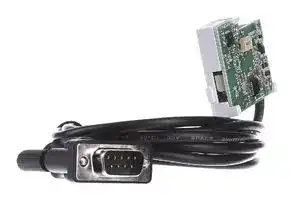
AL2-GSM-CAB
COMMUNICATION/GSM CABLE, 1.5M, PLC
⚠️ Reference pricing provided. In case of supply shortages, we will connect you with our trusted procurement partners to ensure your project's continuity.
- Manufacturer: MITSUBISHI
- Product type: Controller Accessories
- SVHC: No SVHC (15-Jan-2018)
- Product Range: ALPHA
- Current Rating: -
| Delivery and price | |
|---|---|
| Units per pack | 100 |
| Price | 110.79 € |
| Current stock | 10+ |
| Lead time | 30 days |
Datasheet

COMMUNICATION MANUAL α2 SIMPLE APPLICATION CONTROLLER

α _2 Simple Application Controllers_

## **Foreword**

- This manual contains text, diagrams and explanations which will guide the reader in the correct programming and operation of the α2 series controller.

- Before attempting to install or use the α2 Series Controller this manual should be read and understood.

- If in doubt at any stage of the installation of the α2 Series Controller always consult a professional electrical engineer who is qualified and trained to local and national standards which apply to the installation site.

- If in doubt about the operation or use of the α2 Series Controller please consult the nearest Mitsubishi Electric distributor.

- Under no circumstances will Mitsubishi Electric be liable or responsible for any consequential damage that may arise as a result of the installation or use of this equipment.

- All examples and diagrams shown in this manual are intended only as an aid to understanding the text, not to guarantee operation. Mitsubishi Electric will accept no responsibility for actual use of the product based on these illustrative examples.

- Owing to the very great variety in possible application of this equipment, you must satisfy yourself as to its suitability for your specific application.

- Please contact a Mitsubishi Electric distributor for more information concerning applications in life critical situations or high reliability.

- This manual is subject to change without notice.

This manual confers no industrial property rights or any rights of any other kind, nor does it confer any patent licenses. Mitsubishi Electric Corporation cannot be held responsible for any problems involving industrial property rights which may occur as a result of using the contents noted in this manual.

© 2005 MITSUBISHI ELECTRIC CORPORATION

α _2 Simple Application Controllers_

**==> picture [499 x 52] intentionally omitted <==**

## α2 **SIMPLE APPLICATION CONTROLLERS**

## **COMMUNICATION MANUAL**

Manual number : JY992D97701 Manual revision : G Date : 4/2015

i

α _2 Simple Application Controllers_

ii

α _2 Simple Application Controllers_

## **Guidelines for the safety of the user and protection of** α2 **Simple Application Controllers**

This manual provides information for the setup and use of α2 Simple Application Controllers that are being used in data communication applications. The manual has been written to be used by trained and competent personnel. The definition of such a person(s) is as follows;

   - a) Any engineer who is responsible for the planning, design and construction of automatic equipment using the product associated with this manual should be of a competent nature, trained and qualified to the local and national standards required to fulfill that role. These engineers should be fully aware of all aspects of safety with regards to automated equipment.

   - b) Any commissioning or service engineer must be of a competent nature, trained and qualified to the local and national standards required to fulfill that job. These engineers should also be trained in the use and maintenance of the completed product. This includes being completely familiar with all associated documentation for the said product. All maintenance should be carried out in accordance with established safety practices.

   - c) All operators of the completed equipment (see Note) should be trained to use this product in a safe manner in compliance to established safety practices. The operators should also be familiar with documentation which is associated with the operation of the completed equipment.

- **Note :** Note: the term ‘completed equipment’ refers to a third party constructed device which contains or uses the product associated with this manual.

## **Notes on the Symbols Used in this Manual**

At various times throughout this manual certain symbols will be used to highlight points of information which are intended to ensure the users personal safety and protect the integrity of equipment. Whenever any of the following symbols are encountered its associated note must be read and understood. Each of the symbols used will now be listed with a brief description of its meaning.

## **Hardware warnings**

**==> picture [38 x 117] intentionally omitted <==**

1 ) Indicates that the identified danger **WILL** cause physical and property damage.

- 2 ) Indicates that the identified danger could **POSSIBLY** cause physical and property damage.

3 ) Indicates a point of further interest or further explanation.

## **Software warning**

**==> picture [38 x 117] intentionally omitted <==**

4 ) Indicates special care must be taken when using this element of software.

- 5 ) Indicates a special point which the user of the associate software element should be aware of.

6 ) Indicates a point of interest or further explanation.

iii

α _2 Simple Application Controllers_

## **Registration**

The company name and the product name to be described in this manual are the registered trademarks or trademarks of each company.

iv

α _2 Simple Application Controllers_

## **Table of Contents**

|Guideline of Safety..............................................................................iii|Guideline of Safety..............................................................................iii|
|---|---|
|1. Communication Capabilities..................................................................1-1||
|1.1<br>System Configurations ........................................................................................1-2||
|1.1.1|Send an SMS Message to a Mobile Phone...............................................................1-3|
|1.1.2|Receive the Short Message from a PC and phone ...................................................1-3|
|1.1.3|Detect The Phone Ringing ........................................................................................1-4|
|1.1.4|Send an E-mail Message .......................................................................................... 1-5|
|1.1.5|Program/monitor from remote PC using a GSM Modem........................................... 1-6|
|1.1.6|Program/Monitor from remote PC using a standard Modem..................................... 1-6|
|1.1.7|RS - 232C Straight Cable.......................................................................................... 1-7|
|1.2<br>Dedicated Protocol Communication ....................................................................1-8||
|1.2.1|Dedicated Protocol Configuration..............................................................................1-8|
|1.2.2|Diagram for RS-232C Cross Cable ...........................................................................1-8|
|2. SMS/SMR/CD Functions and the Modem Setting.................................2-1||
|2.1<br>Set|the parameters of the GSM modem from VLS software. ..............................2-1|
|2.1.1|GSM & Serial Communication Dialog Box ................................................................2-2|
|2.1.2|The “Initialize Modem...” Setting................................................................................2-3|
|2.1.3|Pre-Configured GSM Modem Initialization Setting.................................................... 2-3|
|2.2<br>The|GSM/SMS Function Block............................................................................2-6|
|2.2.1|The Short Message Service (SMS)...........................................................................2-7|
|2.2.2|SMS Setting Dialog Box ............................................................................................2-8|
|2.3<br>The|SMR Function Block...................................................................................2-10|
|2.3.1|The Short Message Receiving (SMR).....................................................................2-11|
|2.4<br>The|CD Function Block......................................................................................2-14|
|2.4.1|Call Detect (CD) ......................................................................................................2-15|
|2.5<br>Set|GSM Modem Parameters from the Front Panel Keys.................................2-17|
|2.5.1|ComFormat .............................................................................................................2-17|
|2.5.2|The GSM Init Command (GSM Initialization Command)......................................... 2-18|
|2.5.3|Pin Code..................................................................................................................2-18|
|2.5.4|Set SMS .................................................................................................................. 2-19|
|2.5.5|GSM Status ............................................................................................................2-20|
|2.6<br>Characters in GSM Protocol..............................................................................2-21||
|2.6.1|The GSM Character Table ......................................................................................2-21|
|2.6.2|French GSM Characters .........................................................................................2-22|
|2.6.3|Italian GSM Characters ...........................................................................................2-22|
|2.7<br>AL-PCS/WIN-E Program Example ....................................................................2-23||
|2.7.1|SMS Function Block Example .................................................................................2-23|
|2.7.2|SMR Function Block Example.................................................................................2-26|
|2.7.3|CD Function Block Example....................................................................................2-29|


v

α _2 Simple Application Controllers_

|3. Remote Access .....................................................................................3-1|
|---|
|3.1<br>GSM Remote Access ..........................................................................................3-1|
|3.1.1<br>Set Parameters from the VLS software.....................................................................3-1|
|3.1.2<br>GSM & Serial Communication Dialog Box ................................................................3-2|
|3.1.3<br>GSM Modem Settings ...............................................................................................3-3|
|3.1.4<br>The GSM Init Command (GSM Initialization Command)........................................... 3-3|
|3.1.5<br>Command Setting .....................................................................................................3-4|
|3.1.6<br>Delay Time ................................................................................................................3-4|
|3.1.7<br>GSM Remote Command ...........................................................................................3-4|
|3.1.8<br>The PIN Code............................................................................................................3-4|
|3.2<br>Standard Modem Remote Access.......................................................................3-5|
|3.3<br>Set Parameters from VLS software .....................................................................3-5|
|3.3.1<br>GSM & Serial Communication Dialog Box ................................................................3-6|
|3.3.2<br>Standard Modem Settings.........................................................................................3-7|
|3.3.3<br>The Command Setting ..............................................................................................3-7|
|3.3.4<br>The Delay Time Setting.............................................................................................3-7|
|3.3.5<br>Standard Preconfigured Modems..............................................................................3-8|
|4. SMS Messaging Diagnostics.................................................................4-1|
|4.1<br>Check points for Mobile Phone Communication Problems..................................4-1|
|4.2<br>Check points for E-mail Communication Problems .............................................4-1|
|4.3<br>GSM Status ........................................................................................................4-2|
|4.3.1<br>GSM Status ..............................................................................................................4-2|
|4.3.2<br>CME Error .................................................................................................................4-3|
|4.3.3<br>CMS Error .................................................................................................................4-4|
|4.3.4<br>Signal Strength (Sigstreng) .......................................................................................4-4|
|5. Computer Link - Dedicated Protocol .....................................................5-1|
|5.1<br>Data Flow by Link ................................................................................................5-1|
|5.2<br>Configuration Diagram.........................................................................................5-3|
|5.2.1<br>Cross-Cable Diagram................................................................................................5-3|
|5.3<br>How to read Dedicated Protocol..........................................................................5-4|
|6. AL-PCS/WIN-E Settings for Dedicated Protocol ...................................6-1|
|6.1<br>GSM and Serial Communication Setting .............................................................6-1|
|6.2<br>Function Blocks ...................................................................................................6-6|
|6.3<br>Settings for Dedicated Protocol - Front Panel Keys ..........................................6-11|
|6.3.1<br>Top Menu Setting/Serial Com Settings ...................................................................6-11|
|6.3.2<br>The “Other Com” Settings .......................................................................................6-11|
|6.3.3<br>The Comformat (Communication Format)...............................................................6-11|
|6.3.4<br>Data Length.............................................................................................................6-11|
|6.3.5<br>Parity ....................................................................................................................... 6-11|
|6.3.6<br>Stop Bits .................................................................................................................. 6-11|
|6.3.7<br>Baud Rate ............................................................................................................... 6-11|
|6.3.8<br>Default ..................................................................................................................... 6-12|
|6.3.9<br>Station Number .......................................................................................................6-12|
|6.3.10 Link Block ................................................................................................................6-12|
|6.3.11 Function Block Bit and Word Data ..........................................................................6-12|


vi

α _2 Simple Application Controllers_

|7. The Command String ............................................................................7-1|7. The Command String ............................................................................7-1|
|---|---|
|7.1<br>Format “A” ...........................................................................................................7-2||
|7.2<br>Format “B” Message............................................................................................7-3||
|7.3<br>Control Protocol elements ...................................................................................7-5||
|7.3.1|Control Codes ...........................................................................................................7-6|
|7.3.2|No. of Communication Bytes.....................................................................................7-6|
|7.3.3|Format Number .........................................................................................................7-7|
|7.3.4|Station Number .........................................................................................................7-8|
|7.3.5|Command..................................................................................................................7-8|
|7.3.6|Number of Devices....................................................................................................7-9|
|7.3.7|Device Code............................................................................................................ 7-11|
|7.3.8|Device Number........................................................................................................7-12|
|7.3.9|Device Status ..........................................................................................................7-12|
|7.3.10|Sum Check..............................................................................................................7-13|
|7.3.11|Error Codes .............................................................................................................7-14|
|7.4<br>Communication Timing Chart ............................................................................7-15||
|7.4.1|Read/Write Data from the Controller .......................................................................7-15|
|7.4.2|Communication Time ..............................................................................................7-15|
|7.5<br>Character Area Data Transmission ...................................................................7-16||
|7.5.1|Read Data Transmission.........................................................................................7-16|
|7.5.2|Write Data Transmission ......................................................................................... 7-17|
|7.5.3|Time Switch Data Transmission..............................................................................7-19|
|7.6<br>Commands ........................................................................................................7-20||
|7.6.1|Communication Line Check ....................................................................................7-21|
|7.6.2|Read Command ......................................................................................................7-22|
|7.6.3|Write Command ......................................................................................................7-24|
|7.6.4|Remote RUN/STOP Operation ...............................................................................7-26|
|7.6.5|Time Switch Settings...............................................................................................7-27|
|7.6.6|VLS Time Switch Settings (Sample) .......................................................................7-36|
|7.6.7|RTC Read Command (Ver. 2.20 or later)................................................................7-38|
|7.6.8|RTC Write Command (Ver. 2.20 or later)................................................................7-39|
|7.6.9|Display Read Command (Ver.3.00 or later) ............................................................7-40|
|7.7<br>Sample Visual Basic program ...........................................................................7-45||
|8. Dedicated Protocol Error Diagnostics ...................................................8-1||
|8.1<br>Check points for Dedicated Protocol ..................................................................8-1||


vii

α _2 Simple Application Controllers_

## MEMO

viii

_**Communication Capabilities 1**_

α _2 Simple Application Controllers_

## **1. Communication Capabilities**

The α2 Simple Application Controller has a wide range of communication capabilities that include remote programming, sending SMS messages to mobile telephones or e-mail accounts, and reading/writing data using a dedicated protocol. These powerful features bring a new era of information transfer possibilities to the simple application controllers.

The α2 can be used to monitor and control machines in remote stations and notify maintenance personnel in case of machine error or emergency situations. Remote monitoring through the AL-PCS/WIN-E software (version 2.00 onwards), hereafter referred to as VLS, can provide machine production and status updates as well as enable programming or parameter updates without the necessity of local access.

The Dedicated Protocol option gives the user the ability to transfer and monitor data from a peripheral device without the use of VLS software. Programmers familiar with C, C++, Visual Basic, or similar packages can write specialized communication programs.

Both standard and GSM modems can connect to the α2 controller.

The most powerful function is the ability to send SMS packets to e-mail accounts or mobile phones.

The new functional block which strengthens the communication from external equipment was added to  α2 Controller (version 2.20 or later).

The new functional blocks is "Short Message Receiving(SMR) "and" Call Detect (CD)." "Short Message Receiving (SMR)" changes an output by the character string of a mail account. And "Call Detect (CD)" By GSM modem or an analog modem that supports"Calling Line Identification Presentation(CLIP)", an output is changed by call RING of a telephone. This functionality enables messages to be sent from remote locations to maintenance personnel or the appropriate staff thus reducing downtime for machines and the necessity for on site personnel at each location. The α2 Series Controller can connect to a GSM modem or standard modem to provide remote program upload/download, to monitor devices, set Function Block parameters, or change the I/O status. Program upload/download can be performed remotely by a PC that is using VLS software.

The procedure for Dedicated Protocol, which can remotely monitor or set parameters without using the VLS software, is discussed in Chapters 5 - 9.

Error messages can be prepared and placed on the α2 display to be sent as the SMS packet. Please refer to section 2.3 to view the available character set for SMS/GSM communication. The α2 Series Controllers communicates with a GSM or Standard modem from the connection port on the right side.

**==> picture [37 x 38] intentionally omitted <==**

Note: The α controller communicates to a modem via the left side port and cannot connect to a GSM modem.

1 - 1

_**Communication Capabilities 1**_

α _2 Simple Application Controllers_

## **1.1 System Configurations**

There are four methods of modem communication available in the α2 (AL2-14MR-*, AL2-24MR-*) Series Controllers

- 1 ) Send an SMS packet to a Mobile phone.

- 2 ) Send an SMS packet (inside an e-mail) to an e-mail account.

- 3 ) Remote access via GSM modem.

- 4 ) Remote access via standard Modem.

- 5 ) RS-232C Communication for Dedicated Protocol.

The configurations and equipment are listed below.

**==> picture [440 x 216] intentionally omitted <==**

**----- Start of picture text -----**<br>
Using Dedicated Protocol<br>α2<br>Series<br>Remote Maintenance (Using Telephone Line)<br>Modem Modem<br>Personal computer<br>Remote Maintenance (Using Radio Wave), Sending E-Mail - Programming Software<br>Modem    (AL-PCS/WIN-E)<br>GSM - Dedicated protocol<br>Modem - E-Mail application<br>Sending SMS Message Cellular Phone<br>(Supporting SMS message)<br>**----- End of picture text -----**<br>


1 - 2

_**Communication Capabilities 1**_

α _2 Simple Application Controllers_

## **1.1.1 Send an SMS Message to a Mobile Phone**

The contents of the display screen will be sent as an SMS packet to a mobile telephone.

**==> picture [322 x 117] intentionally omitted <==**

**----- Start of picture text -----**<br>
➄<br>➃<br>➀ ➁ SMS Provider<br>+ -  (A)  (B)  1  2  3  4  5  6  DC INPUT 7  8  9  10  11  12  13  14  15<br>POWER 24V DC<br>ESC<br>+<br>-<br>OK<br>AL2-24MR-D<br>OUT1  OUT2  OUT3  OUT4  RELAY OUTPUT OUT  5  6  7  8  9  ➂<br>**----- End of picture text -----**<br>


## _**Table 1.1:SMS Message Setup**_

|**No.**|**Description**|
|---|---|
|1|α2 (AL2-14MR-*, AL2-24MR-*) Series Controller|
|2|AL2-GSM-CAB|
|3|GSM Modem (with SIM card and Antenna)|
|4|SMS Provider|
|5|Mobile Telephone|


## **1.1.2 Receive the Short Message from a PC and phone**

The GSM short message (SM) can be sent from a Mobile phone, a Normal Phone (with SM functionality) or PC to a GSM modem that is connected to an α2 controller.

**==> picture [356 x 170] intentionally omitted <==**

**----- Start of picture text -----**<br>
➄<br>➃<br>➀ ➁ SMS Provider<br>+ -  (A)  (B)  1  2  3  4  5  6  DC INPUT 7  8  9  10  11  12  13  14  15<br>POWER 24V DC<br>ESC<br>+<br>-<br>OK<br>AL2-24MR-D<br>OUT1  OUT2  OUT3  OUT4  RELAY OUTPUT OUT  5  6  7  8  9  ➂<br>**----- End of picture text -----**<br>


## _**Table 1.2:SMS Message Setup**_

|**No.**|**Description**|
|---|---|
|1|α2 (AL2-14MR-*, AL2-24MR-*) Series Controller|
|2|AL2-GSM-CAB|
|3|GSM Modem (with SIM card and Antenna)|
|4|SMS Provider|
|5|Mobile Telephone, Normal Phone (with SM functionality), PC|


1 - 3

_**Communication Capabilities 1**_

α _2 Simple Application Controllers_

## **1.1.3 Detect The Phone Ringing**

In case a GSM modem or an analog modem that supports Calling Line Identification Presentation (CLIP) is called, the number of the calling partner is sent by the modem by the AT notification "+CLIP" attached to the RING notification.

**==> picture [344 x 170] intentionally omitted <==**

**----- Start of picture text -----**<br>
➀ ➁<br>+ -  (A)  (B)  1  2  3  4  5  6  DC INPUT 7  8  9  10  11  12  13  14  15<br>POWER 24V DC<br>ESC<br>+<br>OK -  ➅<br>OUT1 AL2-24MR-D OUT2  OUT3  OUT4  RELAY OUTPUT OUT  5  6  7  8  9  ➂ CALL<br>➀ ➁<br>+ -  (A)  (B)  1  2  3  4  5  6  DC INPUT 7  8  9  10  11  12  13  14  15<br>POWER 24V DC<br>ESC<br>+<br>-<br>OK<br>AL2-24MR-D<br>OUT1  OUT2  OUT3  OUT4  RELAY OUTPUT OUT  5  6  7  8  9  ➃<br>➄<br>**----- End of picture text -----**<br>


## _**Table 1.3:SMS Message Setup**_

|**No.**|**Description**|
|---|---|
|1|α2 (AL2-14MR-*, AL2-24MR-*) Series Controller|
|2|AL2-GSM-CAB|
|3|GSM Modem (with SIM card and Antenna)|
|4|RS-232C Straight Cable (See Section 1.1.7)|
|5|Standard Modem|
|6|Mobile Telephone, Normal Phone|


1 - 4

_**Communication Capabilities 1**_

α _2 Simple Application Controllers_

## **1.1.4 Send an E-mail Message**

The SMS packet can be placed inside an e-mail as text. The e-mail address is entered into α2 system parameters through the VLS software or the controller main menu. Refer to chapter 2 to 4 for further detailed information.

**==> picture [421 x 125] intentionally omitted <==**

**----- Start of picture text -----**<br>
➃<br>➀ ➁<br>GSM Gateway<br>Service Provider<br>+ -  (A)  (B)  1  2  3  4  5  6  DC INPUT 7  8  9  10  11  12  13  14  15  ➅<br>POWER 24V DC  ESC  ➄ ➆<br>+<br>-<br>OK<br>AL2-24MR-D<br>OUT1  OUT2  OUT3  OUT4  RELAY OUTPUT OUT  5  6  7  8  9  ➂<br>**----- End of picture text -----**<br>


## _**Table 1.4:GSM Modem E-mail Setup**_

|**No.**|**Description**|
|---|---|
|1<br>α2|(AL2-14MR-*, AL2-24MR-*) Series Controller|
|2<br>AL|2-GSM-CAB|
|3<br>GS|M Modem (with SIM card and Antenna)|
|4<br>GS|M Gateway Provider|
|5<br>Sta|ndard modem|
|6<br>Str|aight cable|
|7<br>PC|with VLS software|


The SMS packet will be the contents of the Display screen as the Input pin for the SMS/GSM Function Block comes ON.

The display screen consists of 4 rows of 12 columns as shown at right.

4 Rows

**==> picture [90 x 47] intentionally omitted <==**

12 Columns

When the Display contents are placed into the SMS message or the e-mail message, they columns will be lined up as a continuous string of 48 characters.

1 - 5

_**Communication Capabilities 1**_

α _2 Simple Application Controllers_

## **1.1.5 Program/monitor from remote PC using a GSM Modem**

Use the VLS software to monitor and set parameters and bit devices or to upload/download programs.

**==> picture [423 x 105] intentionally omitted <==**

**----- Start of picture text -----**<br>
➃<br>VLS 7<br>➀ ➁ GSM Gateway ➅ Program<br>Service Provider<br>+ -  (A)  (B)  1  2  3  4  5  6  DC INPUT 7  8  9  10  11  12  13  14  15<br>POWER 24V DC<br>ESC<br>+<br>-<br>OK  ➄<br>AL2-24MR-D<br>OUT1  OUT2  OUT3  OUT4  RELAY OUTPUT OUT  5  6  7  8  9  ➂<br>**----- End of picture text -----**<br>


## _**Table 1.5:GSM Modem Program/Monitor Setup**_

|**No.**|**Description**|
|---|---|
|1|α2 (AL2-14MR-*, AL2-24MR-*) Series Controller|
|2|AL2-GSM-CAB|
|3|GSM Modem (with SIM card and antenna)|
|4|GSM Gateway Service Provider|
|5|Standard Modem|
|6|RS-232C Cable specified by Modem Manufacturer|
|7|PC with VLS software|


## **1.1.6 Program/Monitor from remote PC using a standard Modem**

Use the VLS software to monitor and set parameters and bit devices or to upload/download programs. The Modem on the PC end must be a serial communication modem.

**==> picture [66 x 10] intentionally omitted <==**

**----- Start of picture text -----**<br>
� �<br>**----- End of picture text -----**<br>


**==> picture [64 x 68] intentionally omitted <==**

**----- Start of picture text -----**<br>
+ -  (A)  (B)  1  2  3  4  5  6  DC INPUT 7 7  8  9  10  11  12  13  14  15<br>POWER 24V DC 24V DC<br>ESC<br>+<br>-<br>OK<br>AL2-24MR-D<br>OUT1  OUT2  OUT3  OUT4  RELAY OUTPUT OUT OUTPUT OUT OUT T  5  6  7  8  9<br>**----- End of picture text -----**<br>


**==> picture [381 x 80] intentionally omitted <==**

**----- Start of picture text -----**<br>
VLS �<br>+ -  (A)  (B)  1  2  3  4  5  6  DC INPUT 7 7  8  9  10  11  12  13  14  15  Program<br>�<br>POWER 24V DC 24V DC<br>ESC<br>+<br>-<br>OK<br>AL2-24MR-D<br>OUT2  OUT3  OUT4  RELAY OUTPUT OUT OUTPUT OUT OUT T  5  6  7  8  9  �<br>� �<br>**----- End of picture text -----**<br>


## _**Table 1.6:Standard Modem Setup**_

|**No.**|**Description**|
|---|---|
|1|α2 (AL2-14MR-*, AL2-24MR-*) Series Controller|
|2|AL2-GSM-CAB|
|3|RS-232C Straight Cable (See Section 1.1.7)|
|4|Standard Modem|
|5|Standard Modem|
|6|RS-232C Cable as specified by Modem manufacturer|
|7|PC with VLS software|


1 - 6

_**Communication Capabilities 1**_

α _2 Simple Application Controllers_

## **1.1.7 RS - 232C Straight Cable**

The cable pinout and connector information is given below.

**==> picture [285 x 198] intentionally omitted <==**

**----- Start of picture text -----**<br>
AL2-GSM-CAB Side Modem Side<br>(9-pin D-Sub female) (25-pin D-Sub male)<br>1<br>1 8<br>2 3<br>3 2<br>4 20<br>5 7<br>6 6<br>7 4<br>8 5<br>9 22<br>**----- End of picture text -----**<br>


1 - 7

_**Communication Capabilities 1**_

α _2 Simple Application Controllers_

## **1.2 Dedicated Protocol Communication**

The α2 (AL2-14MR-*, AL2-24MR-*) Series Controller can transfer data To/From a personal computer, HMI, or other peripheral equipment via Dedicated Protocol. Programs for Dedicated Protocol can be written in C++. Visual Basic, or similar high-level programming languages. Please see the information in Chapters 5 for more information on Dedicated Protocol.

## **1.2.1 Dedicated Protocol Configuration**

The peripheral equipment acts as the Master in the Dedicated Protocol configuration. The communication takes place via a 1:1 RS-232C communication link.

**==> picture [392 x 97] intentionally omitted <==**

**----- Start of picture text -----**<br>
�<br>�<br>� �<br>+ -  (A)  (B)  1  2  3  4  5  6  DC INPUT 7  8  9  10  11  12  13  14  15<br>POWER 24V DC<br>ESC<br>+<br>-<br>OK<br>AL2-24MR-D<br>OUT1  OUT2  OUT3  OUT4  RELAY OUTPUT OUT  5  6  7  8  9<br>**----- End of picture text -----**<br>


_**Table 1.7:Dedicated Protocol Setup**_

|**No.**|**Description**|
|---|---|
|1|α2 (AL2-14MR-*, AL2-24MR-*) Series Controller|
|2|AL2-GSM-CAB Cable|
|3|RS-232C Cross Cable (see section 1.2.2)|
|4|PC or other peripheral device|


## **1.2.2 Diagram for RS-232C Cross Cable**

The pinouts and connector types for the RS-232C cross cable are shown in the figure below. Both the connectors and the wiring are equivalent so that either side can be connected to the AL2-GSM-CAB or the peripheral device.

**==> picture [275 x 142] intentionally omitted <==**

**----- Start of picture text -----**<br>
(9-pin D-Sub female) (9-pin D-Sub female)<br>2 2<br>3 3<br>4 4<br>5 5<br>6 6<br>7 7<br>8 8<br>**----- End of picture text -----**<br>


1 - 8

_**SMS/SMR/CD Functions and the Modem Setting 2**_

α _2 Simple Application Controllers_

## **2. SMS/SMR/CD Functions and the Modem Setting**

SMS messages can be sent to mobile phones and e-mail accounts via a GSM modem if certain parameters in the α2 controller are correctly configured.

The output of SMR changes, when the command text is exactly included in Short Message. The output of CD changes, when called from the modem that supports Calling Line Identification Presentation (CLIP).

These parameters can be set quickly and easily in the VLS software or from the front panel keys.

Refer to section 1.1 for the system configuration.

## **2.1 Set the parameters of the GSM modem from VLS software.**

The Visual Logic Software (VLS) provides the easiest method to set the parameters and download them to the controller. The communication method is the first setting necessary in the VLS software.

When use a standard modem by CD Funcion Block, see section 3.3.

Open or start a new program and then choose “Option” on the menu bar. Click “GSM and Serial Communication” to open the dialog box necessary to begin parameterisation.

2 - 1

_**SMS/SMR/CD Functions and the Modem Setting 2**_

α _2 Simple Application Controllers_

## **2.1.1 GSM & Serial Communication Dialog Box**

The GSM and Serial Communication Dialog Box is used to set the equipment and communication type for the controller.

Refer to the AL-PCS/WIN-E Software Manual for further information concerning VLS.

Click the “GSM” option to enable GSM telemetric functionality.

**==> picture [399 x 147] intentionally omitted <==**

**----- Start of picture text -----**<br>
A)<br>B) 77<br>C)<br>Pin Code i E)<br>[Pin Code with the quotation mark. a F )<br>[ Remote Access G)<br>D)<br>I )<br>Initialize Modem... |<br>H)<br>**----- End of picture text -----**<br>


## **A) Not Use**

This default setting is for situations in which no communication will be used. The AT command is not activated.

## **B) Modem**

This setting is used when a standard modem will be connected to the α2 for use in Remote Access.

## **C) GSM**

This setting is used when a GSM modem will be connected either to send an SMS message or for Remote Access.

## **D) Other**

This setting is used for Dedicated Protocol communication.

## **E) Pin Code**

The GSM PIN (Personal Identification Numbers for use of GSM)

**F) Pin Code with the quotation mark**

GSM SIM PIN is sent to the modem in quotation marks (necessary for Sony Ericsson GSM modem)

**G) Remote Access**

Setting to allow GSM modems to have Remote Access.

## **H) Data Format**

Settings for Com ports and message protocol.

## **I) Initialize Modem**

AT Command used to initialize a modem. See section 2.1.2 for more details.

2 - 2

_**SMS/SMR/CD Functions and the Modem Setting 2**_

α _2 Simple Application Controllers_

## **2.1.2 The “Initialize Modem...” Setting**

When the “Initialize Modem...” button is clicked, the “Initialize Controller Modem” dialog box is displayed.   This box is used to enter the AT command for the modem and the “Power On Delay” time.

**==> picture [14 x 69] intentionally omitted <==**

**----- Start of picture text -----**<br>
A)<br>B)<br>**----- End of picture text -----**<br>


## **A) Initialize Command**

Enter the AT command for the modem. This setting will be automatically entered if one of the preconfigured modems is chosen, see section 2.1.3.

## **B) Power On Delay**

The Power On Delay will set the time in seconds that the α2 will wait on power-up before sending the Modem Initialization command. The delay can help to ensure that the modem is ready to receive the signal from the α2 in case there is a difference in the time necessary to power-up each item.

## **2.1.3 Pre-Configured GSM Modem Initialization Setting**

If using the Modem or GSM option, a preconfigured modem can be used. Choose the down arrow to view the modem options.

Choose one of the listed modems and the AT command will be automatically entered into the software parameter settings in “Initialize Modem...” The frame above shows a preconfigured setting for a GSM modem. The option for the GSM modems is listed below.

2 - 3

_**SMS/SMR/CD Functions and the Modem Setting 2**_

α _2 Simple Application Controllers_

## **GSM Preconfigured Modems**

Please refer to the Table 2.1 for information on the pre-configured modems available in ALPCS/WIN-E for GSM modems.

_**Table 2.1: GSM Preconfigured Modem Setting**_

|**Maker name**|**Model name**|**Modem command (AT command)**|
|---|---|---|
|Mitsubishi|MIM-G01|AT+IPR=9600;+CICB=0;+IFC=0,0;+CMEE=1;E0S0=2&W|
|Siemens|TC35i|AT+IPR=9600;+IFC=0,0;+CMEE=1;E0S0=2&W|
|Siemens|MC35i|AT+IPR=9600;+CMEE=1;E0S0=2&S0\Q0&W|
|Siemens|Siemens M20T|AT+IPR=9600;+IFC=0,0;+CMEE=1;E0S0=2&W|
|Sony Ericsson|GM29|AT+IPR=9600;+IFC=0,0;+CMEE=1;E0S0=2&W|
|Tixi|HNG1|AT+IPR=9600;+CICB=0;+IFC=0,0;+CMEE=1;E0S0=2&W|
|Wavecom|WMOD2|AT+IPR=9600;+IFC=0,0;+CMEE=1;E0S0=2&W|


## **AT Command Profile for GSM Modems**

Please refer to the Table below for information on the AT command for GSM modems.

_**Table 2.2: AT Command Reference for GSM Modems**_

|**Item**|**Content**|**Example Setting**|
|---|---|---|
|||**Siemens M20T**|
|Enable command echo|Echo mode OFF|E0<br>S0=2<br>&S0<br>+IFC=0,0<br>+CMEE=1<br>+IPR=9600<br>&W|
|Set number of rings before<br>automatically answering the call|Enable automatic answering on the ring<br>twice||
|Set circuit data set ready (DSR)<br>function mode|DSR always ON||
|Set TE-TA local data flow control|•<br>Specifies the method which will be used<br>by TE when data is received from TA:<br>None<br>•<br>Specifies the method which will be used<br>by TA when data is received from TE:<br>None||
|Report mobile equipment error|Enable result code and use numeric value||
|Set fixed local rate|Baud Rate: 9600 bps||
|Store current parameter to use<br>definedprofile|The user profile is stored in non-volatile<br>memory||


**==> picture [37 x 38] intentionally omitted <==**

## Note:

Additional parameters for the Siemens M20T GSM modem can be included via editing the GSM.ini file.

2 - 4

_**SMS/SMR/CD Functions and the Modem Setting 2**_

α _2 Simple Application Controllers_

**==> picture [38 x 37] intentionally omitted <==**

Note:

The Siemens M20T GSM modem has been used as the default modem for the α2 Series Controller, however, if the user has installed a GSM modem of their choice with a different AT command then additional AT commands can be included.

Having installed VLS to the Program files directory.

## **C:\Program Files\Alvls\BIN**

please choose the GSM.ini file that contains AT information for GSM modem selection in VLS.

## _**Contents of the GSM.ini file:**_

; This is GSM.ini File, used to Display GSM Modem Models ; and their Initialization commands. This file is used

; while Initializing the Controller GSM.

; ; Please add any new Modem models and Initializing commands ; only at the end of the file. An example is given below:

; ;1="USRoboticsXXX","AT&F" ; Here "1" is serial number in increasing order

;      "USRoboticsXXX" is GSM Modem model

;      "AT&F" is the initializing command (Max 64 Chars).

; [Modem]

1="New",""

2="SIEMENS M20T","ATE0S0=2&S0;+IFC=0,0;+CMEE=1;+IPR=9600&W"

Simply follow the instruction listed above, subsequently, the additional GSM modem will be included with attached AT command string.

2 - 5

_**SMS/SMR/CD Functions and the Modem Setting 2**_

α _2 Simple Application Controllers_

## **2.2 The GSM/SMS Function Block**

The GSM/SMS Function block is the trigger to send SMS messages. To enter or edit the GSM/ SMS parameters, double click on the icon to open the Short Message Service dialog box described in Section 2.2.2.

When two or more Function Blocks are trying to send a message at the same time, the first to connect will send its SMS message. The other GSM/SMS FB(s) will be placed in “Wait” status. All the FBs will send their messages in turn.

**==> picture [171 x 48] intentionally omitted <==**

**----- Start of picture text -----**<br>
(B<br>A)<br>(C<br>**----- End of picture text -----**<br>


## **A) The Input Signal**

The α2 controller will send the SMS message to the chosen destination when the input pin is activated. Even if the Input pin is turned OFF during the process, the operation will continue until the message is sent or three retries have been completed.

Input signals will be ignored when the Output pin is On or the when the Function Block is in “Wait” status.

## **B) The Output Signal**

The Output signal comes ON when the SMS message has been successfully sent or the final retry has taken place.

If the Input signal that began the operation remains ON, the Output will remain ON.

If the Input signal turns OFF during the send operation, the Output signal will remain ON for one program scan after the send operation is complete and then turn OFF.

## **C) The Word Output**

Check the status of the transmission by checking the Output Word data. The data can be checked in the program or by connecting the Output Word data to a Display FB.

_**Table 2.3: Output Word Value**_

|**Bit**|**Description**|
|---|---|
|b0|Transmission is Complete|
|b1|Transmission or retry in Progress|
|b2|Transmission is in “Wait” status|
|b3|Transmission Failed|
|b4|Transmission did not occur due to an SMS Parameter Error|
|b5 - b15|Reserved, will always be 0|


2 - 6

_**SMS/SMR/CD Functions and the Modem Setting 2**_

α _2 Simple Application Controllers_

After the Input Pin is turned OFF, the Word Output will also be reset to 0 when the communication is complete.

Note:

The Word Value will display a hexadecimal number. Convert the hexadecimal number to binary form to check the values against Table 2.5 Output Word Value parameters. It is possible that multiple bits will be ON simultaneously.

The status of the entire controller can be seen in the Diagnosis of Controller dialog box described in Chapter 4.

Note:

Transmission of UCS2 encoded short messages to an email account is not necessarily supported for a SMS Gateway. In the event no support by the SMS Gateway, UCS2 encoded short messages cannot be sent to an email account and a fax machine.

Please contact the used GSM network provider.

## **2.2.1 The Short Message Service (SMS)**

The Short Message Service dialog box is used to choose whether to send the SMS message to a mobile phone or an e-mail address. If an e-mail message is chosen, the address is entered in the E-mail entry block at the bottom of the box. **Only one e-mail address can be entered per GSM/SMS Function Block** .

**==> picture [398 x 257] intentionally omitted <==**

**----- Start of picture text -----**<br>
I¥ Display Signal Number B)<br>A)<br>I Display Comment<br>C)<br>D) SMS Service Center<br>For Mobile [49555555566<br>For E-mail [-4o4saaaaaaa<br>Valid Pernod [24 Hours 0 Minutes<br>Destination<br>Phone Number “<br>E) 1) Telekom 3465<br>Oo Karen D 345456708967<br>oo Eurt E 73639887569 ma<br>4 k<br>F )<br>**----- End of picture text -----**<br>


## **A) Comment**

Input a comment to label the function block. The comment will be shown on the VLS software display if the “Display Comment” block is checked.

## **B) Display Signal Number**

Check this box to display the Function Block number on the VLS software display.

2 - 7

_**SMS/SMR/CD Functions and the Modem Setting 2**_

α _2 Simple Application Controllers_

## **C) Setting**

This box will open the SMS Setting Dialog box described in Section 2.2.2. The SMS message destinations are input in the SMS Setting dialog box.

## **D) SMS Service Center**

This box shows information regarding access to the SMS Provider. The information is entered in the SMS Setting Dialog Box described in section 2.2.2.

## **E) Destination**

The possible Destination telephone numbers and the e-mail Gateway parameter are shown. Choose the desired Destination phone number or Gateway setting for the specific GSM/SMS Function Block by clicking the appropriate circle.

The choice of a mobile phone number will complete the selection process.

If the Gateway setting is chosen, the destination e-mail address must be entered in the “Email” box. Every GSM/SMS FB can have a different e-mail address.

## **F) E-Mail**

Enter the destination E-mail address for the SMS message.

## **2.2.2 SMS Setting Dialog Box**

The SMS Setting Dialog box is accessed from the Short Message service (SMS) dialog box in any GSM/SMS Function Block. The SMS Setting dialog box is not specific to a single Function Block. The parameters entered here apply to all Function Blocks.

The parameter settings are the data required by the SMS provider to set up the destination locations. Messages can be sent to 1) three telephone numbers or 2) two telephone numbers and one Gateway number. The same Gateway can be used for multiple

e-mail accounts so that the only limit on e-mails is the α2 programming memory (200 FBs, 5000 bytes). Each GSM/SMS Function Block can service a single e-mail address.

**==> picture [404 x 133] intentionally omitted <==**

**----- Start of picture text -----**<br>
( C<br>A)<br>_| ——————+ ———___<br>B)<br>D ) [ 7 | OT<br>E )<br>**----- End of picture text -----**<br>


2 - 8

_**SMS/SMR/CD Functions and the Modem Setting 2**_

α _2 Simple Application Controllers_

## **A) SMS Service Center - Mobile**

Enter the number given by the SMS Provider for Mobile access. It is possible that the same number will be used for Gateway access. Please verify with the Service Provider whether the International code is needed at the beginning of the phone number.

## **B) SMS Service Center - Gateway**

Enter the number given by the SMS Service Provider for Gateway access. It is possible that the same number will be used for Mobile access. Please verify with the Service Provider whether the International code is needed at the beginning of the phone number.

## **C) Valid Period**

This is the requested period for the message to exist on the Server. The time can be set from a minimum of five minutes to a maximum or 63 weeks. This parameter is ultimately under the control of the Service Provider and the time period will be decided according to their company policy.

## **D) Destination - Mobile Phone**

Click the Mobile Phone circle to input data for a mobile phone. Use the “Name #” as an optional memo area. Enter the Destination phone number in the “Phone Number #” box. Please verify with the Service Provider whether the International code is needed at the beginning of the phone number.

## **E) Destination - Gateway**

Click the Gateway circle to input data in order to send an e-mail. Use the “Name #” as an optional memo area. Enter the e-mail server access code from the Service Provider in the “Phone Number #” box.

_**These destination numbers will be valid for all SMS function blocks. E-mails can be sent to as many addresses as the**_ α _**2 memory allows. SMS messages can be sent to a maximum of three telephone numbers.**_

2 - 9

_**SMS/SMR/CD Functions and the Modem Setting 2**_

α _2 Simple Application Controllers_

## **2.3 The SMR Function Block**

The GSM short message (SM) can be sent from a cell phone, a normal phone (with SM functionality) or PC to a GSM modem that is connected to an α2 controller.

α2 controller detects the delivery of SM by the modem and downloads the SM from the modem.The Short Message Receive FB (SMR FB) searches for the occurrence of a command in the SM.

The command is given as text string in the FB parameter.In case the command text is exactly included in the SM, outputs are changed.

To enter or edit the SMR parameters, double click on the icon to open the Short Message Receiving dialog box described in Section 2.3.1.

**==> picture [157 x 47] intentionally omitted <==**

**----- Start of picture text -----**<br>
A) (C<br>B) Tae<br>(D<br>**----- End of picture text -----**<br>


## **A) The Input Signal**

The α2 controller will receive a message when the input pin is activated.

For normal operation the input must be ON.When Input is OFF, all output values are hold and the function block doesn't care an incoming short message.Input is ON when left open(not connected).When Reset and Input are ON at the same time, only Reset becomes active.

## **B) The Reset Signal**

Resets the outputs when ON.

Reset takes priority over Input and takes priority over a command in an incoming short message.Reset is OFF when not connected.

## **C) The Output Signal**

The output is set ON, when the switch ON command is found in the received short message. The output is set OFF, when the switch OFF command is found in the short message. When Reset is ON, the bit output is reset (OFF).When Input is OFF the bit output value is hold.

## **D) The Word Output**

Word output for transferred values.

The output is set ON, when the switch ON command is found in the received short message. The output is set OFF, when the switch OFF command is found in the short message. When Reset is ON, the bit output is reset (OFF).When Input is OFF the bit output value is hold.

2 - 10

_**SMS/SMR/CD Functions and the Modem Setting 2**_

α _2 Simple Application Controllers_

## **2.3.1 The Short Message Receiving (SMR)**

The Short Message Service dialog box is used for a parameter setup when receiving a short message.

**==> picture [14 x 210] intentionally omitted <==**

**----- Start of picture text -----**<br>
A)<br>D)<br>E)<br>G)<br>H)<br>**----- End of picture text -----**<br>


**==> picture [15 x 317] intentionally omitted <==**

**----- Start of picture text -----**<br>
B)<br>C)<br>F )<br>I )<br>**----- End of picture text -----**<br>


## **A) Comment**

This edit box is used to enter a comment that will be displayed above the SMR icon and only when the "Display Comment" box is checked.

## **B) Display Signal Number**

If this check box is checked the signal number will be displayed next to the function icon.

## **C) Display Monitor Information**

If this check box is checked the monitor information will be displayed below the function icon. This information is displayed only in monitor and simulation mode.

## **D) Phone Number**

This phone number is compared with a phone number of an incoming call.

Asterix Character in phone number

The asterix character '*' can be used to terminate phone number or can be stand-alone. It takes place for any combination of numbers. Using the '*', one SMR FB can switch for a group of phone numbers.

2 - 11

_**SMS/SMR/CD Functions and the Modem Setting 2**_

α _2 Simple Application Controllers_

## _**Table 2.4: Phone numbers and Outputs**_

|**FB number**|**Caller's phone number**|**FB Output**|
|---|---|---|
|+49 21 02 12 34 56 7|+49 21 02 12 34 56 7|changed|
|+49 21 02 12 34 56 7|+49 21 02 12 34 56 8|no change|
|+49 21 02 12 34 56 7|+49 21 02 12 34|no change|
|+49 21 02 12 34 56 7|+49 21 02 12 34 56 78|no change|
|+49 21 02 12 34 56 7*|+49 21 02 12 34 56 7|no change|
|+49 21 02 12 34 56|+49 21 02 12 34 56 7|no change|
|+49 21 02 12 34 56 *|+49 21 02 12 34 56 7|changed|
|+49 21 02 12 3*|+49 21 02 12 34 56 7|changed|
|+49 21 02 12 3*|+49 21 02 12 34 56 8|changed|
|+49 21 02 12 3*|+49 21 02 12 34 56 78|changed|
|*|Any phone number|changed|
|+*|Anyinternationalphone number|changed|


## **E) - Acknowledge**

If this check box is checked, then an Acknowledge flag will be set.

## Report short message handling

**==> picture [317 x 219] intentionally omitted <==**

**----- Start of picture text -----**<br>
GSM<br>Short Modem α 2<br>Message<br>New Short Message<br>received,stored in memory<br>Request Short<br>Message<br>Check Password<br>Transfer Short<br>Message Check  Commands<br>Erase SM<br>Transfer report SM.<br>See Message Table<br>Short<br>Message<br>**----- End of picture text -----**<br>


## Acknowledge messages

|**Condition**|**Transmitted**<br>**Short Message**|
|---|---|
|α2in Run Mode, all commands of SM successfully processed|"OK"|
|α2in Run Mode, some commands in SM were erroneous.|"Error"|
|α2in Run Mode, Sender of SM has no authorization|"No access"|
|α2in Run Mode, Password Protection Set, Password invalid or not Set|"No access"|


2 - 12

_**SMS/SMR/CD Functions and the Modem Setting 2**_

α _2 Simple Application Controllers_

## **- Retentive**

Check the "Retentive" checkbox is store the output value even after a Power cut.

## **- Maintenance**

If this check box is checked the maintenance mode will be initiated.

## **F) Short Message Age**

This value defines the duration of time that the short message is stored.

User can click "+" or "-" button to increase or decrease the short message age.

## **G) Word Output Range**

This parameter is only used for when the word output mode is active.

## **-Min. value**

Lower limit of the word output value. In case the word output value is smaller than the min. value set, thus, the min. value will become active. Min. Value range: -32768 (max. value -1)

## **-Max. Value**

Upper limit of word output value. In case the word output value is greater than the max. value, thus, the max. value will become active.

Max. Value range: 32767 (min. value +1)

## **H) Short Message Command**

## **-Bit Output**

The Bit output can be switched ON and OFF by the appropriate short message command.

## **-Word Output**

The word output value can be set by the appropriate value held in the short message command.

## **I) SMR Password**

Setting the SMR password in this dialog box will create a common password for all equivalent SMR Function blocks.

Setting Range: 0 and 9999.

**==> picture [38 x 80] intentionally omitted <==**

## **In order to avoid serious injury and the machine damage caused by unintended SMR FB operation, provide safety devices as countermeasure.**

2 - 13

_**SMS/SMR/CD Functions and the Modem Setting 2**_

α _2 Simple Application Controllers_

## **2.4 The CD Function Block**

In case a GSM modem or an analog modem that supports Calling Line Identification Presentation (CLIP) is called, the number of the calling partner is sent by the modem by the AT notification "+CLIP" attached to the RING notification. α2 extracts the callers's number after a given number of RING notifications.

In case the numbers of digits of both phone numbers and the phone numbers itself are equal, the CD FB output is switched on.

To enter or edit the SMR parameters, double click on the icon to open the Short Message Receiving dialog box described in Section 2.4.1.

**==> picture [171 x 37] intentionally omitted <==**

**----- Start of picture text -----**<br>
A)<br>(C<br>B)<br>**----- End of picture text -----**<br>


## **A) The Input Signal**

Enables the CD FB operation.For normal operation the Input must be ON.

When Input is OFF, the output is hold and the function block doesn't check caller's number. Input is ON when left open (not connected).When Reset and Input are ON at the same time, only Reset becomes active.

## **B) The Reset Signal**

Resets the bit output when ON

Reset takes priority over Input and takes priority over an incoming call.Thus, when Reset is ON, an incoming call has no affect.

Reset is OFF when not connected.

## **C) The Output Signal**

Bit output.

The output is set ON, when the caller's number is equal to the stored phone number and Input is ON.The output state is hold, when Input is OFF, and it is reset (set OFF), when Reset is ON.

2 - 14

_**SMS/SMR/CD Functions and the Modem Setting 2**_

α _2 Simple Application Controllers_

## **2.4.1 Call Detect (CD)**

The Call Detect dialog box is used for a Phone Number and Number of rings setup..

**==> picture [399 x 268] intentionally omitted <==**

**----- Start of picture text -----**<br>
A)<br>I Display Comment<br>B) I¥ Display Signal Number<br>C) I¥ Display Monitor Information<br>Phone Number<br>D)<br>[+4921 021234567<br>E)<br>F)<br>Number of RING before call detect :<br>[common for all CD FB] E aj G)<br>**----- End of picture text -----**<br>


## **A) Comment**

This edit box is used to enter a comment that will be displayed above the CD icon and only when the "Display Comment" box is checked.

## **B) Display Signal Number**

If this check box is checked the signal number will be displayed next to the function icon.

## **C) Display Monitor Information**

If this check box is checked the monitor information will be displayed below the function icon. This information is displayed only in monitor and simulation mode.

## **D) Phone Number**

Length: 28 characters, including " +,-,(,),*,0,1,2,3,4,5,6,7,8,9 "

Asterix Character in phone number

The asterix character '*' can be used to terminate phone number or can be stand-alone. It takes place for any combination of numbers. Using the '*', one CD FB can switch for a group of phone numbers.

2 - 15

_**SMS/SMR/CD Functions and the Modem Setting 2**_

α _2 Simple Application Controllers_

## _**Table 2.5: Phone numbers and Outputs**_

|**FB number**|**Caller's phone number**|**FB Output**|
|---|---|---|
|+49 21 02 12 34 56 7|+49 21 02 12 34 56 7|changed|
|+49 21 02 12 34 56 7|+49 21 02 12 34 56 8|no change|
|+49 21 02 12 34 56 7|+49 21 02 12 34|no change|
|+49 21 02 12 34 56 7|+49 21 02 12 34 56 78|no change|
|+49 21 02 12 34 56 7*|+49 21 02 12 34 56 7|no change|
|+49 21 02 12 34 56|+49 21 02 12 34 56 7|no change|
|+49 21 02 12 34 56 *|+49 21 02 12 34 56 7|changed|
|+49 21 02 12 3*|+49 21 02 12 34 56 7|changed|
|+49 21 02 12 3*|+49 21 02 12 34 56 8|changed|
|+49 21 02 12 3*|+49 21 02 12 34 56 78|changed|
|*|Any phone number|changed|
|+*|Anyinternationalphone number|changed|


## **E) Maintenance**

If this check box is checked maintenance mode will be selected.

## **F) Retentive**

Check the "Retentive" checkbox is store the output value even after a Power cut.

## **G) Number of RING before call detect**

Range: 1-20

## **Cautions for the use of both Call Detec and remote access**

**==> picture [37 x 80] intentionally omitted <==**

- When it remotely accesses from the same telephone number for Call Detect, CD and FB operate.

## **Cautions for misoperations**

- CD FB operates also by a misoperation of a telephone.

**In order to avoid serious injury and the machine damage caused by unintended CD FB operation, provide safety devices as countermeasure.**

2 - 16

_**SMS/SMR/CD Functions and the Modem Setting 2**_

α _2 Simple Application Controllers_

## **2.5 Set GSM Modem Parameters from the Front Panel Keys**

The settings required to send SMS packets via a GSM modem or to set up the α2 controller for remote access can be accomplished with the front panel keys.

S e r i a l Co m No t U s e Mo d em GSM O t h e r Com

To begin the process from the Top Menu, scroll down to “Others/Serial Com/GSM” and press “OK” to view the options shown at right.

GSM ComFo rma t GSM I n i t GSM Remo t e P I N Code Se t SMS GSM S t a t us

## **2.5.1 ComFormat**

Upon entering the GSM option, the ComFormat dialog will be the first option. The ComFormat allows the user to set the communication settings for Data Length, Parity, Stop Bit, and Baudrate. Most communications can be accomplished with the Default settings.

Scroll to the setting to be adjusted.

ComFo rma t Da t aLeng t h Pa r i t y S t op b i t Baud r a t e De f a u l t

**Data Length** Select a Data length parameter of 7 or 8 bits.

|Select a Data length parameter of 7 or 8 bits.|8<br>b i t s<br>Da t aLeng|8<br>b i t s<br>Da t aLeng|8<br>b i t s<br>Da t aLeng|8<br>b i t s<br>Da t aLeng|8<br>b i t s<br>Da t aLeng|t h|
|---|---|---|---|---|---|---|
||7<br>b|i|t|s|||
|**Parity**<br>Select from three options for Parity - None, Odd or Even.|Pa r i <br>Non|t <br>e|y||||
||Odd||||||
||Eve|n|||||
|**Stop Bits**<br>Choose the number of stop bits - 1 bit or 2 bits.|S t op<br>1b i|t|b|i|t||
||2b i|t|s||||
|**Baud Rate**|||||||
|Select the baud rate - 9600 or 19200 bps.|Baud<br>960|r<br>0|a|e<br>bp<br>t||s|
||192|00|||bps||


## **Default**

The controller can be returned to the default communication settings (DataLength = 8 bits; Parity = None; Stop Bits = 1; and Baud Rate = 9600 bps) by pressing “OK” when the pointer is on the Default option shown in the ComFormat box.

2 - 17

_**SMS/SMR/CD Functions and the Modem Setting 2**_

α _2 Simple Application Controllers_

## **2.5.2 The GSM Init Command (GSM Initialization Command)**

The GSM modem must have an initialization command string. After choosing the “GSM Init” option, the Command and Delay Time settings will appear.

GSM I n i t Command De l ayT i me

## **Command Setting**

Choose “Command” to enter the AT command. Details for the AT command should be included in the literature of the modem.

GSM I n i t 01 Command [ A ] <=>?@ABCDE

Enter the string by choosing the characters using the “ ” and “ ” arrows. When a desired letter is shown onscreen, move to the right by pressing the “ ” key. The character shown will remain and the cursor will move to the right. Do not press the “OK” key until the command has been entered in its entirety.

Move to the left for editing purposes with the “ ” key.

## **Delay Time**

The Delay Time Setting will delay the transmission of the initialization command while the modem completes its power up.

GSM I n i t De l ayT i me 0s

Use the “+” key to increment the value and the “-” to decrement the value within the range of 0 - 10 seconds. Enter the value by pressing the “OK” key.

## **2.5.3 Pin Code**

## _Enter the PIN (Personal Identification Number)_

It is necessary to enter a PIN received from the Service Provider when the  α2 controller is used to send SMS packets. Use the “+” and “-” keys to choose the digits of the code and the “ ” and “ ” keys to move to adjoining digits.

P I N Co d e Se t u p ∗ ∗∗∗

SIM PIN setup “****” or **** can be activated and deactivated by the cursor � and cursor � soft key.

All the numbers must be set to an integer value or a PIN Error will be received. Press the “OK” or “ESC” key to return to the PIN entry display. Finish entering all integer values into all four digits and press “OK” to enter the PIN.

## _Cancel the PIN_

To Cancel an existing PIN, enter the PIN option and confirm with the “OK” button the intent to Cancel the code. The PIN does not have to be entered in order to Cancel the PIN.

P I N Co d e Ca n c e l OK o r ESC

Use the “ESC” button to return to the GSM menu.

2 - 18

_**SMS/SMR/CD Functions and the Modem Setting 2**_

α _2 Simple Application Controllers_

## **2.5.4 Set SMS**

The SMS menu is used to set the telephone numbers for the Service Provider, the destination numbers for mobile phones, the access code for e-mail messages, and the Validity Period of the messages.

|Se t<br>SM<br>SMS 1<br>S<br>C<br>SMS 2<br>C<br>DA1||
|---|---|
|DA2<br>DA3<br>VP||
|||
|Se t<br>SM<br>SMS 1<br>S<br>C<br>01<br>[<br>]<br>9+ -<br>)<br>0<br>3<br>(<br>12||
|||
|Se t<br>SMS<br>SMSC2<br>1<br>0<br>[<br>]<br>9+ -<br>)<br>0<br>3<br>(<br>12||


## **SMS Provider Mobile Access Number (SMSC1)**

The SMSC1 is the number used to access the Service Provider section for mobile phones. Choose the digits and symbols using the “ ” and “ ” arrows. After the digit is set, move to the left or right with the “ ” and “ ” keys. Do not press the “OK” button until the command has been entered in its entirety.

## **SMS Provider Gateway Access Number (SMSC2)**

The SMSC2 is the number used to access the E-mail gateway SMSC2 telephone number of the SMS Service Provider. Choose the digits and [ ] symbols using the “ ” and “ ” arrows. After the digit is set, move to 9+ - ( ) 0 12 3 the left or right with the “ ” and “ ” keys. Do not press the “OK” button until the command has been entered in its entirety. This number might be the same as used in SMSC1.

## **Destination Address (DA1, DA2, DA3)**

Se t SMS 0 1 Enter the mobile telephone number or the Service Provider e-mail DA1 Gateway code in this window. The number entered here can be [ ] accessed by a GSM/SMS Function Block in the user program when 9+ - ( ) 0 12 3 trying to send an SMS message.

Choose the digits and symbols using the “ ” and “ ” arrows. After the digit is set, move to the left or right with the “ ” and “ ” keys. Do not press the “OK” button until the command has been entered in its entirety.

Three destination mobile telephone numbers can be entered, one in each DA address. Alternately, two mobile phone numbers and one e-mail gateway access code can be entered. Only one e-mail Gateway access code needs to be entered and then the individual e-mail addresses can be entered separately in each GSM/SMS Function Block.

## **Validity Period**

Se t SMS The Validity Period is a request to the SMS Service Provider to keep VP the message on their Server for a length of time. Each Service 24 . 0h r s Provider may have their own policies with regard to this time period. Please check the details with your local Service Provider.

Use the “+” and “-” keys to change the value within the range of 5 minutes to 63 weeks.

2 - 19

_**SMS/SMR/CD Functions and the Modem Setting 2**_

α _2 Simple Application Controllers_

## **2.5.5 GSM Status**

Check the status of the GSM communication in the following categories.

## **Status**

The status is given in hexadecimal numbers, convert to binary numbers to check against the Status Table shown in Section **. Error codes are provided in Chapter 4.

## **CME Error**

This CME Error status gives information to the functioning of Mobile Equipment (ME), please refer to the GSM modem manual for more details. Reference error Tables are located in Chapter 4 of this manual.

GSM S t a t us S t a t us CME Er r o r CMS Er r o r S i gS t r eng GSM S t a t u s S t a t u s 0 0 0 0H GSM S t a t u s CME E r r o r - 1

## **CMS Error**

This value gives error information relevant to the Mobile Equipment (ME) or Network, please refer to the GSM modem manual for more details.   Reference error Tables are located in Chapter 4 of this manual.

## **Signal Strength (Sigstreng)**

Check the signal strength of the GSM modem signal.

## _**Table 2.6: Signal Strength Reference Table**_

|**Value%**|**Receiving Level**|
|---|---|
|0|-113 dBm or less|
|3|-111 dBm|
|6-96|-109 to -53 dBm|
|100|-51 dBm or greater|


GSM S t a t u s CMS E r r o r - 1

||S i gS t <br>GSM S t|r e<br>t<br>a<br>s<br>u<br>ng|
|---|---|---|
|||0<br>%|


2 - 20

_**SMS/SMR/CD Functions and the Modem Setting 2**_

α _2 Simple Application Controllers_

## **2.6 Characters in GSM Protocol**

The following table gives the characters available for GSM/SMS communication as defined by GSM standard 03.38. The code numbers are for reference only and do not need to be entered by the User. The α2 controller supports more characters than appear in the GSM protocol. Tables are given for each language to show the unsupported characters and how they will appear if used in a GSM message. Languages where all characters are supported do not have GSM character transposition tables.

## **2.6.1 The GSM Character Table**

The Table below gives the characters that can be sent by the α2 controller in a GSM message.

## _**Table 2.7: GSM 03.38 Default Alphabet**_

|**Number (Hex)**|**0**|**1**|**2**|**3**|**4**|**5**|**6**|**7**|
|---|---|---|---|---|---|---|---|---|
|0|@|∆|SP|0|¡|P|¿|p|
|1|£|_|!|1|A|Q|a|q|
|2|$|Φ|“|2|B|R|b|r|
|3|¥|Γ|#|3|C|S|c|s|
|4|è|Λ|¤|4|D|T|d|t|
|5|é|Ω|%|5|E|U|e|u|
|6|ù|Π|&|6|F|V|f|v|
|7|ì|Ψ|‘|7|G|W|g|w|
|8|ò|Σ|(|8|H|X|h|x|
|9|Ç|Θ|)|9|I|Y|i|y|
|A|LF|Ξ|*|:|J|Z|j|z|
|B|Ø|1)|+|;|K|Ä|k|ä|
|C|ø|Æ|,|<|L|Ö|l|ö|
|D|CR|æ|-|=|M|Ñ|m|ñ|
|E|Å|ß|.|>|N|Ü|n|ü|
|F|å|É|/|?|O|§|o|à|


2 - 21

_**SMS/SMR/CD Functions and the Modem Setting 2**_

α _2 Simple Application Controllers_

## **2.6.2 French GSM Characters**

The following table shows the unsupported French characters in the GSM protocol and how those characters will appear in a GSM message.

However these characters are supported Ver. 3.00 or later of α2.

## _**Table 2.8: French Characters in GSM Protocol**_

|**Character Type**|**Display Character**|**Display Character**|**Display Character**|**Display Character**|**Display Character**|**Display Character**|**Display Character**|**Display Character**|
|---|---|---|---|---|---|---|---|---|
|α2 Character|â|ê|î|ô|û|ë|ï|ç|
|GSM Character|a|e|i|o|u|e|i|c|


## **2.6.3 Italian GSM Characters**

The following table shows the unsupported Italian characters in the GSM protocol and how those characters will appear in a GSM message.

However these characters are supported Ver. 3.00 or later of α2.

## _**Table 2.9: Italian Characters in GSM Protocol**_

|**Character Type**|**Display Character**|**Display Character**|**Display Character**|**Display Character**|
|---|---|---|---|---|
|α2 Character|á|í|ó|ú|
|GSM Character|à|ì|ò|ù|


2 - 22

_**SMS/SMR/CD Functions and the Modem Setting 2**_

α _2 Simple Application Controllers_

## **2.7 AL-PCS/WIN-E Program Example**

## **2.7.1 SMS Function Block Example**

**==> picture [450 x 406] intentionally omitted <==**

**----- Start of picture text -----**<br>
Table 2.10: GSM Function Block<br>Set<br>Function Description<br>Item<br>a I Bit input pin for GSM/SMS function block operation<br>1) Detects the high status of an input and subsequently sends the<br>SMS message to the predefined user destination.<br>2) The SMS message will continue to send regardless of the input<br>switching to a low state.<br>3) The incoming high input will be ignored:<br>    a) During a SMS message transmission<br>    b) During the waiting period.<br>4) Communication failure (e.g. busy line) will tell the SMS function<br>W FB block to retry on two further occasions in a period of two minutes.<br>I O 5)On the third retry the output status will switch to ON and an error<br>message generated through the word pin of the function block.<br>6) The user may experience incorrect validity period timings. Please<br>check with your Service Provider.<br>7) If both the Mobile (SMSC1) and Gateway (SMSC2) numbers are<br>entered the α2  controller will automatically choose the correct path<br>number for the SMS in conjunction with the destination chosen. The<br>destination being either to a mobile phone or an email address.<br>1) The output status will set ON:<br>    a) In succeeding in sending a SMS message<br>    b) In failing to send a SMS message after three retries.<br>2) If more than one SMS function block exists on the program, a FIFO<br>Output<br>    (First In First Out) sequence is performed. *1<br>3) The following items are available for other function blocks:<br>     a) SMS message sent/SMS failed to be sent after 3 attempts<br>i      b) Current Status<br>**----- End of picture text -----**<br>


- Note: *1 If a number of SMS Function Blocks have been used in one program the user must take care when calculating the message sending order. The first message to be sent depends on the first input signal turning ON. Thus, if other messages are waiting to be sent they are then placed in a waiting queue. However, since the waiting queue is scan dependant, if after one scan the controller has failed to send the first message due to a busy line, thus, the following message order is no longer dependant on input signals turning ON but is solely dependant on the Function Block order.

_**Table 2.11: Abbreviated terms**_

|**_Table 2.11: _**|**_Abbreviated terms_**|
|---|---|
|Term|Description|
|I|SMS Function Block Input pin|
|O|SMS Function Block Output pin|
|W|SMS Function Block Word Output pin|


2 - 23

_**SMS/SMR/CD Functions and the Modem Setting 2**_

α _2 Simple Application Controllers_

_**Table 2.11: Abbreviated terms**_

|**_Table 2.11: _**|**_Abbreviated terms_**|
|---|---|
|FB|Function Block|
|SMS|Short Message Service|


Timing chart for the SMS function block

**==> picture [442 x 126] intentionally omitted <==**

**----- Start of picture text -----**<br>
Transmission request is ignored<br>while sending SMS Message.<br>Input pin<br>* * *<br>SMS SMS<br>SMS Message<br>Message Message<br>Output pin<br>1 scan time<br>**----- End of picture text -----**<br>


## VLS program example for the SMS function block

**==> picture [457 x 326] intentionally omitted <==**

**----- Start of picture text -----**<br>
Completed<br>Send<br>Request<br>CP O01<br>I01 PL<br>S<br>R SR FL SMS Current status=1<br>From Off (Bit 0=ON)<br>to On<br>Stop Retry Reset • Output: Continous<br>I02 1 priority • On time: CP O02<br>2     120.1s (1201 × 100ms)<br>3 OR • Off time:<br>     0.1s (1 × 100ms) Current status=2<br>(Bit 1=ON)<br>ZC O03<br>4≤Current status≤7<br>(Bit 2=ON)<br>ZC O04<br>1<br>8≤Current status≤15 2<br>OR O05<br>(Bit 3=ON) 3<br>CP O06<br>Current status≥16<br>(Bit 4 = ON)<br>**----- End of picture text -----**<br>


2 - 24

_**SMS/SMR/CD Functions and the Modem Setting 2**_

α _2 Simple Application Controllers_

2 - 25

α _2 Simple Application Controllers_

|**Function**<br>~~PO~~|**Set Item**<br>~~a~~|**Description**|
|---|---|---|
|E<br>R<br>O<br>W<br>~~PO~~|E<br>~~a~~|Bit input pin for the function block operation|
||FB<br>Zz|1) Cmnd String(Cmmand String)<br>In case of Word output mode, only one command text can be setup.<br>In case of Bit output mode,  a command text for switching bit output<br>ON and a command text for switching bit output OFF can be setup.<br>2)SM Age(Short Massage age)<br>Setup maximum age of received short message.<br>a) 5 to 720minutes(Unit:5minutes)<br>b) 12.5 to 24Hours(Unit:30minutes)<br>c) 2 to 30day(Unit:1day)<br>d) 5 to 63week(Unit:1week)<br>3) Phone Number<br>Setup short message senders phone number.<br>By setting the phone number in FB parameter, only the Short<br>Message Entity(SME) with the setup phone number can manipulate a<br>SMR FB.<br>Up to 28 characters,including “+ , - * 0 1 2 3 4 5 6 7 8 9 “.<br>Asterix Character in phone number<br>The asterix character '*' can be used to terminate phone number or<br>can be stand-alone.<br>It takes place for any combination of numbers. Using the '*', one SMR<br>FB can switch for a group of phone numbers.(See Table 2.14)<br>4) Password<br>Setup authentication password (4 digit code). The password is<br>common for all SMR FB and stored in Programm Parameter area.<br>5) Acknowledge<br>If this parameter is set and the FB output was manipulated by SM, a<br>acknowledge message is send back to the sender.(See Table 2.15)<br>6) Retention<br>If this flag is set, the SMR FB keeps it's output states at the time of<br>controller power down.<br>7) Upper Limit (Word output mode)<br>In case the transmitted value is bigger than the max. value, max.<br>value becomes active. Max. Value can be [(min.value + 1)...32767].<br>8) Lower Limit (Word output mode)<br>In case the transmitted value is smaller than the min. value, min.<br>value becomes active. Min. Value can be [-32768...(max. value - 1)]<br>Zz|


## **2.7.2 SMR Function Block Example**

_**Table 2.12: SMR Function Block**_

_**SMS/SMR/CD Functions and the Modem Setting 2**_

α _2 Simple Application Controllers_

|**Function**|**Set Item**|**Description**|
|---|---|---|
||R|Reset pin for the function block|
||Output|The SMR FB can be operated in one of two different modes.<br>1) Bit output.<br>a) The output is set ON, when the switch ON command is found<br>in the received short message.<br>b) The output is set OFF, when the switch OFF command is found<br>in the short message.<br>c) When R ON, the bit output is reset (OFF). R takes priority over E.<br>When E is OFF the bit output value is hold.<br>2) Word output.<br>a) Word output for transferred values. The output is set to the<br>transmitted value, when the set word output command is found<br>and the value after “=” is valid.<br>b) When R is ON, the word output is set to zero.<br>When E is OFF, the word output is hold. R takes priority over E.|


_**Table 2.13: Abbreviated terms**_

|**_Table 2.13:_**|**_Abbreviated terms_**|
|---|---|
|Term|Description|
|E|SMR Function Block Input pin|
|R|SMR Function Block Reset pin|
|O|SMR Function Block Output pin|
|W|SMR Function Block Word Output pin|
|FB|Function Block|
|SMS|Short Message Service|


_**Table 2.14: Phone numbers and Outputs**_

|**FB number**|**Caller's phone number**|**FB Output**|
|---|---|---|
|+49 21 02 12 34 56 7|+49 21 02 12 34 56 7|changed|
|+49 21 02 12 34 56 7|+49 21 02 12 34 56 8|no change|
|+49 21 02 12 34 56 7|+49 21 02 12 34|no change|
|+49 21 02 12 34 56 7|+49 21 02 12 34 56 78|no change|
|+49 21 02 12 34 56 7*|+49 21 02 12 34 56 7|no change|
|+49 21 02 12 34 56|+49 21 02 12 34 56 7|no change|
|+49 21 02 12 34 56 *|+49 21 02 12 34 56 7|changed|
|+49 21 02 12 3*|+49 21 02 12 34 56 7|changed|
|+49 21 02 12 3*|+49 21 02 12 34 56 8|changed|
|+49 21 02 12 3*|+49 21 02 12 34 56 78|changed|
|*|Any phone number|changed|
|+*|Anyinternationalphone number|changed|


2 - 27

_**SMS/SMR/CD Functions and the Modem Setting 2**_

α _2 Simple Application Controllers_

## **Report short message handling**

**==> picture [270 x 187] intentionally omitted <==**

**----- Start of picture text -----**<br>
GSM<br>Short Modem α 2<br>Message<br>New Short Message<br>received,stored in memory<br>Request Short<br>Message<br>Check Password<br>Transfer Short<br>Message Check  Commands<br>Erase SM<br>Transfer report SM.<br>See Message Table<br>Short<br>Message<br>**----- End of picture text -----**<br>


## _**Table 2.15:Acknowledge messages**_

|**Condition**|**Transmitted**<br>**Short Message**|
|---|---|
|α2in Run Mode, all commands of SM successfully processed|"OK"|
|α2in Run Mode, some commands in SM were erroneous.|"Error"|
|α2in Run Mode, Sender of SM has no authorization|"No access"|
|α2in Run Mode, Password Protection Set, Password invalid or not Set|"No access"|


## **Application Example: Switch an irrigation system by SM**

A system for plant irrigation can be switched ON and OFF by short message (B10). The start of irrigation can be delayed. The delay time (in minutes) is transferred by short message. Also the duration of irrigation can be set by short message.

2 - 28

_**SMS/SMR/CD Functions and the Modem Setting 2**_

α _2 Simple Application Controllers_

## **2.7.3 CD Function Block Example**

## _**Table 2.16: CD Function Block**_

|**Function**<br>~~fe~~|**Set Item**<br>~~fe~~|**Description**<br>~~fe~~|
|---|---|---|
|E<br>R<br>O<br>~~fe~~<br>GB<br>||E<br>~~fe~~<br>~~a~~|Bit input pin for the function block operation<br>~~fe~~<br>|
||FB<br>po|1) Retention<br>If this flag is set, the CD FB keeps it's output state at the time of<br>controller power down.<br>2) Phone Number<br>Setup short message senders phone number.<br>By setting the phone number in FB parameter, only the SME with the<br>setup phone number can manipulate a SMR FB.<br>Up to 28 characters,including “+ , - * 0 1 2 3 4 5 6 7 8 9 “.<br>Asterix Character in phone number<br>The asterix character '*' can be used to terminate phone number or<br>can be stand-alone.<br>It takes place for any combination of numbers. Using the '*', one CD<br>FB can switch for a group of phone numbers.(See Table 2.18)<br>3) Number of RING<br>Setup number of RING before call detection(Program Parameter,<br>common for all CD FBs)<br>Range:1 to 20<br>po|
||R|Reset pin for the function block|
||Output<br>~~pp~~|The output is set ON, when the caller's number is equal to the stored<br>phone number and E is ON.<br>The output state is hold, when E is OFF, and it is reset (set OFF),<br>when R input is ON.<br>~~pp~~|


## _**Table 2.17: Abbreviated terms**_

|**_Table 2.17: Abbreviated terms_**|**_Table 2.17: Abbreviated terms_**|
|---|---|
|Term|Description|
|E|CD Function Block Input pin|
|R|CD Function Block Reset pin|
|O|SMR Function Block Output pin|
|FB|Function Block|


_**Table 2.18: Phone numbers and Outputs**_

|**FB number**|**Caller's phone number**|**FB Output**|
|---|---|---|
|+49 21 02 12 34 56 7|+49 21 02 12 34 56 7|changed|
|+49 21 02 12 34 56 7|+49 21 02 12 34 56 8|no change|
|+49 21 02 12 34 56 7|+49 21 02 12 34|no change|
|+49 21 02 12 34 56 7|+49 21 02 12 34 56 78|no change|
|+49 21 02 12 34 56 7*|+49 21 02 12 34 56 7|no change|
|+49 21 02 12 34 56|+49 21 02 12 34 56 7|no change|
|+49 21 02 12 34 56 *|+49 21 02 12 34 56 7|changed|
|+49 21 02 12 3*|+49 21 02 12 34 56 7|changed|
|+49 21 02 12 3*|+49 21 02 12 34 56 8|changed|
|+49 21 02 12 3*|+49 21 02 12 34 56 78|changed|
|*|Any phone number|changed|
|+*|Anyinternationalphone number|changed|


2 - 29

_**SMS/SMR/CD Functions and the Modem Setting 2**_

α _2 Simple Application Controllers_

## **Application Example: Open roller shutter by phone call**

A roller shutter gates the entrance to a company field. Normally pedestrians only can pass this gate. Four employees need to pass the gate with a company car. These employees can open the gate by simply calling a phone number with their cell-phone.

Opening the gate by phone call is enabled only during normal workdays and business times (Time Switch). Outside the business times the company owner can enable the function for a fixed time to give an employee the chance to open the gate.

2 - 30

_**Remote Access 3**_

α _2 Simple Application Controllers_

## **3. Remote Access**

The settings required to send SMS packets via a GSM modem or to set up the α2 controller for remote access can be accomplished with the front panel keys. It is possible to perform remote operations with a standard modem but it is not possible to send SMS packets.

Certain parameters in the α2 controller and GSM modem must be set in order to perform Remote Access from an external PC. These parameters can be set quickly and easily in the VLS software or with slightly more effort from the front panel keys.

The equipment and configuration for this style of communication is listed in section 1.1 of this manual.

## **3.1 GSM Remote Access**

## **3.1.1 Set Parameters from the VLS software**

The Visual Logic Software (VLS) provides the easiest method to set the parameters and download them to the controller. The communication method is the first setting necessary in the VLS software.

Open or start a new program and then choose “Option” on the menu bar. Click “GSM and Serial Communication” to open the dialog box necessary to begin parameter input.

3 - 1

_**Remote Access 3**_

α _2 Simple Application Controllers_

## **3.1.2 GSM & Serial Communication Dialog Box**

The “GSM and Serial Communication” dialog box is used to set the equipment and communication type for the controller. A short explanation of each parameter is given below.

In order to obtain remote access using a GSM modem, the GSM circle must be clicked, the Remote Access box checked, and the GSM Pin Code entered.

**==> picture [398 x 116] intentionally omitted <==**

**----- Start of picture text -----**<br>
A)<br>G)<br>Fin Code a B)<br>[Pin Code with the quotation mark, a C)<br>[ Remote Access D)<br>Other<br>Initialize Modem... E)<br>F)<br>**----- End of picture text -----**<br>


**A) GSM** - This setting is used when a GSM modem will be connected either to send an SMS message or for Remote Access communication.

- **B) Pin Code** - The GSM PIN (Personal Identification Numbers for use of GSM)

**C) Pin Code with the quotation mark** - GSM SIM PIN is send to the modem in quotation marks (necessary for Sony Ericsson GSM modem)

**D) Remote Access -** Setting to allow GSM modems to have Remote Access capability.

- **E) Initialize Modem -** AT Command used to initialize a modem.

- **F) Data Format -** Settings for Com ports and message protocol.

- **G) Registered GSM Modems -** List of available GSM modems for the user to choose from, however, this list can be extended by writing to the GSM.ini file.

Refer to the section 2.1 for further detailed information concerning VLS settings for remote access using GSM.

3 - 2

_**Remote Access 3**_

α _2 Simple Application Controllers_

## **3.1.3 GSM Modem Settings**

The numerous parameters and options for using the GSM modem can be set using the front panel keys although this procedure is significantly more difficult than using the AL-PCS/WIN-E software.

S e r i a l Co m No t U s e Mo d em GSM O t h e r Com

To begin the process from the Top Menu, scroll down to “Others/Serial Com/GSM” and view the options shown at right.

## **Comformat (Communication Format)**

Upon entering the GSM option, the ComFormat dialog will be the first option. The Comformat allows the user to set the communication settings for Data Length, Parity, Stop Bit, and Baudrate.

Scroll to the setting to be adjusted.

GSM ComFo rma t GSM I n i t GSM Remo t e P I N Code Se t SMS GSM S t a t us

ComFo rma t Da t aLeng t h Pa r i t y S t op b i t Baud r a t e De f a u l t

## _**Data Length**_

Select a Data length send parameter of 7 or 8 bits.

## _**Parity**_

Select from three options for Parity - None, Odd or Even.

## _**Stop Bits**_

Choose the number of stop bits - 1 bit or 2 bits.

## _**Baud Rate**_

Select the baud rate - 9600 or 19200 bps.

Da t aLeng t h 8 b i t s 7 b i t s Pa r i t y Non e Odd Eve n S t op b i t 1b i t 2b i t s Baud r a t e 960 0 bp s 192 00 bps

## _**Default**_

The controller can be returned to the default communication settings - DataLength = 8 bits; Parity = None; Stop Bits = 1; and Baud Rate = 9600 bps - by pressing “OK” when the pointer is on the Default option.

## **3.1.4 The GSM Init Command (GSM Initialization Command)**

The GSM modem must have an initialization command string. After choosing the “GSM Init” option, the Command and Delay Time settings will appear.

GSM I n i t Command De l ayT i me

3 - 3

_**Remote Access 3**_

α _2 Simple Application Controllers_

## **3.1.5 Command Setting**

Choose “Command” to enter the AT command. Details for the AT command should be included in the literature of the modem.

GSM I n i t 01 Command [ A ] <=>?@ABCDE

Enter the string by choosing the characters with the “ ” and “ ” arrows. When a desired letter is shown onscreen, move to the right by pressing the “ ” key. The character will remain in the previous cursor space. Do not press the “OK” key until the command has been entered in its entirety.

Move to the left for editing purposes with the “ ” key.

## **3.1.6 Delay Time**

The Delay Time Setting will delay the transmission of the initialization command while the modem completes its power up.

GSM I n i t De l ayT i me 0s

Use the “+” key to increment the value and the “-” to decrement the value within the range of 0 - 10 seconds. Enter the value by pressing the “OK” key.

## **3.1.7 GSM Remote Command**

Remote access from a computer running the VLS software is allowed when “Permit” is chosen.

GSM Remo t e Fo r b i d Pe r mi t

SMS packets cannot be sent under the “Permit” setting but can be sent when “Forbid” is used.

## **3.1.8 The PIN Code**

## _Enter the PIN Code_

It is necessary to enter a PIN code received from the Service Provider when the  α2 controller is used to send SMS packets. Use the “+” and “-” keys to choose the digits of the code and the “ ” and “ ” keys to move to adjoining digits.

P I N Co d e Se t u p ∗ ∗∗∗

SIM PIN setup “****” or **** can be activated and deactivated by the cursor � and cursor � soft key.

All the numbers must be set to an integer value or a PIN Code Error will be received. Press the “OK” or “ESC” key to return to the PIN Code entry display. Finish entering all integer values into all four digits and press “OK” to enter the code.

## _Cancel the PIN Code_

To Cancel an existing PIN code, enter the PIN Code option and confirm with the “OK” button the intent to Cancel the code. The PIN Code does not have to be entered in order to Cancel the code.

P I N Co d e Ca n c e l OK o r ESC

Use the “ESC” button to return to the GSM menu.

3 - 4

_**Remote Access 3**_

α _2 Simple Application Controllers_

## **3.2 Standard Modem Remote Access**

Certain parameters in the α2 controller and standard modems must be set in order to perform Remote Access from an external PC. These parameters can be set quickly and easily in the VLS software or with slightly more effort from the front panel keys.

The equipment and configuration for this style of communication is listed in section 1.2 of this manual.

## **Cautions for the use of both Call Detec and remote access**

- When it remotely accesses from the same telephone number for Call Detect, CD and FB operate.

## **Cautions for misoperations**

- CD FB operates also by a misoperation of a telephone.

**In order to avoid serious injury and the machine damage caused by unintended CD FB operation, provide safety devices as countermeasure.**

## **3.3 Set Parameters from VLS software**

The Visual Logic Software (VLS) provides the easiest method to set the parameters and download them to the controller. The communication method is the first setting necessary in the VLS software.

Open or start a new program and then choose “Option” on the menu bar. Click “GSM and Serial Communication” to open the dialog box necessary to begin parameter input.

3 - 5

_**Remote Access 3**_

α _2 Simple Application Controllers_

## **3.3.1 GSM & Serial Communication Dialog Box**

The “GSM and Serial Communication” dialog box is used to set the equipment and communication type for the controller. A short explanation of each parameter is given below.

In order to perform Remote Access using a Standard modem, click the Modem circle. The settings for Pin Code, Remote Access, and Data Format cannot be accessed when the Modem circle is selected.

**==> picture [399 x 116] intentionally omitted <==**

**----- Start of picture text -----**<br>
A) B)<br>to |<br>po<br>To) Pin Code with the quotation mark.<br>T Renighe Aibess:<br>Co<br>C)<br>" ntaze Modem.<br>**----- End of picture text -----**<br>


**A) Modem** - This setting is used when a standard modem will be connected to the α2 for use in Remote Access.

**B) Modem selection** - Select from the default modem stored in the Modem.ini file. **C) Initialize Modem -** AT Command used to initialize a modem.

Refer to section 2.1 for further detailed information concerning VLS settings for remote access using standard modems.

3 - 6

_**Remote Access 3**_

α _2 Simple Application Controllers_

## **3.3.2 Standard Modem Settings**

A standard modem can setup from the front panel keys but must be accessed from the VLS software package.

Once the Modem option is entered, only two settings are required - the AT command and the power On Delay setting. This is enough information to initialize the modem connected to the α2 upon powerup

In the Top Menu, scroll down to the “Others/Serial Com/Modem” option and Press “OK”.

S e r i a l Co m No t U s e Mo d em GSM O t h e r Com

## **3.3.3 The Command Setting**

The modem option contains the “Command” and the “Delay Time” setting. Choose “Command” to input the AT command. Details for the AT command should be included in the literature of the modem. For additional reference information, please see section 2.3 of this manual.

Enter the command by choosing the characters with the “ ” and “ ” arrows. When the desired letter is shown on screen, move to the right “ ” to add the next character. Do not press the “OK” key until the command has been entered in its entirety.

ModemI n i t Command De l ay T i me ModemI n i t 01 Command [ ] y z { | } ! " #$

Move to the left for editing purposes with the “ ” key.

## **3.3.4 The Delay Time Setting**

The Delay Time parameter will delay the transmission of the initialization command while the modem completes its power up.

Mo d em I n i t Comma n d De l a y T i me

Use the “+” key to increment the value and the “-” to decrement the value within the range of 0 - 10 seconds. Enter the value by pressing the “OK” key.

ModemI n i t De l ayT i me 0s

3 - 7

_**Remote Access 3**_

α _2 Simple Application Controllers_

## **3.3.5 Standard Preconfigured Modems**

Please refer to the Table below for information on the Preconfigured modems available in the α2 controller for standard modems.

## _**Table 3.1: Standard Preconfigured Modem Settings**_

|**Maker name**|**Model name**|**Modem command (AT command)**|
|---|---|---|
|3com|SP560V-P|ATE0Q1&B1&D0&H0&I0&R1&S0S0=2S15=8&W|
|OMRON|ME3314|ATE0S0=2Q1&D0S15=8&R1&H0&W|
|AIWA|PV-AF3360|ATE0S0=2Q1&D0&M5\Q0\J0&W|


## **AT Command Profile for Standard Modems**

Please refer to the Table below for information on the AT command for Standard Modems. _**Table 3.2: AT Command Reference for Standard Modems**_

|**Item**|**Content**|**Example Setting**|**Example Setting**|**Example Setting**|
|---|---|---|---|---|
|||**SP560V-P**|**ME3314**|**PV-AF3360**|
|Setting of command echo|None|E0|E0|E0<br>S0=2<br>Q1<br>&D0<br>-<br>&M5<br>\J0<br>\Q0<br>-<br>-<br>-<br>&W|
|Call frequency of auto-answering|Twice|S0=2|S0=2||
|Displayed result code|None|Q1|Q1||
|DTR control|Always on|&D0|&D0||
|DSR control|Always on|&S0|-||
|Communication mode|V.42 bis mode|S15=8|S15=8||
|Speed of terminal fixed dimension|Fixed|&B1|-||
|Terminal flow control scheme|None|-|&R1||
|Flow control of transmission data|None|&H0|&H0||
|Flow control of received data<br>(software)|None|&I0|-||
|Flow control of received data<br>(RTS control)|None|&R1|-||
|Writing to nonvolatile memory|Write to the<br>nonvolatile memory.|&W|&W||


## **Combination of the "AT" command** _**Table 3.3: Combination and action**_

|**Init string**|**Action**|
|---|---|
|ATE0S0=2&S0;+IPR=9600;+CMEE=1;&W|Will be send at once to modem|
|ATE0S0=2&S0;+IPR=9600;AT+CMEE=1;&W|Will be send to modem in 2steps:<br>ATE0S0=2&S0;+IPR=9600<br>AT+CMEE=1;&W|
|ATE0S0=2&S0;AT+IPR=9600;AT+CMEE=1;&W|Will be send to modem in 3steps:<br>ATE0S0=2&S0<br>AT+IPR=9600<br>AT+CMEE=1;&W|
|ATE0S0=2&S0;AT+IPR=9600;AT+CMEE=1;AT&W|Will be send to modem in 4 steps:<br>ATE0S0=2&S0<br>AT+IPR=9600<br>AT+CMEE=1<br>AT&W|


3 - 8

_**Remote Access 3**_

α _2 Simple Application Controllers_

**==> picture [38 x 37] intentionally omitted <==**

Note:

The 3COM (SP560-V), OMRON (ME3314) and AIWA (PV-AF3360) standard modems have been used as the default modem for the α2 Series Controller, however, if the user has installed a standard modem of their choice with a different AT command then additional AT commands can be included.

Having installed VLS to the Program files directory.

## **C:\Program Files\Alvls\BIN**

please choose the Modem.ini file that contains AT information for standard modem selection in VLS.

## _**Contents of the Modem.ini file:**_

; This is Modem.ini File, used to Display Modem Models

; and their Initialization commands. This file is used

; while Initializing the Controller Modem. ; ; Please add any new Modem models and Initializing commands

; only at the end of the file. An example is given below:

; ; 1="USRoboticsXXX","AT&F"

; Here "1" is serial number in increasing order

;      "USRoboticsXXX" is modem model

;      "AT&F" is the initializing command (Max 64 Chars).

; [Modem] 1="New",""

2="3COM SP560V-P","ATE0Q1&B1&D0&H0&I0&R1&S0S0=2S15=8&W" 3="OMRON ME3314","ATE0S0=2Q1&D0S15=8&R1&H0&W"

4="AIWA PV-AF3360","ATE0S0=2Q1&D0&M5\Q0\J0&W"

Simply follow the instruction listed above, subsequentially, the additional standard modems will be included with attached AT command string.

3 - 9

_**Remote Access 3**_

α _2 Simple Application Controllers_

## MEMO

3 - 10

_**SMS Messaging Diagnostics 4**_

α _2 Simple Application Controllers_

## **4. SMS Messaging Diagnostics**

The α2 controller has a number of Diagnostic messages in both the controller and the VLS software.

## **4.1 Check points for Mobile Phone Communication Problems**

## _**Table 4.1: Check Points for a Mobile Phone SMS Error**_

|**Error**|**Check Points**|
|---|---|
|The SMS message has<br>not been sent to a<br>mobile phone|Check that the SMS function block been activated|
||Check that the wiring connections are properly made|
||Check that the AT command in the GSM modem is correct|
||Check that the PIN code has been entered correctly|
||Check that the SMS Service Center Mobile phone number has been<br>entered correctly|
||Check that the destination phone number has been entered correctly|
||Check that the proper destination has been chosen in the GSM function<br>block|
||Check the GSM Status in the controller or VLS software for error<br>messages|


## **4.2 Check points for E-mail Communication Problems**

## _**Table 4.2: Check Points for a E-mail SMS Error**_

|**Error**|**Check Points**|
|---|---|
|The SMS message has<br>not been sent to an E-<br>mail account|Check that the SMS function block been activated|
||Check that the wiring connections are properly made|
||Check that the AT command in the GSM modem is correct|
||Check that the PIN code has been entered correctly|
||Check that the SMS Service Center Gateway phone number has been<br>entered correctly|
||Check that the destination e-mail address has been entered correctly|
||Check that the Gateway destination has been chosen in the GSM<br>function block|
||Check the GSM Status in the controller or VLS software for error<br>messages|


4 - 1

_**SMS Messaging Diagnostics 4**_

α _2 Simple Application Controllers_

## **4.3 GSM Status**

Check the status of the GSM communication in the following categories.

## **4.3.1 GSM Status**

Check the Status of the GSM modem settings and SMS message transmissions through the table below.

GSM S t a t us S t a t us CME Er r o r CMS Er r o r S i gS t r eng GSM S t a t u s S t a t u s 0 0 0 0H

## _**Table 4.3: GSM Modem Status**_

|**Bit**|**Status**|**On (1)**|**Off (0)**|
|---|---|---|---|
|b0|Response from GSM Modem|No|Yes|
|b1|Initial successful|Yes|No|
|b2|Set Pin Code|Yes|No|
|b3|Network Registration failed|Registered|Not Registered|
|b4|GSM CME Error.|Yes|No|
|b5|GSM CSM Error.|Yes|No|
|b6|Remote Access successful *1|Yes|No|
|b7|SMR Receive Time out|Yes|No|
|b8-11|Reserved|Reserved = 0||
|b12|SMS is sending or retrying|Message|No Message|
|b13|SMS is waiting for sending)|Transmitting|Off|
|b14|SMS failed in sending|Yes|No|
|b15|SMS failed in sending due to wrong setting|Yes|No|


**==> picture [38 x 37] intentionally omitted <==**

## Note:

*1 - This bit is not linked to the Remote Access Setting which only enables remote access. This bit checks if Remote Access is currently in progress.

4 - 2

_**SMS Messaging Diagnostics 4**_

α _2 Simple Application Controllers_

## **4.3.2 CME Error**

This CME Error status gives information to the functioning of Mobile Equipment (ME), please refer to the GSM modem manual for more details.

GSM S t a t u s CME E r r o r - 1

## _**Table 4.4: Mobile Equipment Error Codes**_

|**Value**|**Description**|**Value**|**Description**|
|---|---|---|---|
|-1|No Error|17|SIM PIN2 Required|
|0|Phone Failure|18|SIM PUK2 Required|
|1|No Connection to Phone|20|Memory Full|
|2|Phone-Adaptor Link Reserved|21|Invalid Index|
|3|Operation Not Allowed|22|Not Found|
|4|Operation Not Supported|23|Memory Failure|
|5|PH-SIM PIN Required|24|Text String Too Long|
|10|SIM not inserted|25|Invalid Characters in Text String|
|11|SIM PIN Required|26|Dial String Too Long|
|12|SIM PUK Required|27|Invalid Characters in Dial String|
|13|SIM Failure|30|No Network Service|
|14|SIM Busy|31|Network Time-out|
|15|SIM Wrong|100|Unknown|
|16|Incorrect Password|...256|All other values below 256 are reserved.|


4 - 3

_**SMS Messaging Diagnostics 4**_

α _2 Simple Application Controllers_

## **4.3.3 CMS Error**

This value gives error information relevant to the Mobile Equipment (ME) or Network, please refer to the GSM modem manual for more details.

GSM S t a t u s CMS E r r o r - 1

## _**Table 4.5: Mobile Equipment and Network Error Codes**_

|**Value**|**Description**|**Value**|**Description**|
|---|---|---|---|
|-1|No Error|315|SIM Wrong|
|0 - 127|GSM 04.11 Annex E-2 Values|316|SIM PUK Required|
|128 - 256|GSM 03.40 Subclause 9.2.3.22<br>values|317|SIM PIN2 Required|
|300|ME Failure|318|SIM PUK2 Required|
|301|SMS Service of ME reserved|320|Memory Failure|
|302|Operation Not Allowed|321|Invalid Memory Index|
|303|Operation Not Supported|322|Memory Full|
|304|Invalid PDU Mode Parameter|330|SMSC Address Unknown|
|305|Invalid Text Mode Parameter|331|No Network Service|
|310|SIM not Inserted|332|Network Time-out|
|311|SIM PIN Required|340|No +CNMA acknowledgement expected|
|312|PH-SIM PIN Required|500|Unknown Error|
|313|SIM Failure|... 511|Unused Values in the range from 256 to 511<br>are Reserved.|
|314|SIM Busy|512 (+)|Manufacturer Specific|


## **4.3.4 Signal Strength (Sigstreng)**

Check the signal strength of the GSM modem signal. Generally good operation is possible with a signal strength of 10% or more.

GSM S t a t u s S i gS t r e ng 0%

## _**Table 4.6: Signal Strength Reference Table**_

|**Value %**|**Receiving Level**|
|---|---|
|0|-113 dBm or less|
|3|-111 dBm|
|6-96|-109 to -53 dBm|
|100|-51 dBm or greater|


4 - 4

_**SMS Messaging Diagnostics 4**_

α _2 Simple Application Controllers_

**==> picture [38 x 37] intentionally omitted <==**

Note

- 1 ) During GSM communication, the RS-232C pins 4 and 7 must be set high otherwise no data will transferred and the GSM modem will appear to hang or experience a state of suspension.

- 2 ) The α2 Series Controller and GSM modem must be powered ON simultaneously.

- 3 ) Having configured the GSM communication settings before operation, when the α2 Series Controller and GSM modem are on-line, then the user must not change any settings from VLS or the front panel keys. If such modifications have been made to the GSM communication settings, thus, the α2 Series Controller will stop communication with the GSM modem.

- 4 ) The power to the α2 Series Controller must be cycled to accept the initial communication settings. If modifications have been made to the communication settings, then please cycle the power again.

- 5 ) Please check with your service provider concerning the @ symbol within an E-mail address. The **@** symbol can be replaced with a **!** symbol if the user experiences some difficulties with sending E-mail messages from the α2 Series Controller.

- 6 ) The Validity period of SMS messages is specified from the GSM function block or from the front panel keys, however, if a certain time period is entered the user should not always expect the same duration as the Service Provider can delete the message from their server without notice.

4 - 5

_**SMS Messaging Diagnostics 4**_

α _2 Simple Application Controllers_

## MEMO

4 - 6

_**Computer Link - Dedicated Protocol 5**_

α _2 Simple Application Controllers_

## **5. Computer Link - Dedicated Protocol**

The α2 Series Controller can transfer data To/From a personal computer, HMI, or other peripheral equipment via Dedicated Protocol. The structure of the α2 (AL2-14MR-*, AL224MR-*) Series computer link protocol is based upon 8-bit binary interpretation and not an ASCII coded string.

## **5.1 Data Flow by Link**

The computer reads data from the α2 (AL2-14MR-*, AL2-24MR-*) Series Controller

**==> picture [414 x 528] intentionally omitted <==**

**----- Start of picture text -----**<br>
Computer α2 Controller<br>RS-232 AL2-GSM-CAB FBD<br>RS-232<br>(2) Cross cable (3) (4)<br>OS<br>(9) (8) (7)<br>(1) (10) Data(6) (5)<br>Read<br>Communication Device<br>OS<br>Program Memory<br>S<br>(1) Request Command T<br>X<br>(2) RS-232 Cross Cable Connection<br>(3) AL2-GSM-CAB Cable Connection<br>(4) α2 Controller RS-232 Interface<br>Read<br>(5) Operating System   →   Device Memory<br>Data<br>(6) Device Memory   →   Operating System<br>(7) α2 Controller RS-232 Interface<br>(8) AL2-GSM-CAB Cable Connection<br>(9) RS-232 Cross Cable Connection<br>E<br>(10) Response Data T<br>X<br>**----- End of picture text -----**<br>


5 - 1

_**Computer Link - Dedicated Protocol 5**_

α _2 Simple Application Controllers_

The computer writes data to the α2 (AL2-14MR-*, AL2-24MR-*) Series Controller

|OS<br>Communication<br>Program<br>(1)<br>(9)<br>Computer||(2)<br>RS-232<br>Cross cable|(2)<br>RS-232<br>Cross cable|(3)<br>AL2-GSM-CAB|(3)<br>AL2-GSM-CAB|α2 Controller<br>OS<br>Device<br>Memory<br>(4)<br>FBD<br>RS-232<br>(6)<br>(5)<br>Write|α2 Controller<br>OS<br>Device<br>Memory<br>(4)<br>FBD<br>RS-232<br>(6)<br>(5)<br>Write|
|---|---|---|---|---|---|---|---|
|||||||||
|||||||||
|||(8)||||Device<br>Memory<br>(6)||
||||||||OS|
|||||||Device<br>Memory||
|(1) Request Command<br>S<br>T<br>X<br>(2) RS-232 Cross Cable Connection<br>(3) AL2-GSM-CAB Cable Connection<br>(4)α2 Controller RS-232 Interface<br>(5) Operating System→Device Memory<br>Write<br>(6)α2 Controller RS-232 Interface<br>(7) AL2-GSM-CAB Cable Connection<br>(8) RS-232 Cross Cable Connection<br>(9) Acknowledge Command||||||||


The 8-bit binary computer link string is sent from peripheral equipment to the α2 Series Controller using a combination of a AL2-GSM-CAB and user-made cross-cable. The Transmit message consists of either Format A or Format B. Refer to section 5.3 for further outline information. The reply generated from the α2 Series Controller informs the user of the status of the communication line, erroneous messages, status of function block bit data, status of function block word data and the status of the Time Switch settings.

Accessible devices include: System Bits, Input/Output Terminals, Key Inputs, Link Inputs/ Outputs, Analog Inputs and Control (N) bits. Additional parameters must be entered for information exchange with Function Block data (Bit or Word) to be enabled.

5 - 2

_**Computer Link - Dedicated Protocol 5**_

α _2 Simple Application Controllers_

## **5.2 Configuration Diagram**

The Peripheral equipment acts as the Master in all configurations, hence, messages are never initiated from the α2 Series Controller. This configuration involves a personal computer acting as the Master and the α2 Series Controller the slave unit.

Currently the α2 Series Controller contains an RS-232C interface, thus, only 1:1 communication is available.

**==> picture [392 x 96] intentionally omitted <==**

**----- Start of picture text -----**<br>
�<br>�<br>� �<br>+ -  (A)  (B)  1  2  3  4  5  6  DC INPUT 7  8  9  10  11  12  13  14  15<br>POWER 24V DC<br>ESC<br>+<br>-<br>OK<br>AL2-24MR-D<br>OUT1  OUT2  OUT3  OUT4  RELAY OUTPUT OUT  5  6  7  8  9<br>**----- End of picture text -----**<br>


## _**Table 5.1: Configuration Table**_

|**No.**|**Description**|
|---|---|
|1|α2 Series Controller|
|2|AL2-GSM-CAB|
|3|RS-232C Cross Cable|
|4|PC or other peripheral equipment|


## **5.2.1 Cross-Cable Diagram**

The pinouts and connector types for the RS-232C cross cable are shown in the figure below. Both the connectors and the wiring are equivalent so that either side can be connected to the AL2-GSM-CAB or the peripheral device.

**==> picture [275 x 142] intentionally omitted <==**

**----- Start of picture text -----**<br>
(9-pin D-Sub female) (9-pin D-Sub female)<br>2 2<br>3 3<br>4 4<br>5 5<br>6 6<br>7 7<br>8 8<br>**----- End of picture text -----**<br>


Note:

The 4 and 7 signals must be set to high-level on the personal computer side. If these signals are not set, the personal computer will to communicate with the α2 Series Controller.

5 - 3

_**Computer Link - Dedicated Protocol 5**_

α _2 Simple Application Controllers_

## **5.3 How to read Dedicated Protocol**

Format A for computer link is used for checking the communication line between the computer and the α2 Series Controller. Thus, the read/write format for the structure of the string is identical. Refer to section 7.1 for detailed 8-bit binary string structure.

Format A: Communication Line Check

**==> picture [257 x 87] intentionally omitted <==**

**----- Start of picture text -----**<br>
S E<br>T N<br>Computer X Q<br>α2 Controller S A<br>T C<br>X K<br>**----- End of picture text -----**<br>


Format B for computer link is generally used for reading/writing to all internal devices, reading/ writing to function block bit/word data, run/stop mode and configuring the Time Switch settings. Thus, the command string is more complex compared to the Format A equilvalent.Refer to section 8.3 for detailed 8-bit binary string structure.

Format B: Computer READS from the α2 Series Controller

**==> picture [395 x 86] intentionally omitted <==**

**----- Start of picture text -----**<br>
S E<br>T T<br>Computer X X<br>α2 Controller S S E<br>T T T<br>X X X<br>flag<br>Complete<br>**----- End of picture text -----**<br>


Format B: Computer WRITES to the α2 Series Control

**==> picture [395 x 87] intentionally omitted <==**

**----- Start of picture text -----**<br>
S E<br>T T<br>Computer X X<br>α2 Controller S S A<br>T T C<br>X X K<br>flag<br>Complete<br>**----- End of picture text -----**<br>


Format B: Computer RUN/STOP operation for the α2 Series Controller

**==> picture [395 x 87] intentionally omitted <==**

**----- Start of picture text -----**<br>
S E<br>T T<br>Computer X X<br>α2 Controller S S A<br>T T C<br>X X K<br>flag<br>Complete<br>**----- End of picture text -----**<br>


5 - 4

_**AL-PCS/WIN-E Settings for Dedicated Protocol 6**_

α _2 Simple Application Controllers_

## **6. AL-PCS/WIN-E Settings for Dedicated Protocol**

The personal computer and α2 Series Controller acts as a master slave relationship accordingly. Therefore, all communication starts from the computer side (master) and cannot be started from the α2 Series Controller side (slave). The following chapter will outline the necessary AL-PCS/WIN-E (version 2.00 or above) required settings for Dedicated Protocol.

**==> picture [175 x 217] intentionally omitted <==**

**----- Start of picture text -----**<br>
(1) Select Project (new or existing)<br>i<br>(2) Set Default Communication Settings<br>vo<br>(3) Set Bit data for function blocks<br>vo<br>(4) Set Word data for function blocks<br>»<br>(5) Download project<br>vo<br>(6) Cycle power<br>**----- End of picture text -----**<br>


## **6.1 GSM and Serial Communication Setting**

- 1 ) Open a new or existing file for the α2 Series Controller.

- 2 ) From the Option menu select the “GSM and Serial Communication.” option.

6 - 1

_**AL-PCS/WIN-E Settings for Dedicated Protocol 6**_

α _2 Simple Application Controllers_

- 3 ) Choose “Other”. Thus, enabling dedicated protocol communication between the computer and the α2 Series Controller. Click the “OK” button to accept.

**==> picture [16 x 55] intentionally omitted <==**

**----- Start of picture text -----**<br>
A )<br>B)<br>**----- End of picture text -----**<br>


**A) Other** - This setting is used for Dedicated Protocol communication. **B) Data Format -** Settings for Com ports and message protocol.

From selecting the “Other” option, AL-PCS/WIN-E automatically sets the default communication settings between the personal computer and the α2 Series Controller.

_**Table 6.1: Default Communication settings**_

|**Parameter**|**Communication Setting**|
|---|---|
|Data Bit|8|
|Parity|None|
|Stop Bit|1|
|Baud Rate|9600|


## Note:

AL-PCS/WIN-E Version 2.00 or above is necessary for dedicated protocol functionality.

6 - 2

_**AL-PCS/WIN-E Settings for Dedicated Protocol 6**_

α _2 Simple Application Controllers_

## 4 ) From the Option menu select the “Dedicated Communication.” option.

- 5 ) The Dedicated Communication dialog box will appear.

**==> picture [13 x 138] intentionally omitted <==**

**----- Start of picture text -----**<br>
A)<br>B)<br>C)<br>D)<br>**----- End of picture text -----**<br>


## **A) Station Number**

Set the Station Number of the controller from 0 to 15. The default station is 0. Communication is possible to a single α2 Controller when sending messages via RS-232. A networked α2 may have a station number higher than 0. Setting range: 0 - 15

6 - 3

_**AL-PCS/WIN-E Settings for Dedicated Protocol 6**_

α _2 Simple Application Controllers_

## **B) Communication Memory**

The Communication Memory option allocates a section of the user-program memory for Communication Bit Devices or Communication Word Devices.

## _**Table 6.2: Communication Memory usage**_

|**Communication**<br>**Bit Device**|**Communication Word**<br>**Device**|**Memory Usage (bytes)**|
|---|---|---|
|0|0|0|
|50|50|300|
|100|100|600|


A maximum of 100 Function Block Bit Devices and 100 Function Block Words can be accessed. Total memory available to the user is 5000bytes with a 200 function block limit.

## **C) Communication Function Block Bit Device**

To Set a Communication Bit Device choose a number in the right hand “Communication Bit Device” block, then highlight the Function Block in the “FB to be Specified” box. Click on the “Set” button to match the Function Block to the data transmission address.

To release a Function Block, highlight the Function Block line in the right hand box and then press the “Release” button. The Communication Bit Device Number will be cleared.

The transmit data will show whether the Function Block output signal is On or Off. Function Blocks without outputs will not appear in the display.

_Note:_

No device can be chosen if the Communication Memory is specified as 0.

6 - 4

_**AL-PCS/WIN-E Settings for Dedicated Protocol 6**_

α _2 Simple Application Controllers_

## **D) Communication Function Block Word Device**

To set a Communication Word Device choose a number in the right hand “Communication Word Device” block, then highlight the Function Block in the “FB Word Output parameter to be specified” box. Click on the “Set” button to match the Function Block to the data transmission address.

To release a Communication Word Device, highlight the Parameter line in the right hand box and then press the “Release” button. The Communication Word Device will be cleared.

The transmit data will show the word value of the parameter chosen.

Function Block without Word parameters will not appear in the display.

## _Note:_

No devices can be chosen if the Communication Memory is specified as 0.

After the parameters are entered, the program must be downloaded to the controller and the power cycled before the Dedicated Protocol can be used. Cycling the power saves the settings into the α2 internal EEPROM memory. Please cycle the power whenever the communication method (Not Use, Modem, GSM, Other) is changed.

6 - 5

_**AL-PCS/WIN-E Settings for Dedicated Protocol 6**_

α _2 Simple Application Controllers_

## **6.2 Function Blocks**

|**FB Name**||**FB Symbol**|**Description of Function Block**|**Word Device**|**Bit**<br>**Device**|
|---|---|---|---|---|---|
|Boolean<br>[BL]||0<br>0<br>0<br>1<br>L<br>B<br>O<br>2<br>3<br>4<br>P|The Boolean Function Block uses Boolean<br>algebra to control the ON/OFF state of an<br>output. An operational expression consists<br>of either the AND, OR, XOR or NOT form.|-|�|
|Set/Reset<br>[SR]|||Th~~e~~Set/Reset Function Block either holds<br>an output ON (set) or releases the output<br>OFF (reset.) Priority can be given to either<br>input pin if both inputs have been energised<br>simultaneously. The default priority setting<br>is dedicated to the reset input pin.|-|�|
|||S<br>R||||
|Pulse<br>[PL]||0<br>0<br>0<br>L<br>P<br>O<br>I<br>P|The Pulse Function Block sends a single<br>pulse to the output pin if the input pin<br>receives either an “ON to OFF”, “OFF to<br>ON” or “ON to OFF And OFF to ON” input<br>~~ope~~ration.|-|�|
|||I||||
|||||||
|Alternate<br>[AL]|||The Alternate Function Block is used to<br>reverse the ON and OFF state of the output<br>as and when the input pin receives a signal.<br>The output will be set ON when the input<br>pin goes high and remain ON until the input<br>receives the second rising edge.|-|�|
|||I<br>C||||
|Delay<br>[DL]||0<br>0<br>0<br>L<br>D<br>O<br>I<br>C<br>P|The Delay Function Block provides an ON<br>delay timer and an OFF delay timer. Time<br>intervals for either situation can be set. The<br>time unit can be set to 10ms, 100ms or 1s<br>increments.|Set ON Delay<br>Current ON Delay<br>Set OFF Delay<br>Current OFF Delay|�|
|One Shot<br>[OS]||0<br>0<br>0<br>S<br>O<br>O<br>I<br>C<br>P|The One Shot Function Block awaits a<br>signal supplied to the input pin thereafter<br>setting the output according to the specified<br>time. The timing parameters control the<br>state of the output (depending on the<br>priority setting). The time unit can be set to<br>10ms, 100ms or 1s increments.|Set One Shot<br>Current One Shot|�|
|||I<br>C||||
|||||||
|Flicker<br>[FL]||0<br>0<br>0<br>L<br>F<br>O<br>I<br>P|The Flicker Function Block changes the ON<br>and OFF state of the output according to a<br>preset flicker time. The time unit can be set<br>to 10ms, 100ms or 1s increments.|Cycle or Time<br>Current Cycle or Time<br>ON Flicker<br>Current ON Flicker<br>OFF Flicker<br>Current OFF Flicker|�|
|Time<br>Switch<br>[TS]||0<br>0<br>0<br>S<br>T<br>O<br>P|The Time Switch Function Block uses a<br>predefined time schedule to control the ON<br>and OFF status of the output.|*1|�|


6 - 6

_**AL-PCS/WIN-E Settings for Dedicated Protocol 6**_

α _2 Simple Application Controllers_

|**FB Name**||**FB Symbol**|**Description of Function Block**|**Word Device**|**Bit**<br>**Device**|
|---|---|---|---|---|---|
|Time<br>Switch m<br>[TSm]||000<br>TSm<br>O<br>P|The Time Switch maintenance Function<br>Block uses a predefined time schedule to<br>control the ON and OFF status of the<br>output. The function block can be setup<br>from the TopMenu “Parameter” via the front<br>panel keys.|*1|�|
|Counter<br>[CN]||0<br>0<br>0<br>N<br>C<br>O<br>I<br>C<br>P|The Counter Function Block increments the<br>current value by one as and when the input<br>pin receives a signal. When the current<br>value reaches the set value the output is set<br>ON. The counter current value is reset as<br>and when the clear pin receives an input.|Count<br>Current Count|�|
|U/D<br>Counter<br>[UD]||0<br>0<br>0<br>U<br>D<br>U<br>O<br>D<br>C<br>P<br>P|The Up/Down Function block positively or<br>negatively increments the counter until a<br>set value is reached thereby setting the<br>output ON. A preset signal can also equal<br>the set value regardless of the current value<br>~~for~~the function block and thereby  setting<br>the output ON.|Up/Down Count<br>Current Up/Down Count|�|
|||||||
|Compare<br>[CP]||0<br>0<br>0<br>P<br>C<br>O<br>I<br>P|The Compare Function Block monitors the<br>current value of the input pin in relation to a<br>preset expression. The expression consists<br>of =,>,>=,<,<= or <>. If the compared value<br>satisfies the expression subsequently the<br>output pin is set on.|-|�|
|Analog<br>Ouput<br>[AO]||0<br>0<br>0<br>O<br>A<br>M<br>P<br>E|The Analog Output function takes a digital<br>value input and delivers a corresponding<br>analog voltage or current to a selected<br>channel on the AL2-2DA module.|-|-|
|Offset<br>Gain<br>[OG]|||The Offset Gain Function Block is based<br>upon a linear function Y=A/B∗X+C to which<br>the value obtained from an analog input<br>(X:A01-A08) is set.|Gain Analog Value|-|
|||0<br>0<br>0<br>G<br>O<br>I<br>P||||
|Display<br>[DP]||0<br>0<br>0<br>P<br>D<br>I<br>P|The Display Function Block is used as an<br>interface between the user and the devices<br>held within the controller. Current values,<br>timer messages, user-defined messages<br>~~can~~be read.|-|-|
|||||||
|Zone<br>Compare<br>[ZC]||0<br>0<br>0<br>C<br>Z<br>O<br>I<br>P|The Zone Compare Function Block<br>identifies whether the input value lies within<br>a specified upper and lower limited zonal<br>area and if so changes the status of the<br>output accordingly.|-|�|
|Schmitt<br>Trigger<br>[ST]||0<br>0<br>0<br>T<br>S<br>O<br>I<br>P|The Schmitt Trigger Function Block<br>compares an input value to preset high and<br>low limits. The output is ON when the input<br>value reaches the high limit and then falls<br>below the lower limit. The function only<br>~~pro~~cesses the data when the function block<br>is receiving an input signal.|-|�|
|||||||


6 - 7

_**AL-PCS/WIN-E Settings for Dedicated Protocol 6**_

α _2 Simple Application Controllers_

|**FB Name**||**FB Symbol**|**Description of Function Block**|**Word Device**|**Bit**<br>**Device**|
|---|---|---|---|---|---|
|Hour<br>Meter<br>[HM]|||TheHour Meter Function Block holds the<br>output status ON for a maximum of 32767<br>hours, 59 minutes and 59 seconds. If the<br>input pin is turned OFF the elapsed time<br>will hold its value until either the clear pin<br>resets the time or the input pin is turned ON<br>again.|Set Hour<br>Current Hour<br>Set Minute<br>Current Minute|�|
|||0<br>0<br>0<br>M<br>H<br>O<br>I<br>C<br>P||||
|Speed<br>Detect<br>[SPD]||0<br>0<br>0<br>P<br>S<br>O<br>U<br>C<br>I<br>D<br>P|The Speed Detect Function Block is used to<br>count the incoming pulses max. 20Hz (with<br>an extension module max. of 1kHz) for a<br>set period of time. The upper and lower lim-<br>its can be set from -32768 to +32767 and<br>the Period interval’s set range is 1 to 32767<br>in 10ms increments.|Current Period<br>Speed<br>Period|�|
|PWM<br>[PWM]||0<br>0<br>0<br>W<br>P<br>O<br>I<br>M<br>P|The Pulse Width Modulation Function Block<br>changes the output status according to a<br>set period of time with a minimum of 100ms<br>and a maximum of 3276700ms in<br>increments of 100ms. The percentage duty<br>for the function controls the amount of<br>elapsed time before the output status is<br>changed.|Current Period<br>Period|�|
|PID<br>[PID]||0<br>0<br>0<br>I<br>P<br>O<br>A<br>C<br>E<br>D<br>P|The PID Function Block is the AL2<br>implementation of PID, a method used to<br>obtain stable control over a system variable.<br>It is equipped with an Auto-tuning function,<br>which automatically adjusts the Function<br>Block parameters for the specific applica-<br>tion.|Manipulated Value<br>Error Code|�|
|Retentive<br>Alternate<br>[RAL]||0<br>0<br>0<br>L<br>A<br>O<br>I<br>C<br>R|The Alternate Function Block is used to<br>reverse the ON and OFF state of the output<br>as and when the input pin receives a signal.<br>The output will be set ON when the input<br>pin goes high and remain ON until the input<br>receives the second rising edge. When the<br>power is turned OFF the function block will<br>use the last alternation operation to control<br>the output.|-|�|
|Addition<br>[ADD]||0<br>0<br>0<br>D<br>A<br>O<br>I<br>D<br>P|The ADD Function Block is used to<br>summate two input values|Sum|�|
|Subtrac-<br>tion<br>[SUB]||0<br>0<br>0<br>U<br>S<br>O<br>I<br>B<br>P|The SUB Function Block is used to subtract<br>two input values.|Difference|�|
|||||||
|Multiplica-<br>tion<br>[MUL]||0<br>0<br>0<br>U<br>M<br>O<br>I<br>L<br>P|The MUL Function Block is used to multiply<br>two input values.|Product|�|


6 - 8

_**AL-PCS/WIN-E Settings for Dedicated Protocol 6**_

α _2 Simple Application Controllers_

|**FB Name**||**FB Symbol**|**Description of Function Block**|**Word Device**|**Bit**<br>**Device**|
|---|---|---|---|---|---|
|Division<br>[DIV]|||The DIV Function Block is used to divide<br>two input values.|Quotient<br>Remainder|�|
|||I||||
|Calcula-<br>tion<br>[CAL]|||The CAL Function Block is used to perform<br>a calculation from the combination of<br>different Arithmetic function blocks.|Result|�|
|||I||||
|Shift<br>[SFT]||0<br>0<br>0<br>I<br>T<br>S<br>O<br>T<br>S<br>R<br>F|This Shift Function Block is used to transfer<br>the Shift Input status just before the Input<br>signal is set ON.It has a bit input pin, a shift<br>input pin, a set input pin, a reset input pin<br>~~and~~a bit output pin.|-|�|
|||I<br>T<br>S<br>R||||
|||||||
|SMS<br>[SMS]|||The GSM SMS Function Block sends the<br>LCD screen as a SMS message to either a<br>mobile phone handset or an E-mail account<br>for remote maintenance purposes.|Current Status|�|
|||I||||
|Short<br>Message<br>Receiving<br>[SMR]||0<br>0<br>0<br>SMR<br>O<br>E<br>R<br>P|The Short Message Receive Function<br>Block searches for the occurrence of a<br>command in the SM. In case the command<br>text is exactly included in the SM, outputs<br>are changed.|Word Output|�|
|Short<br>Message<br>Receiving m<br>[SMRm]||0<br>0<br>0<br>R<br>S<br>O<br>E<br>R<br>M<br>P<br>m|The Short Message Receive maintenance<br>Function Block searches for the occurrence<br>of a command in the SM. In case the com-<br>mand text is exactly included in the SM,<br>outputs are changed. The function block<br>can be setup from the TopMenu "Parame-<br>ter" via the front panel keys.|Word Output|�|
|||E<br>R||||
|||||||
|Call<br>Detect<br>[CD]||0<br>0<br>0<br>CD<br>O<br>E<br>R<br>P|The Call Detect Function Block in case the<br>numbers of digits of both phone numbers<br>and the phone numbers itself are equal, the<br>CD Function Block output is switched on.|-|�|
|Call<br>Detect m<br>[CDm]||0<br>0<br>0<br>m<br>C<br>O<br>E<br>R<br>D<br>P|The Call Detect Function Block in case the<br>numbers of digits of both phone numbers<br>and the phone numbers itself are equal, the<br>CD Function Block output is switched on.<br>The function block can be setup from the<br>TopMenu "Parameter" via the front panel<br>keys.|-|�|
|||E<br>R||||
|||||||
|Random<br>One Shot<br>[ROS]|||The Random One Shot Function Block<br>emits a random length single pulse to the<br>output.|Random One Shot<br>Cur Random One Shot|�|
|||I<br>C||||


6 - 9

_**AL-PCS/WIN-E Settings for Dedicated Protocol 6**_

α _2 Simple Application Controllers_

|**FB Name**|**FB Symbol**|**Description of Function Block**|**Word Device**|**Bit**<br>**Device**|
|---|---|---|---|---|
|Delayed<br>One Shot<br>[DOS]|0<br>0<br>0<br>O<br>D<br>O<br>I<br>S<br>C<br>P|The Delayed One Shot Function Block<br>emits a single pulse after a controlled delay<br>to the output.|One Shot<br>Current One Shot<br>Delay<br>Current Delay|�|
|Delayed<br>Alternate<br>[DAL]|0<br>0<br>0<br>A<br>D<br>O<br>I<br>L<br>C<br>P|The Delayed Alternate Function Block<br>alternates the status of the output with each<br>pulse after a controlled delay.|Delay<br>Current Delay|�|
|Retentive<br>Set/Reset<br>[RSR]|0<br>0<br>0<br>S<br>R<br>O<br>S<br>R<br>R<br>P|The Set/Reset Function Block either holds<br>an output ON (set) or releases the output<br>OFF (reset.) Priority can be given to either<br>input pin if both inputs have been<br>energised. The default priority setting is<br>dedicated to the reset input pin. When the<br>power is turned OFF the function block will<br>use the last set or reset operation to control<br>the output.|-|�|
|Control<br>Display<br>[ CDP ]|-|The Control Display Function allows the<br>user to control the LCD image screens. The<br>fucntion block can only be set in AL-PCS/<br>Win-E software forαSeries Controllers.<br>When control bit N04 in ON, it is possible to<br>control the displayed User Screen.|-|-|
|Connect<br>[ _B ]|0<br>0<br>B<br>_<br>O<br>I<br>0|The Connect function block is an internal<br>device used to show the memory used by<br>input bits, system bits, AS-interface bits,<br>and the operational keys. No function block<br>appears on screen or is shown as being<br>used in the “Memory Configuration Usage”<br>dialog box. The purpose is only to calculate<br>the memory that is used by the bits listed<br>above.|-|-|
|System<br>Outputs|-|Control for external devices through relays<br>and transistors.|-|-|


**==> picture [38 x 38] intentionally omitted <==**

Note:

- 1 ) Communication Word Devices will only appear if new settings are created using AL-PCS/ WIN-E. New settings cannot be created using dedicated Protocol, hence, only modification of time switch settings is possible.

6 - 10

_**AL-PCS/WIN-E Settings for Dedicated Protocol 6**_

α _2 Simple Application Controllers_

## **6.3 Settings for Dedicated Protocol - Front Panel Keys**

The α2 Controller must be set up to use the Dedicated Protocol. The settings can be performed from the front panel keys or downloaded from the VLS software. The VLS settings are the simplest and most convenient method to enter the required settings but they can also take place from the front panel.

After the settings are changed in the controller, the power MUST be cycled for the Dedicated Protocol settings to take effect.

## **6.3.1 Top Menu Setting/Serial Com Settings**

In the α2 Controller Top Menu, please scroll to the “Others/Serial Com” Se r i a l Com option shown at right. To use Dedicated Protocol, the “Other Com” No t Us e setting must be chosen. Modem GSM Ot he r Com **The “Other Com” Settings** Ot he r Com Parameters for ComFormat, Station No., and Link Block can be set in ComFo rma t this option. These settings provide the complete range of options S t a t i on No available to set with the front panel keys. L i nk b l o c k **The Comformat (Communication Format)** ComFo rma t The ComFormat dialog will allow the user to set the communication Da t aLeng t h settings for Datalength, Parity, Stop Bit, Baudrate and includes a setting Pa r i t y for default values. S t op b i t Baud r a t e De f a u l t

## **6.3.2 The “Other Com” Settings**

## **6.3.3 The Comformat (Communication Format)**

Scroll to the setting to be input or changed.

## **6.3.4 Data Length**

Change the Data Length send parameter to be 7 bits or 8 bits.

||Change the Data Length send parameter to be 7 bits or 8 bits.|||||||
|---|---|---|---|---|---|---|---|
|||Da t aLeng|||||t h|
||Choose 8bits for Dedicated Protocol communication.|8<br>b<br>7<br>b|i <br>i|t <br> t|s<br> s|||
|**6.3.5**|**Parity**|||||||
||Select from three settings for Parity - None, Odd or Even.|Pa r i|t|y||||
|||Non|e|||||
||Choose None for Dedicated Protocol communication.|Odd||||||
|||Eve|n|||||
|**6.3.6**|**Stop Bits**|||||||
||Choose the number of stop bits - 1 bit or 2 bits.|S t op||b|i|t||
|||1b i|t|||||
||Choose 1 bit for Dedicated Protocol communication.|2b i|t|s||||
|**6.3.7**|**Baud Rate**|||||||
||Choose the baudrate from 300, 600, 1200, 2400, 4800, 9600,<br>19200bps|B a u d <br>2 4 0|r <br>0|a|b<br>t|e<br>p|s|
|||4 8 0|0|||b|p s|
||Choose 9600bps for Dedicated Protocol communication.|9 6 0|0|||b|p s|


6 - 11

_**AL-PCS/WIN-E Settings for Dedicated Protocol 6**_

α _2 Simple Application Controllers_

## **6.3.8 Default**

The default values are DataLength = 8 bits; Parity = None; Stop Bit = 1 bit; and Baud Rate = 9600 bps.

## **6.3.9 Station Number**

Set the Station Number of the controller from 0 to 15. The default station is 0.

Communication is possible to a single α2 Controller when sending messages via RS-232. A networked PLC might have a station number higher than 0.

Ot h e r Com S t a t i on No No . 0

## **6.3.10 Link Block**

The Link Block setting specifies the amount of Function Block data that can be used in the Dedicated Protocol. The data for the three options is given in the table below.

Ot h e r Com L i n k b l o c k 2

## _**Table 6.3: Link Block Settings**_

|**Link**<br>**Number**|**Communication**<br>**Bit Devices**|**Communication**<br>**Word Devices**|
|---|---|---|
|0|0|0|
|1|50|50|
|2|100|100|


**==> picture [37 x 38] intentionally omitted <==**

## Note

The user must not change the memory allocation for Communication BIT/WORD device during the computer link operation, otherwise, the settings created in the VLS software will be deleted.

## **6.3.11 Function Block Bit and Word Data**

The Function Block data must be given addresses in memory for the Dedicated Protocol command string. The addresses can only be set in the VLS software.

6 - 12

_**The Command String 7**_

α _2 Simple Application Controllers_

## **7. The Command String**

The following chapter explains the structure of both types of dedicated protocol format for the α2 Series Controller. The 8-bit binary protocol is available in two different formats:

- 1 ) Format A

- 2 ) Format B

The Dedicated Protocol is based on a PC or Peripheral device sending messages to the α2 controller and in return receiving replies to those commands. The string of data that accomplishes these tasks is called the Command String. The Command String can be used to check the communication line, read/write from/to internal bit/word data, perform remote Run/ Stop operation with the controller, and to edit Time Switch data. The data contained in the Command String varies with the type of action to be accomplished.

Two formats have been designed to carry the data - Format “A” for simple Communication line checks and Format “B” for the more involved data processing instructions. The information to construct and read Command Strings is explained in this   chapter.

Communication between the computer and the α2 Series Controller is handled using interrupts. The Transmit/Receive process is completed after the last operation has been completed in the Function block sequence order. Refer to the Communication Timing section for further information concerning response delay time.

**==> picture [37 x 38] intentionally omitted <==**

## Notes:

## _Communication requirements_

- a ) Power to the α2 Series Controller

- b ) Switching the Serial Com mode to Dedicated Protocol. Using the front panel keys select “Serial Com” from the “others...” menu. Select “Other Com” then proceed to cycle the power to accept the setting. Or, using AL-PCS/WIN-E please refer to Chapter 6.

## _Communication Settings_

- a ) Baud Rate:                    9600bps

- b ) Datalength:                    8bits

- c ) Parity:                            None

- d ) Stop bit:                         1

- e ) Synchronous method:   Half-Duplex

- f ) Framing, Overrun or communication errors will occur if the default communication dedicated protocol setting have not been entered. Using the front panel keys, select “Serial Com” from the “others...” menu. Select “Other Com” and adjust the “ComFormat, Station No. and Link Block” accordingly. Refer to Chapter 6 for detailed information concerning Front panel screen. However, the user can also set the default communication dedicated protocol settings from the VLS software.

7 - 1

_**The Command String 7**_

α _2 Simple Application Controllers_

Section 7.1 and 7.2 describe protocol elements used with Format A and B. Refer to section 7.3 for detailed explanation concerning all dedicated protocol elements within both types of formats. Refer to section 7.6 for detailed information concerning α2 Series Commands.

## **7.1 Format “A”**

## _**Table 7.1: 1.1 Format A message structure**_

**==> picture [425 x 259] intentionally omitted <==**

**----- Start of picture text -----**<br>
Control Protocol<br>S E<br>T N<br>X Q<br>Computer<br>α2 Controller<br>S A<br>T C<br>X K<br>or<br>S N<br>T A<br>X K<br>FORMAT A<br>bytes<br>No. comm Format No. Station No.<br>bytes<br>LINE CHECK No. comm Format No. Station No.<br>bytes<br>No. comm Format No. Station No. Error Code<br>**----- End of picture text -----**<br>


Format A LINE CHECK mode

**==> picture [143 x 144] intentionally omitted <==**

**----- Start of picture text -----**<br>
Control Code<br>No. of Communication bytes<br>Format No.<br>Station No.<br>Control Code<br>**----- End of picture text -----**<br>


7 - 2

_**The Command String 7**_

α _2 Simple Application Controllers_

## **7.2 Format “B” Message**

## _**Table 7.2: Format B message structure**_

|**7.2**<br>**Format “B” Message**<br>**_Table 7.2:_**<br>**_Format B message structure_**|**7.2**<br>**Format “B” Message**<br>**_Table 7.2:_**<br>**_Format B message structure_**|
|---|---|
|||
||**Control Protocol**|
|READ|Transmit<br>Receive<br>Computer<br>α2 Controller<br>S<br>T<br>X<br>Command<br>No. comm<br>bytes<br>Format No.<br>Station No.<br>Device No.<br>(HB)<br>No. of<br>devices<br>Device code<br>Device No.<br>(LB)<br>Sum check<br>(HB)<br>E<br>T<br>X<br>Sum check<br>(LB)<br>or<br>Complete flag<br>No. comm<br>bytes<br>Format No.<br>Station No.<br>Command<br>No. comms<br>bytes<br>Format No.<br>Station No.<br>Sum check<br>(LB)<br>No. of<br>devices<br>Device status<br>Sum check<br>(HB)<br>N<br>A<br>K<br>No. comm<br>bytes<br>Format No.<br>Station No.<br>Error Code<br>S<br>T<br>X<br>S<br>T<br>X<br>S<br>T<br>X<br>E<br>T<br>X|
|WRITE/(RUN/STOP) OPERATION|Transmit<br>Receive<br>Computer<br>α2 Controller<br>S<br>T<br>X<br>Command<br>No. comm<br>bytes<br>Format No.<br>Station No.<br>Device No.<br>(HB)<br>No. of devices<br>Device code<br>Device No.<br>(LB)<br>Sum check<br>(HB)<br>E<br>T<br>X<br>Sum check<br>(LB)<br>Device status<br>Complete flag<br>No. comm<br>bytes<br>Format No.<br>Station No.<br>S<br>T<br>X<br>S<br>T<br>X<br>A<br>C<br>K<br>No. comm<br>bytes<br>Format No.<br>Startion No.<br>S<br>T<br>X<br>N<br>A<br>K<br>No. comm<br>bytes<br>Format No.<br>Station No.<br>Error Code<br>or|
||FORMAT B|
|||


7 - 3

_**The Command String 7**_

α _2 Simple Application Controllers_

**==> picture [38 x 37] intentionally omitted <==**

Note:

- 1 ) Format B WRITE/(RUN/STOP) operation can produce an error code even though a standard complete flag has been sent. If the Transmit message contains the correct syntax then a complete flag will be sent, however, if the reply data is corrupt then a NAK message will be generated.

- 2 ) The write message string is intended for BIT data accessing, therefore, only one byte has been allocated to the Device Status setting. To write to WORD data, 2 bytes must be allocated to the Device setting. Thus, caution in setting the No. of communication bytes and the sum code check must be taken.

Read/Write operation for Format B follows a different structure to Format A. Format B uses a more complex string to access internal devices. However, the write operation contains the Device Status parameter used to indicate the ON/OFF state of the intended device.

Time Switch settings follow Format B protocol, however, the structure and content of the string differs from the standard READ/WRITE mode operation. Refer to section 7.6.5 for further detailed information concerning Time Switch settings for Format B.

Format B READ Mode                                                   Format B WRITE mode (BIT)

**==> picture [144 x 361] intentionally omitted <==**

**----- Start of picture text -----**<br>
Control Code<br>No. of Communication bytes<br>Format No.<br>Station No.<br>Command<br>No. of devices<br>Device Code<br>Device No. (LB)<br>Device No. (HB)<br>Control Code<br>Sum Check (LB)<br>Sum Check (HB)<br>**----- End of picture text -----**<br>


**==> picture [143 x 396] intentionally omitted <==**

**----- Start of picture text -----**<br>
Control Code<br>No. of Communication bytes<br>Format No.<br>Station No.<br>Command<br>No. of devices<br>Device Code<br>Device No. (LB)<br>Device No. (HB)<br>Device Status<br>Control Code<br>Sum Check (LB)<br>Sum Check (HB)<br>**----- End of picture text -----**<br>


7 - 4

_**The Command String 7**_

α _2 Simple Application Controllers_

## **7.3 Control Protocol elements**

The following section will explain the control elements used in the α2 Series Dedicated protocol Transmit/Receive message. Refer to section 7.6 for detailed information concerning the commands available with this protocol.

## _**Table 7.3: Format A and B protocol elements**_

|Theα2 Series Controller is not a ASCII generated format, but comprised of a 8-bit bi<br>structure.<br>**Control Element**<br>**Description**<br>**Section**<br>1)<br>Control Codes<br>The Control codes are one byte hexadecimal<br>ASCII representation of standard protocol<br>terminology.<br>7.3.1<br>2)<br>No. Communication Bytes<br>Standard number of bytes in one transmit/<br>receive message.<br>7.3.2<br>3)<br>Format No.<br>Format number used to identify Format A or<br>Format B type protocol message.<br>7.3.3<br>4)<br>Station No.<br>Assigned station number for controller<br>identification.<br>7.3.4<br>5)<br>Command<br>Read, Write or Remote RUN/STOP operation<br>are declared as the commands.<br>7.3.5<br>6)<br>No. of Devices<br>Total number of internal devices or I/O that are to<br>be read/written from/to the controller.<br>7.3.6<br>7)<br>Device Code<br>Each individual internal device has been given a<br>device code. The single byte code cannot be<br>changed from original default setting.<br>7.3.7<br>8)<br>Device No.<br>Head address of the internal device or I/O being<br>read or written from/to the controller.<br>7.3.8<br>9)<br>Device Status<br>Available only to Transmit message in write<br>mode for Format B and reply sent from the<br>controller when in Read mode for Format B.<br>7.3.9<br>10)<br>Sum Check<br>Sum check used to verify that the data in a<br>message has not been corrupted.<br>7.3.10<br>11)<br>Error Code<br>Specific error coded relating to either sum check,<br>protocol, device or remote error.<br>7.3.11|**Control Element**|**Control Element**|**Description**|**Section**|
|---|---|---|---|---|
||1)|Control Codes|The Control codes are one byte hexadecimal<br>ASCII representation of standard protocol<br>terminology.|7.3.1|
||2)|No. Communication Bytes|Standard number of bytes in one transmit/<br>receive message.|7.3.2|
||3)|Format No.|Format number used to identify Format A or<br>Format B type protocol message.|7.3.3|
||4)|Station No.|Assigned station number for controller<br>identification.|7.3.4|
||5)|Command|Read, Write or Remote RUN/STOP operation<br>are declared as the commands.|7.3.5|
||6)|No. of Devices|Total number of internal devices or I/O that are to<br>be read/written from/to the controller.|7.3.6|
||7)|Device Code|Each individual internal device has been given a<br>device code. The single byte code cannot be<br>changed from original default setting.|7.3.7|
||8)|Device No.|Head address of the internal device or I/O being<br>read or written from/to the controller.|7.3.8|
||9)|Device Status|Available only to Transmit message in write<br>mode for Format B and reply sent from the<br>controller when in Read mode for Format B.|7.3.9|
||10)|Sum Check|Sum check used to verify that the data in a<br>message has not been corrupted.|7.3.10|
||11)|Error Code|Specific error coded relating to either sum check,<br>protocol, device or remote error.|7.3.11|


**==> picture [37 x 37] intentionally omitted <==**

The α2 Series Controller is not a ASCII generated format, but comprised of a 8-bit binary structure.

7 - 5

_**The Command String 7**_

α _2 Simple Application Controllers_

## **7.3.1 Control Codes**

The Control codes are listed below:

## _**Table 7.4: Control Codes**_

|**Signal**|**Code**<br>**(Hex)**|**Description**|
|---|---|---|
|STX|02H|**S**tart of**T**e**X**t|
|ETX|03H|**E**nd of**T**e**X**t|
|ENQ|05H|**ENQ**uiry|
|ACK|06H|**ACK**nowledge|
|NAK|15H|**N**egative**A**c**K**nowledge|
|!|21H|Completion|


## **7.3.2 No. of Communication Bytes**

The number of communication bytes is used to check the validly of the message syntax. When using Format A the number of communication bytes for the Transmit message starts from the Format No. and finishes with the ENQ control code. The number of communication bytes for a Receive message starts from the Format No. and finishes with the ACK control code. In the situation of receiving an error message the number of communication bytes for a Receive message starts from the Format No. and finishes with the appropriate error code.

Format A Type - Line Check

**==> picture [360 x 270] intentionally omitted <==**

**----- Start of picture text -----**<br>
S E<br>T N<br>X Q<br>Computer 03H<br>α2 Controller 03 = 01 + 01 + 01<br>(bytes) S A<br>T C<br>X K<br>03H<br>03 = 01 + 01 + 01 (bytes)<br>or<br>S N<br>T A<br>X K<br>04H<br>04 = 01 + 01 + 01 + 01 (bytes)<br>bytes<br>No. comm<br>Format No. Station No.<br>bytes<br>No. comm<br>Format No. Station No.<br>bytes<br>No. comm<br>Format No. Station No. Error Code<br>**----- End of picture text -----**<br>


7 - 6

_**The Command String 7**_

α _2 Simple Application Controllers_

**Read message command** - When using Format B the number of communication bytes starts from the Format No. and finishes with the Higher Byte of the Device No.

**Write message command** - When using Format B the number of communication bytes starts from the Format No. and finishes with the Device Status of the last device.

**Run/Stop command -** When using Format B the number of communication bytes starts from the Format No. and finished with the RUN/STOP command.

**Received message command** - When using Format B The number of communication bytes starts from the Format No. and finishes with the! completion control code. The number of commutation bytes for the response data message starts from the Format No. and finishes with the Device Status.

**Error message command** - When using Format B the number of communication bytes starts from the Format No. and finishes with the appropriate error code. Format B Type - READ message

**==> picture [444 x 326] intentionally omitted <==**

**----- Start of picture text -----**<br>
S E<br>T T<br>X X<br>Computer 07H 01H<br>α2 Controller 07 = 01 + 01 + 01 + 01 + 01 + 01 + 01 (bytes)<br>S S E<br>T T T<br>X X X<br>03H 05H 01H<br>03 = 01 + 01 + 01 05 =01 +01 +01 +01 + 01<br>(bytes) (bytes)<br>or<br>S N<br>T A<br>X K<br>04H<br>04 = 01 + 01 + 01 + 01 (bytes)<br>bytes No. of<br>devices (LB) (HB) (LB) (HB)<br>No. comm<br>Format No. Station No. Command Device code Device No. Device No. Sum check Sum check<br>bytes bytes No. of<br>devices (LB) (HB)<br>No. comm No. comm<br>Format No. Station No. Format No. Station No. Command Sum check Sum check<br>Complete flag Device status<br>bytes<br>No. comm<br>Format No. Station No. Error Code<br>**----- End of picture text -----**<br>


**==> picture [37 x 38] intentionally omitted <==**

The maximum number of Communication Bytes for a given message is 250 bytes. Refer to section 7.3.6 for further details for maximum devices to be accessed.

## **7.3.3 Format Number**

The Format number is used to differentiate format type. Either Format A or Format B is used for the intended task.

## _**Table 7.5: Format Type command**_

|**Format Type**|**Instruction Command**|
|---|---|
|Format A|40|
|Format B|41|


7 - 7

_**The Command String 7**_

α _2 Simple Application Controllers_

## **7.3.4 Station Number**

The personal computer and α2 (AL2-14MR-*, AL2-24MR-*) Series Controller follow as a master/slave relationship. All communication is initiated from the personal computer. The station number set in the controller must match the station number in the command string. If the station number conflict, then a reply message will not be sent from the controller.

**==> picture [304 x 197] intentionally omitted <==**

**----- Start of picture text -----**<br>
Computer<br>RS-232C<br>AL2-GSM-CAB<br>RS-232C Interface<br>Station No. 00<br>**----- End of picture text -----**<br>


The α2 (AL2-14MR-*, AL2-24MR-*) Series Controller Version 1.00 is equipped with an RS232C interface, thus a 1:1 relationship can be achieved. A maximum of 00-0F(hex) can be set for the controller.

## **7.3.5 Command**

The command defines if the type of transmission will be a Read/Write Command or a Remote Run/Stop command.

## _**Table 7.6: Instruction Command Setting**_

**==> picture [37 x 38] intentionally omitted <==**

|**Command**|**Command Code**<br>**Number (Hex)**|
|---|---|
|Read|00H|
|Write|01H|
|Run/Stop*1|10H|
|RTC Read*2|20H|
|RTC Write*2|21H|
|DisplayRead*3|30H|


Note:

- *1 The run/stop operation via dedicated protocol follows format B. However, number of devices, device number and device code is not used as it is replaced by either of the following:

_**Table 7.7: RUN/STOP command code**_

|**Operation**|**Hex Code**|
|---|---|
|RUN|01H|
|STOP|00H|


Refer to section 7.6.4 for detailed information concerning the command structure.

- *2 Ver. 2.20 or later

- *3 Ver. 3.00 or later

7 - 8

_**The Command String 7**_

α _2 Simple Application Controllers_

## **7.3.6 Number of Devices**

The Number of Devices is restricted by total number of Communication Bytes. The Transmit/ Receive data message contains a maximum of 250 bytes. Thus, caution must be taken when reading BIT/WORD data. Refer to the Note below for detailed caution information. Format B - READ message

|Computer|Computer|Computer|S<br>T<br>X|S<br>T<br>X|No. comm<br>bytes|No. comm<br>bytes|Format No.|Format No.|Station No.|Station No.|Command|Command|No. of<br>devices<br>02H|No. of<br>devices<br>02H|Device code|Device No.<br>(LB)|Device No.<br>(HB)|Device No.<br>(HB)|Device code|Device No.<br>(LB)|Device No.<br>(HB)|Device No.<br>(HB)|E<br>T<br>X|Sum check<br>(LB)|Sum check<br>(HB)|
|---|---|---|---|---|---|---|---|---|---|---|---|---|---|---|---|---|---|---|---|---|---|---|---|---|---|
|||||||||||||||||||||||||||
|α2 Controller<br>02||||||||||||||||||||||||||
|||||||||||||||||||||||||||
|||S<br>T<br>X||No. comm<br>bytes||Format No.||Station No.||Complete flag||||||||||||||||
|||S<br>T<br>X||No. comm<br>bytes||Format No.||Station No.||N<br>A<br>K||Error Code||||||||||||||


**==> picture [37 x 37] intentionally omitted <==**

## Note: Format B cautions

## 1 ) READ Message - BIT data

The maximum number of BIT devices that can be read at any one time is restricted by the maximum number of communication bytes (250 bytes) contained in a single message. Each device is represented by the Device code, Device No, (LB) and Device No. (HB). _**(Max No. of Comm. bytes - (Format No. + Stat No. + Command + No. of Devices)) / (Device code + Device No(LB) + Device No. (HB)) = (250 - 4) / 3 = 246 / 3 = 82**_

Therefore, the user can read 1 - 82 BIT devices at any one time.

## 2 ) READ Message - WORD data

The maximum number of WORD devices that can be read at any one time is restricted by the maximum number of communication bytes (250 bytes) contained in a single message. Each device is represented by the Device code, Device No, (LB) and Device No. (HB). _**(Max No. of Comm. bytes - (Format No. + Stat No. + Command + No. of Devices)) / (Device code + Device No(LB) + Device No. (HB)) = (250 - 4) / 3 = 246 / 3 = 82**_

Therefore, the user can read 1 - 82 WORD devices at any one time.

7 - 9

_**The Command String 7**_

α _2 Simple Application Controllers_

## 3 ) WRITE Message - BIT data

The maximum number of BIT devices that can be written at any one time is restricted by the maximum number of communication bytes (250 bytes) contained in a single message. Each device is represented by the Device code, Device No, (LB), Device No. (HB) and Device Status (1byte).

_**(Max No. of Comm. bytes - (Format No. + Stat No. + Command + No. of Devices)) / (Device code + Device No(LB) + Device No. (HB) + Device Status) =**_

_**(250 - 4) / 4 = 246 / 4 = 61**_

Therefore, the user can write 1 - 61 BIT devices at any one time.

## 4 ) WRITE Message - WORD data

- The maximum number of WORD devices that can be written at any one time is restricted by the maximum number of communication bytes (250 bytes) contained in a single message. Each device is represented by the Device code, Device No, (LB), Device No. (HB), Device Status (LB) (1byte) and Device Status (HB) (1byte).

_**(Max No. of Comm. bytes - (Format No. + Stat No. + Command + No. of Devices)) / (Device code + Device No(LB) + Device No. (HB) + Device Status(LB) + Device Status(HB)) =**_

_**(250 - 4) / 5 = 246 / 5 = 49**_

Therefore, the user can write 1 - 49 WORD devices at any one time.

- 5 ) Time Switch READ Message.

The READ operation of a Time Switch settings follows the identical structure to reading a Communication Word device in Format B. The maximum number of Time Switch devices that can be read at any one time is restricted by the maximum number of communication bytes (250 bytes) contained in the reply message.

_**(Max No. of Comm. bytes - (Format No. + Stat No. + Command + No. of Devices)) / (RTC0 + RTC1 + RTC2 + RTC3) =**_

_**(250 - 4) / 4 = 246 / 4 = 61**_

Therefore, the user can read 1 - 61 Time Switch settings at any one time.

Refer to section 7.6.5 for further infromation concerning Time Switch settings.

- 6 ) Time Switch WRITE Message

The maximum number of Time Switch devices that can be read at any one time is restricted by the maximum number of communication bytes (250 bytes) contained in a single message. Each device is represented by the Device code, Device No, (LB), Device No. (HB), RTC+0, RtTC+1, RTC+2 and RTC+3.

_**(Max No. of Comm. bytes - (Format No. + Stat No. + Command + No. of Devices)) / (Device code + Device No(LB) + Device No. (HB) + RTC0 + RTC1 + RTC2 + RTC3) = (250 - 4) / 7 = 246 / 7 = 35**_

Therefore, the user can write 1 - 35 Time Switch settings devices at any one time. Refer to section 7.6.5 for further infromation concerning Time Switch settings.

_**A mixture of Time Switch, BIT and WORD data can be sent via one Transmit message.**_

7 - 10

_**The Command String 7**_

α _2 Simple Application Controllers_

## **7.3.7 Device Code**

Each type of Bit or Word Device has a device code which corresponds to a memory location in the α2 series controller. Locations for the System Bits, Inputs, Outputs, Keys, Link Input, and Link Output are permanent but the Function Block settings (Communication Bit and Word Devices) must be set in the “Options/Dedicated Communication” dialog box in the VLS software. Remember to set aside some memory in the same dialog box for these devices. Refer to section 6.1 for VLS settings.

## _**Table 7.8: Device Code and Access Data**_

**==> picture [37 x 37] intentionally omitted <==**

|**Device Name**|**Device Code**<br>**(Hex)**|**Device Range**<br>**(Decimal)**|**Device Range**<br>**(Hex)**<br>**(HB LB)*3**|**Read**<br>**Access**|**Write**<br>**Access**|
|---|---|---|---|---|---|
|System Bit (M)|40|1 - 24|00 01 - 00 18|Yes|No|
|Input Terminal (I)|41|1 - 15|00 01 - 00 0F|Yes|Yes|
|External Input (EI)|41|129 - 132*1|00 81 - 00 84|Yes|Yes|
|Output Terminal (O)|42|1 - 9|00 01 - 00 09|Yes|Yes|
|External Output (EO)|42|129 - 132*2|00 81 - 00 84|Yes|Yes|
|Key Input (K)|44|1 - 8*5|00 01 - 00 08|Yes|Yes|
|Link Input (E)|45|1 - 4|00 01 - 00 04|Yes|Yes|
|Link Output (A)|46|1 - 4|00 01 - 00 04|Yes|Yes|
|Control Device (N)|47|1 - 4|00 01 - 00 04|Yes|Yes|
|Analog In|61|1 - 8|00 01 - 00 08|Yes|No|
|Communication<br>Bit Device (CB)|48|1 - 100*4|00 01 - 00 64|Yes|Yes|
|Communication<br>Word Device (CW)|69|1 - 100*4|00 01 - 00 64|Yes|Yes|


Note:

- *1 The settings for the  α2 controller input extension boards: Where EI 01-04 for AL2-4EX and AL2-4EX-A2 are 129 - 132 respectively.

- *2 The settings for the α2 controller output extension boards: Where EO 01-04 for AL2-4EYR and AL2-4EYT are 129 - 132 respectively.

- *3 Each hexadecimal value is represented by a HB and LB. Where HB is the higher byte and LB is the lower byte.

- *4 The full 100 data range can only be accessed if the appropriate memory has been allocated from either the front panel keys or VLS software.

- *5 key input numerical order

|**Input No. (hex)**|**Key**|
|---|---|
|0001|“OK”|
|0002|“ESC”|
|0003|“+”|
|0004|“-”|
|0005|“<br>”|
|0006|“<br>”|
|0007|“<br>”|
|0008|“<br>”|


7 - 11

_**The Command String 7**_

α _2 Simple Application Controllers_

## **7.3.8 Device Number**

The Device Number is used in conjunction with the Device Code. Once the Device has specified what the internal device represents, then the Device Number is used to select the appropriate device from the range mentioned above. Each Device Number is comprised of 2 bytes:

Lower byte (LB)

Higher byte (HB)

Example - The user wants to check the status of Input 11. Converting input 11 to a four digit Hexadecimal number 00 0B. The Higher Byte (HB) = 00. The Lower Byte (LB) = 0B. Thus, the user will enter the Device Code followed by 0B 00 to read/write data from/to Input 11.

## **7.3.9 Device Status**

- 1 ) BIT Device - A single byte is allocated to the Device Status when used for both READ and WRITE operations.

## _**Table 7.9: Byte representation of the BIT status**_

|**State**|**Device Status (Hex)**|
|---|---|
|ON|01|
|OFF|00|


- 2 ) WORD Device - Two bytes are allocated to the Device Status when used for both READ and WRITE operations. Therefore, both the lowerbyte (LB) and Higherbyte (HB) of the device status when used in conjunction with a WORD application can allow the user to enter a maximum value of: 32767 (decimal) and minimum value of -32768 (decimal). The counter function block has a minimum value of 0 and the PWM function block has a minimum value of Period Time.

7 - 12

_**The Command String 7**_

α _2 Simple Application Controllers_

## **7.3.10 Sum Check**

The Sum Check is the four digit Hexadecimal total of the numbers between the Format No. and the ETX command. The Sum Check numbers are Hexadecimal numbers with the Lower byte written directly after the ETX command and the Higher byte as the last two digits in the Command String.   The Sum check is used to verify the validity of the message. Format B - READ message

**==> picture [455 x 354] intentionally omitted <==**

**----- Start of picture text -----**<br>
S E<br>T T<br>X X<br>Computer 07H 41H 00H 00H 01H 42H 01H 00H 85H 00H<br>α2 Controller 41H+00H+00H+01H+42H+01H+00H<br>Sum Check = 00 85 H<br>Higher byte<br>Lower byte<br>03H 40H 00H 21H 05H 41H 00H 00H 01H 00H 42H 00H<br>41H+00H+00H+01H+00H<br>Sum Check = 00 42 H<br>Higher byte<br>Lower byte<br>or<br>04H<br>bytes Station No. No. of devices Device code (LB) (HB) (LB) (HB)<br>No. comm Format No. Command Device No. Device No. Sum check Sum check<br>STX bytes Station No. flag STX bytes Station No. No. of devices Device status ETX (LB) (HB)<br>No. comm Format No. Complete No. comm Format No. Command Sum check Sum check<br>bytes<br>STX NAK<br>No. comm<br>Format No. Station No. Error Code<br>**----- End of picture text -----**<br>


7 - 13

_**The Command String 7**_

α _2 Simple Application Controllers_

## **7.3.11 Error Codes**

If there is a problem in the communication line or in the command string, the α2 controller will return an error message. The error message will follow an NAK reply as shown below.

_**Table 7.10:  Error Codes for Format “A” Transmissions**_

|**Code**|**Error**|**Error Description**|
|---|---|---|
|01H|Sum Check error|There is an error in the Sum Check value used in Protocol Format<br>“B”.|
|02H|Protocol error|There is a discrepancy in the number of communication bytes in the<br>message.<br>Command for READ, WRITE or RUN/STOP operation is incorrect.|
|03H|Device error|The data stored in the device specification is outside the device<br>range.<br>The Device Status setting value in out of the intended devices’s range<br>The write protection for the memory cassette is enabled.|
|04H|Remote error|There is a problem in the remote Start/Stop operation.   Usually the<br>cause of this error is an error in the controller program.|
|05H|Date/Time error|The Date or Time is invalid.|


7 - 14

_**The Command String 7**_

α _2 Simple Application Controllers_

## **7.4 Communication Timing Chart**

The communication time for α2 Series dedicated protocol is represented by the diagram below. The communication time is identical for Read and Write operations. Thus, only one diagram has been used to demonstrate the possible delaytimes for sending and receiving 8-bit binary messages.

## **7.4.1 Read/Write Data from the Controller**

Format B READ/WRITE operation

**==> picture [457 x 193] intentionally omitted <==**

**----- Start of picture text -----**<br>
Communication<br>Computer 02H 03H Line<br>α2 Controller<br>02H 21H 02H 03H<br>Time Chart<br>T0 Tw T1 TP T2 Line<br>STX ETX<br>!<br>STX STX ETX<br>**----- End of picture text -----**<br>


## **7.4.2 Communication Time**

The calculation performed below are a guide to the approximate communication timing for dedicated protocol.

T0,T1,T2 = 1/Baud Rate x No. of bits in 1 character x No. of Characters

= 1/9600 x [1 (Startbit) x 8 (datalength) x 0 (parity none) x 1 (stopbit] x No. of characters

TP = Process Time *1 _maximum time of 2.5s_

Tw = 5ms + maximum of 1 scan time

_maximum time of 2.5s_

**==> picture [37 x 38] intentionally omitted <==**

Note:

- *1 Process Time - Represents the duration needed for the α2 Series Controller to process with either READING the intended device or WRITING to the intended devices specified in the Command String. 1scan time + 5ms is the minimum time used for the Process Time.

7 - 15

_**The Command String 7**_

α _2 Simple Application Controllers_

## **7.5 Character Area Data Transmission**

The Data Transmission area is the important segment of the message that the user must address correctly in order to read/write the from/to the α2 Series Controller. The procedure to address all internal devices is identical,

Refer to section 7.3.7 for respective device codes.

## **7.5.1 Read Data Transmission**

The READ Data Transmission area is identical in reading BIT or WORD information.

Format B - READ Message

**==> picture [311 x 236] intentionally omitted <==**

**----- Start of picture text -----**<br>
Data Transmission<br>S E<br>T T<br>X X<br>Data Transmission<br>Data Transmission<br>01H 41H 0CH 00H<br>Data Transmission<br>bytes No. (LB) (HB) (LB) (HB)<br>Station<br>No. comm Format No. Command Device code Device No. Device No. Sum check Sum check<br>No. of devices<br>No. of devices Device code (LB) (HB)<br>Device No. Device No.<br>**----- End of picture text -----**<br>


Example - READ Message

_**Table 7.11: Data Transmission explained**_

|**Control**<br>**element**|**Hex**|**Description**|
|---|---|---|
|No. of devices|01H|There is only one intended device to be READ from the controller|
|Device Code|41H|The device code is for the Input Device.|
|Device No. (LB)|0CH|The lower byte in conjunction with the higher byte indicates Input 11<br>is the intended device.|
|Device No. (HB)|00H|The higher byte in conjunction with the lower byte indicates Input 11<br>is the intended device.|


7 - 16

_**The Command String 7**_

α _2 Simple Application Controllers_

## **7.5.2 Write Data Transmission**

The WRITE Data Transmission area is different in reading BIT and WORD information. The following illustration demonstrates the format structure for writing BIT data. The device status is a single byte.

## **BIT Data**

Format B - WRITE Message - BIT data

**==> picture [333 x 215] intentionally omitted <==**

**----- Start of picture text -----**<br>
Data Transmission<br>S E<br>T T<br>X X<br>Data Transmission<br>Data Transmission<br>01H 48H 04H 00H 01H<br>Data Transmission<br>bytes No. (LB) (HB) (LB) (HB)<br>Station<br>No. comm Format No. Command No. of devices Device code Device No. Device No. Device status Sum check Sum check<br>No. of devices Device code (LB) (HB) Device status<br>Device No. Device No.<br>**----- End of picture text -----**<br>


Example - WRITE Message - BIT data

_**Table 7.12: Data Transmission explained**_

|**Control element**|**Hex**|**Description**|
|---|---|---|
|No. of devices|01H|There is only one intended device to be WRITTEN to the<br>controller|
|Device Code|48H|The device is from the Communication BIT Range.|
|Device No. (LB)|04H|The lower byte in conjunction with the higher byte indicates<br>Communication Word device 4 is the intended device.|
|Device No. (HB)|00H|The higher byte in conjunction with the lower byte indicates<br>Communication Word device 4 is the intended device.|
|Device Status|01H|The Communication BIT device will be turned ON.|


7 - 17

_**The Command String 7**_

α _2 Simple Application Controllers_

The following illustration demonstrates the format structure for writing word data. Writing word data requires the Device Status to contain a lower and higher byte, therefore, the data transmission area is extended by one byte when writing to WORD data

## **WORD Data**

Format B - WRITE Message - WORD data

**==> picture [331 x 238] intentionally omitted <==**

**----- Start of picture text -----**<br>
Data Transmission<br>S E<br>T T<br>X X<br>Data Transmission<br>Example - WRITE Message - WORD data<br>Data Transmission<br>01H 69H 04H 00H 2BH 12H<br>Data Transmission<br>bytes No. (LB) (HB) (LB) (HB)<br>Station<br>No. comm Format No. Command Device code Device No. Device No. Sum check Sum check<br>No. of devices<br>No. of devices Device code (LB) (HB) Device Status Device Status<br>Device No. Device No.<br>**----- End of picture text -----**<br>


Example - WRITE Message - WORD data

_**Table 7.13: Data Transmission explained**_

|**Control element**|**Hex**|**Description**|
|---|---|---|
|No. of devices|01H|There is only one intended device to be READ from the controller|
|Device Code|69H|The device is from the Communication Word Range.|
|Device No. (LB)|04H|The lower byte in conjunction with the higher byte indicates<br>Communication Word device 4 is the intended device.|
|Device No. (HB)|00H|The higher byte in conjunction with the lower byte indicates<br>Communication Word device 4 is the intended device.|
|Device Status (LB)|2BH|The lower byte in conjunction with the higher byte indicates a<br>value of 4651 decimal|
|Device Status (HB)|12H|The higher byte in conjunction with the lower byte indicates a<br>value of 4651 decimal|


7 - 18

_**The Command String 7**_

α _2 Simple Application Controllers_

## **7.5.3 Time Switch Data Transmission**

The READ operation for the Time Switch Settings is identical to the READ operation of a Communication Word Device. However, due to the amount of data within one time switch setting, 4 bytes have been allocated.

Format B - WRITE Message

**==> picture [274 x 200] intentionally omitted <==**

**----- Start of picture text -----**<br>
RTC 0 *1<br>RTC 1 *2<br>RTC 2 *3<br>RTC 3 *4<br>*1 *2 *3 *4<br>+0 +1 +2 +3<br>(LB) (HB) RTC RTC RTC RTC<br>Device code Device No. Device No.<br>**----- End of picture text -----**<br>


Real Time Clock Structure

Using Format B, setting one Time Switch involves configuring a four-level byte structure.

**==> picture [38 x 37] intentionally omitted <==**

## Note

*1, *2, *3, *4 Refer to Section 7.6.5 for further detailed information.

7 - 19

_**The Command String 7**_

α _2 Simple Application Controllers_

## **7.6 Commands**

The following section will outline commands used to implement dedicated protocol with an α2 Series Controller.

_**Table 7.14: Dedicated protocol commands**_

|**Command**|**Command**|**Description**|**Section**|
|---|---|---|---|
|1)|Communication Line Check|Format A has limited operational functionary, however,<br>checking the connection between the controller and the<br>personal computer is the primary aim.|7.6.1|
|2)|Read Command|The READ command is used to retrieve the status of<br>the intended internal device. Format B only.|7.6.2|
|3)|Write Command|The WRITE command is used to control the status of<br>the intended internal device. Format B only.|7.6.3|
|4)|Run/Stop Command|The RUN/STOP command is used to control the<br>operation of the controller.|7.6.4|
|5)|Time Switch Command|The Time Switch command follows the same principle<br>as the READ/WRITE commands in Format B, however,<br>a different structure is required due to the amount of<br>data needed to implement a setting change.|7.6.5|
|6)|RTC Read Command*1|The RTC Read Command is Read ofα2 time, date and<br>RTC clock speed adjust value.|7.6.7|
|7)|RTC Write Command*1|The RTC Write Command is Set ofα2 time, date and<br>RTC clock speed adjust value.|7.6.8|
|8)|Display Read Command*2|Display Read Command is used in order to read the<br>character displayed on the display.|7.6.9|


*1. Ver.2.20 or later

*2. Ver.3.00 or later

7 - 20

_**The Command String 7**_

α _2 Simple Application Controllers_

## **7.6.1 Communication Line Check**

1 ) Command Specification Format A is shown.

**==> picture [360 x 269] intentionally omitted <==**

**----- Start of picture text -----**<br>
S E<br>T N<br>X Q<br>Computer 03H<br>α2 Controller 03 = 01 + 01 + 01<br>(bytes) S A<br>T C<br>X K<br>03H<br>03 = 01 + 01 + 01 (bytes)<br>or<br>S N<br>T A<br>X K<br>04H<br>04 = 01 + 01 + 01 + 01 (bytes)<br>bytes<br>No. comm<br>Format No. Station No.<br>bytes<br>No. comm<br>Format No. Station No.<br>bytes<br>No. comm<br>Format No. Station No. Error Code<br>**----- End of picture text -----**<br>


## 2 ) Command Example

Standard command for communication line check. This default command string can be used at any time for checking if dedicated protocol is possible. If no response is replied from the controller, check the communication settings, check cabling and check the command string

**==> picture [357 x 138] intentionally omitted <==**

**----- Start of picture text -----**<br>
S E<br>T N<br>X Q<br>Computer 02H 03H 40H 00H 03H<br>α2 Controller<br>S A<br>T C<br>X K<br>02H 03H 40H 00H 06H<br>bytes<br>No. No.<br>No. comm Format Station<br>bytes<br>No.  No.<br>No. comm Format Station<br>**----- End of picture text -----**<br>


The received message shows that the communication line is fine.

7 - 21

_**The Command String 7**_

α _2 Simple Application Controllers_

## **7.6.2 Read Command**

1 ) Command Specification Format B is shown.

**==> picture [458 x 551] intentionally omitted <==**

**----- Start of picture text -----**<br>
S E<br>T T<br>X X<br>Computer 07H<br>α2 Controller 07 = 01 + 01 + 01 + 01 + 01 + 01 + 01 (bytes)<br>S S E<br>T T T<br>X X X<br>03H 05H<br>03 = 01 + 01 + 01 05 = 01 + 01 + 01 + 01 + 01<br>(bytes) (bytes)<br>or<br>S N<br>T A<br>X K<br>04H<br>04 = 01 + 01 + 01 + 01 (bytes)<br>2 ) Command Example<br>a ) Read Status of Output O01 in Station 00.<br>S E<br>T T<br>X X<br>Computer 02H 07H 41H 00H 00H 01H 42H 01H 00H 03H 85H 00H<br>α2 Controller<br>S S E<br>T T T<br>X X X<br>02H 03H 40H 00H 21H 02H 05H 41H 00H 00H 01H 00H 03H 42H 00H<br>bytes<br>(LB) (HB) (LB) (HB)<br>No. comm<br>Format No. Station No. Command Device code Device No. Device No. Sum check Sum check<br>No. of devices<br>bytes bytes<br>(LB) (HB)<br>No. comm No. comm<br>Format No. Station No. Format No. Station No. Command Sum check Sum check<br>Complete flag No. of devices Device status<br>bytes<br>No. comm<br>Format No. Station No. Error Code<br>bytes<br>No. comm Format No. Station No. No. of devices Device code (LB) (HB) (LB) (HB)<br>     Command       Device No.       Device No.       Sum check       Sum check<br>bytes bytes<br> No. No.  flag No.  No. (LB) (HB)<br>No. comm Format Station No. comm Format Station No. of devices Device  status<br>Complete<br>       Command       Sum check       Sum check<br>**----- End of picture text -----**<br>


The received message shows that the Status of Output O01 is OFF.

7 - 22

_**The Command String 7**_

α _2 Simple Application Controllers_

- b ) Read the Status of the Delay FB Word parameters CWNo.5 and 6 as shown below. Refer to section 6.1 for more details concerning VLS settings for dedicated protocol bit/ word settings.

The following command string will use device code 69 (communication word CWNo. device code) to access parameters 5 and 6.

**==> picture [462 x 178] intentionally omitted <==**

**----- Start of picture text -----**<br>
S E<br>T T<br>X X<br>Computer 02H 0AH 41H 00H 00H 02H 69H 05H 00H 69H 06H 00H 03H 20H 01H<br>α2 Controller<br>S S E<br>T T T<br>X X X<br>02H 03H 40H 00H 21H 02H 08H 41H 00H 00H 02H 32H 00H 0FH 00H 03H 84H 00H<br>bytes No. of devices Device code (LB) (HB) Device code (LB) (HB) (LB) (HB)<br>No. comm Format No. Station No. Command Device No. Device No. Device No. Device No. Sum check Sum check<br>bytes flag bytes No. of devices Device status Device status Device status Device status (LB) (HB)<br>No. comm Format No. Station No. Complete No. comm Format No. Station No. Command Sum check Sum check<br>**----- End of picture text -----**<br>


The received message shows that Parameter 5   00H (HB) 32H (LB) = 50 decimal Parameter 6   00H (HB) 0FH (LB) = 15 decimal

7 - 23

_**The Command String 7**_

α _2 Simple Application Controllers_

## **7.6.3 Write Command**

## 1 ) Command Specification

Format B is shown

**==> picture [399 x 290] intentionally omitted <==**

**----- Start of picture text -----**<br>
S E<br>T T<br>X X<br>Computer 08H<br>α2 Controller 08 = 01 + 01 + 01 + 01 + 01 + 01 + 01 + 01 (bytes)<br>S S A<br>T T C<br>X X K<br>03H 03H<br>03 = 01 + 01 + 01 (bytes) 03 = 01 + 01 + 01 (bytes)<br>or<br>S N<br>T A<br>X K<br>04H<br>04 = 01 + 01 + 01 + 01 (bytes)<br>(LB) (HB) (LB) (HB)<br>No. comm bytes<br>Format No. Station No. Command No. of devices Device code Device No. Device No. Device status Sum check Sum check<br>No. comm bytes No. comm bytes<br>Format No. Station No. Format No. Startion No.<br>Complete flag<br>No. comm bytes<br>Format No. Station No. Error Code<br>**----- End of picture text -----**<br>


## 2 ) Command Example

- a ) Turn Output O1 ON on Station 00

**==> picture [399 x 167] intentionally omitted <==**

**----- Start of picture text -----**<br>
S E<br>T T<br>X X<br>Computer 02H 08H 41H 00H 01H 01H 42H 01H 00H 01H 03H 87H 00H<br>α2 Controller<br>S S A<br>T T C<br>X X K<br>02H 03H 40H 00H 21H 02H 03H 40H 00H 06H<br>No. comm bytes Format No. Station No. Command No. of devices Device code Device No. (LB) Device No. (HB) Device status Sum check (LB) Sum check (HB)<br>No. comm bytes Format No. Station No. Completeflag No. comm bytes Format No. Station No.<br>**----- End of picture text -----**<br>


The received message shows that the Transmit message to turn Output 01 ON or 01H in station 00H was successfully completed.

7 - 24

_**The Command String 7**_

α _2 Simple Application Controllers_

- b ) Write a value of 4369 to Count Value of the Up/Down FB Word parameter CWNo.3 as shown below. Refer to section 6.1 for more details concerning VLS settings for dedicated protocol bit/word settings.

**==> picture [385 x 161] intentionally omitted <==**

**----- Start of picture text -----**<br>
S E<br>T T<br>X X<br>Computer 02H 09H 41H 00H 01H 01H 69H 03H 00H 11H 11H 03H D1H 00H<br>α2 Controller<br>S S A<br>T T C<br>X X K<br>02H 03H 40H 00H 21H 02H 03H 40H 00H 06H<br>No. comm bytes Format No. Station No. Command No. of devices Device code Device No. (LB) Device No. (HB) Device status Device status Sum check (LB) Sum check (HB)<br>No. comm bytes Format No. Station No. Completeflag No. comm bytes Format No. Station No.<br>**----- End of picture text -----**<br>


The received message shows that VLS has completed the change in count value for the UP/DOWN function block and a value of 4369 (decimal) has been achieved.

7 - 25

_**The Command String 7**_

α _2 Simple Application Controllers_

## **7.6.4 Remote RUN/STOP Operation**

- 1 ) Command Example

   - a ) RUN command for dedicated protocol

S E T T X X Computer 02H 04H 41H 00H 10H 01H 03H 52H 00H α2 Controller S S A T T C X X K 02H 03H 40H 00H 21H 02H 03H 40H 00H 06H

## b ) STOP command for dedicated protocol

S E T T X X Computer 02H 04H 41H 00H 10H 00H 03H 51H 00H α2 Controller S S A T T C X X K 02H 03H 40H 00H 21H 02H 03H 40H 00H 06H

7 - 26

_**The Command String 7**_

α _2 Simple Application Controllers_

## **7.6.5 Time Switch Settings**

- 1 ) Command Specification

   - a ) Format B - Time Switch WRITE command.

**==> picture [475 x 274] intentionally omitted <==**

**----- Start of picture text -----**<br>
S E<br>T T<br>X X<br>Computer 0BH 69H<br>α2 Controller<br>S S A<br>T T C<br>X X K<br>03H 04H<br>or<br>S N<br>T A<br>X K<br>04H<br>*1 *2 *3 *4<br>bytes Station No. No. of devices Device code (LB) (HB) (LB) (HB)<br>No. comm Format No. Command Device No. Device No. RTC +0 RTC +1 RTC +2 RTC +3 Sum check Sum check<br>No. flag No.<br>bytes bytes<br>Station Station<br>No. comm Format No. Complete No. comm Format No. Command<br>bytes<br>No. comm<br>Format No. Station No. Error Code<br>**----- End of picture text -----**<br>


Data transmission area

**==> picture [274 x 199] intentionally omitted <==**

**----- Start of picture text -----**<br>
RTC 0 *1<br>RTC 1 *2<br>RTC 2 *3<br>RTC 3 *4<br>*1 *2 *3 *4<br>+0 +1 +2 +3<br>(LB) (HB) RTC RTC RTC RTC<br>Device code Device No. Device No.<br>**----- End of picture text -----**<br>


**==> picture [38 x 36] intentionally omitted <==**

Note:

- *1 Refer to table 7.15 level RTC+0 settings.

- *2 Refer to table 7.15 level RTC+1 settings.

- *3 Refer to table 7.15 level RTC+2 settings.

- *4 Refer to table 7.15 level RTC+3 settings.

7 - 27

_**The Command String 7**_

α _2 Simple Application Controllers_

## b ) Format B Time Switch READ command.

||||||||||||||||||||||||||||||
|---|---|---|---|---|---|---|---|---|---|---|---|---|---|---|---|---|---|---|---|---|---|---|---|---|---|---|---|---|
|Computer||S<br>T<br>X|No. comm<br>bytes<br>07H|Format No.||Station<br>No.|Command|No. of<br>devices|Device<br>code<br>69H||Device No.<br>(LB)||Device No.<br>(HB)||E<br>T<br>X||Sum check<br>(LB)||Sum check<br>(HB)||||||RTC +3<br>*4<br>E<br>T<br>X<br>Sum check<br>(LB)<br>Sum check<br>(HB)||||
|α2 Controller|||||||||||||||||||||||||||||
|||S<br>T<br>X|No. comm<br>bytes<br>03H|Format No.||Station<br>No.|Complete<br>flag||S<br>T<br>X||No. comm<br>bytes<br>08H||Format No.||Station<br>No.||Command||No. of<br>devices||RTC +0<br>*1||RTC +1<br>*2|RTC +2<br>*3|RTC +3<br>*4|E<br>T<br>X|Sum check<br>(LB)|Sum check<br>(HB)|
|or<br>S<br>T<br>X<br>N<br>A<br>K<br>Format No.<br>Station No.<br>No. comm<br>bytes<br>04H||||||||Error Code|||||||||||||||||||||
|||S<br>T<br>X|No. comm<br>bytes<br>04H|Format No.||Station No.|N<br>A<br>K|Error Code|||||||||||||||||||||
|Data Transmission area|||||||||||||||||||||||||||||
||||||||||||||||||||||||||||||
|||||||||Device code||Device No.<br>(LB)||Device No.<br>(HB)||RTC<br>+0<br>*1||RTC<br>+1<br>*2||RTC<br>+2<br>*3||RTC<br>+3<br>*4|||||||||
||||||||||||||||||||||||||||||
|||||||||RTC 0<br>RTC 1<br>RTC 2<br>RTC 3<br>*1<br>*2<br>*3<br>*4|||||||||||||||||||||
||||||||||||||||||||||||||||||


**==> picture [38 x 37] intentionally omitted <==**

## Note:

- *1 Refer to table 7.15 level RTC+0 settings.

- *2 Refer to table 7.15 level RTC+1 settings.

- *3 Refer to table 7.15 level RTC+2 settings.

- *4 Refer to table 7.15 level RTC+3 settings.

7 - 28

_**The Command String 7**_

α _2 Simple Application Controllers_

## 3 ) Command Example - **Weekly Time Settings**

- The data in the Command code for a Weekly Time Setting consists of 4 bytes of data. To determine the hexadecimal numbers to put in the Command string, the entry data has been set up per the Table below. The Hexadecimal numbers can be determined after filling in the box with the appropriate data.

_**Table 7.15:  Weekly Time Setting Schedule**_

|**Level**|**b7**|**b6**|**b5**|**b4**|**b3**|**b2**|**b1**|**b0**|
|---|---|---|---|---|---|---|---|---|
|RTC+0|“1”|“0”|“0”|“0”|“0”|“0”|“0”|“0”|
|RTC+1|Week 5|Week 4|Week 3|Week 2|Week 1|Saturday|Friday|Thursday|
|RTC+2|Wednesday|Tuesday|Monday|Sunday|Hour|Hour|Hour|Hour|
|RTC+3|Hour|Min|Min|Min|Min|Min|Min|On/Off|


**==> picture [38 x 36] intentionally omitted <==**

## Notes:

The Values in quotation marks “x” are defined for the weekly setting and will not change. The Values for the Hour parameter is a 5 digit binary number with a range of 0 to 23. The Values for the Minute parameter is a 6 digit binary number with a range of 0 to 59.

a ) Example - Send Data to Time Switch Setting 1 so that Monday, Wednesday, and Friday of the First Week of Every month at 10:00 AM the Output turns On.

## Step 1

The values in +0 level are fixed as described above.

|**Level**|**b7**|**b6**|**b5**|**b4**|**b3**|**b2**|**b1**|**b0**|
|---|---|---|---|---|---|---|---|---|
|RTC+0|“1”|“0”|“0”|“0”|“0”|“0”|“0”|“0”|


Step 2

The **Weekly** values are shown below where only Wk 1 is activated.

|**Level**|**b7**|**b6**|**b5**|**b4**|**b3**|**b2**|**b1**|**b0**|
|---|---|---|---|---|---|---|---|---|
|RTC+0|“1”|“0”|“0”|“0”|“0”|“0”|“0”|“0”|
|RTC+1|Wk 5 = 0|Wk 4 = 0|Wk 3 = 0|Wk 2 = 0|Wk 1 = 1|Saturday|Friday|Thursday|
|RTC+2|Wednesday|Tuesday|Monday|Sunday|Hour|Hour|Hour|Hour|
|RTC+3|Hour|Min|Min|Min|Min|Min|Min|On/Off|


Step3

The **Daily** Values have Monday, Wednesday and Friday = 1.

|**Level**|**b7**|**b6**|**b5**|**b4**|**b3**|**b2**|**b1**|**b0**|
|---|---|---|---|---|---|---|---|---|
|RTC+0|“1”|“0”|“0”|“0”|“0”|“0”|“0”|“0”|
|RTC+1|Wk 5 = 0|Wk 4 = 0|Wk 3 = 0|Wk 2 = 0|Wk 1 = 1|Sat = 0|Fri = 1|Thur = 0|
|RTC+2|Wed = 1|Tues = 0|Mon = 1|Sun = 0|Hour|Hour|Hour|Hour|
|RTC+3|Hour|Min|Min|Min|Min|Min|Min|On/Off|


7 - 29

_**The Command String 7**_

α _2 Simple Application Controllers_

## Step 4

The **Hourly** value is a five digit binary value for 10. 10 (dec) = 01010 binary.

|**Level**|**b7**|**b6**|**b5**|**b4**|**b3**|**b2**|**b1**|**b0**|
|---|---|---|---|---|---|---|---|---|
|RTC+0|“1”|“0”|“0”|“0”|“0”|“0”|“0”|“0”|
|RTC+1|Wk 5 = 0|Wk 4 = 0|Wk 3 = 0|Wk 2 = 0|Wk 1 = 1|Sat = 0|Fri = 1|Thur = 0|
|RTC+2|Wed = 1|Tues = 0|Mon = 1|Sun = 0|Hour = 0|Hour = 1|Hour = 0|Hour = 1|
|RTC+3|Hour = 0|Min|Min|Min|Min|Min|Min|On/Off|


## Step 5

The **Minute** value is a 6 digit value for 0. 0 (dec) = 000000 binary.

|**Level**|**b7**|**b6**|**b5**|**b4**|**b3**|**b2**|**b1**|**b0**|
|---|---|---|---|---|---|---|---|---|
|RTC+0|“1”|“0”|“0”|“0”|“0”|“0”|“0”|“0”|
|RTC+1|Wk 5 = 0|Wk 4 = 0|Wk 3 = 0|Wk 2 = 0|Wk 1 = 1|Sat = 0|Fri = 1|Thur = 0|
|RTC+2|Wed = 1|Tues = 0|Mon = 1|Sun = 0|Hour = 0|Hour = 1|Hour = 0|Hour = 1|
|RTC+3|Hour = 0|Min = 0|Min = 0|Min = 0|Min = 0|Min = 0|Min = 0|On/Off|


## Step 6

Finally, the On/Off value is 1 for On and the table is complete.

|**Level**|**b7**|**b6**|**b5**|**b4**|**b3**|**b2**|**b1**|**b0**|
|---|---|---|---|---|---|---|---|---|
|RTC+0|“1”|“0”|“0”|“0”|“0”|“0”|“0”|“0”|
|RTC+1|Wk 5 = 0|Wk 4 = 0|Wk 3 = 0|Wk 2 = 0|Wk 1 = 1|Sat = 0|Fri = 1|Thur = 0|
|RTC+2|Wed = 1|Tues = 0|Mon = 1|Sun = 0|Hour = 0|Hour = 1|Hour = 0|Hour = 1|
|RTC+3|Hour = 0|Hour = 0|Min = 0|Min = 0|Min = 0|Min = 0|Min = 0|On =1|


To values to put into the Command String must be in Hexadeximal values. Combine the table bits b4-b7 and b0-b3 to give a two digit Hexadecimal number.

Step 7

_**Table 7.16:  Weekly Setting Table with Hexadecimal Values**_

|**Level**|**b7**|**b6**|**b5**|**b4**|**b3**|**b2**|**b1**|**b0**|**Hexadecimal Command**<br>**String Value**|
|---|---|---|---|---|---|---|---|---|---|
|RTC+0|1|0|0|0|0|0|0|0|80 H|
|RTC+1|0|0|0|0|1|0|1|0|0A H|
|RTC+2|1|0|1|0|0|1|0|1|A5 H|
|RTC+3|0|0|0|0|0|0|0|1|01 H|


7 - 30

_**The Command String 7**_

α _2 Simple Application Controllers_

Format B Command String for the weekly Time Switch. WRITE Command

|Computer|S<br>T<br>X|No. comm<br>bytes<br>0BH|Format No.<br>41H|Station No.<br>00H|Command<br>01H|No. of<br>devices<br>01H|Device<br>code<br>69H|Device No.<br>(LB)<br>01H|Device No.<br>(HB)<br>00H|RTC +0*1<br>80H|RTC +1*2<br>0AH|RTC +2*3<br>A5H|RTC +3*4<br>01H|E<br>T<br>X<br>03H|Sum check<br>(LB)<br>DDH|Sum check<br>(HB)<br>01H||
|---|---|---|---|---|---|---|---|---|---|---|---|---|---|---|---|---|---|
|α2 Controller<br>Complete<br>flag<br>A<br>C<br>K<br>S<br>T<br>X<br>Format No.<br>Station No.<br>No. comm<br>bytes<br>02H<br>03H 40H 00H<br>S<br>T<br>X<br>Format No.<br>Station No.<br>No. comm<br>bytes<br>02H<br>03H 40H 00H<br>21H<br>06H||||||||||||||||||


**==> picture [38 x 37] intentionally omitted <==**

## Note:

*1, *2, *3 and *4 refer to the calculation performed in Table 7.16.

7 - 31

_**The Command String 7**_

α _2 Simple Application Controllers_

## 2 ) Command Example - **Time Settings by Date**

The data in the Command code for a Date Time Setting consists of 4 bytes of data. To determine the hexadecimal numbers to put in the Command string, the entry data has been set up per the Table below. The Hexadecimal numbers can be determined after filling in the box with the appropriate data. This data is slightly different than the code for the Weekly Time Settings!

_**Table 7.17:  The Date Parameter Table**_

|**Level**|**b7**|**b6**|**b5**|**b4**|**b3**|**b2**|**b1**|**b0**|
|---|---|---|---|---|---|---|---|---|
|RTC+0|“1”|“0”|“0”|DMY *1|DMY|Year *2|Year|Year|
|RTC+1|Year|Year|Year|Month *3|Month|Month|Month|Day *4|
|RTC+2|Day|Day|Day|Day|Hour *5|Hour|Hour|Hour|
|RTC+3|Hour|Min *6|Min|Min|Min|Min|Min|On/Off *7|


_**Table 7.18:  Parameter Bit Settings for Date Setting**_

|**Parameter**|**Bit Locations**|**Setting (Hex)**|
|---|---|---|
|*1 Date/Month/<br>Year (DMY)|Level +0, b3,4|Time Settings by Date = 00|
|||Monthly Time Settings = 01|
|||Yearly Time Settings = 10|
|*2 Year|Level +0: b0,1,2<br>Level +1: b5,6,7|Year Setting = 1990 + Offset Value.<br>Offset range is from 8 to 63.<br>Example Year 2020 = 1990 + Offset Value thus,<br>Offset Value = 30 decimal or 011110 binary.|
|*3 Month|Level +1: b1,2,3,4|Monthly Range is from 0 - 12.|
|*4 Day|Level +1: b0<br>Level +2: b4,5,6,7|Day Range is from 1 to 31|
|*5 Hour|Level +2: b0,1,2,3<br>Level +3: b7|Hourly Range is from 0 - 23.|
|*6 Minute|Level +3: b1,2,3,4,5,6|Minute Range is from 0 - 59|
|*7 On/Off|Level +3: b0|On = 1<br>Off = 0|


7 - 32

_**The Command String 7**_

α _2 Simple Application Controllers_

## **Example 2 - Date Setting**

Write a Date Setting to turn Off the Time Switch set up as CW02 on February 20, 2002 at 12:00.

Year Value = 2002; Month Value = 02; Day Value = 20; Hour Value = 12; Min Value = 0; On/Off Value = 0ff.

_**Table 7.19:  Parameter Bit Settings for Date Setting - Example 2**_

|**Parameter**|**Actual Value#**<br>**of Digits**|**Description of Setting (Hex)**|
|---|---|---|
|DMY|00|Time Settings by Date = 00|
|Year|001100|Year Setting = 2002 - 1990 = 12 decimal or<br>001100 binary|
|Month|0010|Month = 2 decimal or 0010 binary|
|Day|10100|Day = 20 decimal or 10100 binary|
|Hourly|01100|Hour = 12 decimal or 01100 binary|
|Minute|000000|Minute = 0 decimal or 000000 binary|
|On/Off|0|Off = 0|


Installing the values from the Table above into the Date Parameter Table in Section 2.3.2 and calculating the Hexadecimal values for each line gives the following values.

_**Table 7.20:  Date Setting Table with Hexadecimal Values - Example 2**_

||**Level**|**b7**|**b7**|**b6**|**b6**|**b5**|**b5**|**b4**|**b4**|**b3**|**b3**|**b3**|**b2**|**b2**|**b1**|**b1**|**b1**|**b0**|**b0**|**Hexadecimal**<br>**Command String**<br>**Value**|**Hexadecimal**<br>**Command String**<br>**Value**|**Hexadecimal**<br>**Command String**<br>**Value**|**Hexadecimal**<br>**Command String**<br>**Value**|**Hexadecimal**<br>**Command String**<br>**Value**|**Hexadecimal**<br>**Command String**<br>**Value**|**Hexadecimal**<br>**Command String**<br>**Value**|**Hexadecimal**<br>**Command String**<br>**Value**|
|---|---|---|---|---|---|---|---|---|---|---|---|---|---|---|---|---|---|---|---|---|---|---|---|---|---|---|---|
||+0|1||0||0||0||0|||0||0|||1||81 H||||||||
||+1|1||0||0||0||0|||1||0|||1||85 H||||||||
||+2|0||1||0||0||0|||1||1|||0||46 H||||||||
||+3|0||0||0||0||0|||0||0|||0||00 H||||||||
|Computer|||S<br>T<br>X<br>02H||No. comm<br>bytes<br>0BH||Format No.<br>41H|Station No.<br>00H|Command<br>01H||No. of<br>devices<br>01H|Device<br>code<br>69H||Device No.<br>(LB)<br>02H||Device No.<br>(HB)<br>00H|RTC +0*1<br>81H||RTC +1*2<br>85H||RTC +2*3<br>46H|RTC +3*4<br>00H|E<br>T<br>X<br>03H|Sum check<br>(LB)<br>FAH|Sum check<br>(HB)<br>01H|||
|α2 Controller<br>Complete<br>flag<br>A<br>C<br>K<br>S<br>T<br>X<br>Format No.<br>Station No.<br>No. comm<br>bytes<br>02H<br>03H 40H 00H<br>S<br>T<br>X<br>Format No.<br>Station No.<br>No. comm<br>bytes<br>02H<br>03H 40H 00H<br>21H<br>06H||||||||||||||||||||||||||||


**==> picture [38 x 37] intentionally omitted <==**

## Note;

*1, *2, *3 and *4 settings correspond to Table 7.20.

7 - 33

_**The Command String 7**_

α _2 Simple Application Controllers_

## **Example 3 - Monthly Time Setting**

A Monthly setting does not have a constant setting for either the Month or the Year. These parameters will be ON constantly and must therefore be set to a default value. The Value for the Year Parameter is 08 H and the value for the Month is 01 H.

_Write a Monthly Setting to turn On the Time Switch set up as CW03 on the 25th of every month at 08:35 AM._

Year Value = 8 (default); Month Value = 1 (default); Day Value = 25; Hour Value = 08; Min Value = 35; On/Off Value = 1.

_**Table 7.21:  Parameter Bit Setting Values for Monthly Setting - Example 3**_

|**Parameter**|**Actual Value#**<br>**of Digits**|**Description of Setting (Hex)**|
|---|---|---|
|DMY|01|Monthly Time Settings = 01|
|Year|001000|Year Setting = 8 (default) or 001000 binary|
|Month|0001|Month Setting = 1 (default) or 0001 binary|
|Day|11001|Day = 25 decimal or 11001 binary|
|Hourly|01000|Hour = 8 decimal or 01000 binary|
|Minute|100011|Minute = 35 decimal or 100011 binary|
|On/Off|1|On = 1|


Installing the values from the Table above into the Date Parameter Table above and calculating the Hexadecimal values for each line gives the following values.

_**Table 7.22:  Date Setting Table for Monthly Values - Example 3**_

||**Level**|**b7**|**b7**|**b6**|**b6**|**b5**|**b5**|**b5**|**b4**|**b4**|**b3**|**b3**|**b3**|**b2**|**b2**|**b1**|**b1**|**b1**|**b0**|**b0**|**Hexadecimal**<br>**Command String**<br>**Value**|**Hexadecimal**<br>**Command String**<br>**Value**|**Hexadecimal**<br>**Command String**<br>**Value**|**Hexadecimal**<br>**Command String**<br>**Value**|**Hexadecimal**<br>**Command String**<br>**Value**|**Hexadecimal**<br>**Command String**<br>**Value**|**Hexadecimal**<br>**Command String**<br>**Value**|
|---|---|---|---|---|---|---|---|---|---|---|---|---|---|---|---|---|---|---|---|---|---|---|---|---|---|---|---|
||+0|1||0||0|||0||1|||0||0|||1||89 H|||||||
||+1|0||0||0|||0||0|||0||1|||1||03 H|||||||
||+2|1||0||0|||1||0|||1||0|||0||94 H|||||||
||+3|0||1||0|||0||0|||1||1|||1||47 H|||||||
|Computer|||S<br>T<br>X<br>02H||No. comm<br>bytes<br>0BH||Format No.<br>41H|Station No.<br>00H||Command<br>01H||No. of<br>devices<br>01H|Device<br>code<br>69H||Device No.<br>(LB)<br>03H||Device No.<br>(HB)<br>00H|RTC +0*1<br>89H||RTC +1*2<br>03H||RTC +2*3<br>94H|RTC +3*4<br>47H|E<br>T<br>X<br>03H|Sum check<br>(LB)<br>16H|Sum check<br>(HB)<br>02H||
|α2 Controller<br>Complete<br>flag<br>A<br>C<br>K<br>S<br>T<br>X<br>Format No.<br>Station No.<br>No. comm<br>bytes<br>02H<br>03H 40H 00H<br>S<br>T<br>X<br>Format No.<br>Station No.<br>No. comm<br>bytes<br>02H<br>03H 40H 00H<br>21H<br>06H||||||||||||||||||||||||||||


**==> picture [38 x 36] intentionally omitted <==**

Note:

*1, *2, *3 and *4 settings correspond to Table 7.22.

7 - 34

_**The Command String 7**_

α _2 Simple Application Controllers_

## **Example 4 - Yearly Settings**

The Yearly setting must be set to a Default setting of 08H because it is On constantly. _Write a Yearly Setting to turn On the Time Switch set up as CW04 on the 24th of Dec. of every year at 18:15 PM._

Year Value = 8 (default); Month Value = 12; Date Value = 24; Hour Value = 18; Min Value = 15; On/Off Value = 1.

_**Table 7.23:**_

|**Parameter**|**Actual Value#**<br>**of Digits**|**Description of Setting (Hex)**|
|---|---|---|
|DMY|10|Yearly Time Settings = 10|
|Year|001000|Year Setting = 8 (default) or 001000 binary|
|Month|1100|Month Setting = 12 decimal or 1100 binary|
|Day|11000|Day = 24 decimal or 11000 binary|
|Hourly|10010|Hour = 18 decimal or 10010 binary|
|Minute|001111|Minute = 15 decimal or 001111 binary|
|On/Off|1|On = 1|


Installing the values from the Table above into the Date Setting Table and calculating the Hexadecimal values for each line gives the following values.

_**Table 7.24:  Yearly Setting Table with Hexadecimal Values**_

||**Level**|**b7**|**b7**|**b6**|**b6**|**b5**|**b5**|**b5**|**b4**|**b4**|**b3**|**b3**|**b3**|**b2**|**b2**|**b1**|**b1**|**b1**|**b0**|**b0**|**Hexadecimal**<br>**Command String**<br>**Value**|**Hexadecimal**<br>**Command String**<br>**Value**|**Hexadecimal**<br>**Command String**<br>**Value**|**Hexadecimal**<br>**Command String**<br>**Value**|**Hexadecimal**<br>**Command String**<br>**Value**|**Hexadecimal**<br>**Command String**<br>**Value**|**Hexadecimal**<br>**Command String**<br>**Value**|
|---|---|---|---|---|---|---|---|---|---|---|---|---|---|---|---|---|---|---|---|---|---|---|---|---|---|---|---|
||+0|1||0||0|||1||0|||0||0|||1||91 H|||||||
||+1|0||0||0|||1||1|||0||0|||1||19 H|||||||
||+2|1||0||0|||0||1|||0||0|||1||89 H|||||||
||+3|0||0||0|||1||1|||1||1|||1||1F H|||||||
|Computer|||S<br>T<br>X<br>02H||No. comm<br>bytes<br>0BH||Format No.<br>41H|Station No.<br>00H||Command<br>01H||No. of<br>devices<br>01H|Device<br>code<br>69H||Device No.<br>(LB)<br>04H||Device No.<br>(HB)<br>00H|RTC +0*1<br>91H||RTC +1*2<br>19H||RTC +2*3<br>89H|RTC +3*4<br>1FH|E<br>T<br>X<br>03H|Sum check<br>(LB)<br>02H|Sum check<br>(HB)<br>02H||
|α2 Controller<br>Complete<br>flag<br>A<br>C<br>K<br>S<br>T<br>X<br>Format No.<br>Station No.<br>No. comm<br>bytes<br>02H<br>03H 40H 00H<br>S<br>T<br>X<br>Format No.<br>Station No.<br>No. comm<br>bytes<br>02H<br>03H 40H 00H<br>21H<br>06H||||||||||||||||||||||||||||


**==> picture [38 x 36] intentionally omitted <==**

## Note:

*1, *2, *3 and *4 settings correspond to Table 7.24.

7 - 35

_**The Command String 7**_

α _2 Simple Application Controllers_

## **7.6.6 VLS Time Switch Settings (Sample)**

The Time Switch Setting at right is a sample of the dialog box in the VLS software.

This dialog box can be used to set Weekly or Daily settings.

This is an example of setting a TimeSwitch by date in the VLS software. In this dialog box, it is possible to choose the Date, Monthly or Yearly settings.

7 - 36

_**The Command String 7**_

α _2 Simple Application Controllers_

Four Time Settings are shown in this picture of a Time Switch. The types of The source code below is a sample written in Visual Basic and is provided as a testing aide for α 2 Dedicated Protocol communication.

7 - 37

_**The Command String 7**_

α _2 Simple Application Controllers_

## **7.6.7 RTC Read Command (Ver. 2.20 or later)**

1 ) Command Specification

Format B is shown.

**==> picture [442 x 242] intentionally omitted <==**

**----- Start of picture text -----**<br>
S E<br>T T<br>X X<br>Computer 03H 20H<br>α2 Controller<br>S S<br>T T<br>X X<br>03H 0DH 20H<br>or<br>S N E<br>T A T<br>X K X<br>04H<br>bytes<br>(LB) (HB)<br>No. comm<br>Format No. Station No.     Command Sum check Sum check<br>bytes bytes<br>No. comm No. comm Year (yyyyl) Year (yyyyh) Month (mm) Day(dd) Hour (hh) Min (mm) Sec (ss)<br>Format No. Station No. Complete flag Format No. Station No.     Command<br>bytes<br>No. comm Status (*1) DoW (*2) ADJ (*3) (LB) (HB)<br>Format No. Station No. Error Code Sum check Sum check<br>**----- End of picture text -----**<br>


## *1 Status of time

- 0: Winter time , 1: Summer time , 0xff : RTC time invalid

- *2 DoW(Day of the week)

- 0: Sunday , 1: Monday , 2: Tuesday , 3: Wednesday , 4: Thursday , 5: Friday , 6: Saturday

- *3 ADJ(RTC clock adjust)

The RTC clock adjust value is the adjustment of the RTC speed in steps of 0.25 s/d. -41...0...83 (0xD7...00...0x53)

## 2 ) Command Example

Controller time: 2004/01/01  00:00.00  Thursday, RTC time invalid

**==> picture [447 x 245] intentionally omitted <==**

**----- Start of picture text -----**<br>
S E<br>T T<br>X X<br>Computer 02H 03H 41H 04H 20H 03H 65H 00H<br>α2 Controller<br>S S<br>T T<br>X X<br>02H 03H 40H 04H 21H 02H 0DH 41H 04H 20H D4H 07H 01H 01H 00H 00H 00H<br>E<br>T<br>X<br>FFH 04H 00H 03H 3DH 02H<br>bytes<br>(LB) (HB)<br>No. comm       Format No.      Station No.     Command     Sum check     Sum check<br>No. comm bytes flag No. comm bytes Year (yyyyl) Year (yyyyh) Month (mm) Day(dd) Hour (hh) Min (mm) Sec (ss)<br>  Complete<br>     Format No.     Station No.      Format No.      Station No.     Command<br>Status (*1) DoW (*2) ADJ (*3) (LB) (HB)<br>    Sum check     Sum check<br>**----- End of picture text -----**<br>


7 - 38

_**The Command String 7**_

α _2 Simple Application Controllers_

## **7.6.8 RTC Write Command (Ver. 2.20 or later)**

## 1 ) Command Specification

Format B is shown.

**==> picture [423 x 254] intentionally omitted <==**

**----- Start of picture text -----**<br>
S E<br>T T<br>X X<br>Computer 0BH 21H<br>α2 Controller<br>S S A<br>T T C<br>X X K<br>03H 03H<br>or<br>S N<br>T A<br>X K<br>04H<br>bytes<br>No. comm Year (yyyyl) Year (yyyyh) Month (mm) Day(dd) Hour (hh) Min (mm) Sec (ss) ADJ (*1) (LB) (HB)<br>Format No. Station No. Sum check Sum check<br>    Command<br>bytes bytes<br>No. comm No. comm<br>Format No. Station No. Format No. Station No.<br>Complete flag<br>bytes<br>No. comm<br>Format No. Station No. Error Code<br>**----- End of picture text -----**<br>


## *1 ADJ(RTC clock adjust)

The RTC clock adjust value is the adjustment of the RTC speed in steps of 0.25 s/d. -41...0...83 (0xD7...00...0x53)

## 2 ) Command Example

2004/05/30  10:11.00  ,Clock Adjust to -2.0s/d

**==> picture [423 x 157] intentionally omitted <==**

**----- Start of picture text -----**<br>
S E<br>T T<br>X X<br>Computer 02H 0BH 41H 04H 21H D4H 07H 05H 1EH 0AH 0BH 00H F8H 03H 71H 02H<br>α2 Controller<br>S S A<br>T T C<br>X X K<br>02H 03H 40H 04H 21H 02H 03H 40H 04H 06H<br>bytes<br>No. comm Year (yyyyl) Year (yyyyh) Month (mm) Day(dd) Hour (hh) Min (mm) Sec (ss) ADJ (*1) (LB) (HB)<br>     Format No.     Station No.     Command     Sum check     Sum check<br>bytes bytes<br>flag<br>No. comm No. comm<br>  Complete<br>     Format No.     Station No.      Format No.     Station No.<br>**----- End of picture text -----**<br>


7 - 39

_**The Command String 7**_

α _2 Simple Application Controllers_

## **7.6.9 Display Read Command (Ver.3.00 or later)**

The α2 Display Buffer can be read using the Decicated Protocol command 30H.

## **No Cyrillic Character used for Display Output**

- 1 ) Command Specification Format B is shown.

**==> picture [488 x 244] intentionally omitted <==**

**----- Start of picture text -----**<br>
S E<br>T T<br>X X<br>Computer 03H 30H<br>α2 Controller<br>S S<br>T T<br>X X<br>03H 33H 30H<br>or<br>S N E<br>T A T<br>X K X<br>04H<br>bytes<br>(LB) (HB)<br>No. comm<br>Format No. Station No. Sum check Sum check<br>    Command<br>bytes byte<br>No. comm No. comm Command y1x1(*1) y1x2(*1) y1x12(*1) y2x1(*1) y2x2(*1)<br>Format No. Station No. Format No. Station No.<br>Complete flag<br>bytes y2x12(*1) y3x1(*1) y3x2(*1) y3x12(*1) y4x1(*1) y4x2(*1) y4x12(*1) (LB) (HB)<br>No. comm<br>Format No. Station No. Error Code Sum check Sum check<br>**----- End of picture text -----**<br>


- *1. The content of the display buffer is filled into the serial data stream row, starting from the top-left position.

## **Read Out of Display Screen**

**==> picture [247 x 91] intentionally omitted <==**

**----- Start of picture text -----**<br>
X1 X12<br>Y1<br>Display Screen<br>Y4<br>**----- End of picture text -----**<br>


7 - 40

_**The Command String 7**_

α _2 Simple Application Controllers_

## 2 ) Example

## **Display example**

|||A|l|p|h|a||X|L||||
|---|---|---|---|---|---|---|---|---|---|---|---|---|
|T|h|e||S|i|m|p|l|e||||
|A|p|p|l|i|c|a|t|i|o|n|||
|C|o|n|t|r|o|l|l|e|r||||


## **Command example**

|Computer|S<br>T<br>X<br>02H|No. comm<br>bytes<br>03H<br>|Format No.<br>41H|Station No.<br><br>00H|Station No.<br><br>00H|Command<br>30H|Command<br>30H|E<br>T<br>X<br>03H|E<br>T<br>X<br>03H|Sum check<br>(LB)<br>71H|Sum check<br>(LB)<br>71H|Sum check<br>(HB)<br>00H|Sum check<br>(HB)<br>00H|Sum check<br>(HB)<br>00H|Sum check<br>(HB)<br>00H|Sum check<br>(HB)<br>00H|Sum check<br>(HB)<br>00H|Sum check<br>(HB)<br>00H|Sum check<br>(HB)<br>00H|Sum check<br>(HB)<br>00H|
|---|---|---|---|---|---|---|---|---|---|---|---|---|---|---|---|---|---|---|---|---|
|α2 Controller|||||||||||||||||||||
||S<br>T<br>X<br>02H|No. comm<br>bytes<br>03H|Format No.<br>40H|<br>Station No.<br>00H||Complete<br>flag<br>21H|||||S<br>T<br>X<br>02H||No. comm<br>bytes<br>33H|Format No.<br>41H|Station No.<br>00H|Command<br>30H|||||
||||||||||||||||||||||
||1<br>2||||||||||||||||||||
|||||1||2|||3||4||5|6|7|8|9|0|1|2|
||Y1X<br>20H<br>Y1X<br>20H|||Y1X<br>20H||Y1X<br>20H|||Y1X<br>41H||Y1X<br>6CH||Y1X<br>70H|Y1X<br>68H|Y1X<br>61H|Y1X<br>20H|Y1X<br>58H|Y1X1<br>4CH|Y1X1<br>20H|Y1X1<br>20H|
||||||||||||||||||||||
||~~c~~||||||||||||||||||||
||Y2X1<br>54H<br>Y2X2<br>68H|||Y2X1<br>54H||Y2X2<br>68H|||Y2X3<br>65H||Y2X4<br>20H||Y2X5<br>53H|Y2X6<br>69H|Y2X7<br>6DH|Y2X8<br>70H|Y2X9<br>6CH|Y2X10<br>65H|Y2X11<br>20H|Y2X12<br>20H|
||||||||||||||||||||||
||||||||||||||||||||||
||Y3X1<br>41H<br>Y3X2<br>70H|||Y3X1<br>41H||Y3X2<br>70H|||Y3X3<br>70H||Y3X4<br>6CH||Y3X5<br>69H|Y3X6<br>63H|Y3X7<br>61H|Y3X8<br>74H|Y3X9<br>69H|Y3X10<br>6FH|Y3X11<br>6EH|Y3X12<br>20H|
||||||||||||||||||||||
||||||||||||||||||||||
||Y4X1<br>43H<br>Y4X2<br>6FH|||Y4X1<br>43H||Y4X2<br>6FH|||Y4X3<br>6EH||Y4X4<br>74H||Y4X5<br>72H|Y4X6<br>6FH|Y4X7<br>6CH|Y4X8<br>6CH|Y4X9<br>65H|Y4X10<br>72H|Y4X11<br>20H|Y4X12<br>20H|
||E<br>T<br>X<br>Sum check<br>(LB)<br>03H<br>7EH||||||||Sum check<br>(HB)<br>10H||||||||||||


7 - 41

_**The Command String 7**_

α _2 Simple Application Controllers_

## **Cyrillic Character used for Display Output**

- 1 ) Command Specification Format B is shown.

|||||||||||||||||||||||||||||||||||||||||||||||
|---|---|---|---|---|---|---|---|---|---|---|---|---|---|---|---|---|---|---|---|---|---|---|---|---|---|---|---|---|---|---|---|---|---|---|---|---|---|---|---|---|---|---|---|---|---|
|Computer|S<br>T<br>X|No. comm<br>bytes<br>03H||Format No.|Station No.|Command<br>30H|E<br>T<br>X|Sum check||(LB)|Sum check||(HB)|||||||||||||||||||||||||||||||||
|α2 Controller||||||||||||||||||||||||||||||||||||||||||||||
||S<br>T<br>X|No. comm<br>bytes<br>03H||Format No.|Station No.|Complete flag||||S<br>T<br>X||No. comm<br>bytes<br>63H||||Format No.|Station No.|Command<br>30H|||Y1X1(LB)||(*1)||Y1X1(HB)||(*1)|Y1X2(LB)||(*1)||||Y2X12(LB)||(*1)||Y2X12(HB)||(*1)||||||
||||||or|||||||||||||||||||||||||||||||||||||||||
||S<br>T<br>X|No. comm<br>bytes<br>04H||Format No.|Station No.|N<br>A<br>K|Error Code||||||||||||Y3X12(LB)|(*1)||Y3X12(HB)||(*1)|||||Y4X12(LB)||(*1)||Y4X12(HB)<br>(*1)|||E<br>T<br>X|||Sum check||(LB)||Sum check|(HB)||


- *1. The content of the display buffer is filled into the serial data stream row, starting from the top-left position.

## **Read Out of Display Screen**

**==> picture [247 x 91] intentionally omitted <==**

**----- Start of picture text -----**<br>
X1 X12<br>Y1<br>Display Screen<br>Y4<br>**----- End of picture text -----**<br>


7 - 42

_**The Command String 7**_

α _2 Simple Application Controllers_

## 2 ) Example

## **Display example**

**==> picture [261 x 81] intentionally omitted <==**

## **Command example**

|Computer<br><br><br><br>0|S<br>T<br>X<br>No. comm<br>bytes<br>03H<br>2H|Format No.<br>41H|Station No.<br>00H|Command<br>30H<br>|E<br>T<br>X<br>03H|Sum check<br>(LB)<br>71H|Sum check<br>(LB)<br>71H|Sum check<br>(HB)<br>00H|Sum check<br>(HB)<br>00H|Sum check<br>(HB)<br>00H|Sum check<br>(HB)<br>00H|Sum check<br>(HB)<br>00H|Sum check<br>(HB)<br>00H|Sum check<br>(HB)<br>00H|Sum check<br>(HB)<br>00H|Sum check<br>(HB)<br>00H|
|---|---|---|---|---|---|---|---|---|---|---|---|---|---|---|---|---|
|α2 Controller<br>0|||||||||||||||||
||S<br><br>. comm<br>ytes|mat No.|ion No.|mplete<br>lag|||S<br>T||. comm<br>ytes|mat No.|ion No.|mmand|||||
||X<br>No<br>b<br>03H<br>2H|For<br>40H|Stat<br>00H|Co<br>f<br>21H|||X<br>02H||No<br>b<br>63H|For<br><br>41H|Stat<br>00H|Co<br>30H<br>|||||
||||||||||||||||||
||||||||||||||||||
||||1(LB)|1(HB)|2(LB)||2(HB)||3(LB)|3(HB)|4(LB)|4(HB)|5(LB)|5(HB)|6(LB)|6(HB)|
||||Y1X<br>20H|Y1X<br>00H|Y1X<br>20H<br>||Y1X<br>00H||Y1X<br>10H|Y1X<br>04H|Y1X<br>3BH|Y1X<br>04H|Y1X<br>4AH|Y1X<br>04H|Y1X<br>44H|Y1X<br>04H|
||||||||||||||||||


**==> picture [48 x 9] intentionally omitted <==**

**----- Start of picture text -----**<br>
To next page<br>**----- End of picture text -----**<br>


7 - 43

_**The Command String 7**_

α _2 Simple Application Controllers_

**==> picture [314 x 319] intentionally omitted <==**

**----- Start of picture text -----**<br>
From previous page<br>3DH 04H 38H 04H 35H 04H 20H 00H 20H 00H 20H 00H<br>20H 00H 1AH 04H 3EH 04H 3DH 04H 42H 04H 40H 04H<br>3EH 04H 3BH 04H 3BH 04H 35H 04H 40H 04H 20H 00H<br>E<br>T<br>X<br>03H 05H 0AH<br>  Y3X7(LB)   Y3X7(HB)   Y3X8(LB)   Y3X8(HB)   Y3X9(LB)     Y3X9(HB)     Y3X10(LB)     Y3X10(HB)     Y3X11(LB)     Y3X11(HB)     Y3X12(LB)     Y3X12(HB)<br>  Y4X1(LB)   Y4X1(HB)   Y4X2(LB)   Y4X2(HB)   Y4X3(LB)   Y4X3(HB)   Y4X4(LB)   Y4X4(HB)   Y4X5(LB)   Y4X5(HB)   Y4X6(LB)   Y4X6(HB)<br>  Y4X7(LB)   Y4X7(HB)   Y4X8(LB)   Y4X8(HB)   Y4X9(LB)   Y4X9(HB)<br>    Y4X10(LB)     Y4X10(HB)     Y4X11(LB)     Y4X11(HB)     Y4X12(LB)     Y4X12(HB)<br>    (LB)     (HB)<br>     Sum check      Sum check<br>**----- End of picture text -----**<br>


## **The Display Buffer Character Table**

The following table is the character which can be used by the display buffer command by the α2.

_**Table 7.25: Basic Latin Character Set**_

_**Table 7.26: Latin-1 Supplement**_

_**Table 7.27: Basic Cyrillic Character Set**_

7 - 44

_**The Command String 7**_

α _2 Simple Application Controllers_

## **7.7 Sample Visual Basic program**

Note:

The Visual Basic program is an example of a user interface to the dedicated protocol functionality within the α2 Controller. The MSCOM settings for RTS and DTR must be enabled for the following program to operate properly.

## α **2 Dedicated Protocol Communication Example VB Application**

1. Start a new VB Project, Project Type "Standard-EXE".

2. Create a graphical user interface as shown in Figure 1. The elements labled by A...L must be existing with at least the properties of the following table.

## Figure 1

**==> picture [390 x 198] intentionally omitted <==**

**----- Start of picture text -----**<br>
A D E F<br>ia Sample | _ (Oyx!<br>gy Somme || gy Fetch Set Out @ RUN Request G<br>Line Check Value OT ,<br>f~ Reset OUT1 STOP Request H<br>Tranemit Data<br>B Test] ;<br>K<br>=<br>L<br>C<br>- c=3<br>I J<br>**----- End of picture text -----**<br>


||**GUI Item**|**Properties**|**Value**|
|---|---|---|---|
|A|OptionButton|(Name)|optCmd|
|||Index|0|
|||TabIndex|0|
|B|TextBox|(Name)|txtTxText|
|C|TextBox|(Name)|txtRxText|
|D|OptionButton|(Name)|optCmd|
|||Index|1|
|E|OptionButton|(Name)|optCmd|
|||Index|2|
|F|OptionButton|(Name)|optCmd|
|||Index|3|
|G|OptionButton|(Name)|optCmd|
|||Index|4|
|H|OptionButton|(Name)|optCmd|
|||Index|5|
|I|Timer|(Name)|Timer1|
|J|MSComm|(Name)|MSComm1|
|K|CommandButton|(Name)|cmdTransmit|
|L|CommandButton|(Name)|cmdReset|


7 - 45

_**The Command String 7**_

α _2 Simple Application Controllers_

## 3. Open the Code Window in VB and insert the following codelines.

Option Explicit Private timecnt As Integer Private optidx As Integer Private cmdstr() As Byte Private cmdlen As Integer Private resplen As Integer Private Sub Form_Load() txtTxText.Text = "" txtRxText.Text = "" Call StopTimer Timer1.Interval = 100 End Sub Private Sub optCmd_Click(Index As Integer) optidx = Index Call SetCommand Call ShowTxData End Sub Private Sub cmdTransmit_Click() Dim lenrxdata As Integer Dim rxdata() As Byte cmdTransmit.Enabled = False If PortOpen = True Then Call SendCmnd lenrxdata = resplen Call RecResponse(rxdata, lenrxdata) Call ShowRxData(rxdata, lenrxdata) End If cmdTransmit.Enabled = True End Sub Private Sub cmdReset_Click()    '"Reset"Button is clicked. Call ShowTxData txtRxText.Text = "" If MSComm1.PortOpen = True Then MSComm1.PortOpen = False End If cmdTransmit.Enabled = True End Sub Private Sub SetCommand() Select Case optidx Case 0              '"Communication Line Check". cmdstr = ChrB(&H2) + ChrB(&H3) + ChrB(&H40) _ + ChrB(&H0) + ChrB(&H5) cmdlen = 5 resplen = 5

7 - 46

_**The Command String 7**_

α _2 Simple Application Controllers_

Case 1              '"Reading Values". cmdstr = ChrB(&H2) + ChrB(&H7) + ChrB(&H41) _ + ChrB(&H0) + ChrB(&H0) + ChrB(&H1) + ChrB(&H42) _ + ChrB(&H1) + ChrB(&H0) + ChrB(&H3) + ChrB(&H85) _ + ChrB(&H0) cmdlen = 12 resplen = 15 Case 2              '"Write Value: Set OUT1" cmdstr = ChrB(&H2) + ChrB(&H8) + ChrB(&H41) _ + ChrB(&H0) + ChrB(&H1) + ChrB(&H1) + ChrB(&H42) _ + ChrB(&H1) + ChrB(&H0) + ChrB(&H1) + ChrB(&H3) _ + ChrB(&H87) + ChrB(&H0) cmdlen = 12 resplen = 10 Case 3              '"Write Value: Reset OUT1" cmdstr = ChrB(&H2) + ChrB(&H8) + ChrB(&H41) _ + ChrB(&H0) + ChrB(&H1) + ChrB(&H1) + ChrB(&H42) _ + ChrB(&H1) + ChrB(&H0) + ChrB(&H0) + ChrB(&H3) _ + ChrB(&H86) + ChrB(&H0) cmdlen = 12 resplen = 10 Case 4              '"RUN Request" cmdstr = ChrB(&H2) + ChrB(&H4) + ChrB(&H41) _ + ChrB(&H0) + ChrB(&H10) + ChrB(&H1) + ChrB(&H3) _ + ChrB(&H52) + ChrB(&H0) cmdlen = 9 resplen = 6 Case 5              '"STOP Request" cmdstr = ChrB(&H2) + ChrB(&H4) + ChrB(&H41) _ + ChrB(&H0) + ChrB(&H10) + ChrB(&H0) + ChrB(&H3) _ + ChrB(&H51) + ChrB(&H0) cmdlen = 9 resplen = 6 End Select End Sub Private Sub ShowTxData() Dim TxDataStr As String Dim ByteData As Byte Dim j As Integer txtTxText.Text = "" txtRxText.Text = "" For j = 1 To cmdlen ByteData = AscB(MidB(cmdstr, j, 1)) TxDataStr = TxDataStr + Right$("00" + Hex$(ByteData), 2) & " " Next txtTxText.Text = TxDataStr End Sub

7 - 47

_**The Command String 7**_

α _2 Simple Application Controllers_

Private Sub ShowRxData(rxdata As Variant, rxdatalen As Integer) Dim DataStr As String Dim j As Integer Dim Re As String If rxdatalen > 0 Then For j = 0 To rxdatalen - 1 Re = rxdata(j) DataStr = DataStr + Right$("00" + Hex$(Re), 2) & " " Next ElseIf rxdatalen = 0 Then DataStr = "No data received" Else DataStr = "Communication Reset" End If txtRxText.Text = DataStr End Sub Private Function PortOpen() As Boolean Dim message As Variant On Error GoTo ErrorHandler If MSComm1.PortOpen = True Then PortOpen = False Else With MSComm1 .InputLen = 0 .InputMode = comInputModeBinary .PortOpen = True End With Call StartTimer Do DoEvents Loop Until timecnt > 1 Call StopTimer PortOpen = True End If Exit Function ErrorHandler: txtRxText.Text = "Error! Wrong Port Setup or Port in use." PortOpen = False End Function Private Sub PortClose() MSComm1.PortOpen = False End Sub Private Sub SendCmnd() MSComm1.Output = cmdstr End Sub Private Sub RecResponse(ByRef rxdata As Variant, ByRef lenrxdata As Integer) Call StartTimer

7 - 48

_**The Command String 7**_

α _2 Simple Application Controllers_

'Wait until the number of 'LenRxData' byte were received or timeout. Do DoEvents Loop Until (MSComm1.InBufferCount >= lenrxdata) Or (timecnt >= 10) Call StopTimer If MSComm1.PortOpen = True Then lenrxdata = MSComm1.InBufferCount rxdata = MSComm1.Input Call PortClose Else lenrxdata = -1 End If End Sub Private Sub Timer1_Timer() timecnt = timecnt + 1 End Sub Private Sub StartTimer() timecnt = 0 Timer1.Enabled = True End Sub Private Sub StopTimer() Timer1.Enabled = False End Sub

4. Compile the project and run the application

Unless there is no change made to the code above and the MSComm1 default setup is not changed, the example application communicates by serial port 1 at 9600 bps, 8 bit, no parity, 1 stopp bit with α2 station number 0.

7 - 49

_**The Command String 7**_

α _2 Simple Application Controllers_

## MEMO

7 - 50

_**Dedicated Protocol Error Diagnostics 8**_

α _2 Simple Application Controllers_

## **8. Dedicated Protocol Error Diagnostics**

The α2 controller has a number of Diagnostic messages in both the controller and the VLS software.

## **8.1 Check points for Dedicated Protocol**

|**Check points for Dedicated Protocol**|**Check points for Dedicated Protocol**|
|---|---|
|**_Table 8.1:_**<br>**_Dedicated Protocol Hardware and Communication Checks_**||
|**Error**|**Check Points**|
|No communication is<br>possible|Check that the wiring connections are properly made|
||PC COM port is used in another application. Shut down other applications.|
||Anα2 COM port is used in another application. Shut down other<br>applications.|
||The “Other” setting has not been made in theα2 main body or the VLS<br>software.|
||Power has not been cycled after choosing the “Other” setting.|
||Switching between programming protocol and dedicated protocol will cause<br>the PLC and PC to stop communicating.<br>Check that the Check Sum calculation is correct.|
|Sum Check Error (01H)|Check that the wiring connections are properly made.|
||Check that the pin assignments are correct on the user-made cross-cable.|
||Check that considerations have been made for noise sources.|
|Protocol Error (02H)|Check that the wiring connections are properly made.|
||Check that the pin assignments are correct on the user-made cross-cable.|
||Check that considerations have been made for noise sources.|
||Check that the commands for READ, WRITE, or RUN/STOP are correct.|
|Device Error (03H)|Check that the Device Status setting value is within the intended device’s<br>range.|
||Check that the Write Protect for the memory cassette is not enabled.|
|Remote Error (04H)|Check the controller program for errors.|
|Date/Time Error(05H)|Check the Date and Time for errors.|


8 - 1

_**Dedicated Protocol Error Diagnostics 8**_

α _2 Simple Application Controllers_

## MEMO

8 - 2

HEAD OFFICE : TOKYO BUILDING, 2-7-3 MARUNOUCHI, CHIYODA-KU, TOKYO 100-8310, JAPAN

JY992D97701G (MEE)

Effective April 2015 Specifications are subject to change without notice.
Updated at April 10, 2026
About Novapart
Novapart is a B2B electronic component broker specialising in stock shortages and cost reduction. We source hard-to-find parts and identify compliant alternatives across a catalogue of 540,000+ components from 500+ manufacturers.
Learn more →Stock Shortage Specialist
When a component is unavailable, discontinued or has an unacceptable lead time, we tap into our network of vetted European and Asian distributors to source what you need — without compromising on quality or traceability.
Request a quote →Compliant Alternatives
We identify pin-to-pin, electrically equivalent substitutes that meet the same certifications (RoHS, AEC-Q100, REACH) as your original specification — validated against datasheets, not just part numbers. Often at a lower cost.
BOM Analysis service →